
This section allows establishing different methodologies for conducting the organization's Risk Analysis.
Creation of Risk Methodology

The methodologies option allows the user to parameterize the calculations of the risk analysis. The tool enables the following initial actions:
-
Add: Allows selecting one of the created methodologies. To do this, select the methodology from the dropdown and click the 'Add' button.
-
New: Enables inserting a new entry in the table.
-
Delete: Offers the possibility to delete a methodology from the list. To do this, select the desired row and click the 'Delete' button.
Configuration of Methodology Dimensions
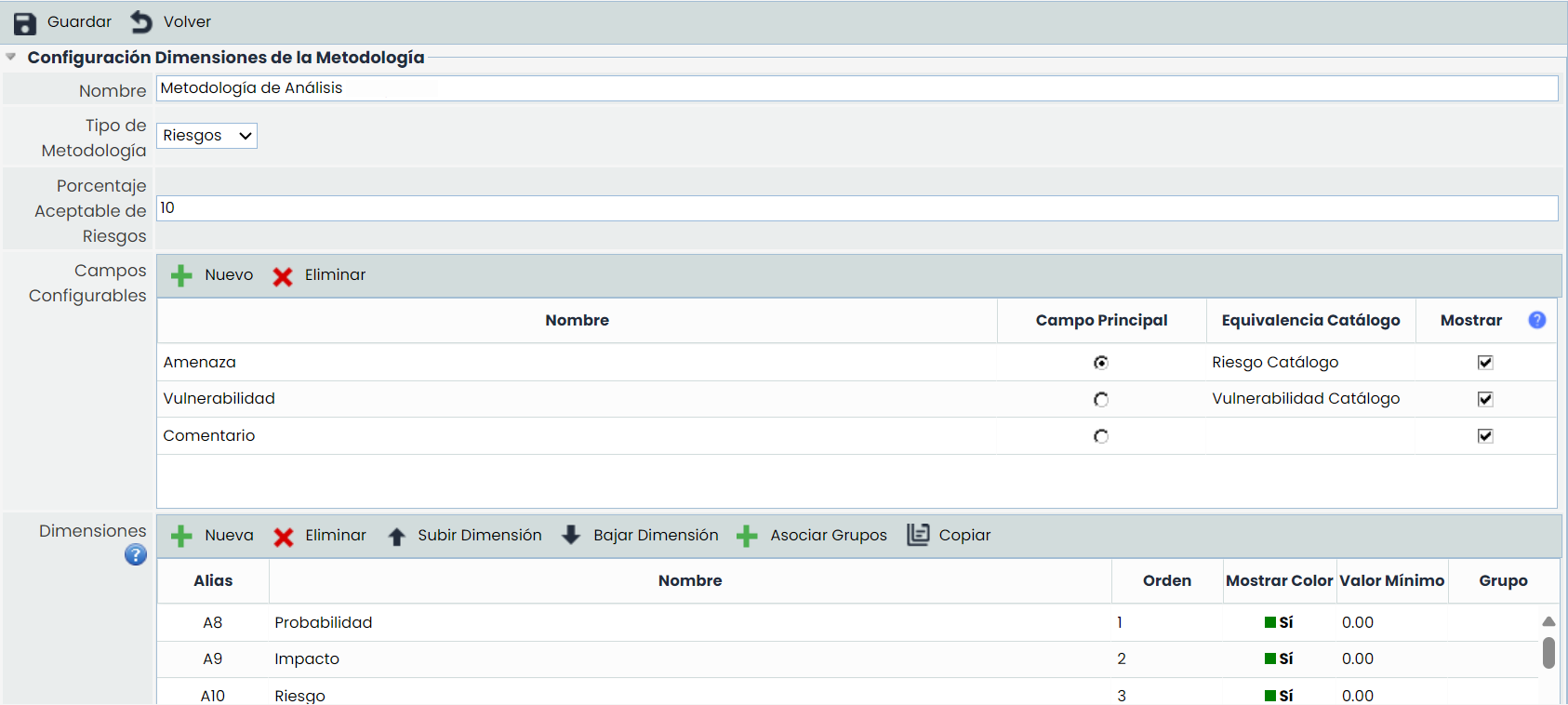
By clicking on one of the methodologies, the following parameterization options are provided.
-
Name: Identifies the name of the methodology. This name is displayed in the list of methodologies.
-
Acceptable Threat Percentage: Allows the user to define the percentage of threats to be displayed in the 'Risk Analysis/Evaluation' section.
-
Configurable Fields: Offers the possibility to define the textual columns we want to appear in the 'Risk Analysis' option. The information displayed in the table is as follows:
-
Name Identifies the name of the item. To modify the text, double-click on the cell.
-
Main Field Allows defining the field to be displayed in the different options of the risk analysis, such as Risk Evaluation, Risk Management, etc.
-
Catalog Equivalence Allows defining the equivalence of the selected field. The following options exist:
-
Threat Catalog: By selecting this option, the field will display the information defined in the Threat field of the 'Settings/Analysis Catalogs' option.
-
Vulnerability Catalog: By selecting this option, the field will display the information defined in the Vulnerability field of the 'Settings/Analysis Catalogs' option.
-
Empty Field: If the field is left empty, it is interpreted as a free text field.
-
Dimensions
Allows configuring the dimensions to be assessed in the risk analysis. Dimensions can be created and deleted, as well as configured for their order of appearance in the corresponding table using the 'Move Dimension Up' and 'Move Dimension Down' buttons.
To facilitate modeling, the "Copy" button allows copying a dimension from the risk methodology with all its information. (levels, formulas, visibility, groups).

The information provided by the table is as follows:
-
Alias: Identifier automatically generated by the tool.
-
Name: Displays the name of the dimension. Double-clicking on the cell allows changing its name.
-
Order: Identifies the order in which the dimension will appear in the risk analysis.
-
Show Color: Allows defining whether we want to highlight the dimension in a color.
-
Minimum Value: Identifies the minimum number on which the formula of the selected dimension is calculated.
-
Type: Identifies whether the dimension is of type Text or not.
-
Group: Displays the groups to which each dimension belongs.

Different actions can be performed in the table, including:
-
Associate Groups: Clicking the Associate Groups button opens a pop-up window like the one above, allowing us to select which group or groups of dimensions the dimension belongs to.
-
Copy: Allows copying the selected dimension with all its information.
Dimension Type
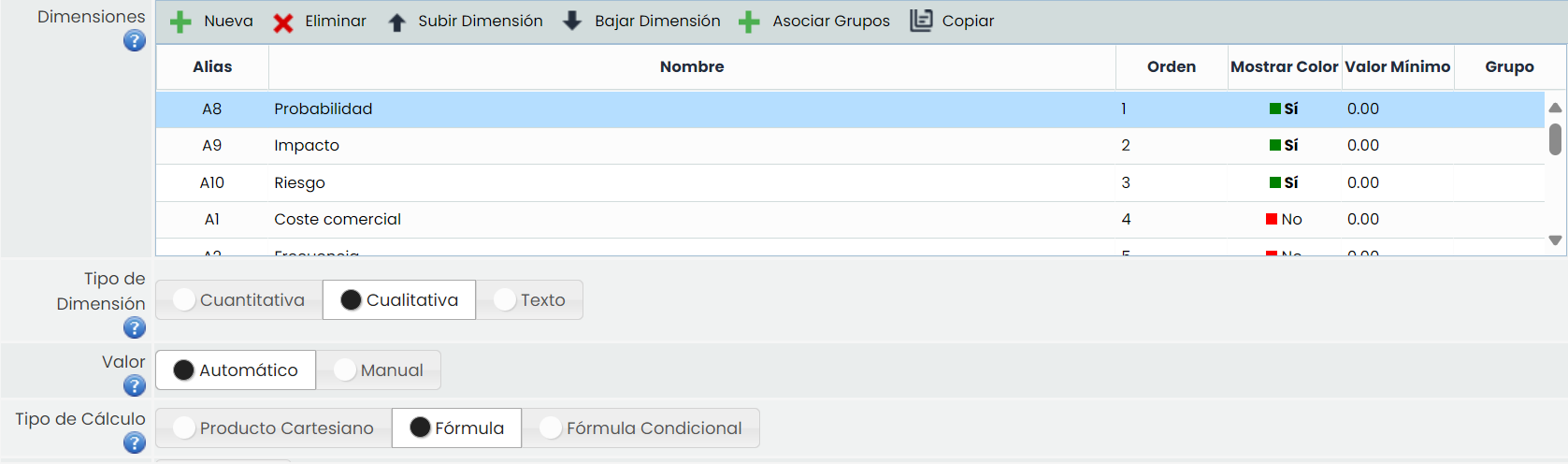
Offers the possibility to establish the calculation method of the dimensions, allowing the following options:
-
Quantitative: Allows defining that the calculation of the selected dimension is quantitative, enabling a numerical value to be set for the dimension.
-
Qualitative: Allows defining that the calculation of the selected dimension is qualitative, enabling a specific range of values to be set (e.g., High, Medium, Low).
-
Text: Allows defining that the dimension is of type text.
Value: Allows defining how the calculation (Manual or Automatic) of the selected dimension in the upper table will be performed.
Calculation Type
If an automatic calculation was selected in the previous option, the tool offers the following options:
-
Cartesian Product: Allows establishing the calculation of the selected dimension based on a matrix of two dimensions defined in the 'Dimensions' option. To do this, select one dimension on the 'X-Axis' and another on the 'Y-Axis' and assign values based on the established levels.
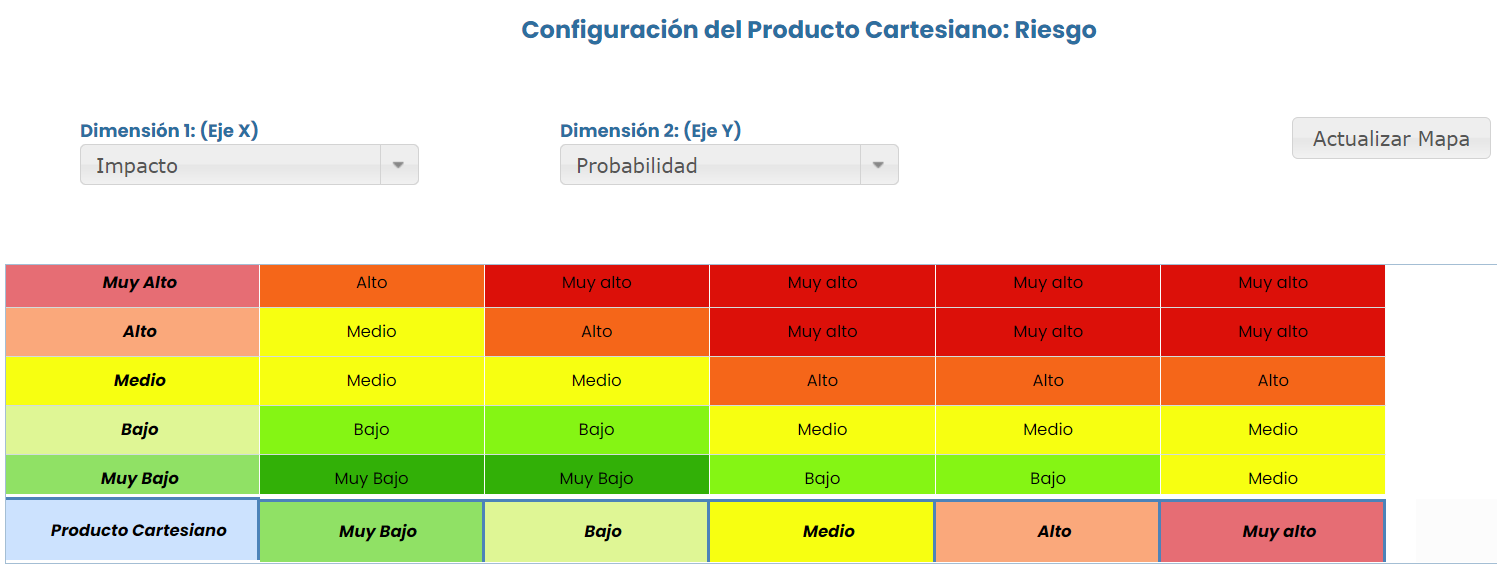
NOTE: The Cartesian product cannot be generated based on dimensions whose calculation is quantitative.
-
Formula: This option allows defining how the calculation of the selected dimension will be obtained based on a mathematical formula. The tool provides the following option:
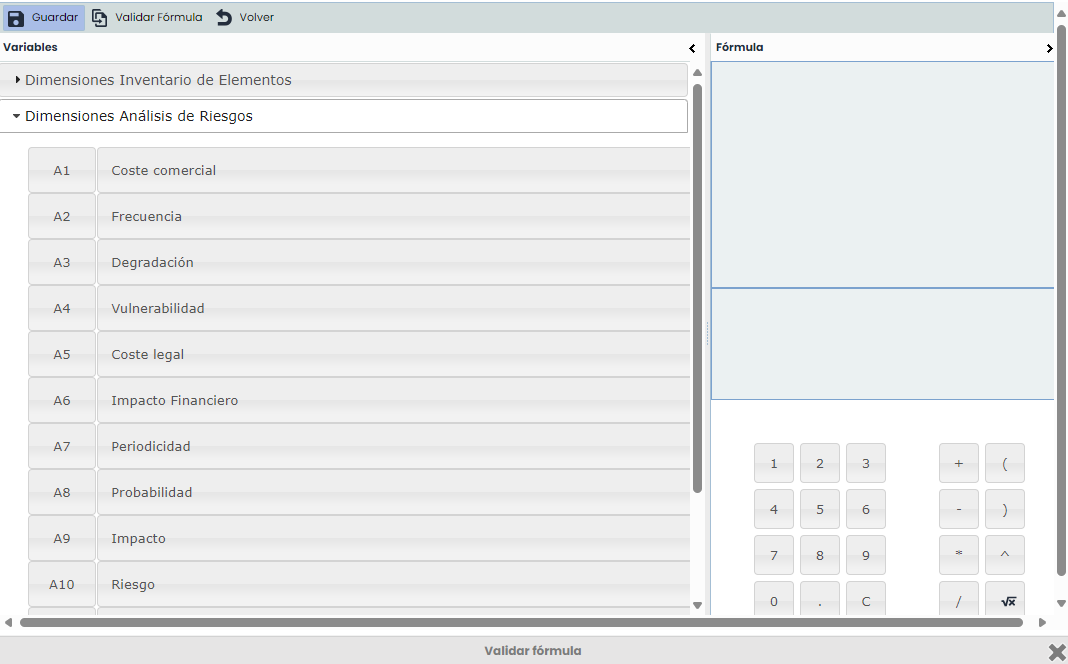
NOTE: The calculation of automatic dimensions with Formula is performed whenever there is a parameter of the formula with a value (a parameter can be another manual or automatic dimension, or a numeric digit).
If the formula is evaluated, parameters without a value (empty dimensions) will be replaced with a zero value.
In the case of having an associated 'control methodology,' the calculation formula allows incorporating the dimensions defined in said control methodology.
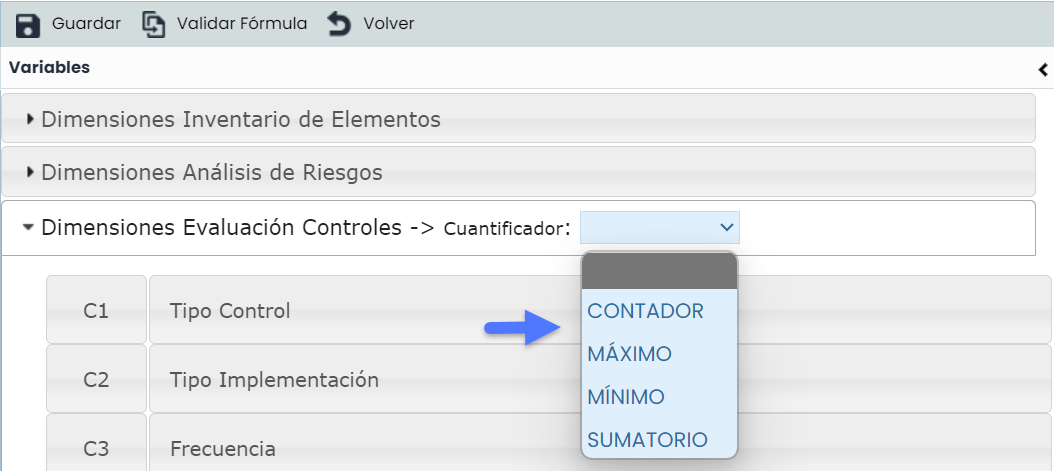
If you want to establish a formula considering the implemented controls, it is necessary to set a quantifier for these dimensions, choosing from the following:
-
COUNTER: Performs a calculation to obtain the value as the number of controls associated with each threat. Example: If I have 3 controls associated with a threat, this calculation will result in the value 3.
-
MAXIMUM: Performs a calculation to obtain the maximum value of the selected dimension from all controls applied to each threat. Example: If I have 3 controls with values 1, 2, and 3, this calculation will result in the value 3.
-
MINIMUM: Performs a calculation to obtain the minimum value of the selected dimension from all controls applied to each threat. Example: If I have 3 controls with values 1, 2, and 3, this calculation will result in the value 1.
-
SUM: Performs a calculation to obtain the sum of the selected dimension from all controls applied to each threat. Example: If I have 3 controls with values 1, 2, and 3, this calculation will result in the value 6.
-
Conditional Formula: This option allows establishing a conditional calculation between different dimensions set in the methodology.
To configure this section, click the 'Configure' button to access the following screen:
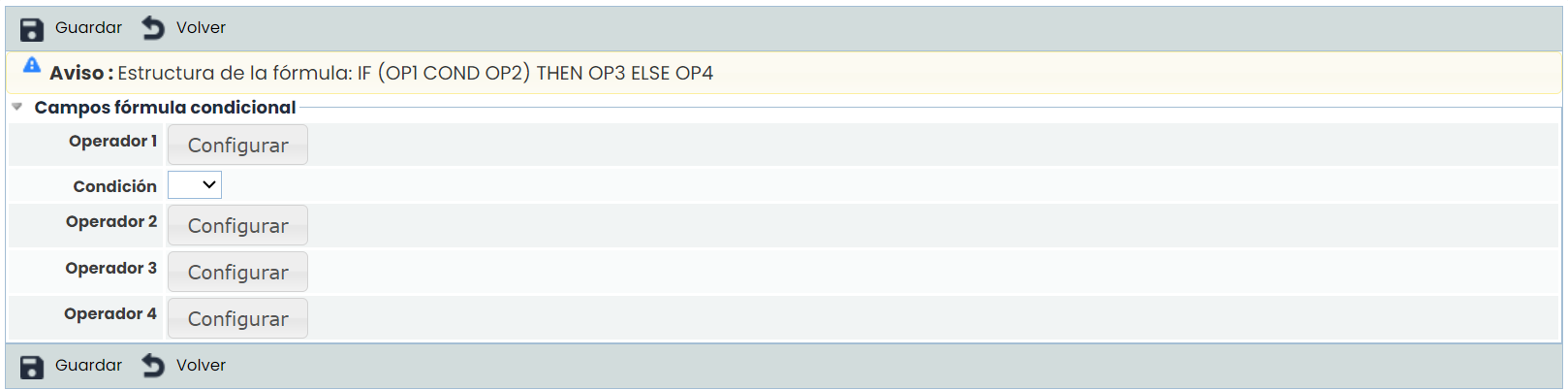
The configuration of the conditional formula is based on operators, where operators 1 and 2 are used to set the condition, and it is necessary to select the same in the dropdown. The options provided by the tool are:
-
==: Equal to
-
!=: Not equal to
-
<: Less than
-
>: Greater than
-
<=: Less than or equal to
-
>=: Greater than or equal to
Once the condition formula is established, the results to be obtained must be set. If the condition is met, the results shown correspond to operator 3, and otherwise to operator 4.
The user can choose between the different dimensions and calculation options to generate the formula based on which the result of the selected dimension will be obtained.
Note
It is necessary to validate the formula before saving it by clicking the 'Validate Formula' button.
-
Result: Allows defining the values of the selected calculation option in the upper point (Cartesian Product or Formula).
Dimension Levels
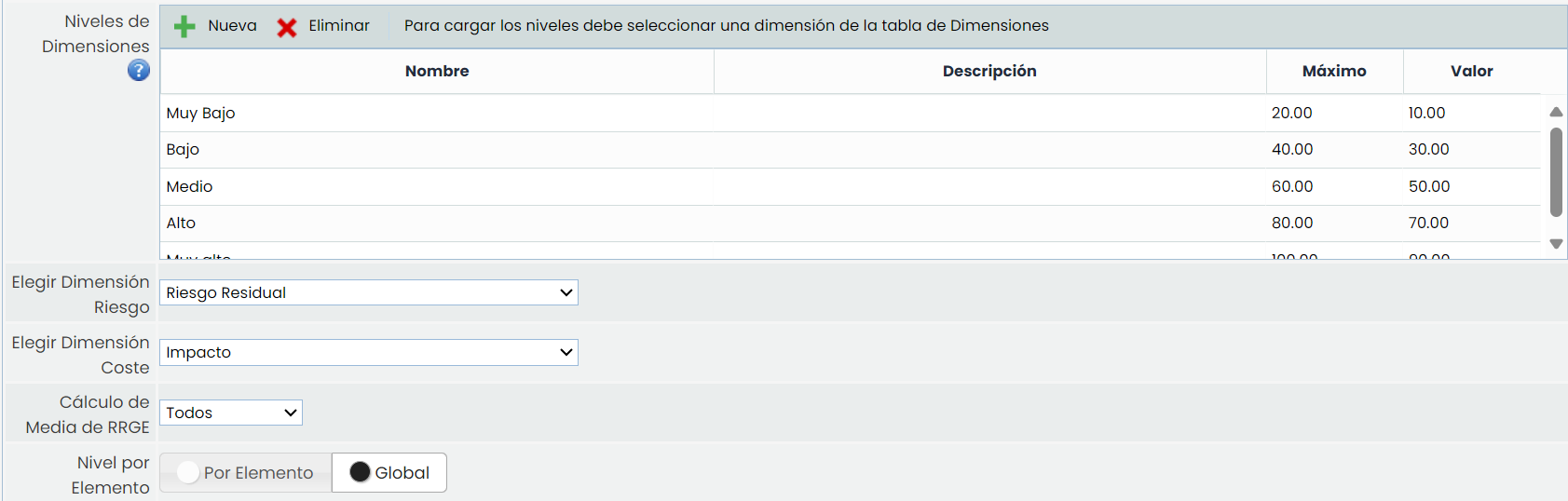
Allows defining the assessment levels of the selected dimension. As with the other options, levels can be created and deleted, as well as parameterized with the desired color to highlight the levels during the assessment by selecting the level to modify and clicking the 'Change Color' button.
Note
If the levels are defined for a qualitative dimension, the tool allows defining the calculation range of the selected level and the value on which it will be calculated. If the levels are defined for a quantitative dimension, it allows defining the color in which the numerical values will be highlighted in the asset inventory.
-
Choose risk dimension: Allows defining the dimension we want to mark as the final risk dimension. This dimension will be the one displayed by default in the different views and summaries of the risk analysis, and in the risk map.
-
Choose cost dimension: Allows defining the dimension on which we want to obtain the cost. Based on it and the configuration of the cost types, costs of the risks can be obtained.
-
GRRI Average Calculation : In this field, it is possible to configure how the Global Repercussed Risk by Element (GRRI) is calculated if we have defined Average as a criterion, in the Risk Summary section. It can be calculated from all elements or only from those that are valued.
-
Level by element: Offers the possibility to define whether the acceptable risk level (ARA) is Global, meaning the same for all risks, or by Element, allowing customization for each element/risk to determine its acceptable risk level.
Dimension Visibility Configuration
-
Dimension Group: Allows creating groups of dimensions, which can be associated with the dimensions.
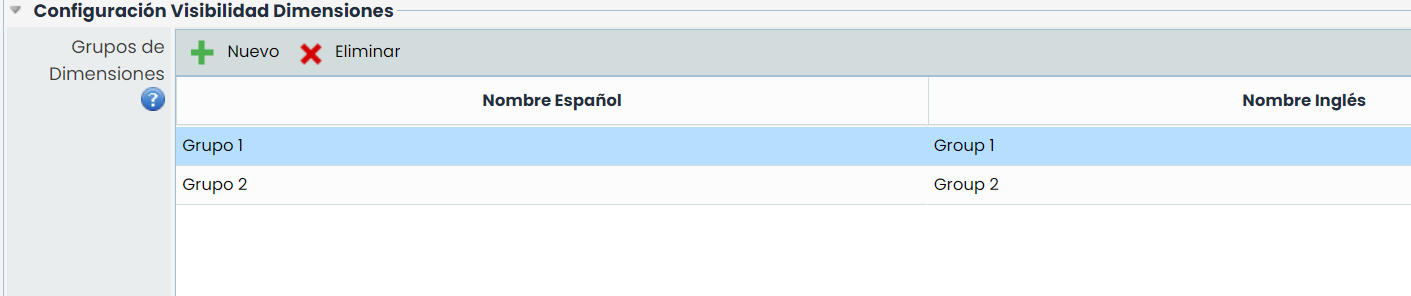
For each configured group, we will have the option in the Risk Analysis to display only the dimensions of that group.
Cost Configuration
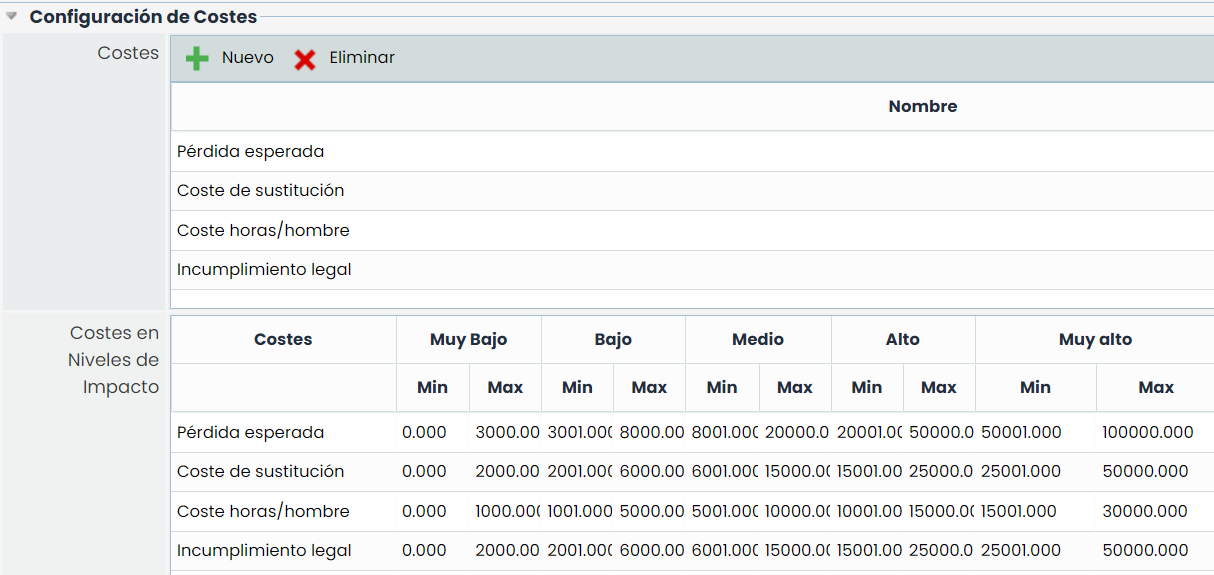
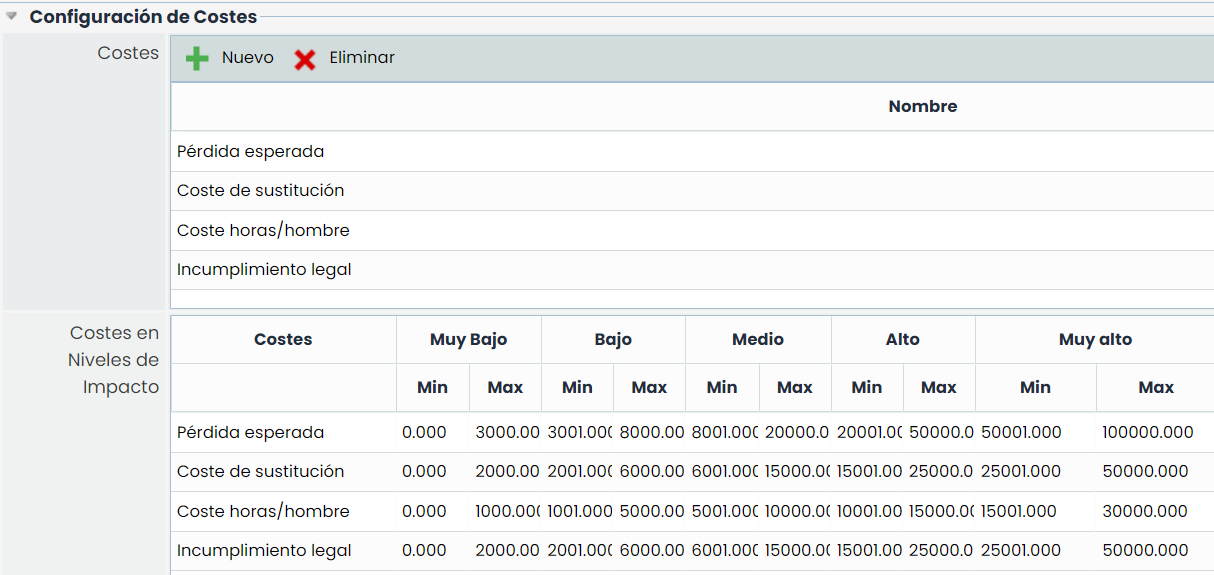
The materialization of a threat may involve a specific cost for the organization. To this end, GlobalSuite allows defining a list of costs to associate with the threats in the risk analysis.
The 'Costs' table allows creating or deleting costs using the 'New' or 'Delete' buttons.
Once the costs are defined, the economic amount involved for the organization must be indicated, allowing economic ranges to be set by double-clicking on the cell to modify.
Control Effectiveness
Allows establishing the calculation of the effectiveness of controls in the 'Analysis > Risk Management > Projection and Simulation' section.
For this, the following parameters can be defined:
-
Effectiveness measurement type: Offers the possibility to establish the percentage of improvement of the risk dimensions in the projection and simulation section, allowing the following options:
-
Quantitative: Allows defining that the percentage of improvement of the risk dimensions is quantitative, enabling the establishment of the percentage of improvement of the risks in the Projection and Simulation section.
-
Qualitative: Allows defining that the percentage of improvement of the risk dimensions is qualitative, enabling the establishment of a determined range of values (e.g., High, Medium, Low). This classification is set in the following section of 'Effectiveness Levels.'
-
-
Control effectiveness measurement type: Offers the possibility to establish the percentage of improvement of the control dimensions in the projection and simulation section, allowing the following options:
-
Quantitative: Allows defining that the calculation of control effectiveness is quantitative, enabling the establishment of the percentage of control reduction in the Projection and Simulation section.
-
Qualitative: Allows defining that the calculation of control effectiveness is qualitative, enabling the establishment of a determined range of values (e.g., High, Medium, Low). This classification is set in the following section of 'Effectiveness Levels.'
-
Direct: With this mode, the calculation of control effectiveness (treatment plans) will be defined directly in the Projection and Simulation section. With this type, it is not necessary to have a predefined effectiveness assessment.
-
-
Effectiveness Levels: Allows defining the effectiveness levels of controls. Like the rest of the options, levels can be created and deleted by clicking the 'Add' or 'Delete' button. Each level can have an associated improvement percentage.
Control Methodology
Offers the possibility to define the control methodology that will be associated with the risk analysis methodology.