
Once you have created the new Plan, (from the option List Adaptation Plans ) you can access the corresponding form by clicking on the link found in the Plan's name.

By clicking on the link, a new window will open with the corresponding form.
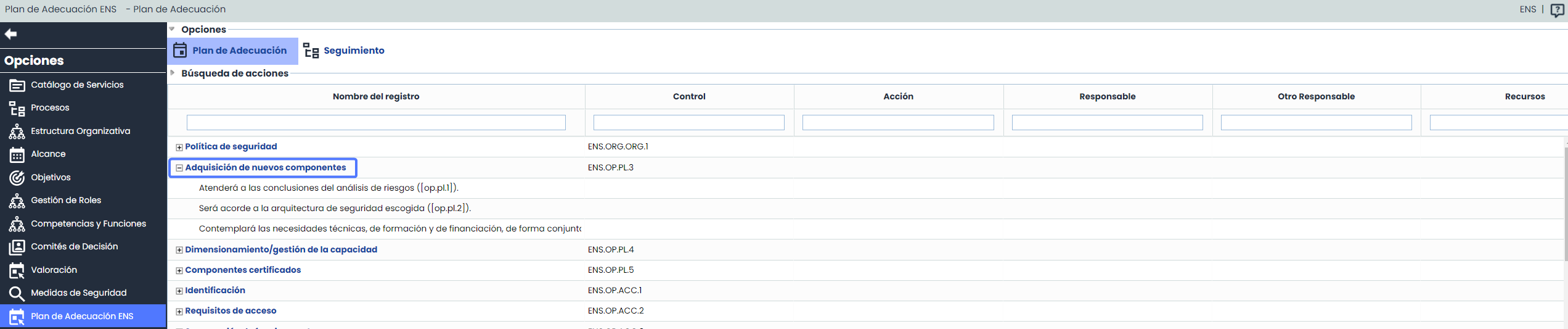
This view will display all applicable security measures, and below as actions, the mandatory controls and reinforcement controls that are not 100% implemented.
-
Record Name:
-
This field indicates the name of the control, and by expanding each control, the name corresponding to the actions will be displayed.
-
The control name is a link to its form where the fields of the view can be edited.
-
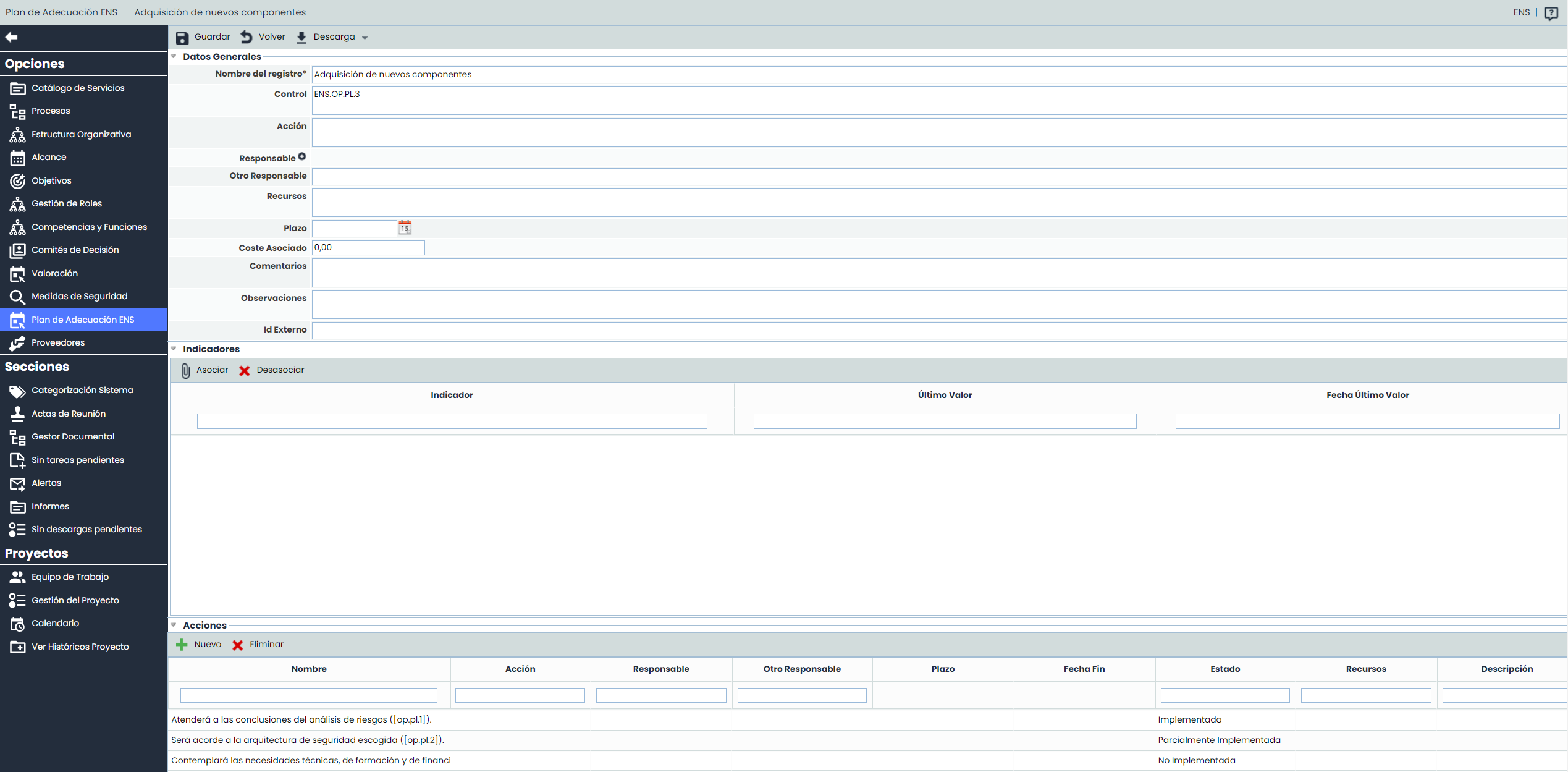
General Data
-
Control: Identifies the ENS group and section to which the control or security measure belongs.
-
Action: Description of the task to be performed to fulfill the control.
-
Responsible: Allows associating a responsible person to each action. This responsible person must be selected from the set of users registered as "Employees" in the Management > Employees option.
-
Other Responsible: Allows defining the person responsible for verifying the completion of the adaptation task or its actions, which can be defined textually.
-
Resources: Allows identifying the resources that will be involved in completing the task.
-
Deadline: Allows defining the maximum deadline by which the task must be completed.
-
Associated Cost: Allows defining if the implementation of the task involves any associated economic cost.
-
Comments: Enables adding any additional comments to the task.
-
Observations: Allows adding any additional observations to the task.
-
External ID
NOTE: The name, order, and visibility of the columns can be configured in Settings > Methodology of elements > Control Sheet . The fields from the control sheet configuration with visibility "All" or "Control Sheet" will be displayed.
Indicators
If you have the GlobalSuite® Balanced ScoreCard license, you can associate and disassociate indicators to the control. By clicking on "Associate Indicator," a window will open with the list of existing indicators, which can be associated with the control.
Once associated, clicking on the indicator's name will direct you to its form for more details.
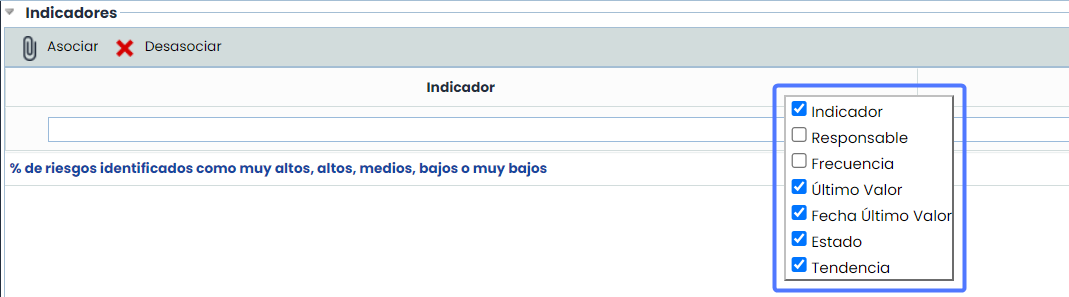
The visibility of the table fields can be modified by right-clicking on any of the fields. The "Responsible" and "Trend" fields will only be available with the GlobalSuite® Balanced ScoreCard license.
NOTE: The management of indicators is carried out in the ScoreCard section.
Actions
All actions that are not fully implemented will be displayed, and new ones can be added or existing ones removed from the Plan.

-
Filters:
-
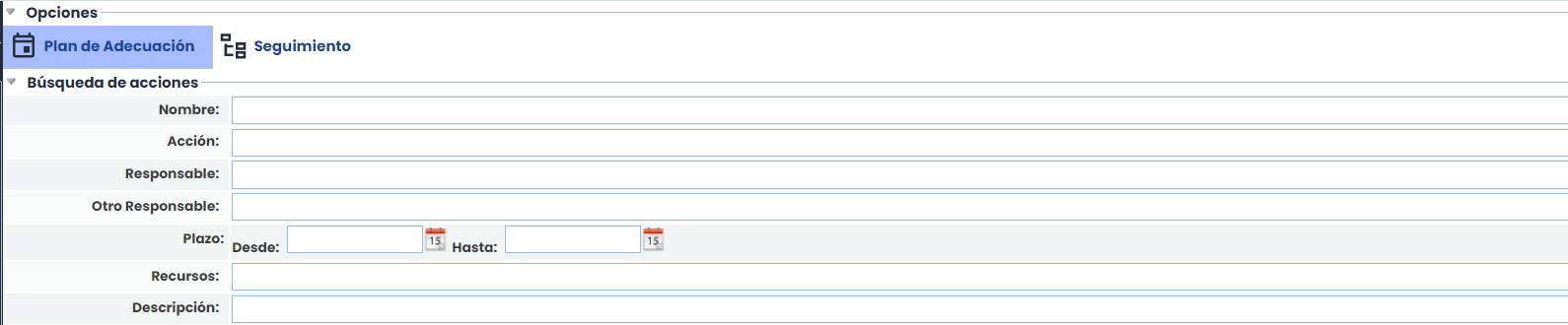
In addition to filtering by Security Measures, it is possible to independently filter actions in the Actions Search section.
-
Plan Monitoring
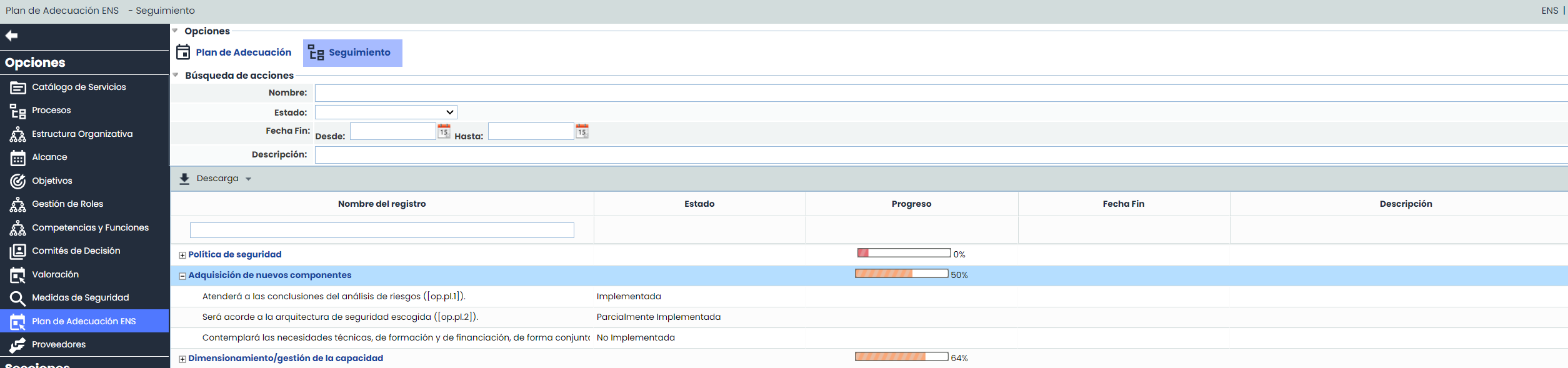
This view, in addition to identifying which controls are not 100% compliant and should be according to the regulations, will allow us to perform detailed monitoring of each control and see its progress in real-time.
-
Record Name:
-
This field indicates the name of the control, and it is a link to its form.
-
By expanding each control, the name corresponding to the actions will be displayed.
-
-
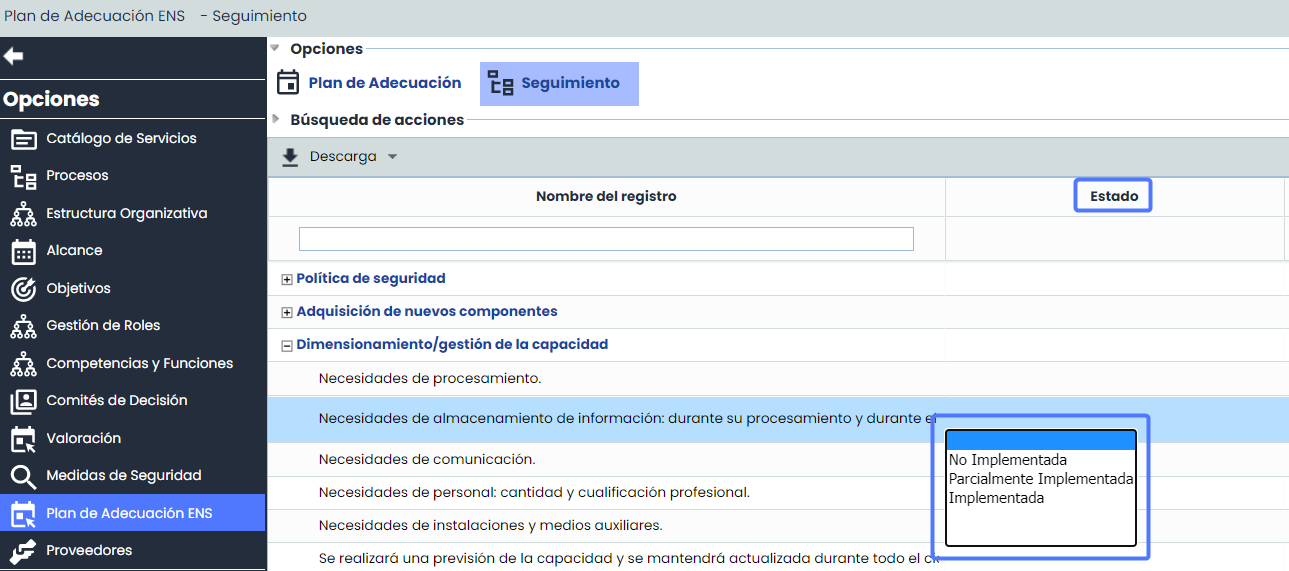
Status: Editable selector field with the possible levels of action implementation. Editable only at the action level. The options for this field can be configured in the Settings > Methodologies > Elements option.
-
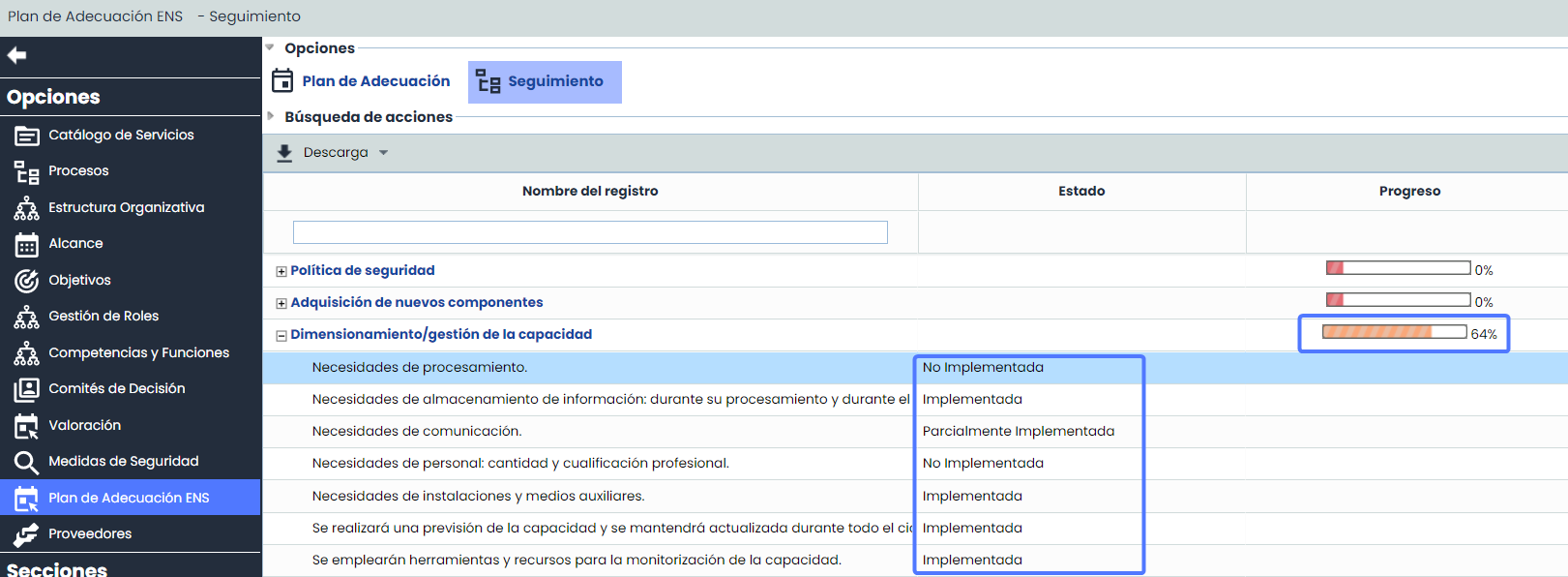
Progress: This is an automatic field that calculates the percentage of progress for each control through the average of the states of its actions.
-
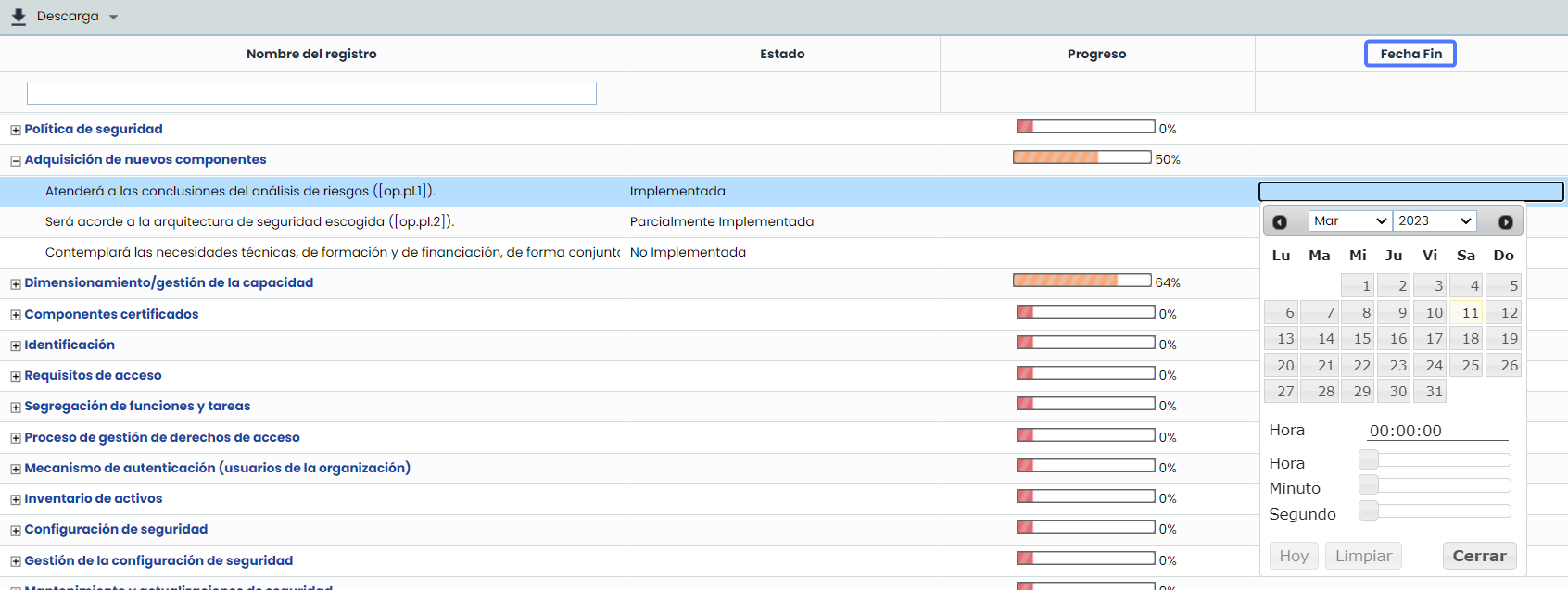
End Date: Editable field only for actions, which will indicate the review date of the controls.
-
Description: Editable text field for actions.
-
Download:
-
CSV Report: This option allows generating a CSV Report of the controls and actions to be implemented for better data review and analysis. Additionally, if filters are applied in the view, the records matching those filters will be downloaded in the Report.
-

NOTE : The report will be available in the Pending Downloads option.