Header
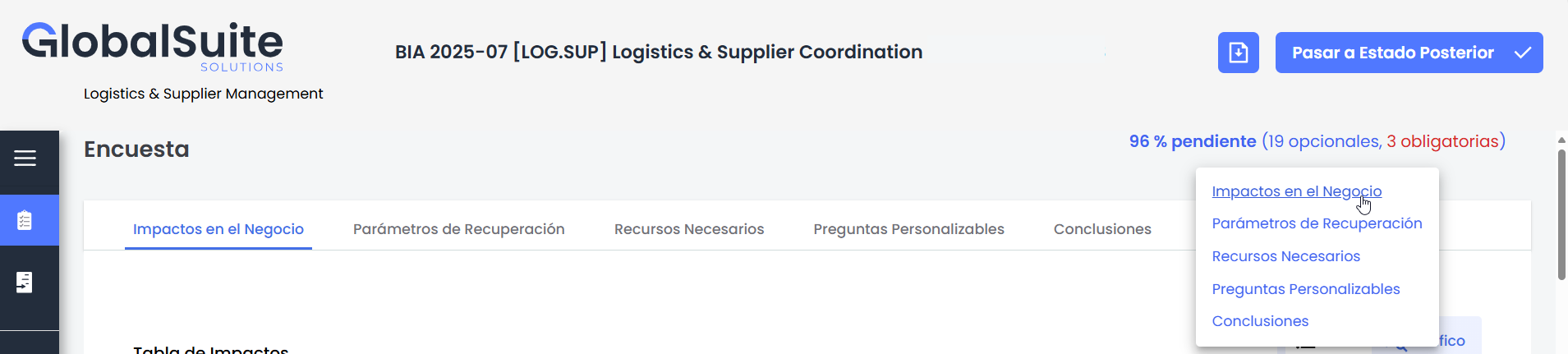
The survey header provides the user with key information about the form they are completing, along with available actions related to their progress. It consists of the following elements:
-
Pending percentage
Indicates the total percentage of survey questions that have not yet been answered, also distinguishing how many of them are optional or mandatory.The format is:
“X% pending (Y optional, Z mandatory)”
For example: “54% pending (8 optional, 2 mandatory)”-
X: total percentage of unanswered questions.
-
Y: number of unanswered optional questions.
-
Z: number of unanswered mandatory questions.
Hovering over this percentage displays a list indicating the form tabs where there are still pending questions, allowing quick access to them.
In surveys with tables, these are considered answered when:
-
Impact tables: at least one impact has been assessed.
-
Other tables: at least one entry has been recorded.
-
-
Survey flow buttons: depending on the current state and the flow configuration defined for the survey, one or more action buttons may be displayed.
More information about the operation of the Survey Flow and creation or modification of the BIA
The header remains permanently visible while navigating between the different blocks of the form.
Tab navigation
BIA surveys are organized by tabs, each corresponding to a block of the form previously configured in Administration > BIAS > Form Blocks .
Survey tabs are generated only for those blocks that contain at least one visible field or a visible custom question, and are ordered according to the value indicated in the Index column of each block.
The fields displayed in the General Details section (such as Name, Date, Responsible, or Department) are not considered to determine whether a block should be displayed as a tab.
The names and order of the tabs are dynamically updated according to the current configuration of the form blocks. Any changes made to the blocks—whether in name or order—apply to both new and existing surveys.
Impact assessment
Within the Business Impacts tab of BIA by Impact surveys, it is possible to record the assessment of business impact at different interruption levels.
Depending on the configuration of the Impact Types in the Settings > Business Continuity section, one or more tables will be displayed to evaluate:
-
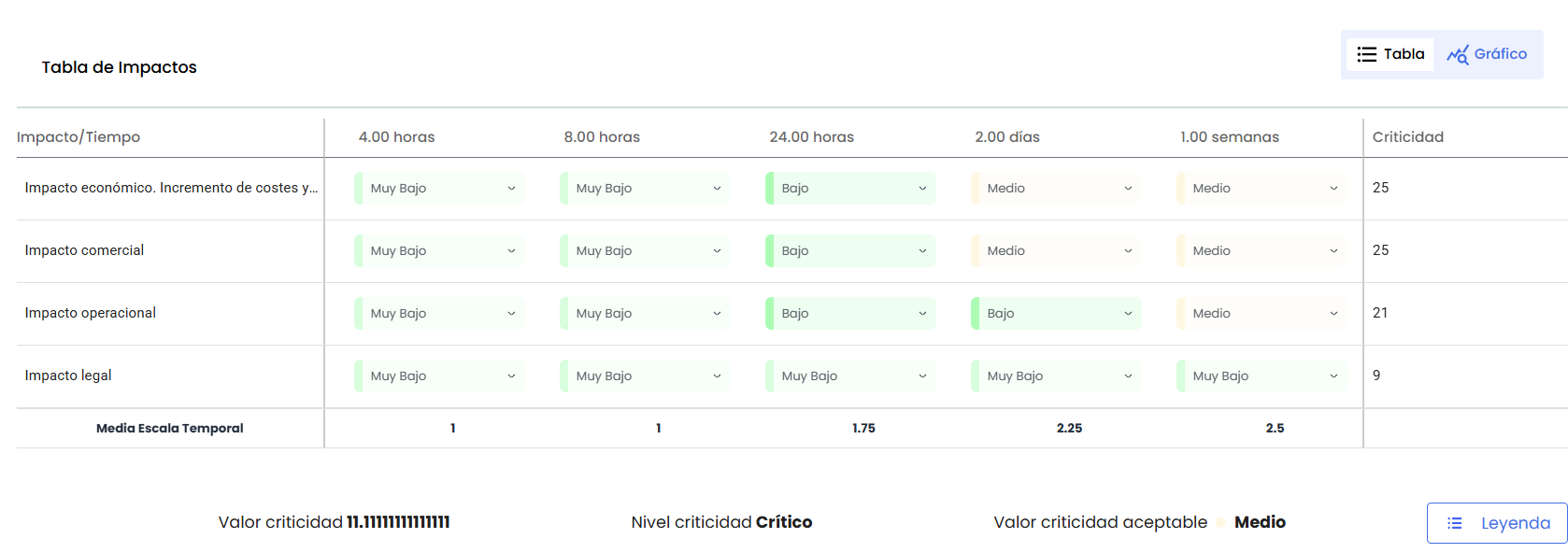
Qualitative impacts: assessment based on predefined levels.
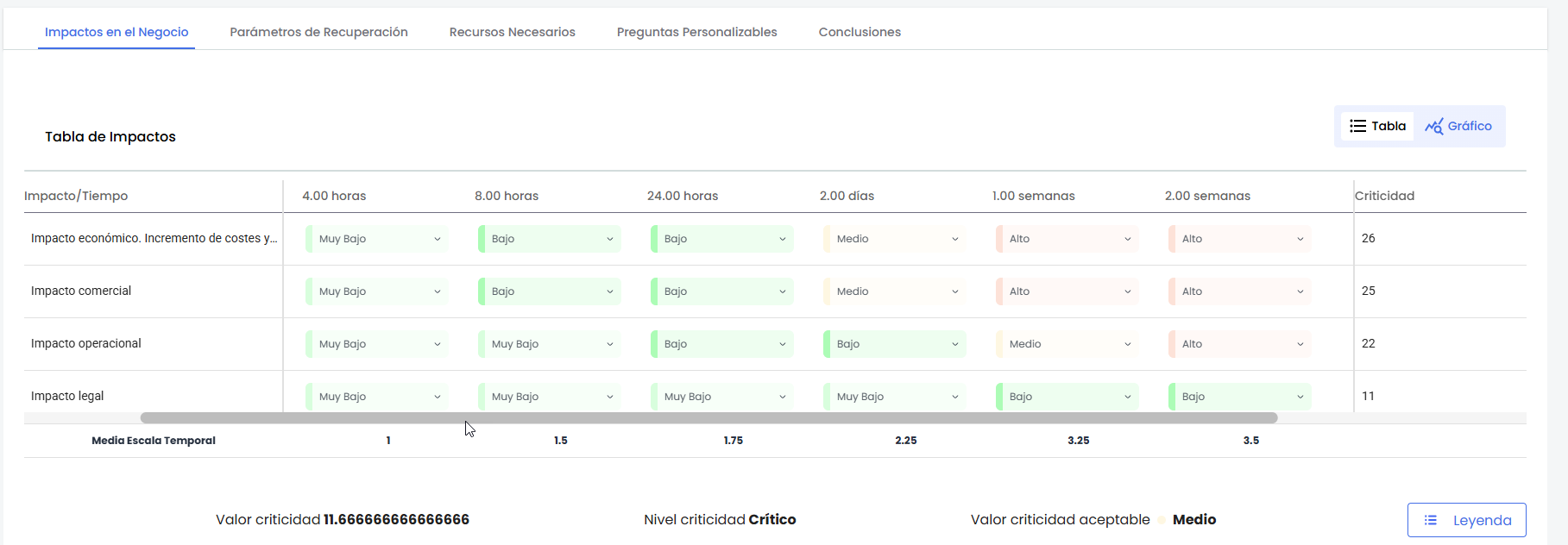
These tables present the types of impact defined by the organization and allow evaluations to be entered for different time horizons.
The key elements of these tables are described below:
-
Evaluation table: allows recording values for each type of impact.
-
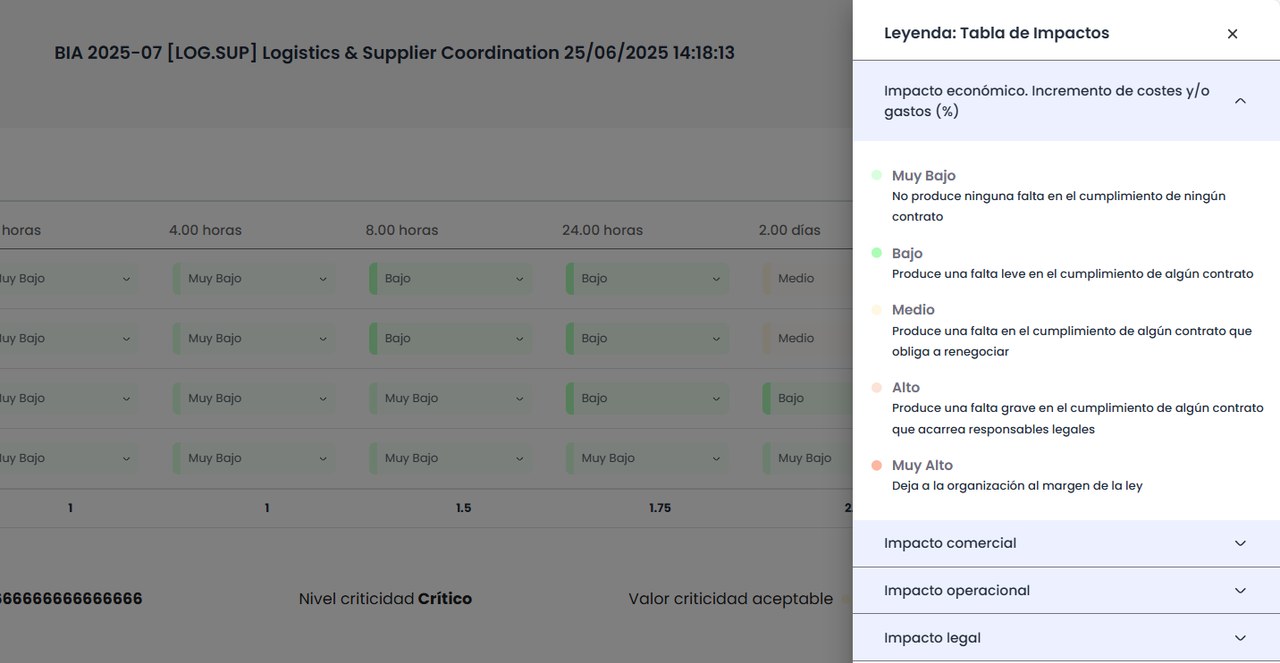
“Legend” button: visible if the option Show Impact Table is enabled in the survey model. Clicking it displays the impact levels along with their definition and assigned color.
-
Graphical visualization: available through the corresponding icon, it shows a visual representation of the entered assessments.
-
-
Quantitative impacts: assessment by entering numerical values
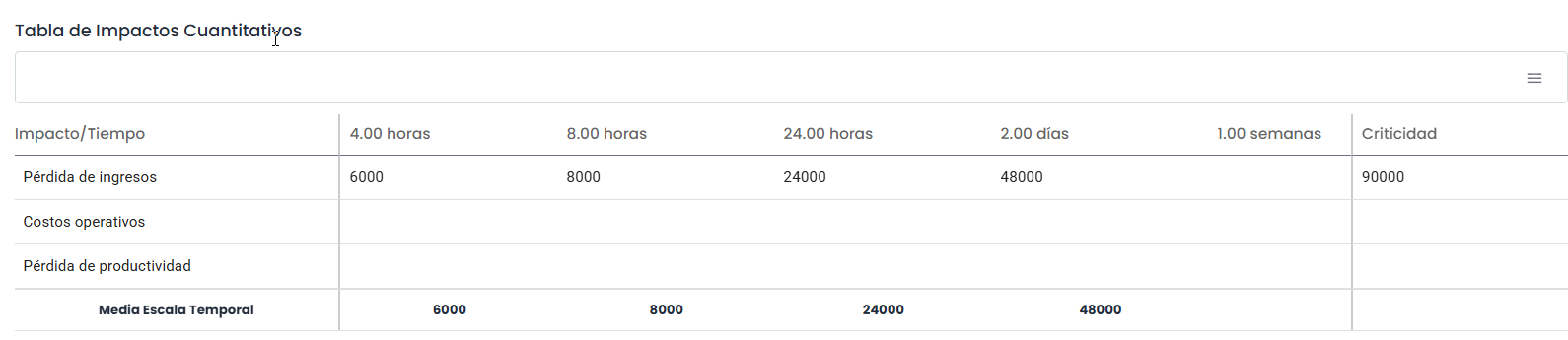
For each table, a process criticality value is calculated, based on the entered information and the criterion defined in Settings > Business Continuity (Cumulative, Maximum, Minimum, Average, or Weighted Average). In the case of qualitative tables, a criticality level is also determined from the obtained value, according to the configured scale.
Recovery Parameters
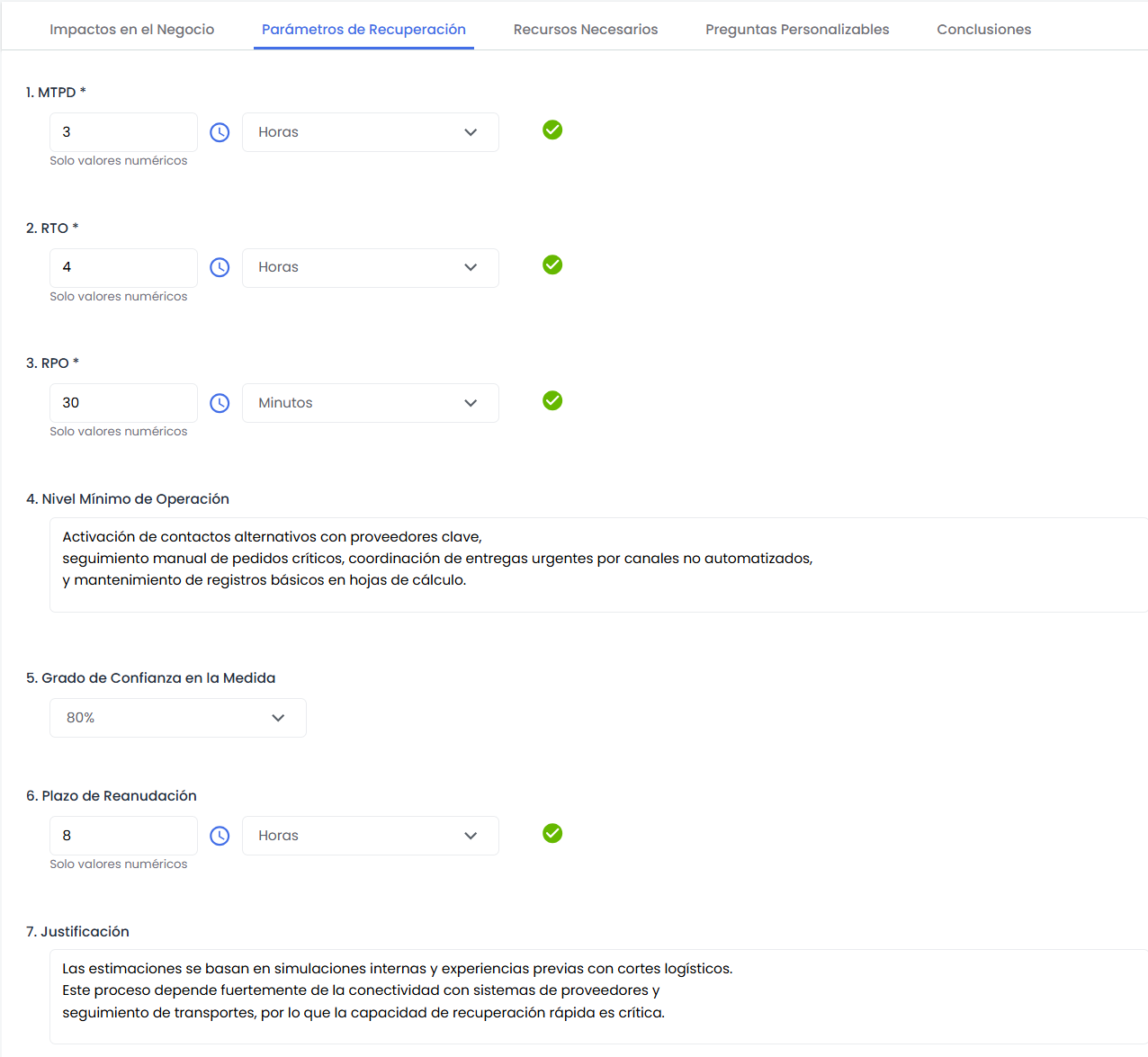
Allows the user to define more generic points when establishing a BIA, such as the following:
-
MTPD (Maximum Tolerable Period of Disruption) : Allows defining the maximum downtime of the service. To make the field valid, a value and units must be entered and “Confirm” must be pressed.
-
RTO: Allows setting the recovery time objective for processes. To make the field valid, a value and units must be entered and “Confirm” must be pressed.
-
RPO: Allows setting the recovery point objective for process information. To make the field valid, a value and units must be entered and “Confirm” must be pressed.
-
Minimum Operating Level: Enables identifying the minimum levels necessary for service delivery.
-
Confidence Level: Enables indicating the user's confidence level regarding the defined MTPD.
-
Recovery Timeframe: Allows defining the recovery timeframe for the resources needed to support the service or business process.
-
Justification: Text field to justify the timeframe identified in the previous section.
Necessary Resources
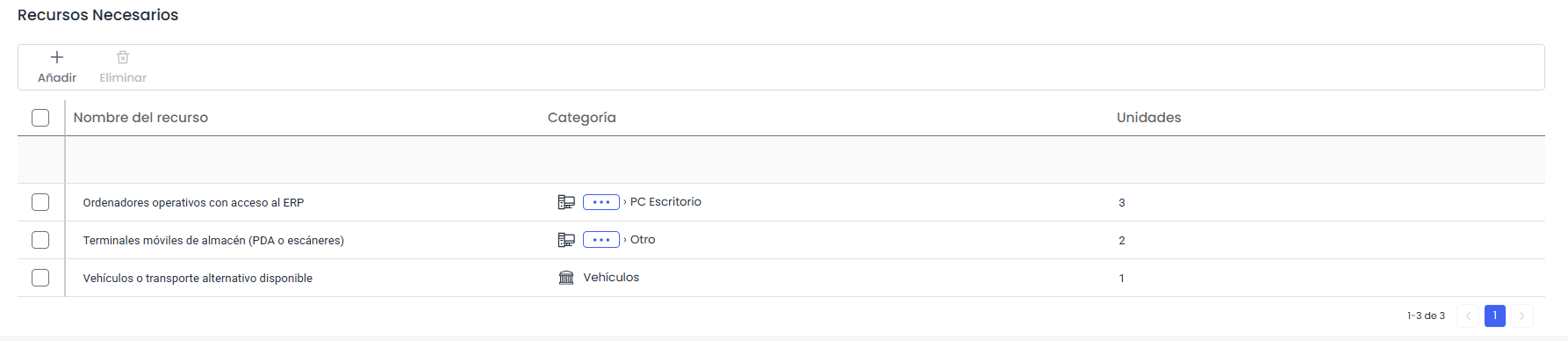
It will be possible to identify the necessary resources to ensure the recovery of the evaluated process in case of interruption.
Resources may include elements from all categories configured in GlobalSuite such as personnel, technology, locations, suppliers, equipment, among others.
Customizable questions
In the BIA Survey, the questions included in the model configured in the 'Settings/Survey Models' section will appear. These questions can be of different types: 'Text', 'Select', 'Table', or 'Table of Elements'.
-
Table of elements:

For 'Table of Items' type questions, items from the Inventory (Analysis/Inventory) can be included using the 'Link Items' button. Clicking it opens a pop-up window displaying the list of items with the categories configured for the question, allowing the selection of the items to be incorporated into the question and adding them through the 'Associate Items' button.
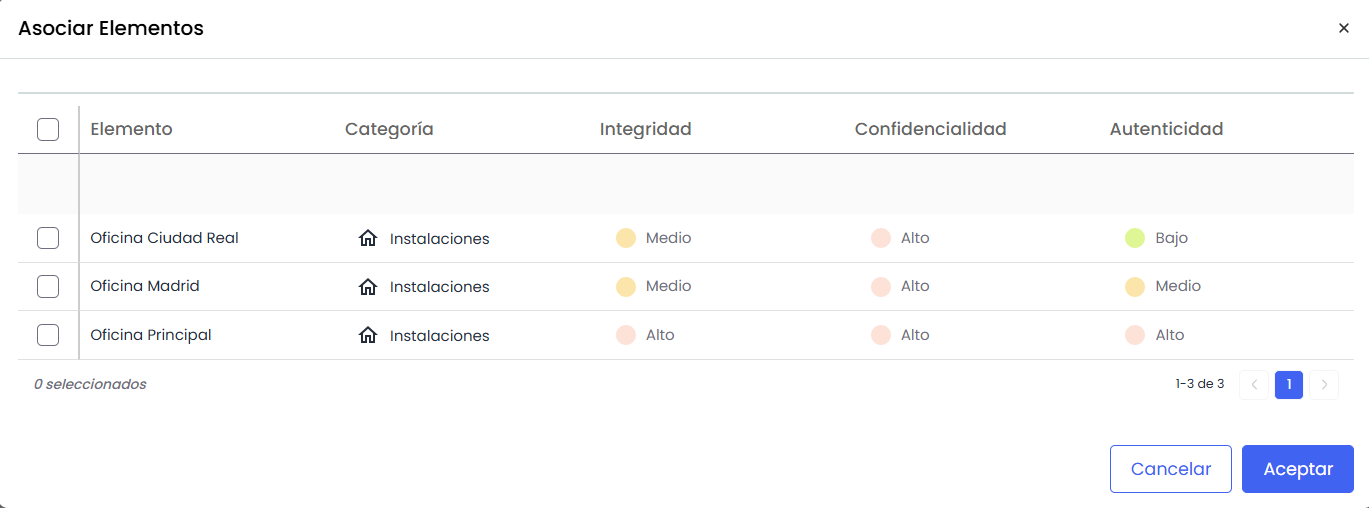
New items can also be added by clicking the 'Create Item' button. These items will appear in red to indicate that they are not part of the Inventory.
For all items incorporated into the 'Table of Items' type question, it is possible to specify the recovery time in case of disaster using the 'RTO Value' and 'RTO Unit' fields, as well as adding a comment for each item.
Conclusions and comments
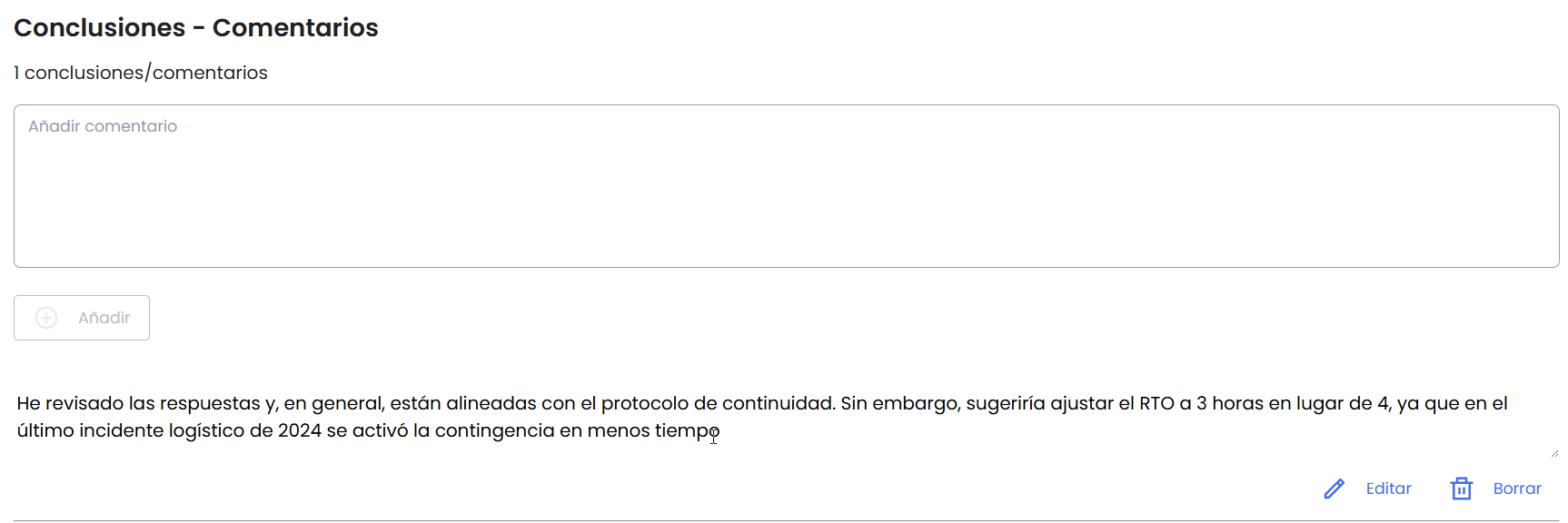
In BIA by Impact surveys that have the “Conclusions - Comments” section enabled, a table with that title will be displayed within the tab configured in the survey model.
This section includes:
-
An upper legend showing the total number of added comments.
-
A free text field to enter comments. This field allows up to 500 characters and includes a visible counter just below.
-
An “Add” button to register the entered comment. This button is only activated if the field contains text.
Comments are listed in ascending order, showing the most recent comment first.