In this article, we will see how to configure access options for GlobalSuite functionalities in the Audit module.
These access options will allow greater control and restriction in the use of the platform.
This ensures that the Audit area can operate independently and securely, while effectively integrating with other areas of the organization, such as Risk.
What are the specific Audit Roles?
There are two specific Administrator roles for the Audit Management Module.
-
Ad. Auditor
-
Ad. Management System
These roles involve allowing a more detailed level of control and restriction to ensure that the Audit area can operate in isolation and independently from the rest, while integrating with other areas such as Risk.
How to create these Roles?
The following roles have the ability to create them:
-
Enterprise Administrator
-
Platform Administrator
-
Access Administrator
-
Organizational users: Platinum, Gold, Consulting Administrator, and Consulting.
They must be created like the rest of the users, from the Settings > Users option.
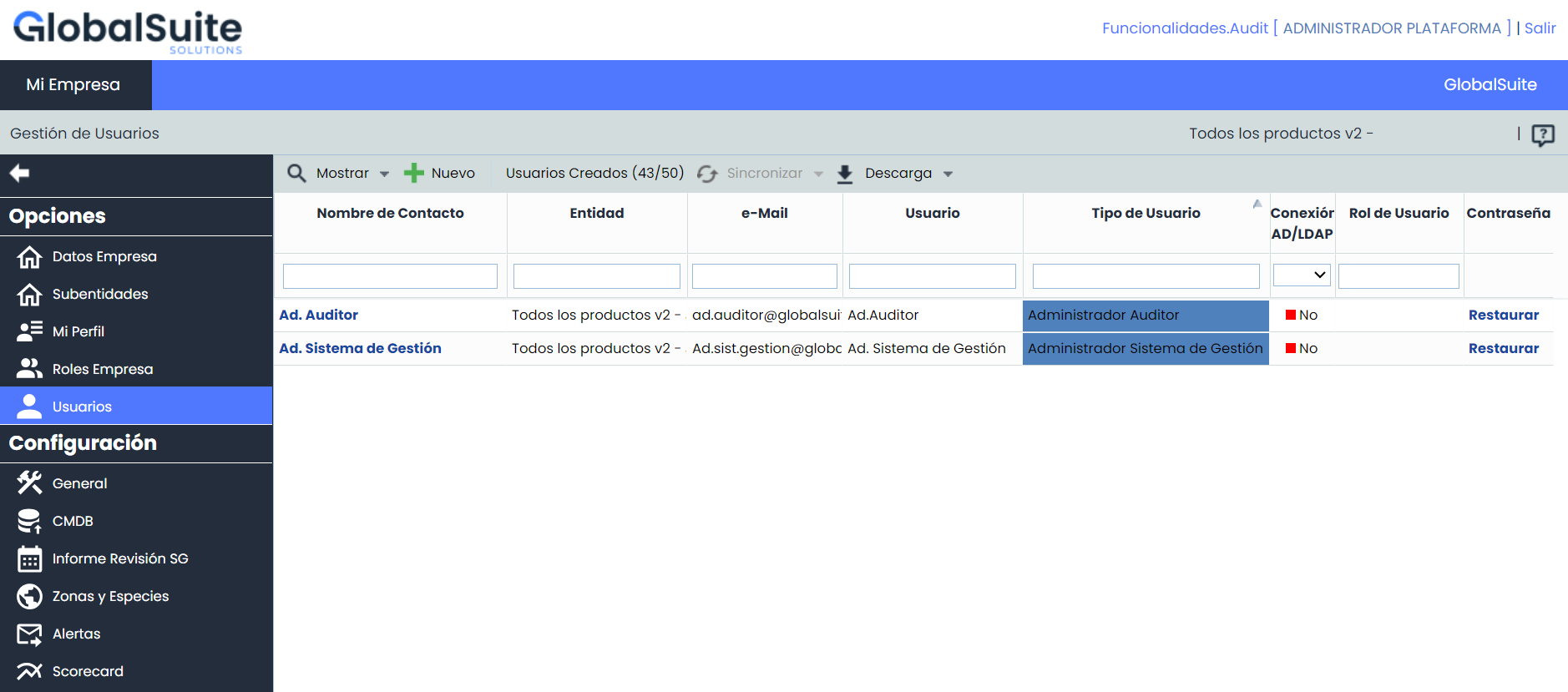
What does the Ad. Auditor Role imply?
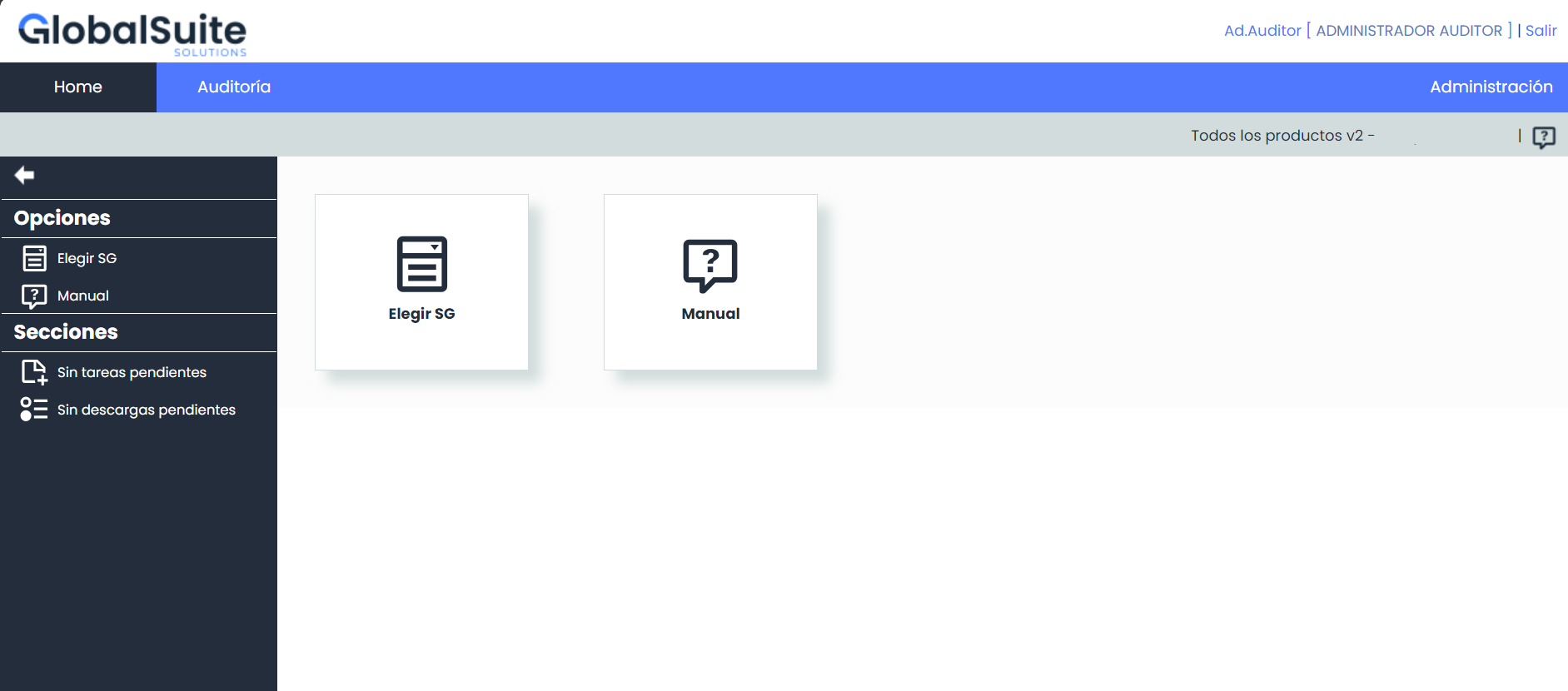
The Ad. Auditor has privileges and exclusive access to functionalities related to the audit menu and can create company users with access only to these functionalities. The rest of the GlobalSuite functionalities will be out of their reach.
Some key features of this Role:
-
Creation and Management of Audit Users: Users with this role can create and manage users with exclusive access to the functionalities of the Audit module.
-
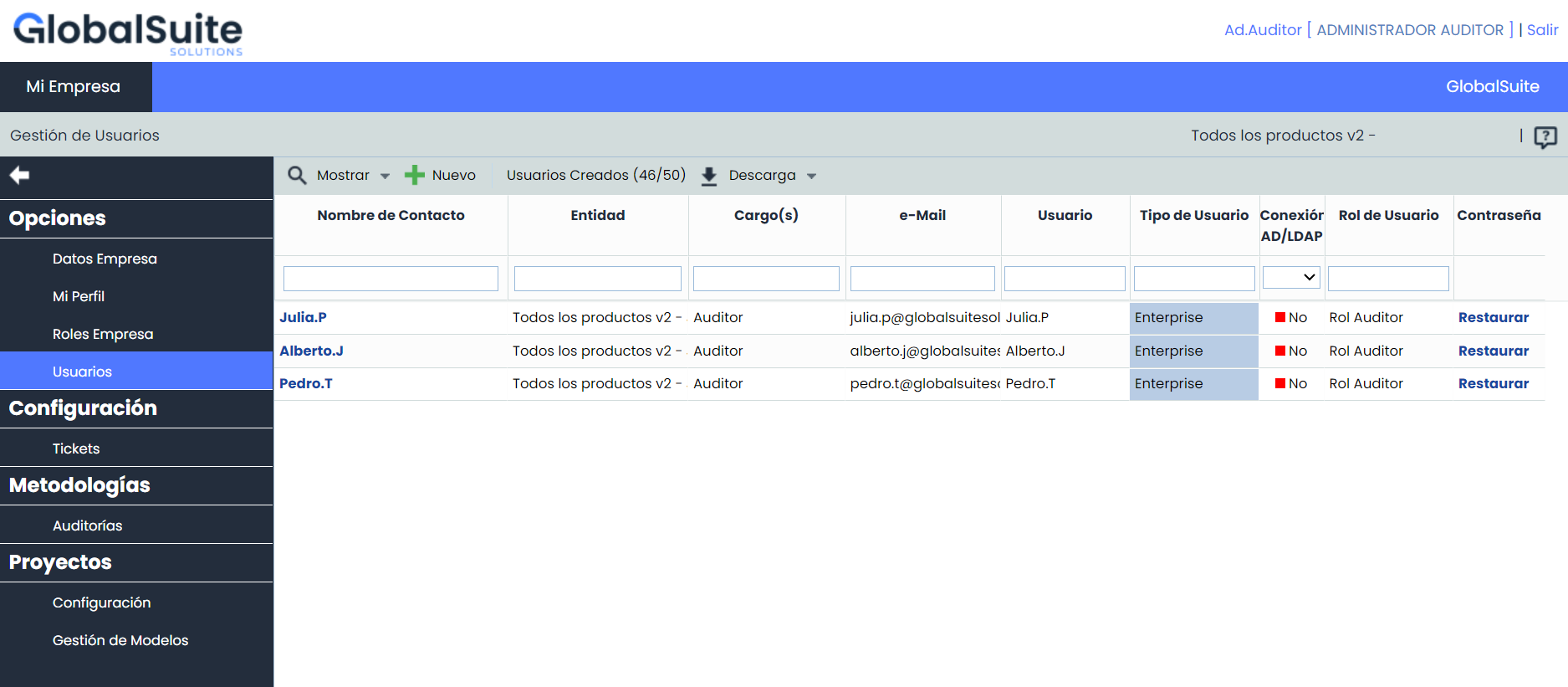
User list restriction: They will only be able to view the list of users who have access to the Audit module but will not be able to view or manage users with access to other options outside this module.
-
Limited functionality access: Users with the Ad. Auditor role will only have access to the functionalities of the Audit Management module and will not be able to access or manage functions outside this scope.
How to configure a user from the Ad. Auditor Role?
They must be created like the rest of the users, from the Settings > Users option.
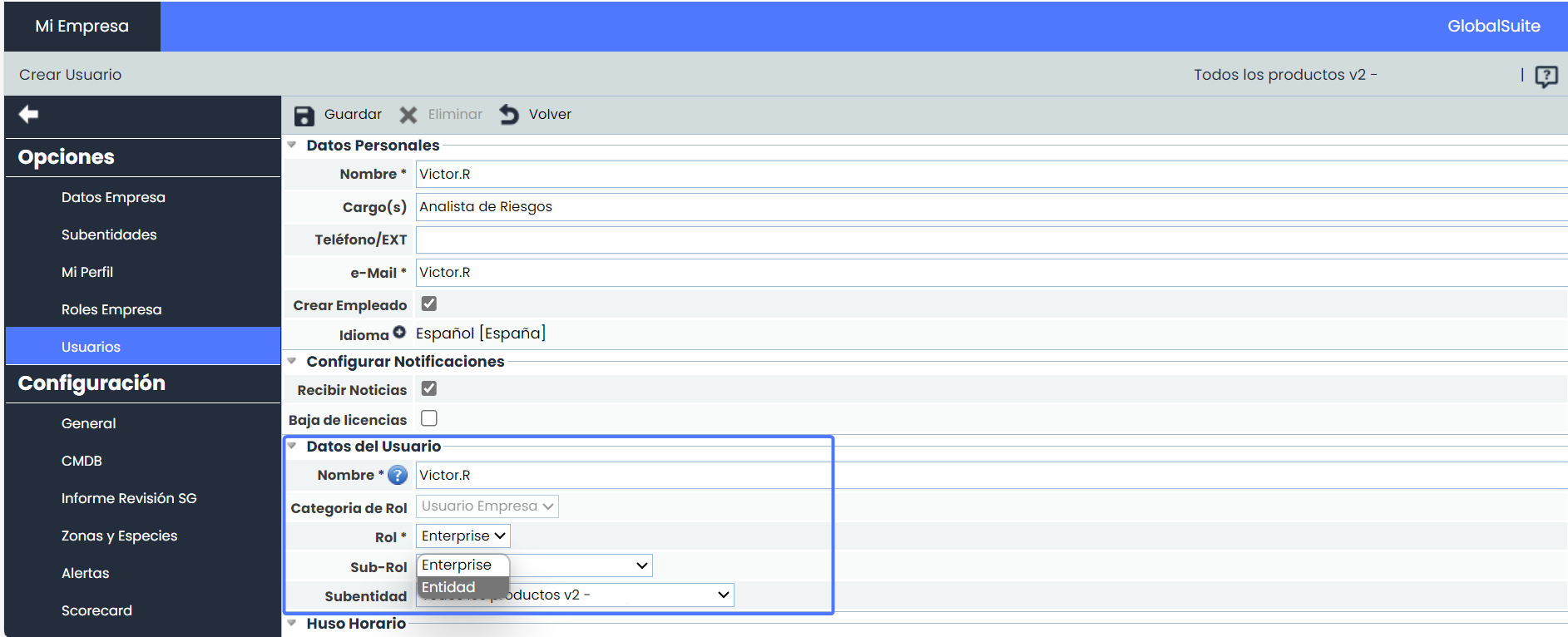
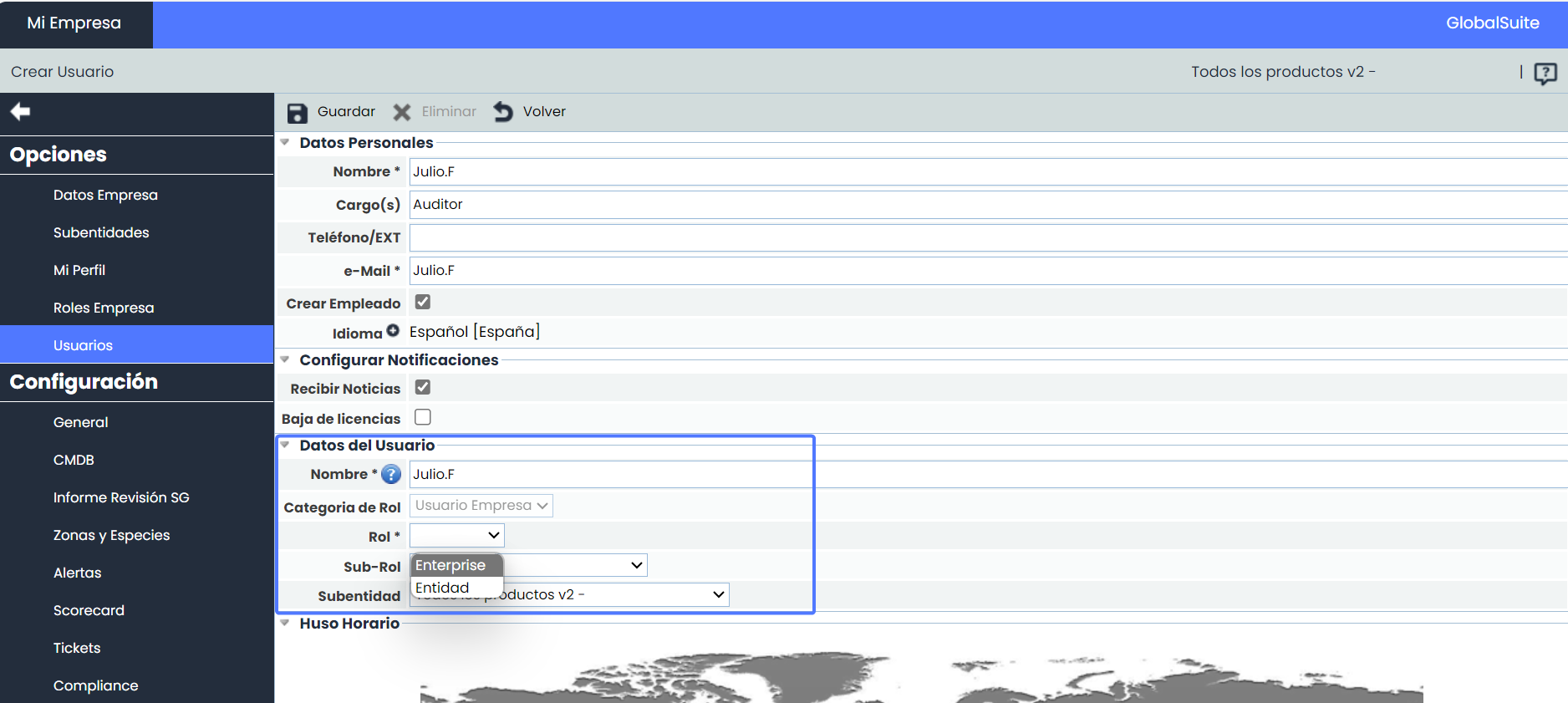
In the User Data section, the possible options are as follows:
-
Role Category: It will default to “Company User.” This role will not be able to create administrator users.
-
Role: Both Enterprise and Entity users can be created.
-
Sub-Role: Only sub-roles with exclusive access to Audit options will be displayed in the dropdown options. This field must be completed to create a user with this role.
What does the Ad. Management System Role imply?
The Ad. Management System has privileges to manage the general functionalities of the management system but will not have direct access to the specific functionalities of the Audit module.
Some key features of this Role:
-
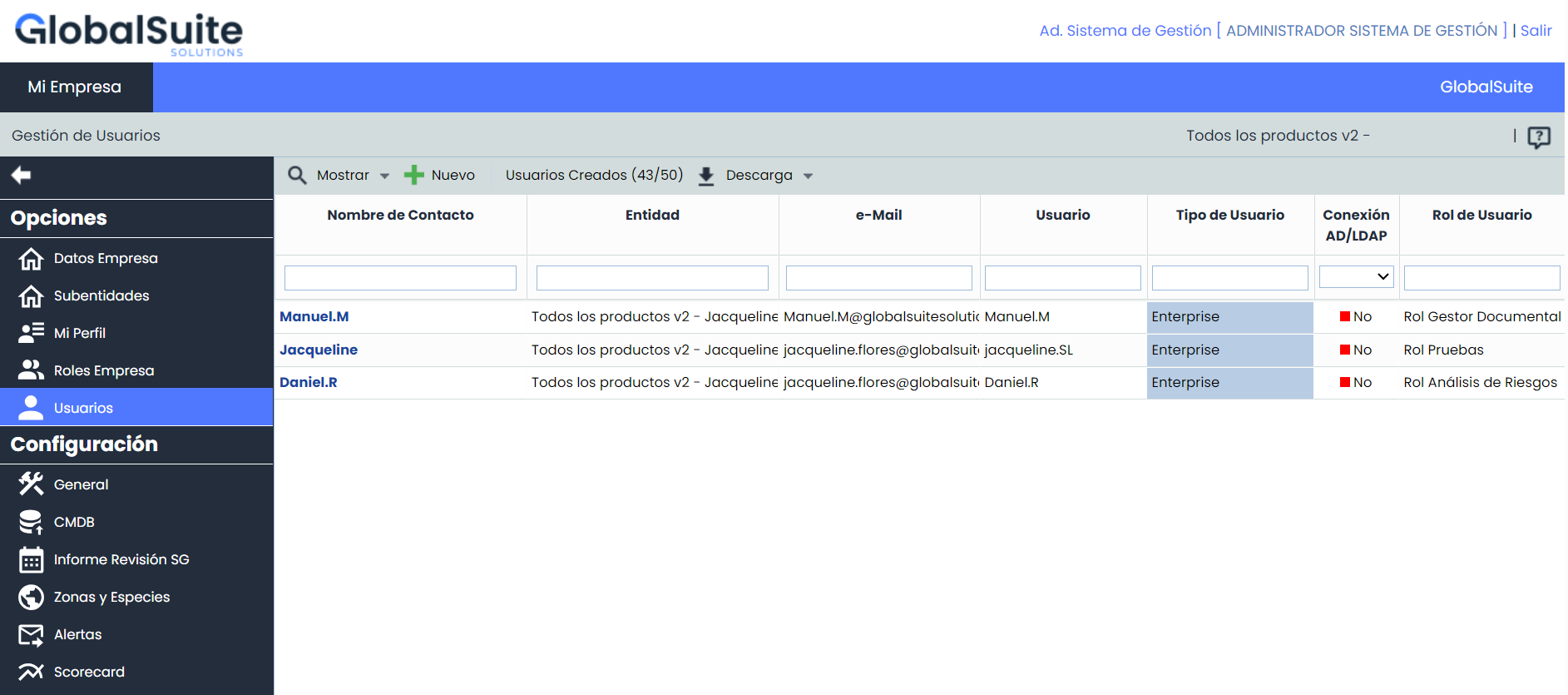
Creation and Management of General Users: Users with this role can create and manage users with access to all options, except those related to Audit.
-
User list restriction: They will be able to view the list of users who do not have access to Audit but will not be able to view or manage users with access to this functionality.
-
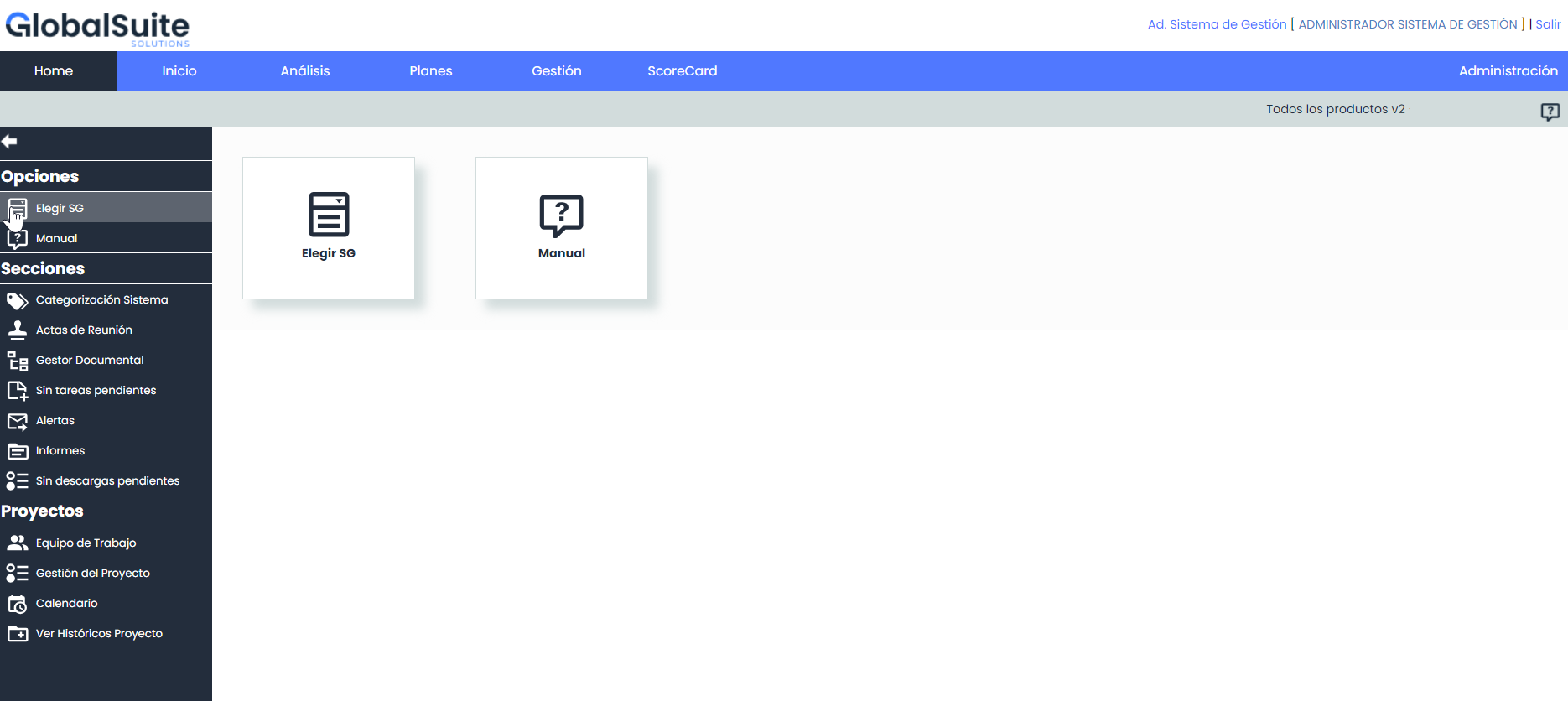
No Access to Audit: Users with this role cannot access or manage functions within the Audit scope.
No access to the Audit tab, and consequently, to all the options of the Module.
How to configure a user from the Ad. Management System Role?
They must be created like the rest of the users, from the Settings > Users option.
In the User Data section, the possible options are as follows:
-
Role Category: It will default to “Company User.” This role will not be able to create administrator users.
-
Role: Both Enterprise and Entity users can be created.
-
Sub-Role: All sub-roles, except those with access to Audit options, will be displayed in the dropdown options. This field must be completed to create a user with this role.