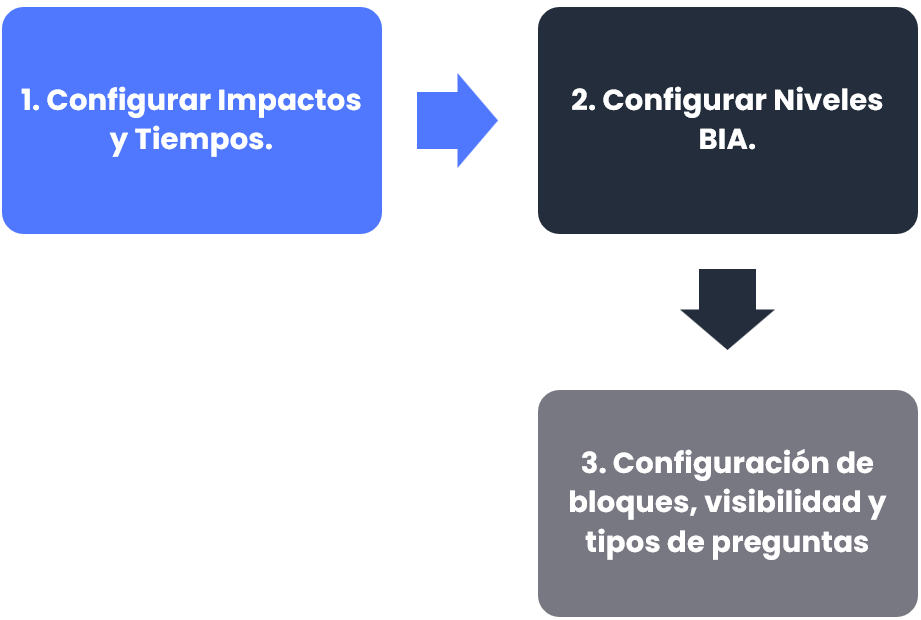
Phases for configuring the Business Impact Analysis (BIA)
Configuration of Impacts and Times
To make adjustments to the BIA forms in the GlobalSuite® Business Continuity module, you must access the option Settings > Business Continuity > BIAs . Inside, you will find a series of sections that can be customized to make the necessary adjustments.
Below are the steps to follow to make adjustments related to impacts and times in the BIAs.
First, GlobalSuite® allows defining different Types of Impact on the business.
The calculation value for each of these impacts will be set qualitatively in textual value or quantitatively in a numerical way.

Additionally, it is possible to define a Calculation Type for each type of impact for the calculation of the total impact:

-
Cumulative: sums the impact values over the defined time scale to obtain the total.
-
Average: calculates the average of the impact values over the time scale.
-
Maximum: the total impact value will be the maximum value of all those recorded for that type of impact.
-
Minimum: similar to the previous one, selects the minimum value of the impact values as the final value.
-
Weighted Average: calculates an average of the total impact values, but it is possible to apply weighting according to the weights of each type of impact.
Within a critical period analysis, it is possible to select which types of business impact you want to analyze by marking the Show Critical Period column as Yes or No.

Additionally, it will be possible to define the Global Calculation of the impact in the following ways:

-
Cumulative: the sum of all total values for each type of impact.
-
Average: calculates the average of the total values for each type of impact to obtain the global value.
-
Maximum: selects the maximum of all total values for each impact as the global value.
-
Minimum: conversely, the Global value will be the minimum of the total values for the impacts.
-
Weighted Average: calculates an average of the total values for the impacts, but it is possible to apply weighting according to the weights of each type of impact.
Once the types of impact and their calculation are defined, the type of criticality calculation must be selected to determine the global value of the impact table in the field Criticality Calculation Type. It can be done by rows, considering only the types of impact and formulas, by columns considering the time scale, or by rows and columns, which will be a combination of the two previous methods.
After this configuration, a table of Impacts by Time Scale is displayed, containing the types of impacts and their association with the different levels defined for the BIA, which will be shown in future slides.

The time scales to be used in the BIA can also be configured in GlobalSuite®. Below the impact table, there is a table called Time Scale that allows creating specific times through the buttons “Add” and “Delete”.
This table allows indicating both the Quantity (specific number) and the Unit to be used (seconds, minutes, hours, days, and weeks) for each time scale. To do this, double-click on the cells you want to modify. The indicated times are automatically sorted from smallest to largest.

Configuration of BIA Levels
As mentioned earlier, to make adjustments to the BIA forms in the GlobalSuite® Business Continuity module, you must access the option Settings > Business Continuity > BIAs . Inside, you will find a series of sections that can be customized to make the necessary adjustments.
Below are the steps to follow to make adjustments related to the configuration of BIA levels.
Impact Levels
In addition to the types of Impact and the time scale, it is possible to configure the levels to assess each type of impact.
To do this, the Levels section allows creating and deleting impact levels using the buttons “ New” and “ Delete”, ordering them among themselves with the buttons “ Move Up” and “ Move Down”, and even associating a color to each level with the button “ Change Color”.
To edit the name of each level, simply double-click on the Name column.

Criticality Levels
Similar to the impact levels mentioned earlier, it is possible to define Criticality Levels, as well as an Acceptable Criticality Level. To do this, first, you must click inside the Enable Criticality checkbox, which will display the options where these levels can be configured.
In the Criticality Levels option, levels can be added or deleted using the buttons “ New” and “ Delete”. GlobalSuite® will automatically sort these levels based on the Maximum and Value assigned to each criticality level. Additionally, it is possible to associate a color to each level with the button “ Change Color”.

Finally, in the Acceptable Criticality Level option, you can select a criticality level from those previously configured.
Configuration of Blocks, Visibility, and Question Types
Continuing with the same dynamic, to make adjustments to the BIA forms in the GlobalSuite® Business Continuity module, you must access the option Settings > Business Continuity > BIAs . Inside, you will find a series of sections that can be customized to make the necessary adjustments.
Below are the steps to follow to make adjustments related to the configuration of blocks, visibility, and question types in the BIAs.
Blocks
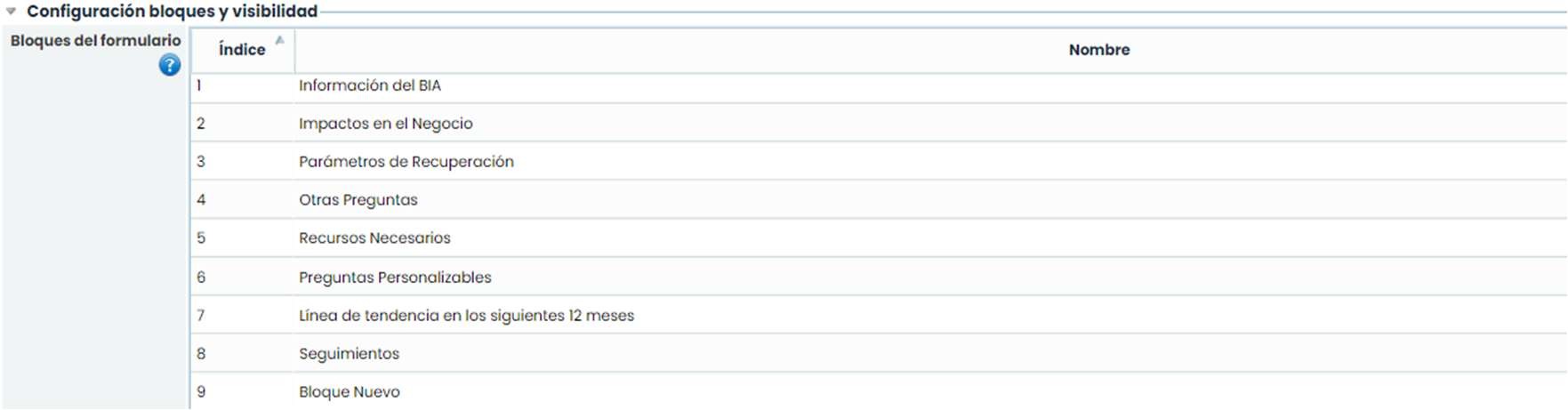
It is possible to define different questions deemed appropriate to adapt GlobalSuite® to the company's needs in conducting the BIA, but first, it is possible to update the names of the available blocks. These blocks are sections that will be displayed in the BIA only if there are questions to show. To edit the names, double-click on the text of each block.
Block Fields
Similar to the blocks, there are standard fields proposed by GlobalSuite® within them.
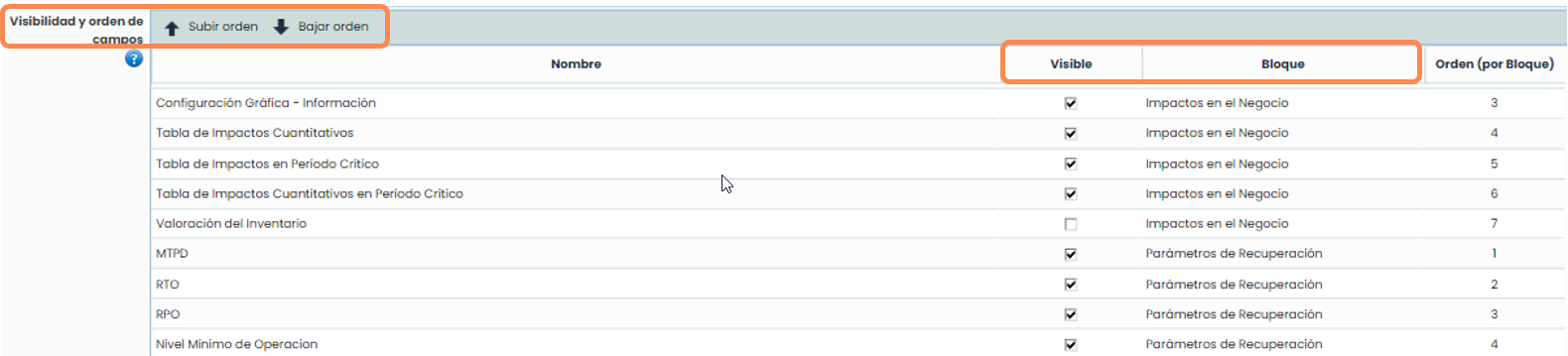
From the option Visibility and Field Order, it is possible to define their visibility using the Visible checkbox, select the block where the field is displayed by double-clicking on the Block column, and finally, order the fields within each block using the buttons “ Move Up” and “ Move Down”.
Question Types
Additionally, it is possible to create customizable questions in each of the mentioned blocks.
With the help of the top toolbar, new questions can be added or existing ones deleted using the buttons “ Add” and “ Delete”, and their order in each block can be defined using the buttons “ Move Up” or “ Move Down”.
Each of these questions is editable in its text by double-clicking on the Name field, and the block where these questions are to be displayed can be selected.
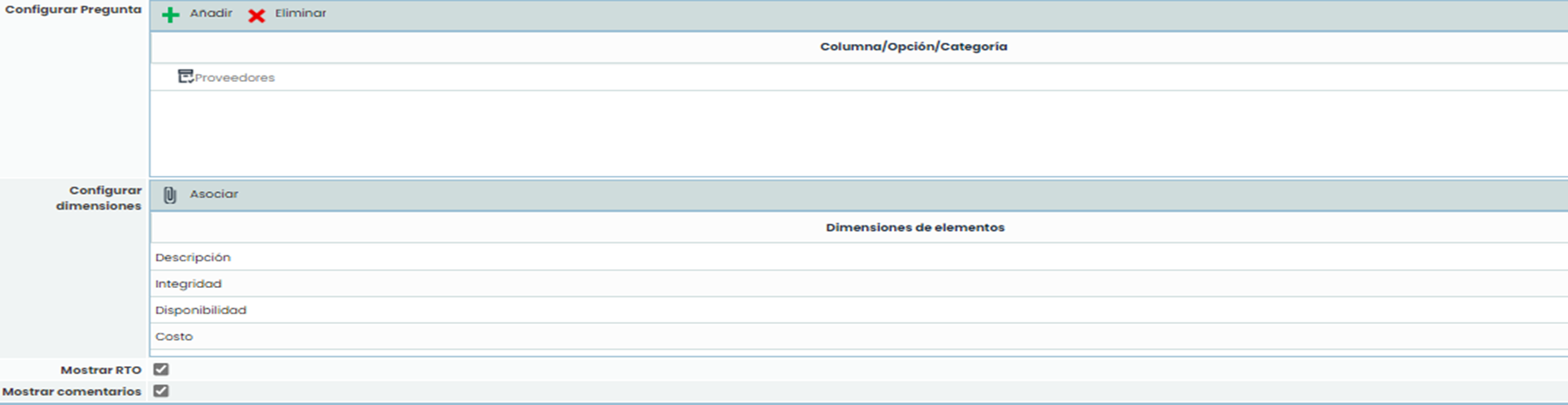
In addition to the mentioned actions, there are four Question Types that can be configured: Text, Table, Select, and Item Table.

The possibilities for each question type are as follows:
-
Text: respond with free text.
-
Table or Select: allows responses based on a dropdown or a table with different options in columns. These options to configure will appear in a table at the bottom:

-
Item Table: allows retrieving items from the inventory list, previously created within its specific tab in GlobalSuite.