
Nowadays, due to increasingly complex, interconnected, and changing businesses, Risk Management in a company gains importance and is crucial for corporate governance. To perform this management efficiently, collaboratively, and securely, it is essential to have a GRC solution that helps you automate this process as much as possible.
One of the challenges of risk identification is that it can be a very complex and demanding task, requiring knowledge of other areas in which one may not have experience.
To address this, at GlobalSuite® we have incorporated an Artificial Intelligence-based engine that, by providing the company's context information and the scope of risks to be addressed, allows obtaining potential risks and controls to include in our risk analysis.
Leveraging the increasingly mature power of AI, we will be able to obtain precise results that we can apply to the elements we are evaluating, minimizing the time and effort required to perform this task.
Register for Our Exclusive Webinar to Learn More
Don't fall behind. Sign up for our next webinar and learn how to use this innovative tool in your company.
NOTE: This AI-Powered Risk and Control Recommendation solution is available in GlobalSuite® starting from version v6.102 of the product. You can find more information in our Changelog.
How to get risk recommendations tailored to our business?
Within the GlobalSuite® GRC solution, we have incorporated a new Artificial Intelligence-based engine to obtain risk and control recommendations.
This functionality expands on the existing ability to use catalogs of static risks and controls, enabling dynamic risk identification without requiring prior know-how.
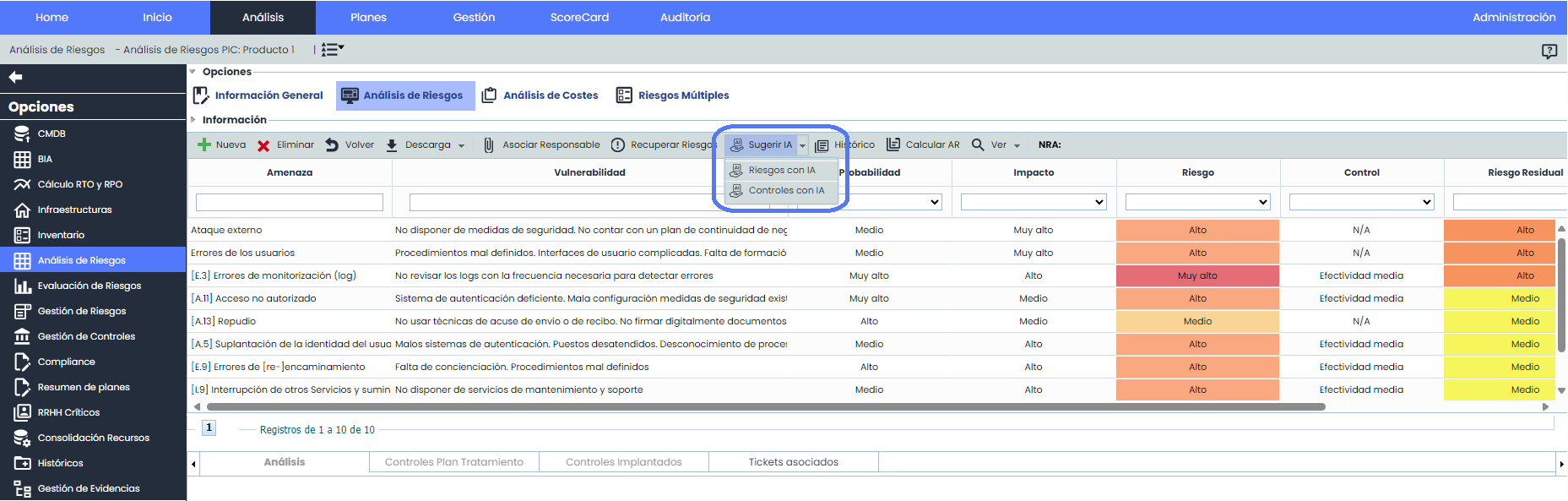
To start using this solution, we must access the Risk Analysis option, and within the analysis we want to work on, go to one of the elements to be evaluated.
Here we will have the two actions offered by this new capability, which are Suggest Risks or Controls with AI.
How to define the company's context?
When accessing the risk recommender window, we need to input the company's context, which will allow obtaining precise risk recommendations for our situation.
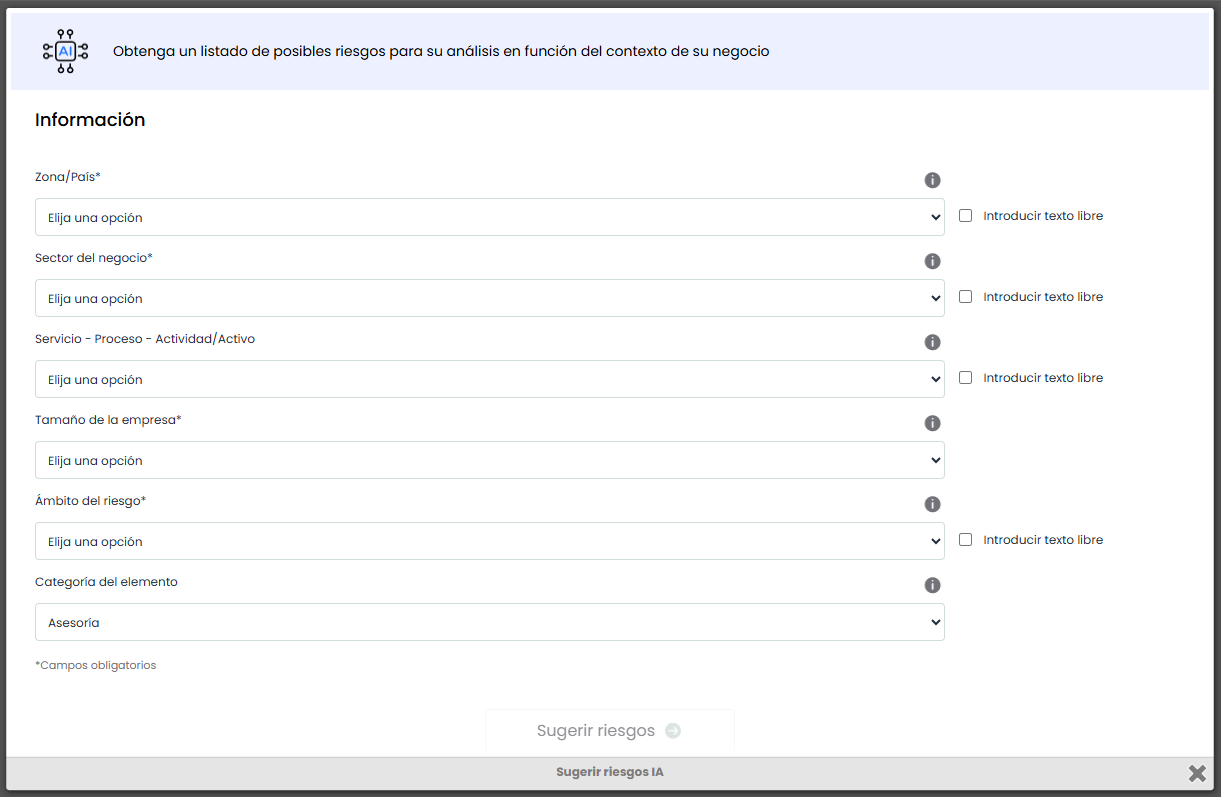
The parameters to complete are as follows:
-
Zone / Country*: Allows entering the country where the company operates. By default, it offers a list of countries, although it is possible to enter free text to indicate multiple countries or a region. For example, “Spain and Portugal” or “Southern Europe”.
-
Business Sector*: Refers to the main activity of the company, allowing selection from a set of options. For example, “Coal Mining” or “Photovoltaic Energy”.
-
Service - Process - Activity: Optionally, we can indicate within the company which process, department, or specific area the risks will apply to.
-
Company Size*: Additionally, it will also be necessary to indicate the size of the company, which may affect its exposure to certain risks.
-
Risk Scope*: This essential field allows establishing the topic from which risks will be obtained, which can be among the defined ones. Technological or Cyber Risk, Reputational Risk, Privacy, or Compliance, among others. By default, it offers a list of options, although it is possible to enter free text to specify one or more specific topics.
-
Element Category: By default, this field will have the category assigned to the element for which I will obtain the risk suggestion, although I can choose not to use that field or select another of the categories defined in my management system.
*Fields marked with an asterisk are essential to obtain risk suggestions, and without completing them, we cannot proceed with the process.
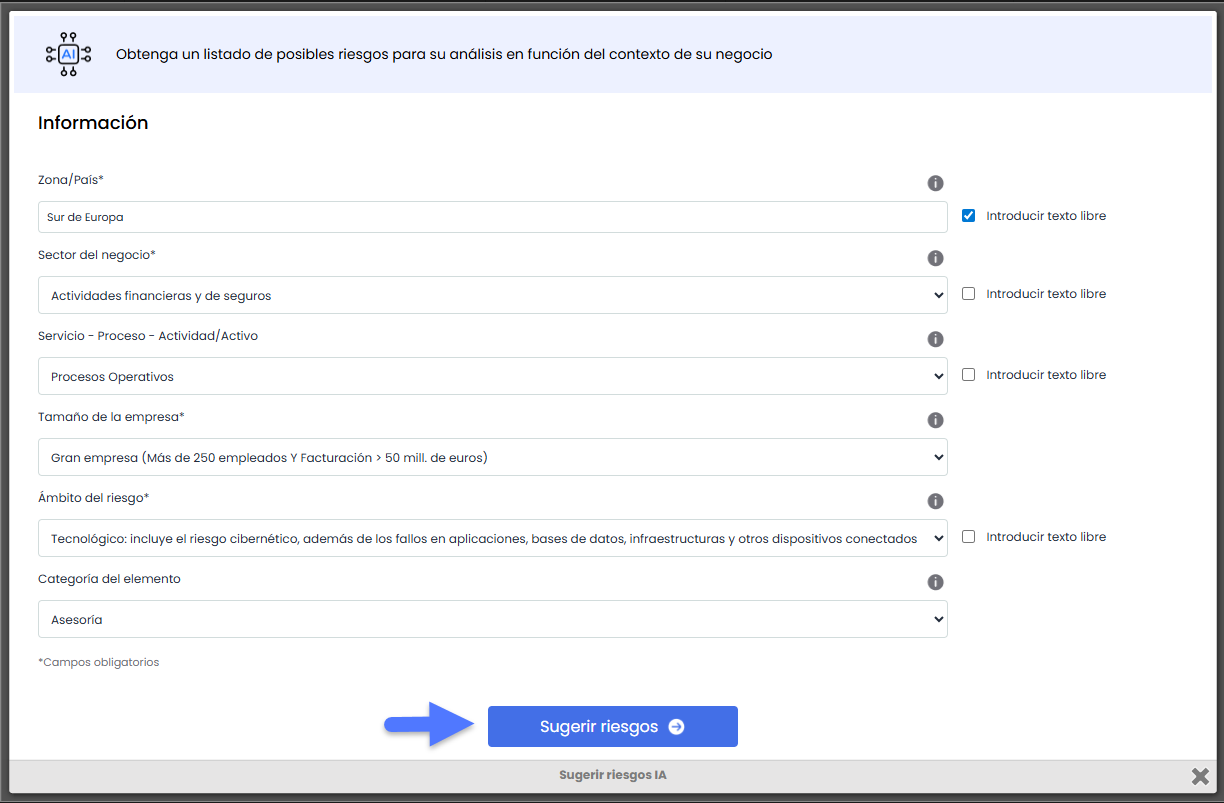
Once we complete all the fields (at least the mandatory ones), by clicking the “Suggest Risks” button, the Artificial Intelligence engine will proceed to obtain a list of suggested risks.
How to filter more results?
The risks offered by the system will be displayed in a list, detailed in two fields, a name or summary of the risk, and a more detailed description including causes or vulnerabilities that provoke it.
By default, the first 10 results are displayed, with additional risks available by clicking on the “View more results” band.
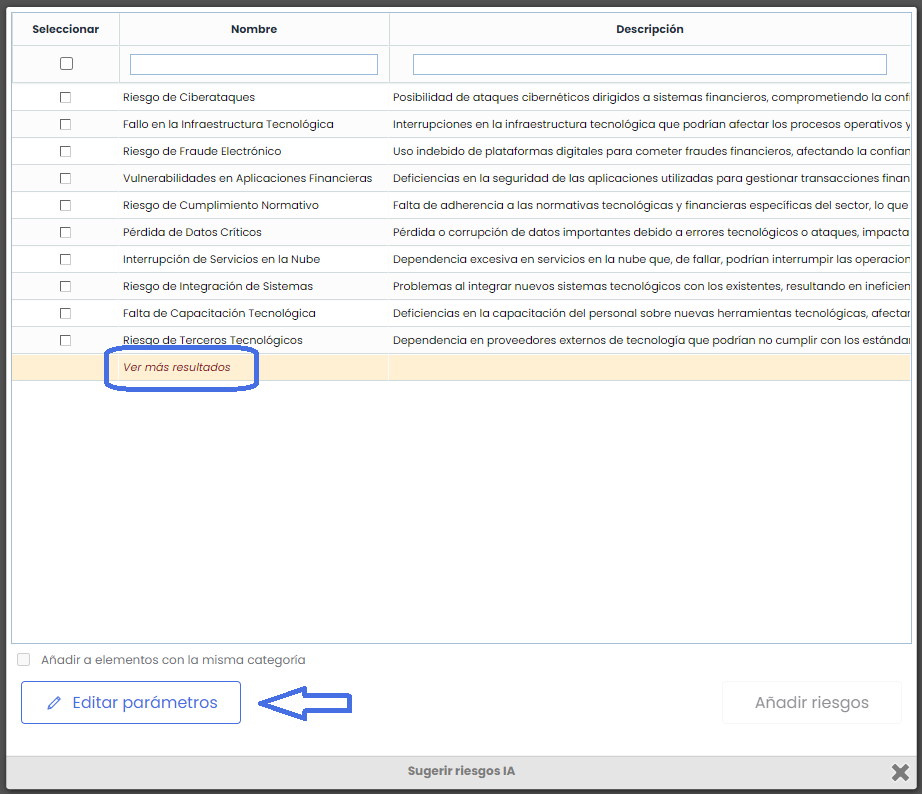
Additionally, if you want to change the parameters entered in the context to obtain other results, you can do so using the “Edit parameters” button, which will take you to the previous window to modify the desired field and suggest risks again.
Currently, the Risk and Control Recommender is limited to 60 proposals per month. Once this limit is reached, the AI recommender cannot be used until the following month.
How to apply risk recommendations?
Once we have the proposed risks, we can add them to the risk analysis, selecting one or more of them to include in the element we are analyzing.
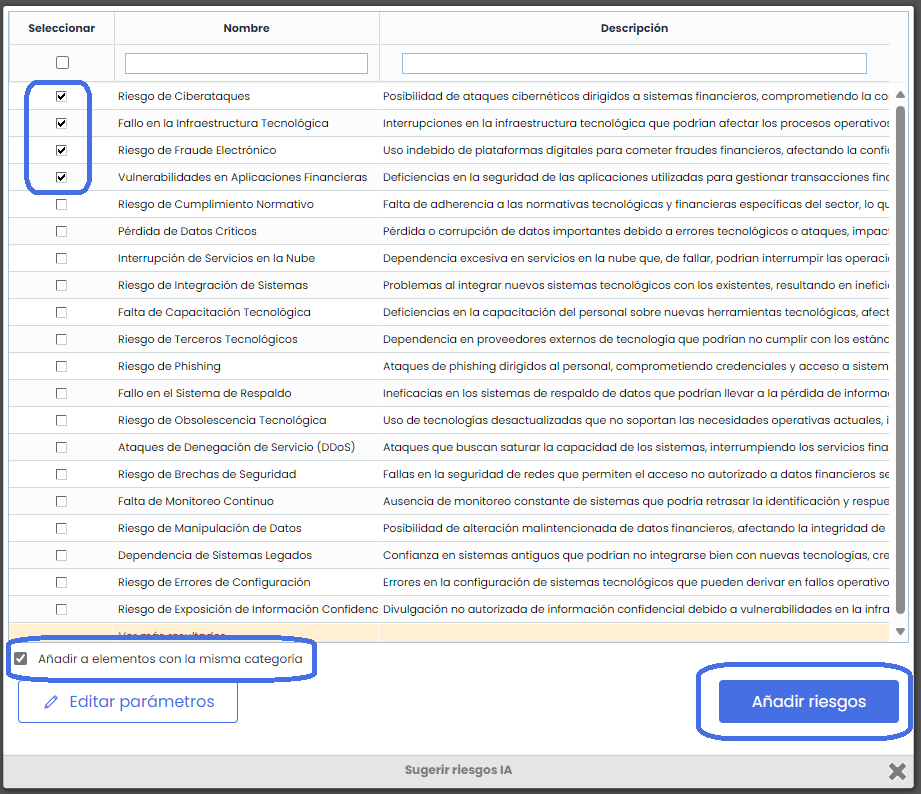
When at least one record is selected, the “Add Risks” button will be enabled to apply these risks, which will then be ready for assessment according to the methodology we have defined.
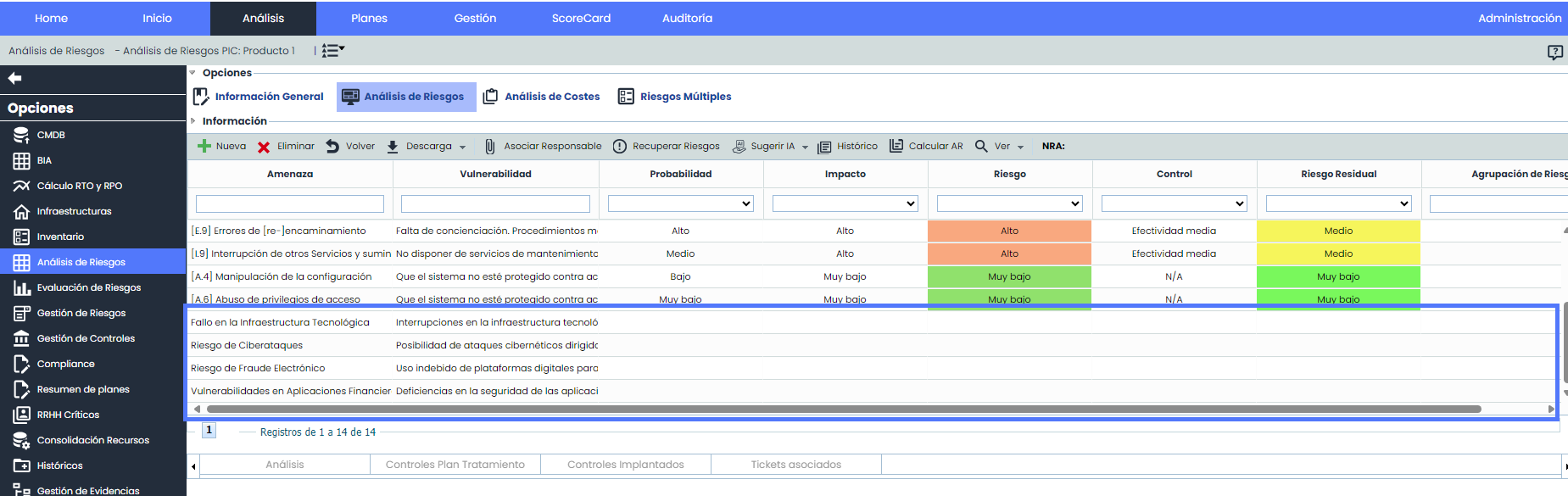
Additionally, by checking the “Add to elements with the same category” box, we can apply these risks to all elements included in the scope of the analysis.
For example, if we are identifying risks for a server (Hardware category), if we wish, we can add those same risks to all elements of that same category included in the risk analysis.
How to obtain control recommendations?
For the other feature included in this new AI Recommender solution, which allows obtaining control suggestions, the process is very similar to what we have seen so far, with some exceptions.
The first difference is that since the goal is to obtain recommendations for a specific risk in our analysis, it is necessary to select the risk before starting the process.
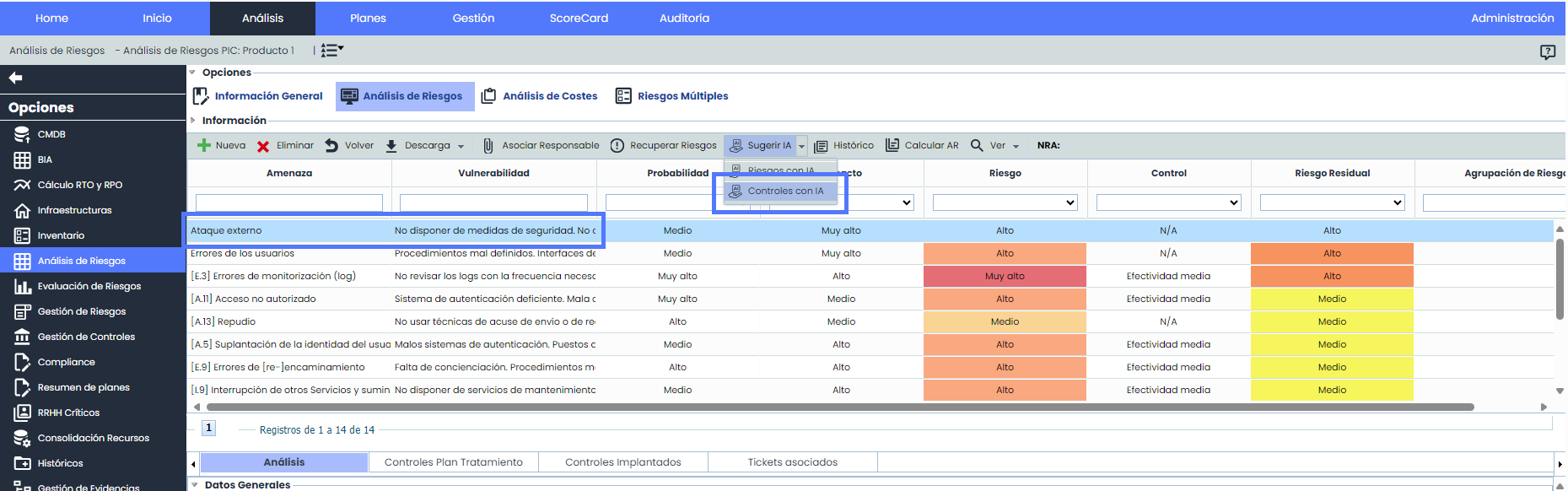
Once we have chosen the risk for which to propose controls, we can open the parameter selection window, which includes the same parameters as for risk proposals, although the information of the risk being addressed will also be visible.
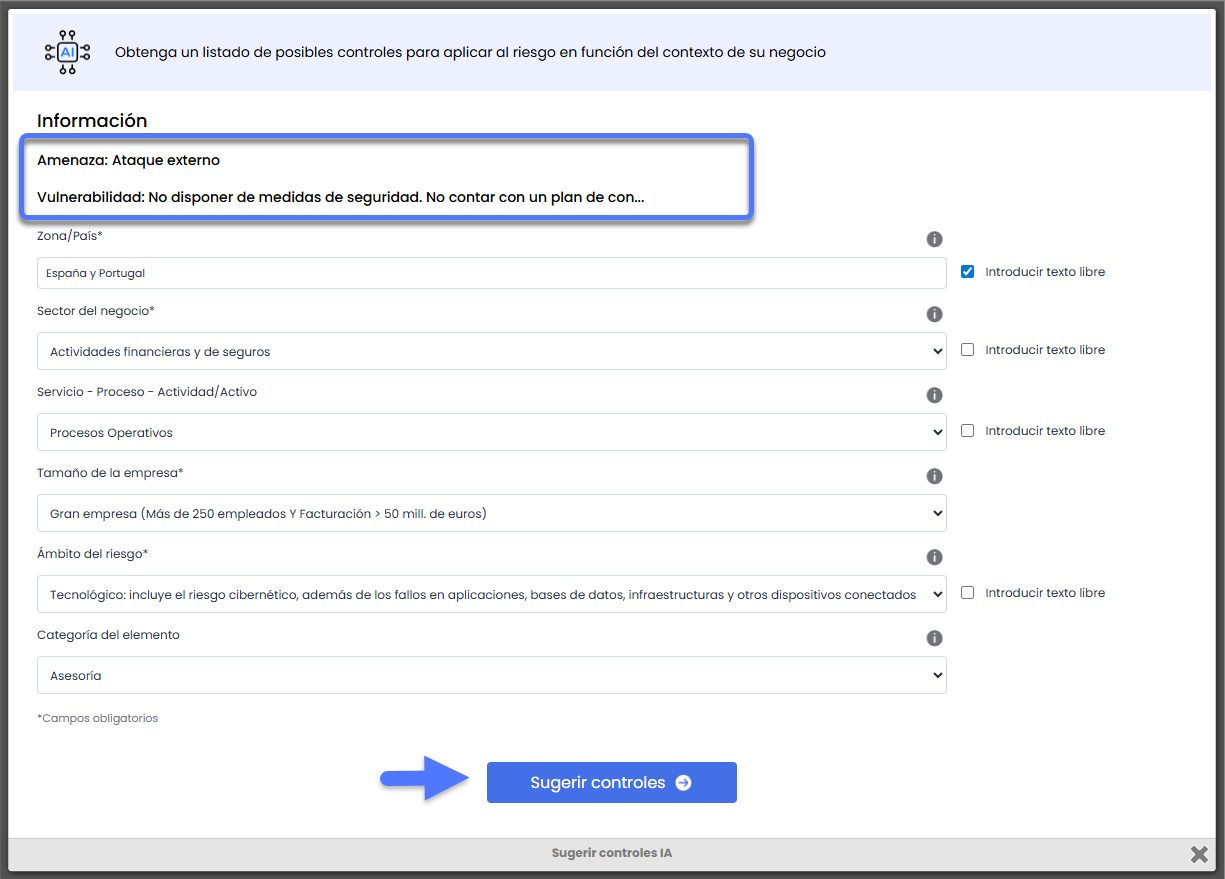
The field names Threat and Vulnerability correspond to those configured in the methodology.
Once the Suggest Controls button is clicked, the results will be displayed to choose which ones to apply. After marking at least one control, we can click “Continue”.
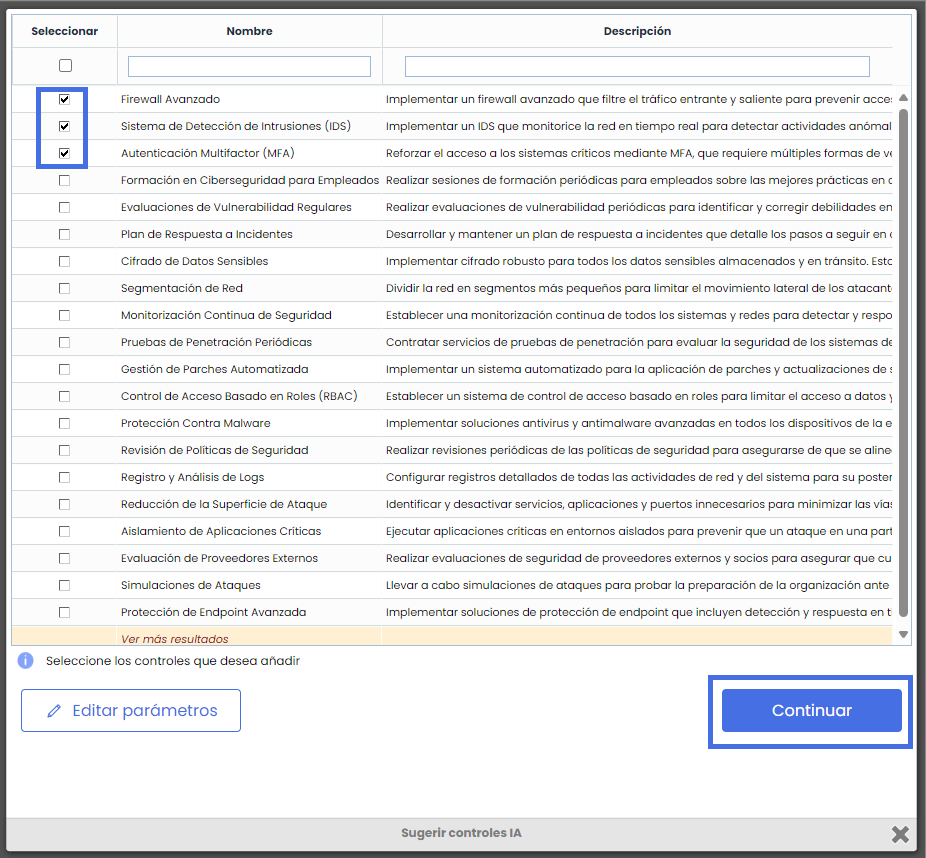
How to include control proposals in the analysis?
To apply the selected controls, it will be necessary to choose in which of the general fields of the control record we want to add them. Selectors will appear for this purpose.
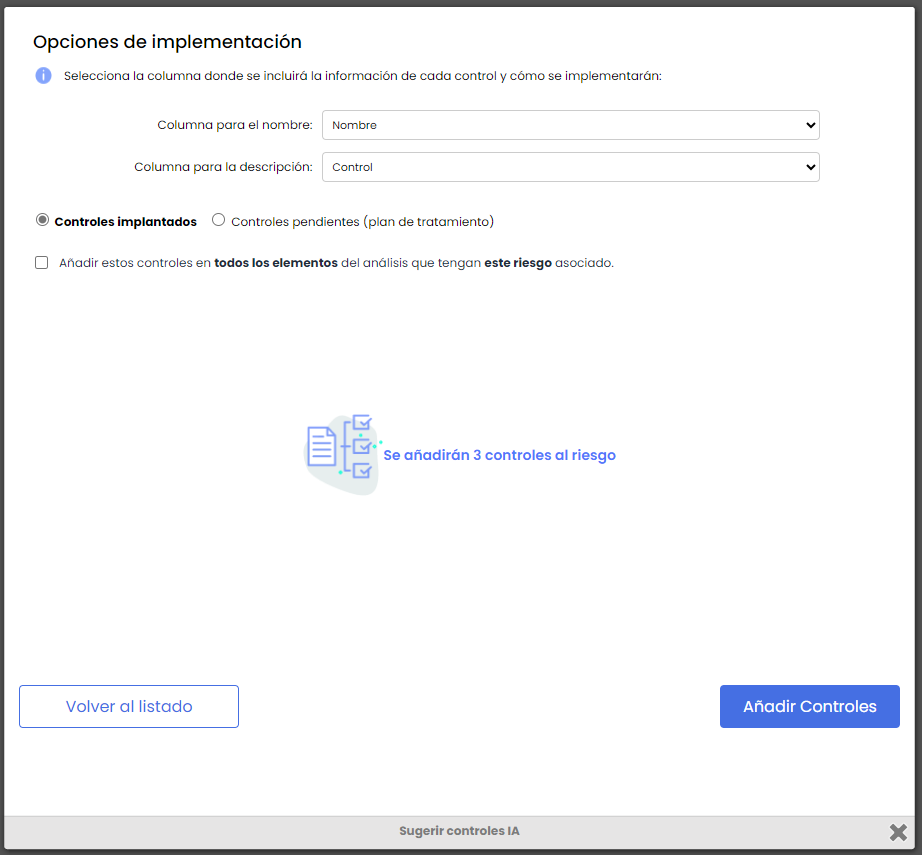
Additionally, another option to choose is the type of control it will consolidate into.
-
Implemented Controls: These controls will appear in Control Management in addition to being associated with the originating risk.
-
Pending Controls: If this option is selected, it will remain as Treatment Plans to schedule its implementation and will be visible in Risk Management.