
General Survey Configuration
-
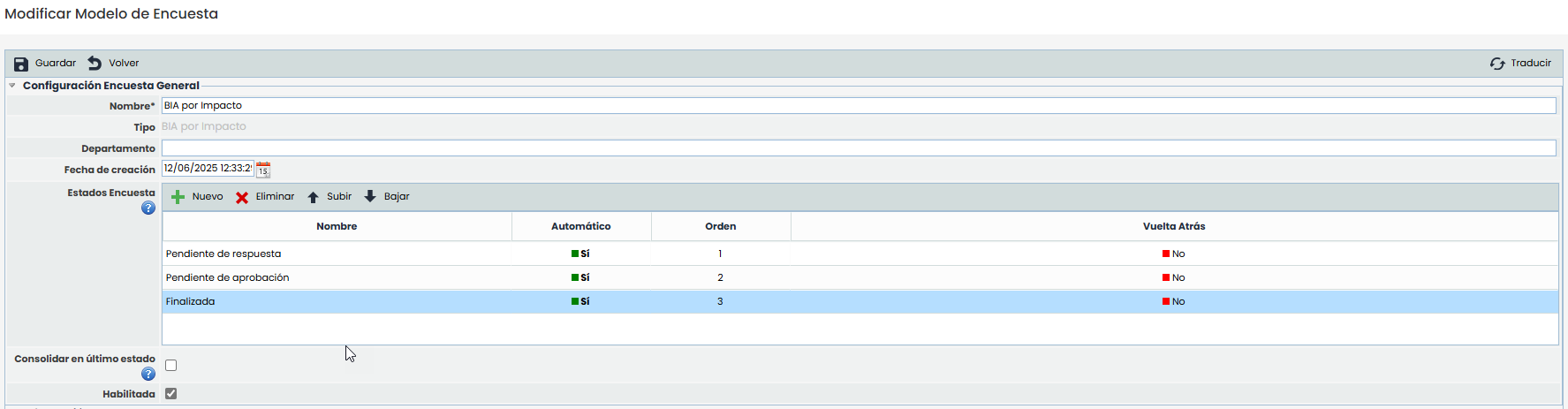
Name: Allows identifying the name of the survey. This name will be displayed in the initial survey list.
-
Type: Allows viewing the type of the survey.
-
Department: Enables identifying the department responsible for managing the survey.
-
Creation Date: Identifies the creation date of the survey.
-
Survey States: This table allows defining a set of states for the survey. These states can be assigned to employees when configuring the survey, so they will be responsible for the survey depending on the state it is in. For each state, it is possible to define:
-
The name of the state.
-
Whether the state is Automatic or not, so that if a state is automatic, the surveys will move to the next state once completed without any user intervention. If the state is not automatic, it will be necessary to manually change the state of a survey.
-
The order of the states through the "Move Up" and "Move Down" buttons.
-
Whether the state allows returning to the previous state. By selecting Yes, the person responsible for completing the survey can return it to the previous state.
-
-
Enabled: Allows indicating that the survey is enabled for use in GlobalSUITE.
It is possible to translate the fields of the survey template into the other available languages through the "Translate" button at the top right. This button will allow us to select another language and define the name of the configurable fields in that language. Currently, the survey states.
BIA Information
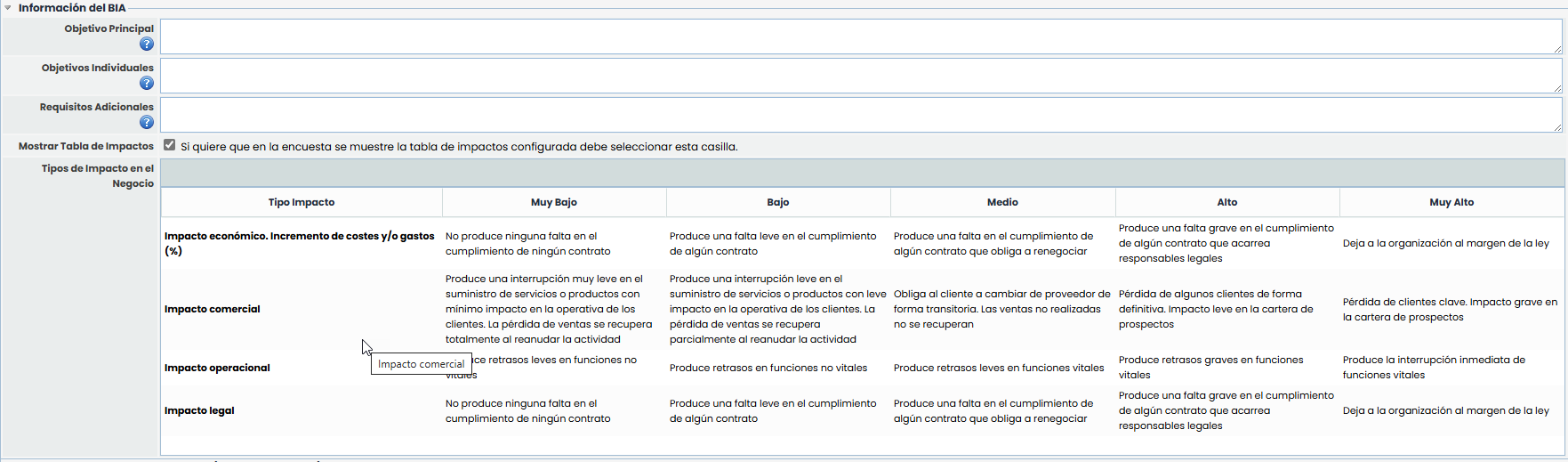
Allows defining the necessary questions to execute the BIA survey. The fields that can be defined are as follows:
-
Main Objective: Allows informing the user about the objective of the survey.
-
Individual Objectives: Allows informing the user about the more specific objectives of the survey.
-
Additional Requirements: Provides the possibility to inform about additional needs when completing the survey.
-
Show Impact Table: Provides the possibility to display the impact table and criteria when completing the survey.
Survey Questions Configuration (BIA Assessment)

The dimensions displayed are those configured as Visible = Yes in the BIA column of the section Settings>Elements > Dimension Visibility ( Forms)
The text accompanying each dimension allows defining the questions or statements that guide the assessment of each established dimension.
Survey Questions Configuration
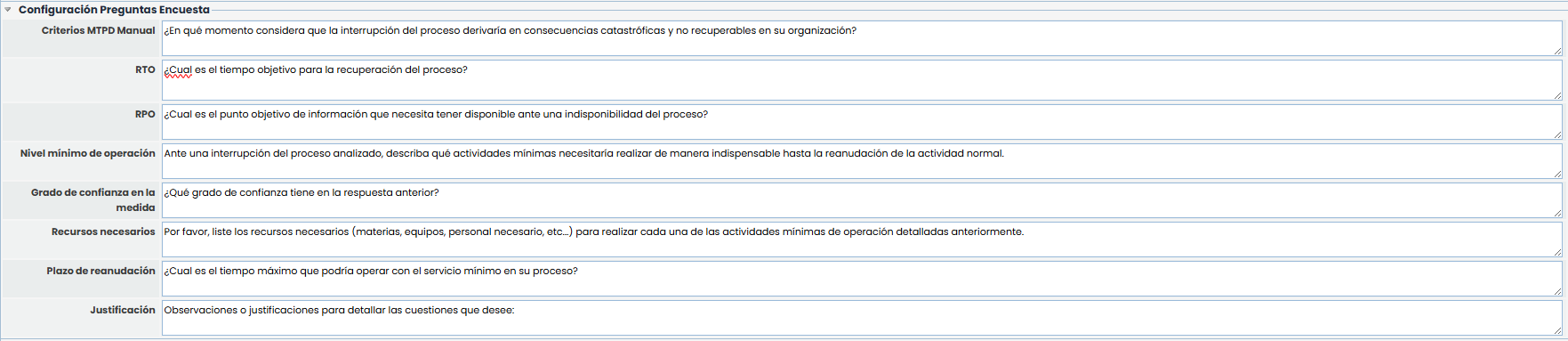
Provides the possibility to define the necessary questions for the calculation of the following concepts:
-
MTPD Criteria: Allows defining a question to establish the criterion for the maximum downtime of the service.
-
RTO: Provides the possibility to define a question to establish the criterion for the maximum recovery time.
-
RPO: Allows defining a question to establish the criterion for the recovery point objective of information.
-
Minimum Operating Level: Provides the possibility to define a question to establish the minimum levels for operating the services.
-
Degree of Confidence in the Measure: Allows defining a question to establish the degree of confidence in the defined values.
-
Necessary Resources: Allows asking about the resources needed for service recovery.
-
Resumption Period: Provides the possibility to define a question to complete the optimal recovery period of the services.
-
Justification: Allows asking about the criteria that justify the defined values.
Field Visibility and Order
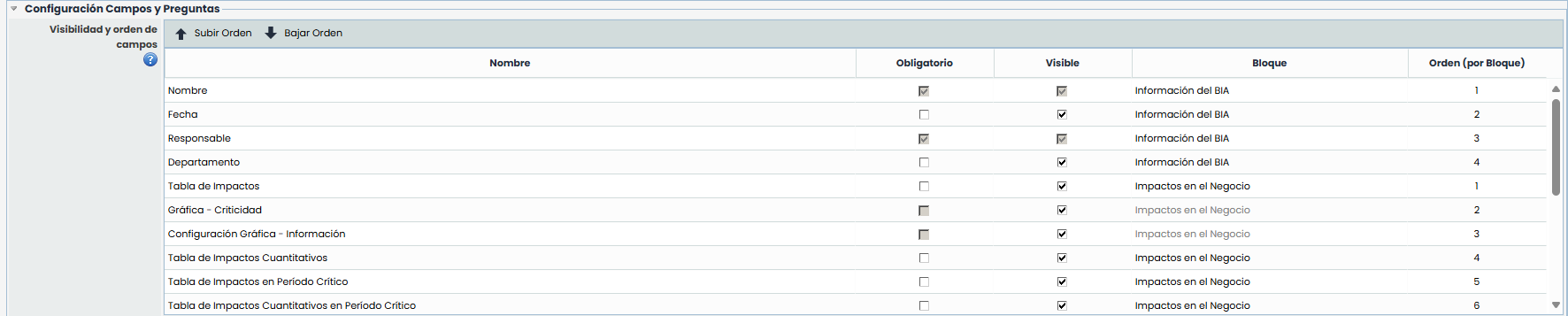
In this table, the visibility and order of the fields and fixed tables that can be used in the BIA survey are defined.
-
Name: Displays the field identifier.
-
Mandatory: Determines if the field must be completed to proceed with the survey.
The fields “Survey Name” and “Responsible” will always be mandatory.
On the other hand, the fields “Graph - Criticality” and “Graph Configuration - Information,” being only informational, cannot be marked as mandatory. -
Visible: Checkbox that allows showing or hiding a field.
-
Block: By double-clicking on this cell, the available block list is displayed, allowing the selection of the block in which the field will be shown within the form.
-
Order (by block): This column indicates the order of each field within each block. When changing a field's block, it will be added to the end of the new block. It is also possible to manually reorder the fields by selecting one and pressing the "Move Up" or "Move Down" buttons.
NOTE: A field not enabled in the "Business Continuity" configuration cannot be made visible in the survey model.
NOTE 2: When pressing the "Modify BIAs" button in the option > BIA Time Surveys, only the fields marked as visible will be consolidated in the surveys.
Customizable Questions
This section allows including additional questions in the BIA survey previously configured in Settings > BIA Configuration
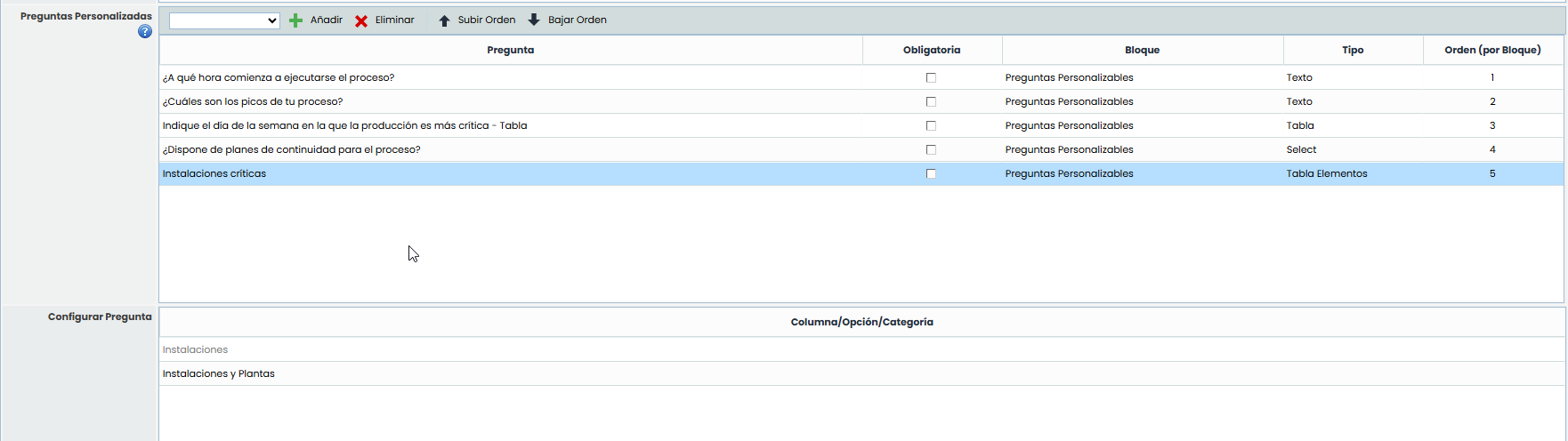
The table allows selecting questions from a dropdown menu using the “Add” button. Each added question can be configured through the following columns:
-
Question: Text of the question to be included in the form.
-
Mandatory: Indicates if answering the question is mandatory to complete the survey.
-
Block: Defines the section of the BIA form where the question will be displayed.
-
Type: Determines the format of the question (free text, table, selection, etc.).
-
Order (by block): Establishes the order in which the questions will be displayed within each block. They can be reordered using the “Move Up” and “Move Down” buttons.
Attachments
In BIA survey models, it is possible to upload files and documents with aids, guides, or detailed explanations, which will be sent by email to the survey recipients when launched, in addition to being available in the survey itself for consultation.

-
From this section, it is possible to:
-
Select a file from the local device using the "Choose File" button.
-
Attach the selected file using the "Attach" button.
-
Only files whose size does not exceed the limit configured in General Settings > Maximum file size (MB) can be uploaded.
-
-
Delete already uploaded documents, provided the user has permissions to do so.
-
Download any file available in the list.
-
View compatible files directly, such as documents in PDF format or images (jpg, jpeg, bmp, and png).
-
-
The uploaded files are displayed in a table with the following columns:
-
Name of the file. It is editable.
-
Extension
-
Upload Date
-
Description (if applicable)
-