
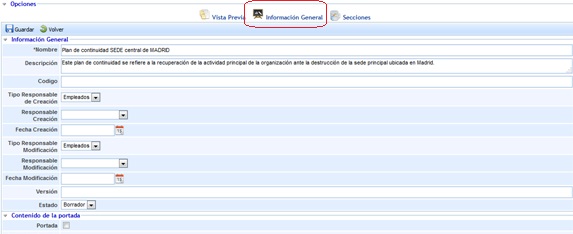
Allows the user to define the general data that will compose the Business Continuity Plan.
General Information
.jpg?cb=b0270b9c37c5780a6a9c105e81029fb8)
-
Name: Allows defining the name associated with the Business Continuity Plan.
-
Description: Allows including any type of information deemed necessary for an adequate definition of the Business Continuity Plan.
-
Code: Text field that allows the user to assign a code to the Business Continuity Plan.
-
Type of creation responsible: Offers the possibility to insert users manually or automatically.
-
Creation responsible: Allows defining the person responsible for the definition of the Business Continuity Plan.
-
Creation date: Allows defining the creation date of the Business Continuity Plan.
-
Type of modification responsible: Offers the possibility to insert users manually or automatically.
-
Modification responsible: Allows defining the person responsible for modifying the Business Continuity Plan.
-
Modification date: Allows defining the modification date of the Business Continuity Plan.
-
Version: Offers the possibility to establish versioning for the Business Continuity Plan.
-
Status: Allows defining the validity status of the Plan, with options such as Draft, Active, or Historical.
NOTE: Selecting the 'Historical' status will store the Business Continuity Plan data without the possibility of modifying it.
Report Configuration
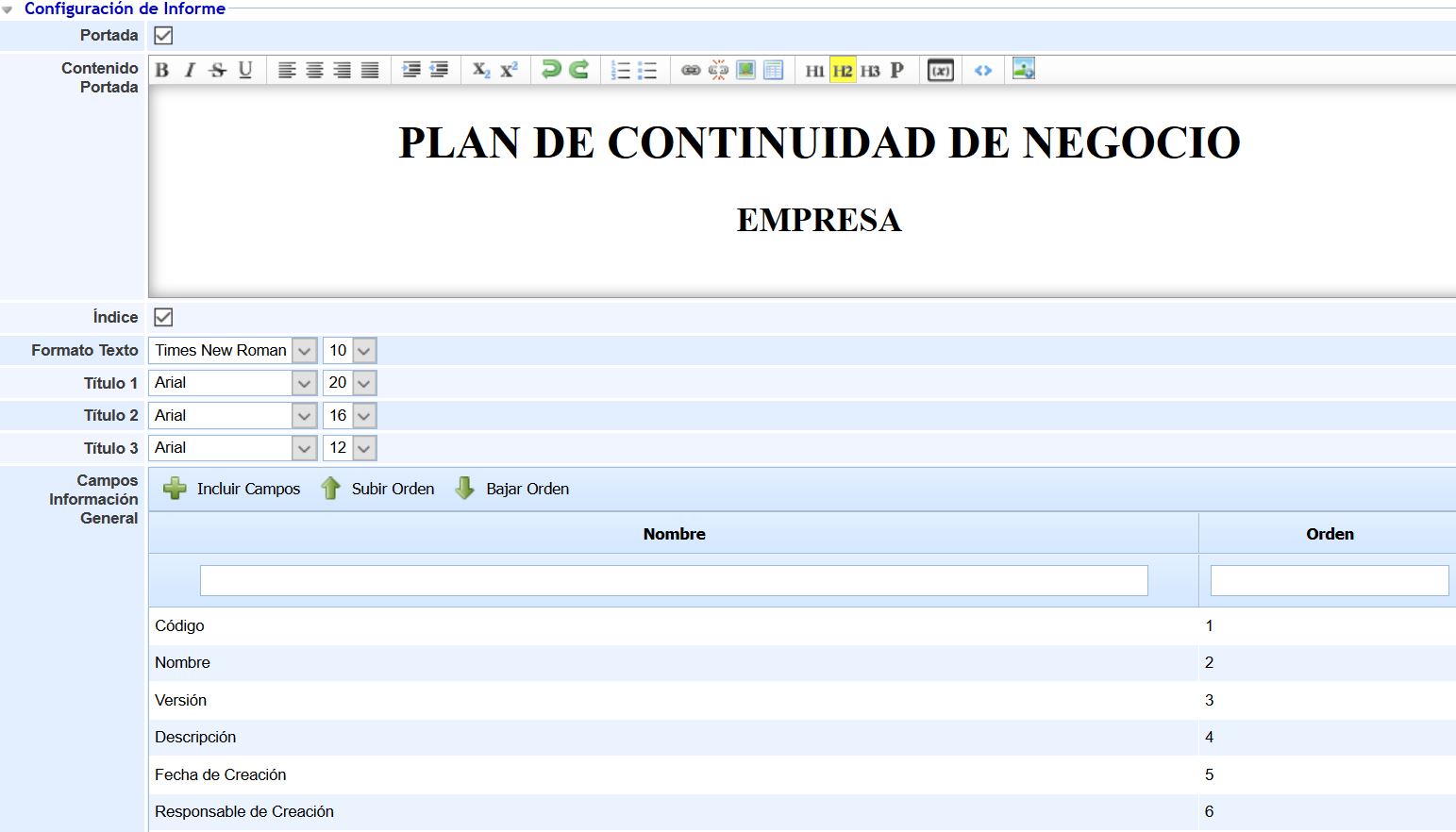
This section allows the user to configure general aspects of the Business Continuity Plan, such as the cover page, font type, or general information to be displayed.
-
Cover Page: Allows indicating whether to configure a cover page for the Business Continuity Plan. If the checkbox is selected, a text editor is enabled to configure the cover page (including both text and images). If the field is not enabled, the Business Continuity Plan will be generated without a cover page.
-
Index: Allows indicating whether to display the index in the Business Continuity Plan.
-
Text Format: Allows selecting the desired font type and size for the text of the Business Continuity Plan.
-
Title 1: Allows selecting the desired font type and size for level 1 titles of the Business Continuity Plan.
-
Title 2: Allows selecting the desired font type and size for level 2 titles of the Business Continuity Plan.
-
Title 3: Allows selecting the desired font type and size for level 3 titles of the Business Continuity Plan.
Note: Titles 1, 2, and 3 are set in the text editors through the 'H1', 'H2', and 'H3' buttons available in them.
-
General Information Fields: This table allows indicating which general information fields of the Business Continuity Plan should be visible in the Plan. By default, when creating a Business Continuity Plan, all fields are included, but through the 'Include Fields' button, it is possible to select which fields to include (by selecting them in the pop-up window that appears). The 'Move Up' and 'Move Down' buttons allow setting the desired order for the fields to be displayed in the Business Continuity Plan.
Note: In the 'Preview' section of a Business Continuity Plan, it is possible to view the Plan to check how these fields are displayed, as well as download the Plan itself.
Change Control
The change control option allows the user to record different modifications made to the Business Continuity Plan by clicking the 'New' button.

Attachments
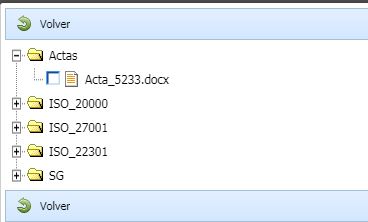
The user is offered the possibility to attach any annexed documents that help complete the Business Continuity Plan by clicking the 'Attach' button. In addition to uploading new files, it is possible to associate files already uploaded to the Document Manager by clicking the Associate button, which will open a pop-up window where the already uploaded files can be selected. Once uploaded, the documents can be downloaded by clicking the 'Download' button.

Associated Scenarios

Through this option, you can associate scenarios with the defined Business Continuity Plan. The scenarios that can be associated have been defined in the Disaster Scenarios option.
Through the Associate Scenarios button, you can establish which scenarios can activate the defined Business Continuity Plan.
Selecting this option will display the following screen, from which the scenarios associated with the defined Business Continuity Plan can be selected.
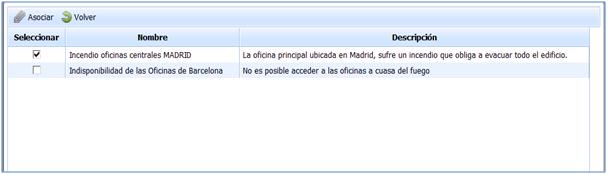
Once the scenario is selected, it is necessary to click the 'Associate' button, thus becoming part of the Business Continuity Plan being defined.
Associated Processes

This section allows associating business processes with the Business Continuity Plan. The processes that can be associated must be included in the scenarios previously associated with the Plan, and business processes not found in the scenarios added in the previous section will not appear.
To associate a business process with the Business Continuity Plan, you must first select a service from the 'Services' dropdown list and then select the desired process from the 'Processes' dropdown list. Once the process is selected, you must click the 'Add' button. To remove a process from the Plan, you must select the process from the table and click the 'Remove' button.
Objectives

This tab allows establishing the objectives to be met in case of activation of the Business Continuity Plan.
Within these objectives, it is possible to establish:
-
Name: Corresponds to the description of the objective to be met in case of activation.
-
Description: Allows defining what is intended to be achieved with the proposed objective.
-
Annexes: Allows associating supporting documentation to facilitate achieving the proposed objective.
To associate any annex to the objectives, it is necessary to select the corresponding objective and click the “Associate Annexes” option, selecting the corresponding document from the GlobalSUITE Document Manager.