The project calendar allows the consultant to visually see, in a graphical way, the tasks assigned to the project within a calendar. This facilitates the organization and tracking of scheduled tasks.
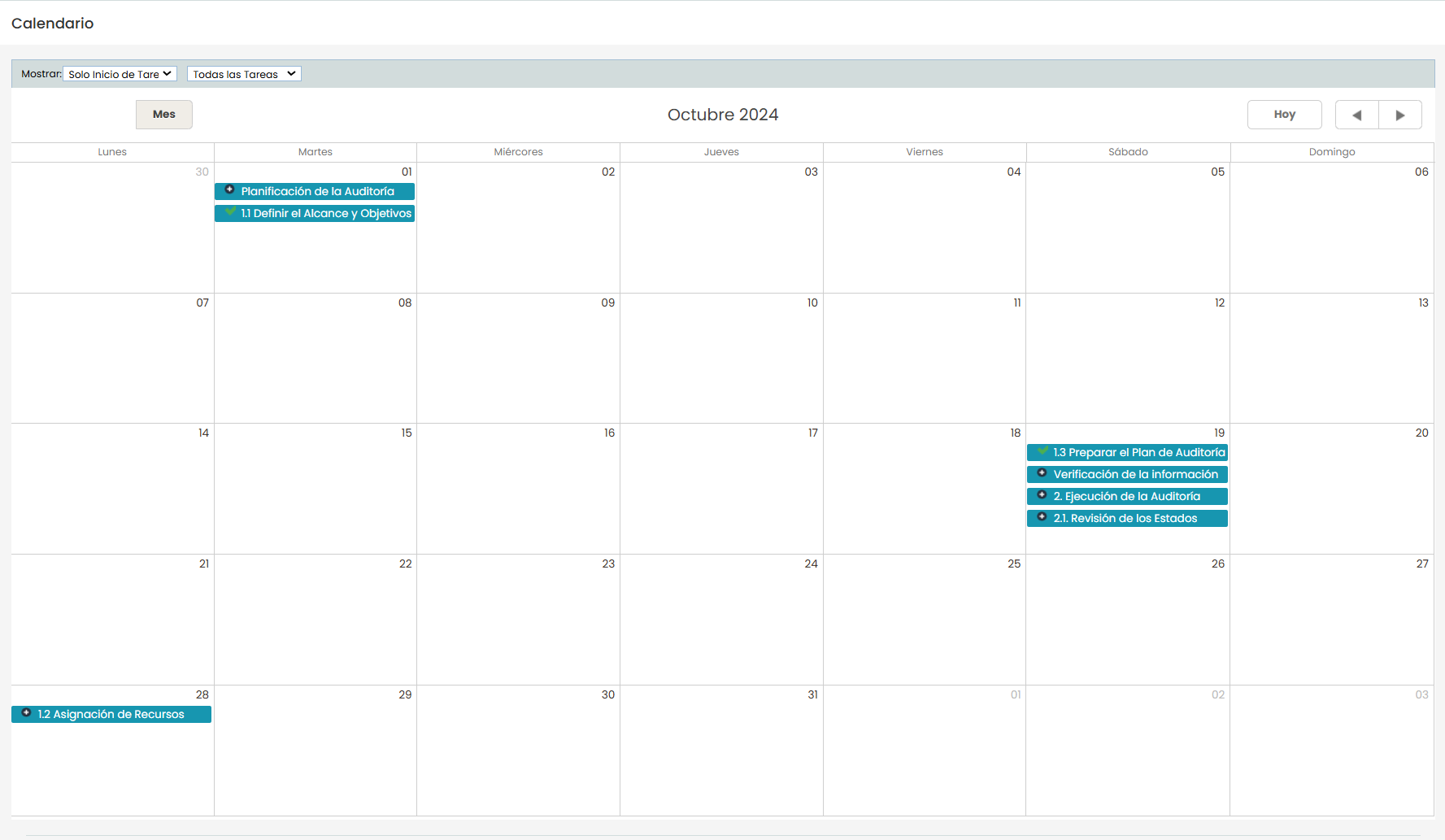
Project Calendar
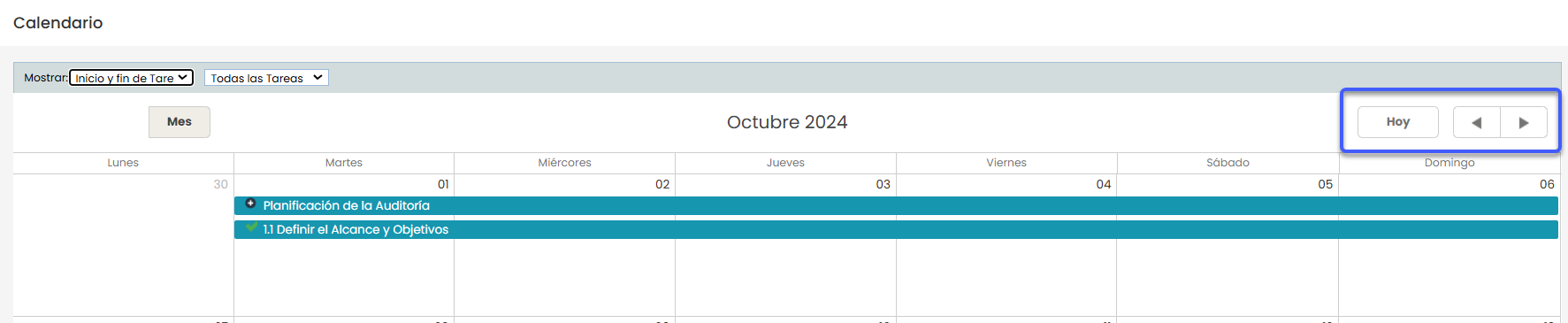
The calendar includes controls to navigate between months and a ‘ Today' button that allows you to quickly return to the current month.
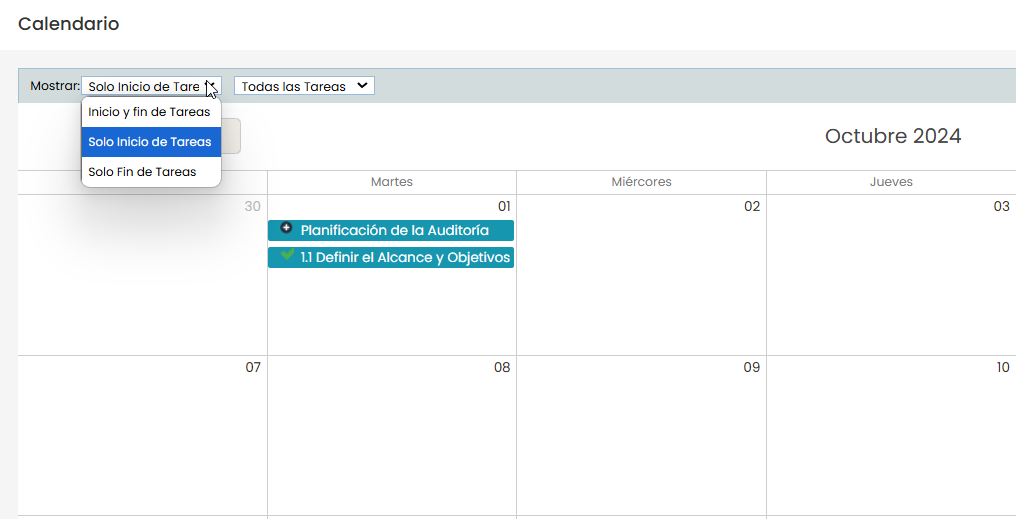
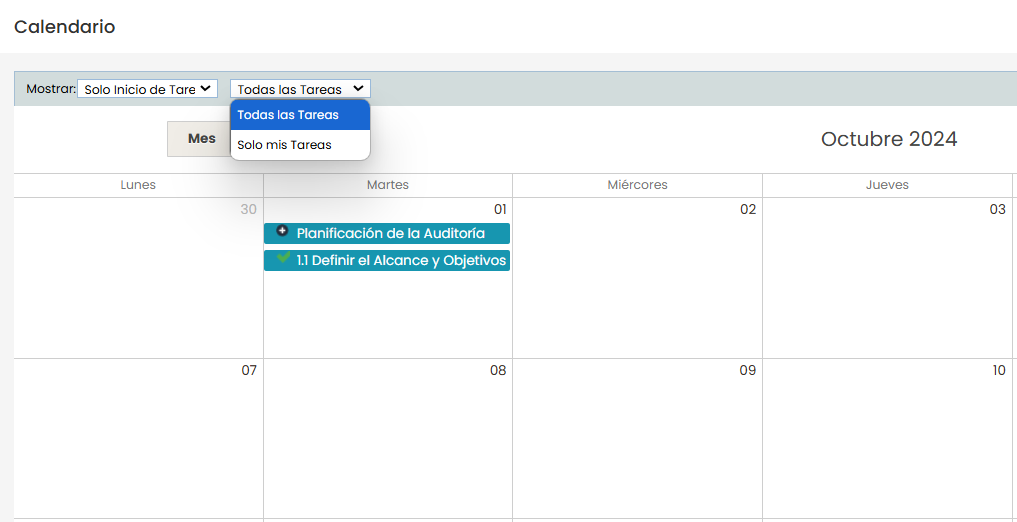
Additionally, it includes the ‘Show’ option, which offers two selectors to customize the calendar view:
-
Task View Settings
-
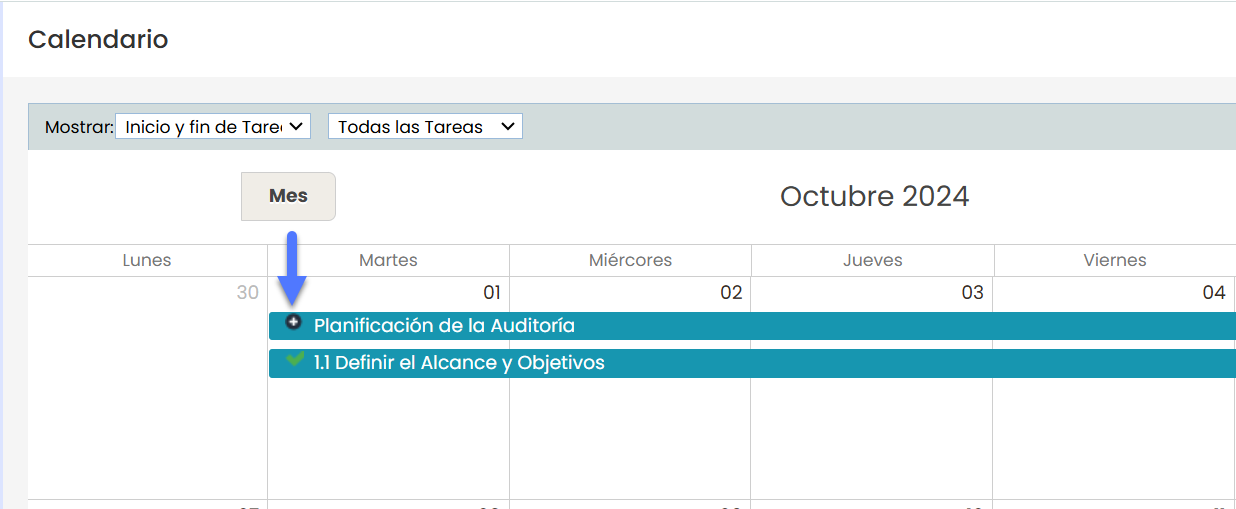
Task Start and End: Displays a bar that spans from the start to the end of each task on the calendar.
-
Task Start: Highlights only the day when each task begins.
-
Task End: Highlights only the day when each task ends.
-
-
Filtering by Assignment
-
All Tasks: Displays all the tasks of the project.
-
Only My Tasks: Filters the tasks, showing only those assigned to the consultant using the system.
-
Tasks
Tasks display icons that indicate their status.
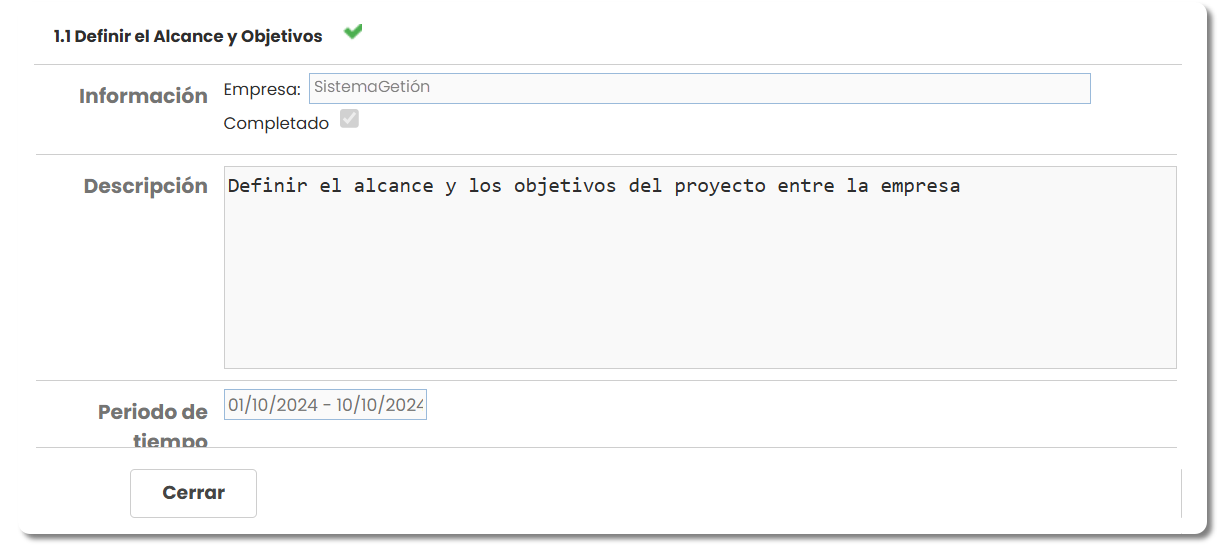
By double-clicking on the task, a summary of it opens, and the fields are presented as follows:
-
Task Title: At the top, the name of the task appears (in this case, "1.1 Define Scope and Objectives") with a status icon next to it (indicating whether the task is completed).
-
Information
-
Company: Displays the name of the Management System.
-
Completed: A checkbox that indicates whether the task is marked as completed. If selected, it means the task has been finished.
-
-
Description: A text box containing a brief explanation or the objectives of the task.
-
Time Period: Indicates the date range in which the task is scheduled, from the start to the end date.
-
Close Button: A "Close " button to exit the summary and return to the previous view.