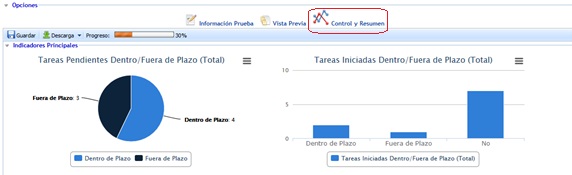
This section provides the user with a summary of all recovery plans, sequences, etc., associated with the established test and the possibility of establishing the appropriate conclusions about it.
The 'Control and Summary' section is divided into several subsections:
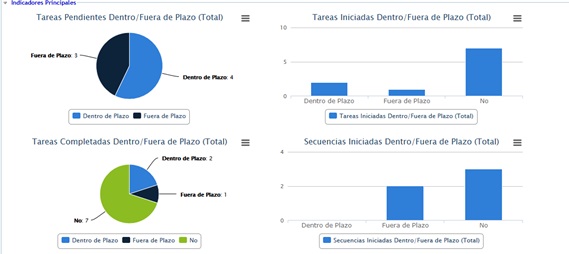
Main Indicators
This section displays a series of summary graphs focused on the tasks and sequences associated with the established test, highlighting whether they have been completed on time or not.
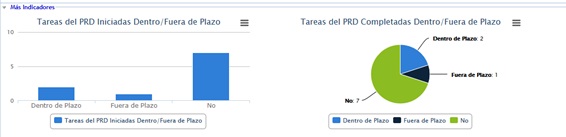
More Indicators
This section displays a series of summary graphs focused on the recovery plans associated with the established test, highlighting whether they have been completed on time or not.
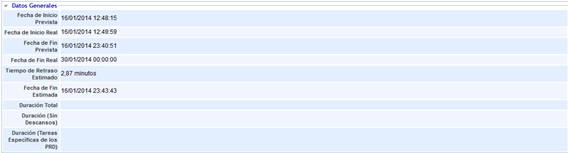
General Data
The general data section shows summarized information about the test program, highlighting the planned and actual start dates, as well as the total duration of the test, the end date, etc.
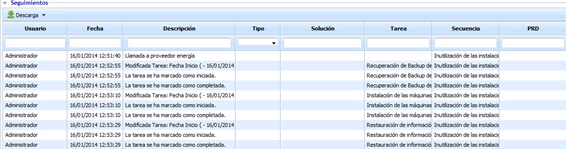
Follow-ups
The follow-ups section provides a summary of all those defined in relation to the selected test. The tool allows downloading the follow-up list in editable format (.xlsx) or PDF by clicking on the 'Download' button.
Recovery Plans
This section displays a list of those recovery plans that have been associated with the test, highlighting the fixed RTO for each of them.

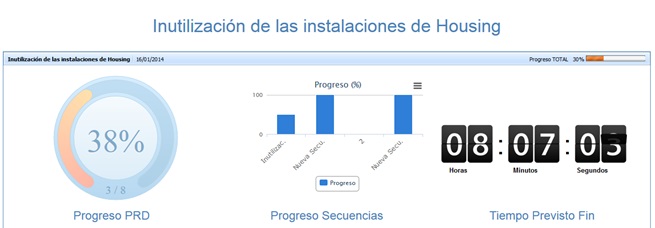
By clicking on the 'Control Panel' button, the tool provides the possibility to graphically visualize a summary of the test progress, the recovery plans, and the estimated time until the completion of the tasks.
Control Points
This section provides a summary of the control points associated with the established test, highlighting their status and whether any delays have occurred.

Sequences
This section provides a summary of the sequences that have been associated with the test. For each of them, it allows knowing the percentage (%) of sequence progress, the planned end date, delays, and the estimated end date.

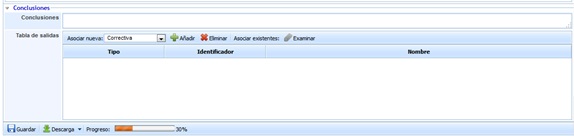
Conclusions
This section allows the user to establish the conclusions reached after conducting the test. If the results are not satisfactory, the tool allows setting the necessary corrective actions. To do this, a ticket must be selected from the dropdown menu and the 'Add' button must be clicked.