
By clicking on the time-based survey link, the tool provides a form where the following fields can be defined:
General Survey Configuration
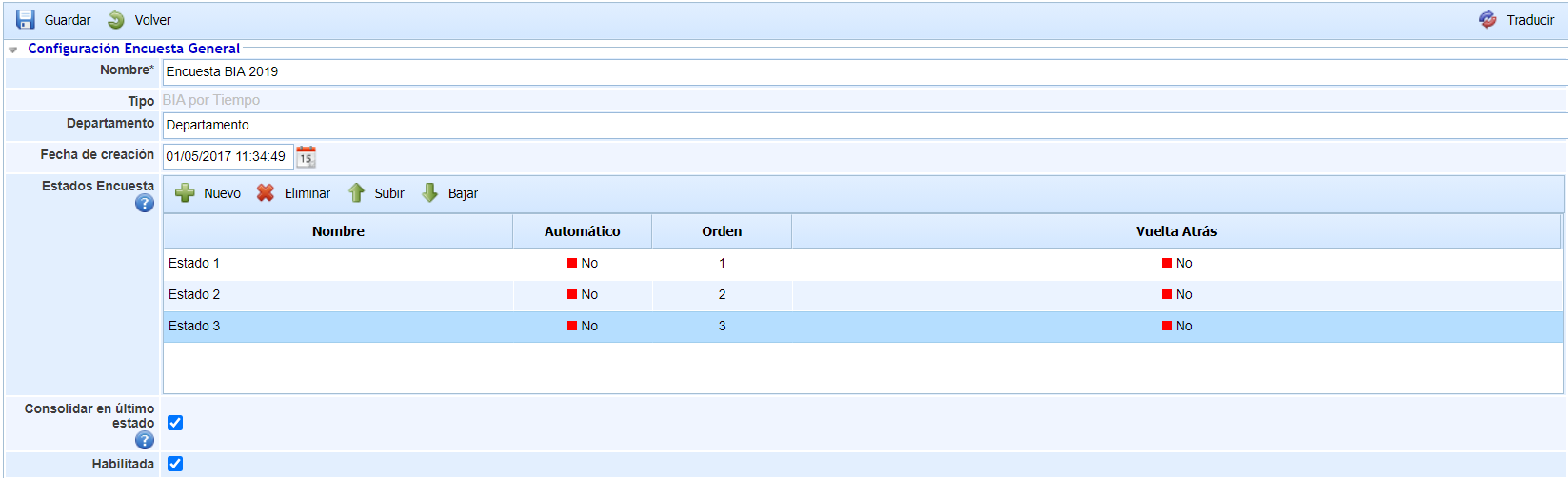
-
Name: Allows identifying the name of the survey. This name will be displayed in the initial survey list.
-
Type: Allows viewing the type of the survey.
-
Department: Enables identifying the department responsible for managing the survey.
-
Creation Date: Identifies the creation date of the survey.
-
Survey States: This table allows defining a set of states for the survey. These states can be assigned to employees when configuring the survey, so they will be responsible for the survey depending on its state. For each state, it is possible to define:
-
The name of the state.
-
Whether the state is Automatic or not, so that if a state is automatic, the surveys will move to the next state once completed without any user intervention. If the state is not automatic, it will be necessary to manually change the state of a survey.
-
The order of the states through the "Move Up" and "Move Down" buttons.
-
Whether the state allows returning to the previous state. By selecting Yes, the person responsible for completing the survey can return it to the previous state.
-
-
Enabled: Allows indicating that the survey is enabled for use in GlobalSUITE.
It is possible to translate the survey model fields into other available languages through the "Translate" button at the top right. This button will allow us to select another language and define the name of the configurable fields in that language. Currently, the survey states.
Survey Questions Configuration (Impact Type)
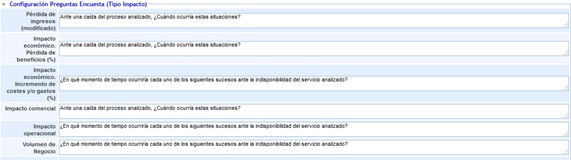
This section allows defining the necessary questions to properly generate the organization's BIA.
NOTE: The impact types are established in the 'Settings / Business Continuity' section.
Survey Questions Configuration (BIA Assessment)

This section allows establishing the necessary questions for the assessment of the defined dimensions.
Survey Questions Configuration
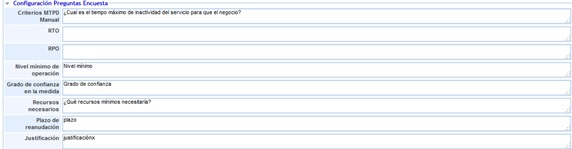
Provides the possibility to define the necessary questions for the calculation of the following concepts:
-
MTPD Criteria: Allows defining a question to establish the maximum service downtime criterion.
-
RTO: Provides the possibility to define a question to establish the maximum recovery time criterion.
-
RPO: Allows defining a question to establish the recovery point objective criterion.
-
Minimum Operating Level: Provides the possibility to define a question to establish the minimum levels for operating the services.
-
Confidence Level in the Measure: Allows defining a question to establish the confidence level of the defined values.
-
Necessary Resources: Allows asking about the resources needed for service recovery.
-
Resumption Period: Provides the possibility to define a question to complete the optimal service recovery period.
-
Justification: Allows asking about the criteria that justify the defined values.
Field Visibility and Order
In this table, you can define the visibility of the fixed fields and tables that can be used in the survey. The only mandatory field is "Name".

The information displayed in the table is:
-
Name: Displays the field identifier.
-
Visible: Checkbox that allows showing or hiding a field.
-
Block: By double-clicking on this cell, the available block list is displayed, allowing you to select in which block the field will be shown within the form.
-
Order (by block): This column indicates the order of each field within each block. When changing a field's block, it will be added to the end of it. It is also possible to manually order the fields by selecting one and pressing the "Move Up" or "Move Down" buttons.
NOTE: A field that is not enabled in the "Business Continuity" configuration cannot be made visible in the survey model.
NOTE 2: When pressing the "Modify BIAs" button in the > Time-Based BIA Surveys option, only the fields marked as visible will be consolidated in the surveys.
Customizable Questions
Allows including in the BIA survey those questions that have been established in the "Business Continuity" configuration option located in the 'Settings' section.
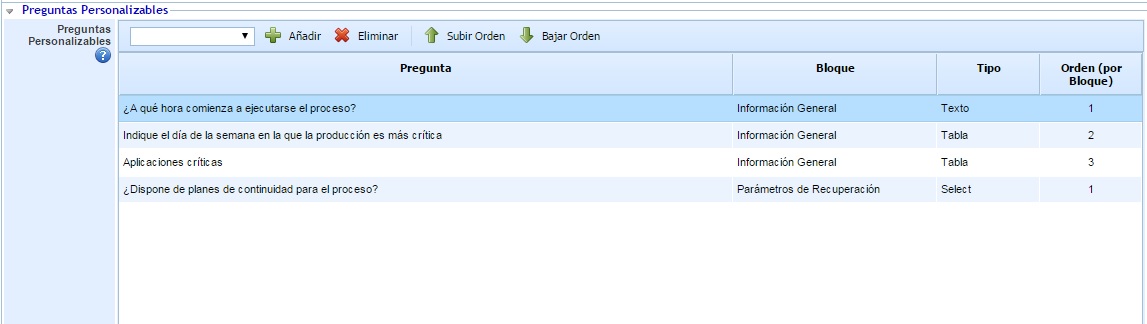
The table allows adding questions from the dropdown list through the "Add" button. Each question added to the table can be associated with one of the blocks in the BIA form ("Block" column), so the question is located in a specific section. Additionally, customizable questions within the same block can be ordered using the "Move Up" and "Move Down" buttons.