
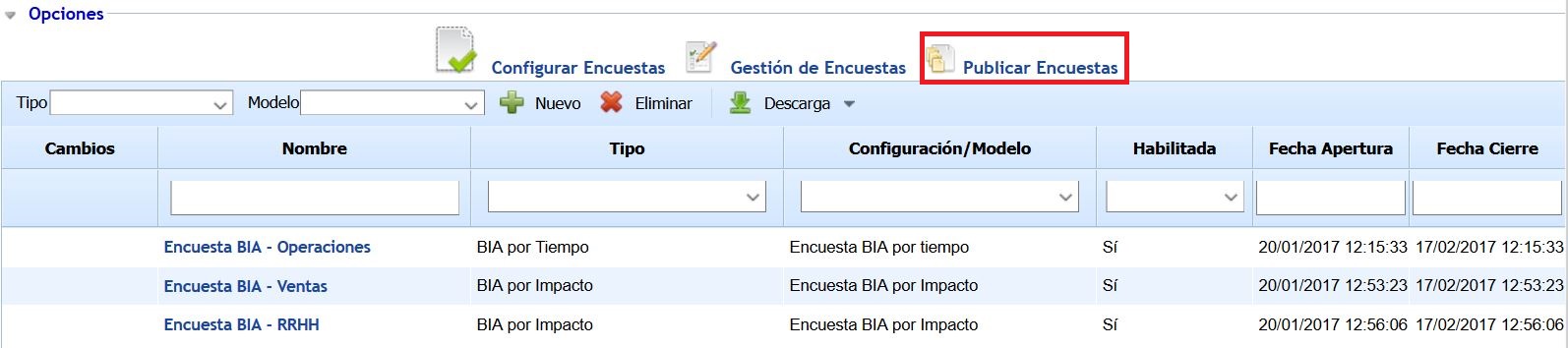
When accessing the option, a table is displayed that provides the following information:
-
Changes: Indicates if the survey publication has undergone any changes since its creation.
-
Name: Identifying name of the survey.
-
Type: Indicates the type of survey ("BIA by Time", "BIA by Impact", "Elements, Risks, and Controls", "Employees", "Critical Human Resources", "Compliance").
-
Configuration/Model: Indicates the survey model based on which the survey was conducted.
-
Enabled: Indicates whether the survey is enabled or not for completion by the recipients.
-
Opening Date: Indicates the start date of the period during which the survey can be completed.
-
Closing Date: Indicates the maximum date of the period during which the survey can be completed. Once this date is exceeded, the surveys are no longer accessible.
The options that the tool allows on the initial table are as follows:
-
New: Clicking the button generates a new entry in the survey table. To do this, it is necessary to define the Type and Model of the survey through the dropdowns that appear.
-
Type: This dropdown contains the types of surveys that can be generated. Depending on the enabled GlobalSUITE modules, different types of surveys will appear. The available types are: "BIA by Time", "BIA by Impact", "Elements, Risks, and Controls", "Employees", "Critical Human Resources", "Compliance".
-
Model: This dropdown shows the available survey models based on the selected survey type. This list is populated once a survey type has been selected.
-
-
Delete: Allows deleting an already created survey in the table. To do this, the desired row must be selected and the 'Delete' button clicked.
-
Download: Offers the possibility to download the list of surveys in editable format (xlsx) or in PDF format.
By clicking on any record in the table, you can access specific information about the survey publication.
General Survey Data
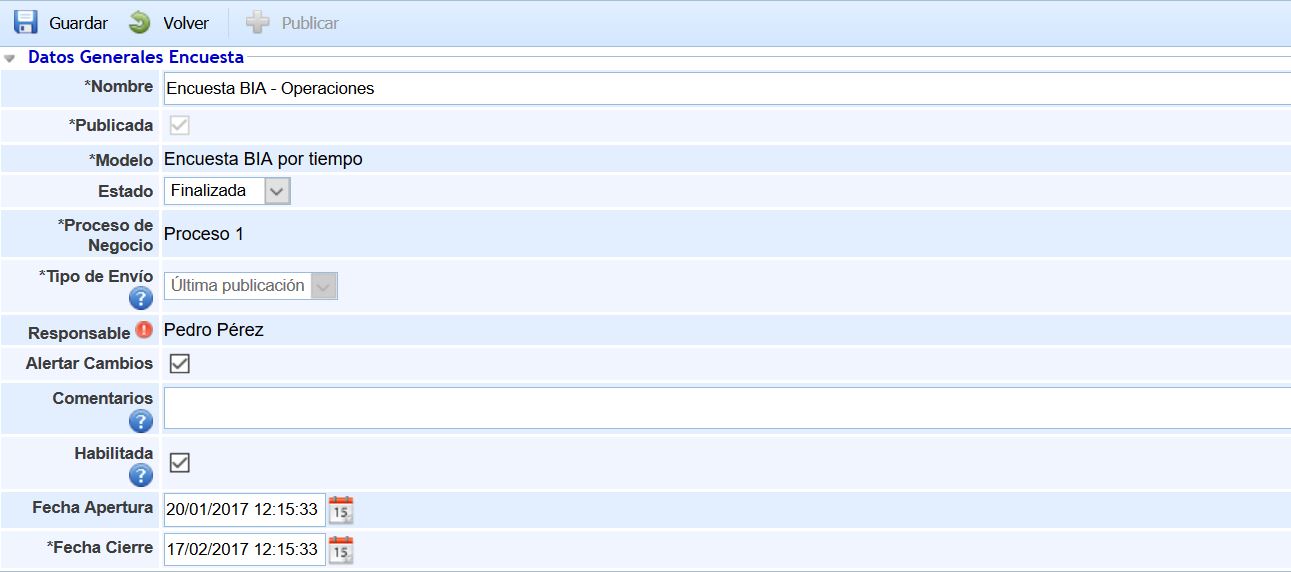
This section allows defining the following information:
-
Name: Identifying name of the survey.
-
Published: Indicates whether the survey is published. The checkbox is automatically marked once the "Publish" button located at the top is clicked.
-
Model: Indicates the Model used to conduct the survey.
-
Status: Indicates the Status of the published survey.
Note
If the survey model does not have configured statuses, the Status field does not appear.
-
Business Process: Indicates the business process on which the survey will be conducted.
Note
This field only appears in BIA-type surveys. For other types of surveys, it does not appear.
-
Delivery Type: Offers the possibility to send surveys according to the following types:
-
Empty: The survey is sent to users with uncompleted or empty fields (for BIA-type surveys) or is sent with the information currently available in GlobalSUITE (for other types of surveys).
-
Last Publication: Allows selecting a previously published survey so that the fields are completed with the information from the selected survey. If no previous survey is selected (in the "Associated Recipients" section, "Select Previous" option), the survey is created empty (for BIA-type surveys) or is created with the information currently available in GlobalSUITE (for other types of surveys).
-
Employee Data: This type only appears for "Employee" type surveys. Selecting this type creates the survey with the current employee data available in GlobalSUITE.
-
-
Responsible: Allows setting the person responsible for the survey publication. At the end of the survey, this responsible person receives an email notification.
-
Alert Changes: Offers the possibility for the responsible person to be alerted of any changes made by a user to the survey.
-
Comments: Allows including a text or comment to assist users who will complete the survey. The text entered in this field appears in the email sent to the survey recipients.
-
Enabled: Allows enabling the survey for users. If this checkbox is marked, the surveys will be available during the period established between the Opening Date and Closing Date. If this checkbox is not marked, the survey is not enabled, ignoring the established dates. If no opening and closing dates are indicated, and the checkbox is marked, the survey will always be enabled and must be manually disabled.
-
Opening Date: Allows setting a date from which the survey can be completed.
-
Closing Date: Allows setting a date after which the survey will no longer be accessible for completion.
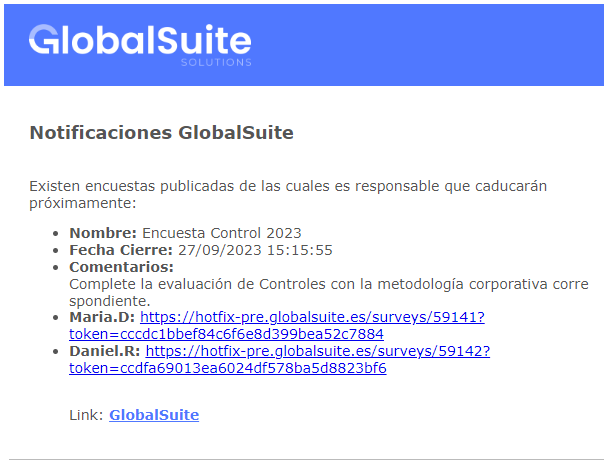
Expiration Notifications
It will be possible to send notifications to the responsible persons and recipients of surveys nearing their end that have not yet been completed, as well as those that are completed but not finalized.
This notification system is a useful tool to ensure that surveys are completed in a timely manner and that proper follow-ups are conducted. Staggered reminders before the closing and post-closing notifications are effective strategies to increase response rates and survey completion.
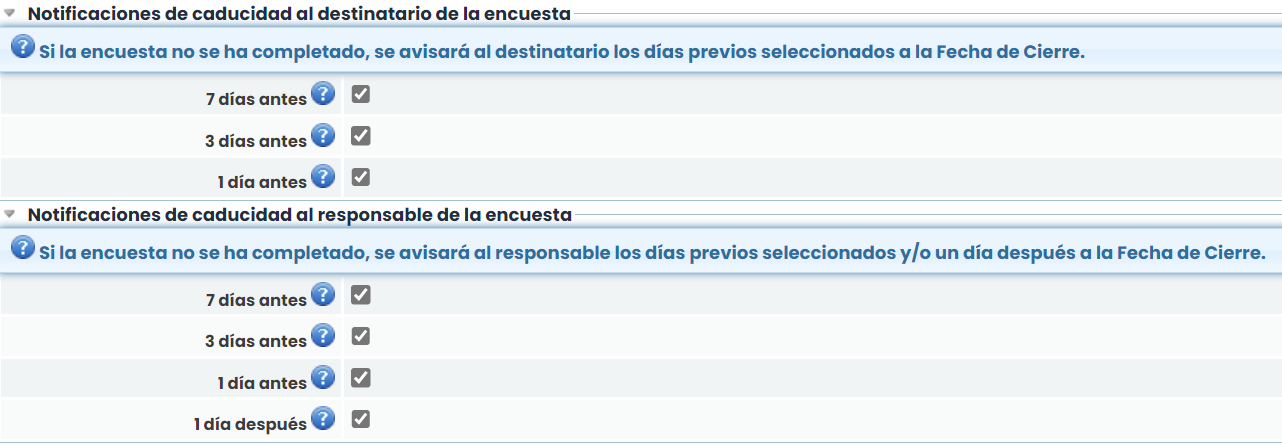
Expiration Notification to the Survey Recipient
The purpose of these notifications is to remind recipients to complete the survey before its expiration.
-
It will be possible to configure the sending of notifications to the recipient 1, 3, and/or 7 days before the survey's closing.
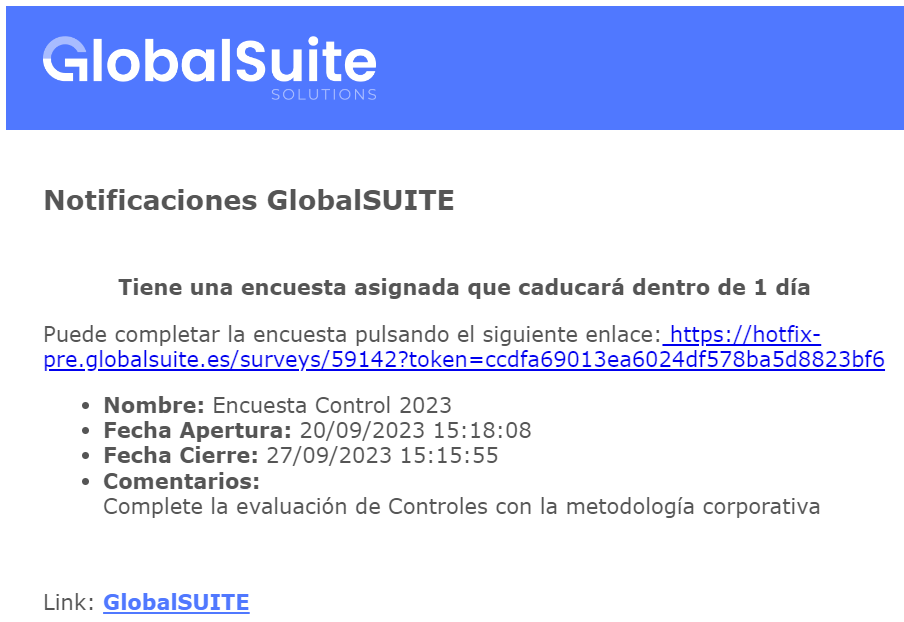
Expiration Notification to the Survey Responsible
This type of notification is useful for responsible persons to follow up on the survey and ensure it is completed on time, as well as to identify surveys that were not completed in a timely manner.
-
It will be possible to configure the sending of notifications to the responsible person 1, 3, and/or 7 days before the survey's closing.
-
Additionally, notifications can be sent regarding surveys that have ended and were not completed. These notifications would be sent the day after the survey's closing date.
Associated Recipients

This section allows defining the recipients of the surveys to be completed. The actions that can be performed in the table are as follows:
-
Add Employees: Allows adding recipients to the survey using the employees registered in the tool. Clicking the button displays a pop-up window with the list of employees, allowing one or more employees to be selected. Once the desired employees are selected, click the "Associate Employees" button located at the top of the window.
-
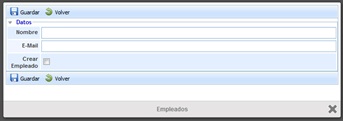
New: Allows adding a recipient who is not registered in the tool. Clicking the button displays a window where the name and email address of the recipient can be entered. Additionally, the recipient can be created as a registered employee in the tool by checking the "Create Employee" checkbox.
-
Delete: Allows deleting a recipient already included in the table. To do this, the employee must be selected, and the 'Delete' button clicked.
-
View Survey: Allows viewing the specific survey of the user selected in the table.
-
Select Previous: Allows associating the information of a previous survey for the surveys included in the publication. There are two options:
-
All: This option automatically associates each existing survey in the publication with a previous survey. To do this, it checks that the previous survey has the same Employee and the same Survey Configuration to make the association.
-
Manually: This option allows selecting which previous survey to associate. To do this, a survey from the table must be selected, and clicking this option displays a window containing all previous surveys with the same survey model, allowing the desired survey to be selected for association with the current survey.
-
Note
This button is disabled when the Delivery Type of the publication is "Empty".
-
Send Reminders: This option allows sending email notifications to recipients. The notifications contain an introductory text about the survey, including the comments indicated in the publication and the link to access the survey. There are 3 options:
-
Send to All: An email is sent to all recipients.
-
Not Alerted: An email is sent to recipients who have not been notified so far.
-
Selected: An email is sent to the recipients selected in the table.
-
The information provided by the recipients table is as follows:
-
Name: Indicates the name of the survey recipient.
-
E-mail: Indicates the email address of the survey recipient.
-
Process: Indicates the process associated with the survey.
Note
This column only appears in BIA-type surveys.
-
Token: Allows viewing the authentication security code associated with the survey. This code is automatically generated for each created survey.
-
Previous: Indicates the name of the survey publication associated with the current survey. If no previous survey has been associated, this column appears without information.
Note
This column only appears in surveys with the Delivery Type "Last Publication".
-
Alerted: Indicates whether the survey has been sent to the user.
-
Status: Indicates the status of the survey.
Note
This column only appears in surveys whose model has configured statuses.
-
Completed: Indicates whether the survey has been completed. Each recipient can indicate if they have finished a survey by clicking a button available in the survey.
Survey Tracking

This section allows managing the tracking of a survey for a specific recipient. To do this, the recipient from the previous table must be selected, and the following actions can be performed:
-
URL: Allows viewing the URL that the user receives via email to complete the survey. Clicking this URL directly accesses the survey as the recipient sees it.
-
Tracking: Offers the possibility to add comments or observations about the survey through the "Add" button, and these comments can be sent via email by clicking the "Send Email" button. Additionally, automatic tracking corresponding to reminders sent to the recipient and modifications made by the user to the survey are recorded.
Note
Once the survey is published, users receive an email with the URL to access the survey and all associated information. The following image shows an example (both the content and format of the email may vary depending on each entity and the type of survey).
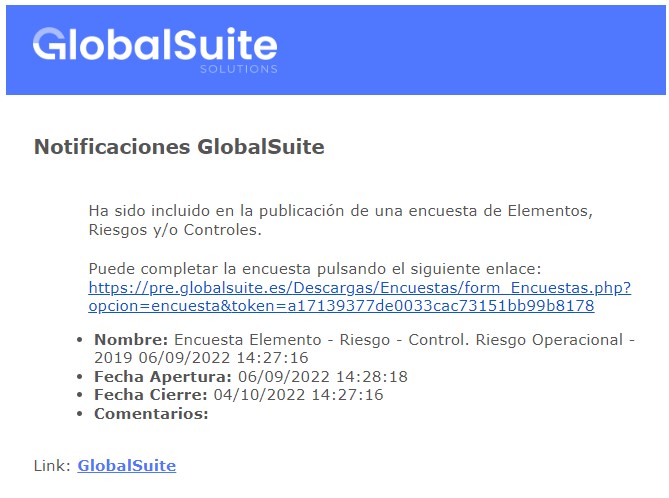
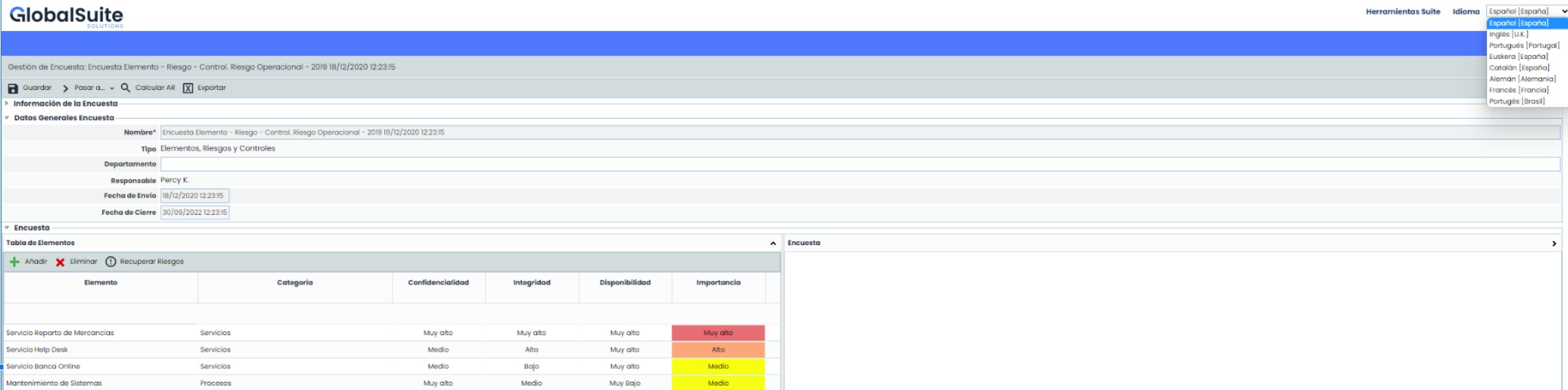
In each of the surveys completed by accessing the link, the following actions can be performed:
-
Language: Surveys will load in the company's default language, but users can complete them in their preferred language from the available options in the dropdown.
-
Save: Allows storing the information completed so far without finalizing the survey and without notifying any responsible person.
-
Finalize Survey: Saves and finalizes the survey. Depending on how the status change is defined, it will send an email notifying the publication responsible, automatically or not, or move to the next status. If no statuses are defined for the survey, it will finalize the survey and notify the publication responsible.
-
Revert to Previous Status: Only available for surveys with statuses that have configured Backward Transition in that status, allowing the survey to return to the previous status.