
When a job is changed to the "In Progress" status, a copy of the information and evaluation of the items included in it is made. A confirmation message appears stating: "A snapshot of the audit analysis data will be taken. This process may take some time. Do you want to continue?"
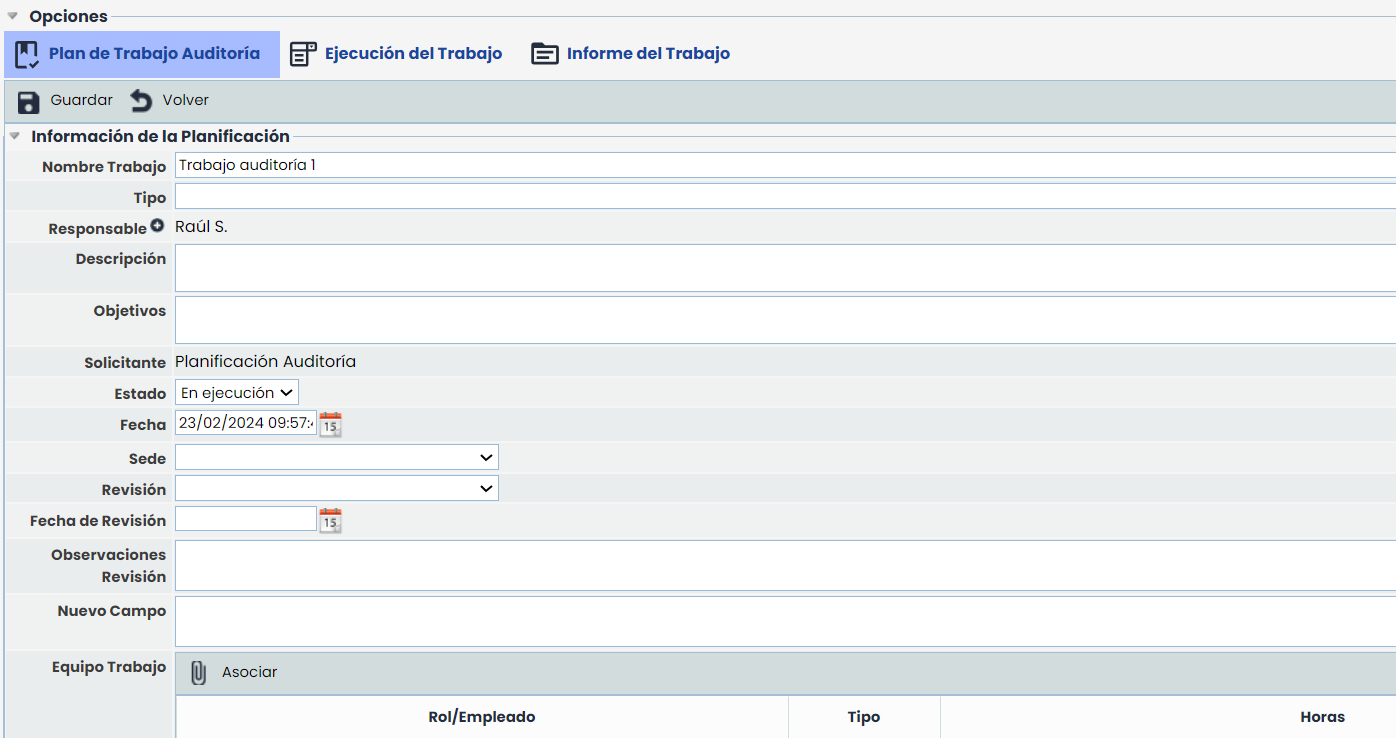
Once the information copy is completed, the top menu options "Work Execution" and "Work Report" appear in the job form.
Log Hours
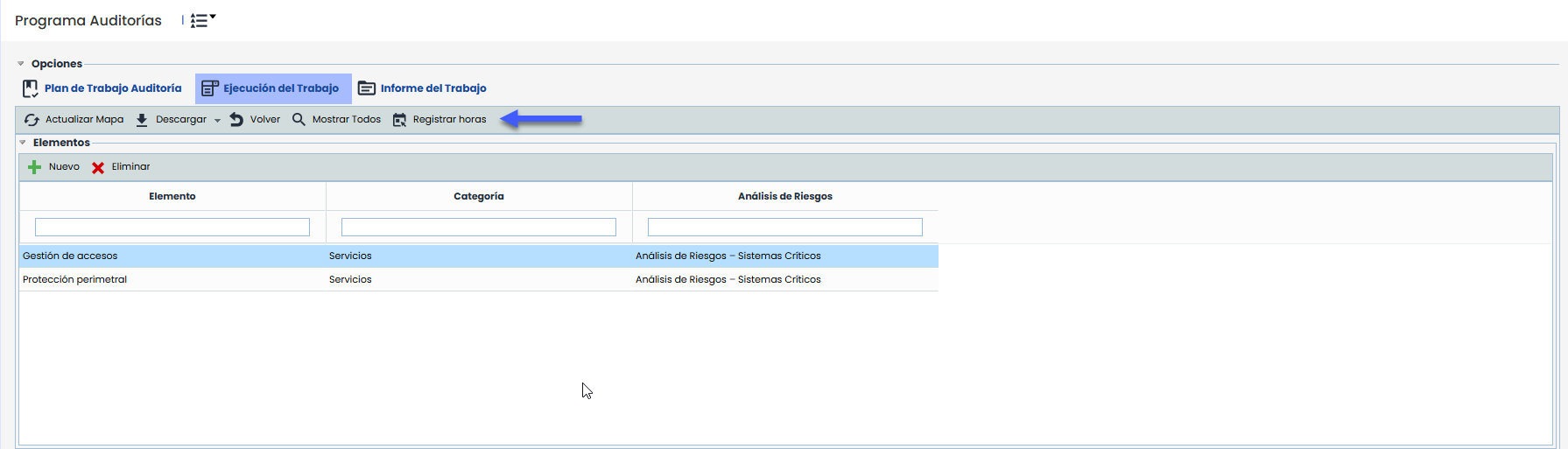
When pressing the Log Hours button, the system checks if the user is part of the work team defined in the Work Plan.
If the user belongs to the team, they can access the log and perform the following actions on their records:
-
Create and delete hour logs.
-
Indicate the number of hours dedicated.
-
Add the reason/concept and observations for the allocation.
-
Select the corresponding date for the log.
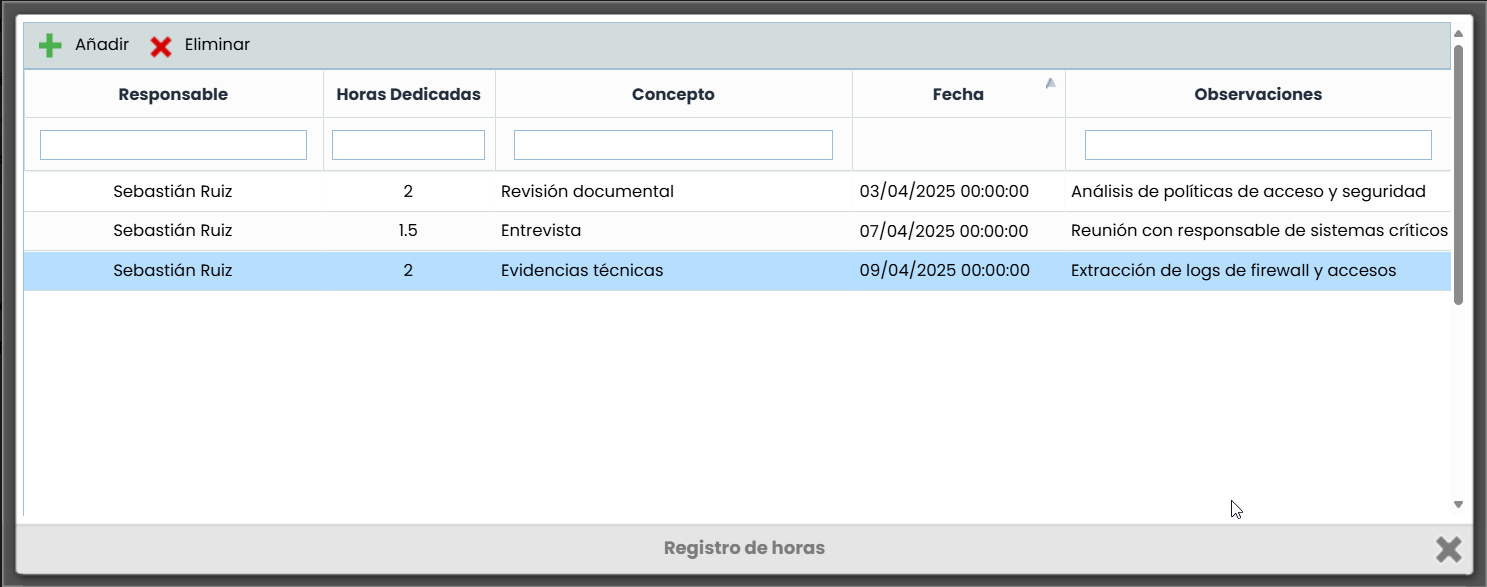
When a manager or administrator accesses the hour log, they can view the hours logged by all team members.
They have the ability to add and edit logs. When creating or modifying a log, they can select as responsible only the users who are part of the team defined in the Work Plan.
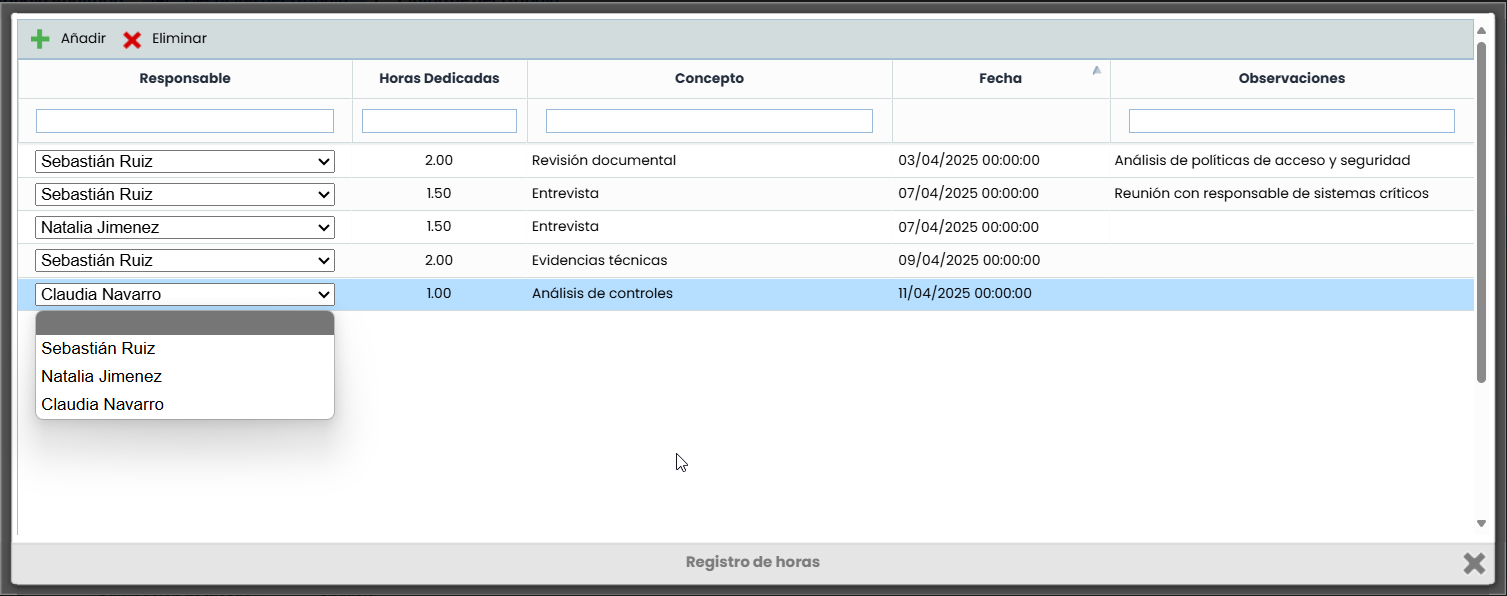
Items Table
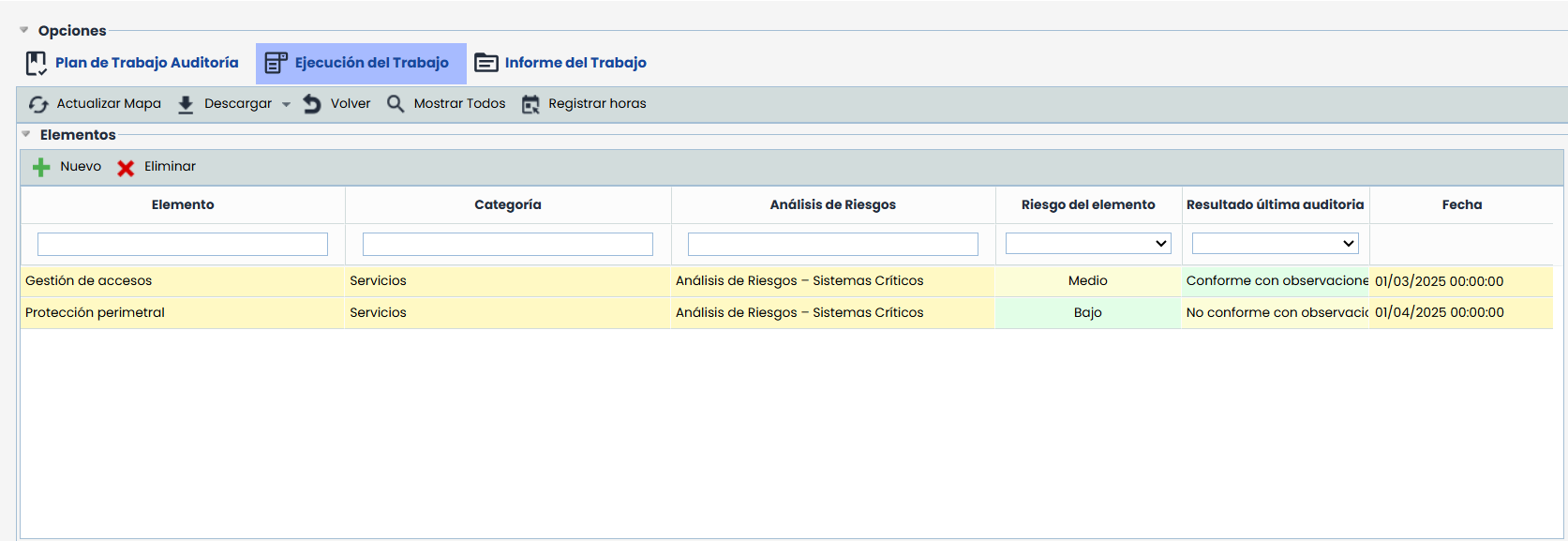
In this view, a first table appears with the items included in the job, and the dimensions configured in the audit methodology to evaluate the items.
Risks and Controls Tables
When an item is selected, the risks identified in the analysis for that item are loaded in the lower table.
The risk assessment dimensions are displayed as configured in the audit methodology, which may include the original dimensions and the modifications or proposed changes during the execution of the audited work.
If a risk is selected, the controls applied to that risk, as well as the assessment dimensions, will be displayed in the lower table, allowing for suggested changes.
The risks and controls modified in the job will be marked in yellow for identification.
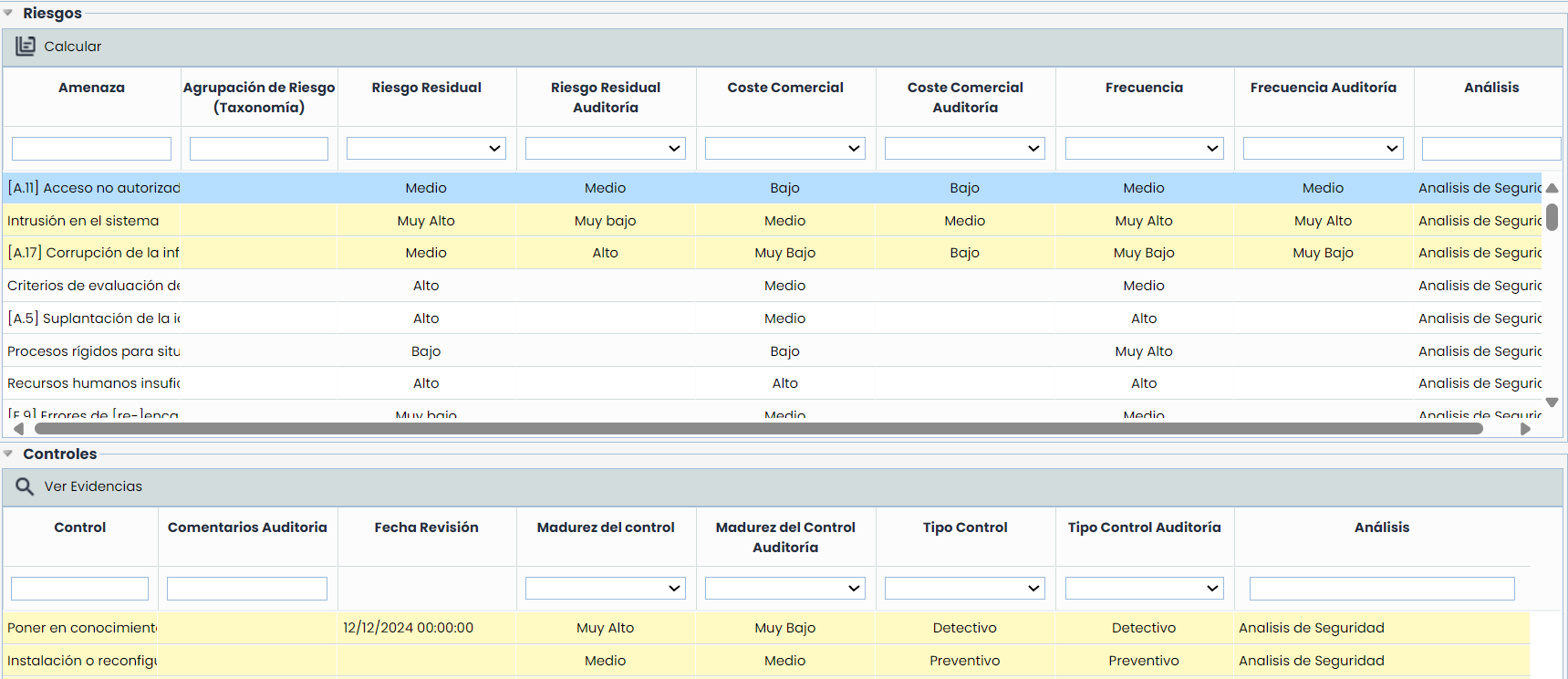
Using the "Calculate" button available in the risks table, all automatic dimensions will be updated based on the entered values. And through the "View Evidence" button, the evidence associated with the controls in the Control Management section can be consulted.
Incorporate New Records
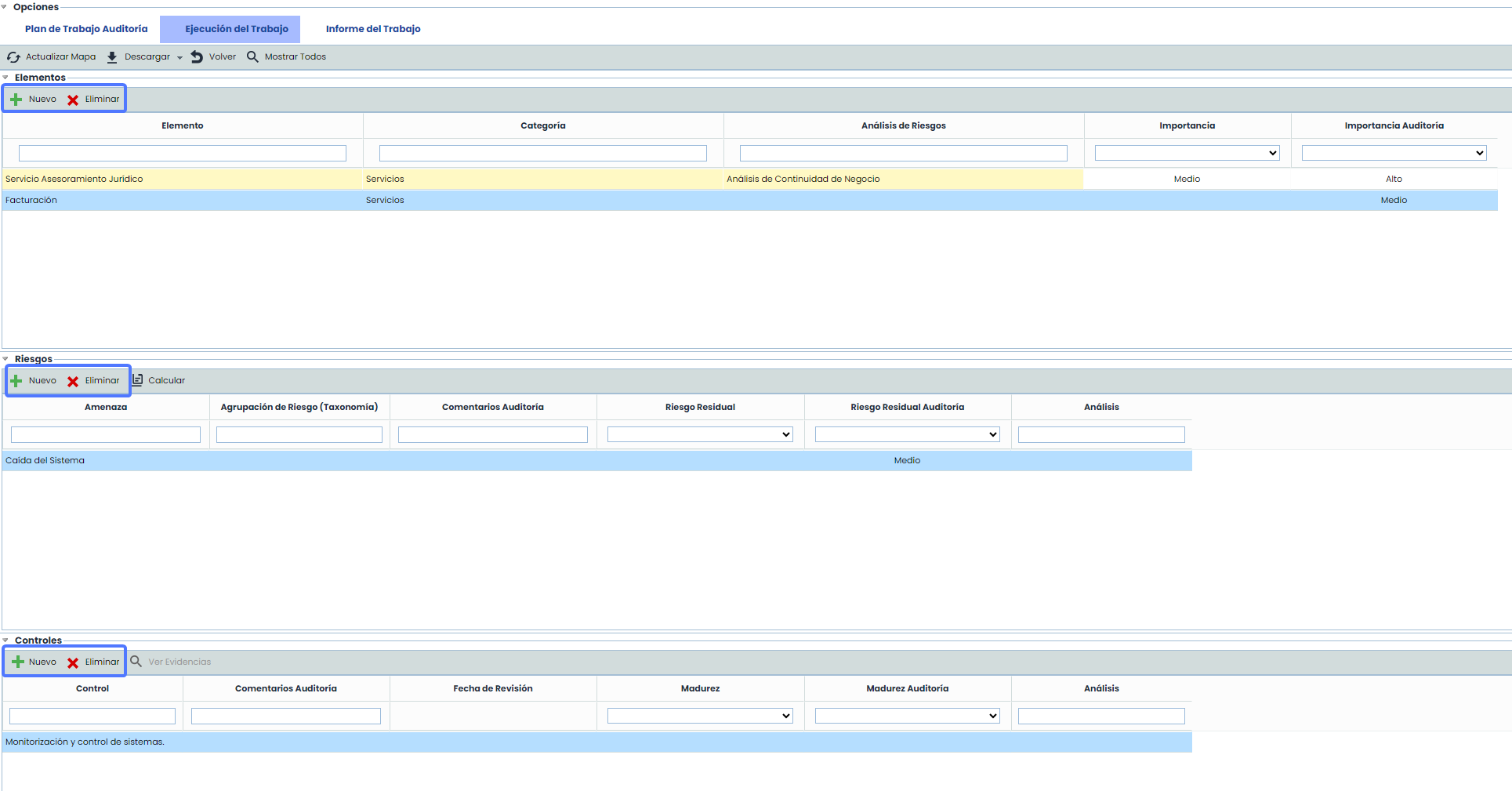
If this option is enabled in Settings > Methodologies > Audits, the ability to add new records as well as delete them will be enabled in the items, risks, and controls tables.
Working papers
Next, there is a section to incorporate the Working Papers used during its execution. Using the "Add" and "Delete" buttons, they can be added and removed. For each record, it is possible to attach a file to add it to the record or download it if it is already attached.
It is also possible, through the "Associate Record" button, to link each working paper to the audited item, risk, or control to maintain its traceability. Additionally, the working papers created when an item is selected will be automatically associated with it.
Files included as working papers that are images or PDF documents can be viewed without the need to download them through the "View" option.
By default, all the working papers of the audit are displayed; however, when an item or risk is selected, the table is filtered to show only the associated ones. To display all again, the "Show All" button at the top of the view must be pressed.

Tickets
In this last section of this Work Execution view, tickets can also be generated to address the identified findings, if necessary.

-
Add: Allows creating a ticket directly associated with the job.
-
Dissociate: Using this button, the ticket's relationship with the current job can be removed.
-
Associate Existing: Allows selecting an already created ticket in the corresponding option and linking it to the job.
-
Associate Processes: Allows associating processes within the scope of the job to the ticket. For this, the ticket must have a field of type PROCESSES.
-
Associate Services: Allows associating services within the scope of the job to the ticket.
-
Associate Risks: Allows associating audit work risks to the ticket. For this, it must have a field configured as type THREATS.
The visibility of the tickets, by default, shows all those associated with the audit work, but if an item or risk is selected, the table is filtered to show only those associated with that record. To display all again, the "Show All" button at the top of the view must be pressed.
It is possible to extract all the information from the audit work execution through the "Download" button available at the top of the view.