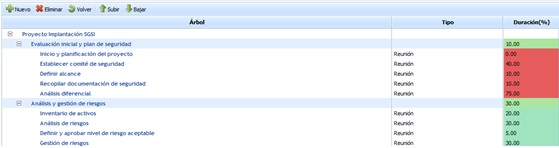
The 'Model Management' option in GlobalSUITE allows the user to create, modify, or delete project implementation models. This window contains a dropdown menu at the top and bottom to select an existing model. If no model exists, a new one can be created by clicking the 'New' button.
Once the new model is created, the tool allows the following actions:
-
New: allows adding a new task to the project. To do this, select the row on which you want the task to depend and click the 'New' button.
-
Delete: Enables the deletion of a task. To do this, select the desired row and click the 'Delete' button.
-
Back: Allows returning to the project model list.
-
Move Up: Enables modifying the position of a task by moving it to a higher level(s).
-
Move Down: Allows modifying the position of a task by moving it to a lower level(s).
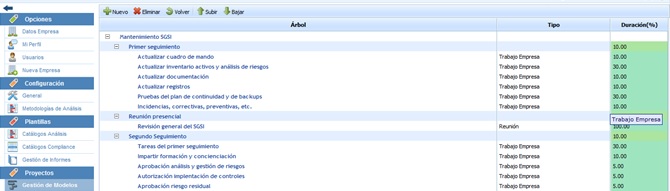
The model table provides the following column information:
-
Tree: Contains the generated task levels: the root, with the model name, and the different tasks, with the name assigned to each of them.
-
Type: This field contains the values that will define the type of the task. The values are as follows: Meeting, Consultant Work, Company Work, Collaborative Work, and Internal Task.
-
Duration (%): Percentage assigned to each of the tasks. For the model to be usable, the tasks must add up to 100% depending on the level they are in.
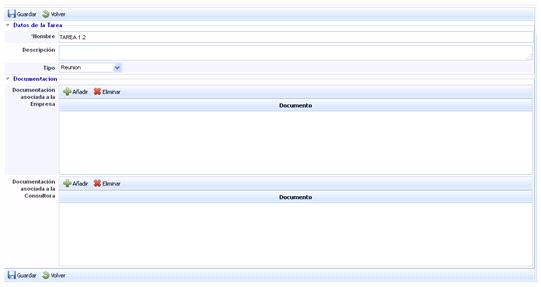
A description field can be added to the project or task element. To do this, click on the name of the project or task within the Tree column. The following form should be displayed:
NOTE: For a model to be valid, all its tasks must add up to 100%. As long as they do not add up to 100%, the tool will highlight this point in red.