
General Survey Configuration
-
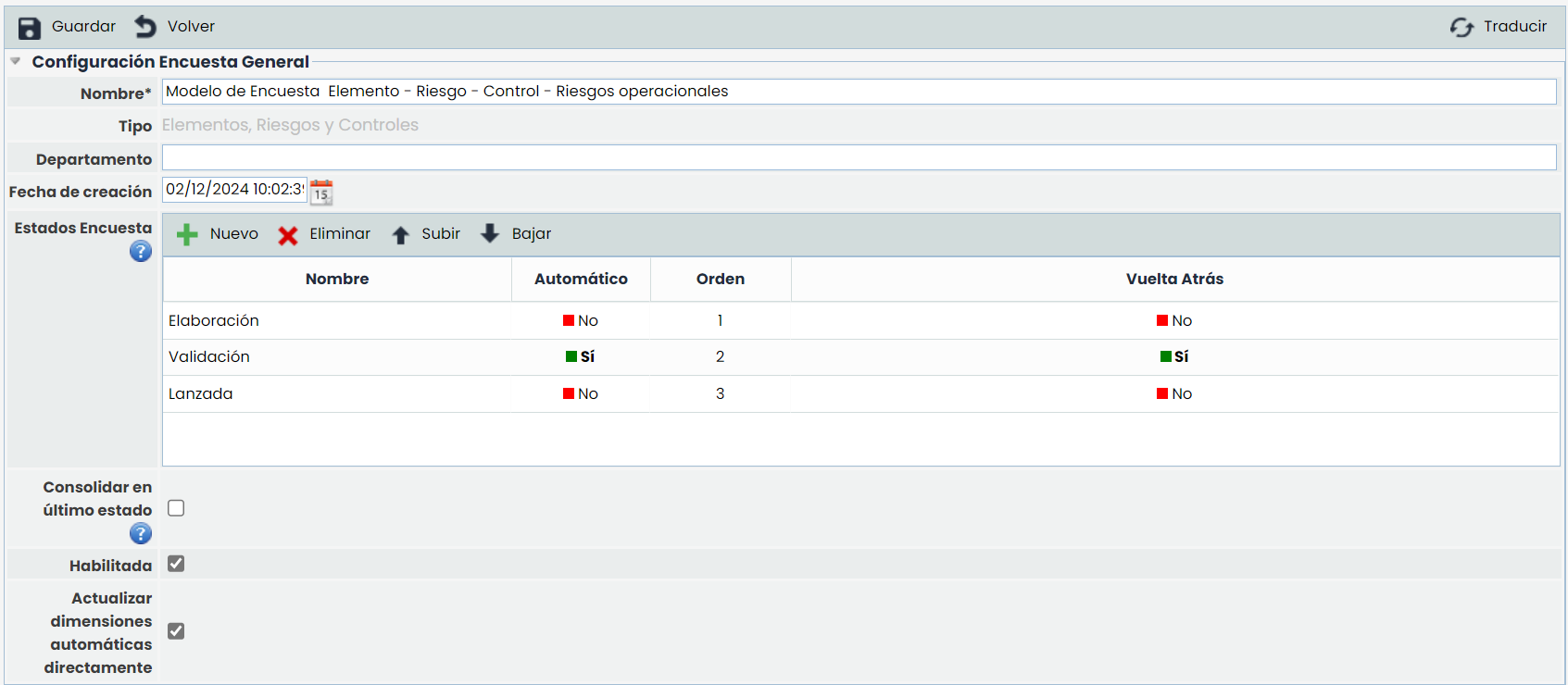
Name: Allows identifying the name of the survey. This name will be displayed in the initial survey list.
-
Type: Allows viewing the type of the survey.
-
Department: Enables identifying the department responsible for managing the survey.
-
Creation Date: Identifies the creation date of the survey.
-
Survey States: This table allows defining a set of states for the survey. These states can be assigned to employees when configuring the survey, making them responsible for the survey depending on its state. For each state, it is possible to define:
-
The name of the state.
-
Whether the state is Automatic or not, so that if a state is automatic, the surveys will move to the next state once completed without any user intervention. If the state is not automatic, it will be necessary to manually change the state of a survey.
-
The order of the states through the "Move Up" and "Move Down" buttons.
-
Whether the state allows returning to the previous state. By selecting Yes, the person responsible for completing the survey can return it to the previous state.
-
Whether the surveys can return to the previous state or not, through the "Rollback" field.
-
-
Consolidate in the last state: Enables the possibility of directly consolidating the survey data in the final analysis. This button will only be available in the last state of the flow.
-
Enabled: Allows indicating that the survey is enabled for use in GlobalSUITE.
-
Automatically update dimensions directly: If this field is activated, the automatic dimensions of the methodology will be calculated each time a manual dimension is modified in the surveys. If it is unchecked, a button will appear allowing them to be updated by clicking it.
It is possible to translate the survey model fields into the other available languages through the "Translate" button at the top right. This button will allow us to select another language and define the names of the configurable fields in that language. Currently, the survey states.
Survey Types
-
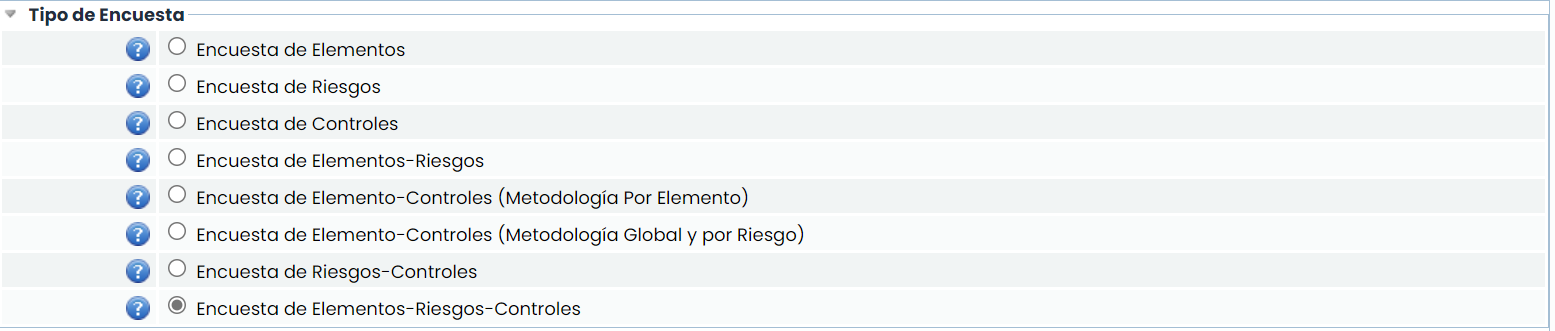
Item Survey: Selecting this option allows creating new items for the Inventory, as well as evaluating both the new items and the existing items in the Inventory.
-
Risk Survey: Selecting this option allows conducting a survey based on the risks of the items defined in the Inventory.
-
Control Survey: Selecting this option allows creating new controls for the global control list, as well as evaluating both the new controls and the existing controls in the general list.
-
Item-Risk Survey: Selecting this option allows creating new items for the Inventory as well as creating new risks associated with the items added in the survey. Additionally, both the items and the risks existing in the survey can be evaluated according to the methodology configured for each case.
-
Item-Control Survey (By Item Methodology): Selecting this option allows creating new items for the Inventory as well as creating new controls associated with the items added in the survey. Additionally, both the items and the controls existing in the survey can be evaluated according to the methodology configured for each case.
-
Item-Control Survey (Global and By Risk Methodology): Selecting this option allows creating new items for the Inventory as well as creating new controls for the global control list and the risk list. Additionally, both the items and the controls existing in the survey can be evaluated according to the methodology configured for each case.
-
Risk-Control Survey: Selecting this option allows creating new risks for each item as well as creating new controls associated with the risks added in the survey. Additionally, both the risks and the controls existing in the survey can be evaluated according to the methodology configured for each case.
-
Item-Risk-Control Survey: Selecting this option allows creating new items for the Inventory, creating new risks for each item as well as creating new controls associated with the risks added in the survey. Additionally, the items, risks, and controls existing in the survey can be evaluated according to the methodology configured for each case.
Additional Configuration
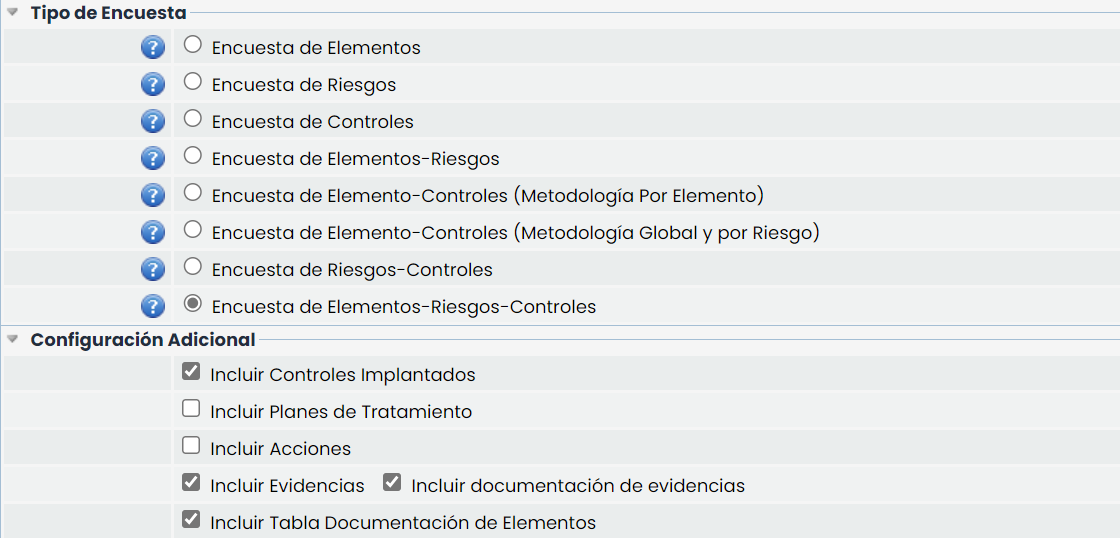
If the survey model includes controls, an additional configuration section will appear where the following can be defined:
-
Include Implemented Controls: Allows indicating whether the already implemented controls will be incorporated into the surveys.
-
Include Treatment Plans: By selecting this field, the controls in the process of implementation or improvement will be included in the surveys.
-
Include Actions: Allows indicating whether Actions should be included to define a treatment plan for the survey controls.
-
Include Evidence: If this field is selected, it will be possible to attach files and reviews for each control in the survey.
-
Include evidence documentation: This field will be enabled when Include Evidence is selected. Enabling it will allow including the documentation associated with the evidence in the surveys. In Surveys > Configuration, it can be configured, and it will be possible to limit the documentation displayed.
-
-
Include Item Documentation Table: Activating this option enables the option to attach new documentation and view previous associated documentation that the survey items have in the Inventory.
Taxonomy

If the selected survey model allows evaluating risks, it can be configured in the "Taxonomy" section whether to include the Risk Types, either in consultation mode or allowing them to be configured.
Item Survey
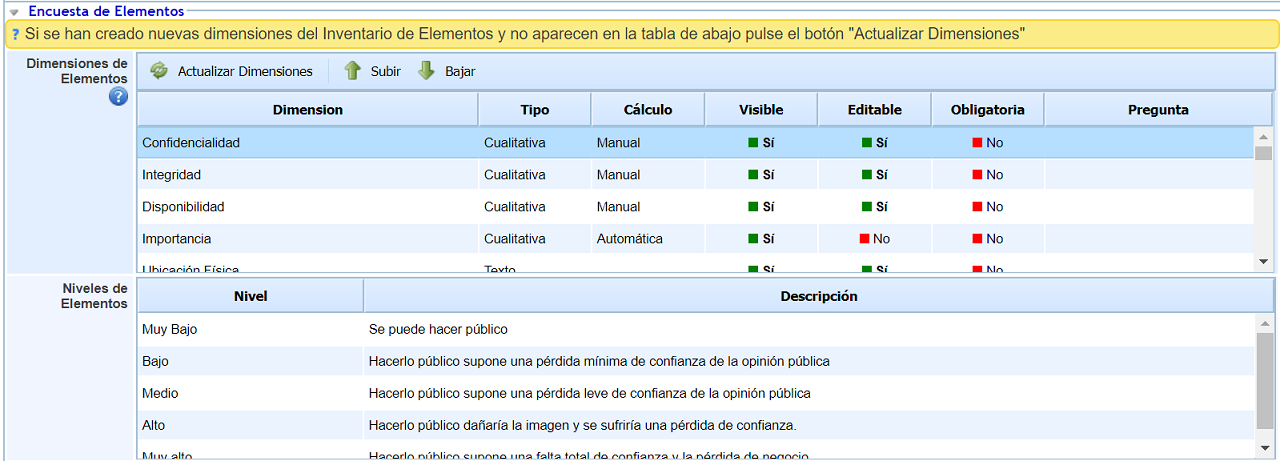
The information provided by the tool includes the dimensions based on which the survey and evaluation of the items will be conducted, dimensions that have been configured in the 'Settings/Analysis Methodologies/General Configuration' section.
The information provided by the table is as follows:
-
Dimension: Identifies the name of the dimension that will appear in the survey.
-
Type: Indicates the type of the dimension, whether its evaluation is qualitative or quantitative.
-
Calculation: Provides information on the calculation of the dimension, whether it is calculated manually or automatically.
-
Visible: Allows defining whether the dimension will be included in the survey or not by clicking on the cell.
-
Editable: Indicates whether the dimension can be modified in the survey or will only be visible in consultation mode. This field can be set to "Yes" for manual dimensions.
-
Mandatory: Allows marking a dimension as mandatory. This implies that the dimension must be evaluated for all items before Saving or Changing the State of the survey. This field can be set to "Yes" for manual dimensions.
-
Question: Provides the possibility to establish the necessary question for the evaluation of the dimension.
The actions that the tool allows on the table are as follows:
-
Update Dimensions: Allows updating the list of dimensions for evaluating the assets, in case the 'Settings/Analysis Methodologies/General Configuration' section has been modified after the creation of the survey model.
-
Move Up: Provides the possibility to position a dimension by moving it up to the required position.
-
Move Down: Provides the possibility to position a dimension by moving it down to the required position.
NOTE: This option is only displayed if the 'Item Survey' checkbox from the previous section has been selected.
Risk Survey
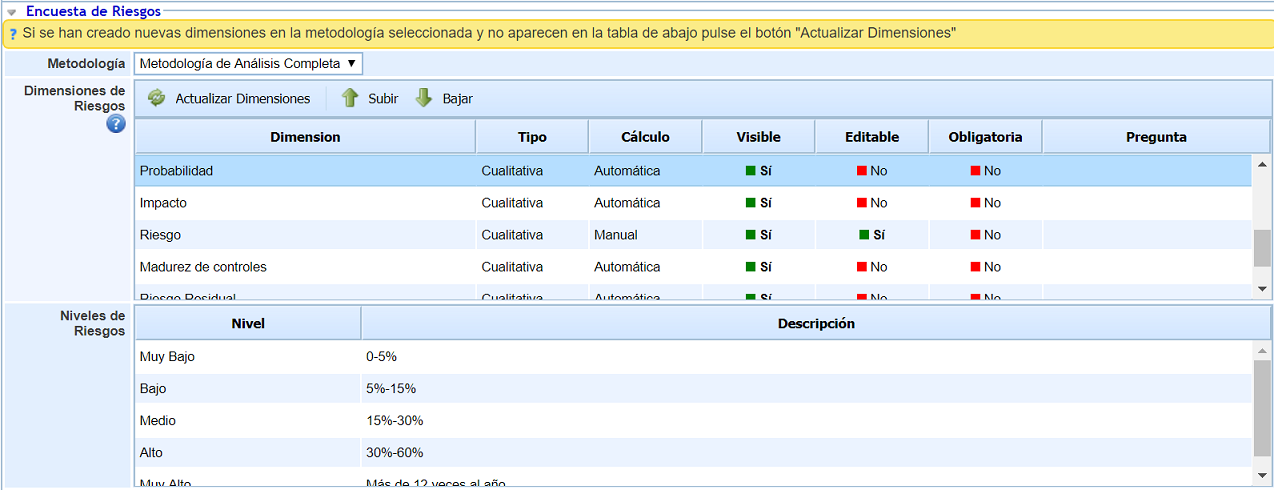
The information provided by the tool includes the dimensions based on which the survey and evaluation of the risks of the items will be conducted, dimensions that have been configured in the 'Settings/Analysis Methodologies/Analysis Methodologies' section.
The information provided by the table is as follows:
-
Dimension: Identifies the name of the dimension that will appear in the survey.
-
Type: Indicates the type of the dimension, whether its evaluation is qualitative or quantitative.
-
Calculation: Provides information on the calculation of the dimension, whether it is calculated manually or automatically.
-
Visible: Allows defining whether the dimension will be included in the survey or not by clicking on the cell.
-
Editable: Indicates whether the dimension can be modified in the survey or will only be visible in consultation mode. This field can be set to "Yes" for manual dimensions.
-
Mandatory: Allows marking a dimension as mandatory. This implies that the dimension must be evaluated for all risks before Saving or Changing the State of the survey. This field can be set to "Yes" for manual dimensions.
-
Question: Provides the possibility to establish the necessary question for the evaluation of the dimension.
The actions that the tool allows are as follows:
-
Methodology: Provides the possibility to select the analysis methodology on which the survey is to be conducted. Depending on the selection, the following options will display the specific dimensions of the selected methodology.
-
Update Dimensions: Allows updating the list of dimensions for evaluating the risks of the assets, in case the 'Settings/Analysis Methodologies/Analysis Methodologies' section has been modified after the creation of the survey model.
-
Move Up: Provides the possibility to position a dimension by moving it up to the required position.
-
Move Down: Provides the possibility to position a dimension by moving it down to the required position.
NOTE: This option is only displayed if the 'Risk Survey' checkbox from the previous section has been selected.
Control Survey
Control surveys will allow evaluating controls differently depending on the type of survey chosen, and they can also be configured in two ways, depending on whether a global identification and evaluation of controls is required, or if the identified controls should be associated with the analyzed risks, or lastly, the controls will be directly associated with the assets.
1. To perform a general identification and evaluation of controls, the survey must be configured with the type "Control Survey" or with the type "Asset-Control Survey (Global and By Threat Methodology)". In this way, the configured survey serves to identify and/or evaluate controls generally, without associating them with organizational risks (the association of controls and risks can be done later). The only difference between the two types of surveys is that the second allows identifying and evaluating assets from the Inventory as well. For "Control Survey" type surveys, any control methodology can be selected, while for the "Asset-Control Survey (Global and By Threat Methodology)" type, only "Global" or "By Threat" control methodologies can be chosen.
2. To perform an identification and evaluation of controls associated with risks, the survey must be selected with one of the following types: "Risk-Control Survey" or "Asset-Risk-Control Survey". In this way, in a single survey, risks are identified and/or evaluated, as well as controls for each risk. For these types of surveys, only analysis methodologies associated with a "By Threat" control methodology can be chosen.
3. To perform an identification and evaluation of controls associated with assets, the survey must be selected as type "Asset-Control Survey (By Asset Methodology)". This allows associating controls with assets and identifying and evaluating controls for each asset. For this type of survey, only "By Asset" control methodologies can be chosen.
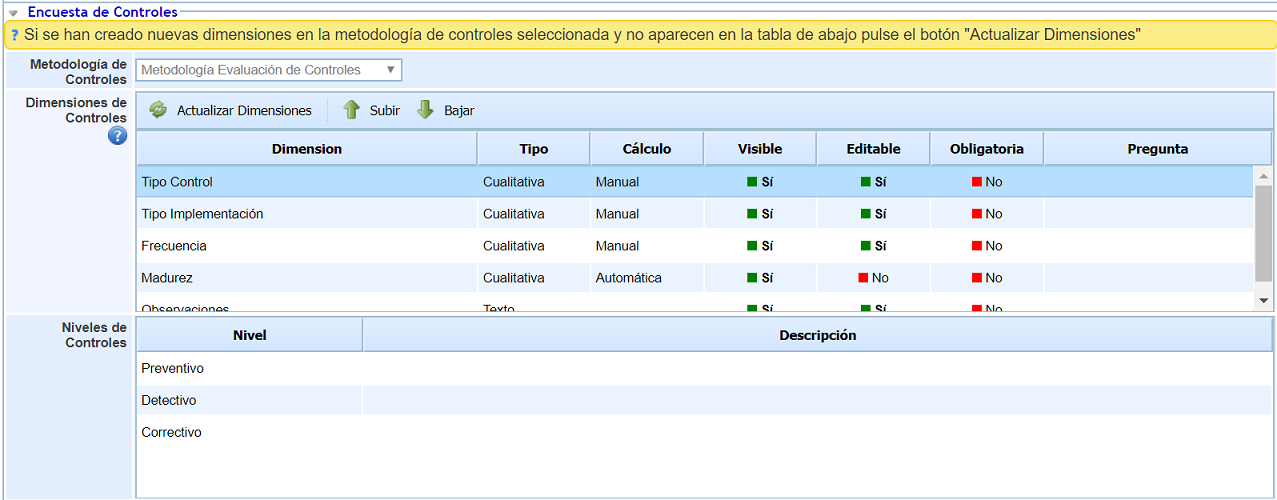
The information provided by the tool includes the dimensions based on which the survey and evaluation of the controls will be conducted, dimensions that have been configured in the 'Settings/Analysis Methodologies/Control Methodologies' section.
The information provided by the table is as follows:
-
Dimension: Identifies the name of the dimension that will appear in the survey.
-
Type: Indicates the type of the dimension, whether its evaluation is qualitative or quantitative.
-
Calculation: Provides information on the calculation of the dimension, whether it is calculated manually or automatically.
-
Visible: Allows defining whether the dimension will be included in the survey or not by clicking on the cell.
-
Editable: Indicates whether the dimension can be modified in the survey or will only be visible in consultation mode. This field can be set to "Yes" for manual dimensions.
-
Mandatory: Allows marking a dimension as mandatory. This implies that the dimension must be evaluated for all controls before Saving or Changing the State of the survey. This field can be set to "Yes" for manual dimensions.
-
Question: Provides the possibility to establish the necessary question for the evaluation of the dimension.
The actions that the tool allows are as follows:
-
Methodology: Provides the possibility to select the control methodology on which the survey is to be conducted. Depending on the selection, the following options will display the specific dimensions of the selected methodology.
-
Update Dimensions: Allows updating the list of dimensions for evaluating the controls, in case the 'Settings/Analysis Methodologies/Control Methodologies' section has been modified after the creation of the survey model.
-
Move Up: Provides the possibility to position a dimension by moving it up to the required position.
-
Move Down: Provides the possibility to position a dimension by moving it down to the required position.
NOTE: This option is only displayed if the 'Control Survey' checkbox from the previous section has been selected.