
The service catalogs option allows the organization to specify and detail each of the services provided by the company that are within the scope.
In the initial table, you can see a summary of the services defined by the company. To create a new service, simply click the 'New' button, and a new service will appear in the table. To delete a service, select the row or rows you want to delete and then click the 'Delete' button. The 'Download' button allows you to download the list of services in an editable format (.xlsx) or in .PDF format.
NOTE: Deleting a service from the list will also delete the associated SLAs (Service Level Agreements).
When accessing one of the company's services, a form will appear for the description of the specific service, where the following options are available.
-
Save: Allows saving all changes or modifications made in the form.
-
Back: The tool returns to the previous screen, where the list of all established services is displayed.
The form is divided into two sections: General Service Data and Service Report.
General Data
The general data describe the service in detail. The information in this section will be displayed on the client portal as service report information.
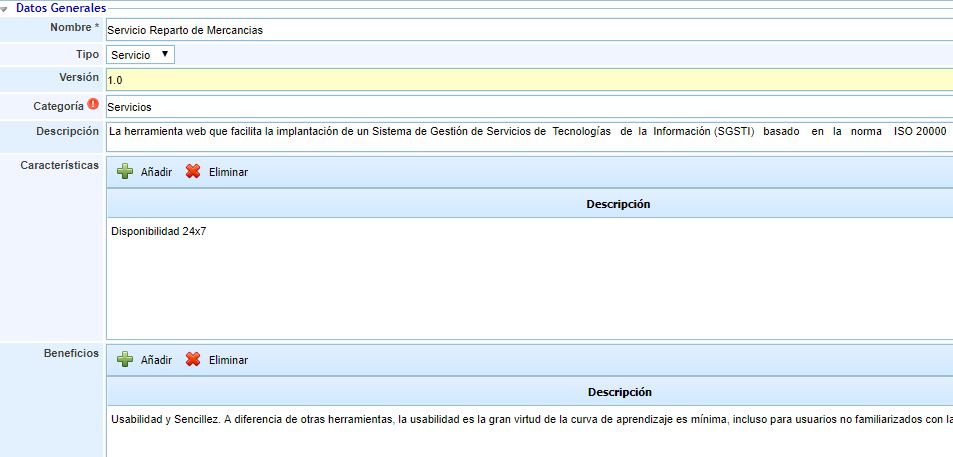
The points that can be defined are as follows:
-
Name: This is the full name of the service to define its scope.
-
Type: Allows specifying the type of service. This way, you can choose between Services, when a good composed of several processes is provided to clients, or Product, when the delivered good is of the Software type, etc.
-
Version: If the service has versions (in the case of being a product), the version of this service will be specified here.
-
Category: Allows identifying the Service with one of the categories or subcategories defined for the services in 'Settings'.
-
Description: Enables a more extensive description of the service.
-
Features: The main features of the service can be specified in the table. To create a new feature, click the 'Add' button. To delete a feature, select the row or rows to delete in the table and click the 'Delete' button.
-
Benefits: The benefits that the service provides to clients can be specified in the table. To create a new benefit, click the 'Add' button. To delete a benefit, select the row or rows to delete in the table and click the 'Delete' button.
-
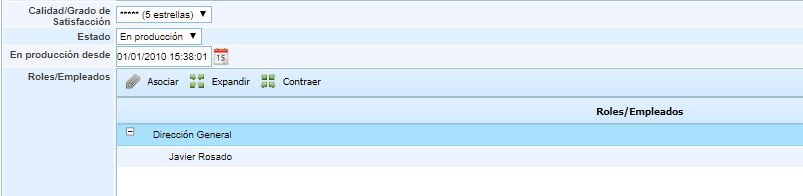
Quality/Satisfaction Level: This field allows identifying the overall result of client satisfaction with the service.
-
Status: Indicates the maturity level of the service, allowing you to choose between in development, in production, or retired.
-
In production since: Identifies the date from which the service has been provided to clients.
-
Roles/Employees: Allows associating the roles and employees related to the service. This association is essential if the "Managerial Access" privilege available in the "Company Roles" option in the 'Settings' section is required. Employees assigned to the service (either directly or through the role they belong to) and who have managerial access to an option will only be able to see the information of that option related to the services they belong to.
Organizational Structure

This option allows the user to associate an organizational unit with the service. The options provided by the tool are as follows:
-
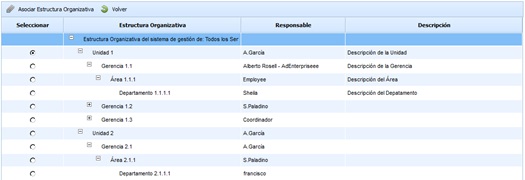
Add Organizational Structure: Allows defining the unit associated with the management of the service. To do this, click the button and select the unit in the option shown in the following image.
-
Delete: Offers the possibility to disassociate an organizational unit. To do this, select the desired line and click the 'Delete' button.
-
View in Organizational Structure: Allows the user to view the dependencies of the associated unit, as shown in the following image.

Service Reports
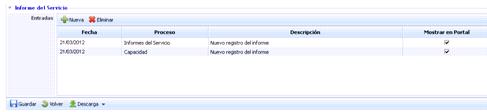
The Service Report option allows displaying periodic information about the service's development on the client portal. You can choose the reports shown to clients within the 'Show on Portal' field. To create a new entry, click the 'New' button. To delete a report, select the row or rows to delete in the table and click the 'Delete' button.
General Information
This section of the form allows evaluating the service in the dimensions configured for the asset inventory.
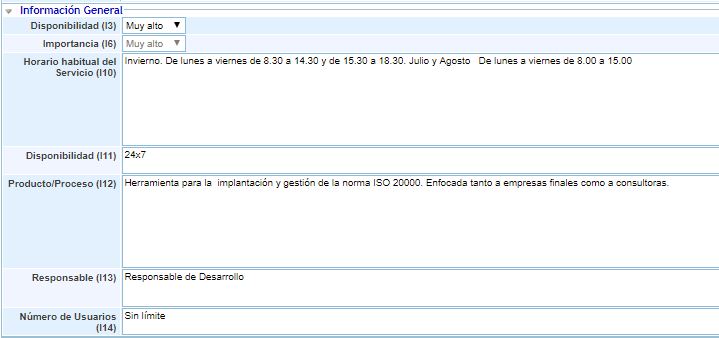
The dimensions that appear are configurable in 'Settings - Analysis Methodologies - General Configuration'. You can indicate which dimensions are visible and which are not. If no dimension is visible, this section will not be displayed in the service form. Some options preconfigured by default are as follows:
-
Availability: The availability of the service refers to the schedule during which the service is available. For example, 24x7 availability or 8x5, which will later be used to establish the service's SLAs and availability measurements.
-
Regular service schedule: This section refers to the schedules during which the service will be available if availability is not 24x7 or if there are different schedules for winter, summer, or weekends.
-
Product/Process: Allows describing the products or processes involved in the service.
-
Responsible: Allows defining the person responsible for managing the service.
-
Number of Users: Allows identifying the approximate number of clients to whom the service is provided.
Service Propagation
This option allows propagating the services generated in the parent company to the dependent sub-entities.

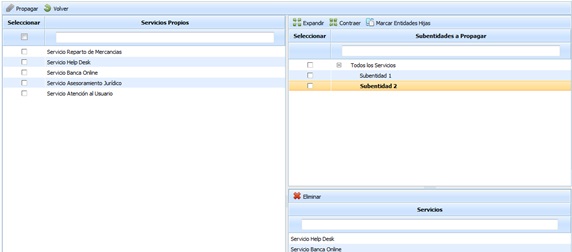
Once the option is accessed, the following tables are displayed:
-
Own Services Table: Displays the list of services defined in the parent company. The options provided by the table are:
-
Propagate: Once the desired services are selected, it allows propagating them to the selected sub-entities.
-
Back: Offers the possibility to return to the initial services screen.
-
-
Sub-entities Table: Displays the list of sub-entities to which services from the parent company can be associated. The table options include expanding or collapsing the list of sub-entities, as well as marking all sub-entities by clicking the 'Mark Child Entities' button.
-
Services Table: Once the sub-entity is selected in the upper table, it displays the services associated with it. The tool offers the possibility to delete an associated service; to do this, select the desired row and click the 'Delete' button.