
Ticket Data
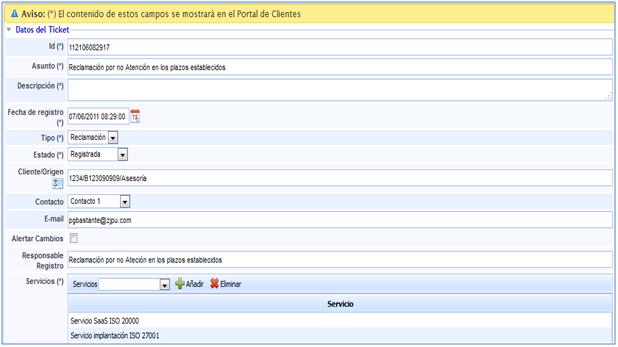
Below are all the fields that will allow you to register the claim.
-
Identifier (Id): This will be automatically generated and will correspond to a unique claim number.
-
Subject: Allows assigning a name or briefly describing a claim.
-
Description: Allows specifying what the claim consists of.
-
Reception Date: Date on which the claim is received from the client.
-
Type: There are no selection options. The solution only allows you to automatically select Claim.

-
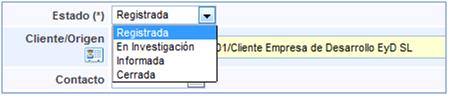
Status: Defines the status of the claim during its management. It provides the following options:
-
Registered: This status is set when the claim is registered.
-
Under Investigation: Once registered, the change to this status corresponds to the management and treatment of the claim.
-
Informed: Determines the moment when the relevant personnel have been informed about the claim.
-
Closed: Establishes the resolution of the claim.
-
-
Client/Source: Allows registering where the claim originates from.
-
Contact: Defines the person or client affected by the claim.
-
Email: Email address of the person submitting the claim.
-
Alert Changes: Allows automatically sending an email with any status modification of the claim. This way, the client will always know how the resolution of the submitted claim is being handled.
-
NOTE: If a mailing group has been created in the 'Home/Business Relations' section, the tool allows sending alerts to a specific group. To do this, the desired company must be selected (it must be created in the 'Home/Business Relations' section), and it must be determined whether to alert a Contact or a Group. If a Group is selected, the tool offers the possibility to choose the group to notify about ticket changes.
.jpg?cb=b7e53c8471e403d055165a9fb1eafac2)
-
Registration Responsible: Person in charge of handling the claim.
-
Services: Services affected by the claim can be selected.
NOTE: All fields identified with (*) will correspond to the data displayed in the Client Portal as long as it has been opened from this medium.
Employees and Evidence
Additionally, within the definition of each claim, the following can be identified:
Employees: Employees responsible for the treatment of the defined claim can be selected.
Evidence: Any evidence obtained during the investigation of the claim can be indicated here. Similarly, any type of document or image can be attached.
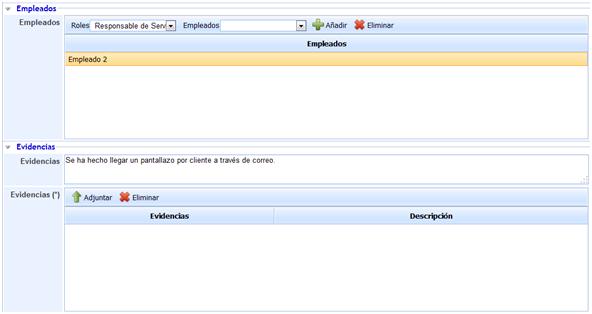
In the previous images, the registration of a claim can be visualized.
Evaluation Data
Once the claim has been registered, its status may change, and it may proceed to be evaluated or investigated. For this purpose, the following registration fields are available in the Evaluation Data section:
-
Evaluation Responsible: The person responsible for evaluating the claim.
-
Impact that could result from not resolving the registered claim.
-
Urgency with which the claim should be addressed.
-
Priority: This value is obtained from the average of the values obtained in impact and urgency.
Evaluation result, indicating the agreement reached with the client.
-
Escalation: Allows reflecting the necessary escalation among the different levels that may have been defined in the GlobalSUITE® configuration section.
The following image shows the complete data in GlobalSUITE of the claim addressed in the practical case of the unit:
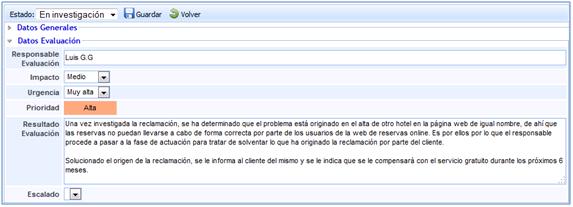
Finally, there is a section to record follow-ups related to the claim, to provide evidence of all actions taken to resolve the submitted claim.
Risks
It offers the possibility to view the elements affected by the event and values defined in the risk analysis. The tasks that can be performed in this section are:
.jpg?cb=3c3d939cdd189f8dd7193813ff2bd8f7)
-
Items: Allows selecting the item(s) affected by the event.
-
Analysis: Allows selecting the risk analysis where the selected item is evaluated.
NOTE: The same item can be evaluated in different risk analyses with different assessments, hence the need to indicate the risk analysis we want to load.
-
Add Item: Once the item is selected, it allows inserting it into the table.
-
Delete Item: Allows deleting one or more items from the table. To do this, the desired row must be selected, and the 'Delete Item' button must be clicked.
Once the desired item row is selected, the table at the bottom allows the user to view or modify the values defined in the 'Analysis/Risk Analysis' section. The tool highlights in red those assessments that have been modified.
NOTE: The tool allows simulating how the incident affects the elements assessed in the 'Risk Management/Projection and Simulation' section. Depending on the methodology defined in the 'Settings/Analysis Methodology' section, the dimension assessments can be qualitative or quantitative.
The actions that can be performed on the table are:
-
Restore Threats: Allows restoring the initial values of the table according to the Risk Analysis performed.
Follow-ups
Additionally, a Closing Data section can be identified to specify the process of communicating the claim result to the corresponding client.
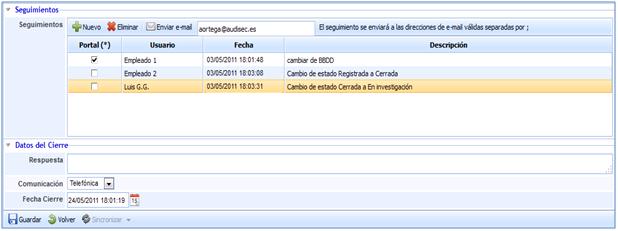
Closing Data
This option allows recording how the response was provided to the client who generated the claim.
-
Response: Allows determining the message sent to the client who generated the claim.
-
Communication: Allows establishing the method used to communicate with the client.
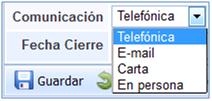
Among the different communication options offered by GlobalSUITE, the following can be identified:
1. Telephone. 2. E-mail. 3. Letter. 4. In person.
-
Closing Date: Allows determining when the communication with the client was made.