

Control management allows the user to evaluate the dimensions established in the section Settings > Methodologies > Controls, of the controls implemented in the organization.
Once you access the option, the first step is to select the risk analysis on which to evaluate the status of the controls. By selecting the required analysis, you will access the following screen:

The information provided by the control table is as follows:
-
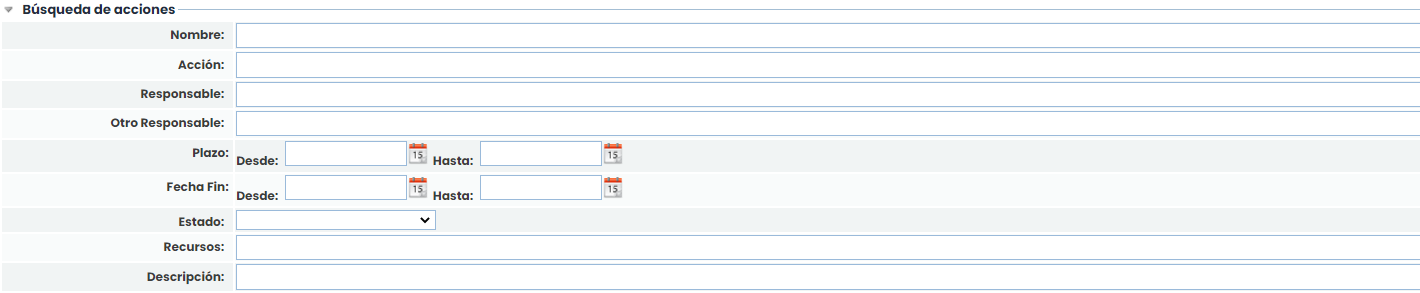
Action Search: Allows filtering and searching across all fields of the actions that make up the already implemented controls or treatment plans. It also allows cross-referencing with the existing filters of controls in the table.
-
Name: Indicates the name of the control and the associated actions. To modify it, double-click on the cell or select the record Options > Details.
-
Type: Provides information about the type of control, that is, whether the control is already implemented or defined in the treatment plan in the 'Risk Analysis/Management' section.
-
Responsible: Allows identifying the person responsible for the control and the associated actions.
-
Resources: Offers the possibility to identify the resources (Technical and/or Human) used for the implementation of the control.
-
Deadline: Establishes the final implementation deadline of the control in the organization.
-
Cost: Offers the possibility to identify the economic amount involved in the implementation of the control in the organization.
-
End Date: Allows assigning a status based on the fields defined in Settings > Methodologies > Elements.
-
Status: Allows selecting the status of the actions.
NOTE: Columns can be hidden or added as required by right-clicking on the table header.
The actions that can be performed in the control table are as follows:
-
New: Allows inserting a new control into the table. To do this, click the 'New' button, and a new entry will be created.
-
Delete: Allows deleting controls from the list. To do this, select the desired row or rows and click the 'Delete' button.
-
Add Controls: Allows importing the controls defined in the selected analysis catalog. If the control already exists in Control Management, it will not be duplicated.
-
Show: Offers the possibility to filter the control list, allowing you to choose between viewing All (Implemented and Treatment Plan) or specific ones, whether only the implemented controls or those defined in the treatment plan.
-
Expand: Allows expanding the list of actions.
-
Collapse: Allows collapsing the list of actions.
-
All: Displays all defined controls.
-
Implemented: Allows filtering the list by Implemented controls.
-
Treatment Plan: Allows filtering the list by controls of the Treatment Plan type.
-
Element/Control: If a "By Element" control methodology is used, the control information will appear in a tree format where the roots are the elements, and the children are the controls assigned to a risk of that element, with the evaluation of that control for each element. From this view, we can modify the evaluation of each dimension for each element-control.
-

-
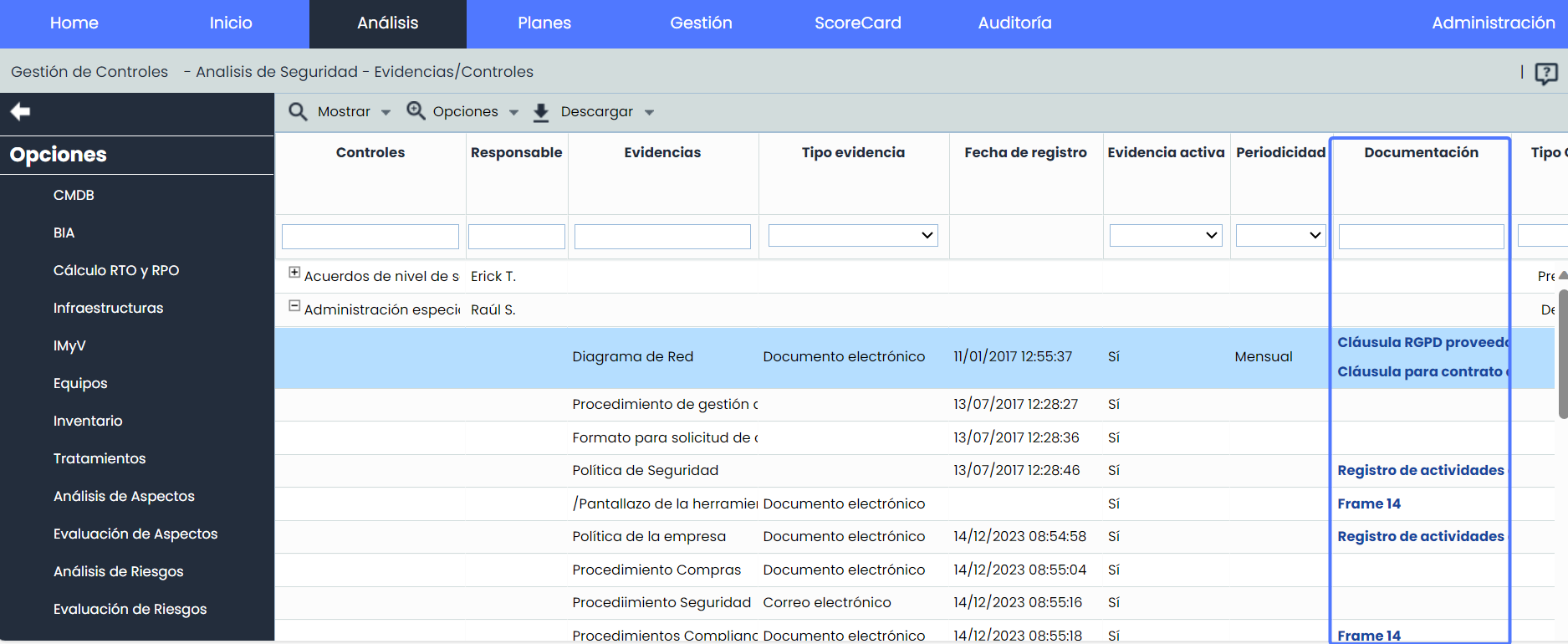
Evidence/Control View: If you have access to Evidence, this option will allow you to view the evidence associated with each control without needing to access the details of each control individually. This way, users can quickly get an overview of the available evidence associated with each control. Additionally, it provides the option to download the documents associated with each evidence directly from the “Documentation” field.
-
Options - Restore Evaluation: Allows, in cases where the evaluation of implemented controls is specific to a threat, to generally restore all evaluations performed on each control, replacing the values with those determined in this Control Management section.
-
Options - Details: Offers the possibility to view and/or define more specific details of the control. The form displayed when clicking the button is detailed in the following subsection.
-
Options - Import Data: Allows importing controls registered in an Excel file. The import allows loading both descriptive information of the control (Name, Responsible, etc.) and information about its dimensions (those configured in the control methodology). Among the properties to import for the controls, there is an ID for the control that will be stored internally to ensure that in future imports of the same controls, they are not duplicated.
-
Options - Calculate EC: Allows the user to recalculate the evaluation of the controls. If changes are made to the control methodology, clicking this button recalculates the value of the automatic dimensions.
-
Options - Survey Results: Allows accessing a screen that shows the results of the control surveys, where the information obtained can be reviewed and consolidated.
-
Download: Offers the possibility to download the list of controls and actions in CSV format. The report will be available in the option Pending Downloads .
NOTE: If you want to convert the downloaded report into Excel format, you can do so by following the steps explained in the section Pending Downloads.