
The 'Objectives' option allows setting the objectives that guide the management system during each cycle, as well as measuring, evaluating, and managing them to ensure compliance and correct deviations.
In the initial table, different objectives can be set. The tool allows creating specific objectives for a single management system or creating joint objectives for all systems, adapting to the desired project modeling.
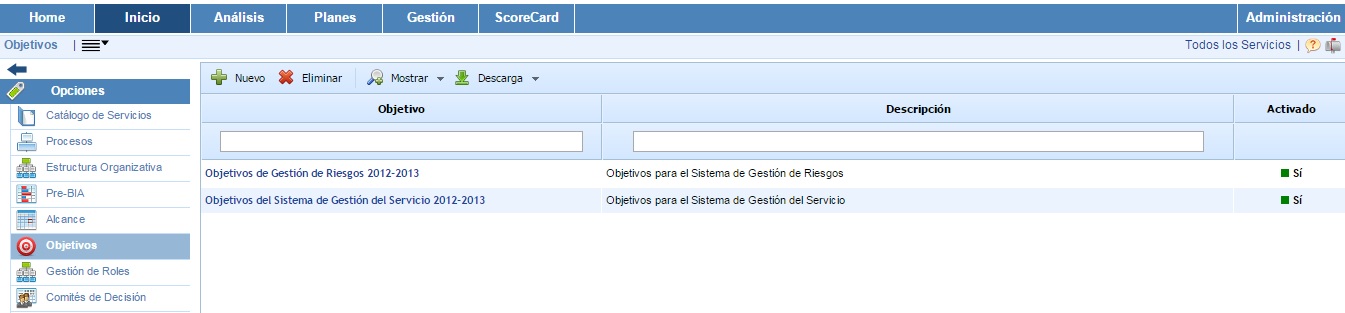
To create a new objective, you must select the 'New' button, and it will then appear in the table. To delete a created objective, you must select the row or rows you wish to delete and then click on the 'Delete' button. The 'Download' button allows downloading the list of objectives in an editable format.
To view the details of an objective, you must select the desired objective by clicking directly on its name.
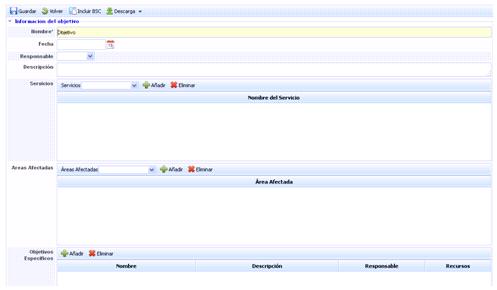
The form allows performing the following actions:
-
Save: Allows saving all changes or modifications made in the form.
-
Back: The tool returns to the previous screen, where the list of all established objectives is displayed.
-
Include BSC: Allows including the objective in the list of Business Objectives in the 'Scorecard' section.
-
Download: Allows downloading the objective form in an editable format (.xlsx) or in .PDF format.
Once in the objective's file, a series of specific parameters can be defined. For this purpose, a series of fields are enabled, such as:
-
Name: Descriptive name of the objective that will appear in the initial Objectives table.
-
Date: Identifies the date of the objective.
-
Responsible: This field allows selecting the resource that will be responsible for achieving the objective. The dropdown of responsible parties is configured in the 'Management/Employees' section.
-
Description: Allows a more detailed description of the objective.
-
Services: Allows associating the objective with one or more services of the organization. To associate a service, you must select the desired one in the dropdown and click the 'Add' button. If you want to delete a service, you must select the service from the table and click the 'Delete' button.
-
Affected Areas: Allows identifying the areas of the company that will be affected by achieving the objective. To associate an area, you must select the desired area in the dropdown and click the 'Add' button. If you want to delete an area, you must select the area from the table and click the 'Delete' button. The field is configurable in the 'Home/Configuration' section.
-
Specific Objectives: The tool allows defining specific objectives for achieving the general objective. To add new objectives, you must click on the 'New' button, and a new line of specific objectives will appear. To modify any of these objectives, you must select and click on the line you wish to modify. To delete, you must select the row or rows you wish to delete and click on the 'Delete' button.
This point is further developed in the 'ScoreCard/Specific Objectives' section.
-
Documents: This option allows uploading any file. To do this, you must select the 'Browse' button to access the file explorer. Once selected, you must click the 'Upload' button. When the upload is complete, the file will appear in the lower table.
Objectives Propagation
This option allows propagating the objectives generated in the parent company to the dependent sub-entities.
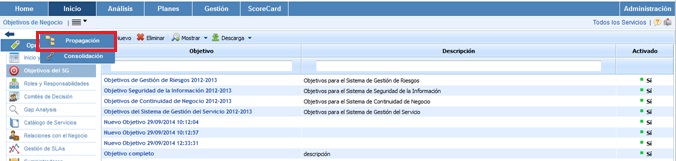
Once you have accessed the option, the following tables are displayed:
-
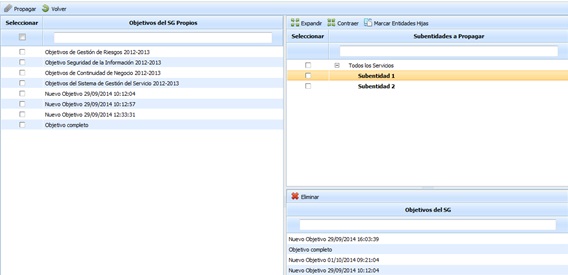
Objectives Table: Displays the list of objectives defined in the parent company. The table allows the following options:
-
Propagate: Once the desired services are selected, it allows propagating them to the selected sub-entities.
-
Back: Offers the possibility of returning to the initial services screen.
-
-
Sub-entities Table: Displays the list of sub-entities to which services from the parent company can be associated. The table allows expanding or collapsing the list of sub-entities, as well as marking all sub-entities by clicking the 'Mark Child Entities' button.
-
SG Objectives Table: Once the sub-entity is selected in the upper table, it displays the objectives associated with it. The tool offers the possibility of deleting an associated objective. To do this, you must select the desired row and click the 'Delete' button.
Objectives Consolidation
This option allows summarizing the different objectives associated with the entity and sub-entities.
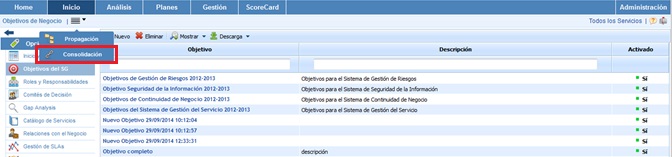
Below is the functionality provided by each of the available tables.
-
Services Table: Allows the user to filter the scopes associated with the selected Services.
.jpg?cb=57612fb94f9c179aa3dbbcd3ca29e303)
-
Sub-entities Table: Offers the possibility of filtering the scopes defined in the selected sub-entities.
.jpg?cb=c059dbe77c277e1dd4f2bbff5027fb9a)
-
Label/Value Table: Allows viewing the scopes associated with a specific label.
.jpg?cb=ba30930d030225474c4a662bed08a785)
-
Specific Filters: Offers the possibility of selecting whether the objective is active, inactive, or both, and even performing a specific filter by evaluation date range.

Once the necessary filters have been established, the query must be generated. To do this, the following options are available:
-
Consolidate: Once the button is clicked and based on the established filters, it allows summarizing the objectives in the lower table.
-
Back: Offers the possibility of returning to the initial objectives list.
The results are displayed in the lower table 'Consolidation Results'

The information provided by the table is as follows:
-
Name: Report on the name of the objective.
-
Description: Allows viewing the more specific description established for each of the objectives.
-
Indicator: Informs the user of the list of indicators associated with the objective.
-
Last Evaluation: Displays information about the last evaluation of the objective.
-
Last Evaluation Date: Allows viewing the date of the last evaluation of the objective.
-
Status: Informs the user of the evaluation status.
-
Management Unit: Allows viewing the entity or sub-entity to which it is associated.
-
Propagated: Informs the user if the objective has been propagated to sub-entities.