
At GlobalSuite Solutions, we understand that efficient and personalized document management is key to optimizing business processes. That’s why we’ve designed features that simplify the most essential tasks, such as report generation. One of our standout tools is the ability to generate personalized documents in Word format using dynamic templates.
How does this feature work?
Our dynamic template feature leverages the power of Microsoft Word, a widely known and used tool in the business world. Creating a template in Word is simple: just design your base document and insert the necessary variables using an intuitive format, such as {element.name}, {element.category}, or {control.name}.
Additionally, the tool allows you to reuse these templates in different processes, adapting them to various needs without having to redesign each document from scratch.
Main Advantages
-
Unlimited Customization: Design documents tailored to your corporate style or specific needs.
-
Time Savings: Generate reports in seconds without manually copying and pasting data.
-
Error Reduction: By automating data filling, you minimize inconsistencies and human errors.
-
Direct Integration with GlobalSuite: Leverage pre-configured variables to keep everything synchronized.
Conclusion
Downloading Word reports from templates is a key tool for those seeking efficiency and precision in their document processes. Not using it yet? Discover how this feature can help you optimize your daily work.
List of Variables for Use
In this section, we can see all the variables for use.
Element Variables.
|
Variable |
Description |
|
{element.name} |
Item Name |
|
{element.units} |
Item Units |
|
{element.category} |
Item Category |
|
{element.category_path} |
Item Category Path |
|
{element.supervisor} |
Item Supervisor |
|
{element.other_supervisor} |
Other Item Supervisors |
|
{element.owner} |
Item Owner |
|
{element.dim_IX.dimension_name} |
Dimension Name with alias IX. Replace X with the alias number. |
|
{element.dim_IX.dimension_alias} |
Item dimension alias. Replace X with the alias number. (I1, I2, …, IN) |
|
{element.dim_IX.dimension_value} |
Specific value of dimension IX in the item. Replace X with the alias number. |
|
{element.element_customAttr_Atributo_Nombre} |
Configurable Attributes identifying the attribute by name. |
|
{#element.custom_attrs}
|
List of configurable attributes. Start tag and end tag (start with '#' and end with '/'), and the block of text inside repeats as many times as there are elements of that type. |
|
{#element.dimensions}
|
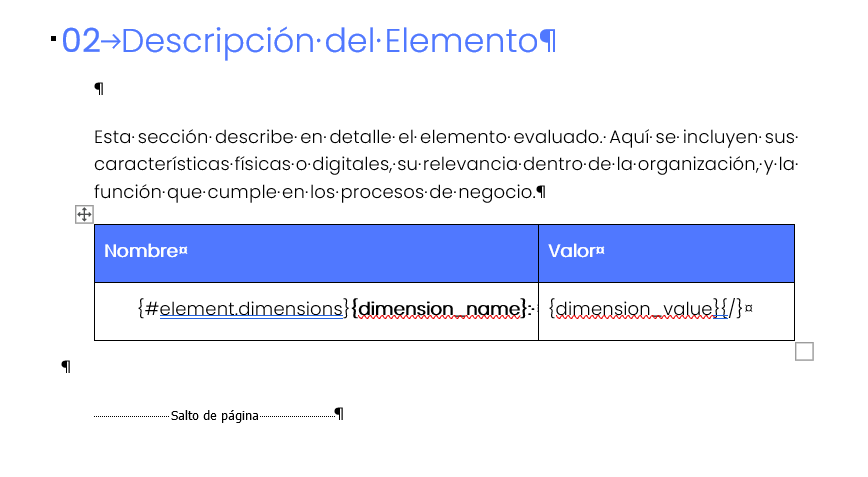
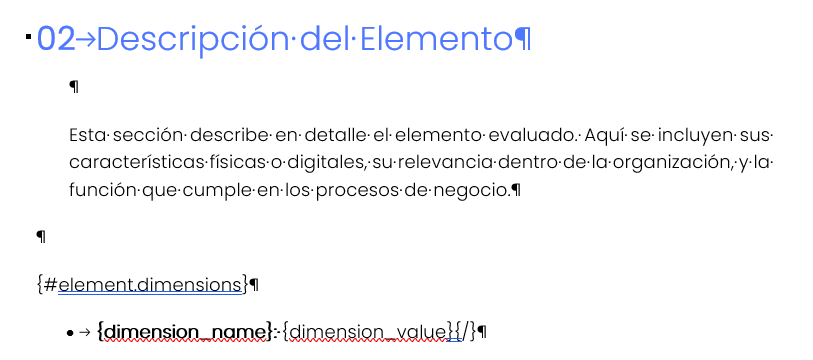
Loop through all dimensions where you can add all the dimension values of the item, their aliases, and their names. |
|
{#element.descendants}
{descendant.category} {descendant.dim_I1.dimension_value}
{descendant.dim_I1.dimension_value}
|
Loop that iterates through all the children of the element according to the dependency tree. This would list all the elements that depend on the selected element as a flat list, showing their name and attributes. The same requirements and variables as for an element would also be available, i.e., those mentioned in the previous comment with ‘descendant.’ added at the beginning since it is within the loop. It is important to highlight that within this information, risks and controls can also be obtained as seen in the following section. |
|
{#element.descendants | categoryType: ‘PROCESSES’} {descendant.name} {descendant.category} {descendant.dim_I1.dimension_value}
{descendant.dim_I1.dimension_value}
|
Loop to obtain the items configured in the dependency tree with a special category. SERVICES
|
|
{element.analysis.AA1.rge} |
Global Risk Calculation by Element (RGE) of the Risk Analysis where AA1 is the alias of the analysis. This value, although it corresponds to an element, is associated with a Risk Analysis. |
|
{element.analysis.AA1.rrge} |
Global Repercussion Risk Calculation by Element (RRGE) of the Risk Analysis where AA1 is the alias of the analysis. This value, although it corresponds to an element, is associated with a Risk Analysis. |
Threats/Risks Variables. GlobalSuite Risk Analysis Option.
The information in this table represents all the information that can be obtained from the Risk Analysis option. This information will be associated with an item, which will be the item of the downloaded report.
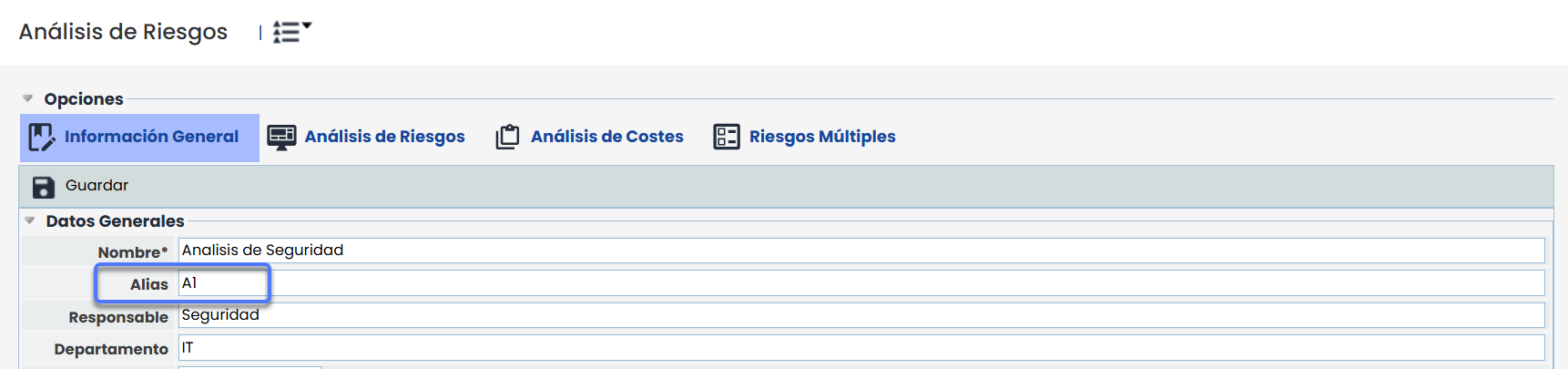
To obtain the information from the Risk Analysis, you need to add its alias, which is a field that can be configured in GlobalSuite in the general configuration of the risk analysis (Analysis - Risk Analysis - General Information).
|
Variable |
Description |
|---|---|
|
{#element.analysis.AA1.threats}
|
Value of the main columns of risks (these are text fields). Example with Threat and Vulnerability. The alias AA1 corresponds to the alias of the analysis where the risks and controls to be obtained in the report are located. |
|
{#element.analysis.AA1.threats}
{threat_dim_A2} …. {threat_dim_AXX}
|
Within the threats/risks loop, specific dimensions can also be obtained one by one through the dimension alias. The result will be the value of that dimension for each of the threats. This loop will be used when a specific value of the risk/threat is desired. The alias AA1 corresponds to the alias of the analysis where the risks and controls to be obtained in the report are located. |
|
{#element.analysis.AA1.threats | where: ‘threat_dim_A2 == “High” || threat_dim_A2 == “Very High”’}
|
Previous loop with the possibility of iterating only through risks/threats that meet the condition. In the example, it can be seen that the dimension with alias A2 = High and Very High. The alias AA1 corresponds to the alias of the analysis where the risks and controls to be obtained in the report are located. |
|
{#element.analysis.AA1.threats}
{#threat_dimensions} {dimension_name}
|
Within the threats loop, another loop can also be obtained with all the dimensions, to obtain their name, alias, and value. This loop serves to represent all the information of the risks/threats. The alias AA1 corresponds to the alias of the analysis where the risks and controls to be obtained in the report are located. A where condition could also be added to the threats loop here. |
|
{#element.descendants}
{descendant.dim_I1.dimension_value} {#descendant.analysis.AA1.threats}
Dimension:{threat_dim_A2}
{/} {/} |
Obtain the risks/threats of a descendant from the dependency tree that depends on the report element. First, define the descendants loop where all the information of the children from the dependency tree can already be obtained. To obtain the risks/threats, you need to include the same loop but with the word descendant at the beginning. All risk/threat variables are available and are the same as those of the main element. |
Note on configurable fields
For configurable fields (configured in methodologies > Risks), to display correctly in reports, when configuring the template, you must consider the following:
-
All characters that are not letters (A-Z, a-z) or numbers (0-9) must be replaced with an underscore (_).
-
Additionally, the field name must be in lowercase, as is the case with system variables.
For example, if the original field name is Ámbito, the correct identifier you should use in the template is:
threat_column__mbito
(the character with an accent has been replaced by an underscore, and everything is in lowercase).
List of Controls
The rows of this table represent all the information that can be obtained from the GlobalSuite Control Management option. This information can be obtained within the risks/threats loop.
|
Variable |
Description |
|---|---|
|
{#element.analysis.AA1.threats}
|
If you want to obtain the controls of a threat to have the entire hierarchical structure, within the risks/threats loop, a controls loop can be generated to obtain all the information. In the example, the Core Control fields can be seen. The alias AA1 corresponds to the alias of the analysis where the risks and controls to be obtained in the report are located. |
|
{#element.analysis.AA1.threats}
|
Following the same loop as the previous one, in addition to the core fields, specific dimensions can be obtained by identifying them by the Alias number: CX |
|
{#element.analysis.AA1.threats}
{control_dim_C1}
|
In addition to obtaining dimensions by the alias number, a loop can be created to obtain all the information of the dimensions of all controls. In the example, the two ways to obtain control dimensions are shown: Identifying the specific alias Adding a loop that iterates through the dimensions to obtain a value. |
|
{#element.analysis.AA1.threats}
{control_dim_CX}
{/} |
Example of filtering controls by a control dimension. In this case, it would only bring the controls that meet this condition. |
List of Risk Analysis and Methodologies Variables
|
Type |
Variable |
Description |
|---|---|---|
|
Analysis |
{analysis.AliasAnálisis.name} |
Analysis Name, where AliasAnálisis is the value configured in GlobalSuite. |
|
Analysis |
{analysis.AliasAnálisis.start_date} |
Analysis Start Date, where AliasAnálisis is the value configured in GlobalSuite. |
|
Analysis |
{analysis.AliasAnálisis.supervisor} |
Analysis Responsible, with AliasAnálisis being the value configured in GlobalSuite. |
|
Analysis |
{analysis.AliasAnálisis.department} |
Analysis Department, with AliasAnálisis being the value configured in GlobalSuite. |
|
Analysis |
{analysis.AliasAnálisis.nra} |
Acceptable Risk Level of the analysis, with AliasAnálisis being the value configured in GlobalSuite. |
|
Analysis |
{analysis.AliasAnálisis.nro} |
Target Risk Level of the analysis, with AliasAnálisis being the value configured in GlobalSuite. |
|
Analysis |
{analysis.AliasAnálisis.vgan} |
General Value of the Risk Analysis, with AliasAnálisis being the value configured in GlobalSuite. |
|
Analysis |
{analysis.AliasAnálisis.grouping_risk_calculation} |
Risk Grouping Calculation, with AliasAnálisis being the value configured in GlobalSuite. |
|
Analysis |
{analysis.AliasAnálisis.risk_appetite} |
Risk Appetite of the analysis, with AliasAnálisis being the value configured in GlobalSuite. |
|
Methodology |
{analysis.AliasAnálisis.methodology.name} |
Name of the methodology associated with the risk analysis, with AliasAnálisis being the value configured in GlobalSuite. |
|
Methodology |
{analysis.AliasAnálisis.methodology.acceptable_percentage} |
Acceptable % for the calculation of critical risks in the risk analysis, with AliasAnálisis being the value configured in GlobalSuite. |
|
Methodology |
{analysis.AliasAnálisis.methodology.risk_dimension} |
Main dimension of the risk analysis of the associated methodology, with AliasAnálisis being the value configured in GlobalSuite. |
|
Methodology |
{analysis.AliasAnálisis.methodology.cost_dimension} |
Cost dimension of the risk analysis of the associated methodology, with AliasAnálisis being the value configured in GlobalSuite. |
|
Methodology |
{analysis.AliasAnálisis.methodology.controls_methodology_name} |
Name of the controls methodology of the risk analysis, with AliasAnálisis being the value configured in GlobalSuite. |
|
Methodology |
{analysis.AliasAnálisis.methodology.controls_evaluation_type} |
Evaluation type of the controls methodology, with AliasAnálisis being the value configured in GlobalSuite. |
Additional Operators
All these variables can be used with various operators to format them:
-
Get the variable in uppercase: Add | UC or | upperCase to the variable. Example: {element.name | UC}
-
Using filters. Equal operator. Add == to the filter. Example:
{#element.analysis.AA1.threats}
Threat: {threat_column_amenaza}
{#threat_controls | where : 'control_dim_C1=="Very Effective"'}
{/}
-
Using filters. Not equal operator. Add != to the filter. Example:
{#element.analysis.AA1.threats}
Threat: {threat_column_amenaza}
{#threat_controls | where : 'control_dim_C1!="Muy Efectivo"'}
{/}
-
Using filters. Logical operators: && (AND), || (OR)
Examples of Template Customization
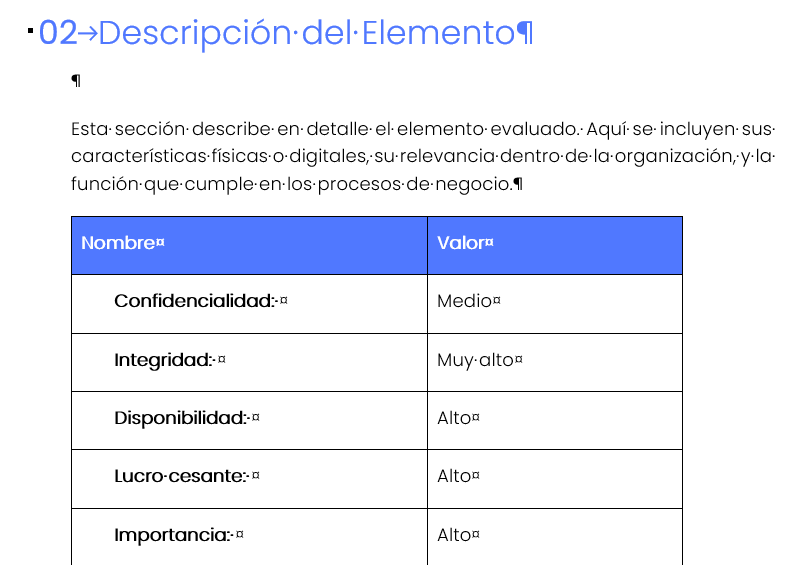
How to collect all the methodology information of elements in table format?
How to configure all the methodology dimension information of elements with bullets?
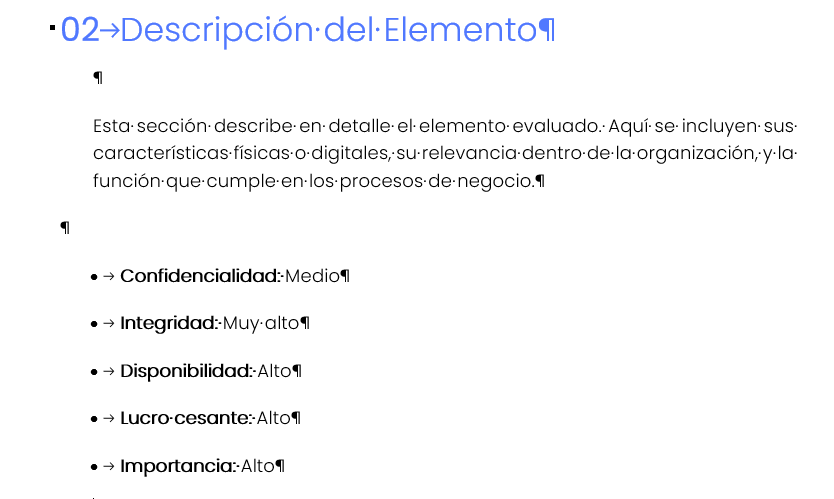
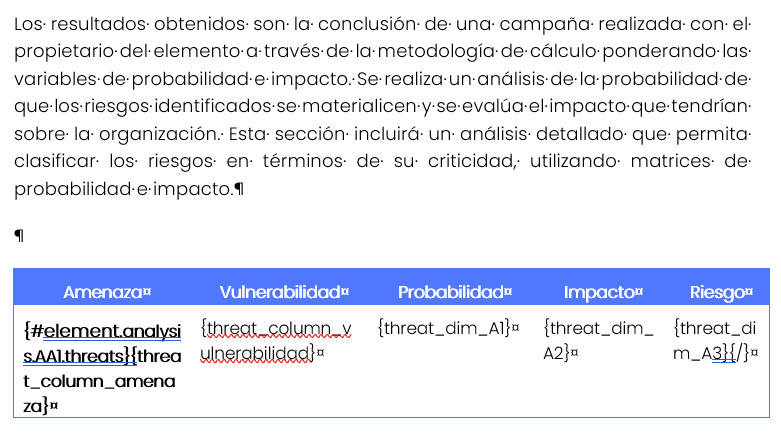
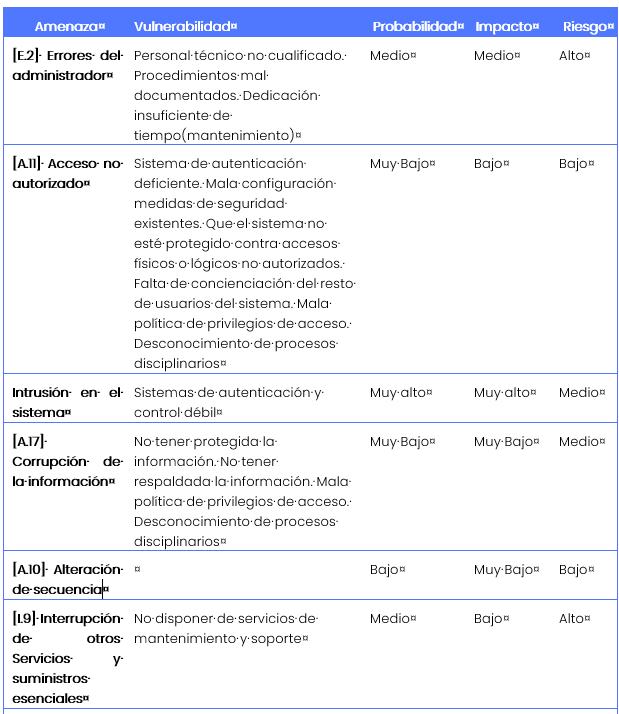
How to configure the information in table format of risks associated with an element by selecting the table columns?
The example is performed for a main field called threat and a text field called vulnerability. The analysis on which the template is based has an alias called AA1.
Additionally, the probability dimension has an alias A1, the impact an alias A2, and the risk an alias A3.
How to manage dependency tree data?
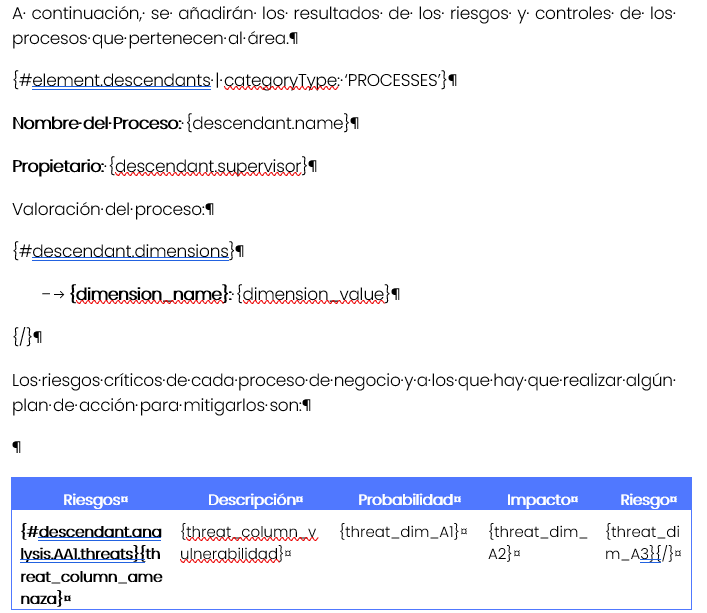
This information is very necessary when a report for a specific area needs to be made to obtain the consolidated information. For this, the GlobalSuite dependency tree option is used.
To obtain a list of dependent elements and be able to retrieve processes, applications, or any resource used in the area, a loop like this must be defined. The filter is optional, and in this case, we want to retrieve elements that are Processes.
{#element.descendants | categoryType: ‘PROCESSES’}
Process Name: {descendant.name}
Owner: {descendant.supervisor}
Process Assessment:
{#descendant.dimensions}
-
{dimension_name}: {dimension_value}
{/}
{/}
Additionally, all dimensions are also available for the elements in this loop. Example to obtain a table of risks for each process:
How to obtain information on all risks filtered by those with a Very High value?
In the example methodology, the risk analysis has an alias AA1, and the risk has an alias A3.
{#element.analysis.AA1.threats | where: ‘threat_dim_A3 == “Muy Alto”’}
{threat_column_amenaza}
{threat_column_vulnerabilidad}
{threat_dim_A1}
{threat_dim_A2}
{/ }
How to obtain a list of controls associated with risks/threats?
{#element.analysis.AA1.threats}
Risk: {threat_column_amenaza} - {threat_column_vulnerabilidad} - {threat_dim_A3}
The controls are:
{#threat_controls}
-
Control Name: {control_name}
-
Responsible: {control_supervisor}
-
Comments: {control_comments}
-
Assessment:
{#control_dimensions}
or {dimension_name}: {dimension_value}
{/}
{/}
{/}
Most common errors in report configuration.
{#element.analysis.AA1.threats}
Threat: {threat_column_amenaza}
{#threat_controls | where : 'control_dim_C1=="Very Effective"'}
{control_name}
{control_dim_CX}
{#control_dimensions }
{dimension_name}
{dimension_alias}
{dimension_value}
{/}
{/}
{/}
Most common errors in report configuration.
-
Using variables and adding a space at the end. Example: {control_name }
-
Using a loop without adding the #. Example: {element.analysis.AA1.threats}
-
Registering an incorrect variable. Example {element}
-
Not closing a loop with {/}
-
In loop filters, using only one =. Example: {#threat_controls | where : 'control_dim_C1="Muy Efectivo"'}
-
Using variables in uppercase. Example: {Element.Name} or {element.name | uc}. In the first case, the variable should be in lowercase, in the second UC should be in uppercase.