This tutorial describes the main options of General Configuration of GlobalSuite®, which allow adapting the platform to the organizational, operational, and regulatory structure of the company.
The guide summarizes the available configurations for the document manager, the organizational structure, the management of lists and roles, the stakeholders, the tags and evidence, the standards configuration, and the customization of email sending.
Index
Document Manager
This section allows configuring specific aspects of the Document Manager:
-
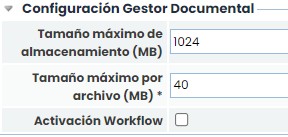
Maximum storage size (MB): Allows setting the storage limit (Megabytes) of the document manager. This limit can only be modified by the CSC department of GlobalSuite®, which corresponds to the contracted licensing.
-
Maximum file size (MB): This is the maximum size a file can have to be uploaded to GlobalSuite®.
-
Workflow Activation: Allows activating the document management workflow functionality.
Levels of the Organizational Structure

This option offers the possibility to establish the existing levels for defining the organizational structure of the organization. The following options are established for this purpose:
-
New Level: Allows inserting a new entry in the table for defining a structural unit. To modify the name, double-click on the cell and include the desired name.
-
Delete: Allows deleting an entry from the table. To do this, select the entry and click the button to remove the level.
-
Move Level Up: Offers the possibility to hierarchically elevate one or more levels of a defined entry.
-
Move Level Down: Offers the possibility to hierarchically lower one or more levels of a defined entry.
NOTE: The definition of elements of the organizational structure is carried out in the option Home> Organizational Structure
Management
This section allows the parameterization of dropdown lists located in the options of the Management menu.
Affected Areas: Allows the user to incorporate different affected areas that can be assigned to tickets. Using the 'New' and 'Delete' buttons, new areas can be created or existing areas deleted, as well as editing their name by double-clicking on the row.
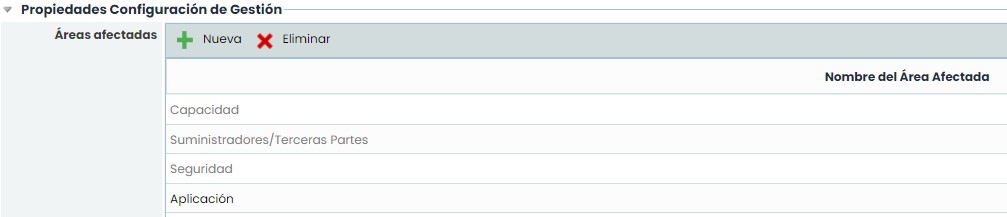
The tool proposes by default the areas of Capacity, Suppliers, Security, Availability depending on the enabled modules. These areas cannot be modified or deleted as they are related to GlobalSuite® options to provide specific functionality. Specifically:
-
Capacity: Incidents, non-conformities, and indicators assigned to this area can be consulted in the capacity plans developed in the 'Capacity' option of the 'Plans' menu.
-
Suppliers/Third Parties: Incidents, non-conformities, and indicators assigned to this area can be associated with a registered supplier in the 'Suppliers' option of the 'Home' menu. Once a supplier is registered, in each supplier's form, all incidents and non-conformities assigned during the evaluation can be consulted, as well as the indicator graph related to it.
-
Security: All tickets can be assigned to this area to indicate that it is a security-related ticket.
-
Availability: Incidents, non-conformities, and indicators assigned to this area can be consulted in the availability plans developed in the 'Availability' option of the 'Plans' menu.
-
Employee Phone Types: Allows creating different types of phones to identify each employee's phone (landline, personal, mobile, work, etc.). The types configured in this table appear in the Employees form, where more than one phone can be created for each employee. Using the 'New' and 'Delete' buttons, new types can be created or existing types deleted, as well as editing their name by double-clicking on the row.

Meeting Minutes
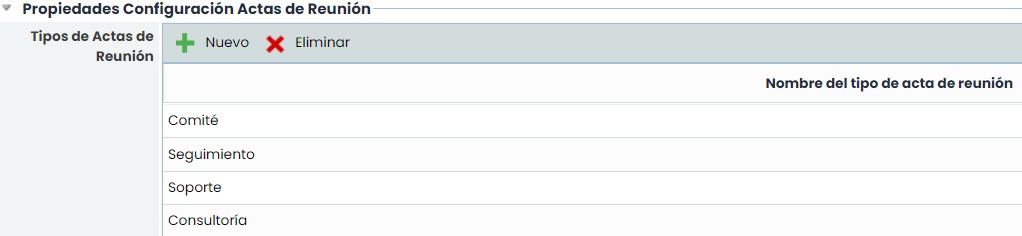
The meeting minutes configuration section allows parameterizing the different types of meeting minutes. GlobalSuite® identifies by default committee, follow-up, support, consulting, and audit, but new ones can be added or deleted by clicking the 'New' and 'Delete' buttons.
Roles and Responsibilities
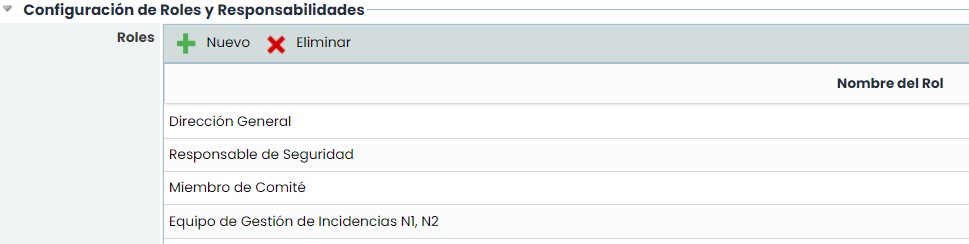
The definition of roles and responsibilities is a fundamental part of management systems. For this purpose, the platform allows defining the existing roles in the organization, which will be responsible for managing the system.
To add new roles, click the 'New' button. To delete a role, select the desired line and click the 'Delete' button.
Stakeholders
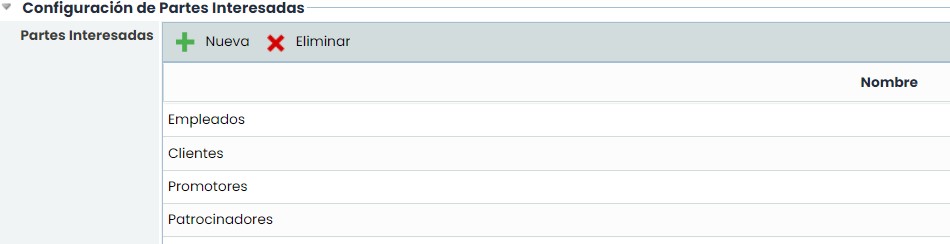
Stakeholders: This table contains the stakeholders of the organization, which can be associated with the business processes defined in the tool. The table allows the following actions:
-
New: Allows inserting a stakeholder in the table.
-
Delete: Allows deleting one or more stakeholders in the table. To do this, select the desired row or rows and click the 'Delete' button.
Tags
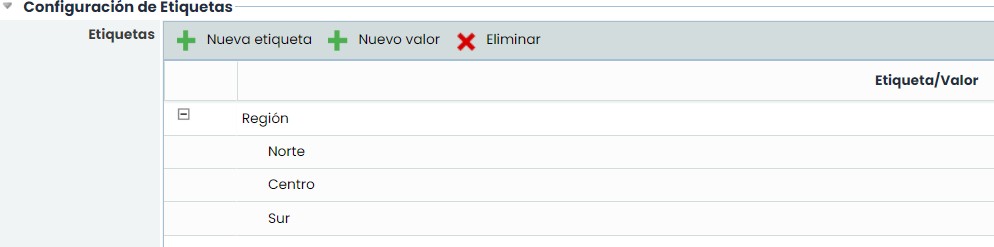
This section is only available for companies that have sub-entities. For companies with a single entity, the section will not be visible.
This table allows defining a set of tags that can be associated with sub-entities. A tag is an additional field associated with the entity to define any parameter we want. A sub-entity can have one or more tags with the corresponding values. The table allows the following actions:
-
New Tag: This button allows creating a new tag. The tag name can be edited by double-clicking on the name.
-
New Value: This button allows creating a value for a tag. To do this, the desired tag must be selected first and then click the button. The tag values can be edited by double-clicking on the name.
-
Delete: Allows deleting a tag or a value from the table by selecting the desired row and clicking the button.
Evidence
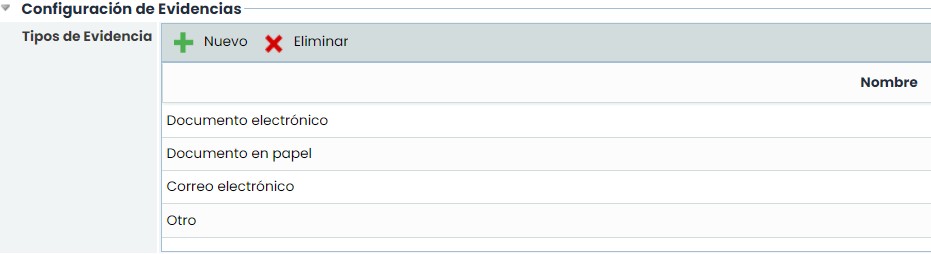
This section is only available for companies that have the "Evidence Management" option, depending on the contracted modules. For companies that do not have this option, the section will not be visible.
The table allows creating evidence types, which will be available for association with the evidence registered in the tool. The table allows the following actions:
-
New: This button allows creating a new row in the table.
-
Delete: Allows deleting one or more types in the table. To do this, select the desired row or rows and click the 'Delete' button.
Standards Configuration

This section is used to list the Standards that your company has in force. These configured standards will appear as an option when choosing the Management System (MS) in the options of Home > Scope and Plans > Audits.
This section allows the following actions:
-
Manual configuration of standards: This field allows the configuration of standards to be done from the table below. If deactivated, they cannot be configured.
-
New: This button allows creating a new row in the table. The standard name can be edited by double-clicking on the corresponding row.
-
Delete: Allows deleting one or more types in the table. To do this, select the desired row or rows and click the 'Delete' button.
-
Change URL: Used to modify the URL field (link or web address of the standard).
-
The fields Name/Code (main field), Title (description or full name of the standard), and Publication (period in which the standard was published) can be edited by double-clicking. The check in the column Active is used to indicate if the standard is in force in the company.
Email Sending HTML

To access this option, go to the email option located at the top.
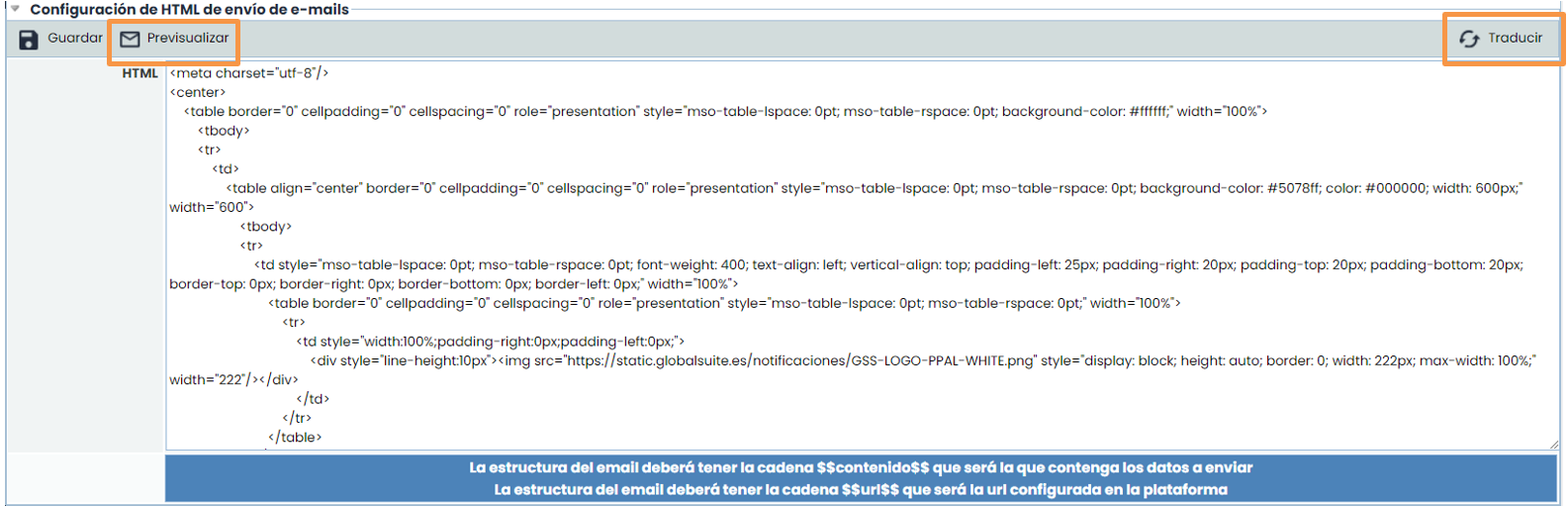
This option offers the user the possibility to parameterize the format of notifications sent by the platform. By default, GlobalSuite offers a specific format, which can be modified to the desired format. If modifying the default format, do not forget to include, somewhere in the format, the character string $$contenido$$, as it is the string used by the tool to incorporate the corresponding content of the notification being sent. By clicking Translate, the message can be added in other languages in which the platform has been contracted. The ‘Preview’ button allows the user to see how notifications will be displayed to users.