This article explains how to configure custom questions of the Item Table type to perform BIAs (Business Impact Analysis) in GlobalSuite®.
This type of field allows identifying, assessing the dimensions or parameters we consider, and updating all the items necessary to carry out a Business Process, which can be evaluated through the BIA, centralizing the collection of this information through the functionality, or even launching questionnaires to the responsible parties through the Surveys module.
Configure BIA questions in Settings
In this option, the objective is to model which questions will be included in the BIA form, and what type or categories of items will be included in each of these questions, in addition to the dimensions to be assessed.
-
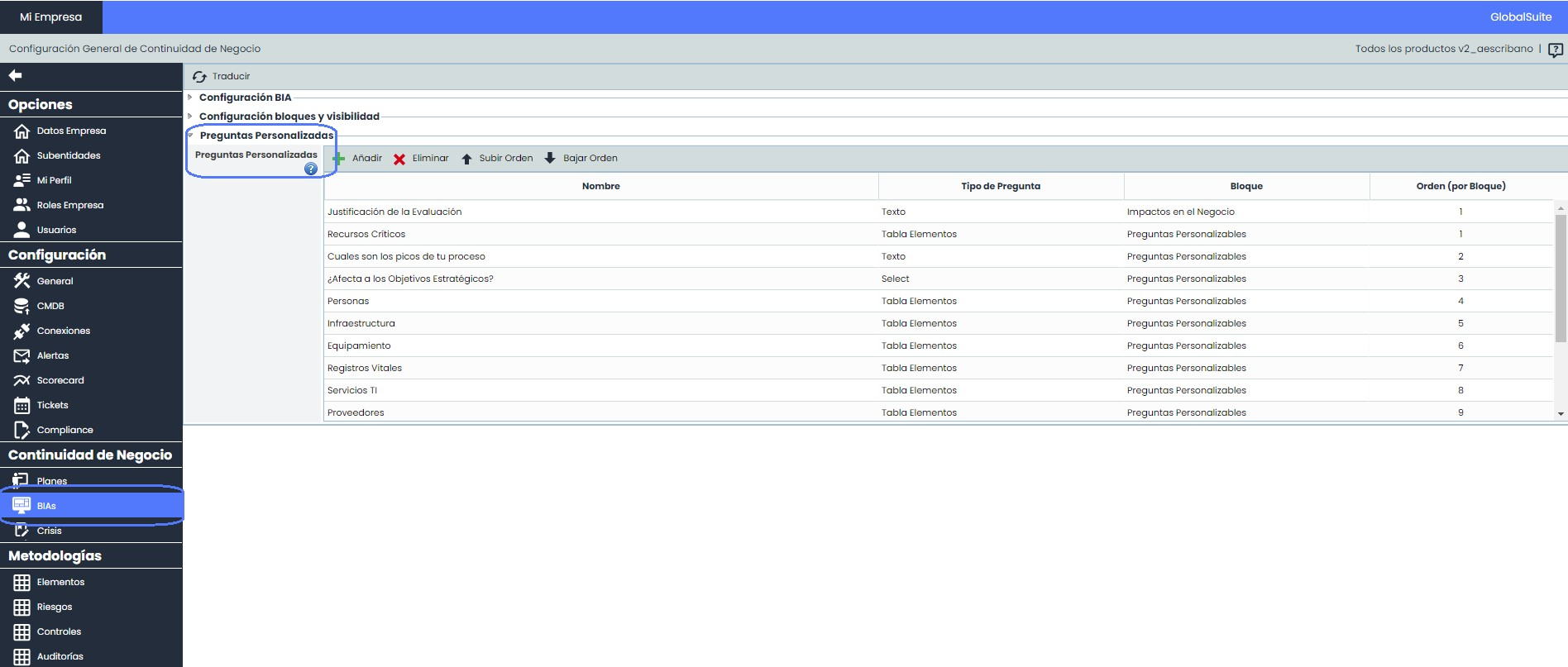
We access Settings > Business Continuity > BIAs and within the form, we go to the Custom Questions section.
-
In this section, we can see which questions of different types (Text, Selection, Table, or Item Table) we have configured. In this tutorial, we will focus on questions of the Item Table type.
When selecting one, the parameters that can be configured for the question will appear. We can also edit the name of the question by double-clicking on the cell.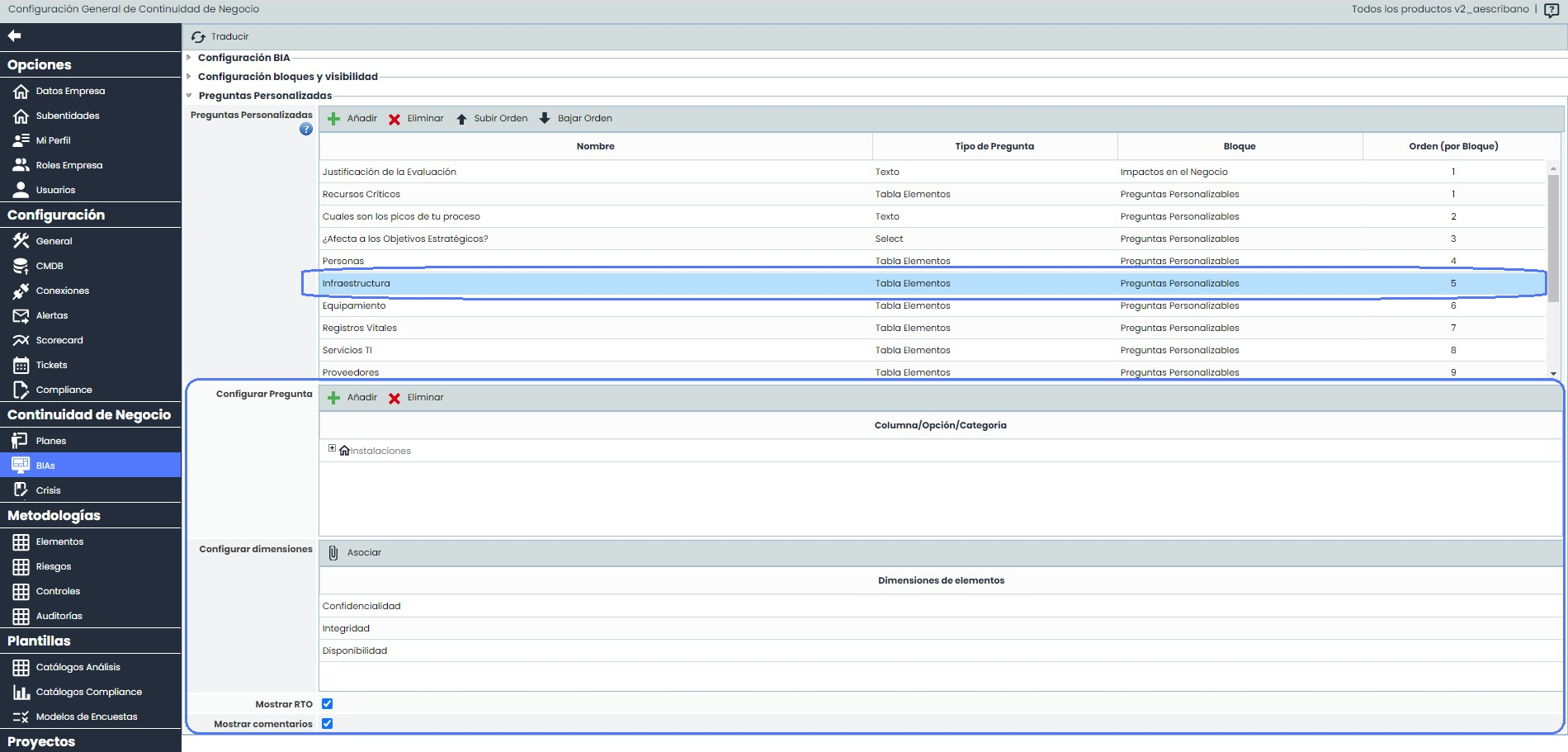
-
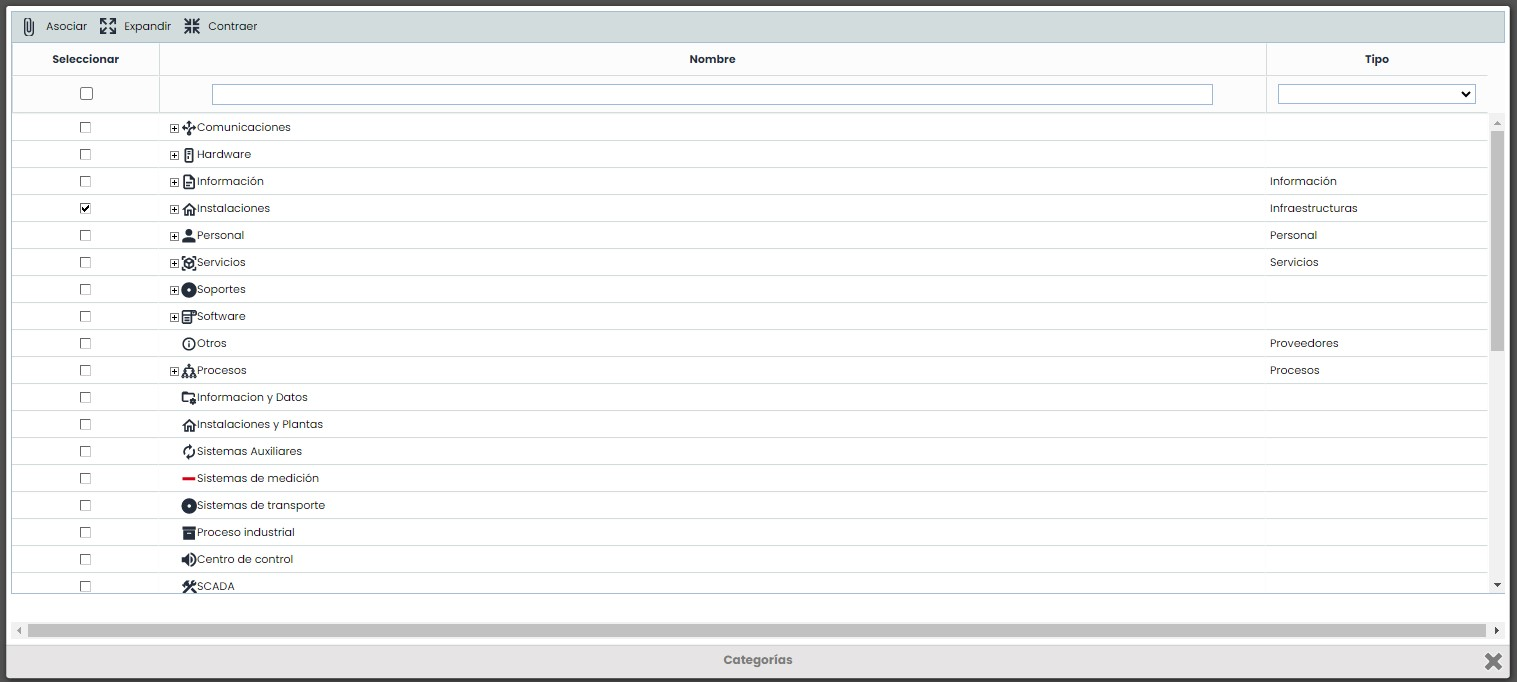
In the “Configure Question” section, we can select which categories of items can be added or created in the selected question when used in the BIA. By clicking “Add,” a window will appear with all the categories defined in the management system (configured in Settings > Methodologies > Items), allowing us to select those we consider to collect in this question (to apply the fields, we must click “Associate”).
-
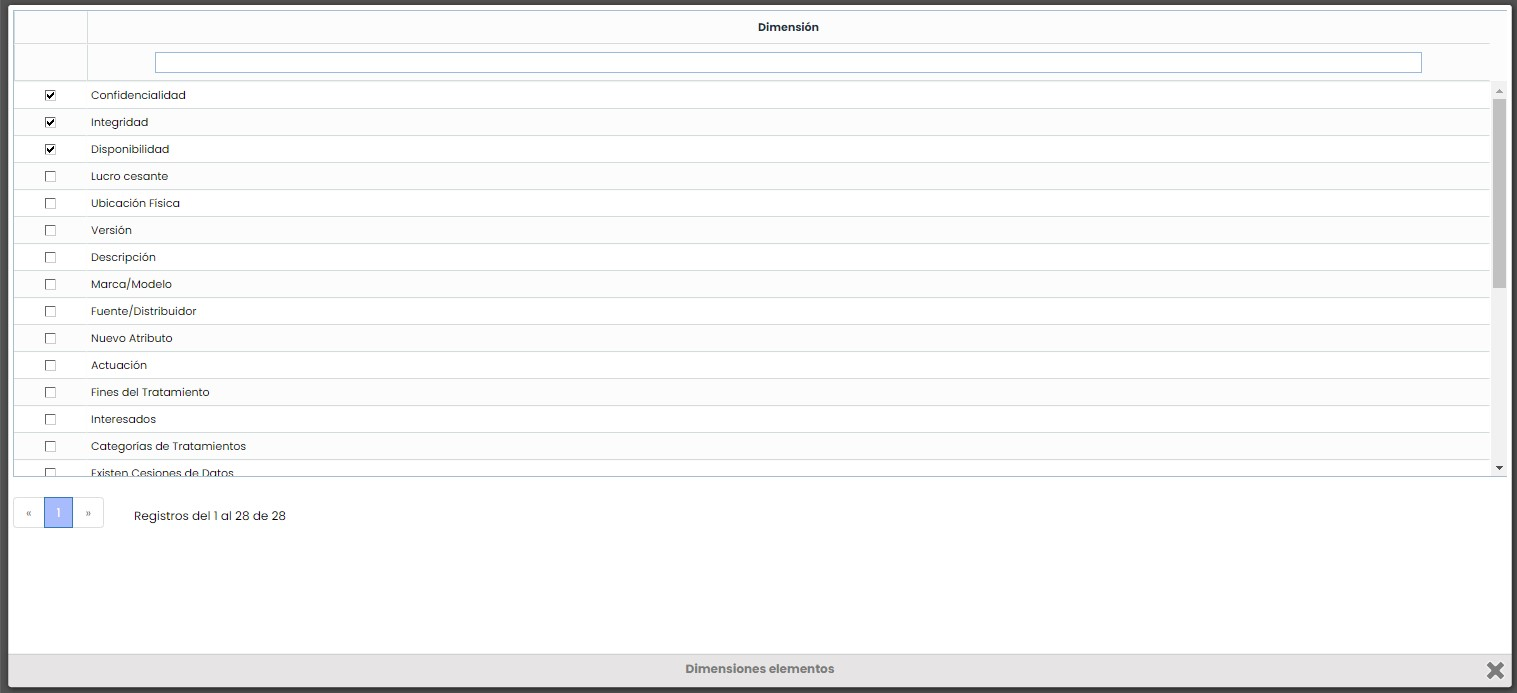
In the “Configure Dimensions” section, we can define which dimensions of the Inventory we want to be assessed for the items added to this question. This allows obtaining input on the criticality of these items during the BIA process.
By clicking “Associate,” a window will appear with the complete list of dimensions (defined in Settings > Methodologies > Items), allowing us to check or uncheck those we consider. These changes are applied directly, and we simply need to close the window to continue with the configuration.
-
Also, for each question of the Item Table type, the following general fields can be enabled:
-
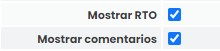
Show RTO: This field allows defining the Recovery Time Objective (RTO) for each item added to the question.
-
Show comments: If this checkbox is enabled, a textual column will be included to add clarifications regarding the item included in the table.
BIA Form
Once the question has been configured in ‘Settings,’ the Item Table will appear in the defined section of the BIA form.
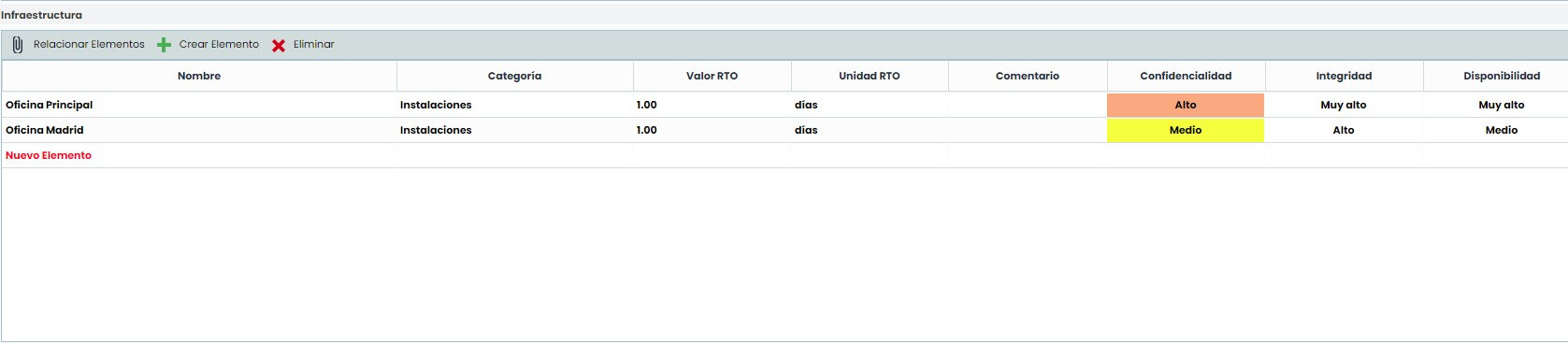
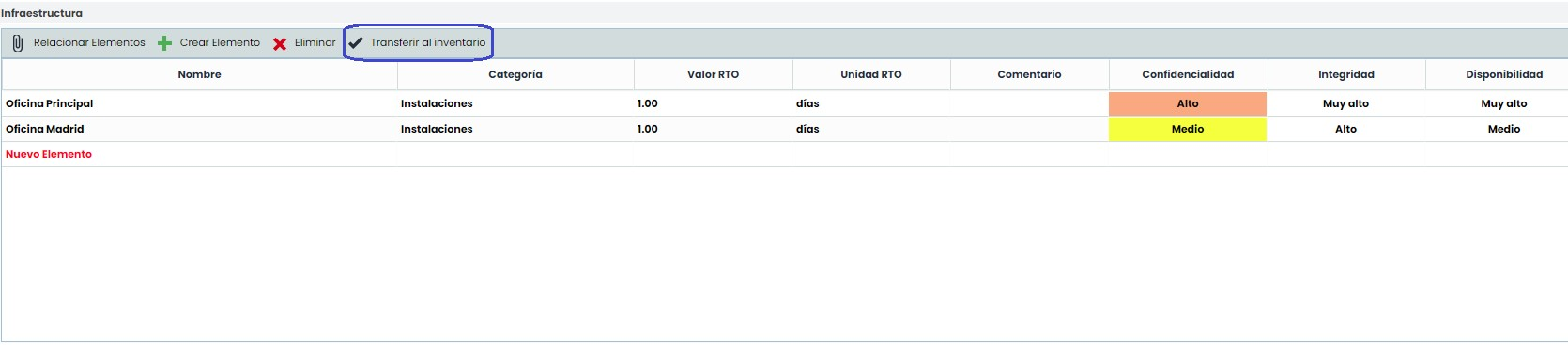
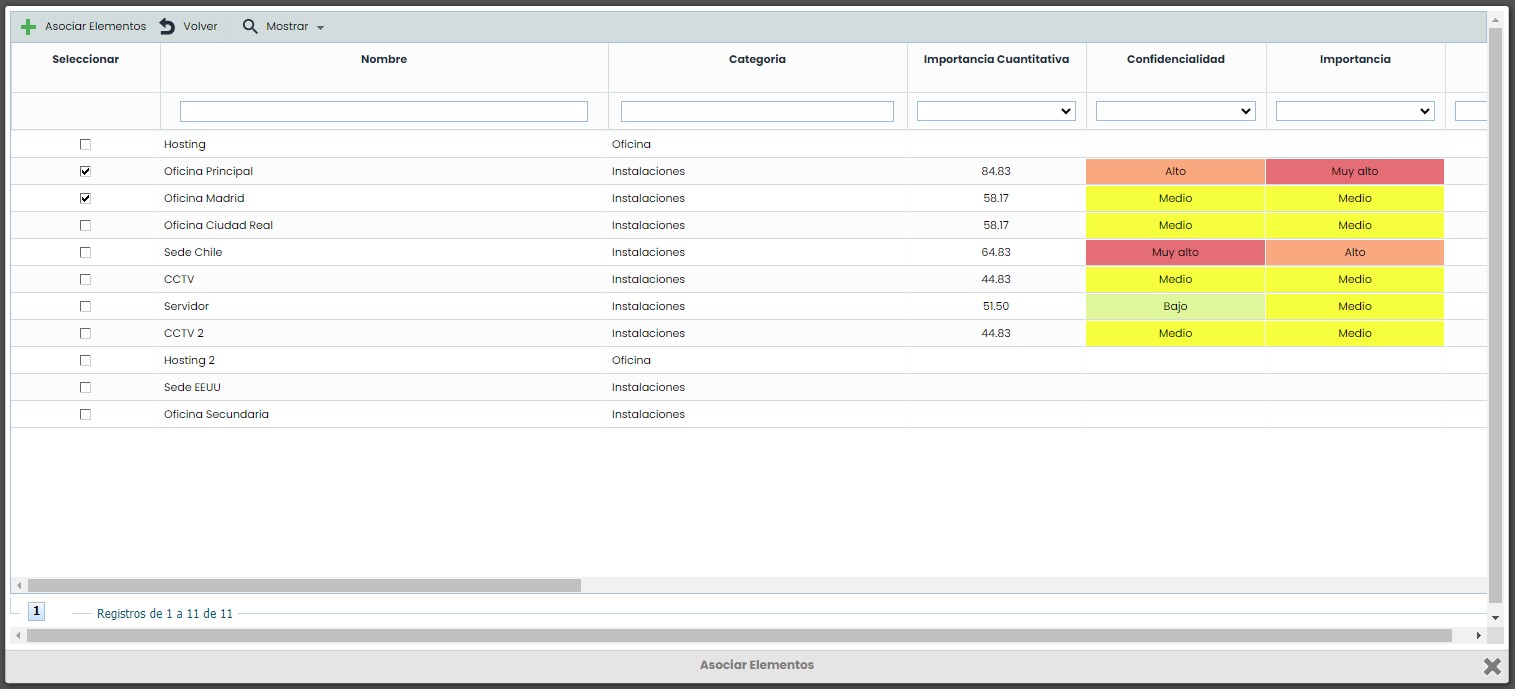
In it, existing items from the Inventory can be associated through the “Relate Items” button, and the assessment of the dimensions can be modified, or new items that have been identified can be added (using the “Create Item” button), which will be distinguished by having their name in red.
NOTE: This same behavior applies to the BIA survey module (both Impact-based BIA surveys and Time-based BIA surveys).
Consolidation in the Inventory
Once the BIA information is completed, it is possible to consolidate in the Inventory both the assessment of existing items and the addition of new identified items. This is done automatically when consolidating the Consolidated BIA from an Individual BIA, or from the Consolidated BIA, using the “Transfer to Inventory” button, which will create the item in the Inventory with the assessment of the dimensions applied to it, and insert it into the item tree under the Business Process being evaluated in the BIA.