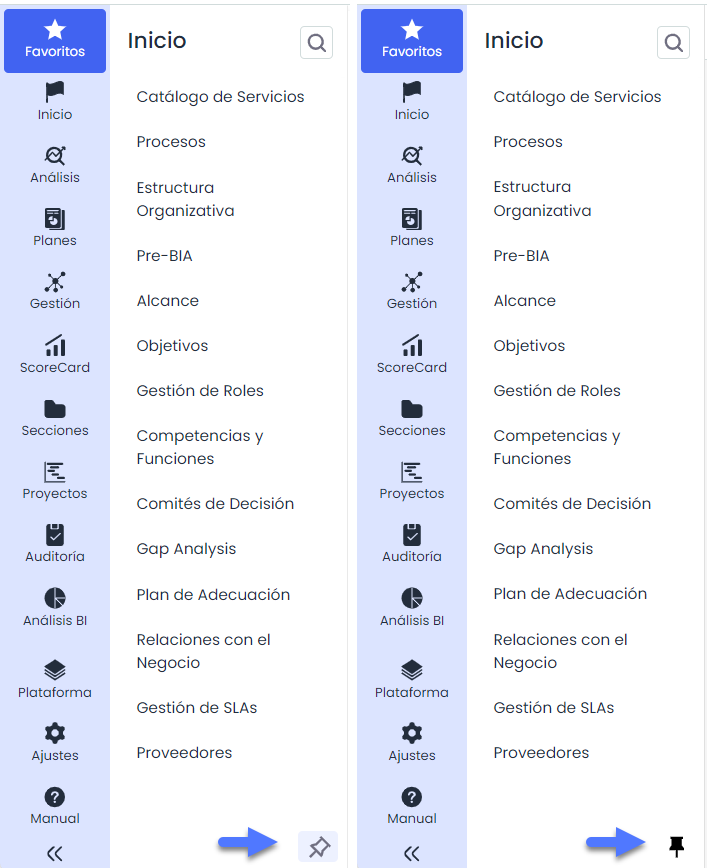
This section explains how to use the application's main menu to access different modules and functionalities.
General Menu Structure
The application's main menu is located on the left side of the screen and provides access to the most important modules and functionalities. The menu structure and options may vary depending on the configuration and permissions of each client.
Menu Sections and Options

-
Favorites: Quick access to modules or sections marked as favorites.
-
Main Sections: Include the application's specific functionality areas, which may differ between clients depending on their licenses and/or permissions.
-
Settings: Area for application configuration and personalized adjustments.
-
Manual: Access to user documentation for assistance.
Menu Options
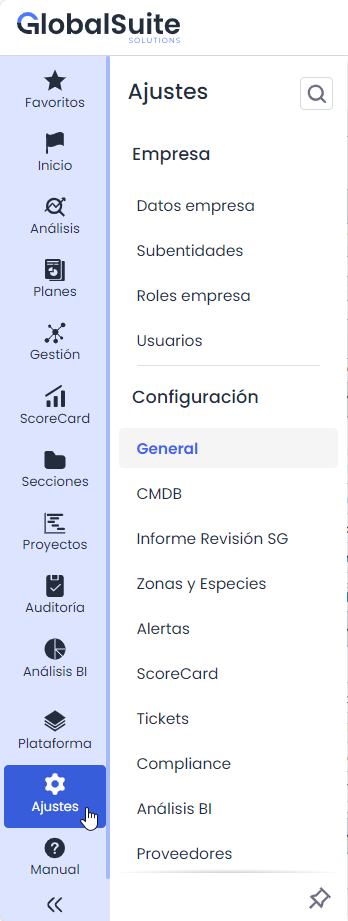
When accessing each menu section, the available options may vary depending on the contracted licenses and the permissions assigned to each User.
Search
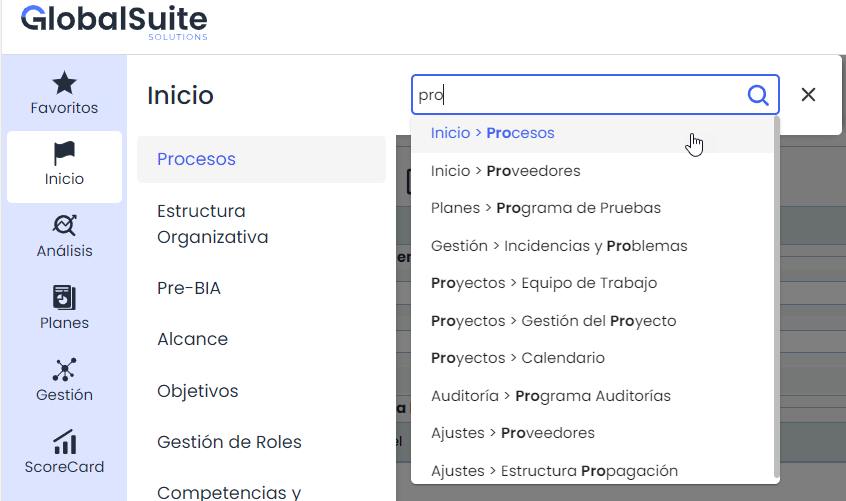
The search functionality allows you to quickly find specific sections or items within the menu. To use it, follow these steps:
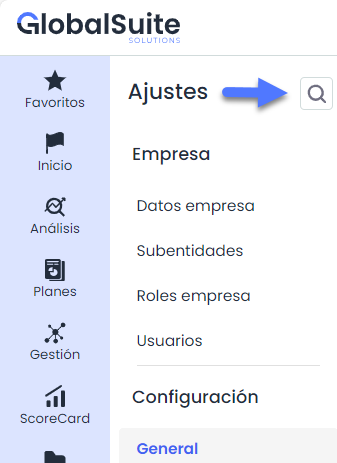
Access the search bar: By clicking on the magnifying glass icon located at the top of the menu, a text field is displayed where you can enter the term or the first letters of the name of the option you want to search for.
Enter text to search: As you type, the system suggests relevant options that match the entered text. The results are displayed in a list showing the name of the available options and the corresponding access path, making it easy to identify the section.
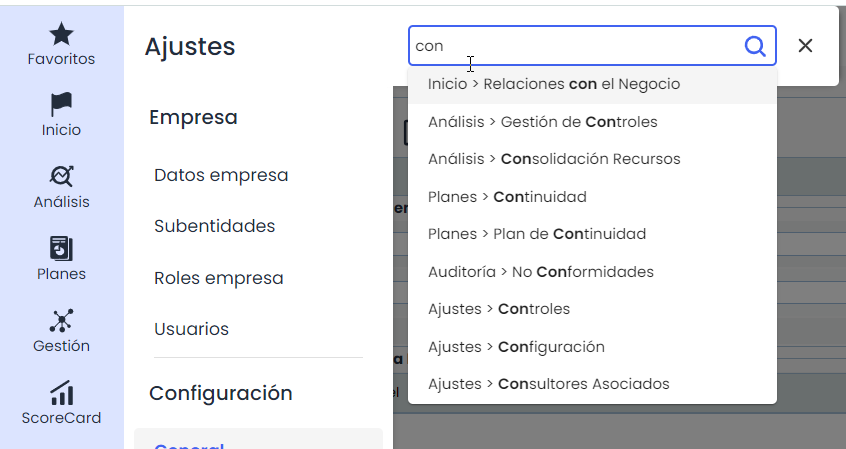
Select results: You can click on any of the options shown in the results list to directly access the selected section.
Expand and Collapse the Menu
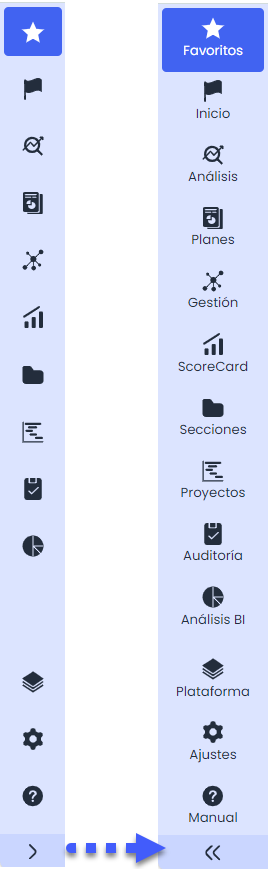
The button located at the bottom of the menu allows you to expand and collapse the list of options. By clicking on this button:
-
Expand: If the menu is collapsed, clicking the button will display all the options, fully showing the names of the sections.
-
Collapse: If the menu is expanded, clicking the button again will hide the section names, leaving only the icons visible and providing more workspace.
-
Pin: Additionally, you can pin the menu when it is expanded. This allows the menu to remain visible while performing other interactions in the interface. To pin the menu, press the pin icon that appears at the bottom right of the menu while it is expanded.