
This tutorial explains, step by step, how to perform the management of implemented controls in GlobalSuite®, including their creation, assessment, and monitoring within the risk analysis module.
This guide details how to access the Control Management option, create new controls or import those defined in the catalog, and use the options to display, filter, and assess controls. It also explains how to record general data, actions, associated risks, indicators, evidence, and impacted elements, as well as configure automatic notifications, recalculate the effectiveness of controls (EC), and view the results of control surveys.
Control Management
GlobalSuite® allows the management of the controls implemented in the organization. To do this, you need to click on the Analysis> Control Management ” option and choose a risk analysis. The default view displayed is the “ Controls” tab.
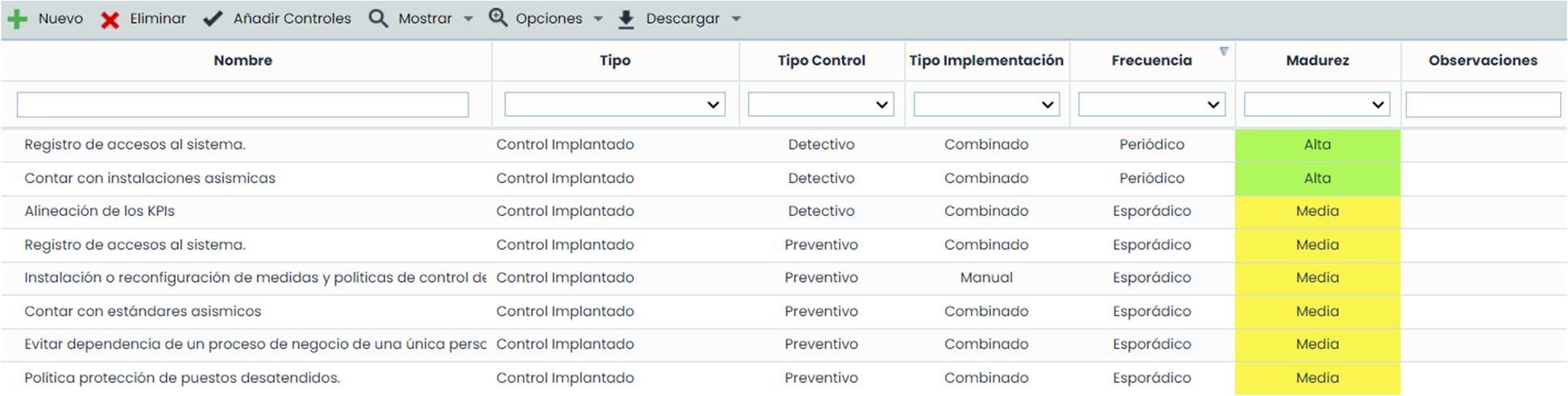
The actions that can be performed in the controls table are as follows:
-
New/Delete: Allows creating new controls or deleting them.
-
Add Controls: Allows importing the controls defined in the selected analysis catalog. If the control already exists in Control Management, it will not duplicate it.
-
Display: Offers the possibility to filter the list of controls, allowing you to choose between viewing All (Implemented and Treatment Plan) or specific ones, whether only the Implemented controls or those defined in the Treatment Plan. It also allows expanding or collapsing the information displayed in the table.
The information in this dropdown is displayed when the Control Evaluation Type (Settings > Methodologies > Controls) is “Global” or “By Risk”:

If the Control Evaluation Type is “By Element,” the button also displays the option Element/Control, where the controls grouped in the elements they are associated with are displayed.

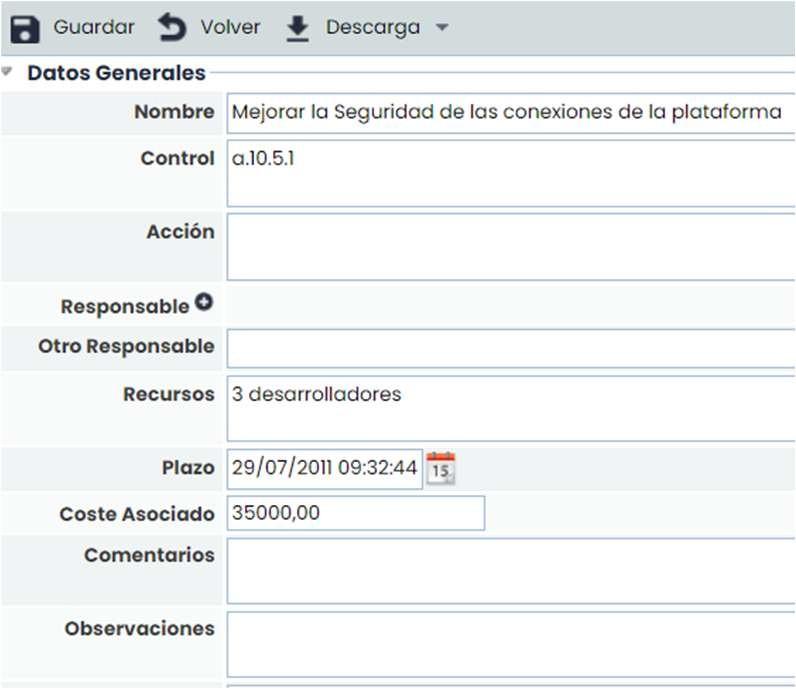
Options - Restore Assessment: Allows, in cases where the assessment of implemented controls is specific by risk, to generally restore all assessments made for each control.
Options - Details: Offers the possibility to view and/or define more specific details of the control.
-
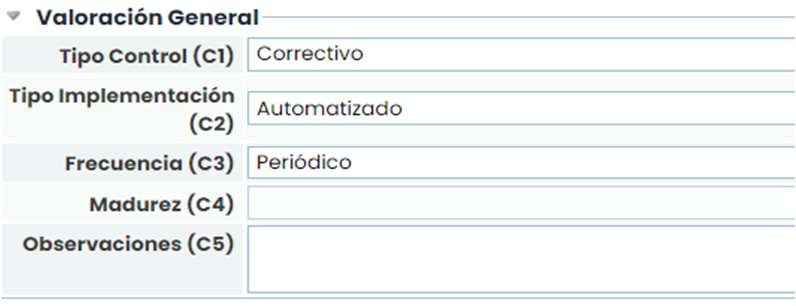
General Data: Allows describing the plan, as well as the person responsible for its implementation, costs, deadlines for execution, and assigning indicators for monitoring.
-
General Assessment: Allows assessing the dimensions of the control that have been configured to be displayed.
-
Indicators: Allows associating one or more indicators defined in the ScoreCard> Indicators .

-
Actions: Allows establishing the necessary tasks for the implementation of the control or action.

-
Risks: Allows consulting the risks that are treated by the defined plan (control).
-
Impacted Elements: Allows consulting the elements that will be affected by the defined control.

-
Evidence: Allows associating one or more pieces of evidence to the control being defined. To do this, through the "Associate Evidence" button, a pop-up window is accessed containing all the evidence registered in the "Evidence Management" option of the Analysis menu. It is possible to associate one or more pieces of evidence from the list.

-
Automatic notifications: It is possible to set notifications. These types of alerts are triggered when an employee is assigned as responsible for a control or an action, and to notify about the deadline compliance.

-
Options - Calculate EC: Allows the user to recalculate the Effectiveness/Assessment of the Controls. If changes occur in the control methodology, clicking this button recalculates the value of the automatic dimensions.
-
Options - Survey Results: Allows accessing a screen that shows the results of control surveys, where the obtained information can be reviewed and consolidated.
-
Download: Offers the possibility to download the list of controls in editable format (.xlsx) or in .PDF format.
General Assessment
GlobalSuite® allows assessing the dimensions of a control and applying these changes to all analyses where the control is included, as long as the analyses use the same methodology.
To do this, you need to click on the Analysis> Control Management option and click on “General Assessment.”

The actions that can be performed in this view are as follows:
-
New / Delete: Allows creating as many assessments as needed; it is necessary to choose the control methodology.
-
Delete: Deletes the created assessments.
When creating a new assessment, clicking on the name accesses the form:

In the form, you can modify the name, choose a responsible person for the created control, and check the “Create History” box. If checked, a history of the control status will be created each time an assessment is performed.
In this view, the following actions are allowed:
-
New: New controls are created. By searching by name, it compares with existing controls to apply changes in the selected risk analyses.

-
Delete: Allows deleting the created controls.
-
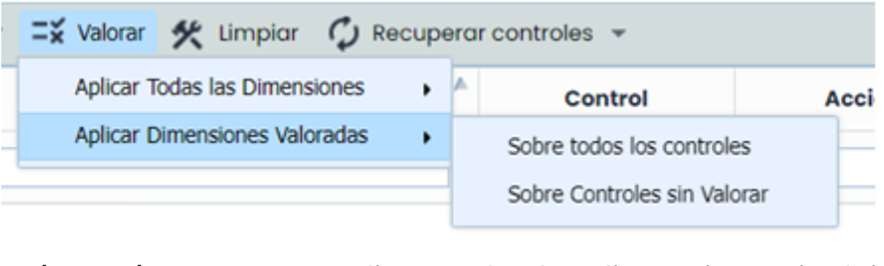
Assess:
-
Apply All Dimensions: Updates all dimensions, including those that are blank (unassessed), and you can choose whether to apply to all controls or only to unassessed controls.
-
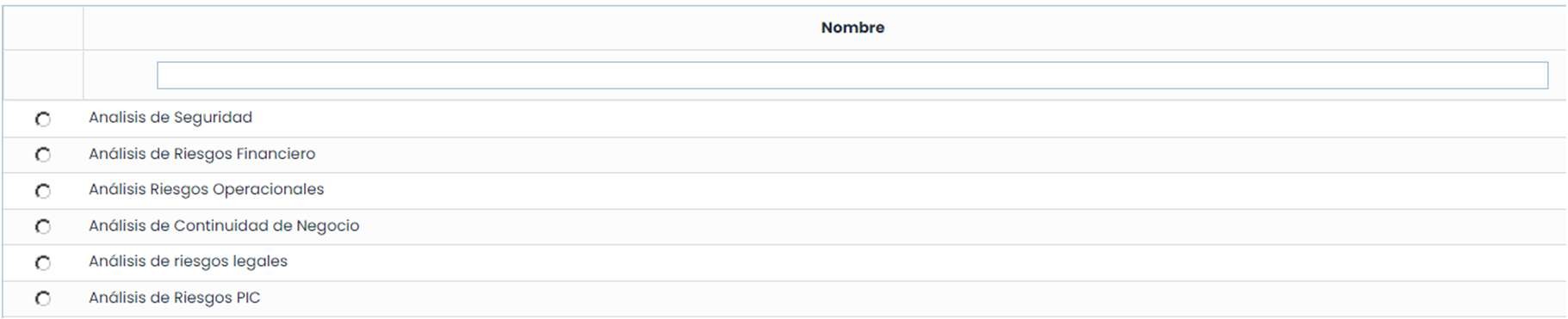
Apply Assessed Dimensions: Updates only the dimensions that are assessed. You can choose whether to apply to all controls or only to unassessed controls. Once the assessment method is chosen, the analyses with the same methodology selected in the assessment are displayed to mark which ones to apply the assessment to:
-
-
Clear: Clears the assessments made in the control.
-
Retrieve controls: Allows obtaining the control either through the catalog or from the risk analysis.