
This guide explains the various configurations and associations between an audit job and a ticket, such as a Non-Conformity or a Requirement, derived from that job.
You must go to the Audits Module and open an Audit Program in the "In Progress" state.
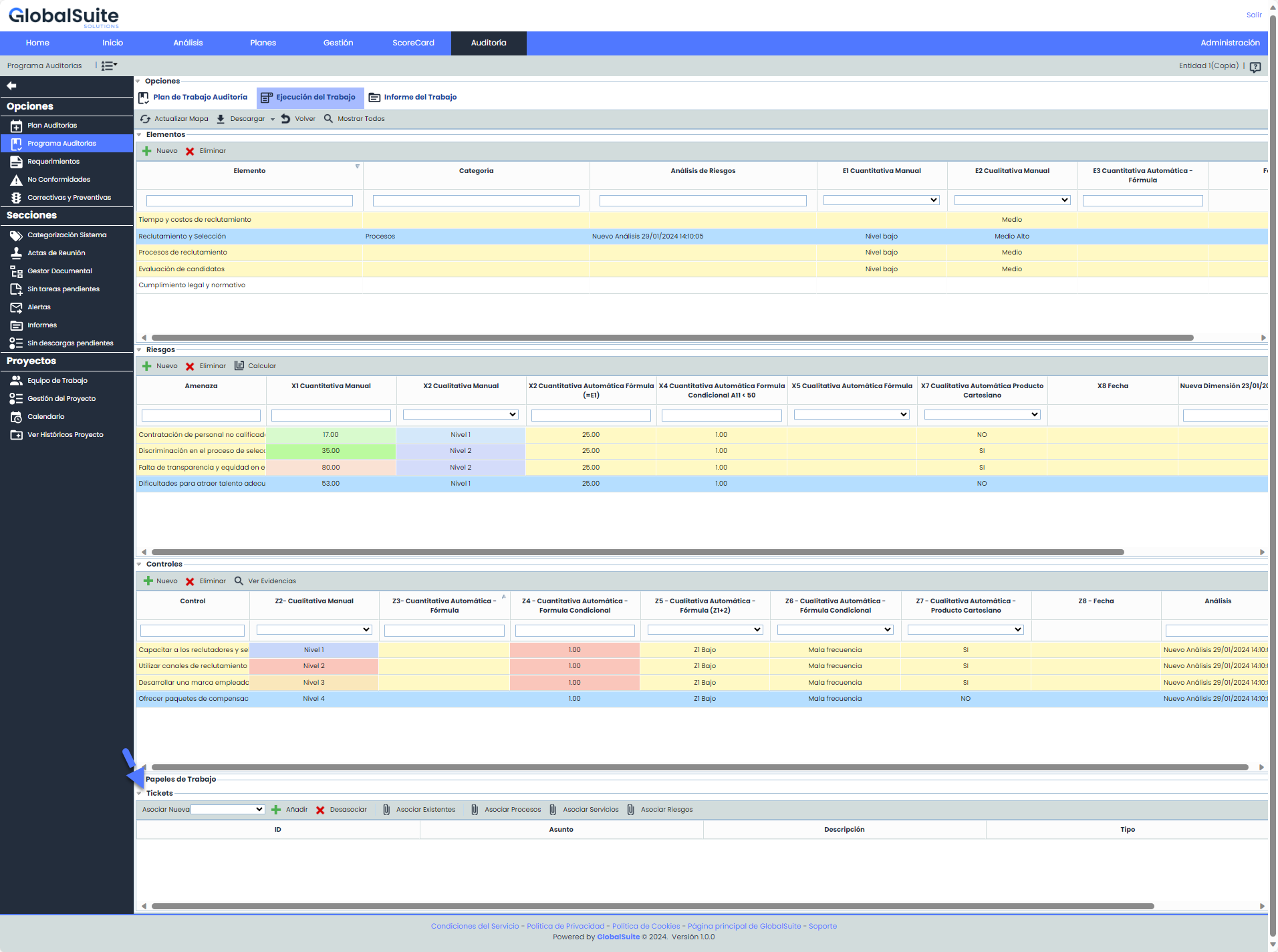
You can select an existing ticket or create a new one.
-
If creating a new one, within the "Associate New" selector, you must select the type of ticket you want to create and press Add.
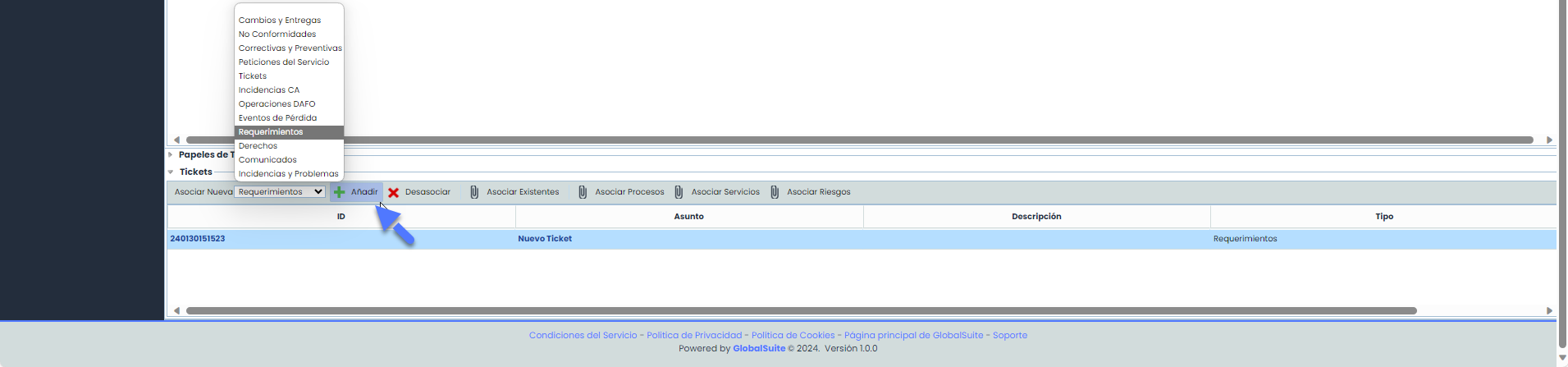
When pressing Add, the following message will be displayed:
This message appears because there are selected controls, risks, or items. To view the created ticket, you must go to the top bar of the job and select “Show All.”
-
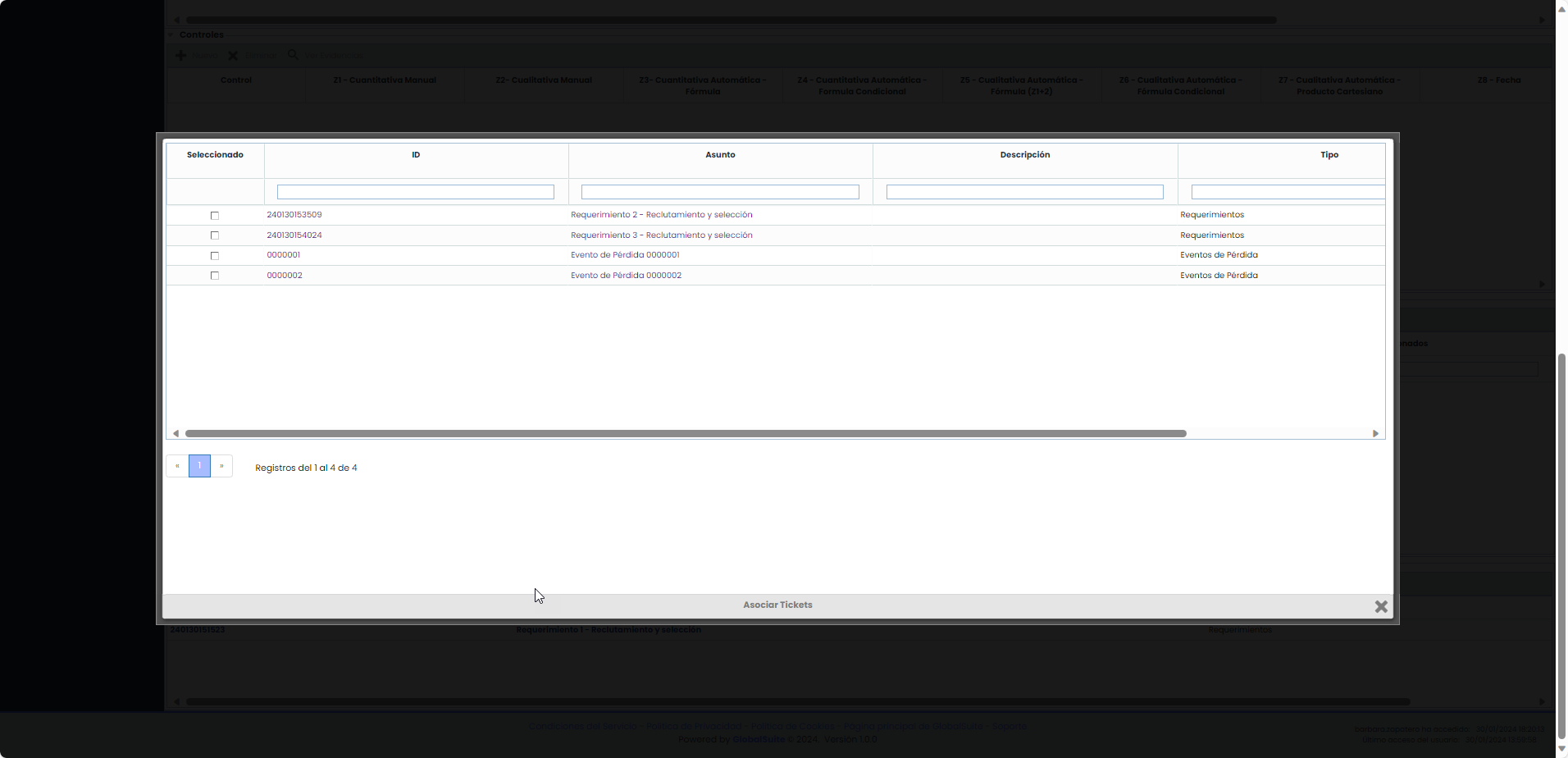
If you want to associate existing tickets with an audit job, you must click on "Associate existing".
A pop-up window will open listing the tickets that have not been added to the Audit.
Associate Services, Processes, or controls to a ticket within an Audit
Another functionality when linking a ticket with an audit is that a Service, Process, or risk can be associated with it.
You must ensure that the fields are correctly configured:
-
To associate a Service with the ticket, it must have the SERVICES field.
-
To associate a Process with the ticket, it must have the PROCESSES field.
-
To associate a Risk with the ticket, it must have the THREATS field.
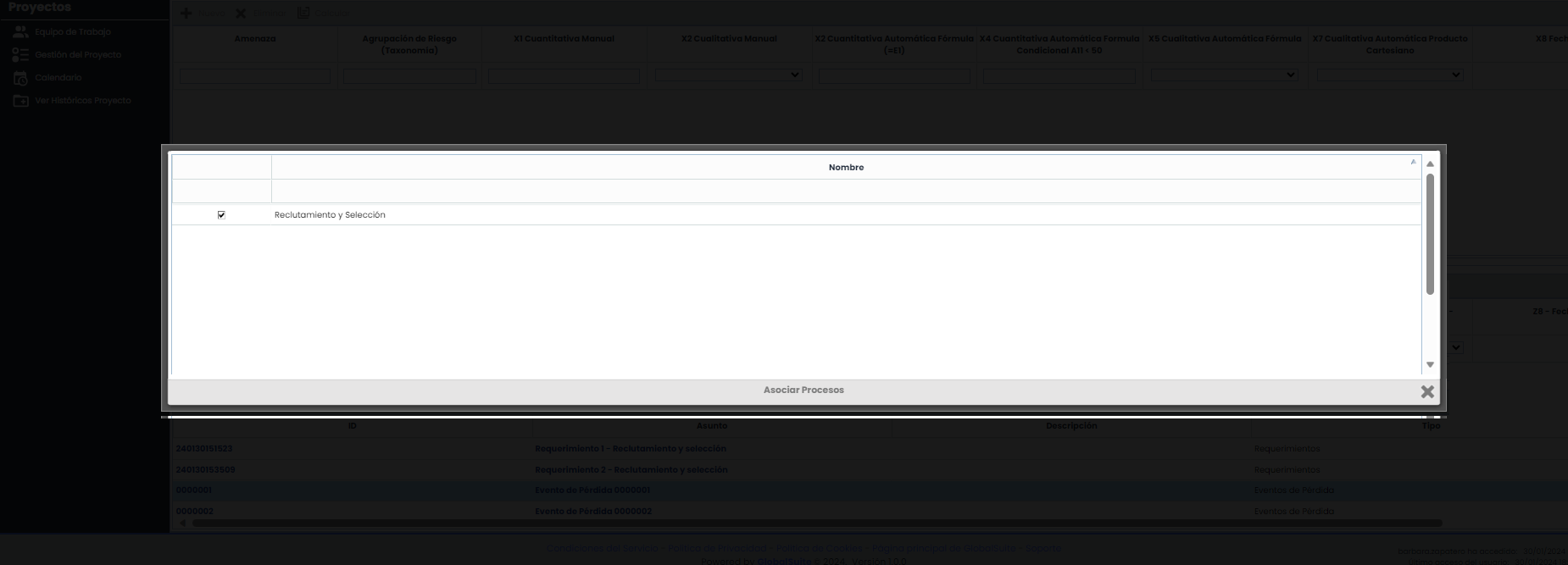
Once these options have been configured, the association is carried out by selecting the ticket and choosing the desired option:

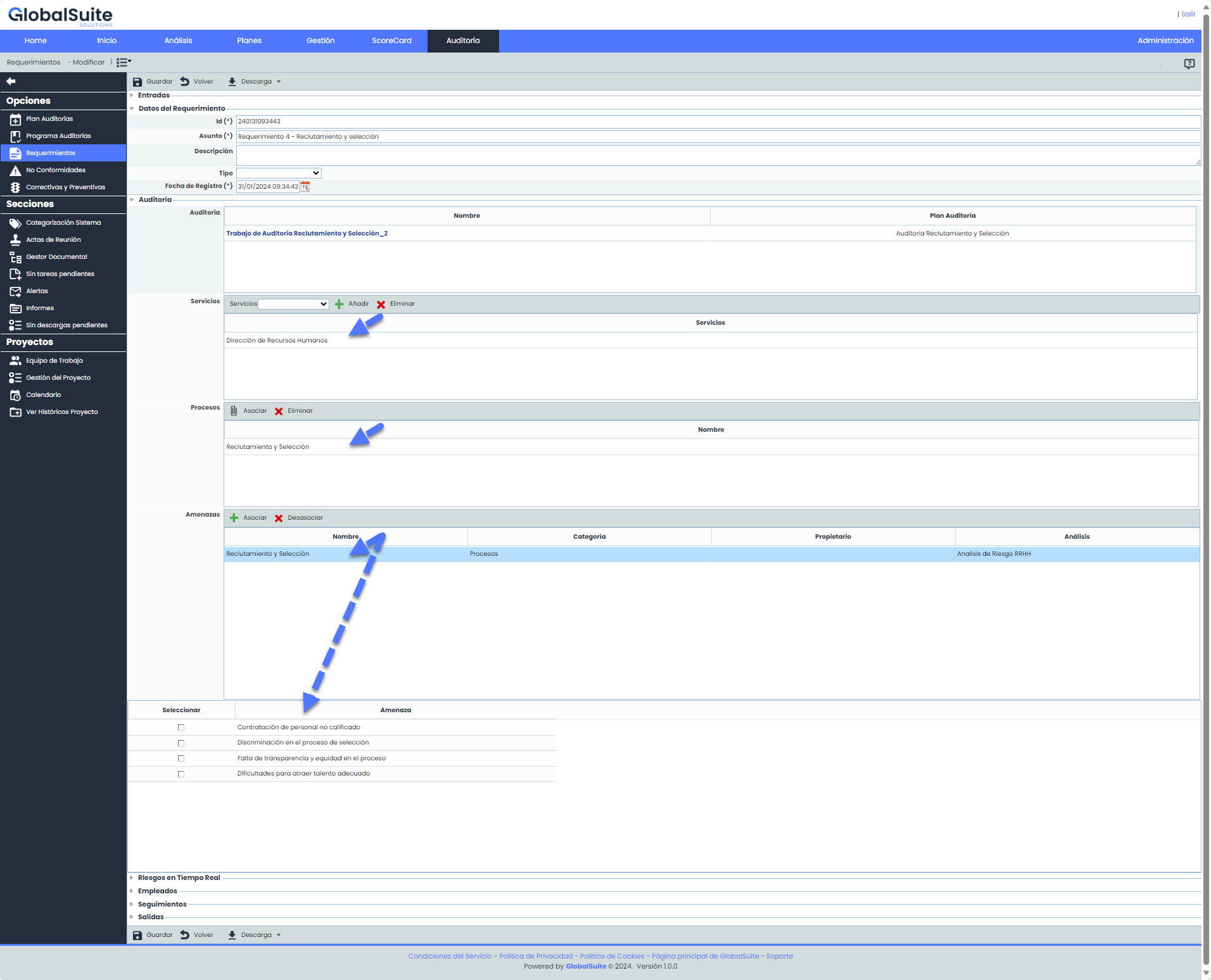
When selecting any of the three options, the services/processes/risks that are part of the audit job will be displayed in a pop-up window.
When entering the ticket, the Services, processes, and/or Risks associated from the audit will be visible in the corresponding fields.
Consult the Audit jobs associated with a Ticket
The Ticket – Audit link is always made from the Audit. There, you can see all the tickets associated with it.
However, it is possible to see which audits are associated with a ticket. To do this, follow these steps.
-
The field type called AUDIT-WORK must be configured in the ticket.
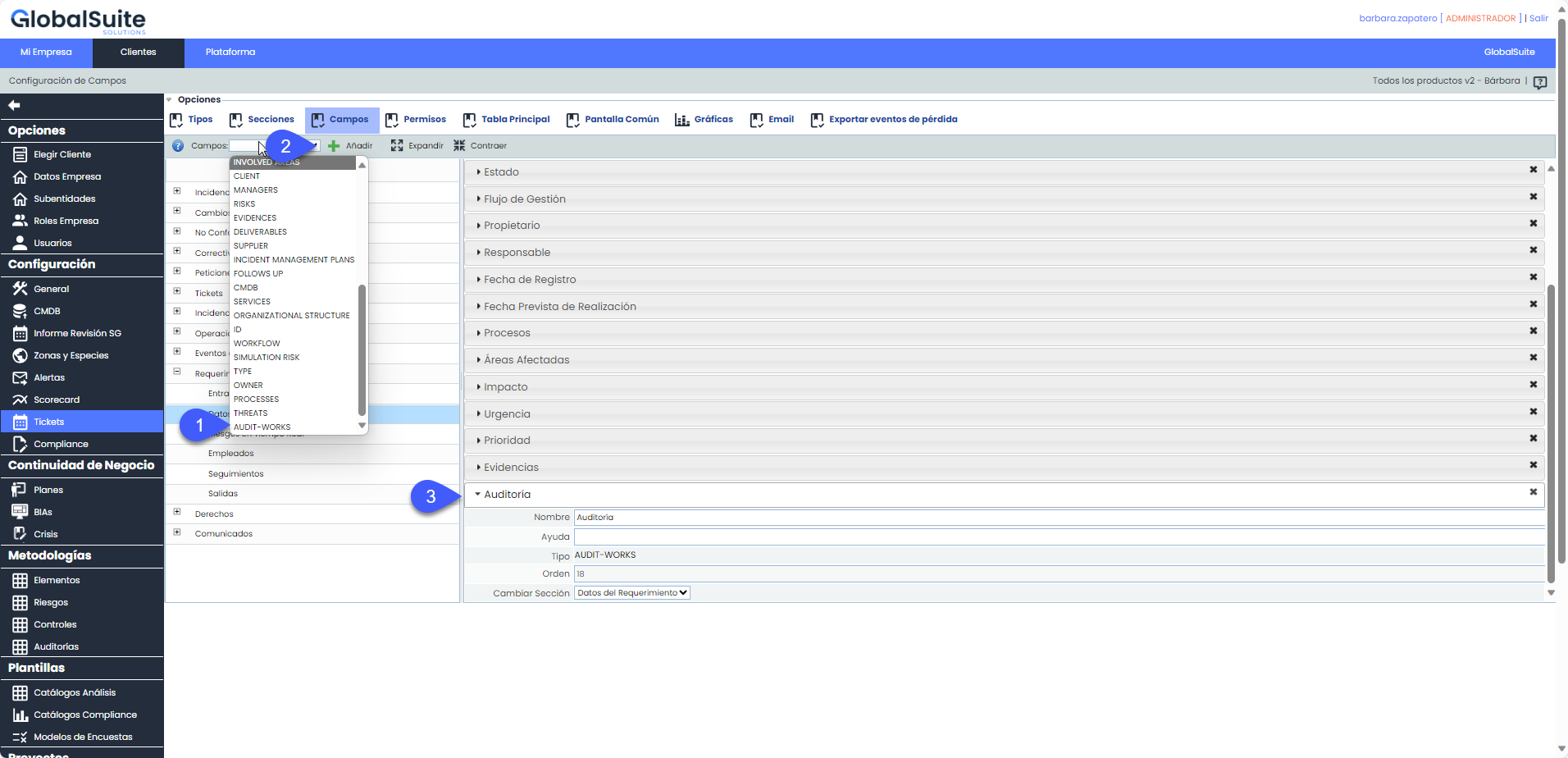
Like any ticket field, you can configure the name, section, and order where it will be located.
This type of field can only be included once per ticket, and like any other field, it can be configured to be visible both in the ticket's main table and in the Common Screen.
If you want more information about configuring both options, you can find it in the manual: Main Table Configuration and Common Screen Configuration
-
Once this configuration is done, you will be able to see from a ticket the audits associated with it.
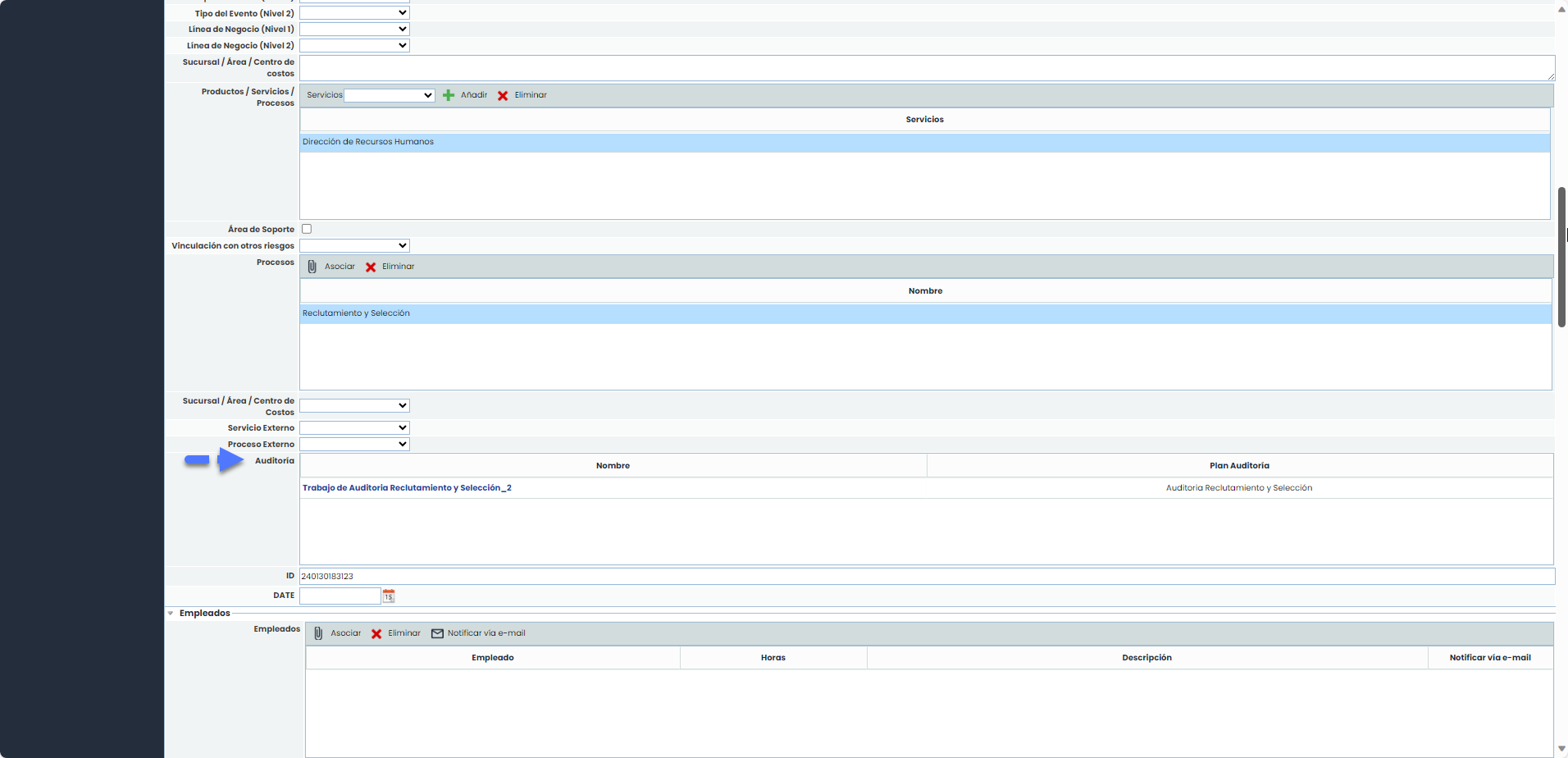
As seen in the previous image, configuring the AUDIT-WORK field implies that a table is included in the ticket showing:
-
Name of the Audit Job/Program. The data in this column will appear with a link to facilitate access to the job.
-
Audit plan.