
This tutorial explains, step by step, how to create and consult risk analysis histories in GlobalSuite®, allowing you to preserve and compare previous versions of the analyses performed.
This guide details how to access the Histories module, generate a new history before updating the data of an analysis, and consult the risk values recorded in previous versions.
Additionally, it shows how to access the stored information in read-only mode, visualize changes between histories through comparative graphs, and check the evolution of each risk over time within the analysis.
Creation of History.
Step 1
From the option Analysis > Histories , you can consult all the histories that have been stored in GlobalSuite® over time.
Upon accessing, the default display is the list of “ Histories,” where a bar chart Risk/Level for each registered history is shown at the top, and a table with the name and date of the history is displayed at the bottom.
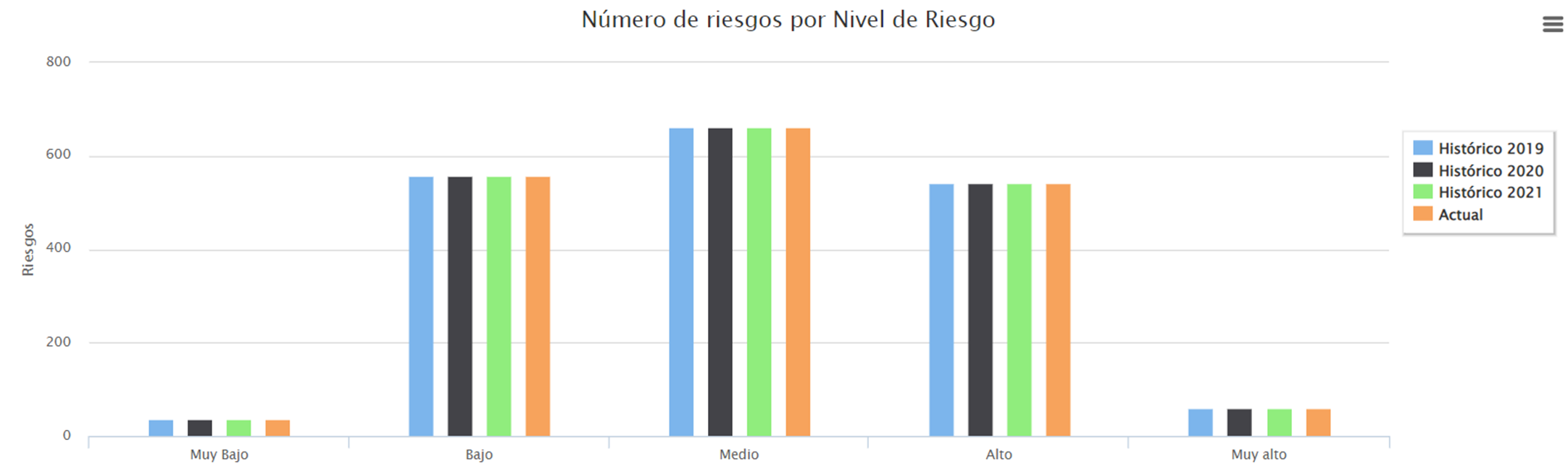
Step 2
For the “ Update of Risk Analysis,” it is necessary to create a “ History” to save the information of the “ Risk Analysis” before updating its data.
To do this, you need to click the new button. By default, the history is created with the current date and time in the name. If you want to rename it, you must select the record and click the marked icon.

The created “History” stores all the information we have in our current “Risk Analysis,” so that it can be consulted in the future.
Step 3
When accessing a history by clicking directly on the name, all the options that allow you to consult the information appear at the top.

A snapshot of all the functionalities shown in the previous box is created at the time of the history's creation. By clicking on each of them, you can view the state they were in at that moment. This consultation is only in read-only mode, as it is not modifiable.
Consultation of the historical value of a Risk.
Step 4
When a history has been registered, it is possible to check the previous value of the chosen risk dimension in the risk analysis.
Within the option Analysis / Risk Analysis, once an analysis has been selected, an element is selected, and in the risks of this element, you can consult the risk value that was recorded in the last history.
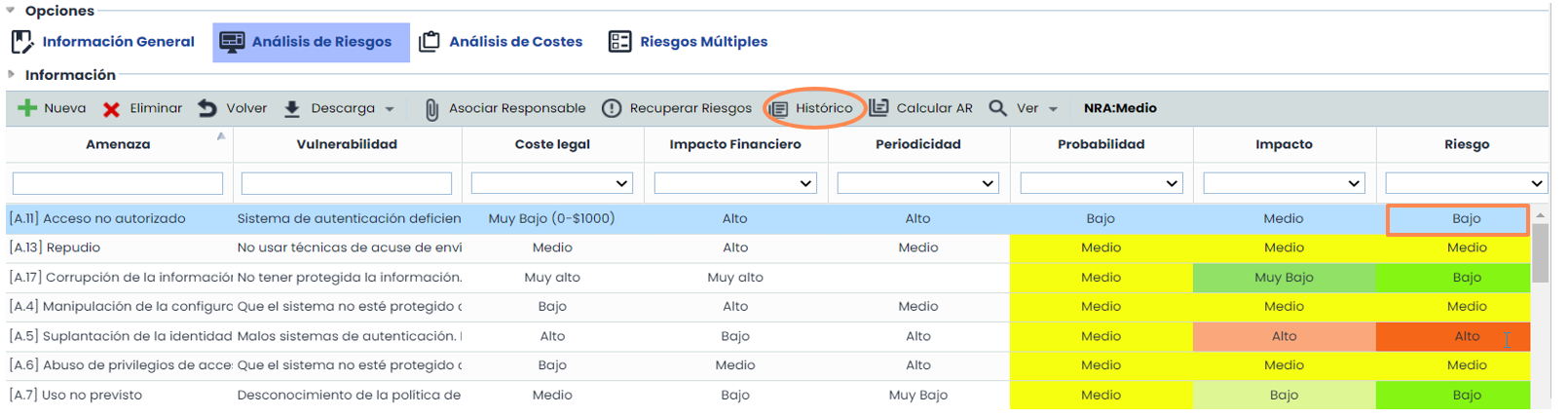
Once the risk is marked and the history button is clicked, it shows the last assessment of the Risk.
Step 5
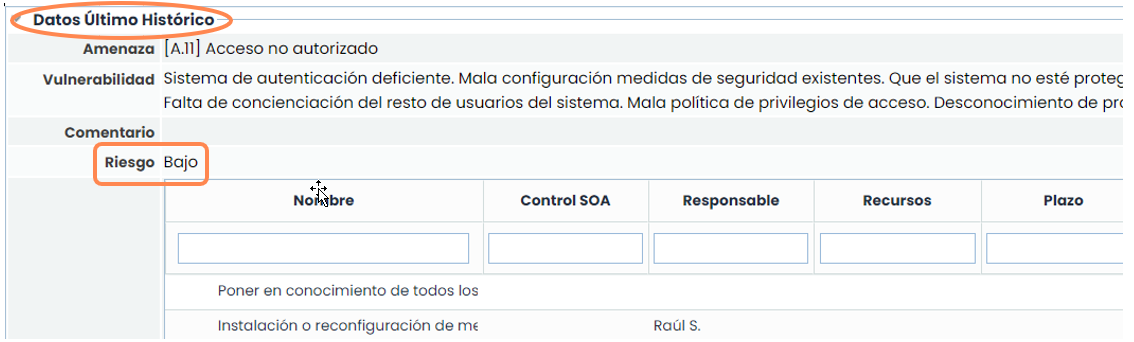
As it has not changed since the last history, the value is the same as the current one.
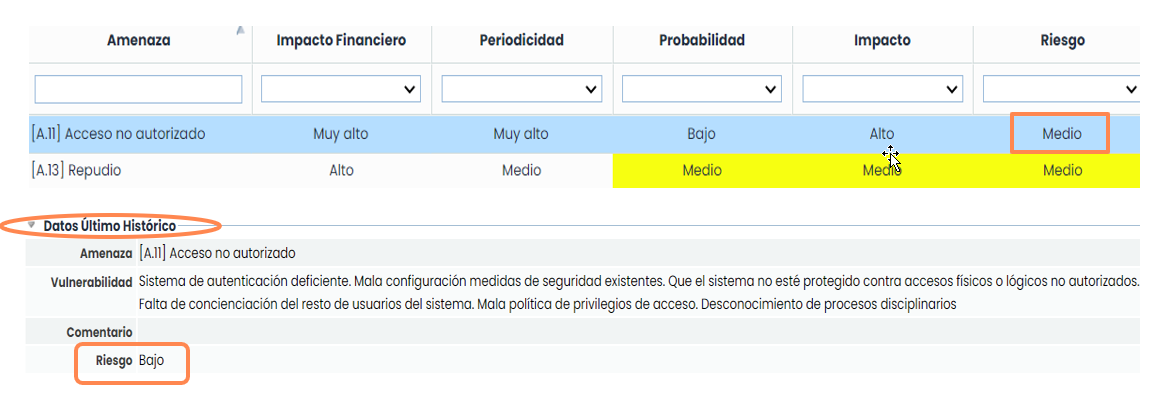
If the current value of the risk is changed, it can be verified that the historical value remains unchanged: