
The synchronization of OSSIM can be performed in three different parts of the tool.
1. In the Analysis section, option CMDB
2. In the Analysis section, option Compliance
3. In the Management section, option Incidents and Problems
CMDB
In the top bar, you can see the Synchronize→OSSIM button.

When pressing the Synchronize button, you will be prompted to enter the access password in the top bar of the table, and the relevant screen will appear to perform the synchronization.
On the left side, the elements that exist in OSSIM are displayed. If you click on an element, the information of that element will be shown on the right side of the screen.
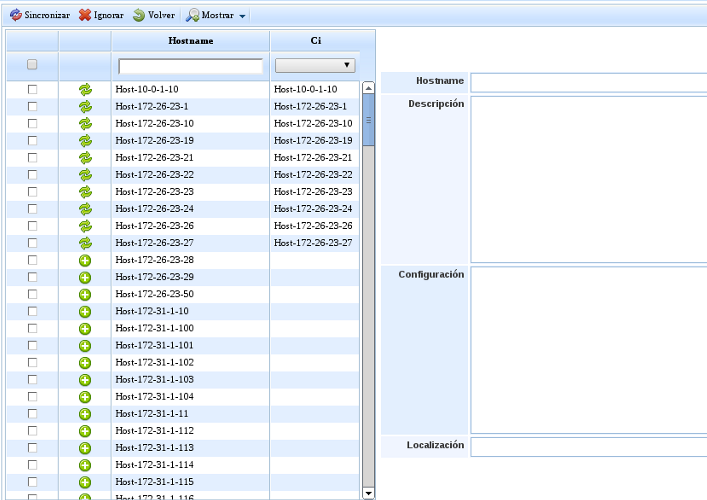
It is possible to synchronize the elements of OSSIM with CIs from GlobalSuite's CMDB or ignore them.
To synchronize both elements, there are 2 possibilities:
1. Selecting the elements from OSSIM and pressing the synchronize button, in this way a new CI will be created for each synchronized element.
2. Relating the elements from OSSIM with the already existing CIs, selecting the CI with which you want to relate it, and it will update its data if you press synchronize. If you do not press it, they will only remain related.
Compliance
Synchronization can be performed through the SOA list, synchronizing all controls, or one by one from the SOA. Likewise, GlobalSuite only allows synchronization of the active SOA.
In the top bar of the list, you can see the Synchronize->OSSIM button, which will be available as long as the active SOA is selected.
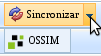
If you press the 'Synchronize' button, you will be prompted to enter the access password in the top bar of the table, and all the controls of the SOA in GlobalSuite will be updated with the values that the SOA has in OSSIM.
In the top bar of the active SOA, you can see the Synchronize->OSSIM button, which will be available as long as a control is selected.
.jpg?cb=2792d8dcb47664327b5018459e98e4b7)
If you press the 'Synchronize' button, you will be prompted to enter the access password in the top bar of the table, and a pop-up screen will appear allowing you to perform the synchronization.
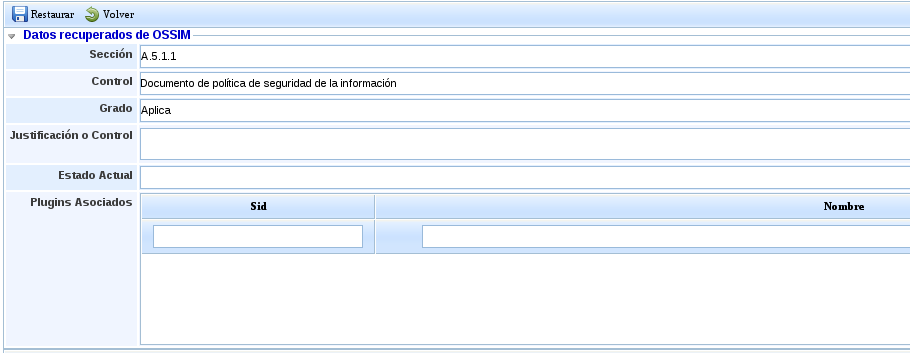
In this pop-up screen, the data of the control that is in OSSIM is displayed, and by pressing the Restore button, this data will be updated in the control of the SOA in GlobalSuite.
Incidents and Issues
In the top bar, you can see the Synchronize→OSSIM button.
.jpg?cb=2792d8dcb47664327b5018459e98e4b7)
If you press the 'Synchronize' button, you will be prompted to enter the access password in the top bar of the table, and the screen to perform the synchronization will appear.
On the left side, the incidents generated in OSSIM are displayed. If you select an incident, the information will be shown on the right side.
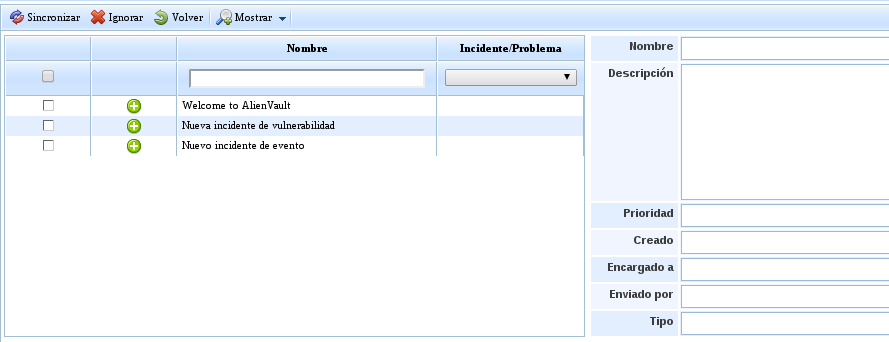
It is possible to synchronize the incidents from OSSIM with the Incidents in GlobalSuite or ignore them.
To synchronize both incidents, there are 2 possibilities:
1. Selecting the incidents from OSSIM and pressing the synchronize button, in this way a new incident will be created for each incident that has been synchronized from OSSIM.
2. Relating the incidents from OSSIM with the already existing incidents in GlobalSuite, selecting the incident with which you want to relate it, and it will update its data if you press the 'Synchronize' button.