
The ENS Compliance option allows managing the compliance status of Security Measures and the controls established in the various evaluations of the regulation, along with their degree of applicability based on the System Categorization.
Compliance Evaluations List
When accessing the option, the tool displays a list of ENS evaluations that have been established, showing by default those that are active.
Unknown Attachment
Different actions can be performed in the table, including:
-
Add : To create a new Compliance, press the Add button.
When doing so, a modal window opens with the list of available catalogs to create the evaluation.
Catalogs that appear with a green border indicate that a Compliance has already been created from that catalog.
Unknown Attachment
-
View Information: Allows consulting the details of the Compliance catalog and associating Related Items. More information in Compliance Information
-
Edit catalog name: Allows modifying the name of the Compliance catalog.
When selecting this option, name editing is enabled to enter the new value. -
Delete : Allows deleting one or more ENS evaluations, with the possibility of multiple selection.
-
States: Allows configuring the states of the catalog. More information in Configure States
-
Duplicate : Allows copying an ENS evaluation with all its information to reuse it.
-
Historical :
-
Create historical: by deactivating the Active switch, the evaluation changes to Historical status. At that moment, a historical copy is generated that can no longer be edited, preserving the security level and the degree of applicability of all security measures as they were at that time.
-
Activate an evaluation: from a catalog in Historical status, and by reactivating the switch, the evaluation is reactivated. This allows recovering it as an editable evaluation and continuing to make changes to it.
-
-
Download:
-
CSV Report : A report will be generated with the list of evaluations matching the applied filters. The report will be available in Pending Downloads.
-
ENS Evaluation
From the list, press “Evaluate” to open the view showing all ENS requirements according to the selected version from the list and the degree of applicability based on the System Categorization .
Unknown Attachment
Requirements Management
-
Degree: Automatic field calculated based on the System Categorization. It is editable only at the controls level (3rd and 4th level in 2015 and 2022 evaluations, respectively).
-
Current State:
-
Editable field only at the controls level, through a dropdown, indicating the state of the requirements or controls.
-
Automatic field only at the Security Measures level (3rd level). The label "Adequate" will be displayed when all applicable controls show a 100% completion degree.
Unknown Attachment
-
Controls marked as "Not Applicable" will not be considered when calculating whether the security measure is "Adequate" or not.
Different actions can be performed in the table, including:
-
Associate Documentation : Allows associating one or more documents from the document manager to the Security Measures or ENS requirements. To do this, select the desired row and press the "Associate Documentation" button, which will open a window showing the document tree stored in the Document Manager . To associate the documentation, select the desired document checkbox(es).
Unknown Attachment
Once the documents are associated, they will be displayed in the corresponding column of the security measure or requirement.
Unknown Attachment
-
Associate Control : Allows associating one or more controls registered in Control Management or in the ENS Adjustment Plan ENS Adjustment Plan , to the requirements to demonstrate their implementation. To do this, select the desired row and press the "Associate Control" button, which will open the following screen:
Unknown Attachment
To associate one or more controls, select the desired control checkbox(es) and press the Back button or close the window.
If you want to remove an association, the user must access the controls list, deselect the desired checkbox(es), and press the Back button or close the window.
Unknown Attachment
-
Expand : Allows expanding the list of actions.
-
Collapse : Allows collapsing the list of actions.
-
Back : Pressing the button allows returning to the Compliance Evaluations List view.
-
End Date : Field to indicate the review date of the Security Measures.
-
Download
-
Docx Report: A report will be generated with all the evaluation information. The report will be available in Pending Downloads.
-
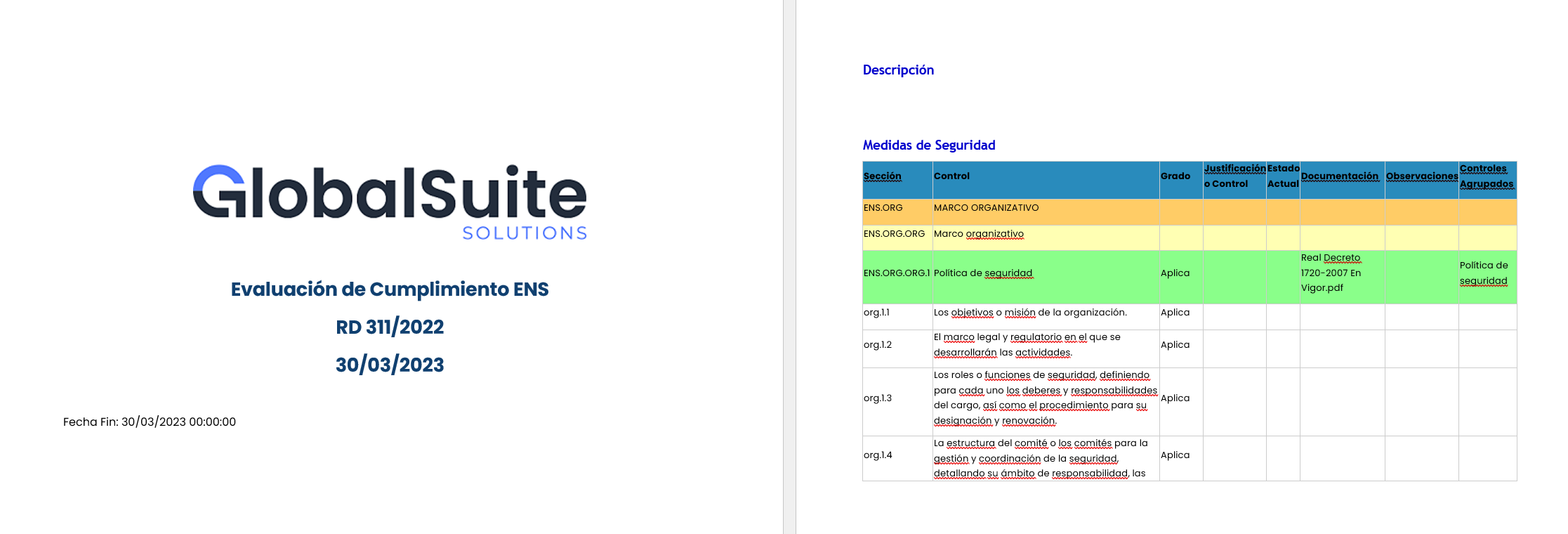
-
Filters :
-
In addition to filtering by Security Measures, it is possible to filter actions independently in the Actions Search section.
Unknown Attachment
-
-
Column visibility: It is possible to adjust column visibility by adding or hiding the desired ones, by right-clicking on the table header.
Unknown Attachment