
Once inside an Audit Plan, two options are displayed at the top. By default, the Audit Plan section is loaded.
This section allows defining the parameters to configure the audit planning. It consists of several sections listed below.
Planning Information and Responsible Parties
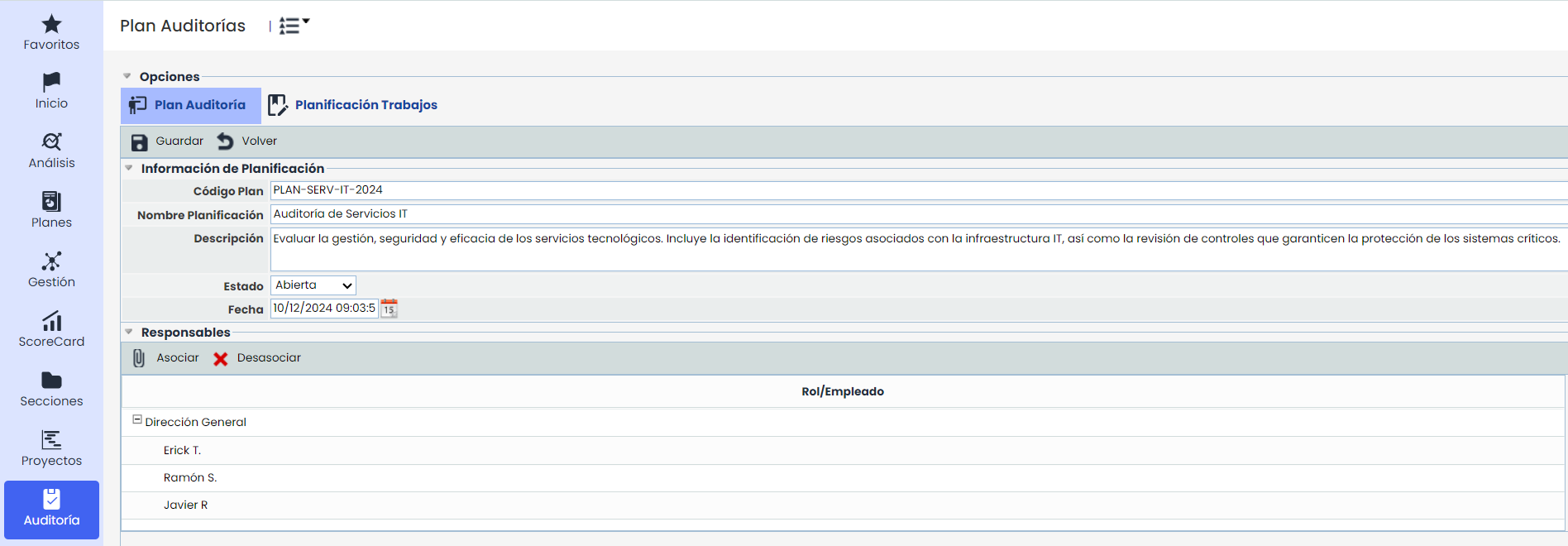
Planning Information
-
Plan Code: Identifies the code assigned to the audit planning. Its visibility can be configured in Settings> Audit Methodologies.
-
Name: Identifies the name of the audit planning that will be displayed in the previously seen list.
-
Description: Allows for a more detailed and extensive description of the audit planning.
-
Status: Allows defining the status field of the audit planning being configured. Several statuses can be selected:
-
Open: This is an initial planning status. From the previously seen list, you can view the plans in this status. They will be pending definition or planning by the audit team.
-
Draft: Status that allows creating audit drafts that function as templates or base audit tasks, which can be copied and are not shown by default in the main table.
-
Planned: Status in which the audit planning is being carried out, as it is already defined or planned.
-
Closed: This is a final status, applied in cases where the audit planning has already been completed and can be closed.
-
-
Date: Allows indicating the date of the audit planning.
Responsible
This section allows identifying the responsible parties for the audit planning.
-
Associate: This option allows associating one or more responsible parties to the planning. To do this, click the Associate button, and in the pop-up window that appears, you can select the roles or specific individuals to assign.
-
Dissociate: Allows dissociating one or more responsible parties from the planning. To do this, select the responsible party you want to dissociate and click the 'Dissociate' button.
Scope Universe and Audit Planning
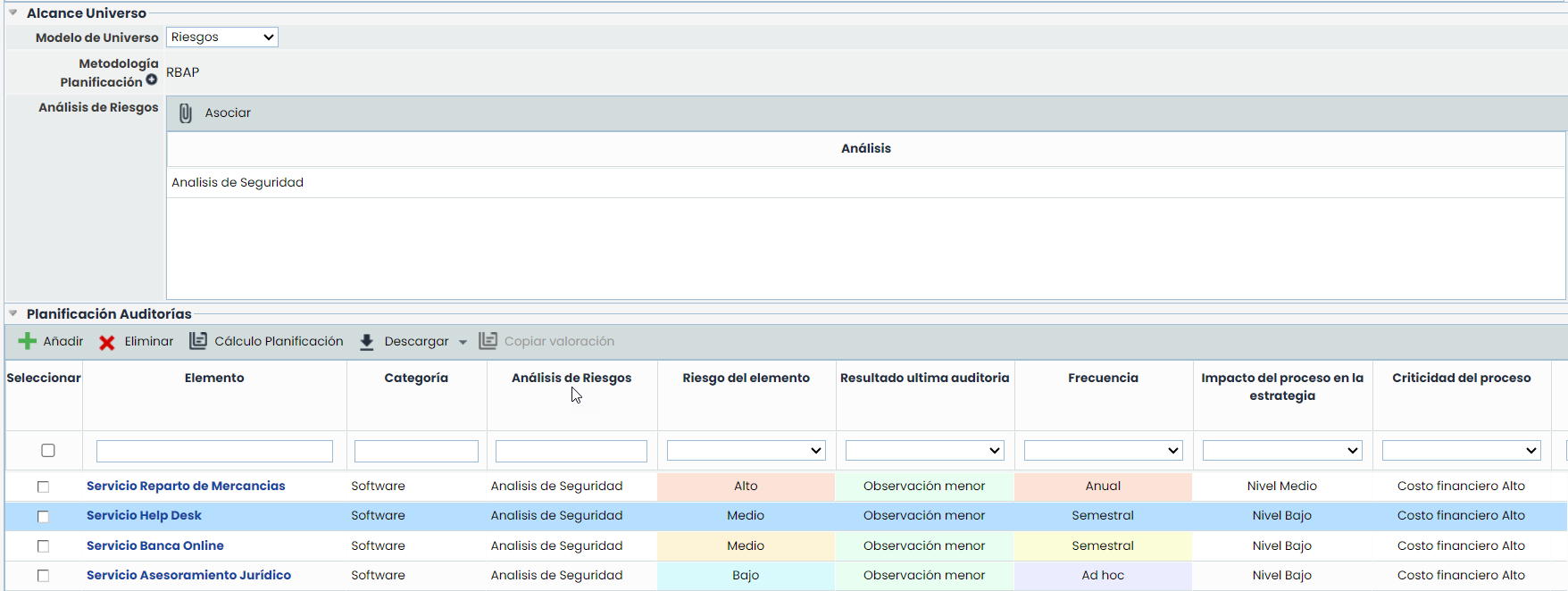
Scope Universe
-
Universe Model: This model is defined in the audit methodology.
-
Planning Methodology: Allows selecting an audit methodology from those defined in Settings.
-
Risk Analysis:
-
Associate: This option allows associating risk analyses that use the risk methodology associated with the planning methodology used. Multiple risk analyses that use this methodology can be selected.
-
Audit Planning
In this section, all the elements included in the selected Analyses are displayed. All dimensions used in the planning are shown.
If a planning methodology of type Elements is selected, all elements from the inventory will be loaded by default in this table. If you want to specifically define the scope of this type of audits to the elements included in one or more Risk Analyses, they can be selected from the “Associate” option. This dynamic action will replace the elements loaded by default in the planning table with the elements associated with the selected risk analyses.
-
Planning Calculation: Allows performing the planning calculations and updating the dimensions of the planning methodology.
-
Copy Assessment: Allows the user to copy the assessment of an element and paste it to all or selected ones.
-
Once an element is selected from the table, the Copy Assessment functionality can be used.
-
When pressed, the selected element will be fixed in the table header, and options related to the copy assessment will be displayed:

-
Paste Assessment
-
Paste to All: This option will apply the assessment of the selected element to all visible elements in the table. If filters are active, it will only apply to the visible elements.
-
Paste to Selection: Allows applying the assessment of the selected element to the elements selected in the table. If filters are applied, it will only apply to the visible elements within the selection.

In both cases, a confirmation message will appear that must be accepted to perform the copy. Only manual dimensions will be copied/pasted; automatic ones must be updated manually using the "Calculate Planning” option.
-
-
Show:
-
Show dependencies: Displays the elements related to the fixed element for copying.
-
-
Cancel Copy: This option resets the table to its initial state, removing the fixed element and hiding the options related to “Copy Assessment.”
-
-
Select: Used to mark the records for performing the planning calculation. If no element is selected, the values for all elements within the scope will be updated.
-
Element: Name of the selected Risk Analysis record.
-
Category: In which the selected Risk Analysis record is located.
-
Category Path: This is the most generic option within the Category.
-
Risk Analysis: Allows identifying the risk analysis(es) in which each element is included.
-
Planning Dimensions: These must be filled in to complete the planning. They are the dimensions of the selected Risk Analysis within the Audit Methodology. These fields can be hidden by right-clicking on them if you want to show or hide any of them. These dimensions are edited, with some being automatic and completed as the manual ones are filled in.
Incorporate New Records
This option will allow adding new records of elements, risks, and controls to the plan, independent of those belonging to existing risk analyses.
The buttons Add and Delete will only be enabled if the “Incorporate new records” option is enabled in Settings > Methodologies > Audits and are exclusively for these new records.
NOTE: Elements with a yellow background correspond to the elements added when enabling the option.