
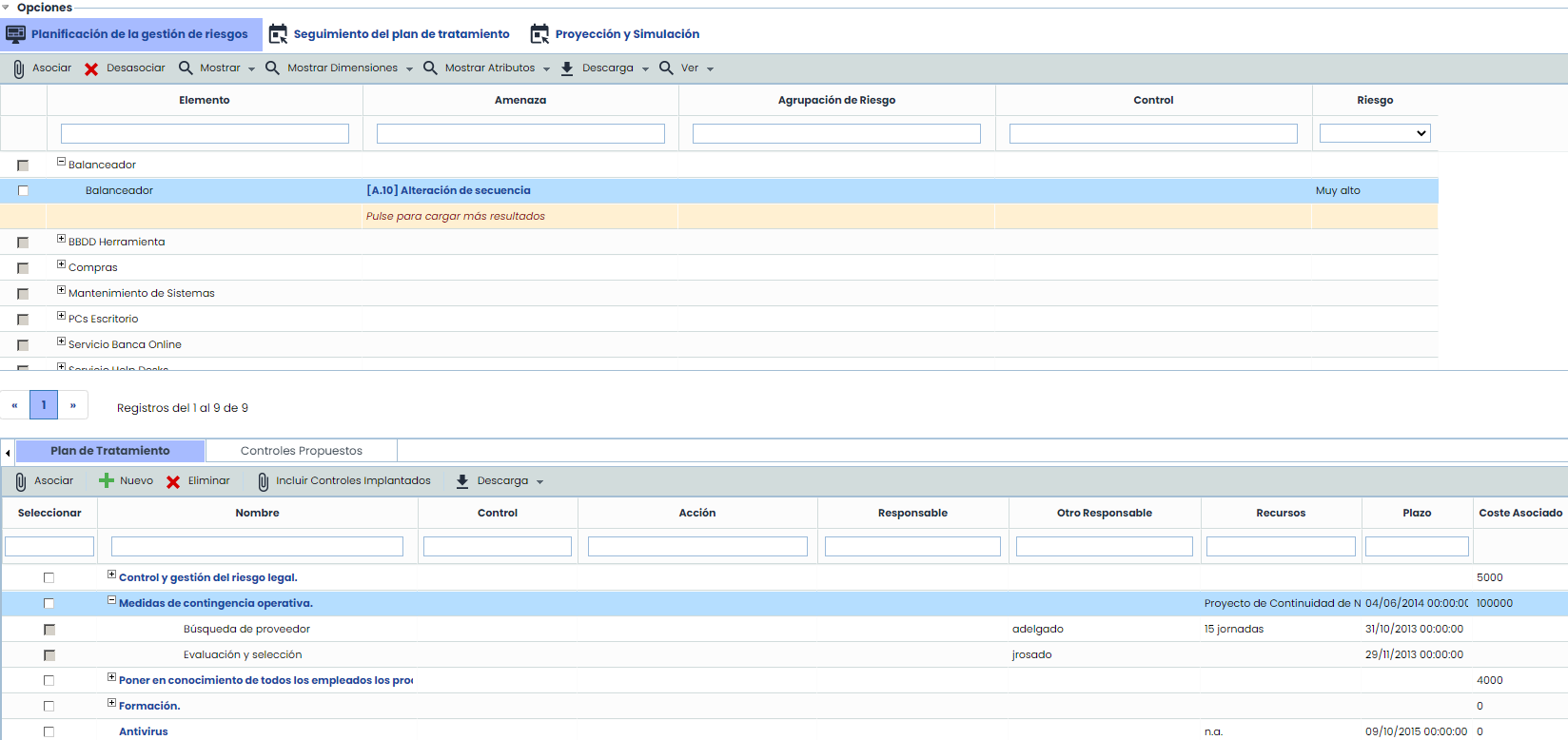
Once the Risk Analysis to be treated is selected from the initial list, the option ‘Risk Management Planning’ is accessed.
The option is divided into two tables, which display the following information:
List of items, risks, and controls
By ‘default’, it displays the list of items, risks that exceed the defined NRA, and associated controls. The tasks that can be performed on the table are as follows:
-
Associate/Dissociate: Allows associating/dissociating one or more controls from the lower table to the desired risks. To do this, select the checkbox of the risk, select the checkbox of the control from the lower table, and click ‘Associate’/‘Dissociate’.
.jpg?cb=ef493e53696bba55f77f28f219dc4c2d)
-
Show: Allows the user to filter the display of the list of items, risks, and controls. The possible options are:
-
Show All: Displays the complete list of items, risks, and controls evaluated in the ‘Risk Analysis’ section.
-
Exceed NRA: Displays the list of items, risks, and associated controls that exceed the NRA.
-
Acceptable Percentage: Displays the acceptable percentage of risks that are accepted in the organization. This parameter is configured in "Settings".
-
Show All (Without Control): Allows viewing the complete list of items, risks, and controls, regardless of the NRA.
-
Exceed NRA (Without Control): Allows viewing the list of items, risks, and associated controls that exceed the NRA.
-
Acceptable Percentage (Without Control): Displays the acceptable percentage of risks that are accepted in the organization. This parameter is configured in "Settings".
-
-
Show Dimensions: Allows selecting the quantitative/qualitative dimensions that will be displayed in the table, both for the items, risks, or controls.
-
Show Attributes: Allows selecting the textual dimensions that will be displayed in the table, both for the items, risks, or controls.
-
Download: Enables downloading the list of items, risks, and associated controls in an editable format (.docx)
-
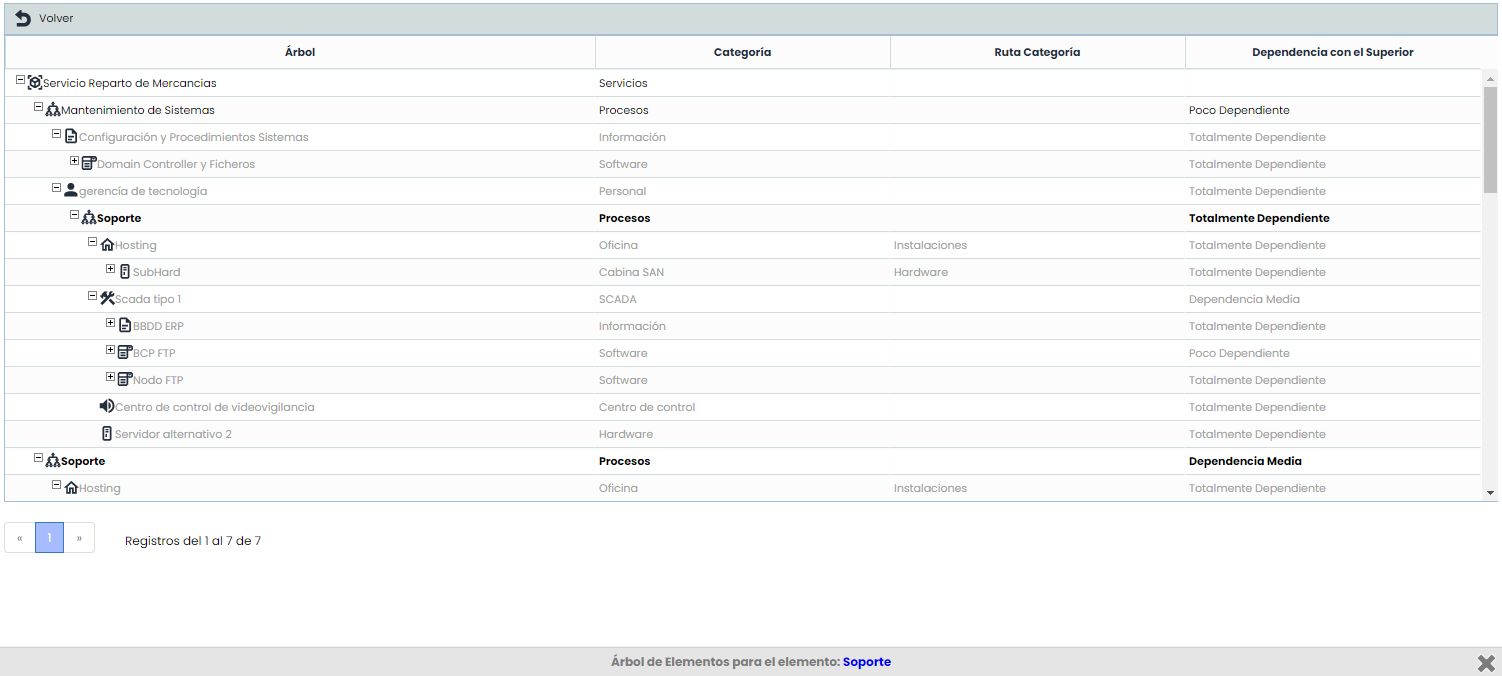
View: This option allows viewing the risks of an item in Tree or BIA Data view.
-
Tree: If the use of Dependencies in the Inventory is enabled, this pop-up window is optimized to show the upper and lower items relative to the current item within the hierarchical structure, filtering the tree and highlighting its location in bold, to have the information without needing to access another section.
-
-
BIA Data:
-
NRA: Provides information about the Acceptable Risk Level defined in the ‘Risk Assessment’ section.
NOTE: Depending on the methodology defined in the 'Settings/Analysis Methodology' section, risk assessments can be qualitative or quantitative.
.jpg?cb=084b2b9bef54a2246479e3f2fd9c6f22)
Treatment Plan
At the bottom, the list of actions defined to mitigate the threats that exceed the NRA listed in the upper table is displayed. The options that can be performed on the table are:
.jpg?cb=dc887b83c19d4632404c63c15beef6d7)
-
Associate: Allows associating one or more controls to the threat(s) listed in the upper table. To do this, select the checkbox of the threat in the upper table, select the checkbox of the control, and click ‘Associate’.
-
Delete: Clicking the button allows deleting a control defined in the treatment plan table.
-
Download: Enables downloading the list of controls and associated actions in an editable format (.docx).
-
Include implemented controls: Offers the possibility to insert already implemented controls in the organization into the treatment plan.
-
New: Clicking the button allows inserting a new control into the table. To define the parameters of the new control, click on it in the table, displaying the following form.
Editing a treatment plan
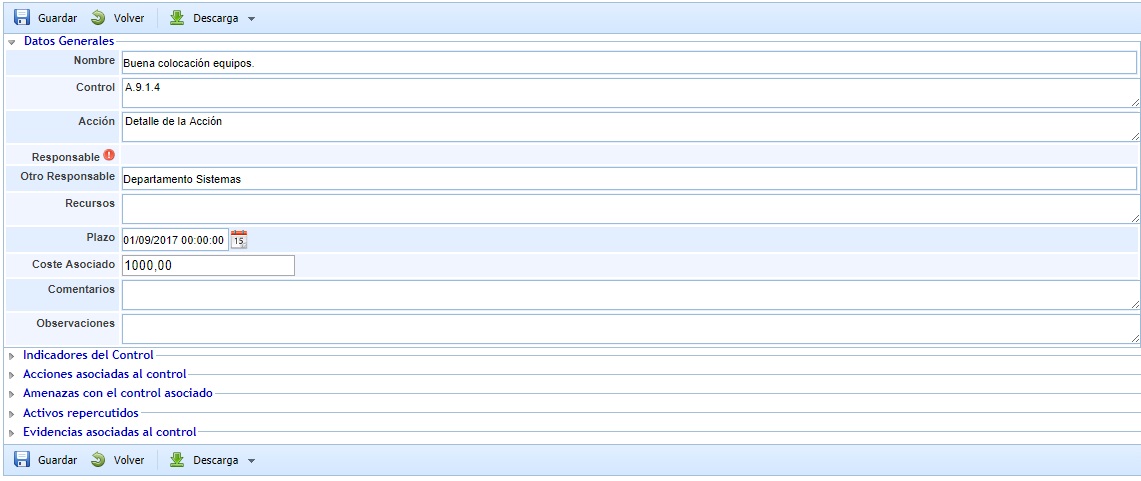
The form is divided into several sections, allowing the definition of the following fields:
General Data
-
Name: Identifies the name of the control that will be displayed in the lower table.
-
Control: Allows identifying the control from the Statement of Applicability (SOA) to which it is associated.
-
Responsible: Identifies the person within the organization responsible for verifying the implementation of the control within the defined deadlines. This responsible person can be selected from the set of Employees (see section in the Management tab).
-
Other Responsible: Identifies the person within the organization responsible for verifying the implementation of the control within the defined deadlines, allowing it to be defined textually.
-
Resources: Allows identifying the resources or departments within the organization that will be involved in the implementation of the control.
-
Deadline: Identifies the deadline by which the control must be implemented in the organization.
-
Associated Cost: Enables defining the cost for the organization of implementing the control.
-
Comments: Allows incorporating specific clarifications about the implementation of the control.
-
Observations: Allows indicating any additional notes associated with the control.
General Control Assessment
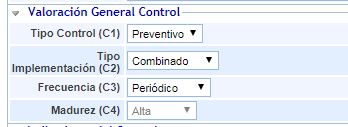
Allows assessing the dimensions of the control that have been configured to be displayed in the Control Sheet. See Control Methodology.
Control Indicators
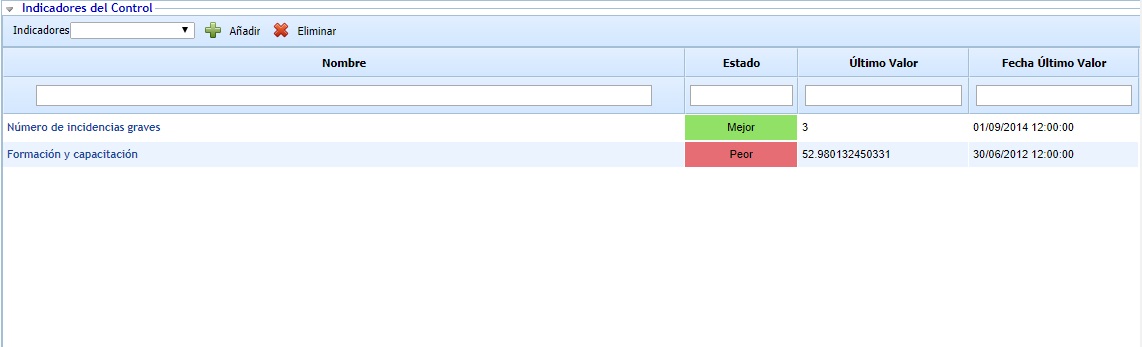
Allows associating one or more indicators defined in the ‘ScoreCard/Indicators’ section.
Actions associated with the control

Allows defining the necessary actions for the implementation of the control by clicking on the 'New' button. This generates a new entry in the table that allows defining the following parameters:
-
Name: Allows identifying the name of the actions by double-clicking on the cell.
-
Responsible: Identifies the person or department within the organization responsible for verifying the completion of the action within the defined deadline.
-
Resources: Allows identifying the resource(s) or departments involved in carrying out the action.
-
Deadline: Identifies the deadline by which the action must be completed. This deadline must not exceed the final implementation deadline of the control.
If you want to delete an action, you must select the desired row or rows and click the 'Delete' button.
Threats with the associated control
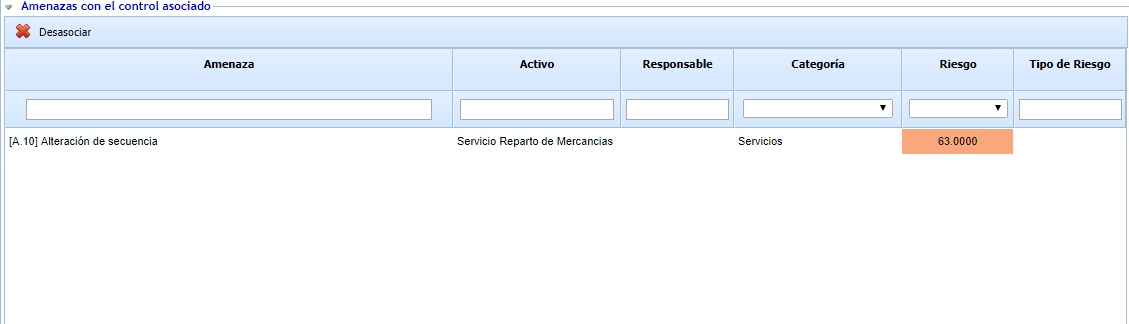
Displays the list of threats from the upper table to which the control is associated, including the risk level and its type. To dissociate the threat from the control, select the desired row(s) and click the ‘Dissociate’ button.
.jpg?cb=46a9fe0bc5785e1d0fbeeee02ab2ac2f)
If the control methodology used is of the "By Threat" type, for each threat, the effectiveness evaluation of the control can be reviewed and modified, as well as changed. The "By Threat" checkbox will be set to Yes when the evaluation is specific to that threat, or otherwise, it will appear as No for threats that do not have a specific evaluation and to which the general control evaluation will apply.
Impacted Assets
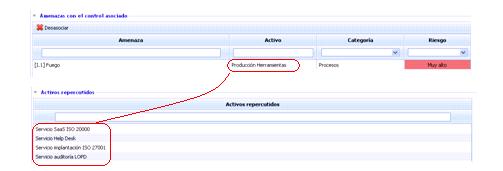
Displays the list of assets that will be indirectly affected by the control. The displayed assets are those on which the identified assets in the previous section ‘Threats with the associated control’ depend. Dependencies are defined in the ‘Analysis/Asset Inventory’ section.
Evidence associated with the control
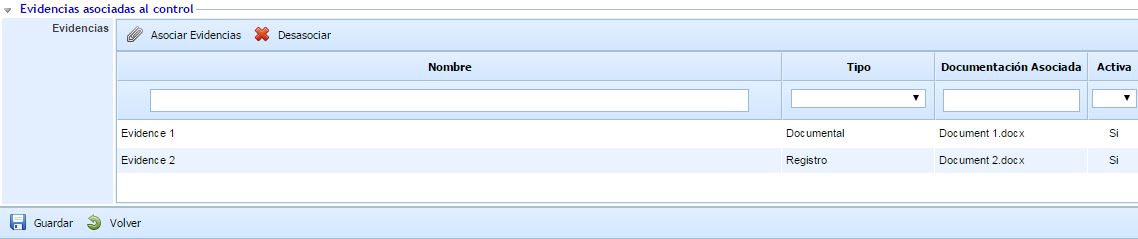
Allows associating evidence to the treatment plan (or control) being defined. To do this, through the "Associate Evidence" button, a pop-up window containing all the evidence registered in the "Evidence Management" option of the Analysis menu is accessed. It is possible to associate one or more pieces of evidence from the list.
Proposed controls
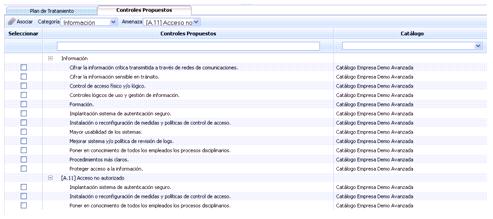
GlobalSUITE offers the possibility of having a catalog of controls to associate with the threats in the upper table, allowing the following actions:
-
Associate: Allows associating one or more proposed controls to the threat(s) listed in the upper table. To do this, select the checkbox of the threat in the upper table, select the checkbox of the control, and click ‘Associate’.
When the control is associated, it will be displayed in the treatment plan table.
-
Category: Allows displaying the list of proposed controls by categories. The list of controls can be defined in ‘Settings/Analysis Catalogs’.
-
Threat: Allows displaying the list of proposed controls by threats. The list of controls can be defined in ‘Settings/Analysis Catalogs’.