
This tutorial explains, step by step, how to configure the risk analysis methodologies in GlobalSuite®, covering the three main levels: elements, risks, and controls.
This guide details how to define the general analysis configuration, establish dimensions and dependencies between elements, and create customized methodologies for risk analysis and evaluation. It also describes the configuration of automatic dimensions, the use of formulas and Cartesian products, the definition of control effectiveness levels, and how to apply thematic filters or dimension visibility to adapt the methodologies to each organization.
Phases for Configuring the Risk Analysis functionality
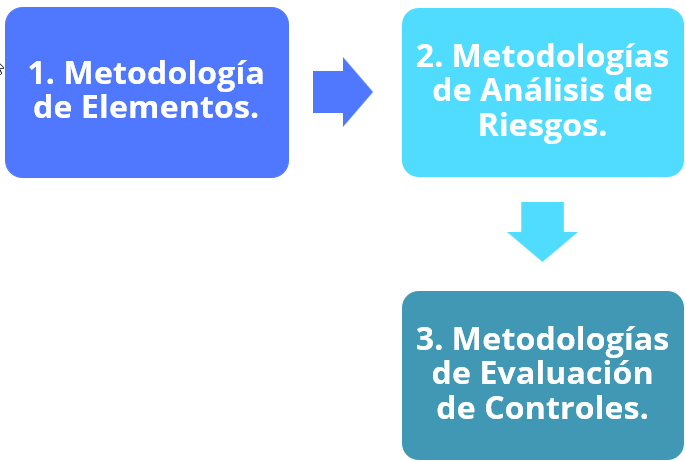
Configuration of the Element Methodology
The option Settings> Methodologies Elements , allows configuring general aspects of risk analysis, especially those related to the organization's element inventory.
The option is divided into six general sections: Option Visibility, General Analysis Configuration, Dimension Configuration, Dimension Visibility Configuration, Predefined Filters, and Control Field Configuration.
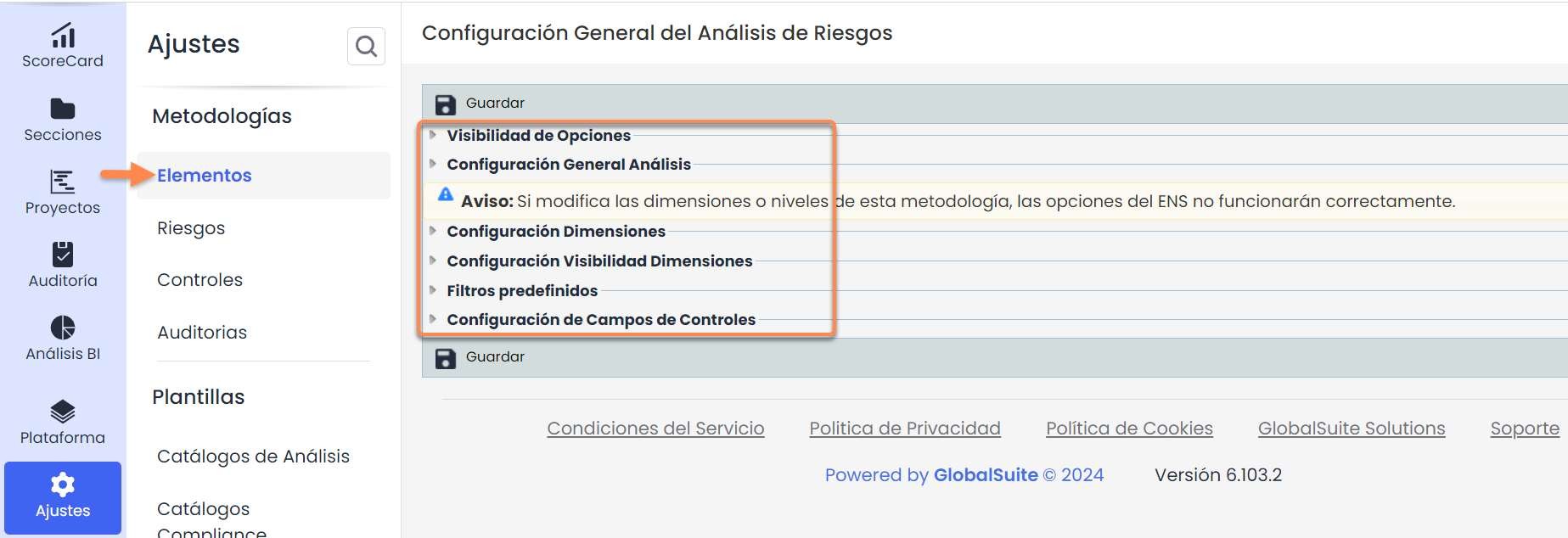
The section “ Option Visibility” allows configuring which options can be displayed.
-
Cost Analysis: If enabled, it allows access to the "Cost Analysis" functionality in the Risk Analysis option.
-
Multiple Risks: If enabled, it allows access to the "Multiple Risks" functionality in the Risk Analysis option.
-
Repercussed Risk Map: If enabled, it allows access to the "Repercussed Analysis Graph" functionality in the Risk Evaluation option.
-
Indicators in risk analysis: If enabled, it allows associating Dashboard Indicators to the risks in the Risk Analysis.

The section “ General Analysis Configuration” allows configuring, first of all, the dependencies between elements. GlobalSuite® allows creating a dependency tree of elements, so that the identified elements can be related to each other and also to the corresponding services and processes.
It is also possible to enable/disable the Element Table in Dependencies, which allows displaying the element table in the Inventory option alongside the element tree.
Both the degree of dependencies to be used and the way to apply these dependencies (globally to all dimensions of the element inventory or independently for them) can be configured.
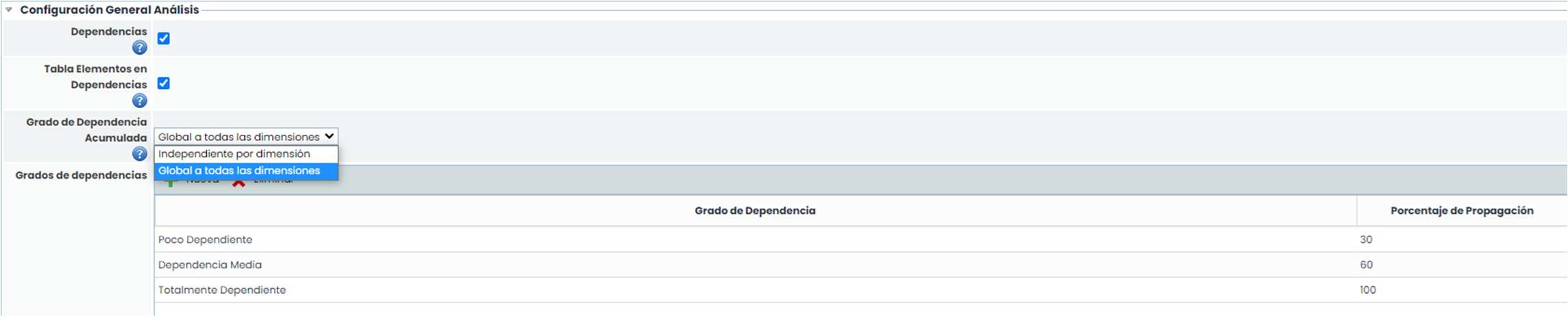
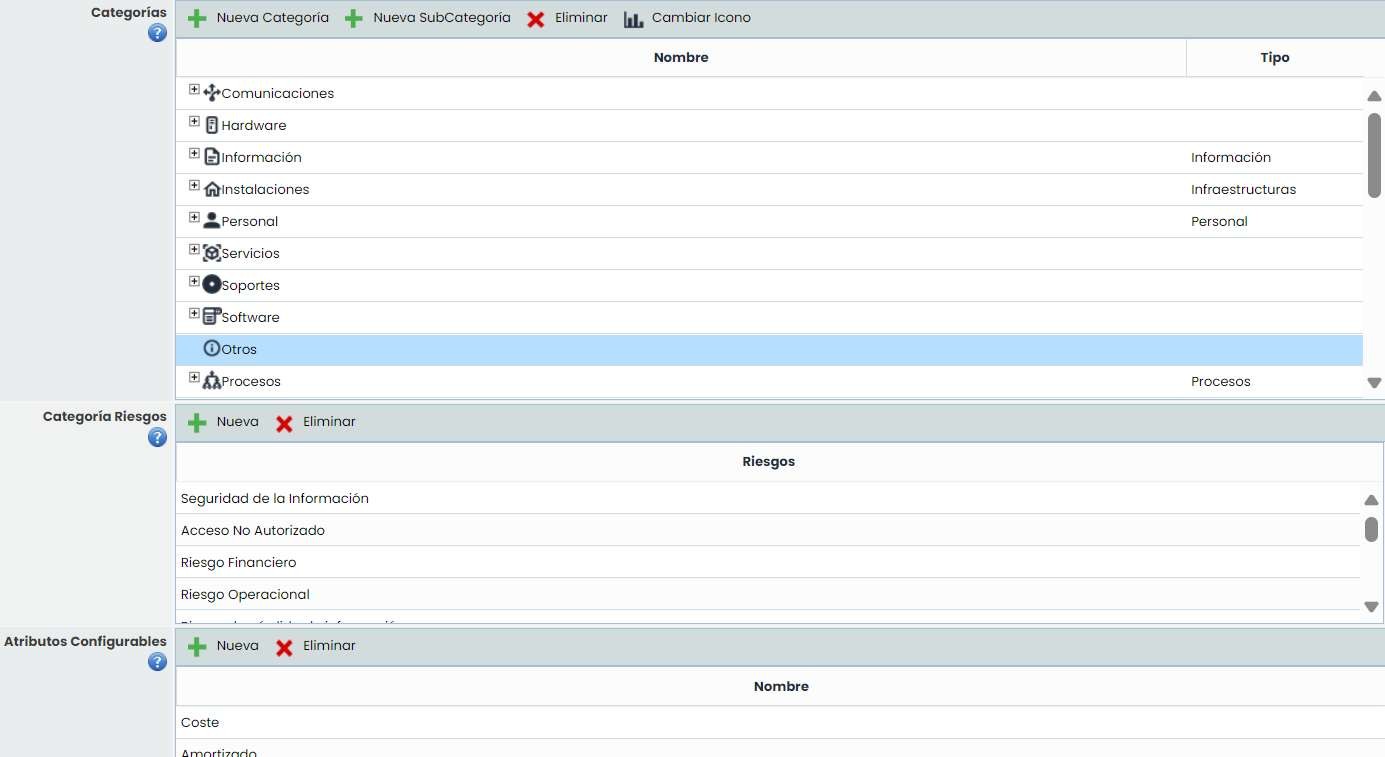
Other options that can be configured in the section “ General Analysis Configuration” are as follows:
Categories: Corresponds to the categories that can be used to classify the elements. Some special categories are configured in the "Type" field and allow managing those elements from their corresponding option.
-
Risk Category: Allows establishing categories/types of risks to classify the risks.
-
Configurable Attributes: Allows establishing specific additional fields to the existing fields for the element inventory. However, it is recommended to use "Text" type dimensions (explained later).
The section “ Dimension Configuration” allows configuring the set of dimensions that will be used for the valuation of the identified elements of the organization.
GlobalSuite® incorporates by default a set of dimensions with a series of levels. Both the dimensions and the levels of each of them can be configured individually. Specifically, the following is allowed:
-
Accumulated Value Treatment: If dependencies are used, this option allows indicating which value to use for each dimension: Own (if it exists, this value is taken, otherwise the accumulated one), Accumulated (if it exists, this value is taken, otherwise the own one), and Highest value (the values between the own value and the accumulated one are compared, and the highest is taken).
-
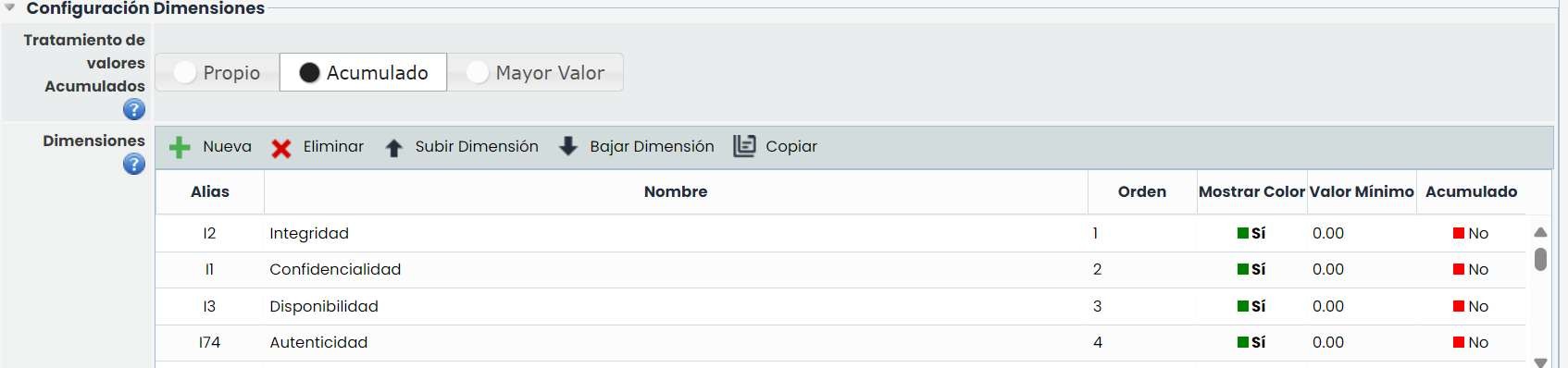
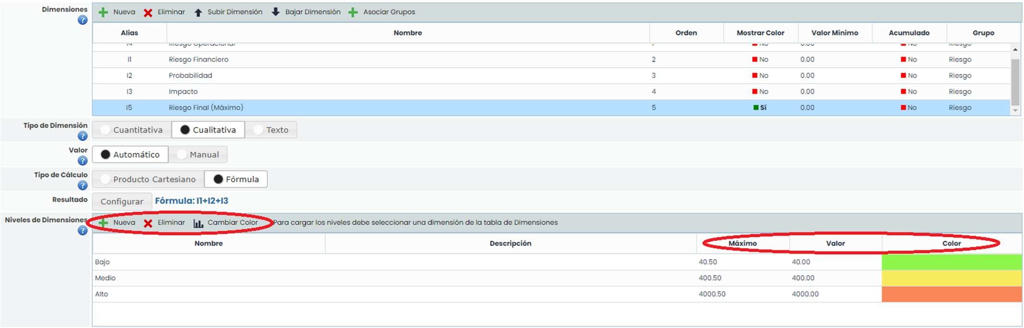
Dimensions: This table allows creating, modifying, and deleting the dimensions of the element inventory, as well as ordering them.
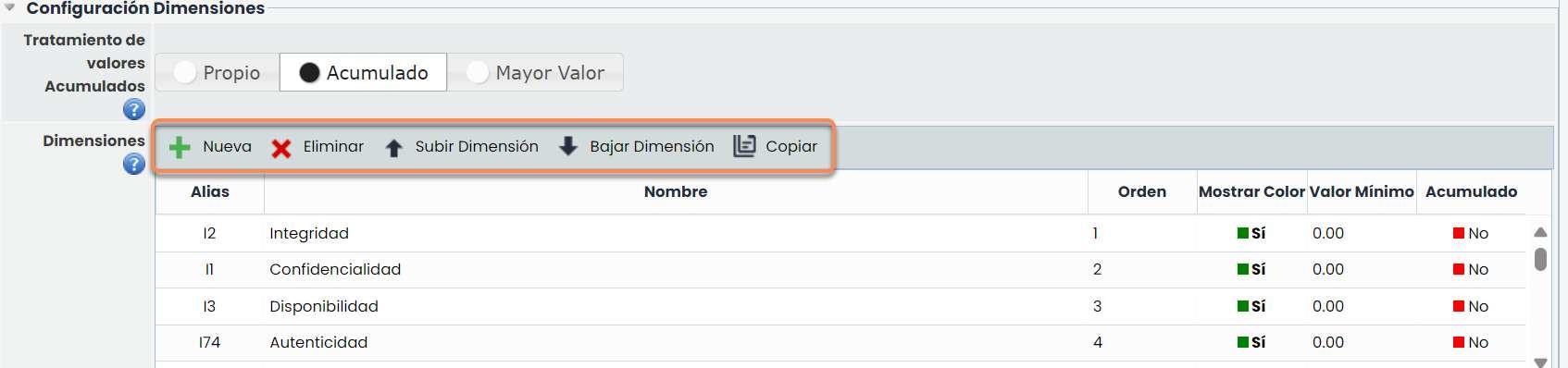
The information provided by the table columns is as follows:
-
Alias: Identifier automatically generated by the tool.
-
Name: Displays the name of the dimension. Double-clicking on the cell allows changing its name.
-
Order: Identifies the order in which the dimension will appear in the element inventory.
-
Show Color: Allows defining whether we want to highlight the dimension in a color.
-
Minimum Value: Identifies the minimum number on which the formula of the selected dimension is calculated.
-
Accumulated: Enables including and establishing the dependencies of the selected dimension (element tree) and viewing the accumulated values in the Element Inventory.
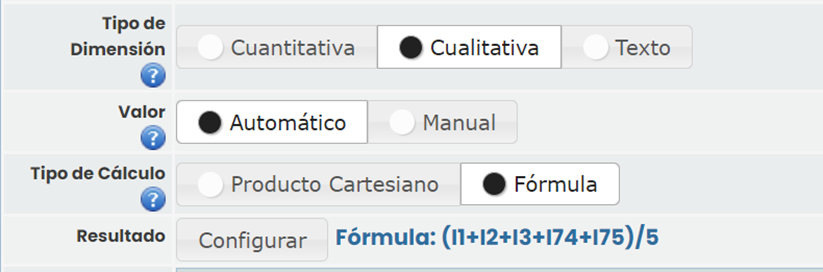
Each dimension can be configured individually by selecting one of them. The existing options are as follows:
-
Dimension Type: A dimension can be Quantitative (numerical value) or Qualitative (list of values).
-
Value: The value of a dimension can be set Automatically, meaning it is evaluated based on other dimensions, or Manually, meaning it is manually evaluated by the user.
-
Calculation Type: If the dimension value is obtained Automatically, a calculation formula or a Cartesian product (the result is predetermined from two dimensions) can be configured.
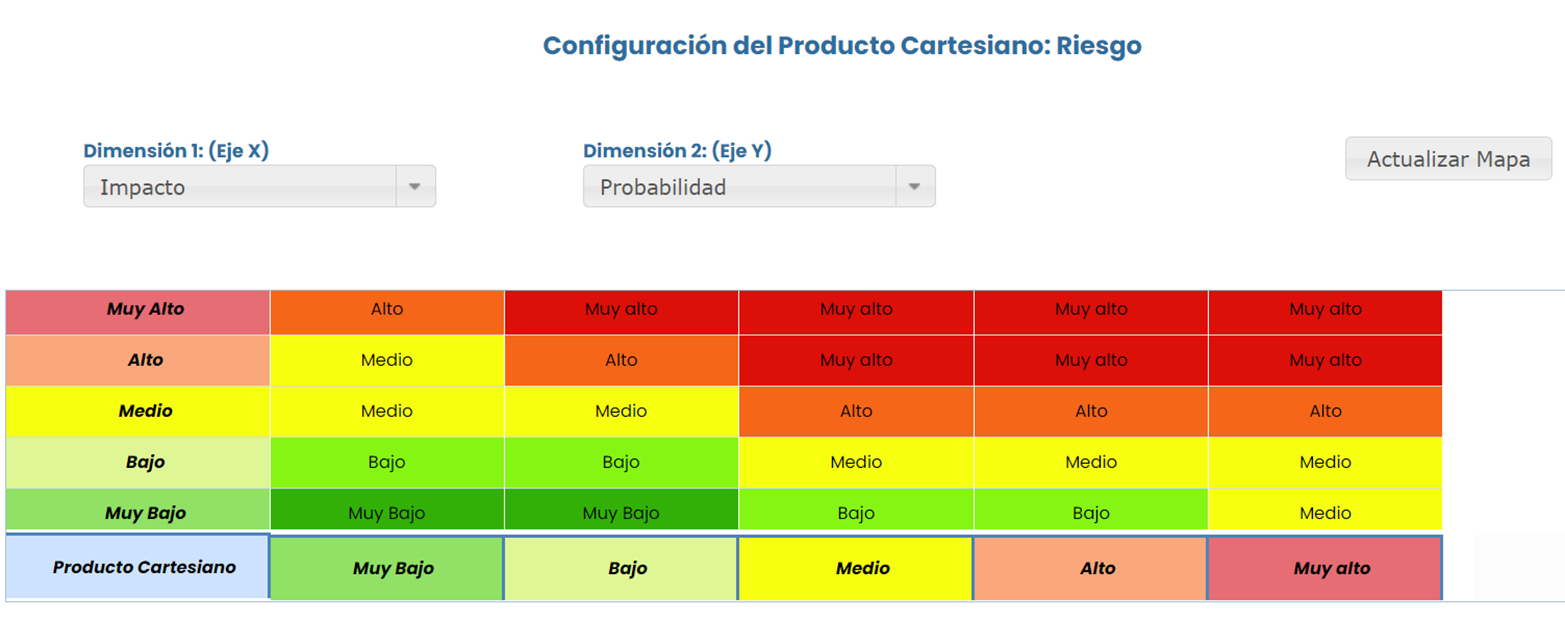
Dimension Levels: For Qualitative dimensions (both automatic and manual), it is possible to indicate the levels they can have as well as an associated color. For each level, the quantities of the columns “Value” and “Maximum” can be configured:
-
Value: It is the specific value assigned to that dimension. This value will be used in the formulas of the automatic dimensions.
-
Maximum: The maximum value is used only in automatic dimensions, so that depending on the result obtained in the calculation formula, the dimension will have the corresponding level.
The section “ Dimension Visibility Configuration” allows configuring the visualization of the dimensions. Dimension Groups can be created, which can be associated with the dimensions.

To associate the dimensions to each group, it must be done in the section “ Dimension Configuration”, the desired dimension is selected, the “associate groups” button is clicked, and the group is indicated.

Once associated, the group to which each dimension belongs can be seen in the “Group” column.

For each of the configured groups, we will have the option in the Element Inventory to display only the dimensions of that group.

Dimension Visibility (forms): This table allows configuring GlobalSuite so that the visualization and/or valuation of some types of elements (services, processes, suppliers, infrastructures, employees, etc.) and even the form of the elements themselves can be performed in the option where they are generated, in addition to the 'Inventory' option.

As can be seen in the image, it is possible to configure some options of the tool (services, processes, suppliers, infrastructures, and employees) to indicate which dimensions of the inventory can be valued in the corresponding option of GlobalSuite. To indicate 'Yes' or 'No', simply click on the corresponding cell. If an option has all dimensions with 'No', the corresponding form will not have the section that allows valuation.
Dimension Visibility in Tables: This table allows configuring GlobalSuite so that the visualization of dimensions in the tables of determined options can be modified.

Configuration of Risk Methodologies.
The option Settings> Methodologies Risks allows configuring the organization's risk methodologies. GlobalSuite® allows generating several risk methodologies and applying them to the different risk analyses performed.
The tab displays a table with the existing methodologies upon access. This table allows generating new methodologies (button “ New”) or deleting any of the existing ones (button “ Delete”). Additionally, an existing methodology can be added (button “ Add”), creating a copy of the selected methodology and thus allowing its subsequent modification. This avoids starting the configuration of a methodology from scratch.
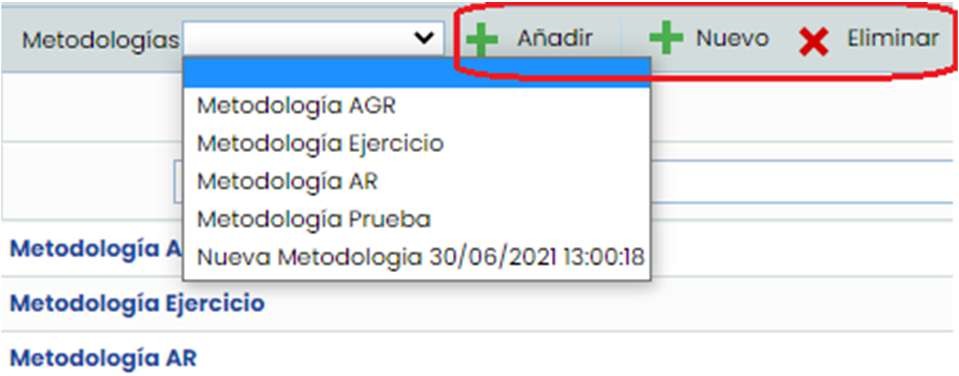
By clicking on the name of a methodology, we access the configuration form. This form consists of different sections that allow configuring all aspects of a risk methodology.
The section “ Methodology Dimension Configuration” allows configuring both the fields for risks (risk, vulnerability, etc.) and the dimensions used for their analysis (probability, impact, etc.).
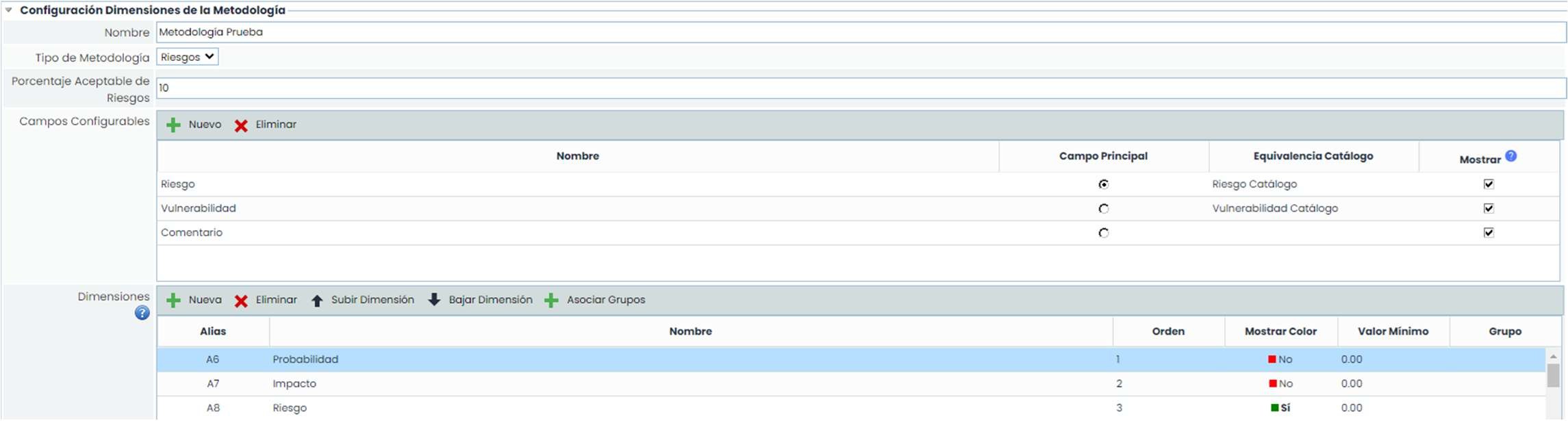
The configuration of the dimensions for risk analysis is carried out in the same way as the dimensions of the element inventory (explained in previous pages).
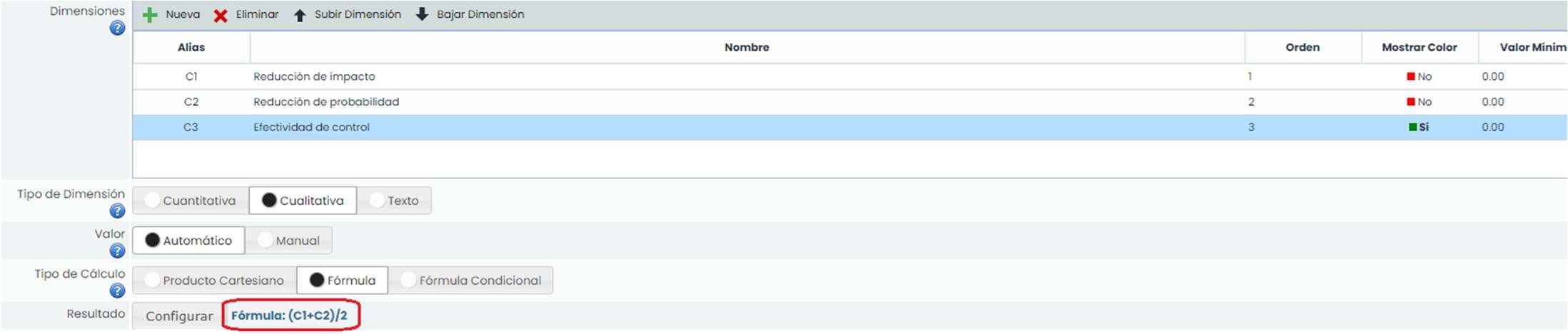
Additionally, for the calculation of automatic dimensions, apart from the Cartesian product and the definition of a calculation formula, it is possible to establish a conditional formula. This type of formula is available for both risk methodologies and control methodologies (see example of a formula created in the control methodology).
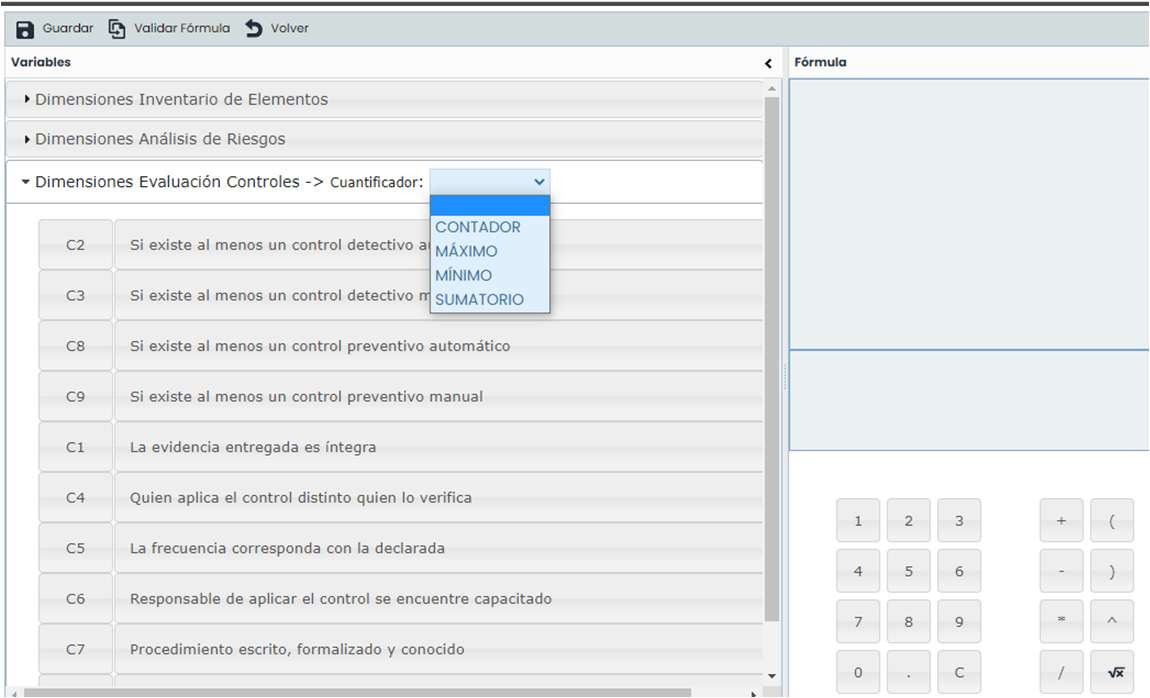
To establish a conditional formula, by clicking the “Configure” button once this type of formula is chosen, the following instructions appear
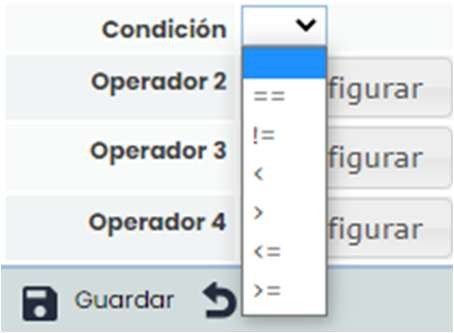
The structure of the formula is indicated in the yellow box: If the condition specified in operator 1, condition, and operator 2 is met, then the instruction of operator 3 will be executed; if not, then the instruction of operator 4 will be executed.
In the dropdown menu of the “ condition” button, the following options can be chosen:
By clicking the “ configure” button for each operator, the type of element being referenced can be chosen, allowing selection among dimensions of the element inventory, dimensions of risk analysis, and dimensions of control evaluation, requiring a quantifier for the latter.
On the right side, a calculator appears to insert the formula and define the corresponding signs. Before saving the formula, the validate formula button must be clicked first.
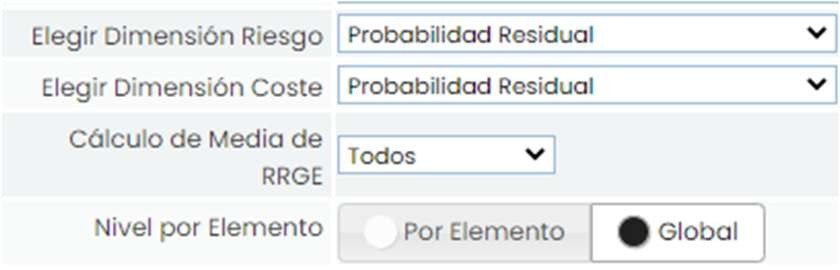
Additionally, in the risk methodology, it is possible to choose which dimension corresponds to the Risk and which dimension corresponds to the Cost. Selecting the Risk dimension is important as GlobalSuite® uses it for the visualization of different results. It is also possible to select how the Acceptable Risk Level will be established, either Globally or specifically for each Element.
The section “ Dimension Visibility Configuration” allows configuring the visualization of the dimensions.
Dimension Groups can be created, which can be associated with the dimensions.

The association of dimensions to a group is carried out in the same way as in the element methodology.

The section “Risk Thematic Filters” allows filtering visibility in the Risk Evaluation option.

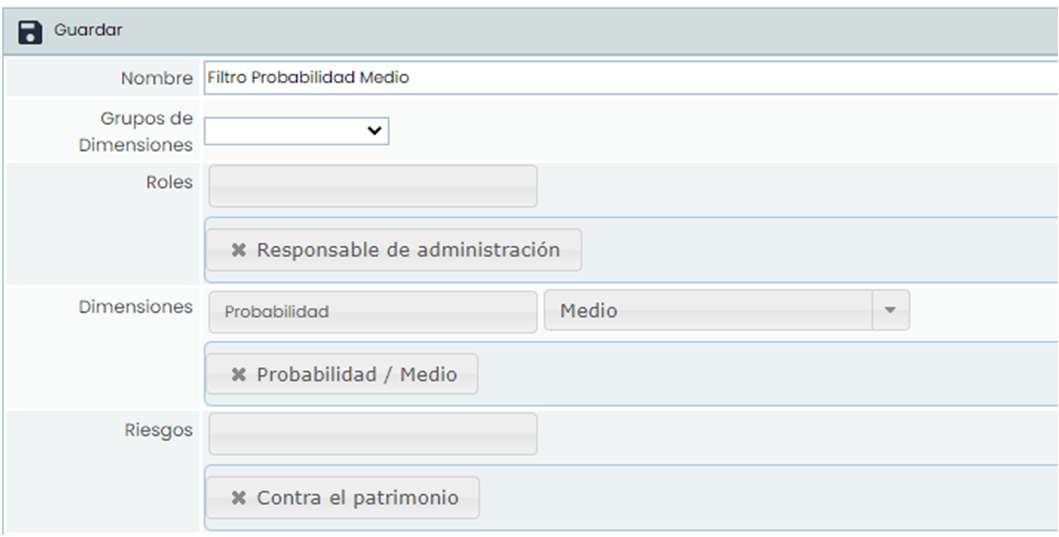
By clicking the “ New” button, the filter is created, selected, and the “ Open filter” button is clicked to configure it. The form contains the following fields:
-
Name: Allows changing the name of the filter
-
Groups of Dimensions: If a group has been created, it can be selected
-
Roles: A role or several roles can be filtered for the employees who will have the filter applied
-
Dimensions: The dimensions that can be visualized and, if desired, also valued, are selected
-
Risks: It is possible to choose which risks can be visualized.
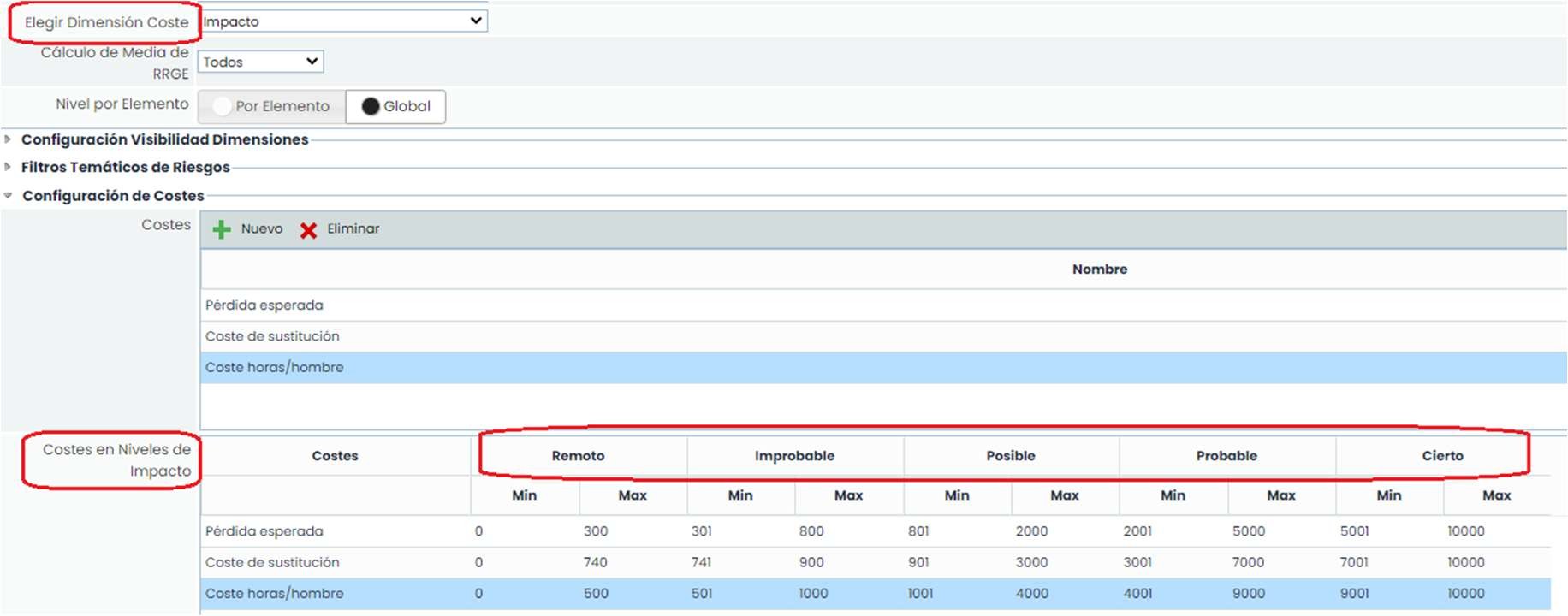
The section “ Cost Configuration” allows configuring different types of costs to associate with the risks in the risk analysis.
For each cost, it is possible to establish economic ranges (minimum and maximum) for each level of the dimension selected as “Cost”. For this example, the levels of the dimension “ Impact” are used, as it is the dimension selected in the dropdown “ Choose Cost Dimension”.
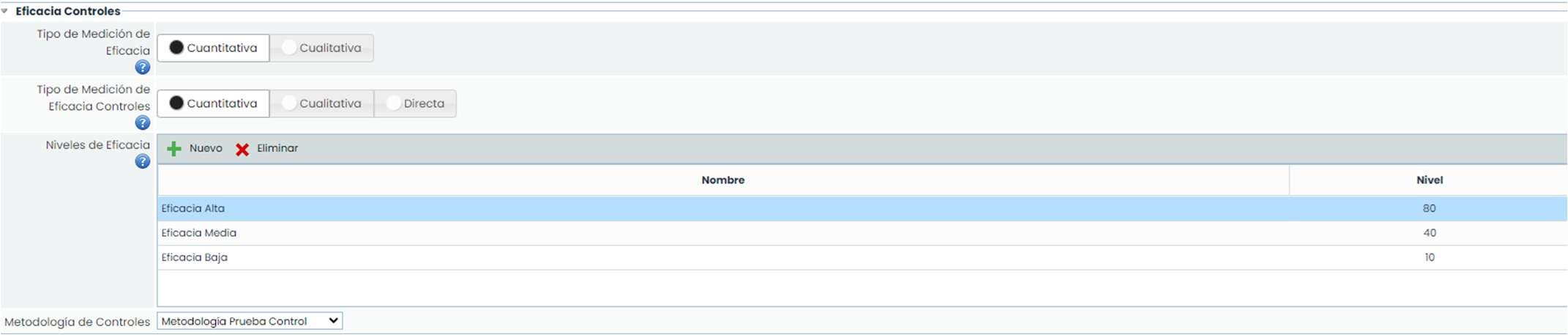
The section “ Control Effectiveness” allows configuring how the analysis of the effectiveness of the controls implemented in the organization will be carried out. For this, the following can be configured:
-
Effectiveness Measurement Type: Effectiveness can be established quantitatively (through a number) or qualitatively (selecting a level established in the following table).
-
Effectiveness Levels: This table allows recording the levels that will be used to evaluate the effectiveness of the controls if it has been configured as “Qualitative”.
-
Control Methodology: Allows selecting a methodology for control evaluation. The following pages will show how to configure a methodology of these characteristics.
Configuration of Control Methodologies.
The tab “ Controls” located in the section “ Methodologies” allows configuring the organization's control evaluation methodologies. GlobalSuite® allows generating several control methodologies and associating them with the different risk analysis methodologies.
The tab displays a table with the existing methodologies upon access. This table allows generating new methodologies (button “ New”) or deleting any of the existing ones (button “ Delete”). Additionally, an existing methodology can be added (button “ Add”), creating a copy of the selected methodology and thus allowing its subsequent modification. This avoids starting the configuration of a methodology from scratch.
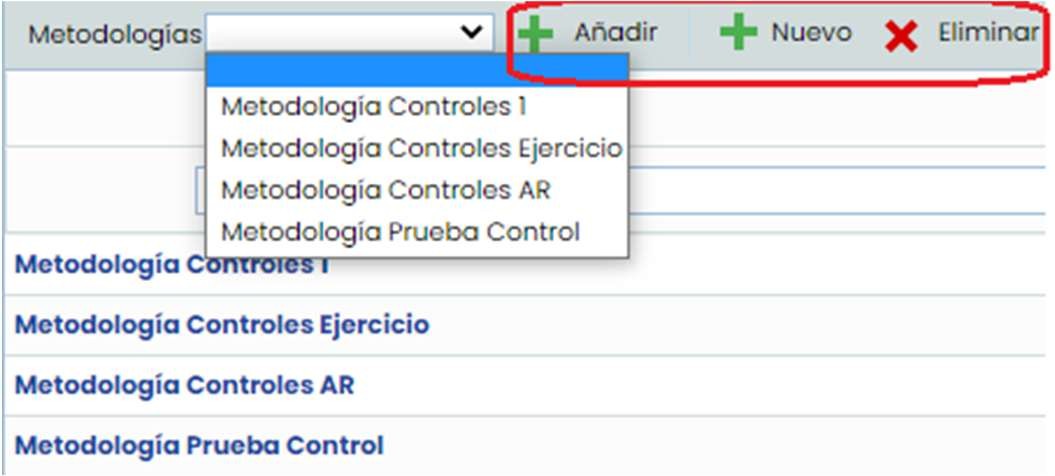
By clicking on the name of a methodology, we access the configuration form. This form consists of two sections where all configurable aspects are located.
In the section “ Methodology Dimension Configuration” apart from the name of the methodology, it is possible to create the dimensions deemed necessary to evaluate the effectiveness of the controls. The configuration of the dimensions is carried out in the same way as the dimensions of the element inventory (explained in previous pages).
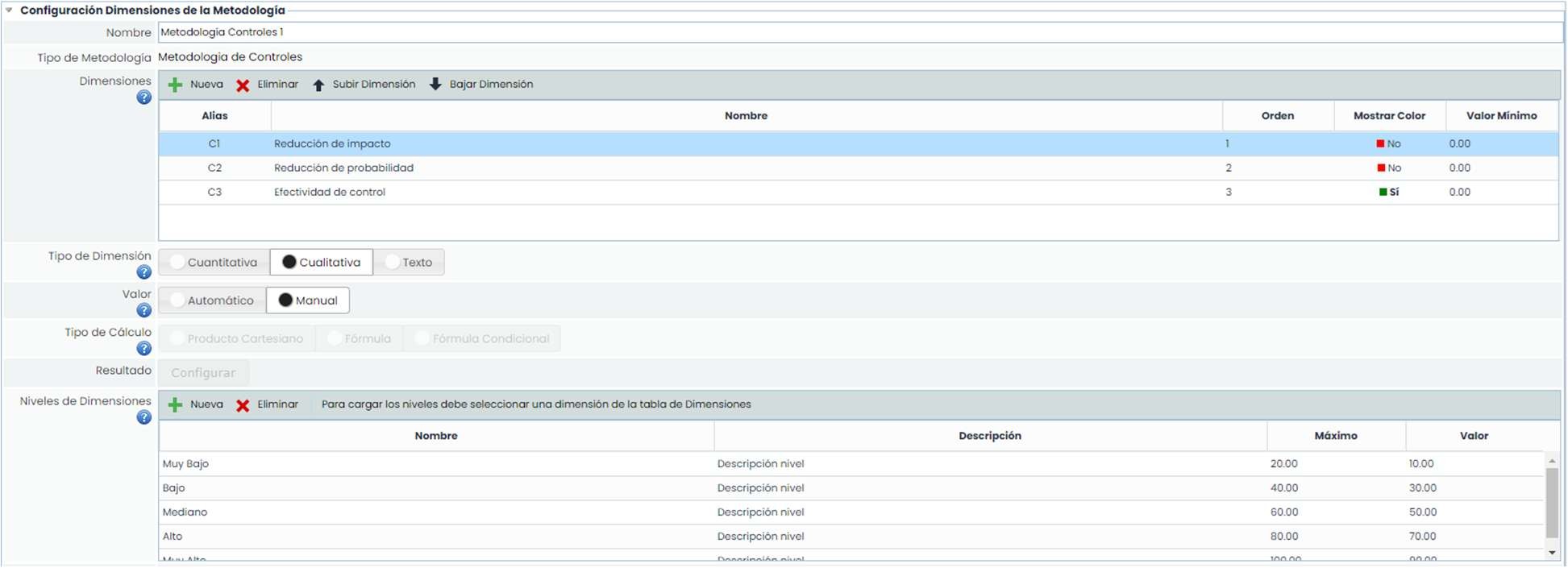
In this table, two new columns appear:
-
Visible: Identifies whether the dimension will be visible in Tables (control management tables, risk analysis, etc.), Control Sheet, or All (both in tables and in the control sheet).
-
Modifiable: Identifies whether the dimension can be modified in Tables (control management tables, risk analysis, etc.), Control Sheet, or All (both in tables and in the control sheet).
For the calculation of automatic dimensions, apart from the Cartesian product and the definition of a calculation formula, it is possible to establish a conditional formula. This type of formula is available for both risk methodologies and control methodologies.
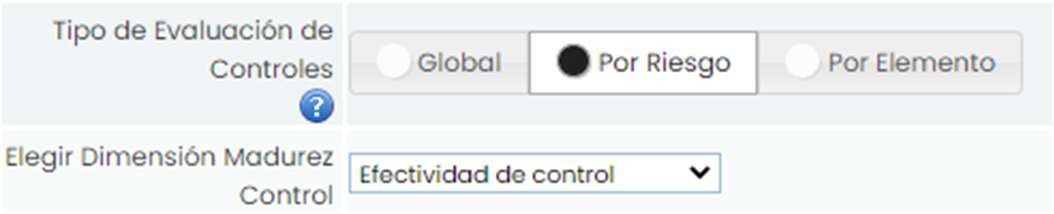
Finally, it is worth noting that for control evaluation, three methods can be chosen:
-
Global: allows evaluating a control once and globally for all risks.
-
By Risk: allows modifying the evaluations for each of the risks evaluated in the risk analysis.
-
By Element: the control evaluation will be the same for all risks of the same element.
Additionally, it is also important to configure the dimension that will be used for control maturity.
In the section “ Thematic Risk Filters” (as in risk methodologies), it is possible to filter visibility in the Risk Assessment option.
By clicking the “ New” button, the filter is created, selected, and “Open filter” is clicked to configure it.
-
Name: Allows changing the name of the filter
-
Dimension Groups: If a group has been created, it can be selected
-
Roles: A role or multiple roles are filtered for the employees to whom the filter will be applied.
-
Dimensions: The dimensions that can be viewed are selected, and if desired, the evaluation as well
-
Risks: It is possible to choose which risks can be viewed.