
When accessing the 'Processes' option, an initial table is displayed containing the different business processes that support the services included in the scope. The tool allows creating different processes and associating them with the services they support.

List of Processes
To create a new process, you must select the 'New' button, and a new record will appear in the table. To delete a created process, you must select the row or rows you want to delete and then click the 'Delete' button. The 'Download' button allows you to download the list of processes in editable format (.xlsx) or in PDF format.
To view the details of a process, you must access it by clicking directly on its name.
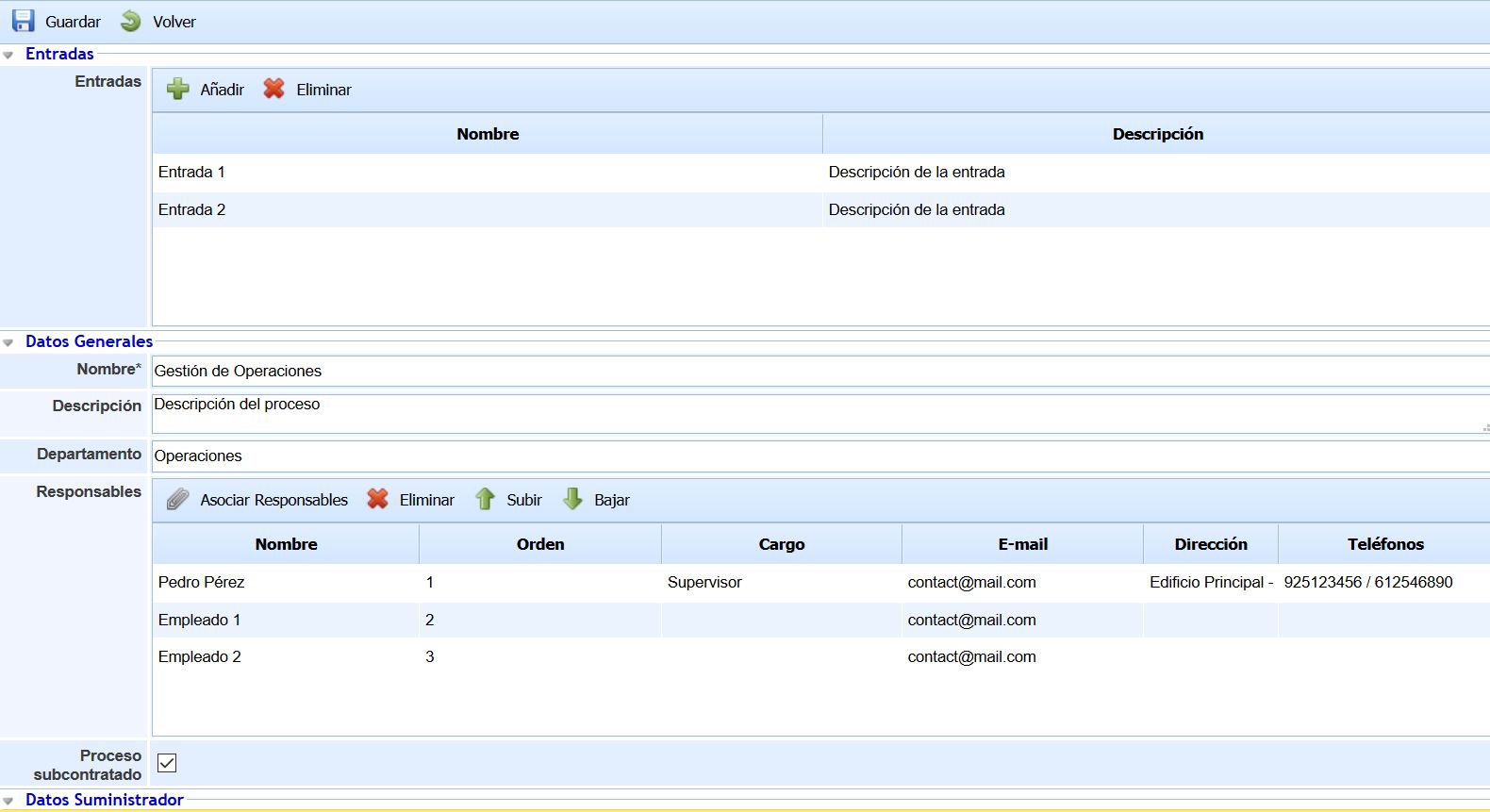
Once inside a process, a form is displayed structured into the following sections: Inputs, General Data, Organizational Structure, Stakeholders, Actions, Outputs. Below is a detailed description of the information that can be recorded in each section.
Inputs
This section consists of a table with the list of inputs for the business process. Each process input is created by clicking the 'Add' button, allowing you to edit the name and description of the input by double-clicking on the corresponding field. If you want to delete an input, you must select the desired row or rows and click the 'Delete' button.
General Data
-
Name: Allows defining the name of the process. This name will be displayed in the list of processes, as well as in the rest of the tool when the process is used.
-
Description: Allows describing in detail the function or associated tasks of the process.
-
Department: Allows identifying the department related to the process.
-
Responsible Parties: Table containing the responsible parties associated with the process. For each responsible party, their name, order of responsibility, position, email, address, and associated phone numbers are displayed, with data obtained from the tool since responsible parties must be registered as employees in the tool. The available options are as follows:
-
Associate Responsible Parties: This button allows associating responsible parties with the process, who must be registered in the 'Employees' option of the 'Management' menu. Clicking the button opens a pop-up window showing the employees registered in the tool, allowing you to select one or more through the checkbox on the left. The 'Show' button allows viewing all employees or only those with an 'Active' status. Once the desired employees are selected, you must click the 'Associate Employees' button.
-
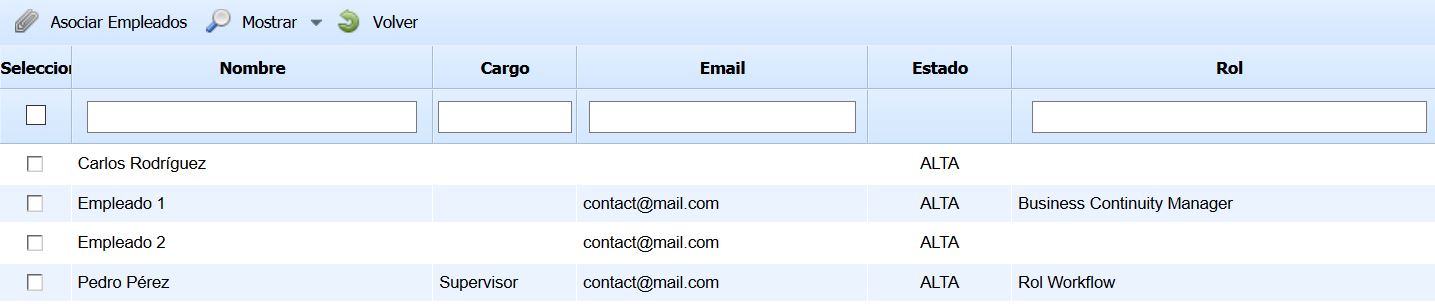
-
Delete: This button allows deleting one or more employees from the table. To do this, you must select the corresponding rows and click the 'Delete' button.
-
Move Up: This button allows setting a higher order for the selected employee, rearranging them within the table.
-
Move Down: This button allows setting a lower order for the selected employee, rearranging them within the table.
-
Outsourced Process: Allows indicating if the process is outsourced to a provider. If so, you must check the box, and the tool displays a new form identifying the supplier involved in the process. To do this, you must select the supplier from the dropdown menu that appears, and the registered data is automatically loaded.
NOTE: The list of suppliers is managed in the 'Suppliers' option located in the 'Home' menu.
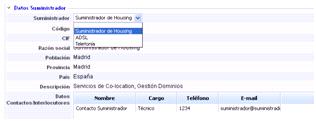
Organizational Structure

This option allows the user to associate an organizational unit with the process. The tool provides the following options:
-
Add Organizational Structure: Allows defining the unit associated with the management of the process. To do this, you must click the button and select the corresponding unit in the window that appears.
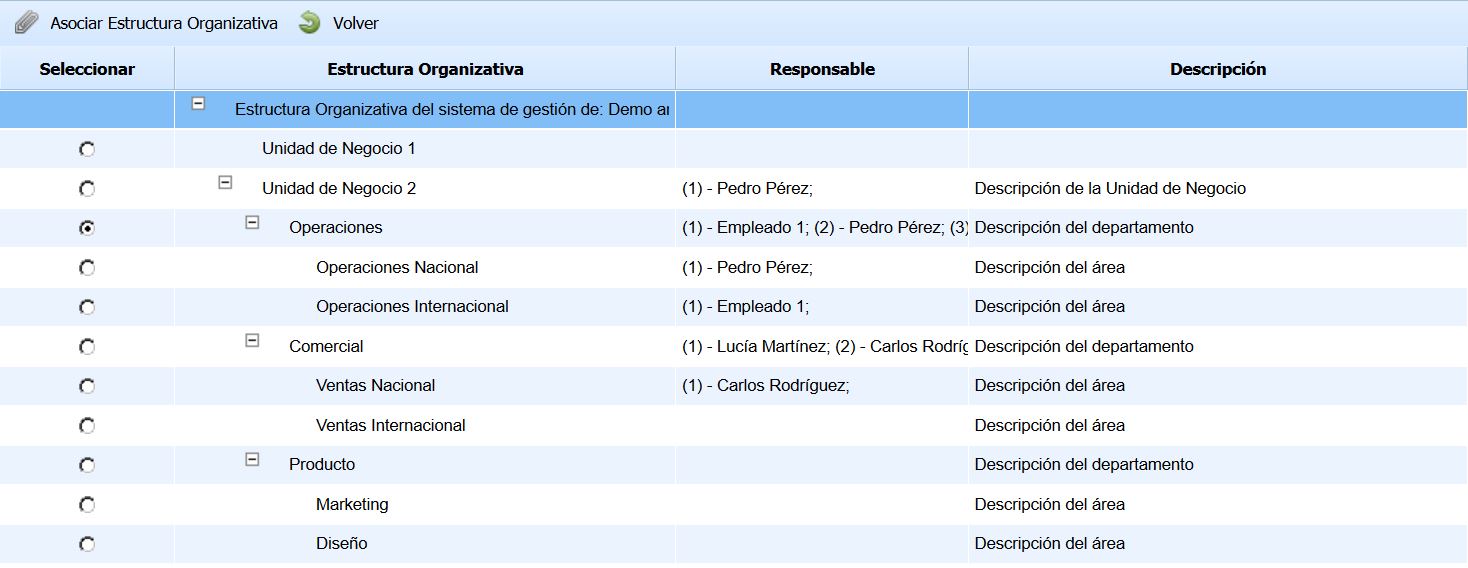
The information displayed in the image corresponds to the Organizational Structure defined in the 'Organizational Structure' option of the 'Home' menu.
-
Delete: Allows disassociating an organizational unit from the process. To do this, you must select the desired row and click the 'Delete' button.
-
View in Organizational Structure: Allows viewing the unit associated with the process and its location within the organization's Organizational Structure.
Stakeholders

This section allows establishing the stakeholders of the process, along with their requirements and the type of each requirement. The following options are available:
-
Associate: Clicking this button displays a window containing the stakeholders configured in 'Settings/General'. Each stakeholder has a checkbox on the left to select those you want to incorporate into the process.
-
Delete: This button allows deleting a stakeholder or a requirement registered in the table. To do this, you must select the desired row and click the 'Delete' button.
-
New Requirement: This button allows creating a new requirement for a previously selected stakeholder. For each new requirement, you can edit its name and set the type of requirement (Need or Expectation) by double-clicking on the corresponding column.
Actions
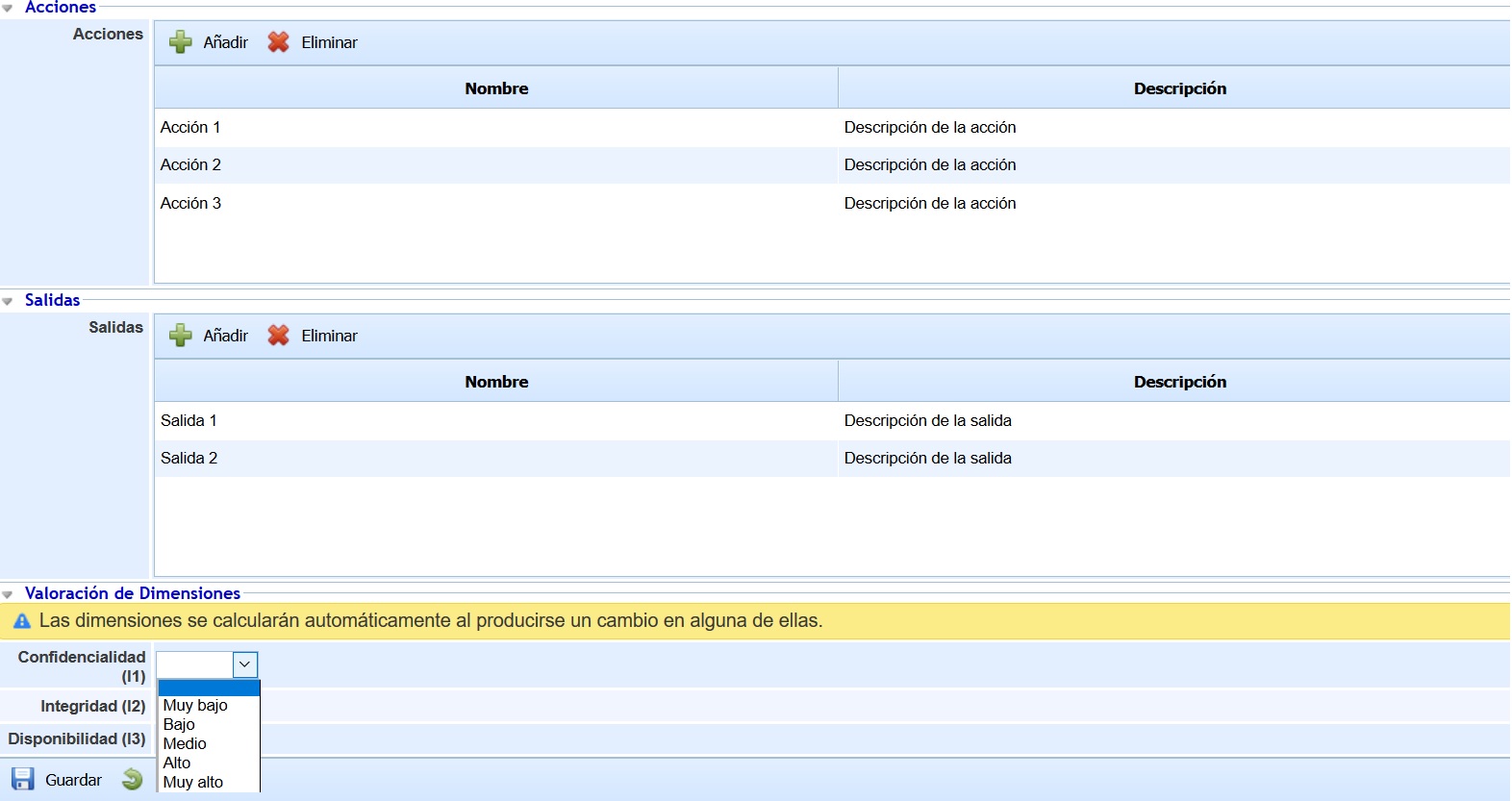
This table allows registering the actions involved in the development of the process. To create a new action, you must click the 'Add' button, allowing you to edit the name and description of the action by double-clicking on the corresponding field. To delete a created action, you must select the row or rows you want to delete and then click the 'Delete' button.
Outputs
This section consists of a table with the list of outputs for the business process. Each process output is created by clicking the 'Add' button, allowing you to edit the name and description of the output by double-clicking on the corresponding field. If you want to delete an output, you must select the desired row or rows and click the 'Delete' button.
Dimension Assessment
This section of the form allows assessing the process in the dimensions configured for the asset inventory.

The dimensions displayed are configurable in 'Settings - Analysis Methodologies - General Configuration'. You can indicate which dimensions are visible and which are not. If no dimension is visible, this section will not be displayed in the process form.
Process Tree
This tab allows establishing the tree of services and processes, associating the different business processes with the services involved in the system's management, as well as establishing a hierarchy between processes (primary process, secondary process, etc.).
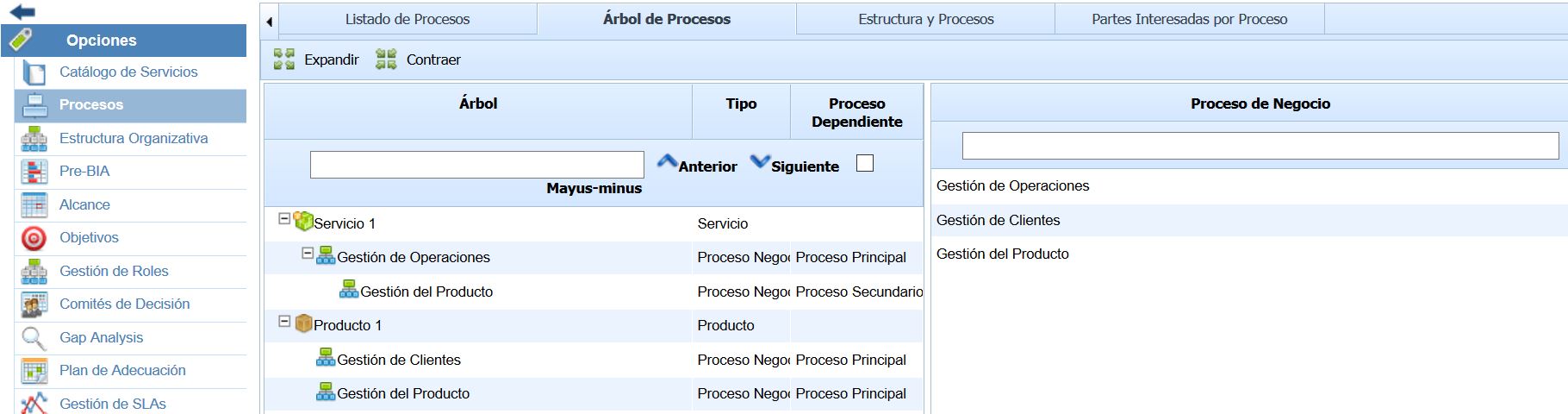
The process tree is created by moving the processes located on the right side to the left side of the screen, where the tree is located. To do this, you must select the desired process, and without releasing it, move it to the left, dropping it on the service or process you want to associate it with. To delete an association between service/process or process/process, you must select the process you want to remove from the process tree and move it to the table on the right. It will be displayed alphabetically ordered for items at the same level.
The 'Expand' and 'Collapse' buttons allow fully displaying or hiding the process tree, respectively.
NOTE: Services are defined in the 'Home/Service Catalog' section.
Structure and Processes
This tab allows viewing the Organizational Unit responsible for each service and process of the organization. Based on the process tree defined in the previous tab, the levels of the organizational structure are displayed in different columns, indicating which service and process each belongs to.
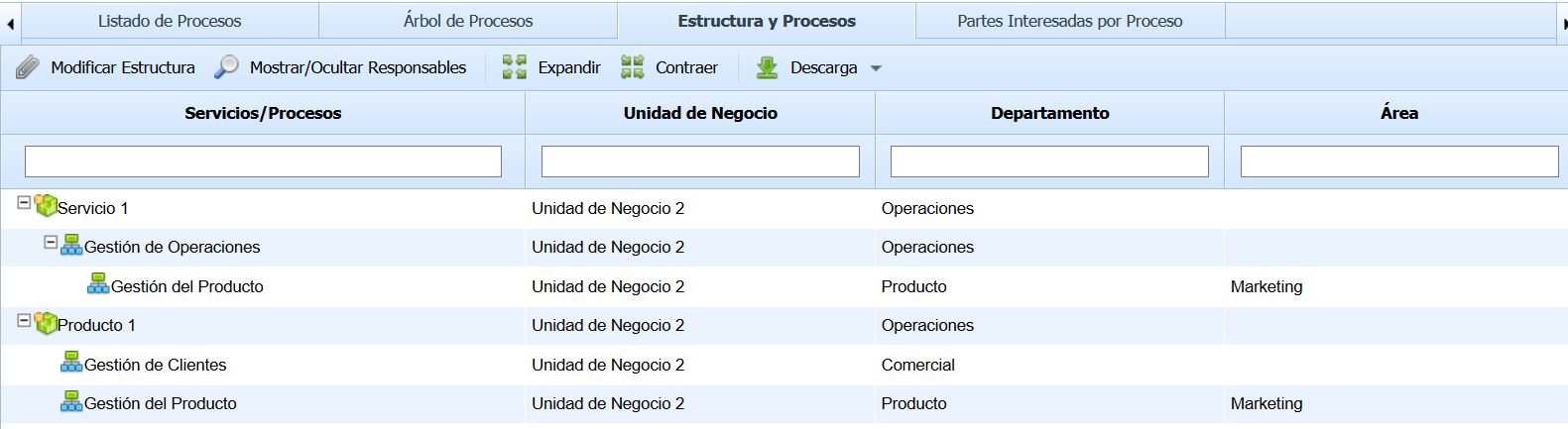
The options available for the table are as follows:
-
Modify Structure: This button allows setting or modifying the organizational unit responsible for a service or process. Clicking the button opens a pop-up window showing the Organizational Structure of the organization, allowing you to select the organizational unit corresponding to the service or process.
-
Show/Hide Responsible Parties: This button allows viewing the responsible parties for each organizational unit in the table. Depending on the user's needs, you can view for each service/process which organizational unit they belong to and the responsible parties of that unit by clicking this button.
-
Expand/Collapse: The 'Expand' and 'Collapse' buttons allow fully displaying or hiding the process tree, respectively.
-
Download: The 'Download' button allows downloading the list of processes in editable format (.xlsx) or in PDF format.
Stakeholders by Process
This tab allows viewing the stakeholders of each business process, including the requirements of each stakeholder. Additionally, the type of requirement and the organizational unit of each process are indicated.
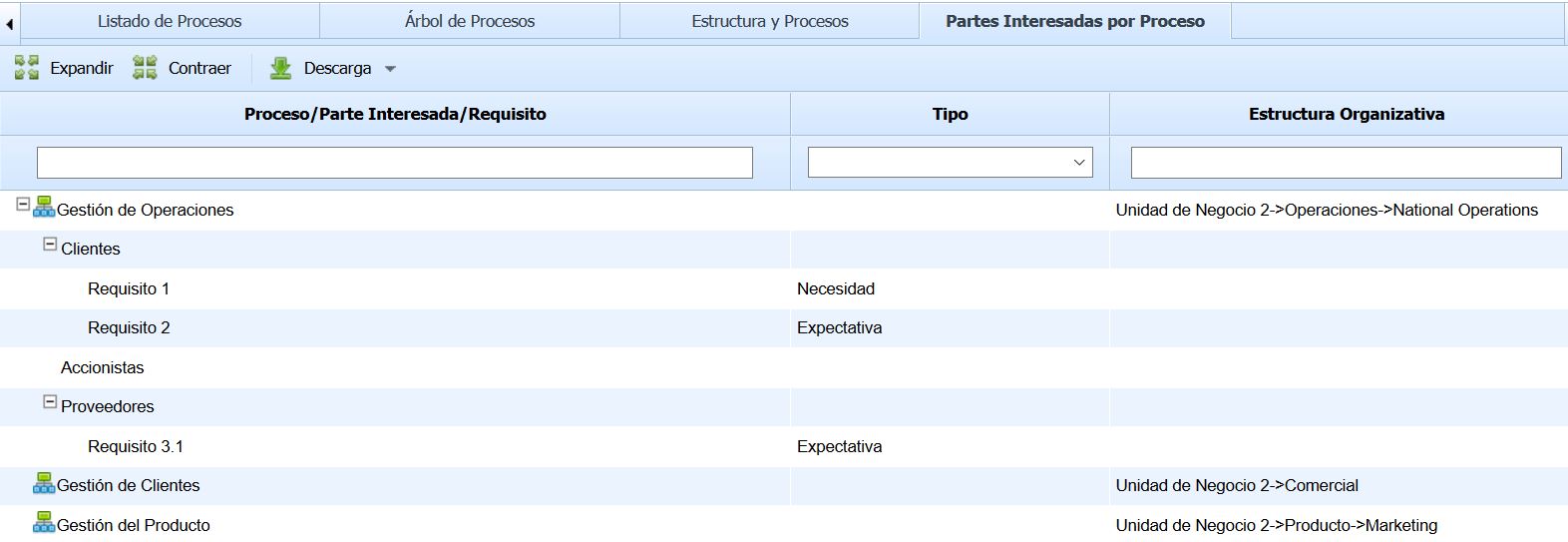
The 'Expand' and 'Collapse' buttons allow fully displaying or hiding the process tree, respectively.
The 'Download' button allows downloading the list of processes, stakeholders, and requirements in editable format (.xlsx) or in PDF format.
Process Propagation
This option allows propagating the processes defined in the parent company to the sub-entities that depend on it.
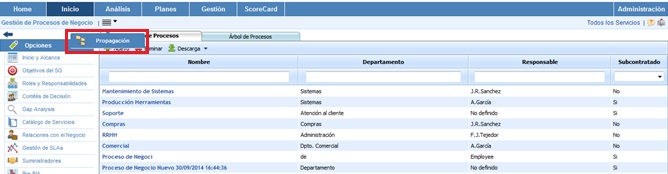
Once the option is accessed, the following tables are displayed:
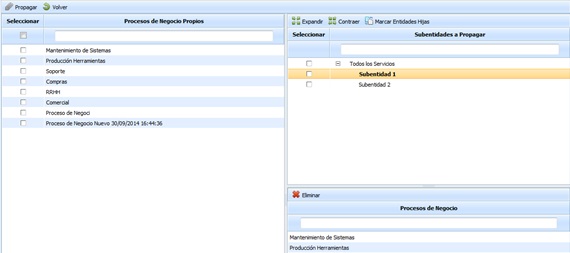
Left Table: Displays the list of processes defined in the parent company. The table provides the following options:
-
Propagate: Once the desired processes are selected, it allows propagating them to the selected sub-entities.
-
Back: Offers the possibility to return to the initial business processes screen.
Top Right Table: Displays the list of sub-entities to which parent company processes can be associated. The table provides the option to expand or collapse the list of sub-entities.
Bottom Right Table: Once a sub-entity is selected in the top table, it displays the processes associated with it. The tool offers the possibility to delete an associated process; to do this, you must select the desired row and click the 'Delete' button.