
This option allows the user to define, catalog, and assess the various personal data processing activities of the organization that need to be registered.
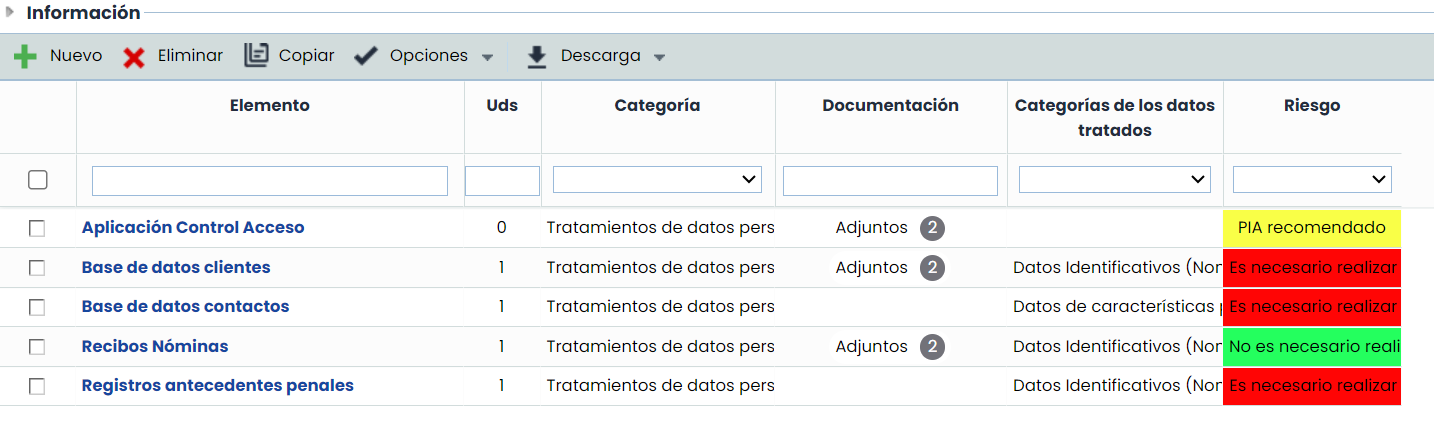
The data processing table allows the following actions:
-
New: Allows inserting a new data processing activity into the table. This new data processing activity will also appear in the 'Inventory' option, with the category defined as "Data Processing" in 'Settings'.
-
Delete: Allows deleting a data processing activity from the table by selecting the desired row or rows and clicking the 'Delete' button. Deleting a data processing activity also removes it from the 'Inventory' option.
-
Copy: Allows copying a data processing activity from the table by selecting the desired row or rows and clicking the 'Copy' button. Copying a data processing activity also includes it in the 'Inventory' option.
-
Options - Import: GlobalSuite enables importing lists of data processing activities in Excel format. In the 'Download' button, there is a file template with the fields that can be imported into the data processing table. By clicking on this option, you can view the fields to be imported; the only mandatory data is the name of the item, while the rest of the data can be optionally included in the import. The file selection is done through the 'Select File' button and clicking the 'Continue' button.
Associate and Attach Documentation
By enabling the visibility of documentation in the table, it will be possible to incorporate documentation from two sources:
-
Attach Documents from Local Device: It will be possible to attach documents directly from each user's local device, simplifying the incorporation of new relevant documentation.
-
Associate Documents from the Document Manager: Documents previously stored in the Document Manager can be associated, as well as disassociated when necessary. This allows centralizing and facilitating access to all relevant documentation.
All attached documentation will be reflected in the “Documentation” field.

Note
To view this option, you must enable it in Settings > Methodologies > Items
-
Download (RAT Report): Allows downloading the RAT (Record of Processing Activities) report in WORD format for the data processing activities selected in the table. This report contains information about the risks and controls related to the data processing in the risk analyses, as well as the items related to it in the dependency tree. This option also allows downloading a file template for importing data processing activities.
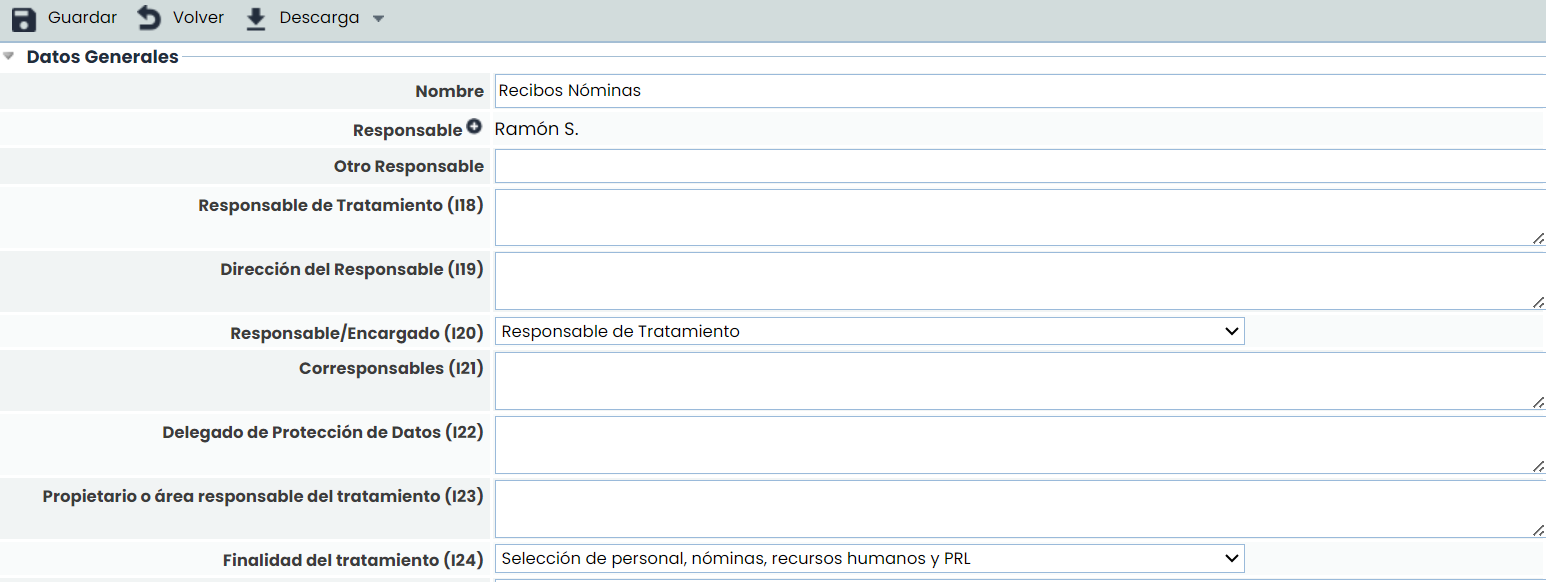
By clicking on the data processing link, the fields of the data processing record are displayed, allowing you to fill in the following fields:
-
Name: Allows defining the name of the data processing activity.
-
Responsible: Identifies the person responsible for the data processing activity within the organization. This responsible person can be selected from the set of Employees (see section in the Management tab).
-
Other Responsible: Identifies the person responsible for the data processing activity within the organization, allowing it to be defined textually.
-
Other Fields: Next, all the dimensions or fields configured for the data processing record can be filled in. The tool displays the dimensions defined in the 'Settings/Analysis Methodologies' section.