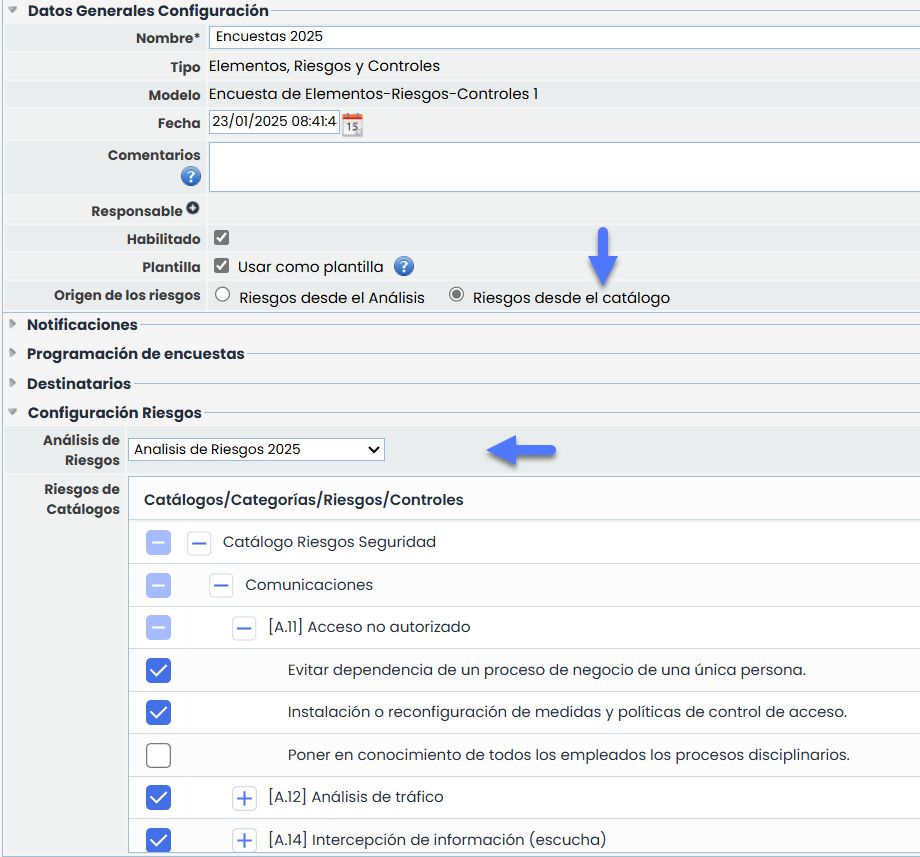
In the case of surveys of the type Items, Risks, and Controls, the tool allows defining the following parameters (the fields and tables that appear in this form will depend on the type of survey selected in the survey model):
General Data Configuration
When accessing an item in the table (survey configuration), the tool allows defining the following parameters for any type of survey:
Unknown Attachment
-
Name: Allows identifying the name of the survey. This name will be displayed in the initial survey list.
-
Type: Allows viewing the type of the survey.
-
Model: Allows viewing the type of the survey.
-
Date: Identifies the creation date of the survey.
-
Comments: This field allows including information or instructions to complete the survey, which will be received by the survey recipients.
-
Enabled: Allows displaying the survey in the Client Portal.
-
Lock Follow-ups
-
Language: This option allows configuring the language in which notifications associated with surveys using this configuration will be sent.
The language selector is only enabled when the MS has more than one language configured.
By default, the main language of the entity is displayed as selected.
The chosen language will apply to the content of all emails, notifications, and survey links intended for users who do not have an account in GlobalSuite®. For users registered on the platform, the language defined in their profile will always be used, regardless of the value configured here.
If a previously configured language is removed, the configurations that used it will be automatically updated, replacing it with the organization's main language. -
Use as Template: This option appears in Items surveys, Risks-Controls surveys, and Items, Risks, and Controls surveys.
Indicates that the survey can be used as a template for sending surveys from the Inventory and Risk Analysis modules.
Depending on whether this option is selected or not, the survey configuration will vary. Its functionality is detailed later.
Notifications
Alerts can be configured to notify the recipient that they have assigned surveys pending. These notifications are configured for both internal and external surveys and are available for all types of surveys. The configuration allows defining the frequency of sending and the time during which the notification will remain active, starting its application from the survey launch date. Alerts are sent as long as the survey is not completed.
Unknown Attachment
The options are as follows:
-
Activate: Selecting this option will activate the section to configure the sending of notifications.
-
Frequency: Can be configured
-
Daily
-
Weekly
-
Monthly
-
-
Active Days: Indicates the days during which notifications will be active, considering the frequency.
NOTE: The maximum value established for this field is 365 days.
Survey Scheduling
The Survey Scheduling section, located within the survey configuration, schedules the creation and launch of Items, Risks, and Controls surveys periodically.
Unknown Attachment
To enable this functionality, the Automatic check is available, which is unchecked by default. Activating it enables the fields for scheduling parameterization.
The available fields are as follows:
-
Sending Type: Allows defining the survey's sending mode:
-
External link: the survey will be sent via an external link, under the Publication functionality.
-
Internal access: the survey will be managed from the Survey Management module.
-
-
Frequency: Allows establishing the frequency for automatic launches:
-
Monthly: will launch on the same day of the following month (e.g., January 15 → February 15)
-
Quarterly: will launch on the same day of the month, three months later (e.g., January 15 → April 15)
-
Semiannual: will launch on the same day of the month, six months later
-
Annual: will launch on the same day of the month, one year later
-
-
Start Date: Indicates the date from which the defined scheduling will begin execution.
-
Last Sending Date: Displays the date of the last automatic launch (if no survey exists, it will appear empty).
-
Next Sending Date: Displays the expected date for the next launch according to the configured frequency.
This automatic launch is compatible with the manual creation of surveys, as the next sending date is obtained from the last launched survey.
Recipients
If the Survey Model does not have configured states (in which case the responsible person must be defined for each state), it will be possible to define which individuals, selected from Employees, will receive the survey created from this configuration. If more than one recipient is included, an independent survey will be created for each of them.
Unknown Attachment
-
Clicking the "Associate" button opens a window with the system's employee list, allowing selection of those to be incorporated.
Unknown Attachment
States
If the Survey Model has configured states, the survey configuration displays a section called "States" containing a table with the configured states and the employees assigned as responsible for each state. This table allows assigning an employee as responsible for each survey state, so depending on the survey state, the tool will assign the indicated employee as responsible.
Unknown Attachment
The assignment of a responsible person to each state is done by selecting a state from the table and clicking the "Associate Responsible" button. When performing this action, a pop-up window appears containing all the organization's employees, allowing the selection of one of them and clicking the "Associate Employees" button to assign them.
Unknown Attachment
Risk Configuration.
The survey form configuration will vary depending on the selected survey type. Based on this typology, the different parameterization sections will be enabled, such as Items, Risks, and Controls, as well as the relationships between them.
The availability, content, and behavior of each section will depend on the configuration defined in the survey model and the dependencies established within the selected analysis. Thus, the form will only display the information necessary for completing the survey according to its scope.
Risk Analysis
In surveys that include the evaluation of Risks and/or Controls, the first visible section will be Risk Analysis.
From this field, the risk analysis on which the survey will be configured must be selected. This selection will determine the information available in subsequent sections, such as catalogs, items, risks, and associated controls.
Depending on the selected analysis, the system will only display the records linked to it, allowing the survey's scope to be narrowed to the defined context.
Items
In surveys of only Items, pressing “Add” will display the items from the Item Inventory on which the survey will be conducted. If left blank, the survey can still be completed by creating new items directly within it.
Unknown Attachment
Risk Surveys
In Risk surveys, the first visible section is Risk Analysis.
After its selection, the associated catalogs and the Items section will be displayed, from which the items to be evaluated can be selected.
Unknown Attachment
Once the items are added, clicking on each one will display, at the bottom, the list of risks associated with that item. These will be marked by default; however, they can be unmarked if desired. Additionally, new risks can be created within the survey if necessary.
-
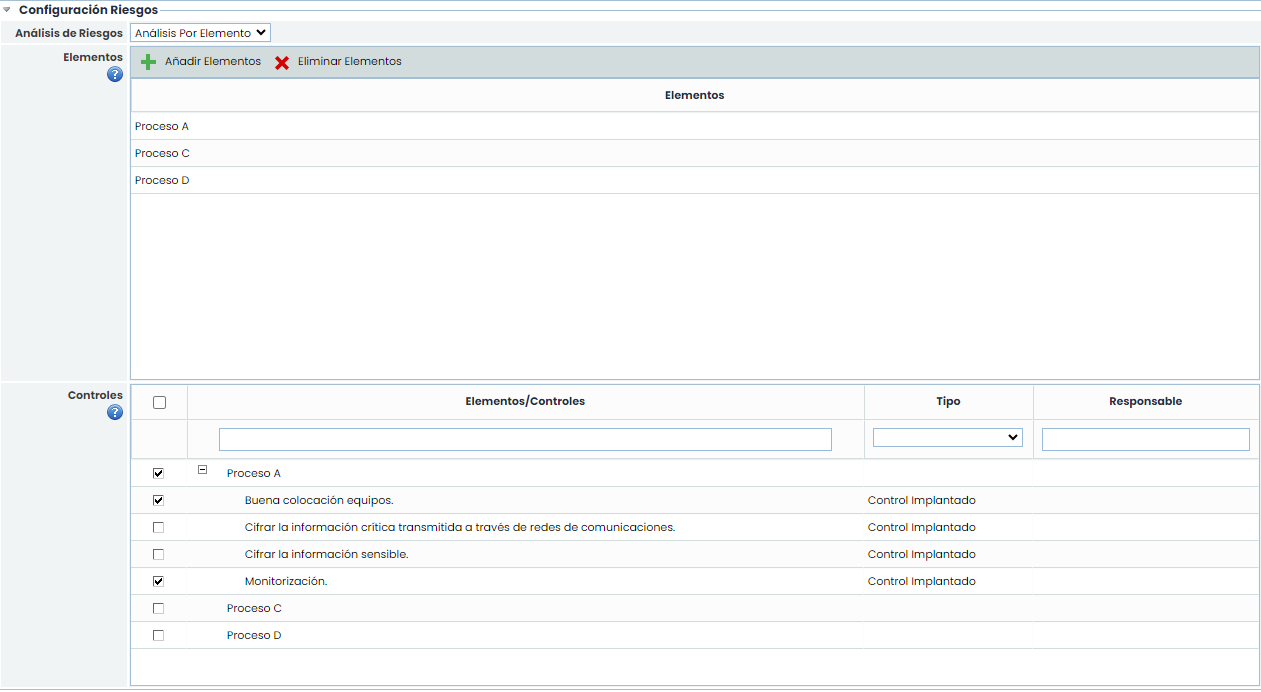
Controls: Allows defining the specific controls on which the survey will be conducted. Depending on whether the survey type evaluates controls generally, by risk, or by item, the total list of controls from the analysis, the controls of the selected risk, or a tree of controls by item will be displayed, respectively.
Evidence
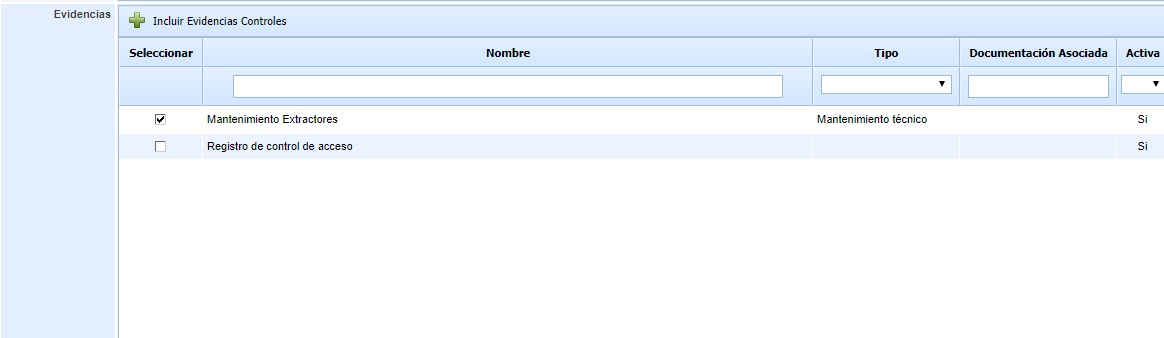
If the survey is of the type "Item-Controls Survey (Methodology By Item)" and the Include Evidence check is selected, a table of Evidence will appear at the end to select those to be included in the survey, which is done by marking them in the table itself.
They can also be automatically included based on the controls to be evaluated (see previous table). To do this, clicking the "Include Evidence Controls" button will mark all evidence associated with the controls to be evaluated.
Evidence Documentation
If the option Include evidence documentation is selected in the survey model, this option will be enabled to configure the visibility of the documents needed in the surveys.

Visibility and documentation consolidation configuration
There are two options for managing the visibility of documents displayed in surveys:
-
Total visibility of evidence documentation > Without associated folder
-
If no folder is selected and more than one item is included in the scope, all evidence documents will be displayed in the survey.
-
The survey consolidation is done in the "Survey Evidence" folder.
-
-
Restrict visibility of evidence documentation > Associate folder
-
The documents visible in the survey will only be those included in the selected folder and associated with the evidence.
-
The survey consolidation is done in the same selected folder.
-
TPRM Option
For users of the TPRM module, an option is offered that simplifies the creation of folders for each provider. Instead of manually creating a folder for each one, the folder will be automatically generated upon survey consolidation.
When no folder is selected in the Associate folder field and only a single item is included in the survey, a folder will be automatically created in the root of the Document Manager with the name of the included item (Provider). If such a folder already exists, a new one will not be created.
Additionally, upon survey consolidation, the documentation will be consolidated in that same generated folder.
Attachments
In the Survey configuration, it is possible to upload files and documents with aids, guides, or detailed explanations, which will be sent by email to survey recipients when launched, in addition to being available within the survey for consultation.

Template
This option appears in Items surveys, Risks-Controls surveys, and Items Risks Controls surveys.
Items Surveys:
Selecting this option allows defining survey templates to enable the direct sending of items surveys from Inventory > Items Table, based on these templates. This provides users, even those without survey administration privileges, the ability to select one or more items to include in the scope and configure the sending quickly and easily.
Configurations marked with this option will be available as templates in the Item Table, where they can be selected and used directly to manage the sending of surveys.
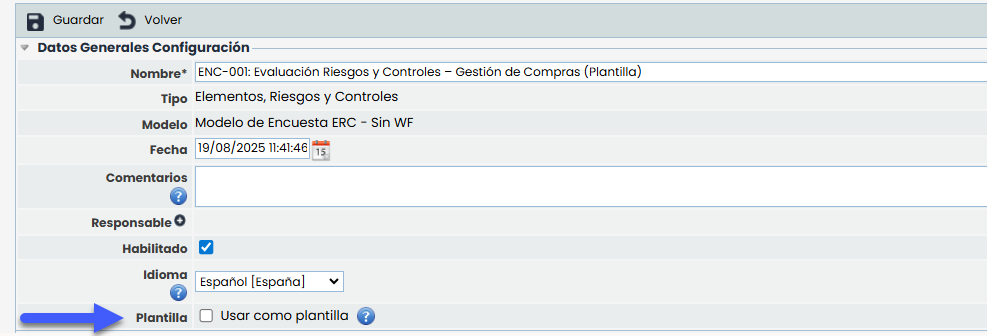
Note
When marking a survey configuration as a Template, a specific item scope cannot be chosen, as these are selected at the time of launch, in Inventory > Item Table.
Risk-Control Surveys and Item Surveys Risk controls. Items:
By marking this option, survey templates can be defined to allow sending from a Risk Analysis based on these templates.
When selecting this option, a field called “Risk Source” appears, which includes two possible (mutually exclusive) options:
-
Risks from the Analysis
-
Risks from the Catalog
Template Configuration with Risks from the Analysis
When selecting this option, the form to configure this type of surveys behaves as follows:
-
“Notifications” remains active/enabled. Optional.
-
“Survey Scheduling” disabled
-
Recipients:
-
Surveys without configured states: The ‘Recipients’ fieldset enabled/optional.
-
Surveys with configured states: The ‘States’ fieldset enabled/optional.
-
-
“Configure Risks” disabled
Template Configuration with Risks from the Catalog
Templates with Risk Source from the Catalog allow specific selection of the risks on which the survey will be sent.
When selecting this option, the form to configure this type of surveys behaves as follows:
-
“Notifications” remains active/enabled. Optional.
-
“Survey Scheduling” disabled
-
Recipients:
-
Surveys without configured states: The ‘Recipients’ fieldset enabled/optional.
-
Surveys with configured states: The ‘States’ fieldset enabled/optional.
-
-
“Risk Configuration”
-
Risk Analysis: enabled and mandatory.
-
Risk Table from Catalog: Enabled and mandatory to select at least one risk
-