
This form allows for the planning of audit work.
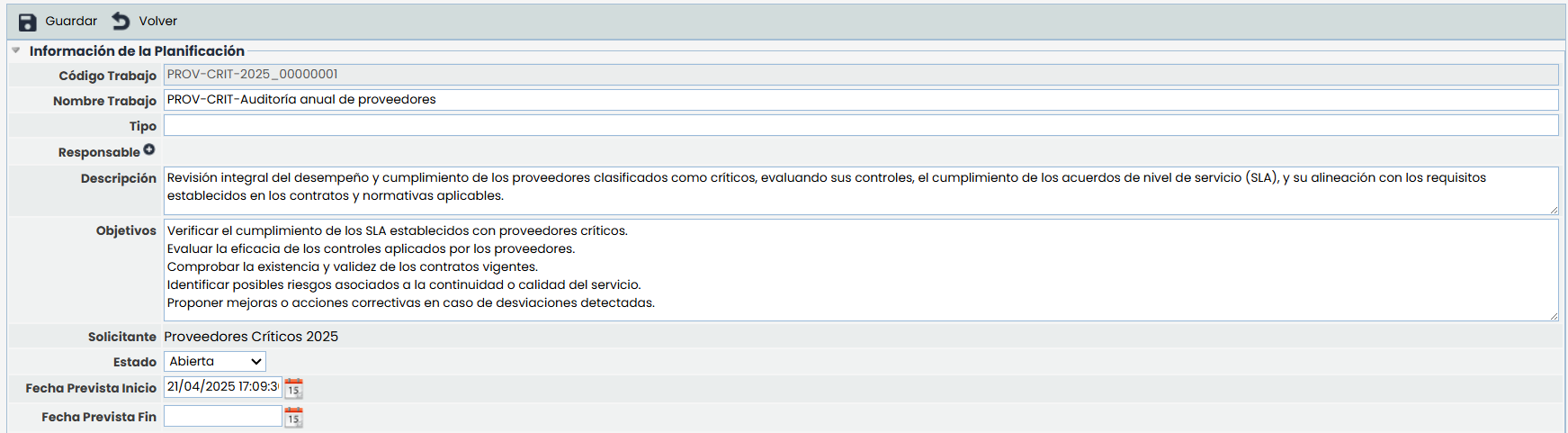
Planning Information
-
Work Code: Identifies the code assigned to the audit work. Its visibility and format can be configured in Settings> Audit Methodologies.
-
This field will not be editable if the work code is configured as automatic.
-
-
Work Name: Allows modifying the work record by changing its name.
-
Type: Additionally, a specific typology can be added if desired.
-
Responsible: A window will open allowing the selection of a responsible person from the list entered in the tool.
-
Description: A more extensive description of the work can be added if desired.
-
Objectives: Allows entering objectives for the described work.
-
Requester: Describes the Planning to which this work being configured refers. This is an option that cannot be modified.
-
Status: Allows assigning a status to the work among the following options: Open, Draft, In Progress, Closed.
-
Work Editing: Once the work status changes to Closed, it will no longer be editable. However, if modifications are needed for work in "Closed" status, the status can be changed to "In Progress" to allow editing again.
-
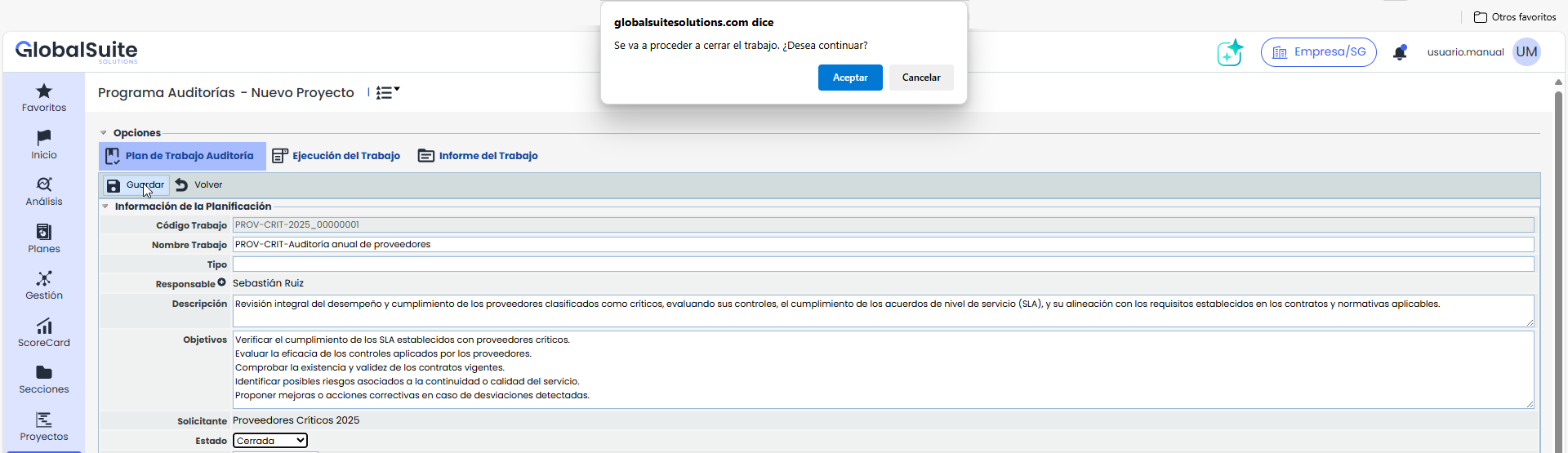
-
Planned Start Date
This field is automatically filled with the date and time the work is created. It is editable and mandatory. -
Planned End Date
Corresponds to the estimated completion date of the work. It can be manually defined by the user, as long as the work is not linked to a project.
If the work is associated with a project, both fields —start date and end date— will no longer be editable and will automatically take the dates established in the project.
If, upon saving the work, the system detects that the dates have been modified, it will perform a validation to ensure that the assigned team members do not have other planned work during the same period. In case of overlap, a message will be displayed informing of the conflict, listing the employees and the work with which the dates overlap.
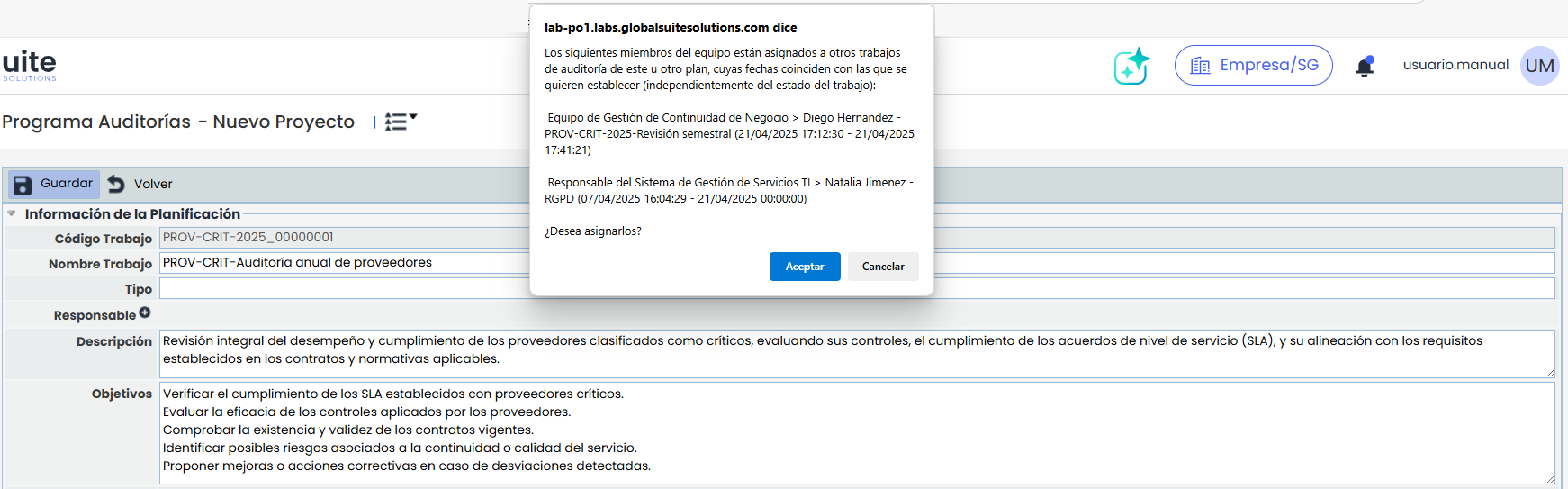
-
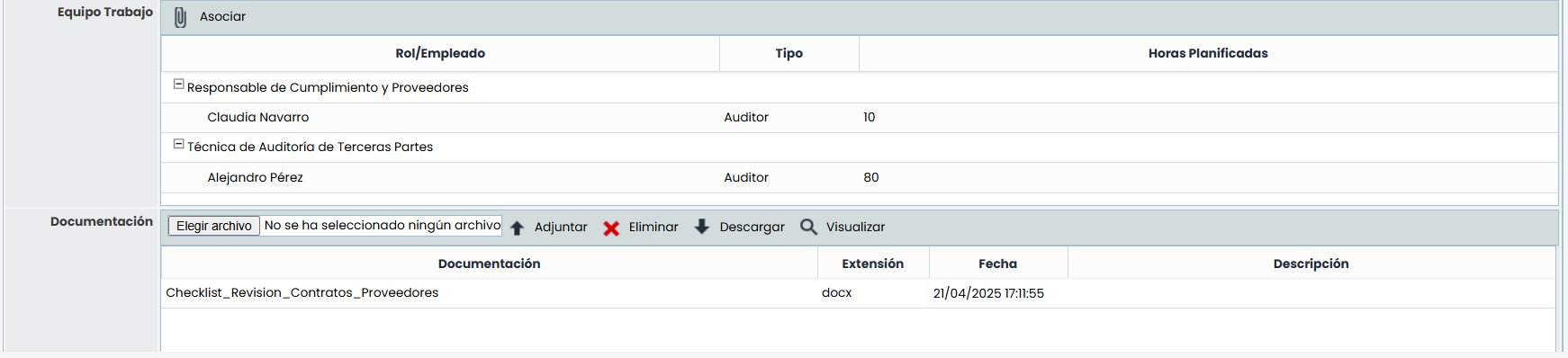
Work Team:
Allows selecting the employees responsible for executing the work; multiple selections are possible.
Each time a member is added to the work team, the system will automatically validate if that person already has other assigned work during the planned start and end dates. If overlaps are detected, a warning message will be displayed, including the employee's name and details of the work with which there is a conflict.
This validation is performed at the time of assignment, allowing the user to decide whether to proceed or adjust the planning.
-
Documentation: Additionally, in this section, it is possible to attach one or more documents.
-
Attach: Documents are added directly by clicking the 'Select file' button, and once the file to upload is chosen, clicking Attach.
-
Delete: Allows deleting an already associated document. To do this, click on one of them and then click Delete.
-
Download: Allows downloading the selected document.
-
View: For PDF files and images, it is possible to preview them in a pop-up window without downloading.
-

Execution Methodologies: In this section, the methodologies to be used for executing the audit work can be selected. By default, those defined in the Audit Methodology are loaded.
-
Execution Methodology for Elements: Using the red button, the methodology for elements to be used can be chosen from those associated with the audit methodology.
-
Execution Methodology for Risks: Allows selecting which risk methodology will be used in the work.
-
Execution Methodology for Controls: The execution methodology for controls will not be chosen directly but will use the one associated with the risk methodology.

Scope: This table shows the elements included in the work, with the assessment performed in the audit plan.
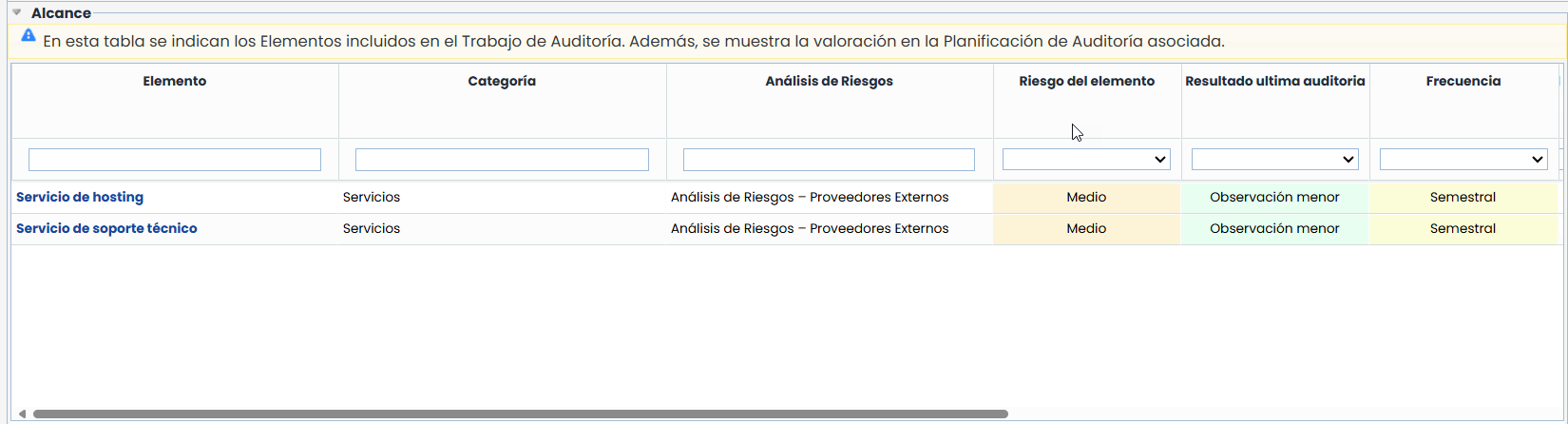
Planning - Project Data: This section allows creating a project to plan and monitor the audit work.
If no project is defined, the following option appears:
-
Create Project: Allows adding a project to the work, which can be created from scratch or selected from an existing template. These project templates are defined in the Settings panel.
-
To create a project, it will be necessary to select the Planned End Date.
-

If a project is already defined, it is possible to make adjustments and monitor it, allowing the user to manage the progress of the work.
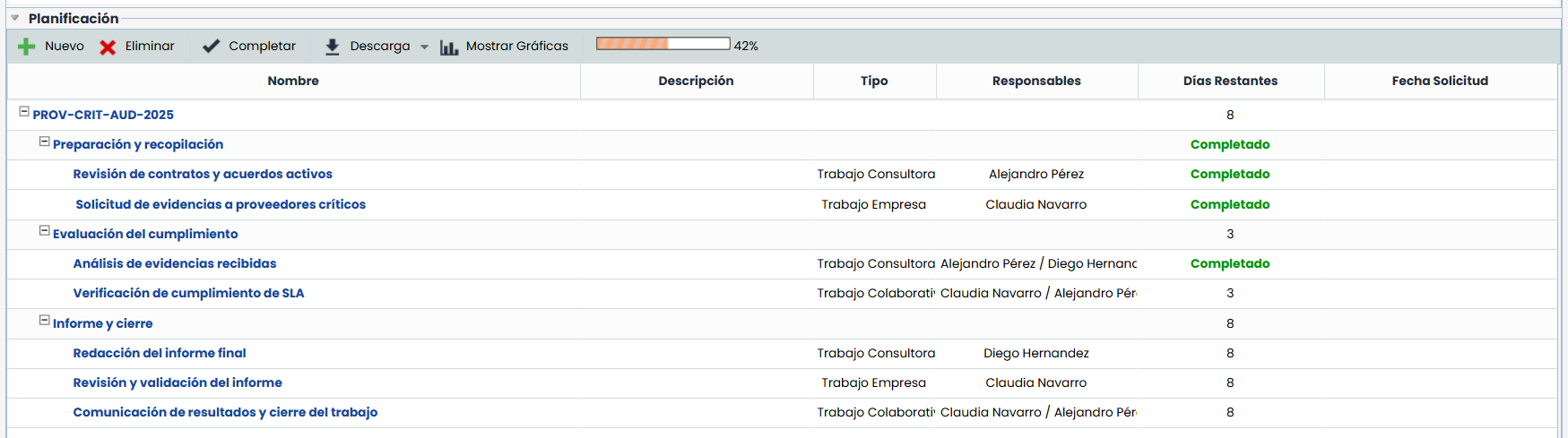
-
New: Allows inserting different tasks or subtasks into the project.
-
Delete: Allows deleting different tasks from the project. To do this, the desired row must be selected, and the 'Delete' button pressed.
-
Complete: Allows marking when a task has been completed.
-
Download: Allows creating a historical file with the project's progress level.
-
Percentage Completed: Allows viewing the percentage of progress made in the project.
-
Show Graphs: Offers the possibility to visualize different aspects of the project in graphical format, as shown in the following image.
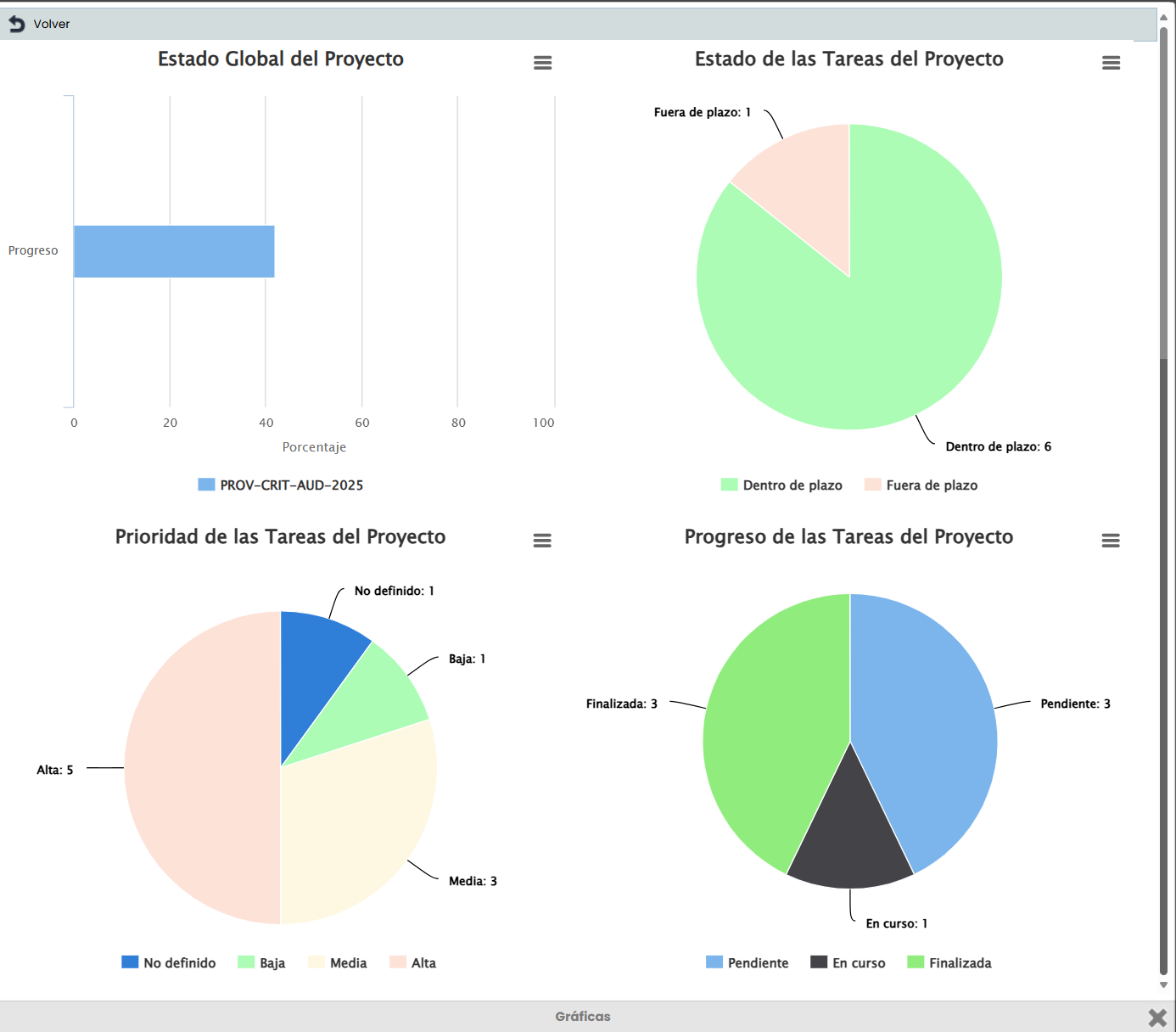
Once the project is defined, the following columns are offered:
-
Name: Identifies the name of the different generated tasks, where the first level identifies the project name, and the rest of the levels are the different milestones and defined tasks.
-
Type: Identifies the typology of the generated task.
-
Responsible: Shows the person responsible for completing the task.
-
Remaining Days: Identifies the days left for the task to be executed within the defined times. The calculation is based on the start/end date values.
-
Start Date: Shows the start date of the task.
-
End Date: Shows the end date of the task.
NOTE: Each task is editable by clicking on its name.
-
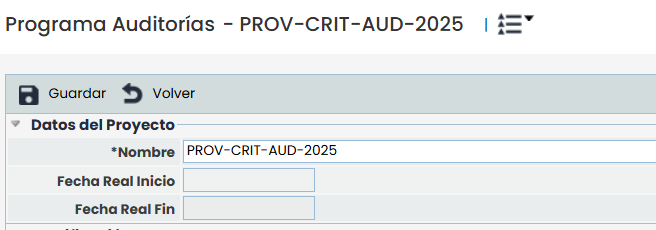
Project (First Level): Clicking on the project name displays a form where the following points can be defined:
-
Project Data:Here, the project name can be configured. The dates will be inherited from the subtasks as the project is completed.
-
Planning:
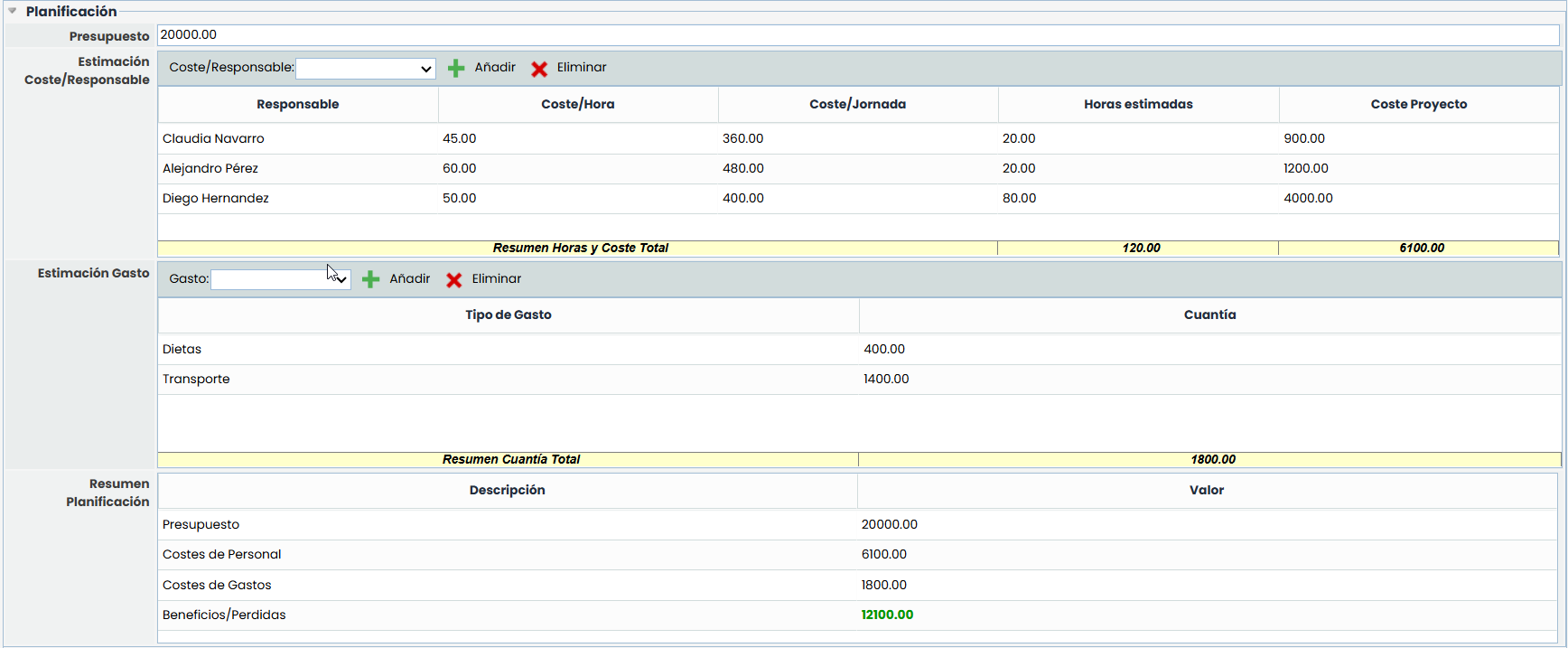
The planning section allows you to define the costs associated with the project, with the following parameters:
-
Budget: Allows defining the budget associated with the project.
-
Cost/Consultant Estimation: Offers the possibility to define the cost of the consulting team associated with the project, allowing the definition of Hourly Costs and estimated work hours, with the tool automatically calculating Daily Cost and Consultant Project Cost.
-
Expense Estimation: Allows defining the expense typologies defined in the 'Settings/Projects' option, and the economic amount that the concept represents in the project.
-
Planning Summary: Provides a summary of the information identified in this section, highlighting the project's benefits or losses.
-
-
Summary
-
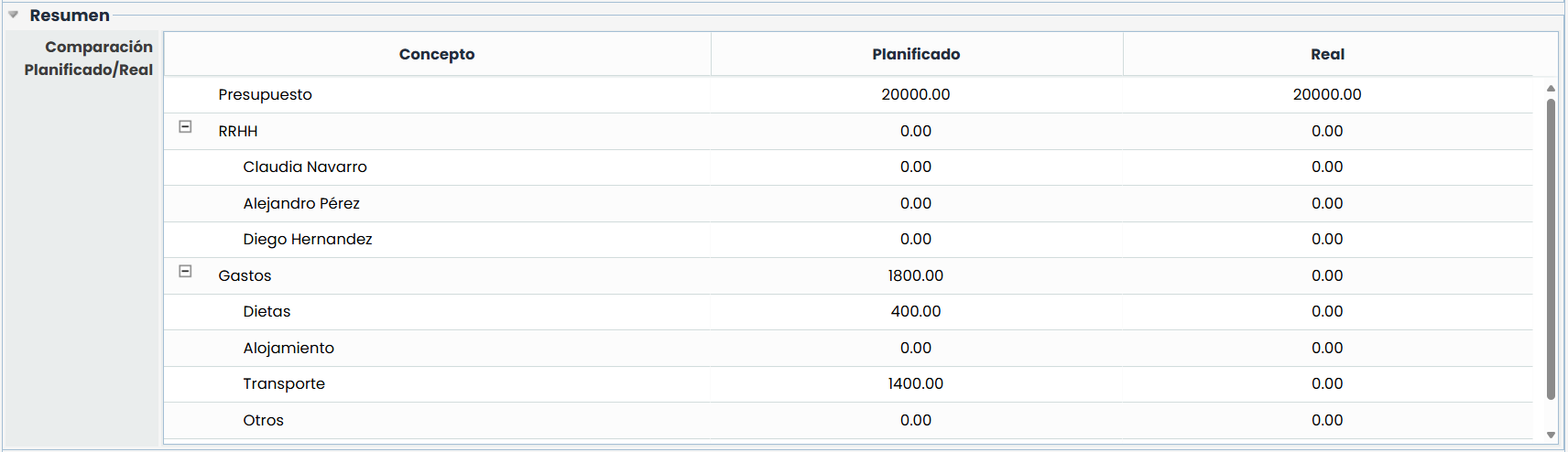
This option shows a detailed summary of the information defined in the previous section, highlighting the project's profits or losses.
-
Monitoring
-
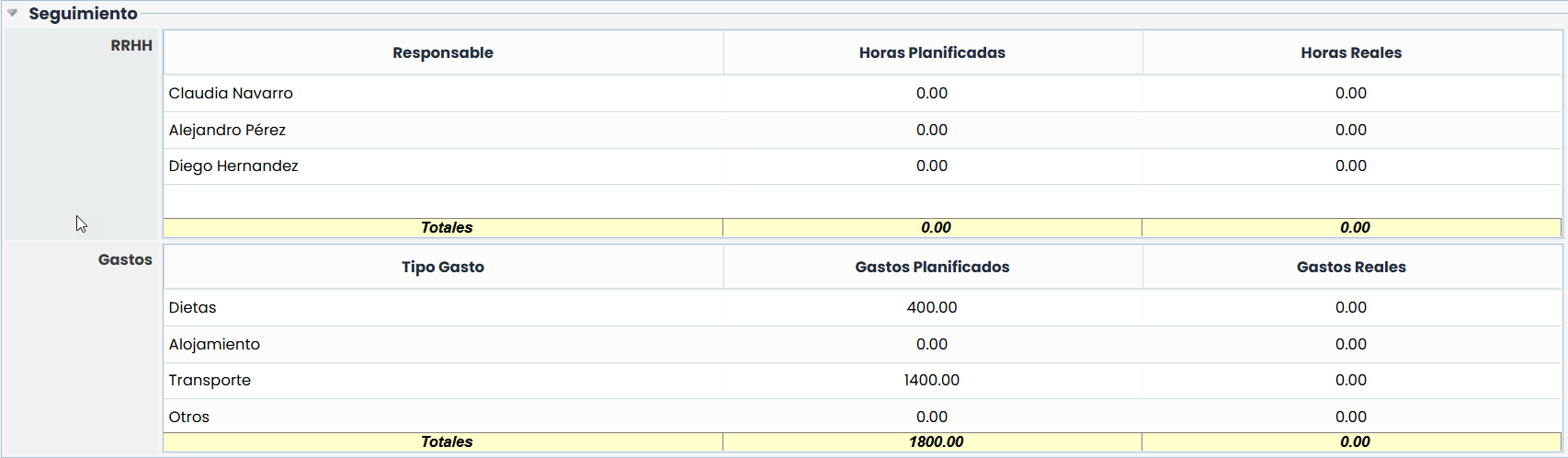
Displays, in a centralized manner, the hours dedicated and associated expenses of the tasks assigned to the auditor.
-
Tasks (Levels): Clicking on a task provides the following modification options:
-
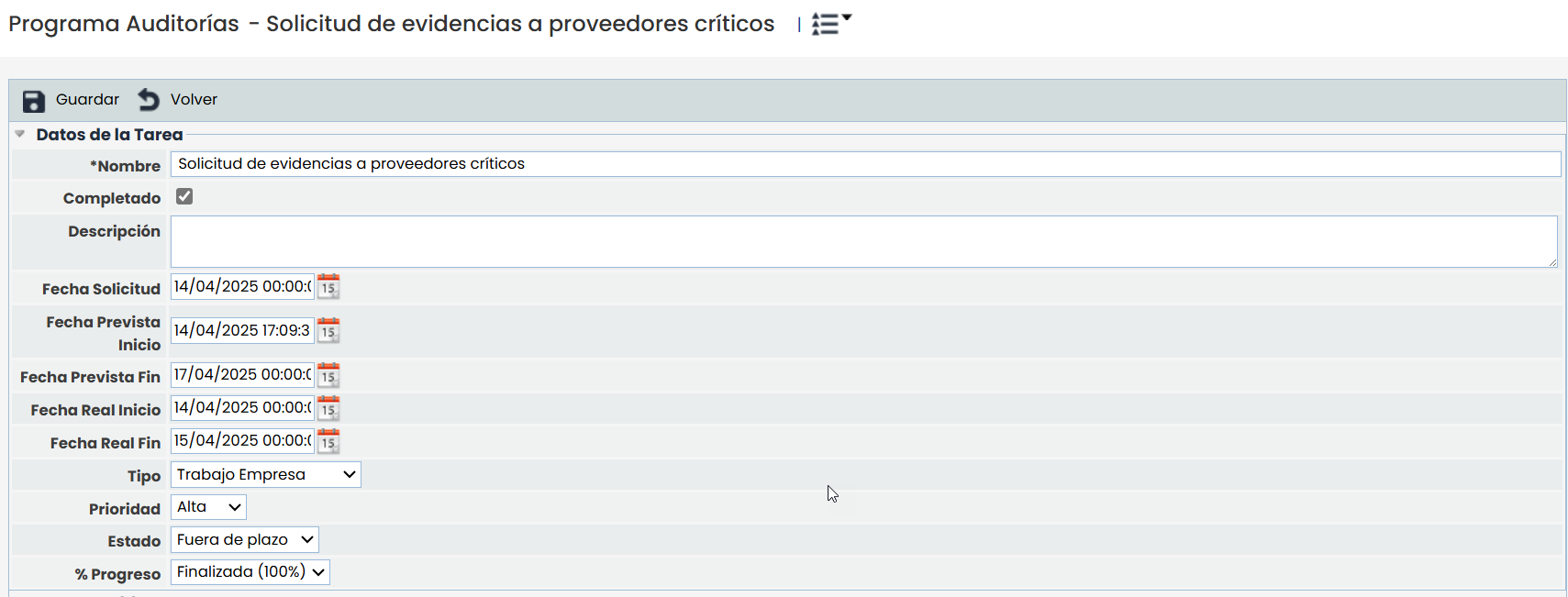
Task Data
-
Name: Allows modifying the task name.
-
Completed: The option indicates whether the task has been completed or not.
-
Description: Allows providing a more extensive description of the task.
-
Request Date: Offers the possibility to define the date by which the task is requested to be completed.
-
Planned Start Date: Allows defining the estimated start date of the task.
-
Planned End Date: Allows defining the estimated end date of the task.
-
Actual Start Date: Defines the definitive start date of the task.
-
Actual End Date: Establishes the definitive end date of the task.
-
Type: Allows indicating the typology of the task.
-
Status: This field indicates whether the work is within or outside the deadline, based on the planned end date and the current status of the work.
-
Within Deadline: the task is still ongoing or pending completion, and the current date has not exceeded the planned end date.
-
Outside Deadline: the current date has exceeded the planned end date, and the work has not yet been closed.
-
-
% Progress: This field allows selecting the level of work progress according to the progress levels configured in Settings > Project Configuration.
-
-
Documentation

This section offers the possibility to identify and associate documentation related to the task to be performed. To do this, you must click on the 'Add' button, which generates a new entry in the table. To modify the document name, you must double-click on the desired cell. If you want to delete an associated document, you must select the desired row and click on the 'Delete' button.
-
Monitoring
-
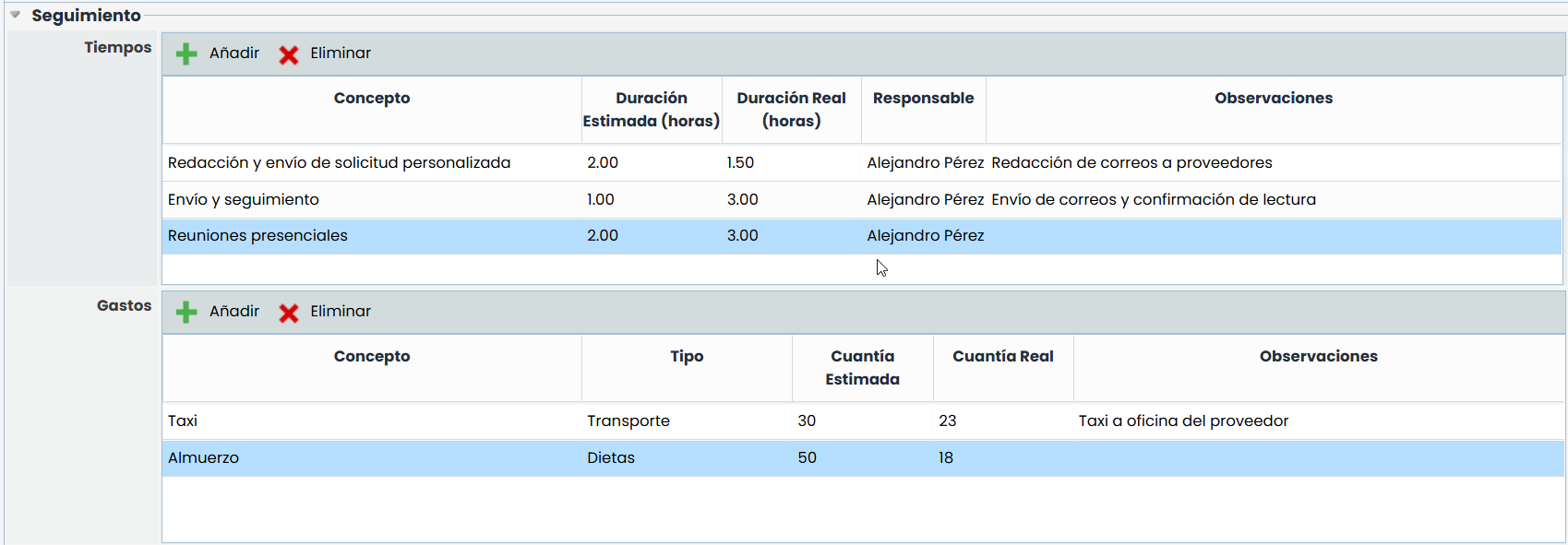
This option allows you to allocate the following concepts to the selected task, such as:
-
Times: Allows imputing the time dedicated to performing the task, defining the concept name, associated typology, hours dedicated, associated auditor, and observations.
-
Expenses: Offers the possibility to impute the expenses associated with the task, defining the concept name, associated expense typology, economic amount, and observations.
NOTE: The times and expenses associated with a task will be reflected in the Project section.