
SLA management allows defining the service level agreements offered to the clients involved within the scope.
The initial table shows the different SLAs defined by the organization, specifying among other fields, the date from which it is being provided, the service to which they are associated, a brief description of it, and the evaluations.
The SLA table allows performing the following actions:
-
New: Allows creating a new SLA.
-
Delete: Allows deleting an already created SLA. To do this, the desired row or rows must be selected and the ‘Delete’ button must be pressed.
-
Copy SLA: Enables copying existing SLAs. To do this, the SLAs to be copied must be selected and the ‘Copy SLA’ button must be pressed. The copied SLAs will contain the same values in all fields except the associated service, which must be defined within the form.
-
Download: Enables downloading the SLA list in editable .XLS format and in .PDF format.
By clicking on the ‘Evaluations’ icon in the table, we access a form that allows setting the following parameters.
SLA Evaluations
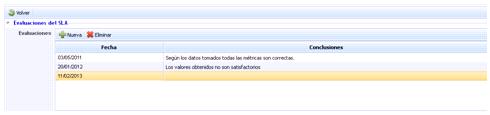
The evaluations table summarizes the conclusions reached by the manager regarding SLA compliance. To perform an evaluation, the ‘New’ button must be pressed, generating a new line where the evaluation date and conclusions can be set. If you want to delete an evaluation, the desired line or lines must be selected and the ‘Delete’ button must be pressed.
Associated Indicator
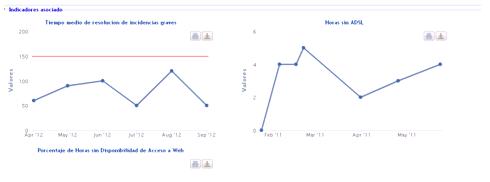
The indicator field shows those indicators that have been associated to perform a better evaluation of the SLA. To associate indicators, the SLA form must be accessed, as detailed later.
Evaluation
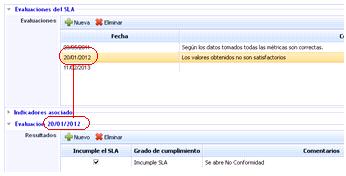
The ‘Evaluation’ field allows specifically defining the results of an evaluation. To do this, the row in the ‘SLA Evaluations’ section must be selected and the following fields completed:
-
Results: Allows setting different evaluations on an SLA. To do this, the ‘New’ button must be pressed, generating a row that allows identifying whether the SLA has been met or not, identifying the degree of compliance, comments on it, and associating it with the clients to whom the service level agreement is provided in ‘Select clients’.
In that case, a pop-up window will open with the clients defined in the ‘Business Relationships’ option that have the SLA service, to select them. When the desired clients are marked, ‘Save changes’ must be pressed.
To delete an evaluation, the desired row must be selected and the ‘Delete’ button must be pressed.
-
Outputs: If the evaluation results are not as expected by the user, the ‘Outputs’ field enables opening different tickets (incident, corrective action, etc.) to manage SLA compliance. To do this, the ticket type must be selected in the dropdown and the ‘Add’ button must be pressed. This action automatically creates a ticket in the ‘Management’ section. To delete the ticket, the desired row must be selected and the ‘Delete’ button must be pressed.
The user may want to manage compliance through an already open ticket. To do this, simply press the ‘Browse’ button, which opens a list of all open tickets in the ‘Management’ section.

When accessing the SLA form, the following actions can be performed:
-
Save: Allows saving the changes made in the form.
-
Back: The tool returns to the previous screen with the SLA list.
-
Evaluate SLA: Allows performing an SLA evaluation as mentioned in the ‘Evaluations’ section.
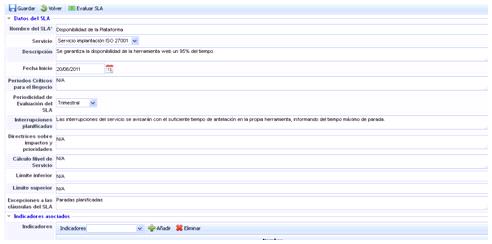
The fields that appear in the form are as follows:
-
SLA Name. Indicates the descriptive name of the SLA that appears in the list.
-
Service. This field displays a dropdown with all the services defined in the system, allowing the selection of the service to which the SLA is associated.
-
Description. Allows making any specific annotation of the SLA.
-
Start Date. Date from which the SLA is valid and applies to the service.
-
Critical periods for the business. Allows indicating if, due to the nature of the service, there is any more sensitive time period where SLA compliance may be affected.
-
SLA evaluation periodicity. Allows setting the period in which the SLA must be evaluated.
-
Planned interruptions. Enables indicating if there is any planned interruption in the service that should not be considered in the SLA evaluation.
-
Guidelines on impacts and priorities. Allows defining if there are priorities when performing actions to reduce the impact of SLA non-compliance.
-
Service Level Calculation. Enables establishing how the offered service level is calculated.
-
Lower limit. Specifies the lower limit in the offered service level specified by the SLA.
-
Upper limit. Specifies the upper limit of the service level offered by the SLA.
-
Exceptions to SLA clauses. Allows specifying if there is any circumstance not covered by the defined SLA.
-
Associated Indicators. This table allows associating indicators defined in the ‘ScoreCard/Indicators’ section to facilitate SLA evaluation.
To do this, an indicator must be selected in the dropdown and the ‘Add’ button must be pressed. If you want to delete an already associated indicator, the desired row must be selected and the ‘Delete’ button must be pressed.