Risk Analysis Table
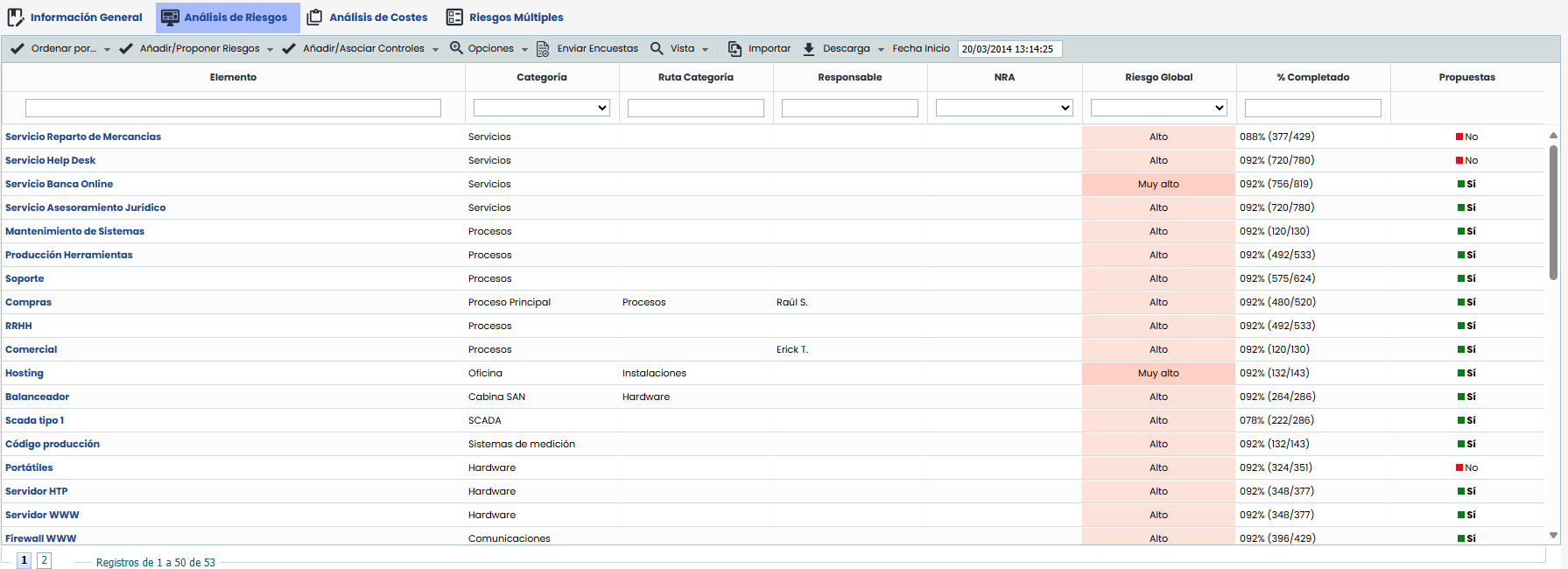
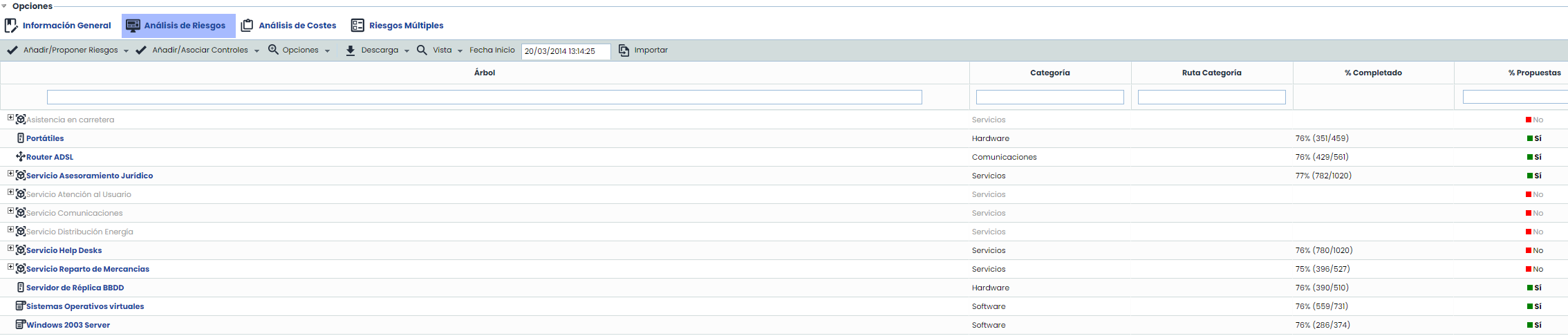
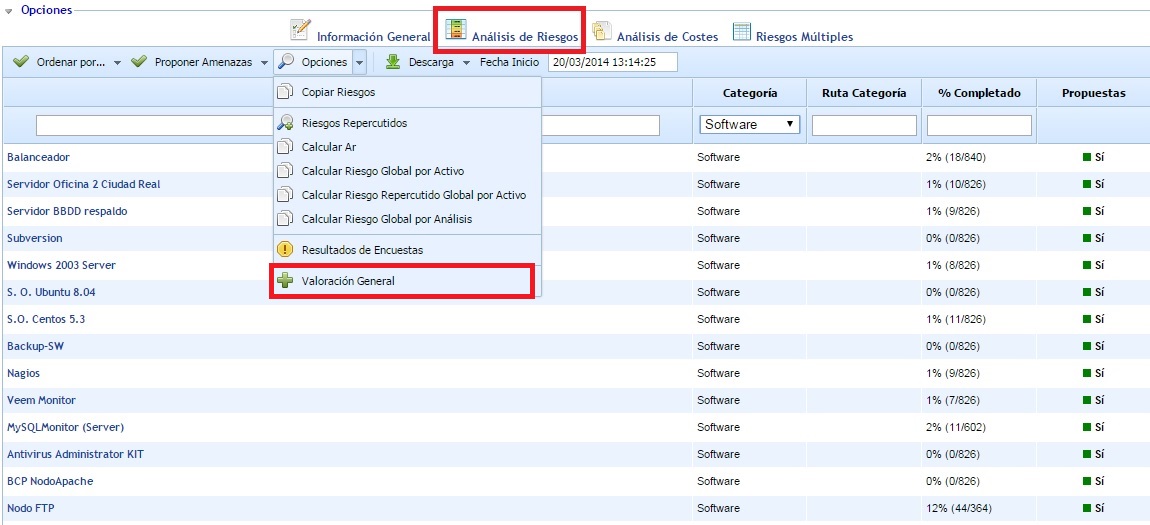
Risk analysis allows evaluating the threats affecting each asset. When accessing the option, a table is displayed with the following information:
-
Asset: Indicates the name of the asset. These assets have been previously registered in the section ‘Analysis/Asset Inventory’ and selected in the point explained earlier.
-
Category: Displays the category assigned to the asset.
-
Global Risk: Displays the result of the Global Risk calculation for each item. The criteria used to obtain the Global Risk per Item is defined in the section 'Risk Analysis - General Information' explained in the previous section.
-
% Completed: Displays the degree of completion of the risk analysis for each asset. In parentheses, the number of dimensions assessed for that asset and the total number of dimensions to be assessed are indicated.
-
Proposals: Indicates whether the asset includes the set of proposed threats based on the threat catalogs associated with the risk analysis. If it is necessary to propose threats from the catalogs again for one or more assets, you can click on the 'Yes' label for each asset and change the value to 'No'. This way, the tool will propose or add threats again for the assets that have the column with the value 'No' when the 'Add/Propose Threats' button is pressed.
The actions that GlobalSuite® allows to perform on the asset list are as follows:
-
Sort by: Allows sorting the asset list based on the value of a dimension (Highest to Lowest).
-
Add/Propose Threats: Allows automatically loading a list of threats and vulnerabilities to the assets based on the defined category.
-
Add Threats: When pressing the button, the tool includes new threats and vulnerabilities in the assets with the 'Proposals' column set to No, which are not already applied in the analysis.
-
Propose Threats: When pressing the button, the tool re-includes all threats from the analysis catalog corresponding to the category of the assets with the 'Proposals' column set to No.
-
-
Add/Associate Controls: Allows automatically loading a list of controls into the analysis and applying them to threats according to the configuration of the analysis catalog.
-
Propose and Associate Controls: When pressing the button, the tool allows including new controls from the catalog that are not already applied in the analysis and associates them with existing threats according to the catalog's correspondence.
-
Associate Controls: When pressing the button, the tool associates existing controls in the analysis with the threats of the assets based on the relationship in the catalog.
-
NOTE: The list of threats and vulnerabilities can be defined in the section ‘Settings/Analysis Catalogs’.
Options
-
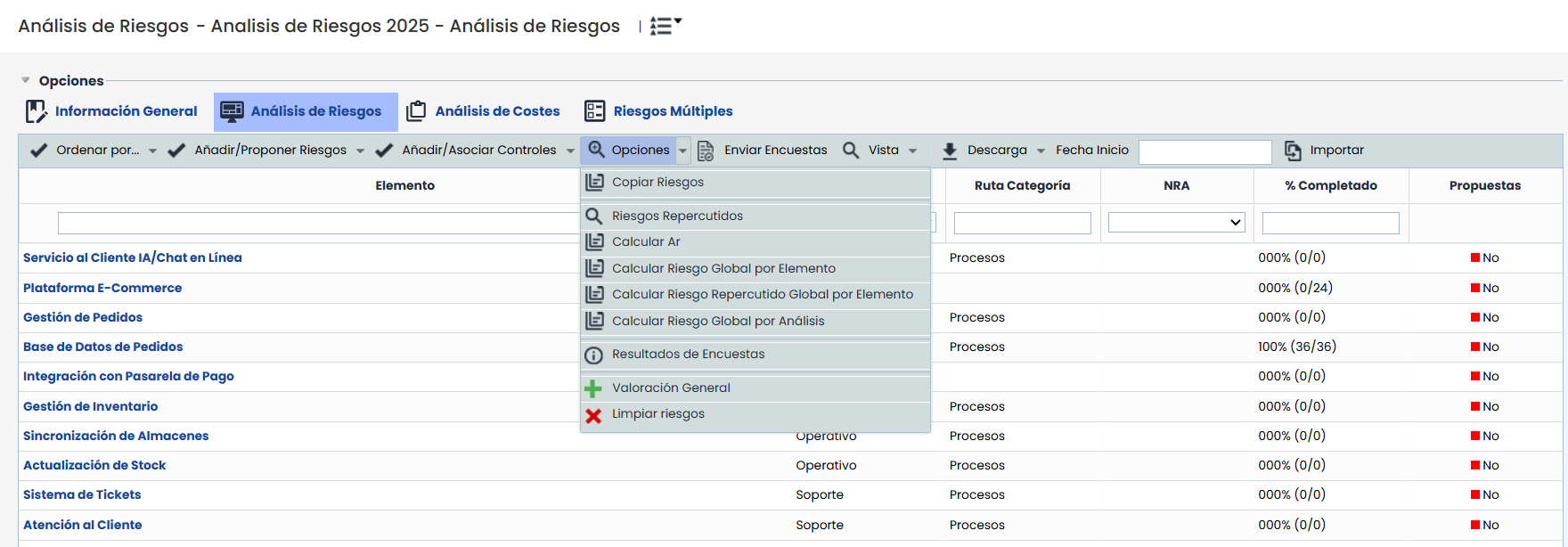
Options - Copy Risks:
Allows copying threats, vulnerabilities, and assessments from one asset to other assets.
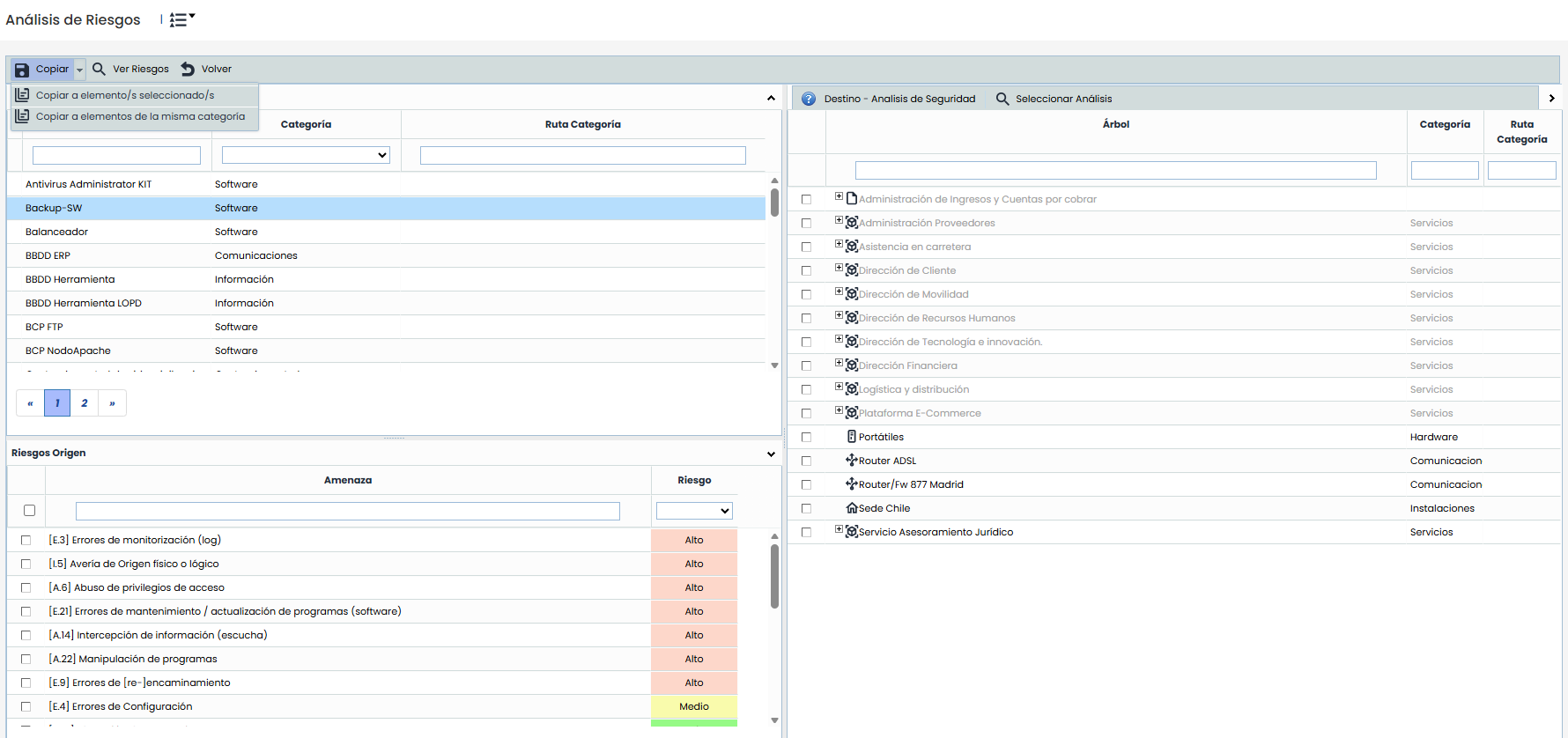
- Copy to selected item(s) maintains the current functionality: the source item, risks, and destination items must be selected in the tree.
- Copy to items of the same category allows copying the risks from the source item to all items in the analysis that share its category, without the need to manually select destinations.
-
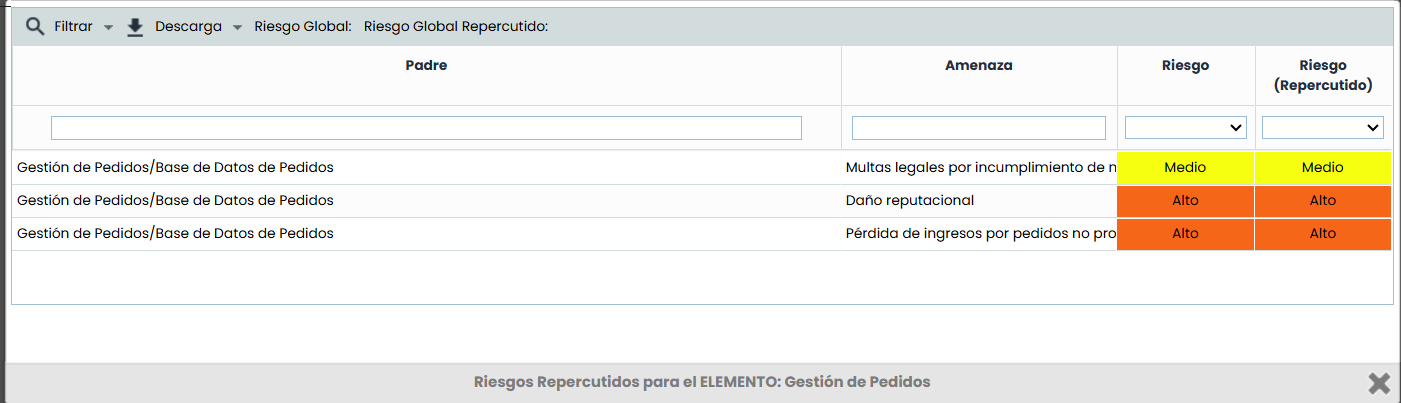
Options - Propagated Risks: Allows viewing the propagated threats of a specific asset. Propagated threats consist of the threats of the asset itself plus the threats of dependent assets (based on the dependencies established in the section 'Asset Inventory').
-
Options - Calculate RA: Performs the calculation of all assessments and modifications made to the risk analysis. If a modification has been made to the risk analysis methodology, this option allows calculating the new values by applying the new methodology.
-
Options - Calculate Global Risk per Item: Performs the calculation of the Global Risk for each item. The criteria used to obtain the Global Risk per Item is defined in the section 'Risk Analysis - General Information' explained in the previous section.
-
Options - Calculate Global Propagated Risk per Item: Performs the calculation of the Global Propagated Risk for each item. The criteria used to obtain the Global Propagated Risk per Item is defined in the section Risk Analysis > General Information explained in the previous section.
-
Options - Calculate Global Risk per Analysis: Performs the calculation of the Global Risk for the risk analysis. The criteria used to obtain the Global Risk per Analysis is defined in the section 'Risk Analysis - General Information' explained in the previous section.
-
Options - Survey Results: Allows accessing a screen to consult and manage the results obtained in the risk surveys conducted. To access the screen, the asset to be managed must be selected beforehand. The explanation of this option is detailed in the next section, after the explanation of all existing options in the risk analysis option.
-
Options - General Assessment: Allows accessing a table to perform the general assessment of threats/risks based on the category of the asset where they are associated. The explanation of this option is detailed in the section General Risk Assessment (after the explanation of the survey results screen).
-
Options - Clear Risks: Risks that do not match, by name, with the risks from the catalogs currently included in the analysis are removed.
-
Send Surveys
-
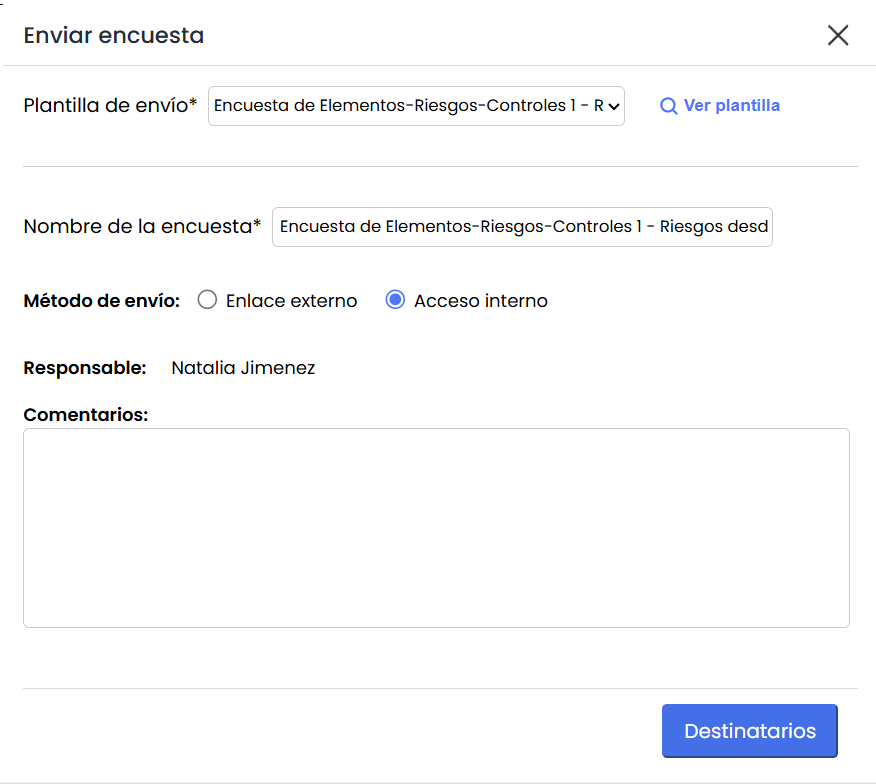
Sending Template: All templates created for Risk-Controls or Items-Risks-Controls surveys are listed. Templates whose risk origin is "Risk Analysis" will be included, while those with "Catalog" origin will only be displayed if they have the associated analysis.
-
View template: Opens the template details in Survey Settings
-
Survey name: The name of the template is displayed. It can be modified, but this does not change the name of the template, only the name of the surveys to be sent.
-
Sending method:
-
Send Surveys Internal Access: Sends the survey without publication
-
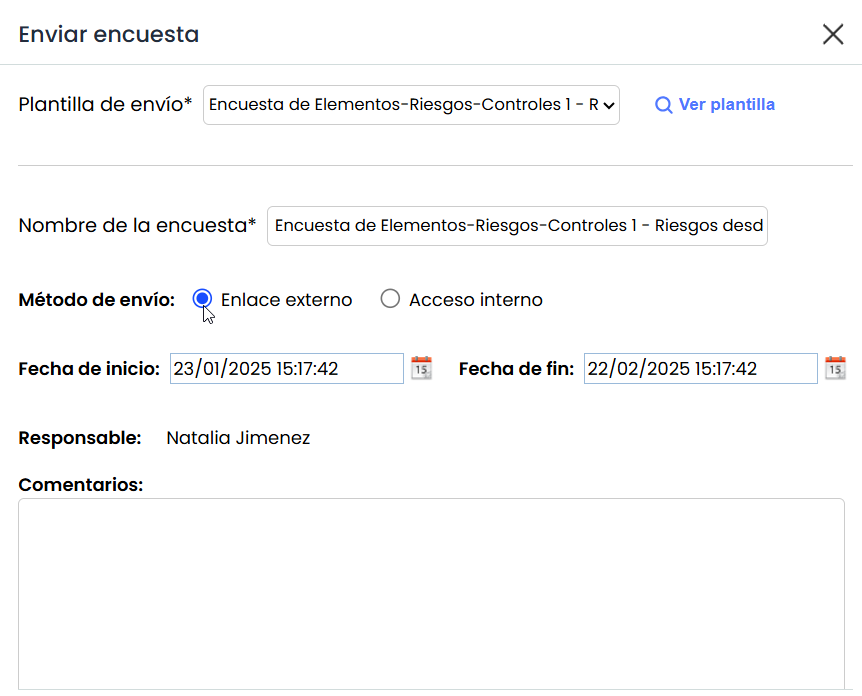
Send Surveys External Link: Sends the survey with publication
-
In this case, the Start Date and End Date fields are displayed.
-
-
Responsible: The responsible person configured in the Template.
-
Evidence documentation: This field is only displayed when selecting Risk-Controls or Items-Risks-Controls templates whose model has the option “Include evidence documentation” checked.
When selecting “ Associate folder” it allows selecting the location in the Document Manager where the evidence associated with the controls evaluated in the survey will be uploaded. Document uploads follow the same workflow validations and visibility rules defined in the survey settings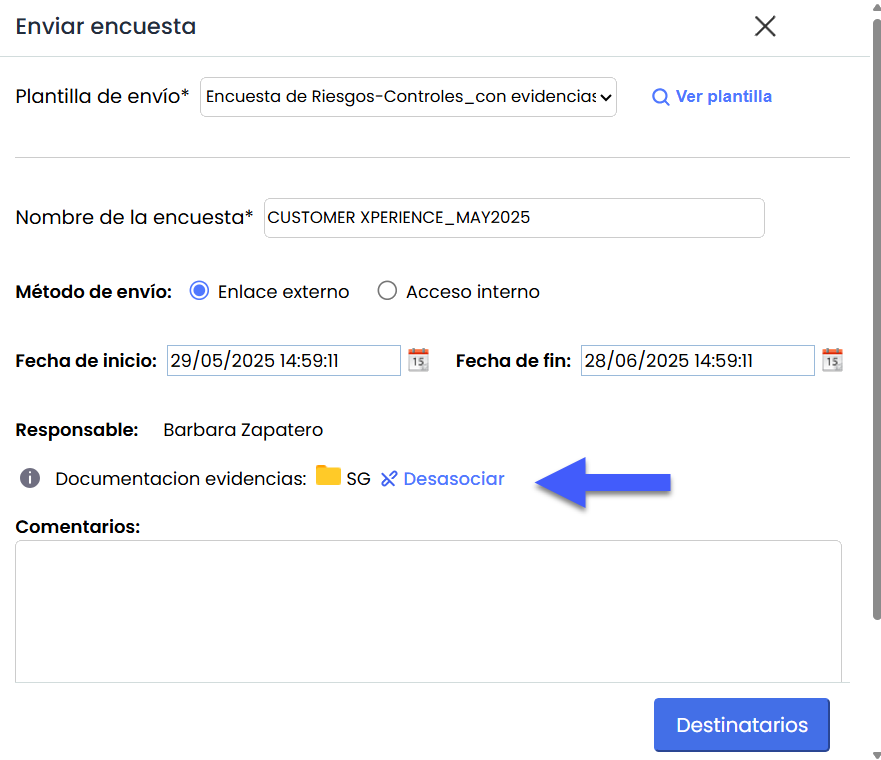
-
Comments: In this section, the text associated with the template is displayed, which can be edited. This text will be visible on the landing page of completed surveys. If the field is left empty, a default text will be automatically added.
-
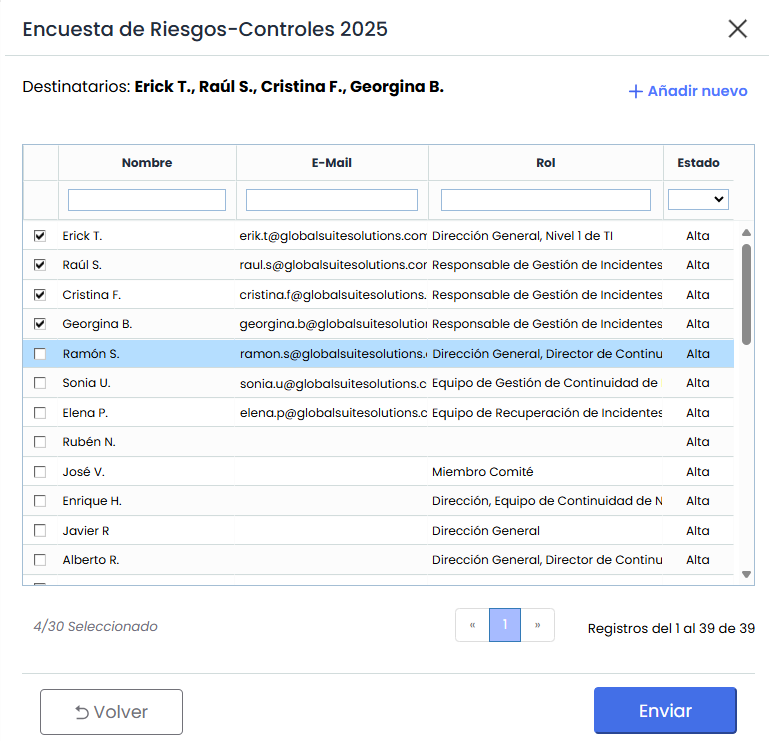
Recipients: In this section, the recipients of the survey can be selected. This field may be pre-filled if the template includes it. If the field is empty, it will automatically be assigned to the responsible person of the item, as long as all items have the same responsible person. If this condition is not met, the field will remain empty, and it will be mandatory to select at least one recipient to enable the "Send" button.
-
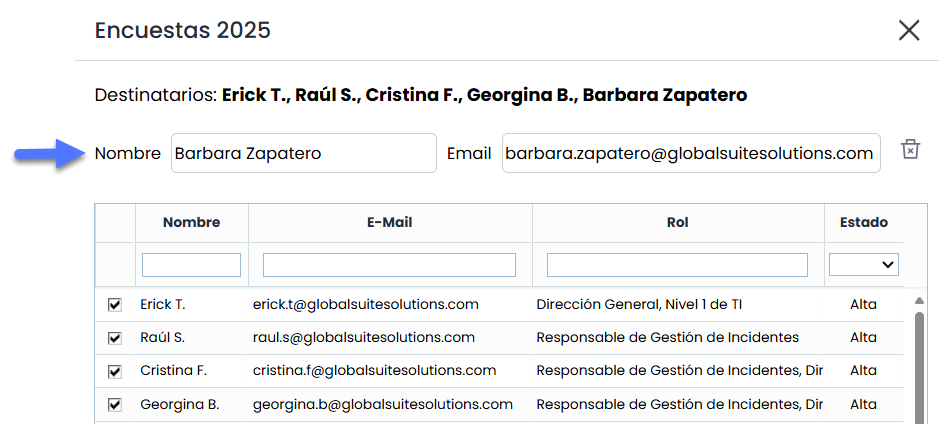
Add new: If it is necessary to include a recipient who is not an employee of the company, their email address can be manually entered to add them.
-
Recipient and states: If the survey includes states, the recipient table will be pre-filled according to the template configuration. If no recipients are assigned for the first state, which is mandatory, the responsible person of the item will be automatically taken, provided all selected items have the same responsible person. If this condition is not met, the field will remain empty, and it will be mandatory to select at least one recipient for the first state of the flow to enable the "Send" button.
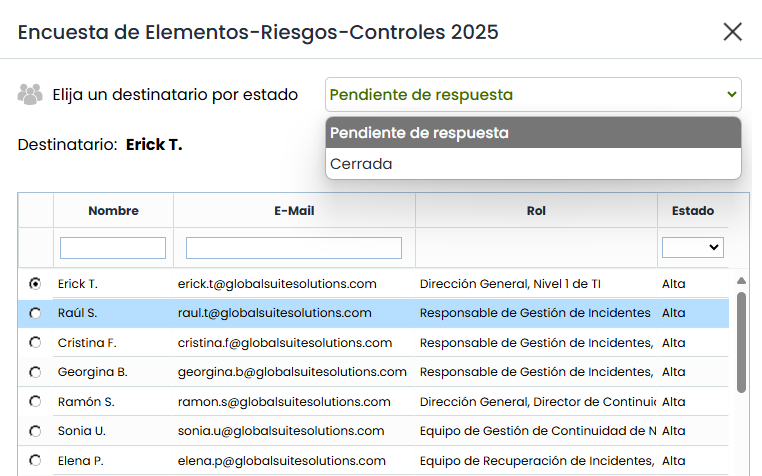
The table changes according to the selected state
-
-
Survey Sending: When pressing the "Send" button, the system performs the following actions:
-
Configuration creation: The corresponding configuration for the survey is generated.
-
Survey generation: The system creates a survey for each recipient, linked to the items selected from the analysis.
-
Origin "Risk Analysis": Risks and all controls linked to those risks in the risk analysis will be associated with each item.
-
Origin "Catalog": Only the selected risks matching the category will be associated with each item. If the item's category does not match the risk's category, it will not be included.
-
-
Publication: If the sending method is "External link," the system also creates the publication that includes the surveys.
-
-
-
Download: Allows downloading the risk analysis and its attributes to an editable file (.xlsx) or in .PDF format. This option also allows downloading a specific report in xls format containing all the risks of each asset included in the risk analysis, including information on which process each asset or process is associated with.
-
View: This option allows visualizing the items included in the scope in Table or Tree view.
-
Table: A flat list of all items included in the scope is displayed.
-
Tree: This view allows displaying the items hierarchically and alphabetically ordered to provide context and dependencies with other items.
-

-
Start Date: Enables identifying the creation date of the Risk Analysis.
-
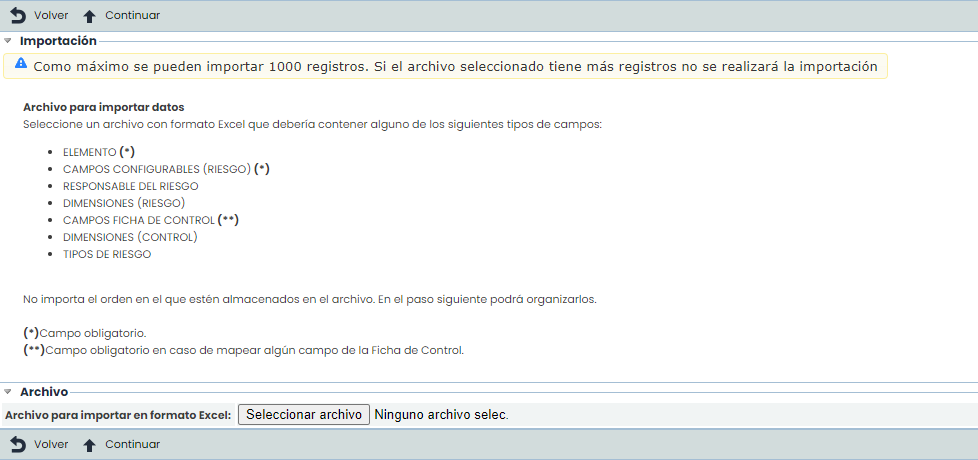
Import: This option allows bulk uploading the analysis data contained in an Excel file. By clicking the "Select file" button, the tool requests an Excel file that must contain a set of columns with the information of the fields to be imported. The column order does not matter as it allows selecting the ones to be imported.
Once the link to the assets is clicked, a table is displayed with the following information:

-
Threat: Indicates the name of the asset threat to be assessed. Threats are events that can trigger an incident in the organization, causing material damage or intangible losses to its assets. The field is editable by double-clicking on the cell.
-
Vulnerability: Indicates the weakness of the asset that allows the threat to materialize. The field is editable by double-clicking on the cell.
-
Comment: Allows documenting any additional notes about the assessed threat.
-
Responsible: Allows defining the risk owner from the set of registered Employees.
-
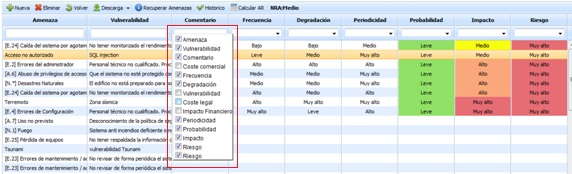
Dimensions: Based on the methodology associated with the risk analysis (Risk Analysis/General Information), the associated dimensions will be loaded as defined in the 'Settings/Analysis Methodologies' section.
NOTE You can choose to view the entire list of dimensions or select those that provide the most information to the user. To do this, right-click on the line showing the column names and select the desired dimensions using the checkbox.
NOTE 2: Depending on the methodology defined in the 'Settings/Analysis Methodology' section, assessments can be qualitative or quantitative.
Regarding the established dimensions, GlobalSUITE provides useful information for establishing assessments based on the dimension.
The information provided is as follows:
-
Help: Provides the user with additional help when assessing threats, expanding their description. This help text can be defined in the 'Administration/Analysis Catalogs' section.
-
Dimension: Allows selecting the desired dimension from the dropdown.
-
Level: Based on the selected dimension, it offers the possibility to select the associated levels, which are defined in the 'Settings/Analysis Methodologies' section.
-
Description: Based on the dimension and level selected in the previous sections, the tool informs the user of the criteria established for the selected level. The description can be parameterized in the 'Settings/Risk Analysis Methodologies' option.

The options the tool allows on the threat table are:
-
New: Allows inserting a new row in the table to define the name of the threat, vulnerabilities, etc.
-
Delete: Allows deleting one or more defined threats. To do this, select the desired row(s) and click the 'Delete' button.
-
Back: Clicking the button returns the tool to the previous screen with the asset list.
-
Download: Allows downloading the threat list in editable format (.xls) or PDF.
-
Assign Responsible: Allows defining the risk owner from the set of registered Employees. To assign a responsible person, select the threat to be assigned and click the button. Doing so will display the list of Employees, allowing you to define the desired one. To remove the responsible person, click the "Clear Employee" button.
-
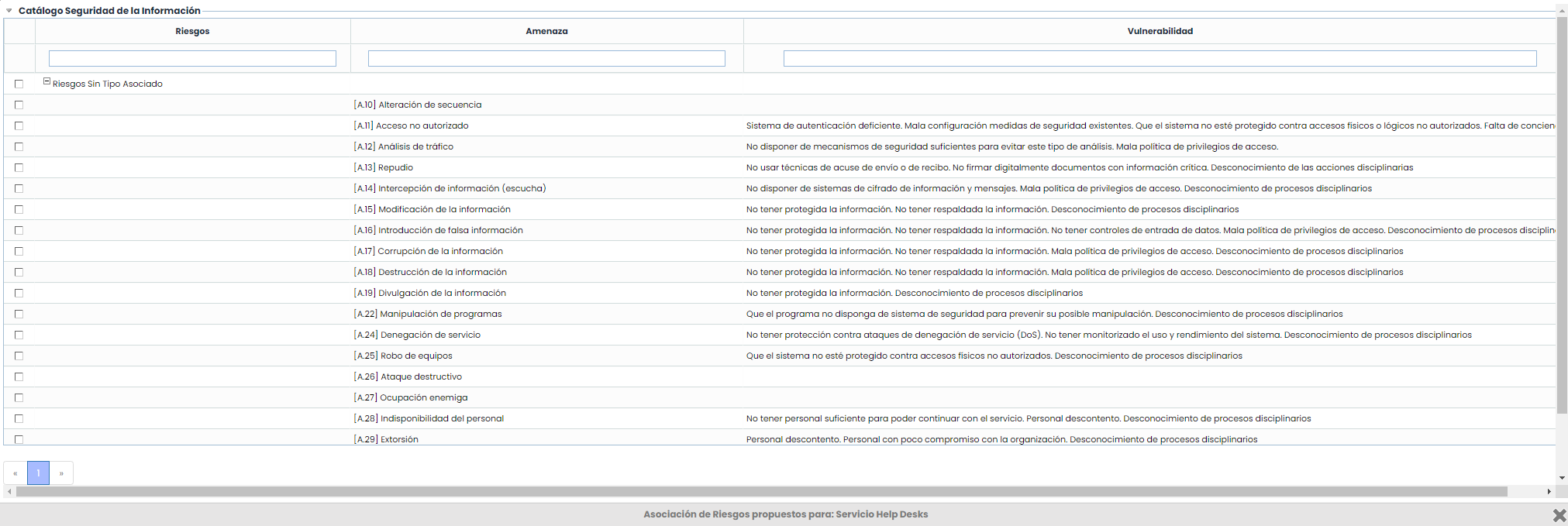
Retrieve Risks: Allows viewing all catalog items and selecting one or more risks from the list as required. The selected risks will be added to the analysis.
-
History: Allows viewing a history of the selected risk.
-
Calculate RA: Allows recalculating all assessments and modifications made to the risk analysis.
NOTE: The calculation may take more or less time depending on the number of items and variables in the dependency tree. The calculation progress status can be checked in the Work Progress section.
-
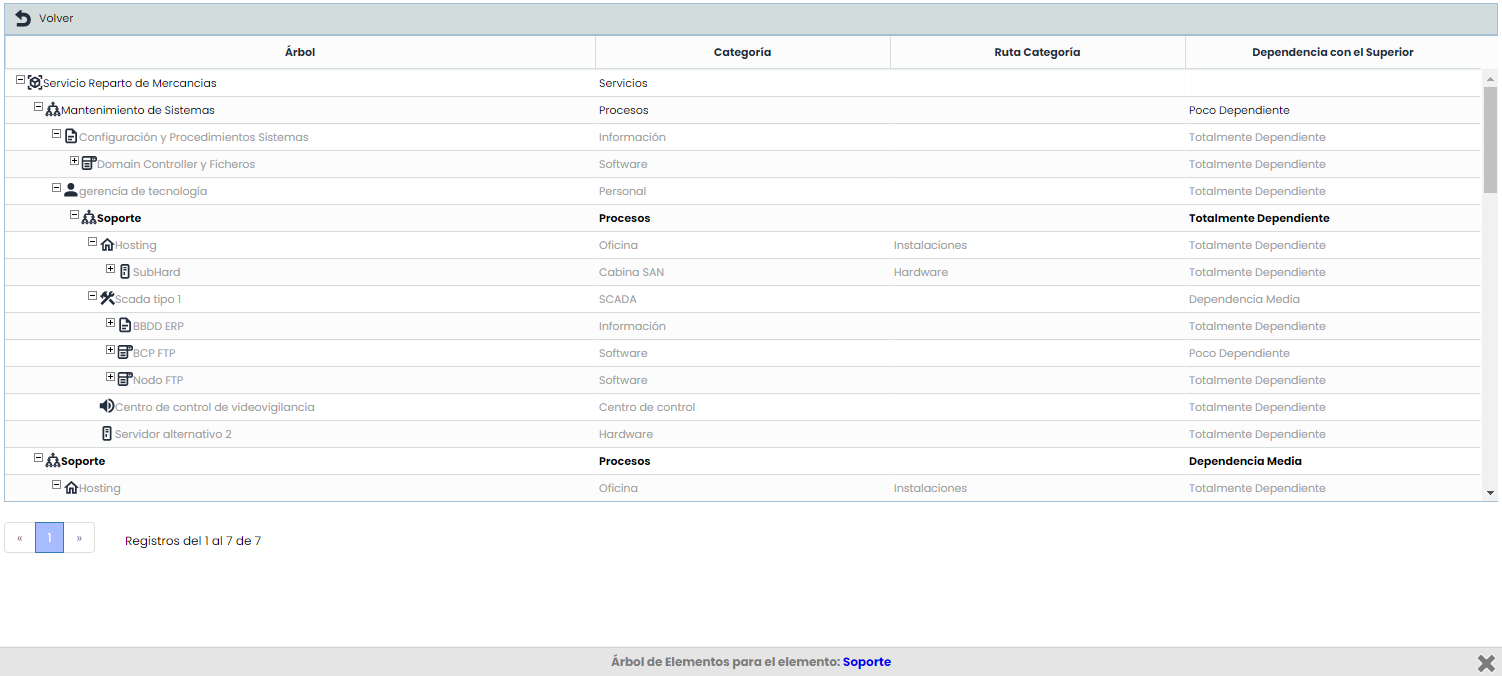
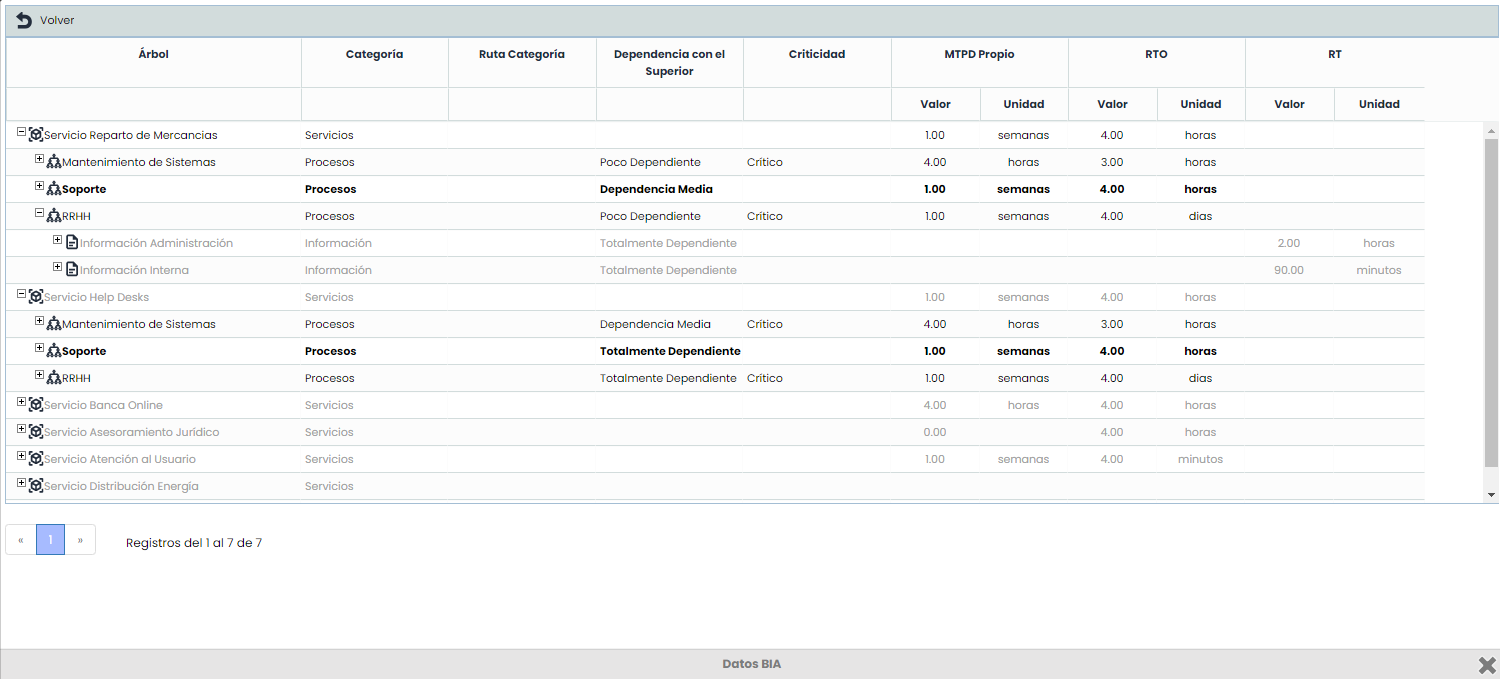
View: This option allows viewing the risks included in the analysis in Tree view or BIA Data view.
-
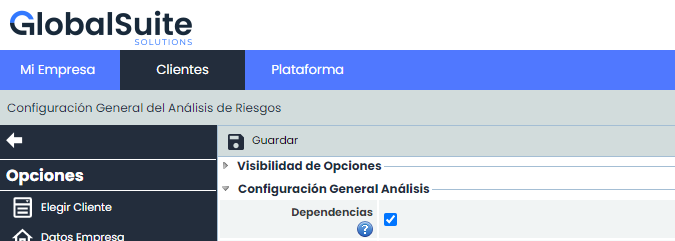
Tree: If the use of Dependencies in the Inventory is enabled, it is possible to consult in a pop-up window where the current item is located in the hierarchical structure, filtering the tree and highlighting its location in bold to provide the information without needing to access another section.
-
BIA Data: This view allows displaying the items hierarchically, including Business Continuity information resulting from the Consolidated BIAs for the processes: Criticality, RTO, MTPD, RT.
At the bottom of this section, a summary of the selected asset and threat in the upper table is displayed, allowing the following sections to be viewed:
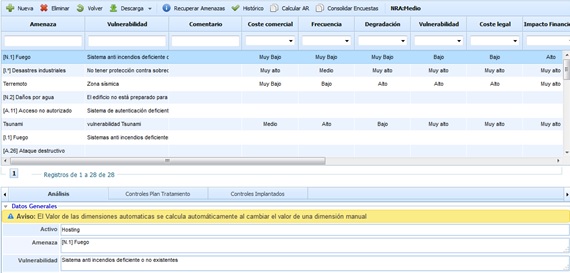
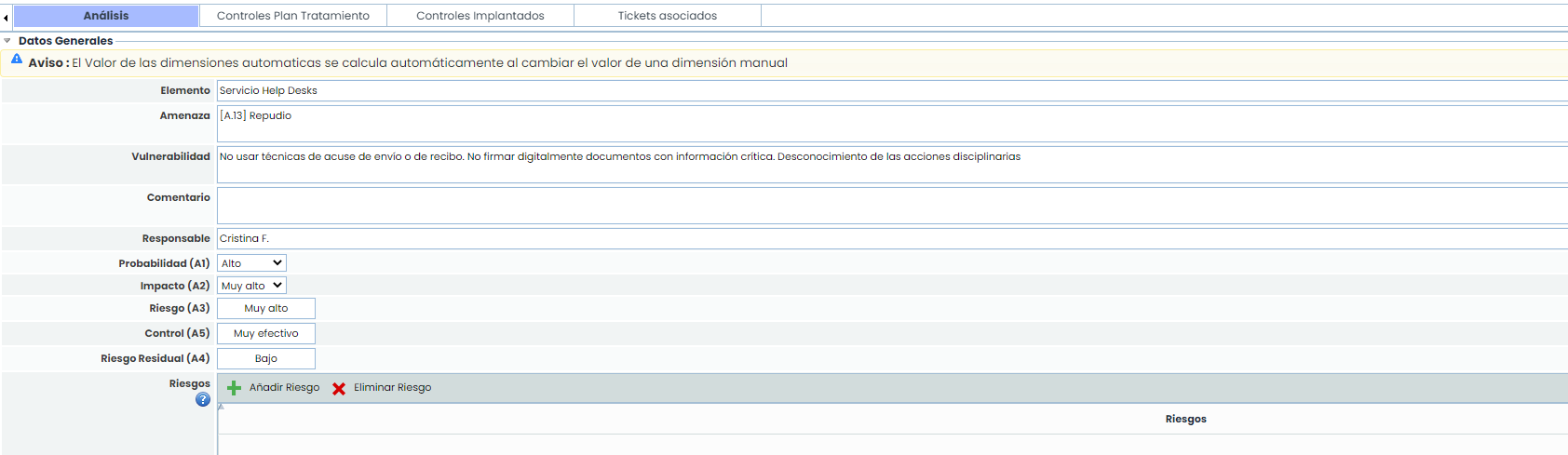
Analysis
This section allows viewing and establishing assessments of threats for the selected item. This assessment is the same as the one shown in the table but displayed in a form format.
Additionally, it includes a section to group Risks. These Risks are specified in the Settings section under Methodologies > Risks. Risks can be grouped into one or more risks.
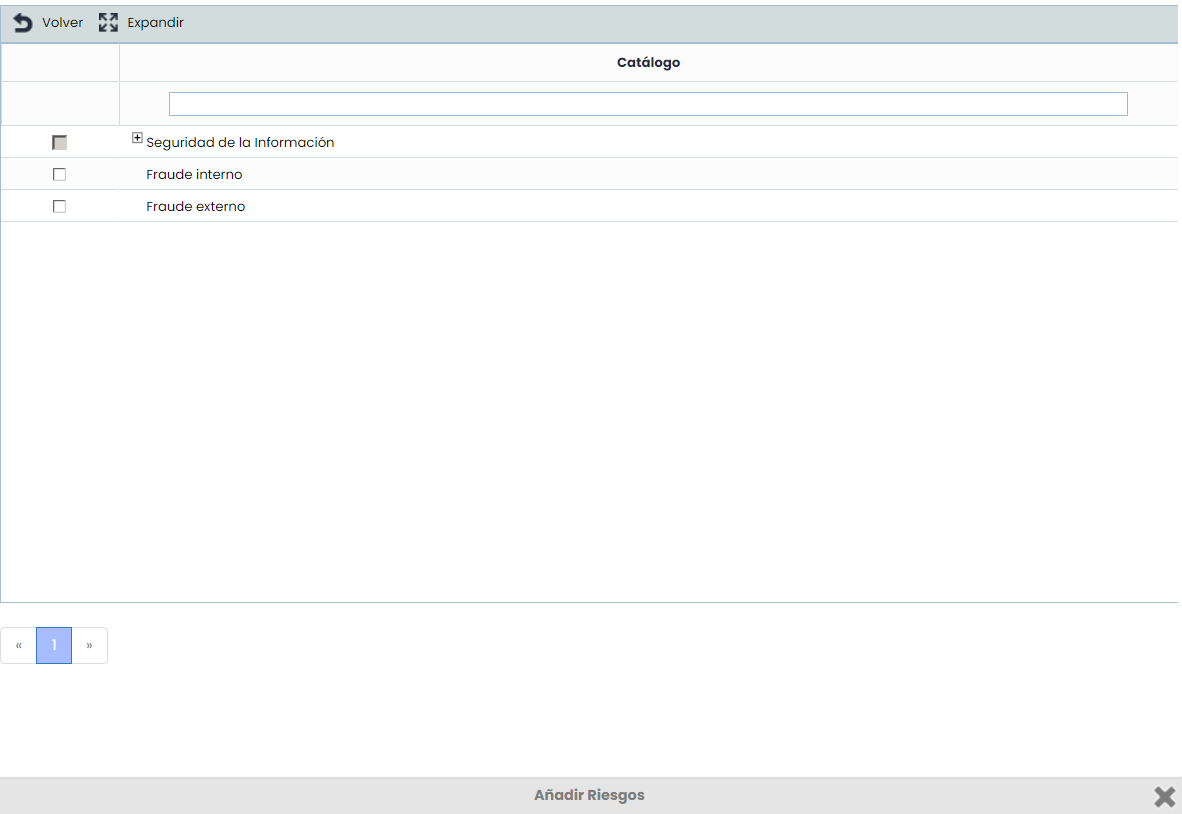
Clicking the "Add Risk" button opens a window with the risk type tree that can be associated. Only risk types associated with the catalogs included in the ongoing risk analysis can be associated. This option is configured in Settings > Templates > Analysis Catalogs > Risk Types.
Treatment Plan Controls

Provides the ability to view the controls of the Treatment Plan (Analysis/Risk Management) that have been associated with this specific threat. Among the data that can be viewed for the control are its Name, the person responsible for its implementation, the resources (technical and human) used, costs, and the implementation timeline.
Implemented Controls

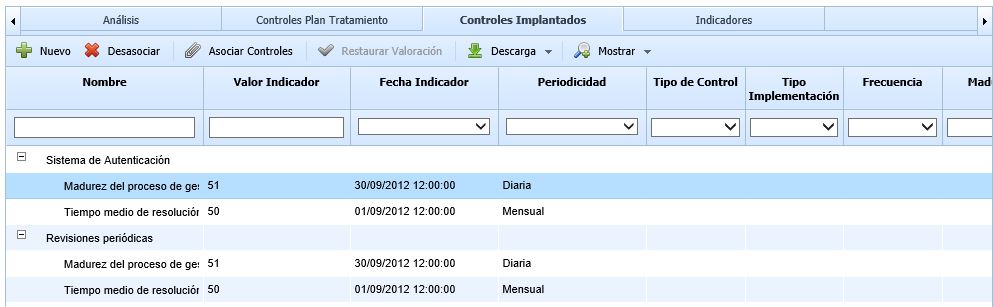
The implemented controls section allows associating controls already implemented in the organization with a specific threat. The table provides the following information for each control:
-
Name: Identifies the name of the implemented control. To modify it, double-click on the cell.
-
Type: Allows viewing the type of control.
-
Responsible: Identifies the person responsible for implementing the control.
-
Resources: Provides the ability to define the resources (technical and/or human) used for implementing the control.
-
Timeline: Identifies the date on which the control was implemented in the organization.
-
Cost: Allows identifying the economic cost incurred for implementing the control in the organization.
-
By threat: Provides the ability to view whether the dimension assessment is global for all threats (Status 'No') or if the control assessment has been specifically modified for the threat selected in the upper table (Status 'Yes').
-
Dimensions: Based on the 'Control Methodology' established, it allows assessing the different dimensions defined for a control.
The actions that can be performed on the table include the following:
-
New: Provides the ability to insert a new entry in the table, allowing the definition of new controls for a specific threat.
-
Disassociate: Allows users to remove a control associated with a specific threat. To do this, select the desired row and click the 'Disassociate' button.
-
Associate controls: Provides the ability to associate a control already implemented in the organization with a threat. Clicking the button displays the list of controls defined in the 'Analysis/Control Management' section for association with the selected threat.
-
Restore assessment: If the control has been specifically assessed for the selected threat, this option allows the user to restore the control assessment according to the data defined in the 'Analysis/Control Management' section.
-
Download: Provides the ability to download the control list in editable format (.xlsx) or PDF format.
-
Show: Provides the ability to switch the view to only display controls or to a view that shows the indicators associated with each control.
Indicators
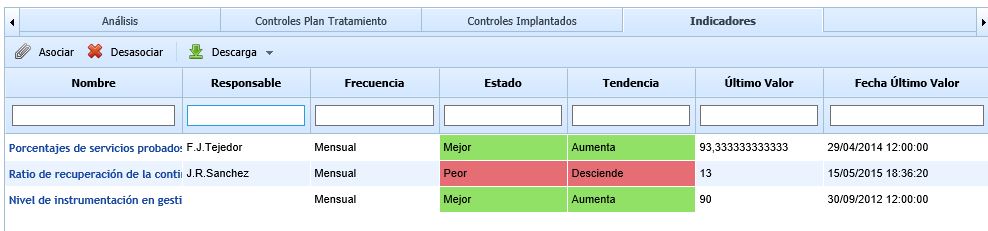
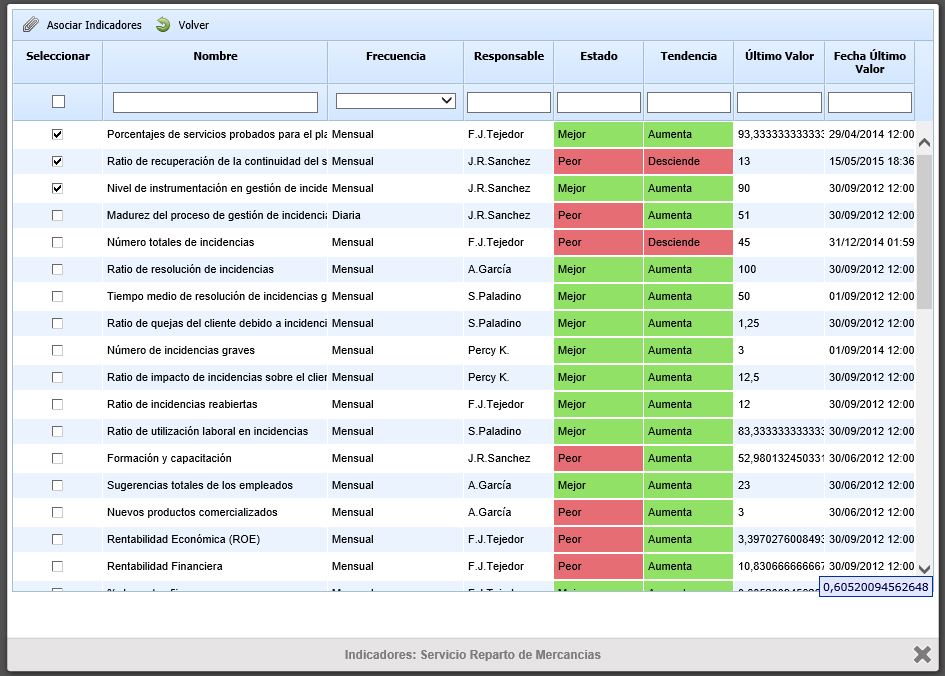
This tab allows setting Key Risk Indicators or KRIs for each of the risks in the Risk Analysis. As in the previous options, the risk must first be selected to then associate the key risk indicators in this tab. The information provided by the table for each of the indicators is as follows:
-
Name: Identifies the name of the indicator. Full information about the indicator can be accessed by clicking on its name.
-
Responsible: Identifies the person responsible for the indicator.
-
Frequency: Identifies the evaluation frequency of the indicator.
-
Status: Identifies the status of the indicator based on the defined Balanced ScoreCard methodology. (Available only in GlobalSUITE® Balanced ScoreCard).
-
Trend: Identifies the trend of the indicator based on the defined Balanced ScoreCard methodology. (Available only in GlobalSUITE® Balanced ScoreCard).
-
Last Value: Identifies the last value obtained from the indicator's evaluation.
-
Last Value Date: Identifies the date when the last evaluation of the indicator was obtained.
The actions that can be performed on the table are as follows:
-
Associate: Offers the possibility to associate one or more indicators previously registered in the "Indicators" option of the "ScoreCard" tab in GlobalSUITE®. Clicking the button displays the list of indicators. You must select the ones you want to associate and then click the "Associate Indicators" button.
-
Disassociate: Allows users to remove the link between the indicator and the risk. To do this, select the desired row of the indicator and click the 'Disassociate' button.
-
Download: Offers the possibility to download the list of key risk indicators in editable format (.xlsx) or in .PDF format.
Survey Results
This option allows viewing the assessment of risks conducted in various surveys of the type 'Assets, Risks, and Controls'. To access the option, you must first select an asset from the table.
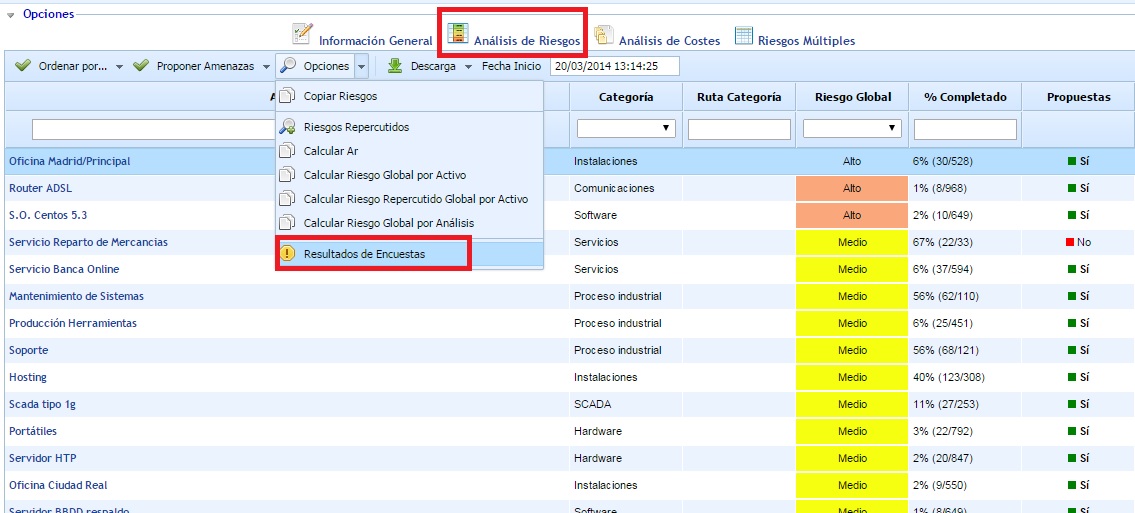
Once the option is accessed, the following table is displayed, providing the following information:
-
Threat: Indicates the name of the assessed threat.
-
Vulnerability: Indicates the vulnerability associated with the threat.
-
Comment: Allows recording free text to complement the threat analysis.
NOTE: The previous columns are suggestions that can be considered, depending on the columns proposed by the tool by default. The columns are configurable in the risk analysis methodology.
-
Status: Indicates the status of the survey.
-
Consolidated: Shows whether the survey has been consolidated or not. By default, surveys that have not been consolidated are displayed.
-
Dimensions: Indicates the value recorded for each of the dimensions or variables considered in the risk analysis methodology.
The options available in the tool for the table are as follows:
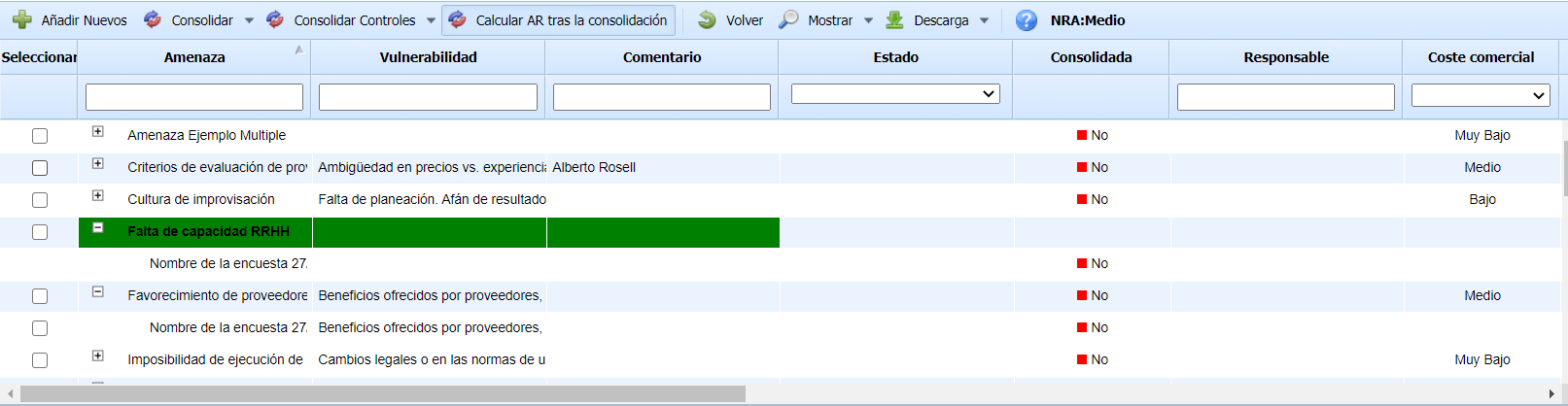
-
Add New: Allows inserting new threats identified in the surveys into the asset's risk analysis. Newly identified threats are highlighted in green, and the tool allows selecting which threats to add and which not to add.
-
Consolidate: Allows the consolidation of different assessments made on the same threat in various surveys, using several consolidation options: Maximum (recording the highest assessment), Minimum (recording the lowest assessment), and Arithmetic Mean (recording the average of the different assessments). This option modifies the assessments of the asset's threats.
-
Consolidate Controls: Allows the consolidation of registered and evaluated controls associated with a threat. Several consolidation options can be used: Maximum (recording the highest assessment), Minimum (recording the lowest assessment), and Arithmetic Mean (recording the average of the different assessments). This option modifies the assessments of the controls associated with each threat.
-
Calculate RA after consolidation: This field is used to select whether, after consolidating the selected surveys, all automatic dimensions of the analysis should be recalculated. By default, it is checked. Since this process may take several minutes, it is possible to uncheck it to perform several consolidations and recalculate the risks at the end.
-
Back: Allows returning to the asset list of the risk analysis.
-
Show: Allows displaying all risk surveys of the selected item or only those pending consolidation.
-
Download: Allows downloading the information displayed in the survey management table in an editable file (.xlsx) or in .PDF format.
Below the previous table, there is a table that allows the consolidation of registered controls for each of the asset's threats. To consolidate the controls of a threat, the desired threat must first be selected in the upper table.
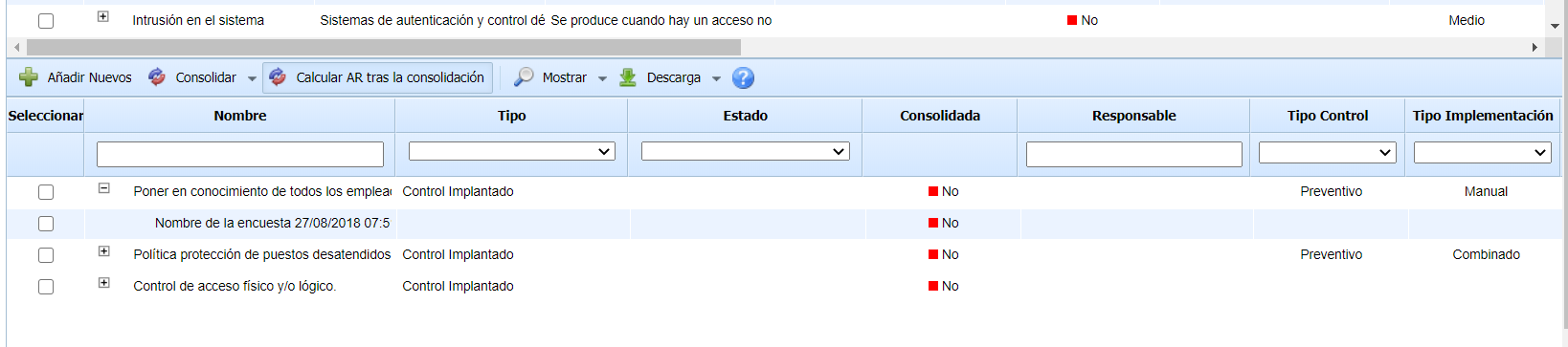
The columns of the table match the dimensions configured to evaluate the controls. The options available in the tool for the table are as follows:
-
Add New: Allows inserting new controls identified in the surveys into the threat's risk analysis. Newly identified controls are highlighted in green, and the tool allows selecting which controls to add and which not to add.
-
Consolidate: Allows the consolidation of registered and evaluated controls associated with a threat. Several consolidation options can be used: Maximum (recording the highest assessment), Minimum (recording the lowest assessment), and Arithmetic Mean (recording the average of the different assessments). This option modifies the assessments of the controls associated with each threat.
-
Calculate RA after consolidation: This field is used to select whether, after consolidating the selected surveys, all automatic dimensions of the analysis should be recalculated. By default, it is checked. Since this process may take several minutes, it is possible to uncheck it to perform several consolidations and recalculate the risks at the end.
-
Download: Allows downloading the information displayed in the survey management table in an editable file (.xlsx) or in .PDF format.
General Risk Assessment
This option allows conducting a general assessment of the threats/risks in the risk analysis. It enables assessing different threats and applying the result to the various assets that possess the threat. The selection of assets where the threat assessment is applied is done at the category level, so if a threat is associated with a specific category, it can be applied to all assets belonging to that category.
Once the option is accessed, a table is displayed with the threats to be assessed generally. For each inserted threat, the related category/categories must be indicated, so the threats will be inserted (if they do not exist) or updated (if they already exist) in the assets of the indicated categories. This table shows the different manual dimensions configured in the risk methodology to allow their assessment.
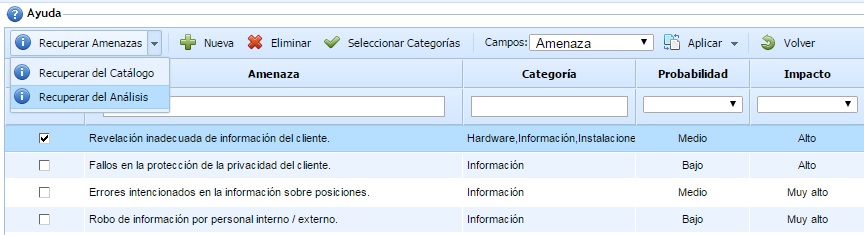
The options available in this table are as follows:
-
Retrieve Threats from Catalog: This option allows selecting a set of threats from the risk catalogs associated with the risk analysis. All threats selected from the catalog are inserted into the main table to assess the methodology dimensions (probability, impact, etc.).
-
Retrieve Threats from Analysis: This option displays threats added to the risk analysis in addition to the associated catalogs. All selected threats are inserted into the main table to assess the methodology dimensions (probability, impact, etc.).
-
New: This option allows adding threats to the table, in addition to those incorporated from the catalog or risk analysis (via the two buttons explained above).
-
Delete: This option allows deleting threats from the table. To do this, first select the threats using the checkbox located to the left of the name, and then click the button.
-
Select Categories: This option allows associating asset categories with a selected threat in the table. This enables indicating for each threat which asset category the assessment should be applied to, so assets with the defined categories will receive the general threat assessment.
-
Fields: This dropdown list displays the fields of the risk methodology to select which field to compare when applying the threat assessments. By default, the main field of the methodology is always selected (usually the threat or risk fields).
-
Apply - All Threats: This option allows applying the threat assessments to all assets with categories associated with the threat. To do this, select the threats to apply (using the checkbox to the left of the category name) and click the button. The tool will display a confirmation window for the user to decide whether to generate a risk analysis history before applying the new assessment. A confirmation window is also displayed for the user to decide whether to create threats in assets that do not have them associated.
-
Apply - All Assets Without Assessment: This option allows applying the threat assessments to all assets with categories associated with the threat. In this case, it will only be applied to threats that have not been previously assessed. To do this, select the threats to apply (using the checkbox to the left of the category name) and click the button. The tool will display a confirmation window for the user to decide whether to generate a risk analysis history before applying the new assessment. A confirmation window is also displayed for the user to decide whether to create threats in assets that do not have them associated.
-
Back: This button allows you to return to the main risk analysis window.
Risk and control recommender
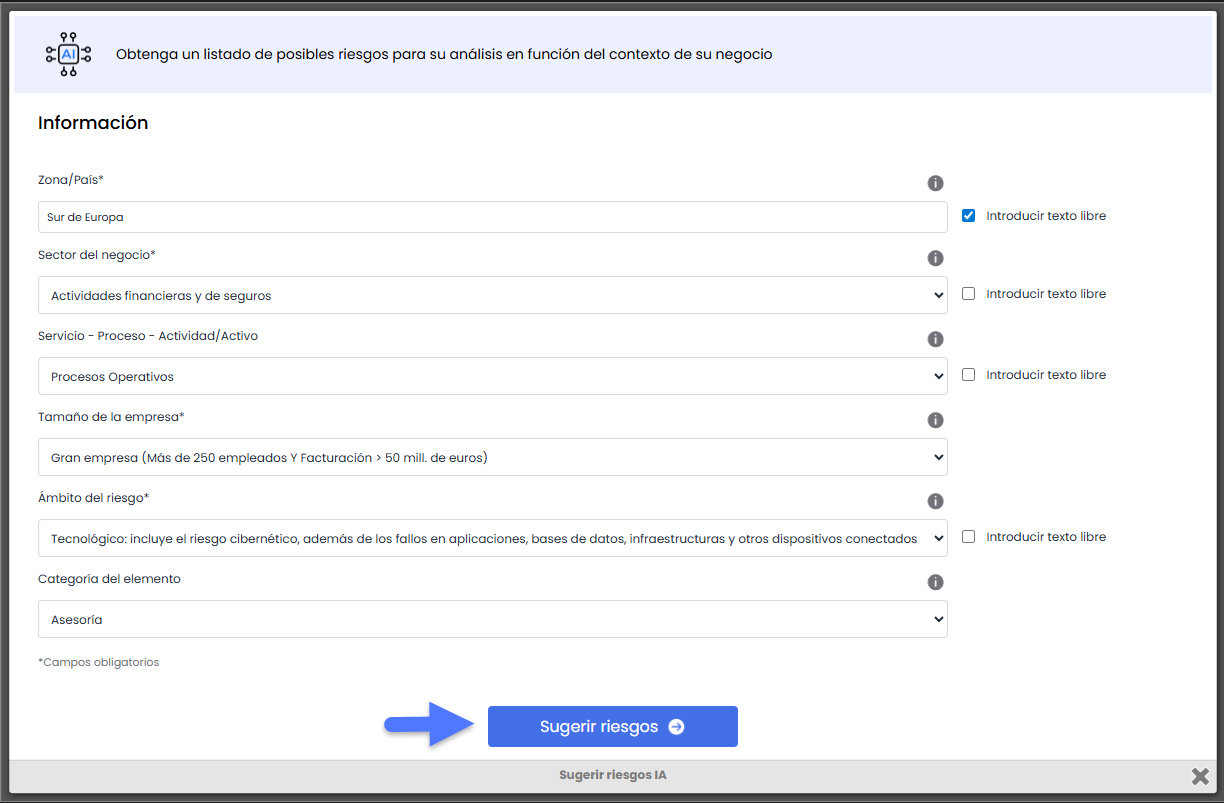
The Risk and Control Recommender of GlobalSuite® incorporates an advanced artificial intelligence engine designed to automatically generate potential risks and controls that can be incorporated into the risk analysis.
This functionality offers a dynamic and adaptive approach to identifying risks and controls, eliminating the dependency on static catalogs and reducing the need for specialized technical knowledge.
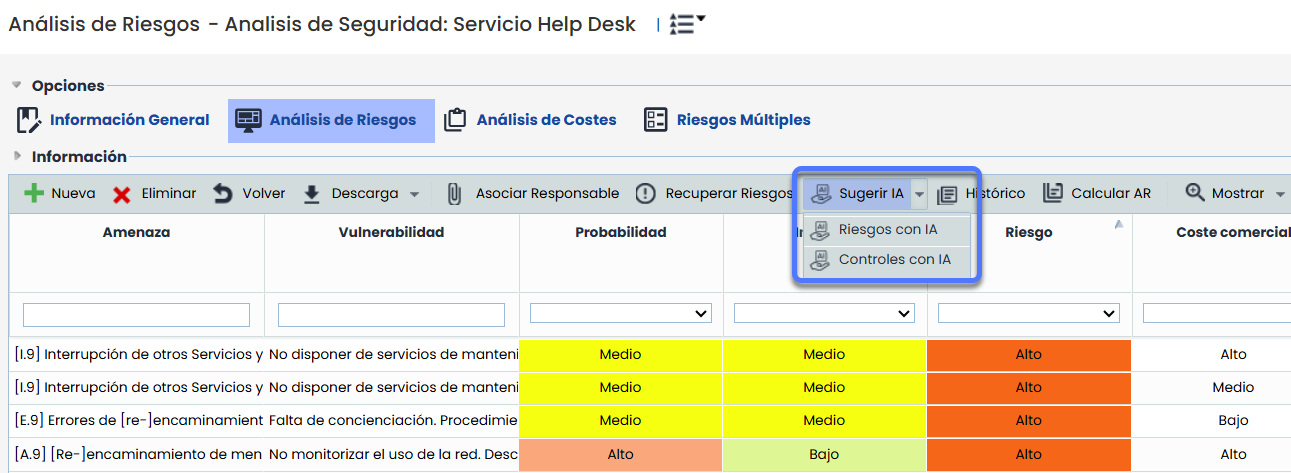
Access to the recommender
The recommender is available in the Risk Analysis tab within an item and is activated using the “Suggest AI” option located in the top action bar.