
Through the specific objectives option, GlobalSuite allows establishing all those objectives that support the achievement of the previously set business objective.
On the main screen of specific objectives, the list of all previously defined objectives appears.
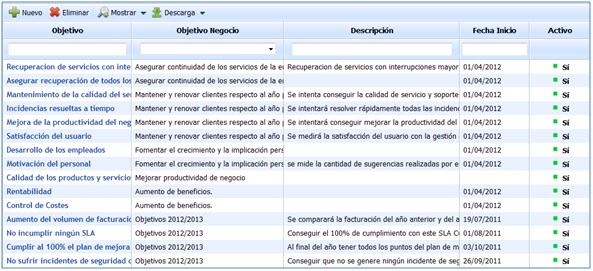
The options provided by GlobalSuite for the main screen of Specific Objectives are as follows:
-
New: Allows generating a new objective.
-
Delete: Allows deleting an objective that has been previously defined.
-
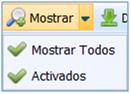
Show: Allows displaying the defined objectives.
GlobalSuite allows displaying either all objectives or only those that are activated.
-
Download: Allows downloading the list of defined objectives.
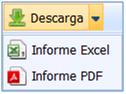
GlobalSuite allows downloading the list in both Excel and PDF formats.
NOTE: To access an objective, it is necessary to click on the name of the one you wish to define in the objectives column.
Once access to one of the specific objectives is made, GlobalSuite provides the following information that allows defining and monitoring the defined objectives. The structure is organized through sections or tabs. The sections of the form are displayed expanded to try to provide as much information as possible in each of them.
Charts
This section allows reviewing graphically the status of the Specific Objective as well as the status of the indicators through which it is obtained.

-
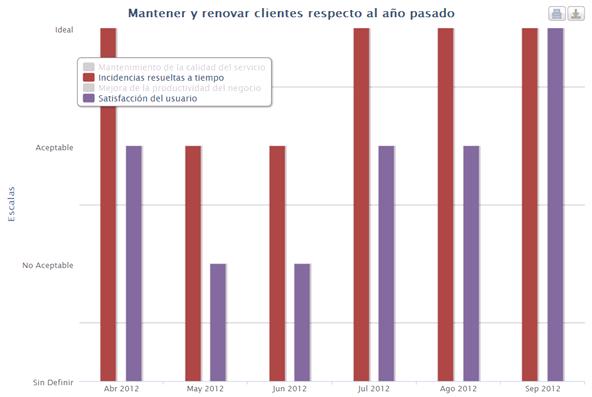
Indicator Chart: Displays the status of the indicators that support the selected Specific Objective in the corresponding numerical value for the defined indicator.
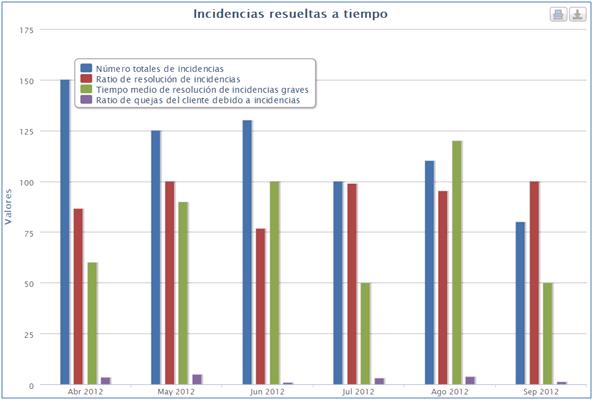
Additionally, GlobalSuite provides the option to represent the specific objectives deemed appropriate. To do this, simply click on those objectives that are not intended to be represented.
-
Scaled Indicator Chart: Displays the status of the Indicators that support the selected Specific Objective based on the established scales.
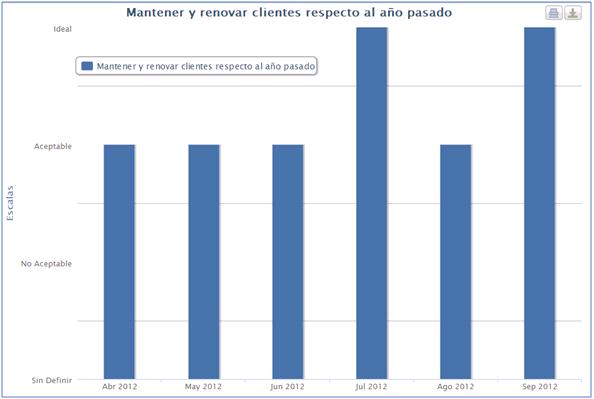
NOTE: The scales have been previously defined in the GlobalSuite configuration option.
-
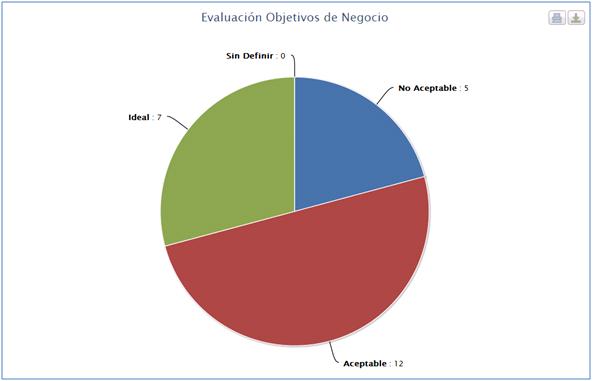
Indicator Evaluation Chart: Displays the summary of the status of all Indicators that provide information associated with the Specific Objective based on the scales previously defined in the GlobalSuite configuration.
-
Specific Objective Chart: Displays the status of the selected Specific Objective based on the previously defined scales and the results obtained from the corresponding indicators.

Objective Information
-
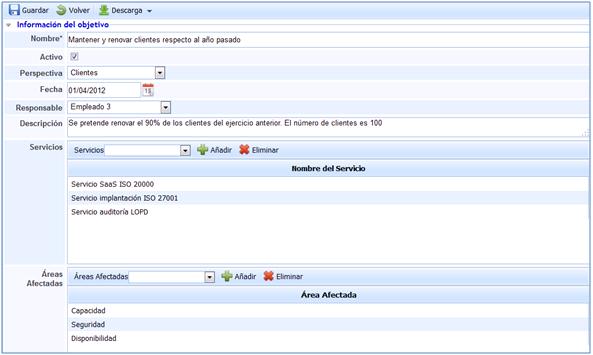
Name: Allows determining the name of the defined specific objective.
-
Responsible: Allows establishing the employee in charge of the management, measurement, and achievement of the specific objective.
-
Business Objective: Establishes the business objective that is achieved through this specific objective among others.
-
Start Date: Establishes the start date of the objective's implementation.
-
End Date: Sets the date on which the objective ceases to be applicable.
-
Description: Allows determining any additional information that may be useful to clarify or, failing that, achieve compliance with the defined objective.
-
Resources: Allows determining what is needed to achieve compliance with the set objective.
-
Temporality: Establishes how often the objective will be evaluated.
-
Budget: Allows determining the amount of money available to achieve the established objective.
-
Priority: Allows designating a specific order in the achievement of the different specific objectives associated with a business objective.
-
Services: Establishes which services are affected or influenced by the set specific objective.
-
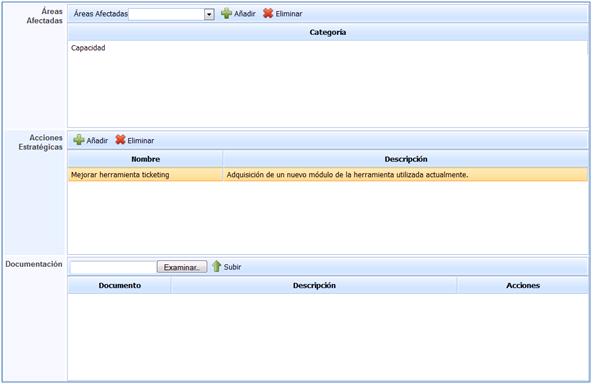
Affected Areas: Establishes which areas will be affected or influenced by the set specific objective.
-
Strategic Actions: Allows establishing all those tasks, steps, or actions necessary to achieve compliance with the set specific objective.
-
Documentation: Allows associating any type of documentation or record that may be useful for achieving the set objective.
Indicators

-
Indicators: Allows generating or setting which indicators will enable compliance with the specific objective they support.
NOTE: It is possible to access each of the related specific objectives by clicking on the name of each defined one.
To set the indicators, the following options are presented: -Add: Allows including a new indicator that would need to be defined later. -Delete: Allows deleting a previously generated indicator. -Examine: Allows associating an indicator that has been directly defined in the indicators option.
-
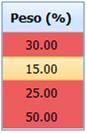
Weight: GlobalSuite allows determining the influence weight of each indicator on the specific objective they support.
The sum of the weights set for each indicator must be 100. If this condition is not met, the weight values identified will appear in red.
-
Chart: Through this option, GlobalSuite opens a pop-up window where the values of the corresponding indicator are represented.
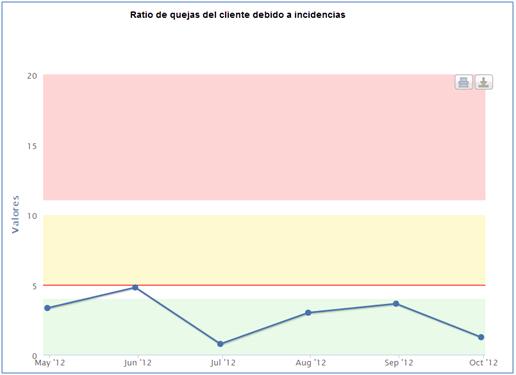
NOTE: In the graphical representation, the colors corresponding to the states defined for the obtained values appear.
Related Specific Objectives

-
Specific Objectives: Through this option, it is possible to associate different specific objectives that have been previously defined to relate them to the objective being defined.
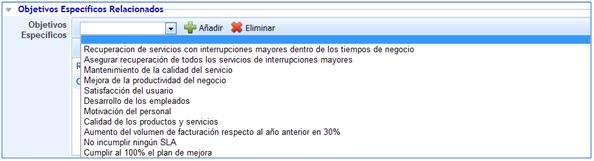
GlobalSuite allows:
-Add: Allows associating the selected specific objective.
-Delete: Allows deleting the objective that has been previously associated.
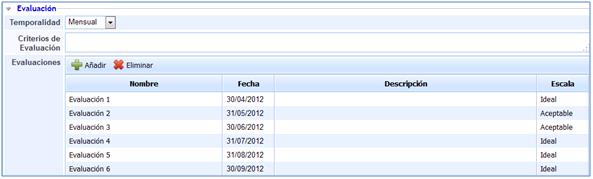
Evaluation
-
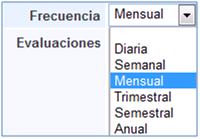
Temporality: Establishes the frequency with which evaluations of the defined specific objective are carried out.
The range of frequencies provided by GlobalSuite varies from daily to annual evaluations.
-
Evaluation Criteria: Allows defining the criteria considered for evaluating the specific objective.
-
Evaluations: Allows recording the compliance evaluations performed on the defined specific objective.
To establish the evaluation record of the business objective, GlobalSuite provides the following options.
-Add: Allows generating a new evaluation record.
-Delete: Allows deleting a previously generated evaluation record.
NOTE 1: All fields represented in the performed evaluations are editable.
NOTE 2: The value of each performed evaluation is set based on the defined scale values.

Both in the header of the specific objectives and at the bottom of the same, GlobalSuite provides the following options:
-
Save: Allows saving the modifications made to the objective.
-
Back: Allows returning to the main screen where the list of objectives appears.
-
Download: Allows downloading the specific objective as a report in docx format.