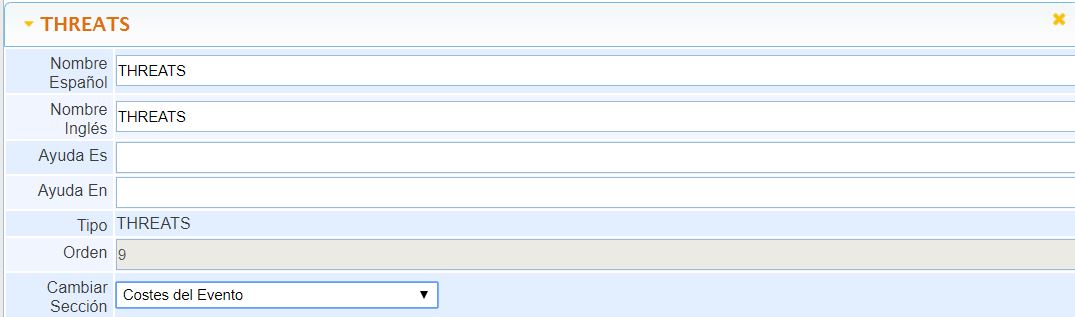
General Settings
Below, we see the common configuration options for all fields:
-
Spanish Name: Allows adding the name of the field in Spanish.
-
English Name: Allows adding the name of the field in English.
-
Mandatory: If checked, it will not allow leaving this field empty.
-
Help Es: Allows adding a help text in Spanish about the configured field.
-
Help En: Allows adding a help text in English about the configured field.
-
Type: Informative text about the type of field we are configuring.
-
Order: Sorting number assigned to the field for its positioning in the form.
-
Change Section: Allows moving the field to a different section of the Ticket.
Field Settings
In the following points, we will address each of the available fields and the details of their specific configurations:
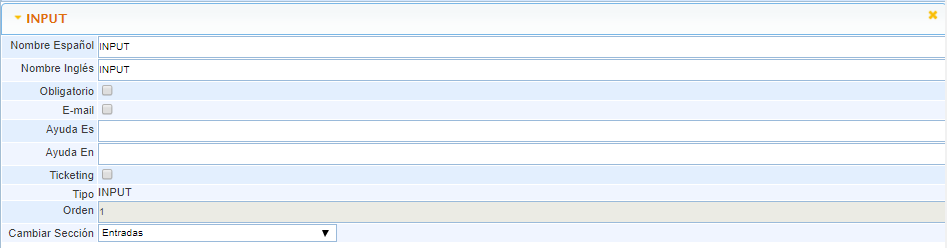
INPUT
Allows adding a text field to the ticket, this text should not exceed one line.
-
E-mail: By activating the check, it will only allow adding text to the field in Email format. Example: support@globalsuite.es
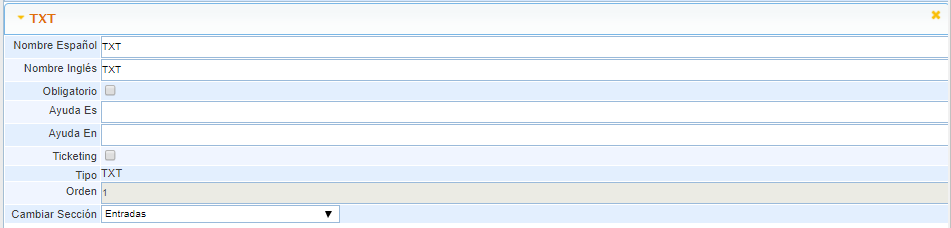
TXT
Allows adding a text field to the ticket, the field will adapt to the size of the inserted text.
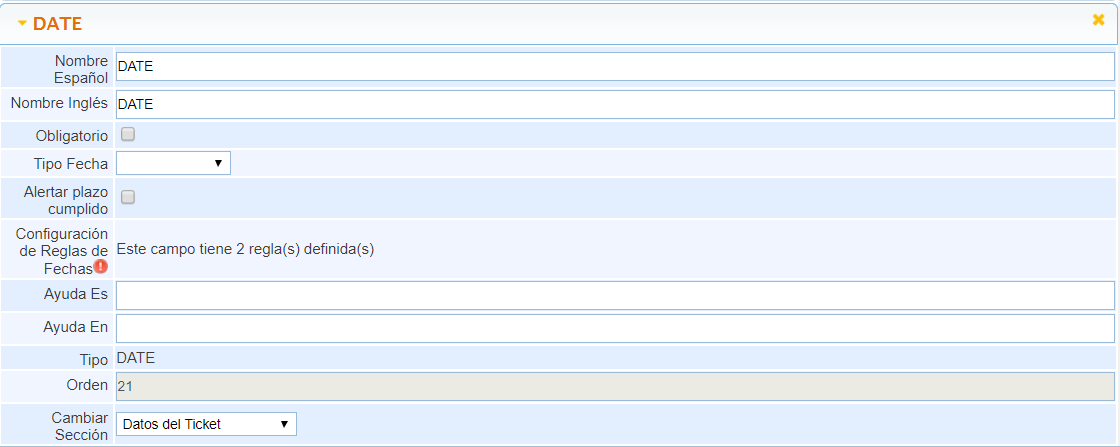
DATE
Allows adding a date field to the ticket, to establish time records.
-
Date Type: Allows configuring different types of dates to establish records:
-
Initial: Allows setting the initial date of the ticket, which can be used for generating graphs and as a reference for sending alerts.
-
Final: Allows setting the final date of the ticket, which can be used for generating graphs.
-
Planned Start: Allows setting the planned start date of the ticket, which can be used for generating graphs.
-
Planned End: Allows setting the planned end date of the ticket, which can be used for generating graphs.
-
-
Alert Deadline Met: By activating this check, that date will appear in red, alerting that today's date is later than the date registered in this field.
-
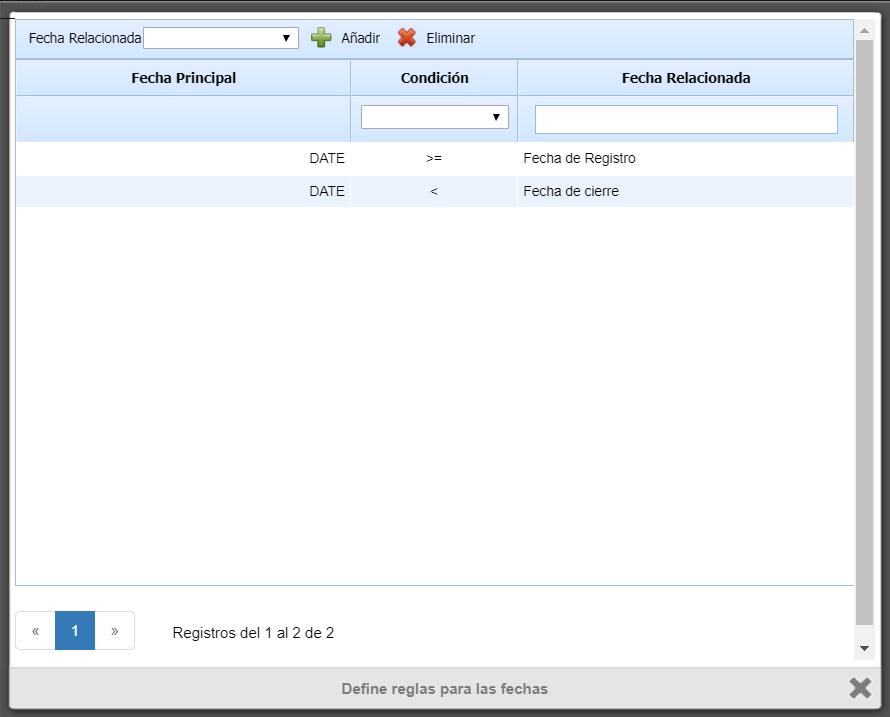
Date Rules Configuration: This button allows defining restrictions that the date field must meet concerning others, being able to require it to be earlier, later, or equal to a given one. When the window opens, it is possible to select which dates and what type of restriction exists concerning the date being configured.
CHECK
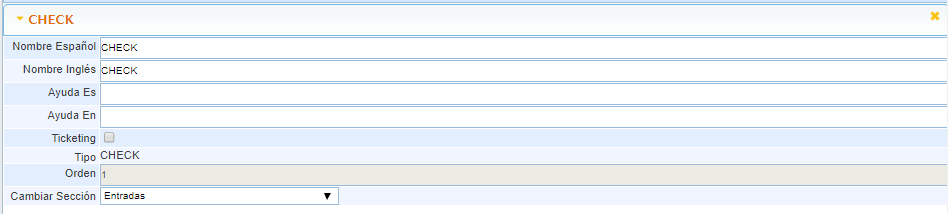
Allows adding a Check field to the ticket, giving us the possibility to complete the ticket form with quick Yes/No questions.
SELECT-NESTED
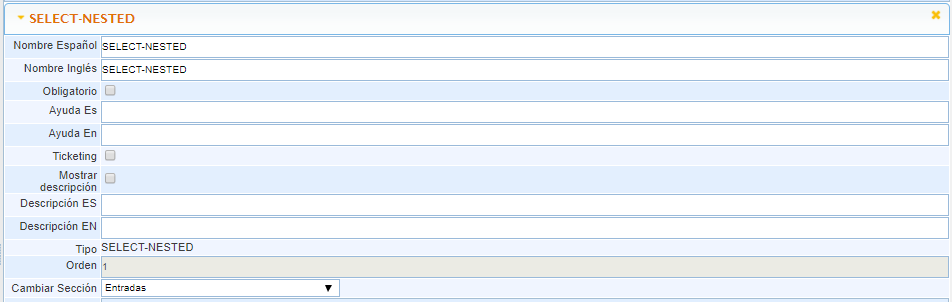
Allows adding a Nested Select field to the ticket, giving us the possibility to add two dependent Selects, the first depending on the second.
-
Show Description: By activating this option, we enable the visibility of a description text below the nested selects.
-
Description ES: Descriptive text of the Nested Selects in Spanish.
-
Description EN: Descriptive text of the Nested Selects in English.
-
Options: Table where we can add the different options that will be available in the first select.
-
Suboptions: Table where we can add the different options that will be available in the second select, which will depend on the option selected in the first select.
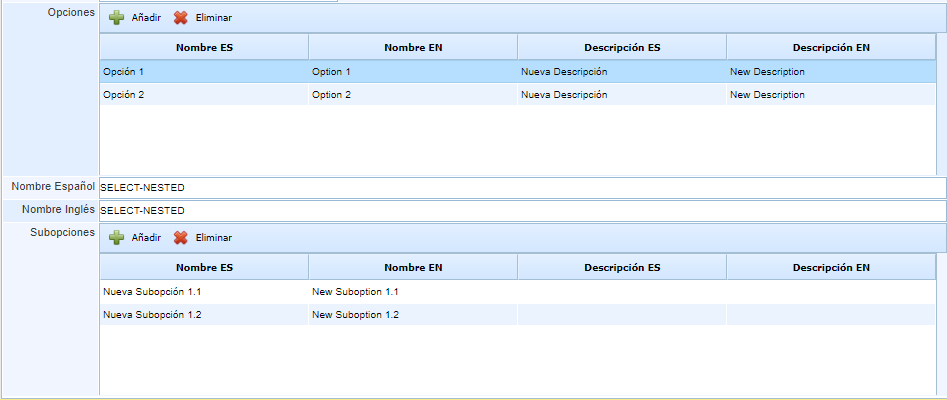
NOTE: To add suboptions, we must first create all the available options for the first Select in the first table. Once this is done, we must select one of those options and then add all the dependent suboptions in the second table.
Example
-
Option 1
-
New Suboption 1.1
-
New Suboption 1.2
-
-
Option 2
-
New Suboption 2.1
-
New Suboption 2.2
-
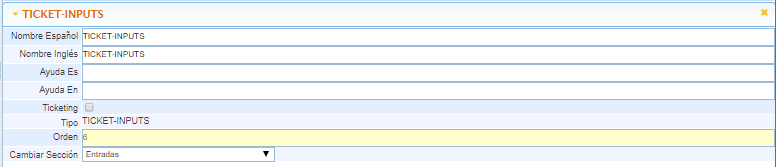
TICKET-INPUTS: Allows adding a Ticket Inputs field to the ticket, with it we will see a table where we can associate existing or new Tickets to the ticket in question.
NUM
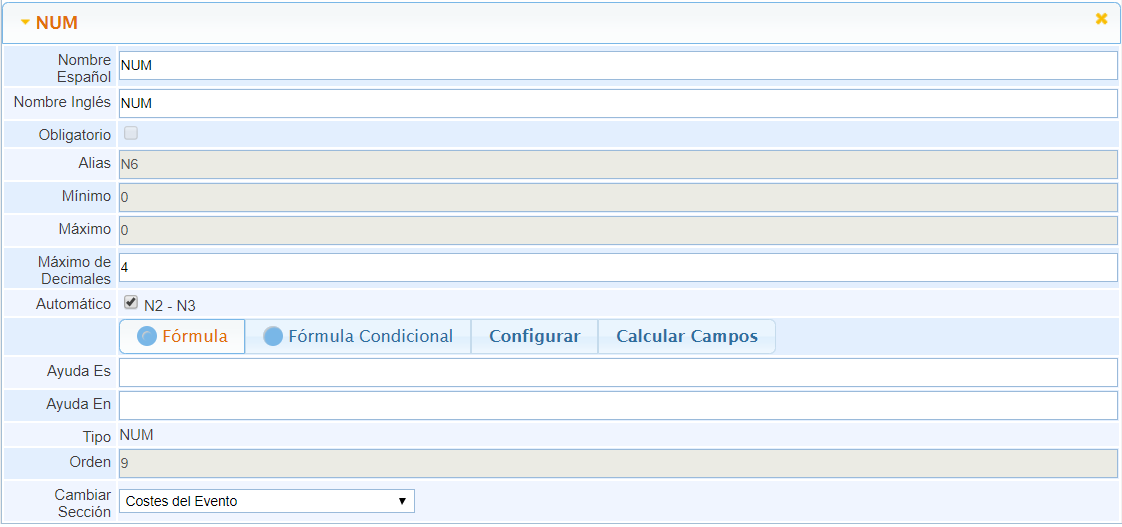
Allows adding a numeric field to the ticket, with it we can restrict the input to numbers only. Additionally, it will give us the possibility to limit the insertion range.
-
Minimum: Minimum value allowed in the field.
-
Maximum: Maximum value allowed in the field.
-
Maximum Decimals: Maximum number of decimals that can be entered in the numeric field.
-
Automatic: Indicates whether the field value is entered manually or, if activated, allows defining how it is calculated from other numeric fields in the ticket:
-
Formula: Indicates that the automatic field is obtained through a formula.
-
Conditional Formula: Allows applying conditions to obtain the field value and calculate it differently based on them.
-
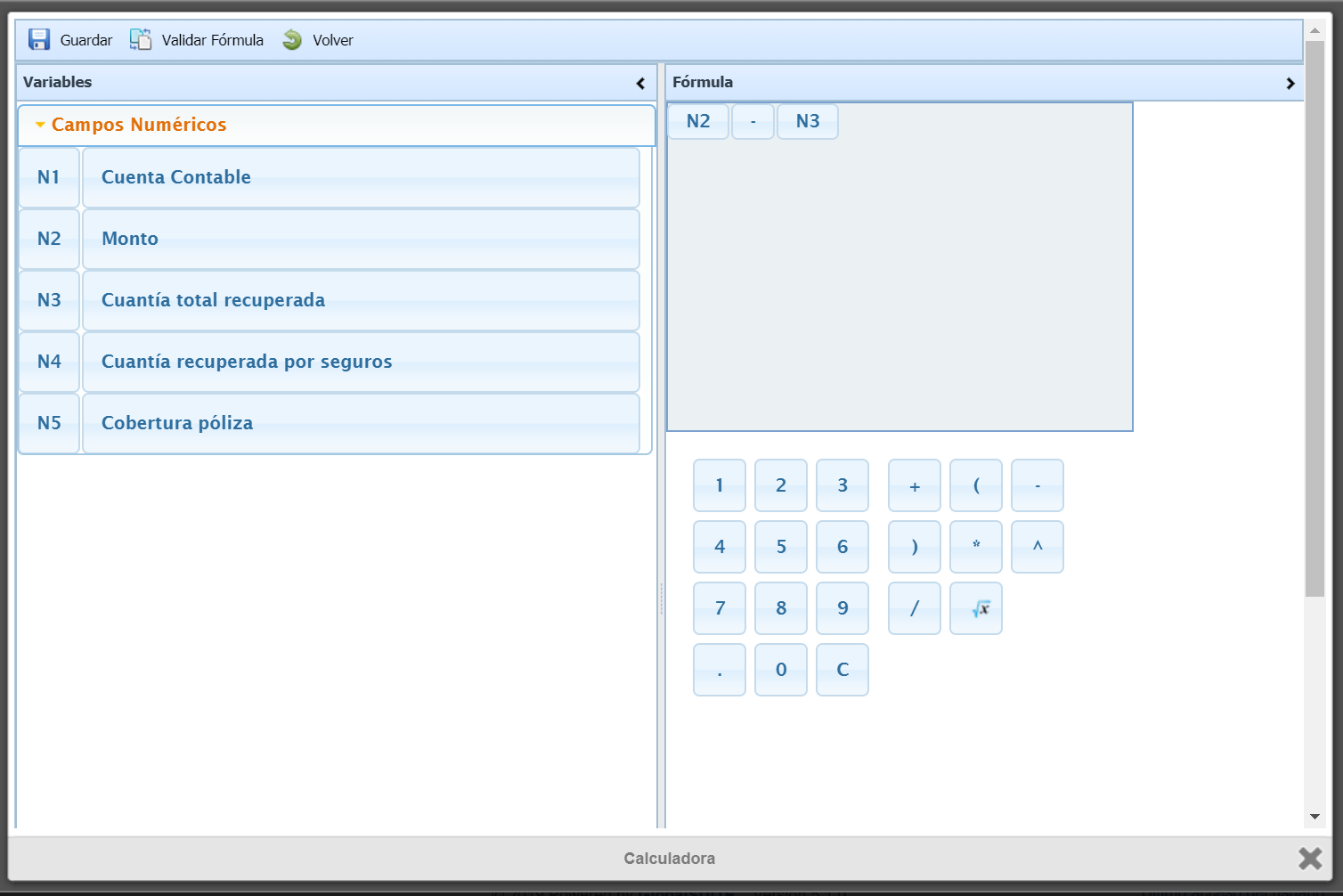
Configure: By clicking this button, a window opens where you can configure the calculation formula for the automatic field based on other numeric fields in that ticket.
-
-
Calculate Field: Using this button, you can recalculate the field value for all records if the formula used is changed. It also adjusts the field value for all tickets if the maximum allowed number of decimals is changed, rounding numbers that exceed it.
SELECT
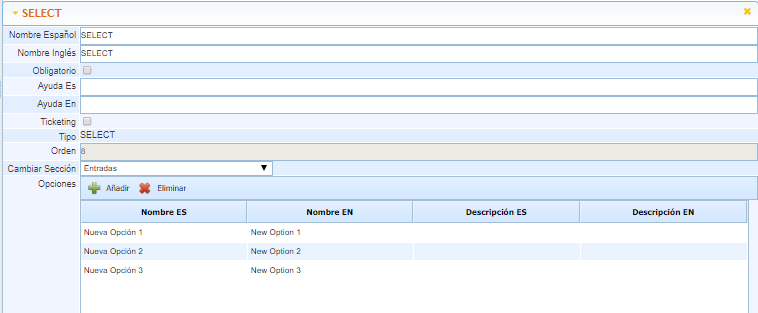
Allows adding a selection field to the ticket, where we will have different options to choose from.
-
Options: Table where we can add the different options that will be available in the select. We can also add a specific description for each of the added options.
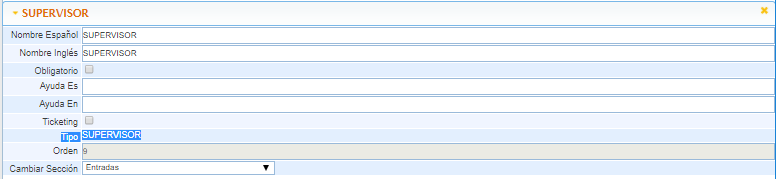
SUPERVISOR
Allows adding a supervisor field to the ticket, with it we can relate one or more employees to the ticket, depending on the number of fields of this type we want to add. Additionally, it will give us the possibility to send alerts to these related employees.
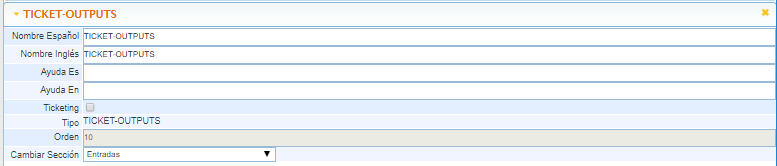
TICKET-OUTPUTS
Allows adding a Ticket Outputs field to the ticket, with it we will see a table where we can associate existing or new Tickets to the ticket in question.
IMPACT
Allows adding a Select field with configurable options to assess the impact.
-
Impact: Configuration table for the different options of the field, with their values and descriptions.
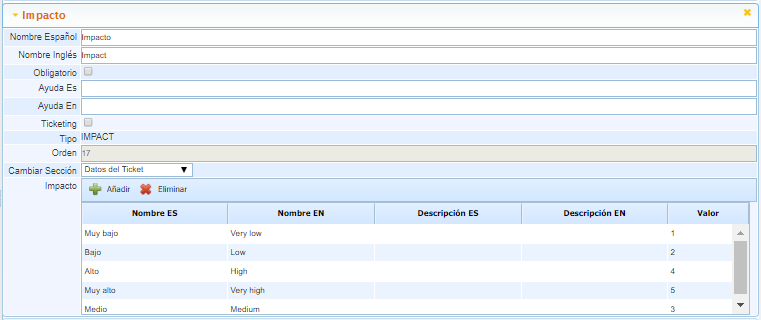
NOTE: Related to the Urgency and Priority fields.
URGENCY
Allows adding a Select field with configurable options to assess urgency.
-
Urgency: Configuration table for the different options of the field, with their values and descriptions.
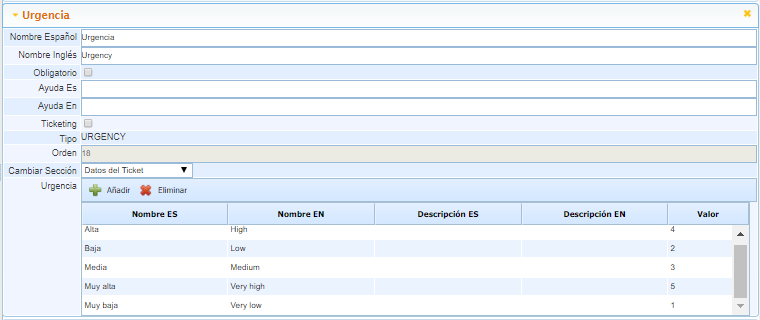
NOTE: Related to the Impact and Priority fields.
PRIORITY
Allows adding a text label resulting from assessing the Impact and Urgency fields. This field will allow us to configure a series of labels dependent on valuation ranges to define the priority result based on urgency and impact.
-
Priority: Configuration table for the different options of the field, with their maximum and minimum valuation range and descriptions in each case.
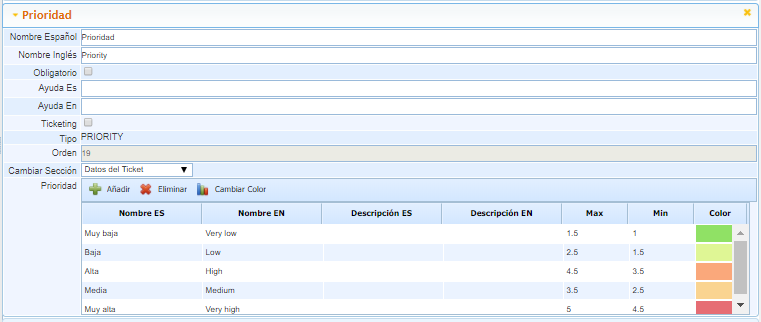
NOTE: Related to the Impact and Urgency fields, it will give a resulting value by averaging the selected values in Impact and Urgency (adding both values and dividing by 2). This field cannot be added to the form if the Impact and Urgency fields have not been added first.
Example If we select in Impact the option Very Low with a value of 1 and in Urgency the option Low with a value of 2.
Priority = (Impact + Urgency) / 2
Priority = (1 + 2) / 2
Priority = 1.5
Therefore, Priority will have the option Very Low, with a Green color, as the result of 1.5 is within the maximum range of that Priority level.
STATUS
Allows adding a selection field with the different possible statuses of a ticket. The statuses can be configured in terms of name, description, and type.
-
Statuses: Configuration table for the different statuses of the ticket.
-
INITIAL Type: Default initial status when creating a new ticket. Only one status of this type can be configured.
-
INTERMEDIATE Type: Intermediate status, there can be multiple statuses of this type, generally used to go through different stages in the ticket management process.
-
FINAL Type: Final status, there can be multiple statuses of this type, it locks the ticket to read-only and allows reopening the ticket to return to an initial status, with notifications to those responsible.
-
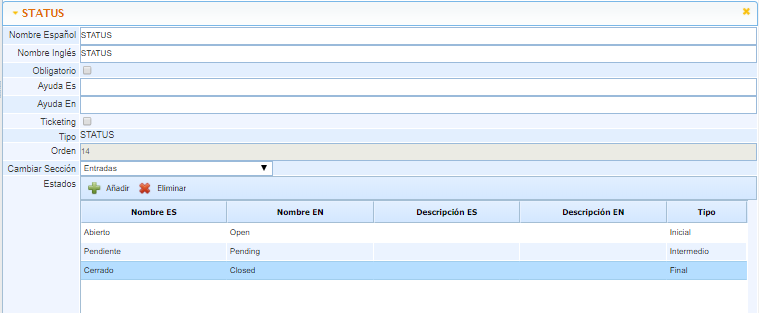
NOTE: These general statuses will always be available unless a Workflow is selected in the ticket. If this happens, the statuses that will appear in the field will be those configured in the Workflow.
REFERENCES
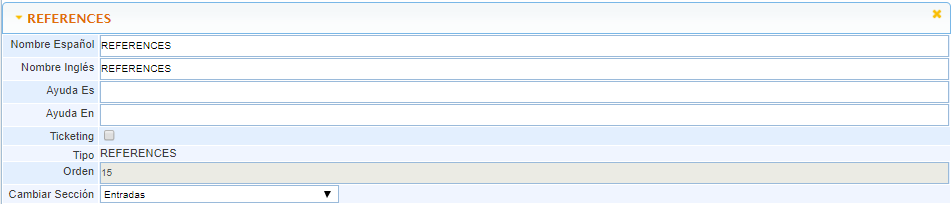
Allows adding a table of records, these records will be references to URLs.
EMPLOYEES
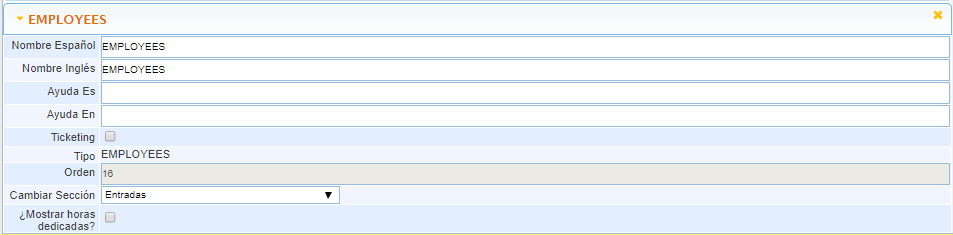
Allows adding a table of records, these records will be employees of the tool. It will give us the possibility to notify via email that the employee has been added to the ticket. Additionally, it will be possible to alert this employee of actions such as Ticket Creation, Modification, and Closure.
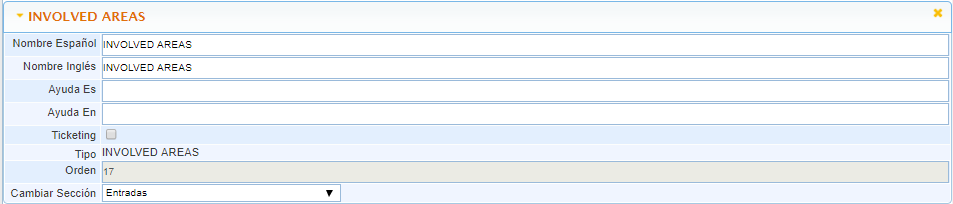
INVOLVED AREAS
Allows adding a table of records, these records will be areas of the company related to the ticket.
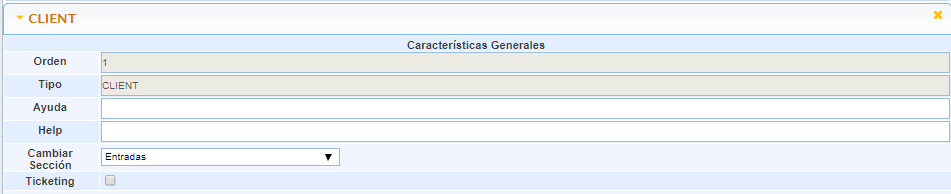
CLIENT
Allows adding a set of contact fields with different variants. We can directly associate a contact name and email or use an existing one in the Business Relations section.
-
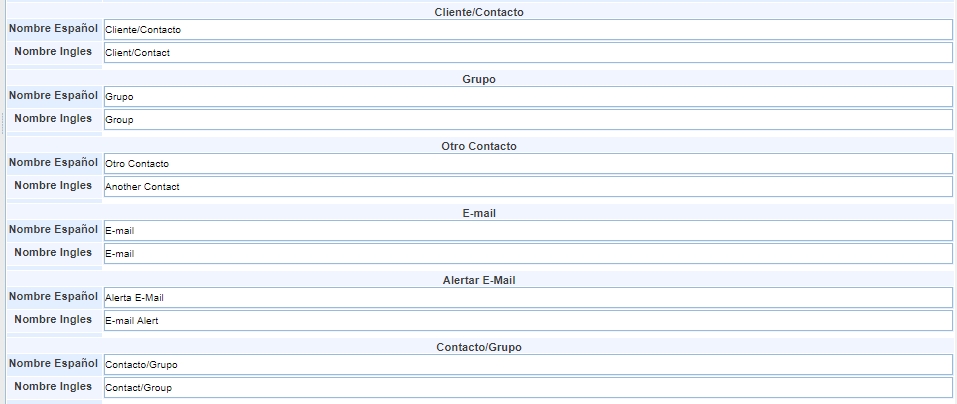
Client/Contact: Allows adding a new Client/Company name or associating an existing one.
-
Group: Selection field with the different Groups available in Business Relations, depending on whether a Client/Contact has been associated.
-
Other Contact: Text field to complete with the contact's name.
-
E-mail: Text field to complete with the contact's email.
-
Alert E-Mail: By checking this option, when we save, it will notify the contact.
-
Contact/Group: Selection field with the different Contacts available in Business Relations, depending on whether a Client/Contact has been associated.
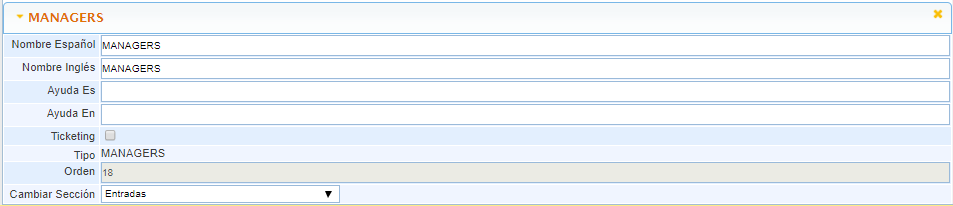
MANAGERS
Allows adding a table of records, these records will be employees of parent companies. Therefore, the table will appear in the form only if it is in a subsidiary company.
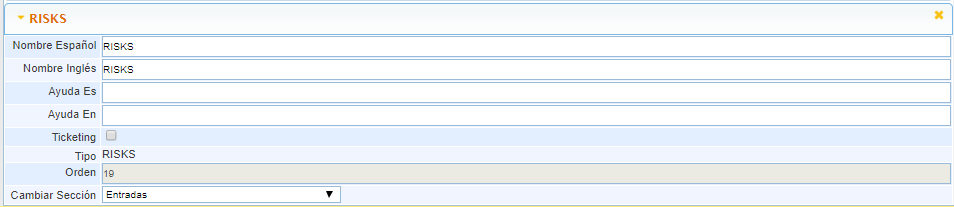
RISKS
Allows adding a table of records, these records will be risks created in the configuration section in the Risk Category table.
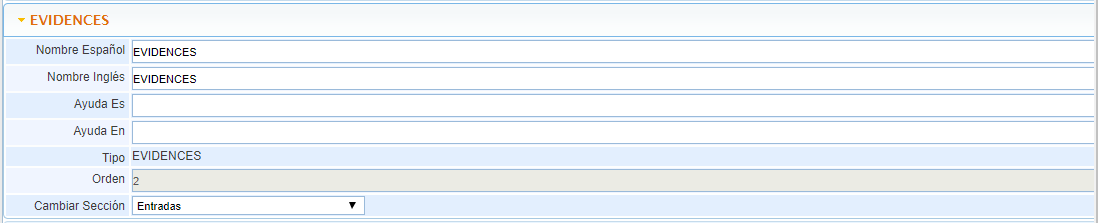
EVIDENCES
Allows adding a table of records, these records will be documentation associated with the ticket. It will allow us to attach documents, add a date, and a series of descriptions to have full control of the registered evidences.
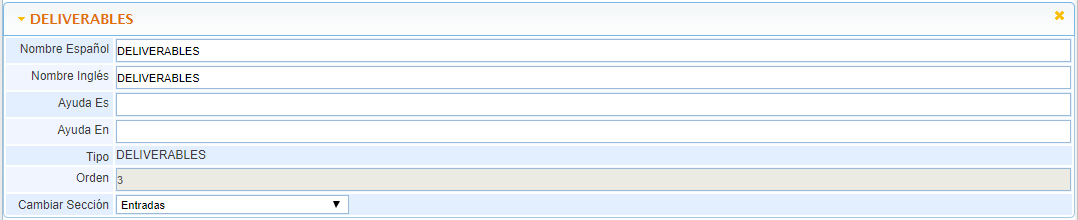
DELIVERABLES
Allows adding a table of records, these records will be documentation associated with the ticket. It will allow us to attach documents, add a date, and a series of descriptions to have full control of the deliverables.
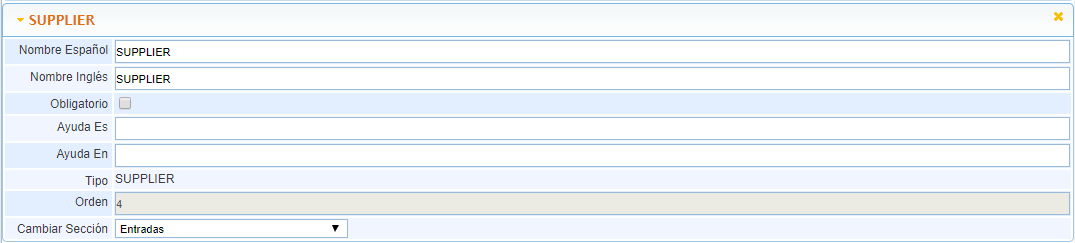
SUPPLIER
Allows associating a supplier from the list loaded in the Suppliers option to the ticket. We can add more than one field of this type to record which suppliers are related to the ticket.
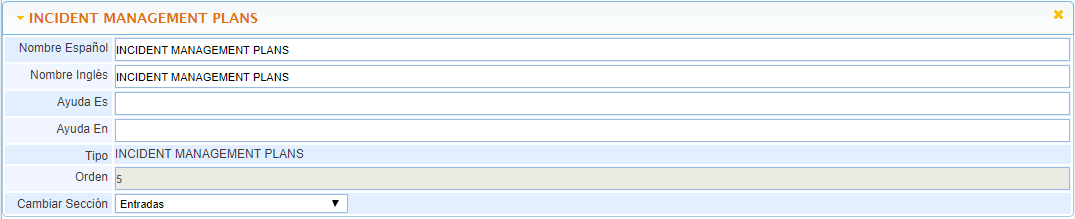
INCIDENT MANAGEMENT PLANS
Allows adding a table of records, these records will be related to an incident management plan. It will allow us to associate a series of impacts and levels with the ticket.
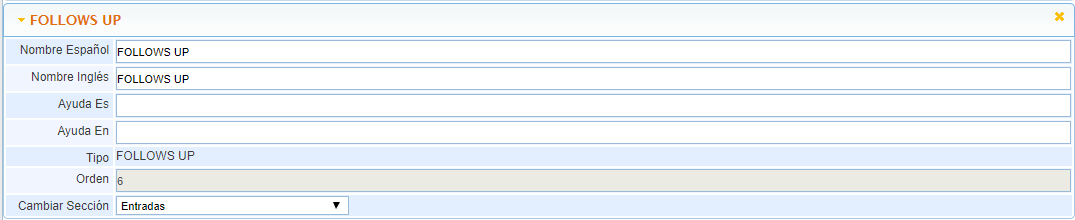
FOLLOWS UP
Allows adding a table of records, these records will be follow-ups of the ticket, where it will be recorded which user performed the follow-up, with a date and description. It will also give us the possibility to send the follow-up to a list of emails that we define, separated by ";".
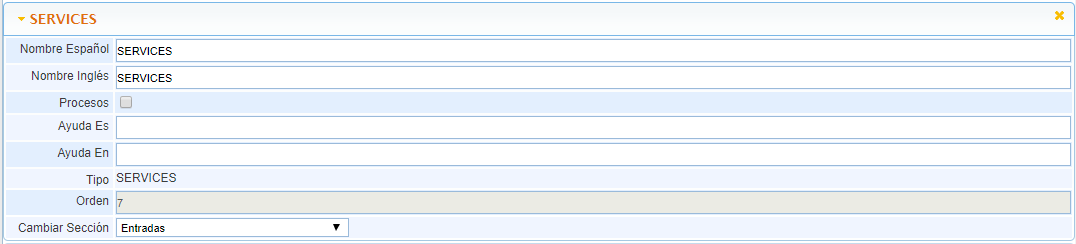
SERVICES
Allows adding a table of records, these records will be services defined in the SG Service Catalog. With this table, we can associate a ticket with the services it affects or is related to.
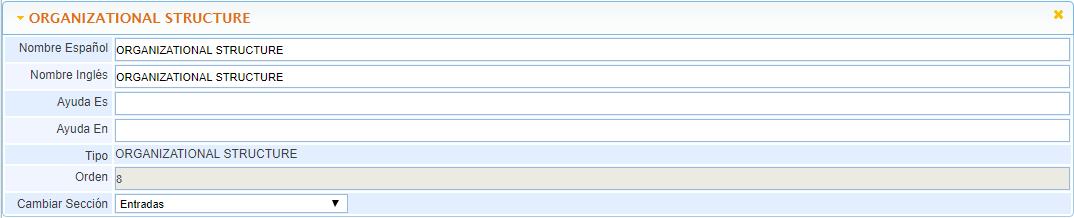
ORGANIZATIONAL STRUCTURE
Allows adding a table of records, these records will be part of the Organizational Structure tree defined in the SG Home/Organizational Structure option. With this table, we can associate a ticket with the part of the company it affects or is related to.
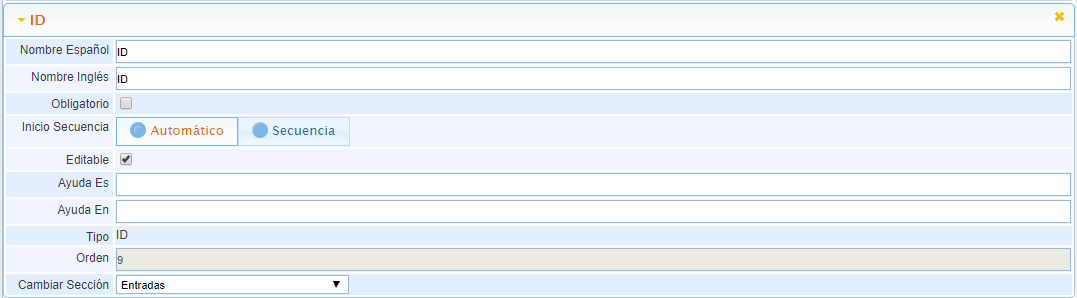
ID: Allows adding a text field that will generate a unique numbering for each ticket. This numbering can be automatic (random) or manual (defined pattern).
-
Sequence Start: Allows defining whether the sequence is automatic and therefore generates a random number, or manual and defines the numbering pattern it will start with.
-
Editable: Allows defining whether, once the ticket is created with a unique numbering, it can be modified.
WORKFLOW
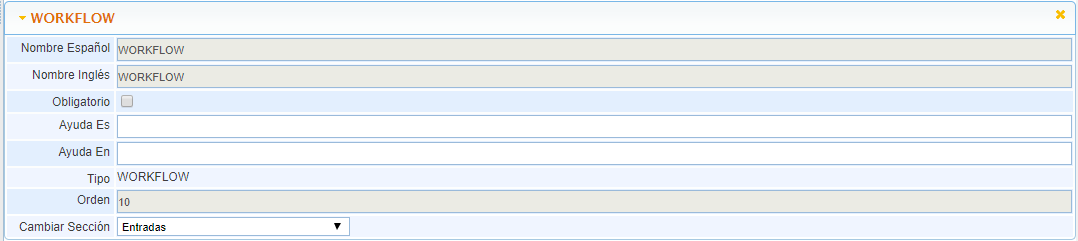
Allows adding a selection field where the workflows defined for each ticket will appear. Once we select a Workflow for the ticket, the default statuses in the status field will be replaced by the statuses of the selected Workflow.
NOTE: To add this field, it is necessary to add the "STATUS" field first.
SIMULATION RISK
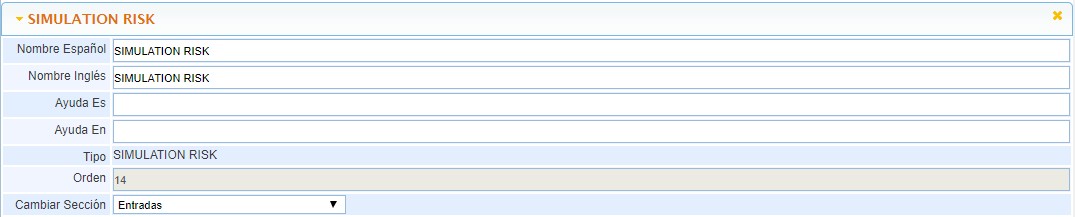
Allows adding a record table, where we can define for a specific incident or ticket how it affects the elements of a specific risk analysis. We can perform the simulation and later incorporate it into the analysis so that it impacts the general values.
TYPE
Allows adding a selection field where all the ticket types of the SG will appear. With this field, we can categorize the tickets as they are entered, creating a preliminary record to assess what they are related to, whether it is Non-conformity, Action, Corrective, etc.
NOTE: It can only be added once and to a single ticket type, from which categorization can be performed.

OWNER
Allows adding a record table, where we can define which Employees (with user accounts) are owners of the ticket, and therefore, we want them to have access to it.
-
Visible with Workflow: This option allows ticket owners to have visibility when the ticket is assigned to a Workflow, even if they are not responsible for it. It can be specifically defined for each ticket type, enabling selective activation for each one.
NOTE: In any case, Owners will still have access to the records they own in the My Tickets section.

PROCESSES
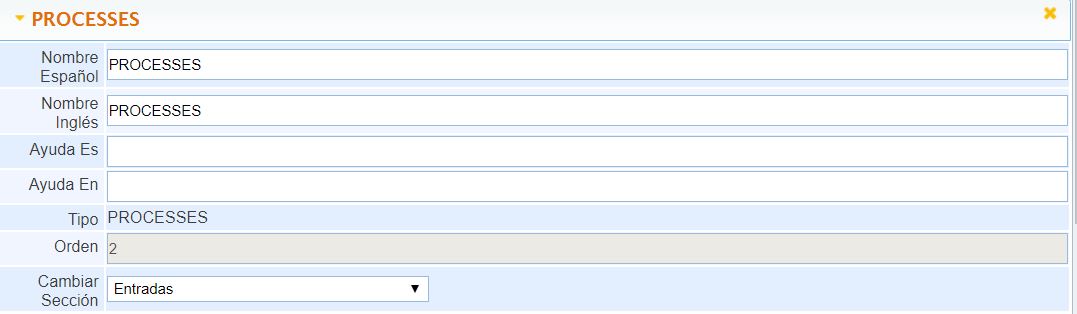
Allows selecting processes without depending on services.
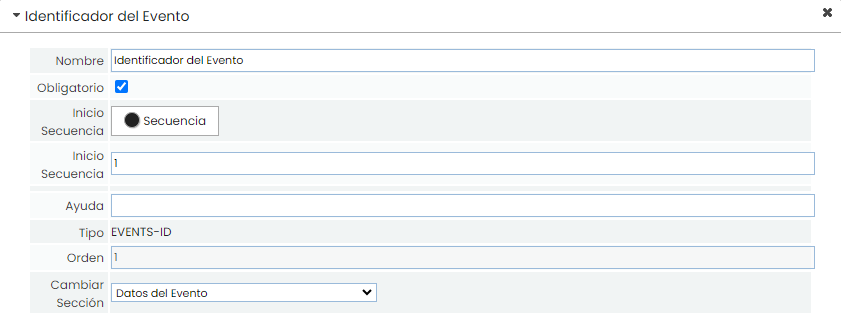
EVENTS-ID
Displays the Event identifier. This field is always sequential (a consecutive number). It is possible to indicate the starting number of the sequence if it has been previously managed externally to GlobalSuite®.
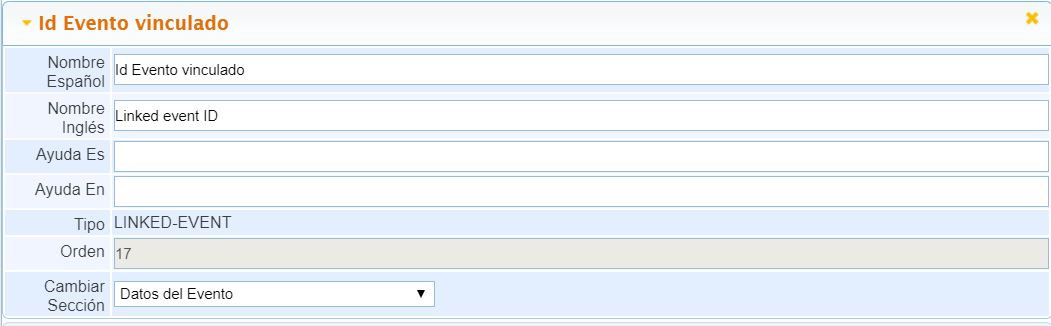
LINKED-EVENT
Allows selecting an event and linking it to the ticket being edited. This way, the "ROOT-EVENT" and "SEQUENCE" fields would be automatically filled.
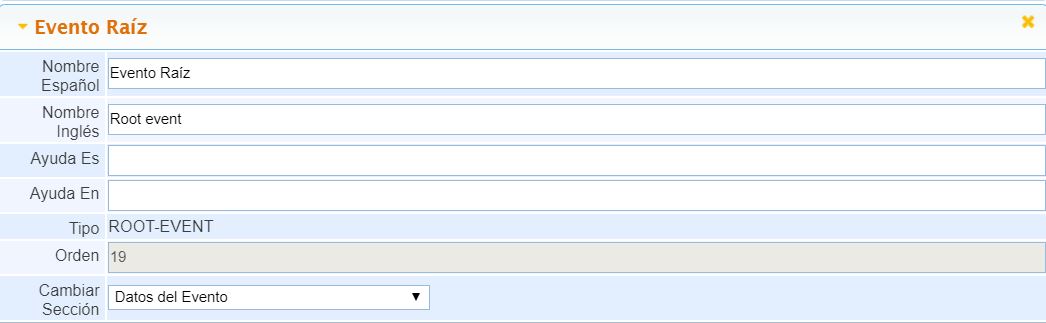
ROOT-EVENT
Allows indicating the root event on which the ticket depends. This is automatically filled in relation to the "LINKED_EVENT".
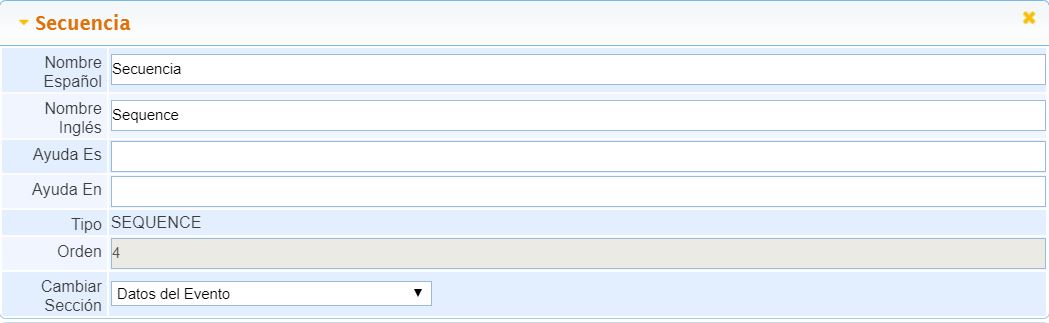
SEQUENCE
Position of the ticket within the sequence of tickets dependent on the same root event.
QUANTIFICATIONS
Allows configuring both quantifications and recoveries.
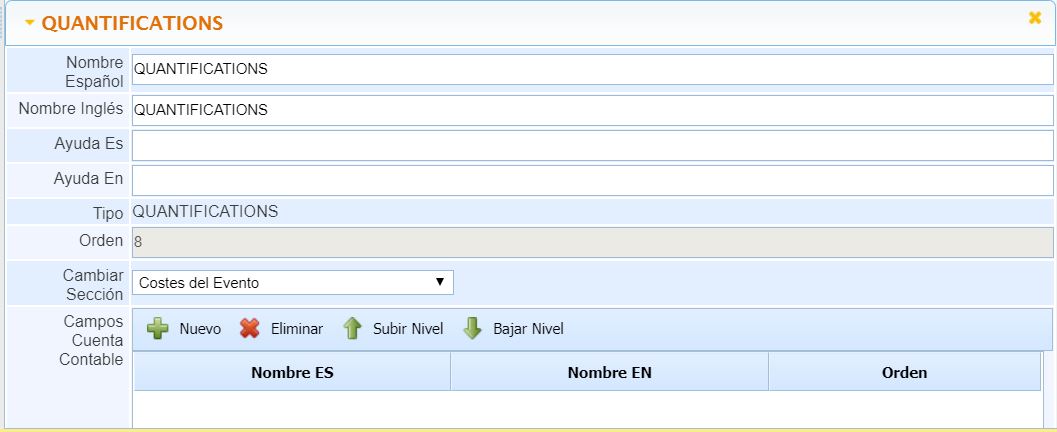
For each of them, two types of fields can be configured:
-
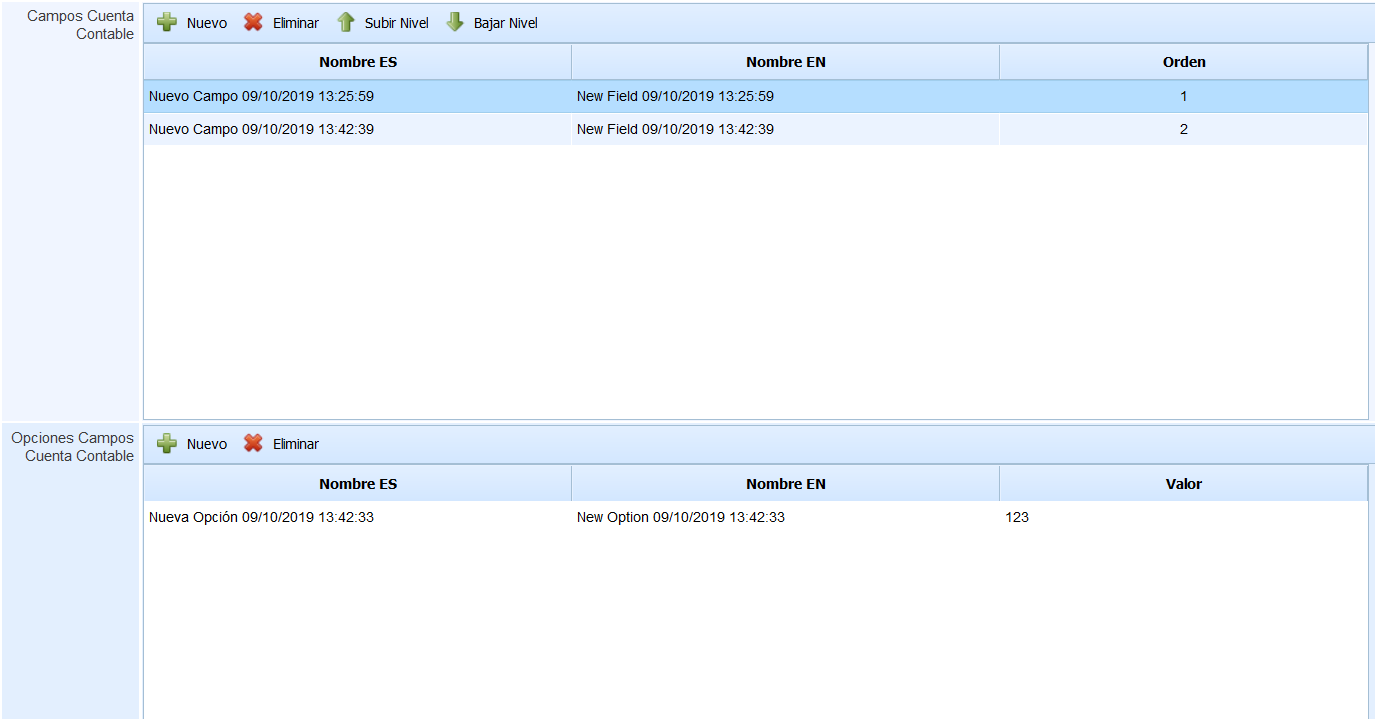
Accounting Fields: This table allows us to define which fields will be used to define the accounting account for quantifications and recoveries (the configuration is common to both). By selecting a field, in the lower table, the options that can be chosen for that field can be defined, including the corresponding numerical value.
-
Additional Quantifications / Recoveries Columns: Here, additional fields can be configured to define quantifications or recoveries. It is possible to define different fields for each type.
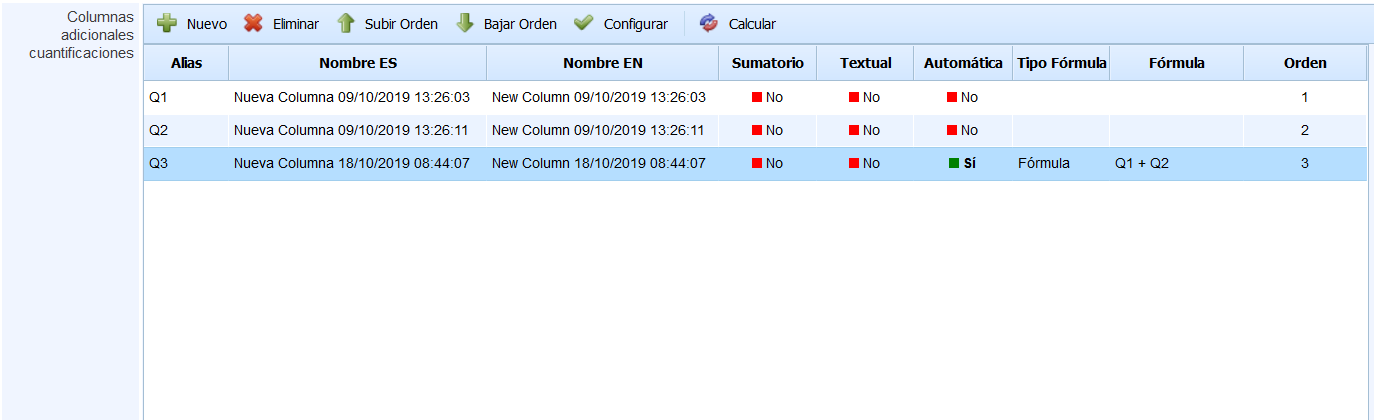
The columns of this table are:
-
Alias: Unique automatic identifier for each field.
-
Name ES: Name of the field in Spanish.
-
Name EN: Name of the field in English.
-
Summation: Allows indicating if for that numeric field, we will be able to view the accumulated value at the end of the table.
-
Textual: If marked, the field will allow entering text instead of only numeric values.
-
Automatic: Indicates whether the field is entered manually or calculated automatically using a formula.
-
Formula Type: Allows defining how automatic numeric fields are calculated, whether through a unique formula or a conditional formula. The formula can be defined using the "Configure" button in the upper table. If a new formula is added or an existing one is modified, it is possible to update those automatic fields using the "Calculate" button.
-
Formula: Displays the defined formula.
-
Order: Indicates the order in which the field will be displayed in the quantifications or recoveries table. It can be adjusted using the Up and Down buttons.
THREATS
Allows the direct relationship of a ticket with one or more risks (and vice versa). Once the risk is associated with the ticket, the established relationship also appears from the Risk Analysis option.