This tutorial explains, step by step, how to create, configure, and activate a Crisis Management Plan in GlobalSuite®, within the Business Continuity module.
This guide details how to define the crisis levels and impacts, establish the relationship between them, and configure the general data of the plan: name, description, responsible person, and associated crisis level.
It also explains how to associate scenarios, services, processes, infrastructures, and decision committees, define the activation criteria, and manage the elements, clients, providers, and interrelated plans.
Finally, it shows how to activate or simulate a crisis management plan, either from a registered incident or from the plans option itself, automatically generating a new entry in the Crisis Management section.
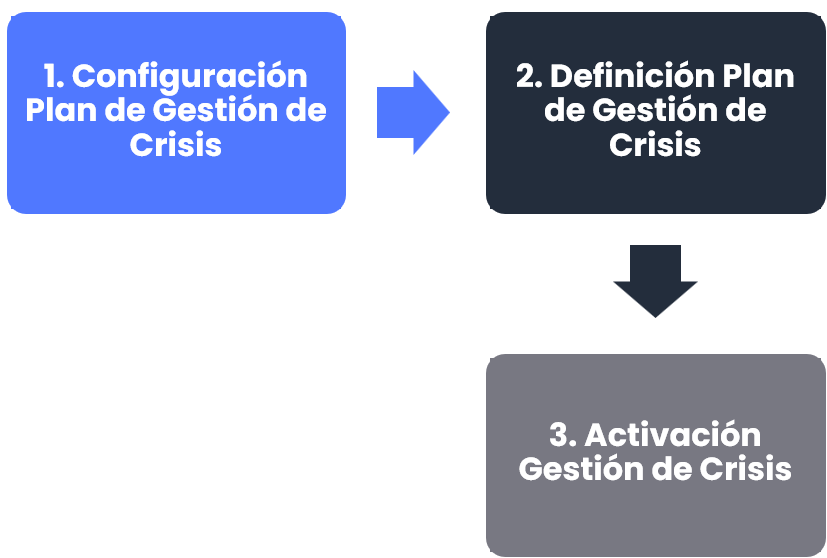
Phases for the initial configuration of Crisis Management
Configuration of the Crisis Management Plan
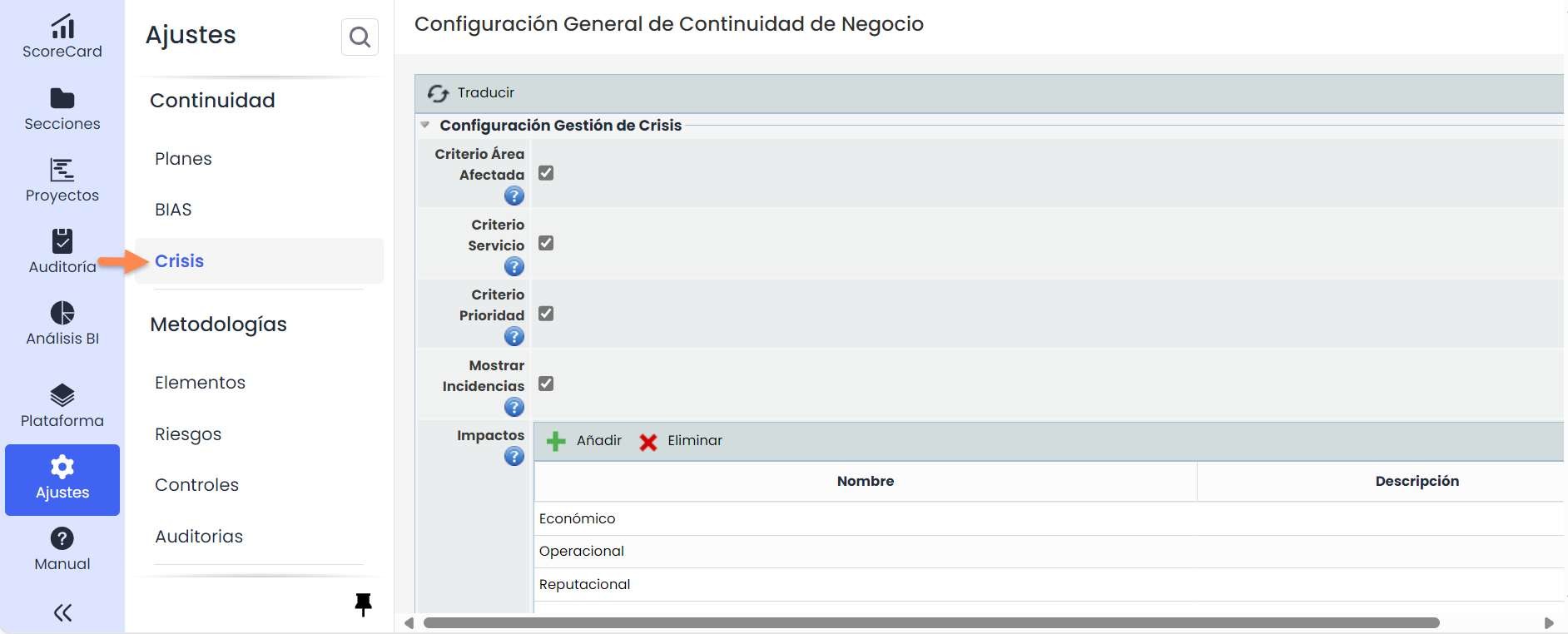
Before defining the plan, the configuration of Crisis Levels and Impacts will be reviewed. Impacts and levels must be defined, and subsequently, the relationship between them.
Definition of the Crisis Management Plan
-
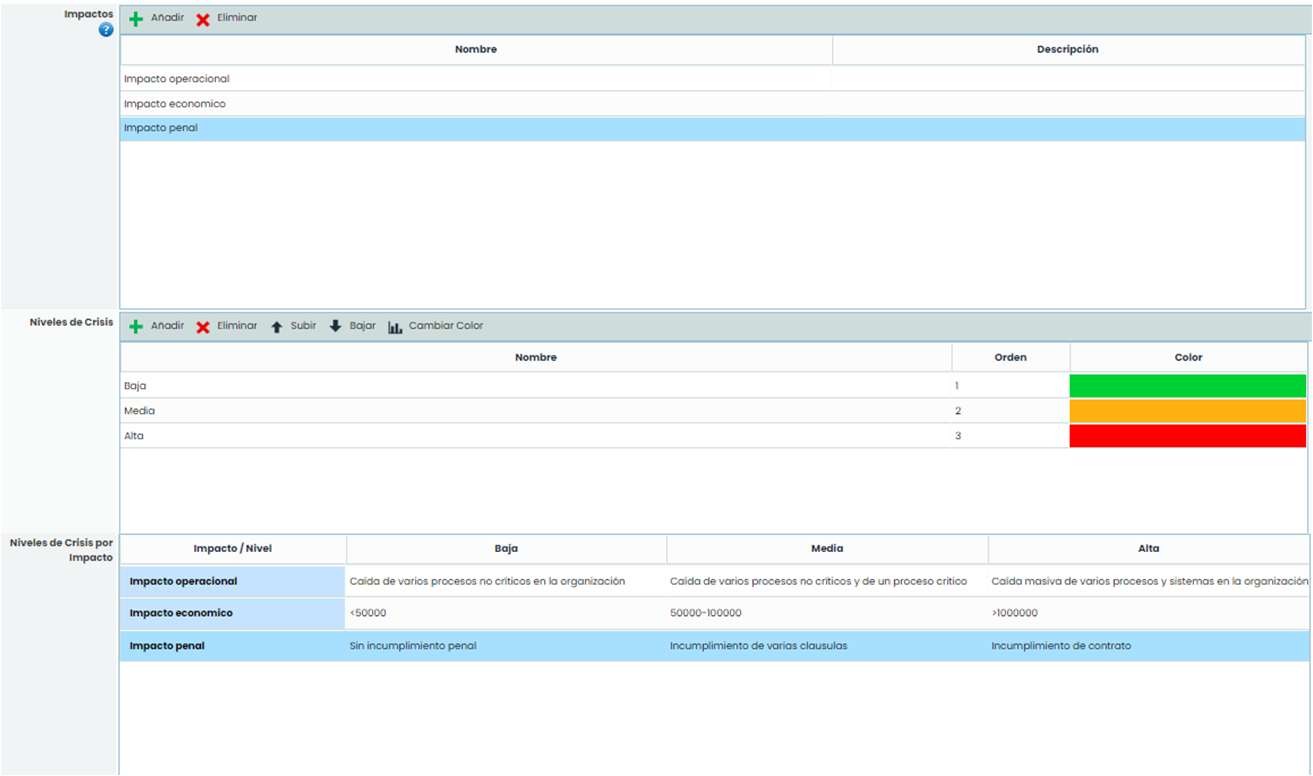
In Settings > Business Continuity > Crisis under the Impacts option, impacts will be added.
-
In Settings > Business Continuity > Crisis under the Crisis Levels option, crisis levels will be added.
-
In Settings > Business Continuity > Crisis under the Crisis Levels by Impact , they will be related.
Subsequently, in Plans > Crisis Management Plan within a crisis management plan, the following important information must be established:
-
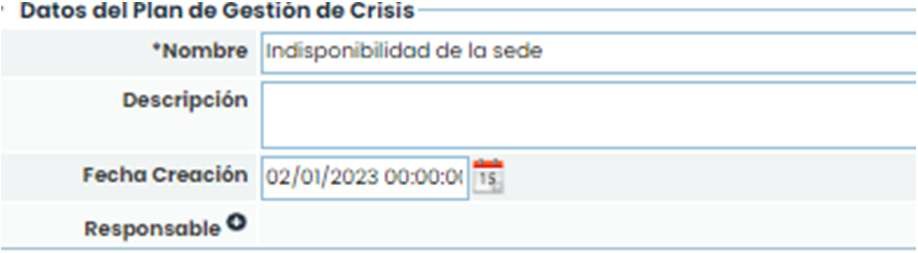
General Data of the Crisis Management Plan: name, description, date, and responsible person.
-
Crisis Levels: The crisis level that could generate the incident will be chosen, and the associated Impacts will be checked.

-
Scenarios: Predefined Scenarios in the Plans > Crisis Scenarios option can be associated. To do this, click the “Associate” button and choose the related scenario. Additionally, the actions of this scenario can be viewed.

-
Associate Services and Processes: The services and processes of the organization that may be affected by the incident can be related. Select one from the list of services and click the “ Add Service” button, then select the service in the table, search for a process, and click the “ Add Process” button.

-
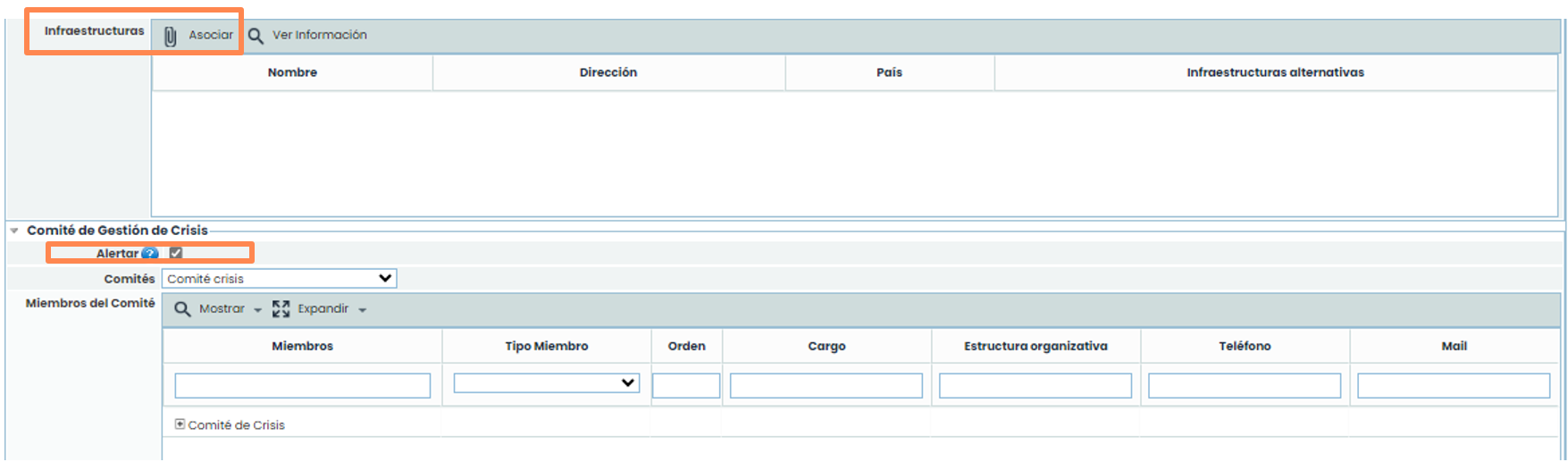
Infrastructures: Infrastructures defined in the Inventory option with this category can be associated.
-
Alert: Check this box to enable GlobalSuite® alerts via email.
-
Committee: It will be related to a crisis committee created in the Home > Decision Committees section. The committee must be chosen from the dropdown list, and the “Save” button must be clicked. Notifications of plan activation will be sent to the members of this committee.
-
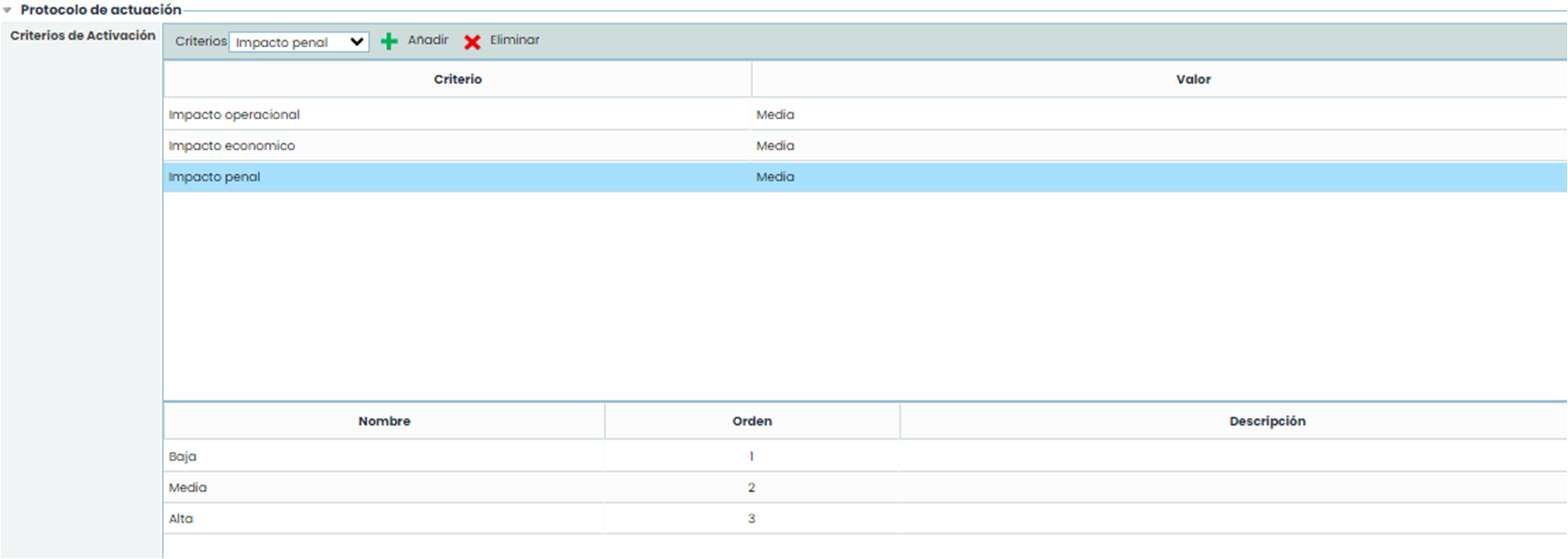
Activation Criteria: Criteria can be associated to later identify continuity incidents that meet these criteria to activate crisis management plans. The criteria can be defined in Settings > Business Continuity . An option from the dropdown list will be chosen, and the add button will be clicked. Then, by double-clicking on the Value cell, the impact level can be changed. If an incident meeting these characteristics is registered, GlobalSuite® will notify that there is a crisis management plan matching the activation criteria, and it can be activated.
-
Elements: Elements defined in the Analysis – Inventory option can be related. To do this, click the “Associate” button and choose where to associate from (dependency tree or list).
-
Objectives: The objectives set for this crisis management plan can be added.
-
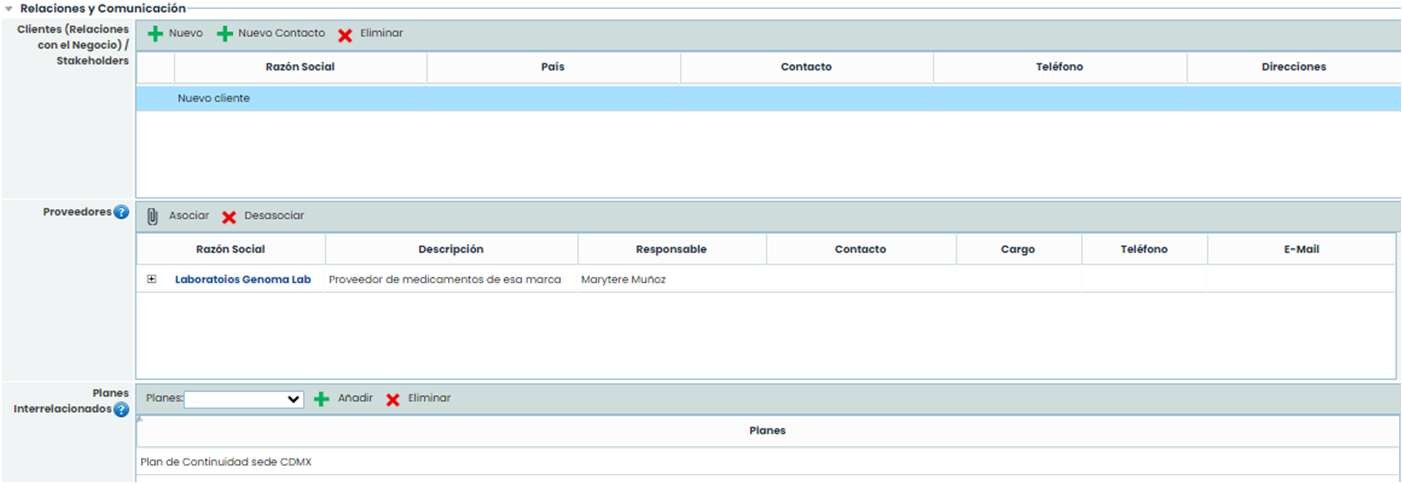
Clients: To associate clients that may be affected, click the “ New” button in this table, then modify the information. Additionally, if you click the client in the table and click the “ New Contact” button, a new client contact with information for contacting them will be added.
-
Providers: Providers that may be affected can be associated. These providers are defined in Home > Providers . Clicking the “ Associate” button will open a pop-up window.
-
Interrelated Plans: Allows assigning continuity plans that will be used to address the incident. The plan is selected from the dropdown list, and the “ Add” button must be clicked.
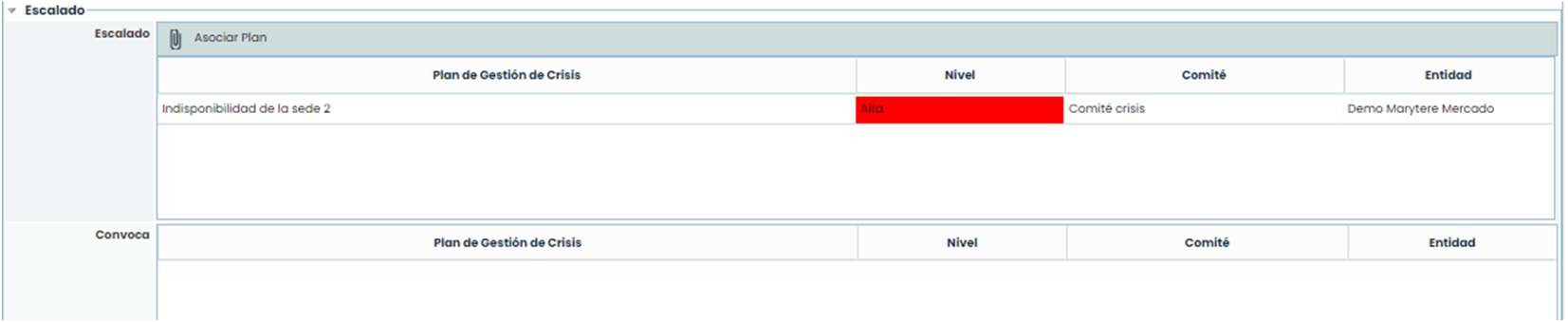
Escalations: In this option, there are two tables: one to define the crisis management plans to which the incident can escalate in case of worsening. Clicking the “Associate Plans” button will open a window with other crisis management plans. On the other hand, the Convoca table allows knowing which plans can escalate a crisis to the current management plan.
Activation of the Crisis Management Plan
To activate a Crisis Management Plan, there are two options:
-
Through an incident: When registering the incident and activation criteria, it is checked if there is a crisis management plan that meets the requirements. If so, it can be activated from the Incidents option.
NOTE: In this option, plans cannot be simulated, and a “ Real” crisis would be generated. A new entry will be created in the Management > Crisis Management table.
-
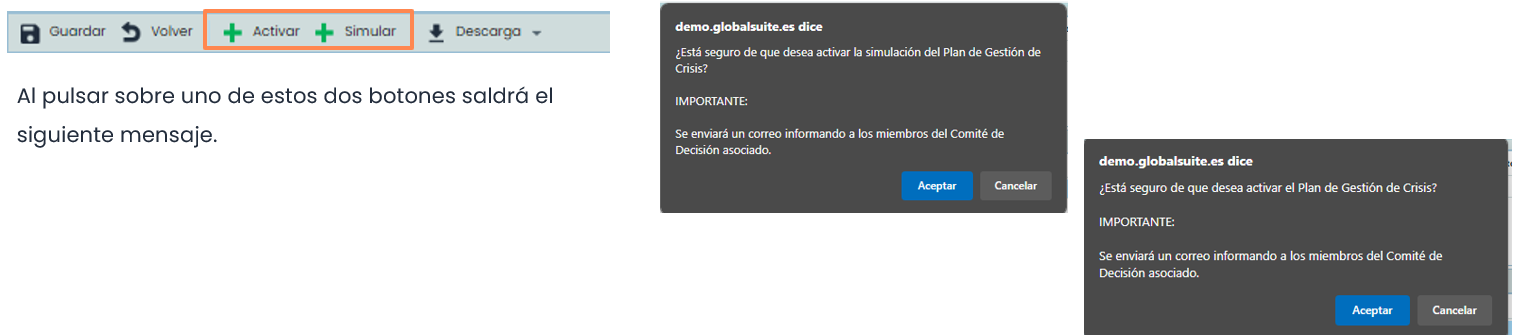
In the crisis management plans option. In the toolbar, there are two buttons: “ Activate” and “ Simulate”. Clicking either of these buttons creates a new entry in the Management > Crisis Management option.