RTO Calculation
The RTO (Recovery Time Objective) tab allows identifying the maximum time in which the resources (technical and human) necessary to support the services and processes must be at a minimum recovery level.
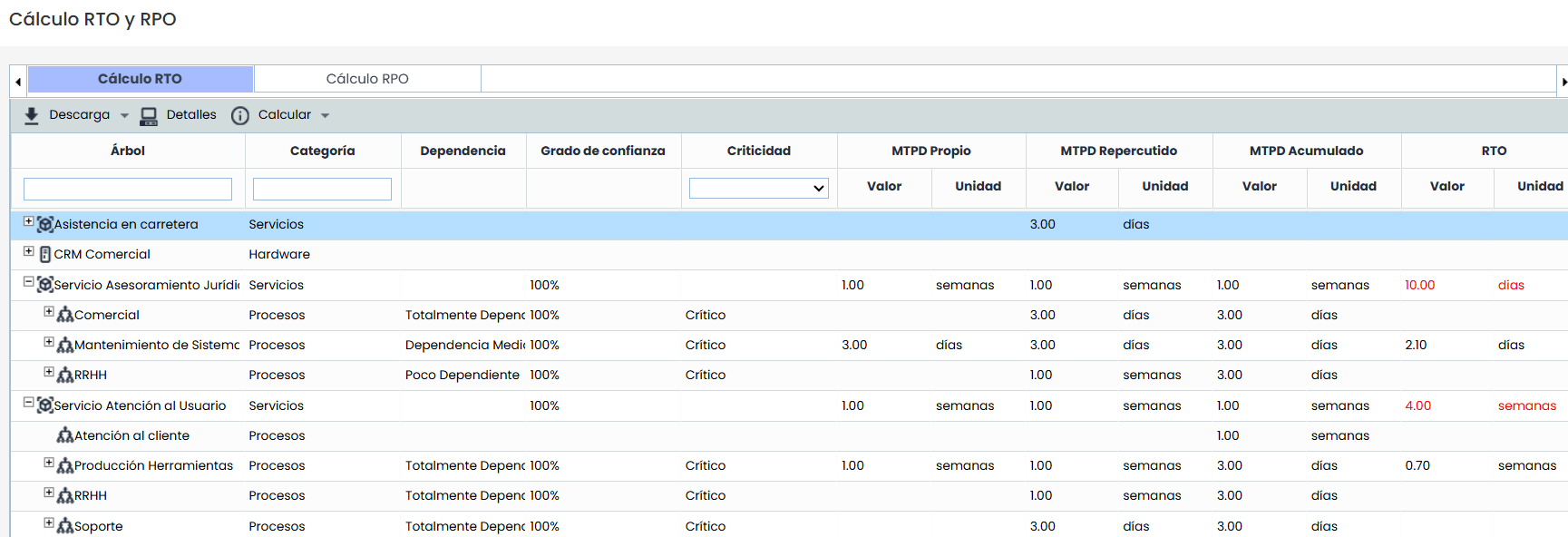
The RTO calculation is displayed in a table format offering the following information:
-
Tree: Displays the list of dependent Services and Processes that have been defined.
Services are defined in the section Home > Service Catalog and processes in Home > Processes.
-
Category: Indicates the category or subcategory to which the item belongs,
-
Category Path: Indicates the main category to which the item belongs, it appears empty if it has the same value as the previous field.
-
Dependency Displays the degree of dependency between business processes and the service.
The degree of dependency is established in the process tree of the section Home > Processes.
-
Confidence Level: Indicates the confidence level granted to the own MTPD obtained automatically.
-
Criticality: Refers to the level of criticality or importance of a process or service for the business based on its impact when inactive.
-
Own MTPD: Displays the value of the own MTPD of the service or process. This value can be defined manually or calculated automatically according to the criteria configured in Settings > Continuity > BIAs.
The own MTPD of the services is inherited from the section Home > Consolidated Pre-BIAs and the own MTPD of the processes from the section Analysis > Consolidated BIAs.
-
Propagated MTPD: Automatic field that calculates the HIGHEST MTPD of all the processes below the current one in the tree.
-
Accumulated MTPD: Automatic field that shows the LOWEST MTPD of all the products/services and processes above the current one in the tree.
-
RTO: Allows defining the recovery time scale of the resources necessary to support the service or business process. This value can be defined manually or calculated automatically according to the criteria configured in Settings > Continuity > BIAs.
For the RTO to be valid, the time scale must be less than or equal to the value of the Own MTPD.
-
Propagated RTO: Automatic field that calculates the HIGHEST RTO or RT of all the items below the current one in the tree.
-
Accumulated RTO: Automatic field that shows the LOWEST RTO of all the products/services and processes above the current one in the tree.
-
RT: Allows defining the recovery time scale of the technological resources that support the service or business process. To do this, double-click on the cell and define the desired values.
Automatic Calculations
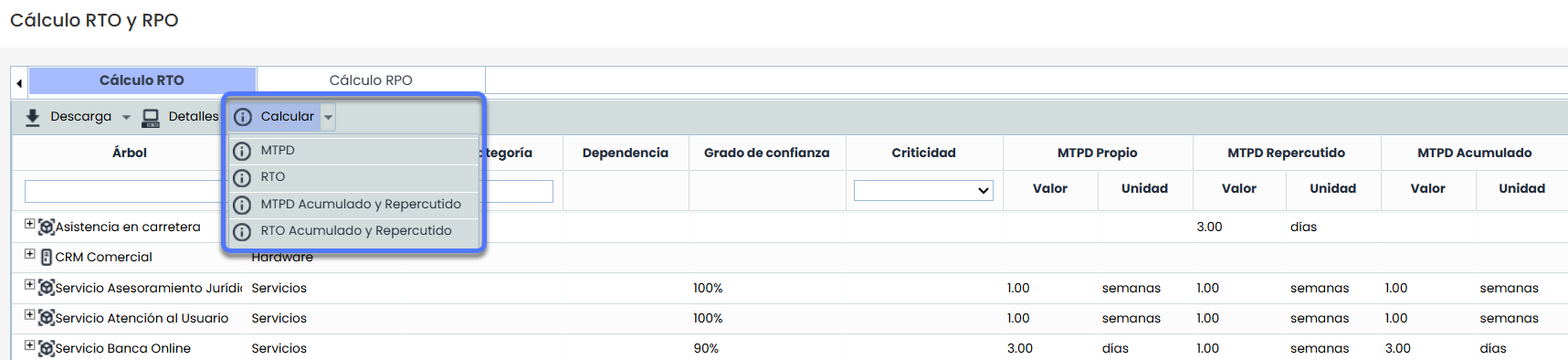
In the action bar, a Calculate button is displayed, which includes different options depending on the configured criteria.
-
MTPD: available if the MTPD calculation is automatic.
-
RTO: available if the RTO calculation is automatic.
-
Accumulated and Propagated MTPD: updates and saves the automatic values of these fields in all items.
-
Accumulated and Propagated RTO: updates and saves the automatic values of these fields in all items.
Validations
When entering or calculating values, the following checks are performed:
-
The RTO must be less than or equal to the MTPD if the confidence level is 100%.
-
The RTO must be less than the MTPD if the confidence level is below 100%.
-
Inconsistent values will be displayed in red, including:
-
Own RTO > Own/Propagated MTPD
-
Propagated RTO > Own/Propagated MTPD
-
Accumulated RTO > Own/Propagated MTPD
-
RT > Own/Propagated MTPD
-
Accumulated MTPD < RT
-
Item Query
Each item has a Details button, which opens the complete form of the item in the Inventory option, allowing consultation and editing.
RPO Calculation
The RPO (Recovery Point Objective) tab allows defining the time scale of information that the organization can afford to lose without negatively affecting the business. In other words, the RPO determines the frequency with which data must be safeguarded for all business processes.
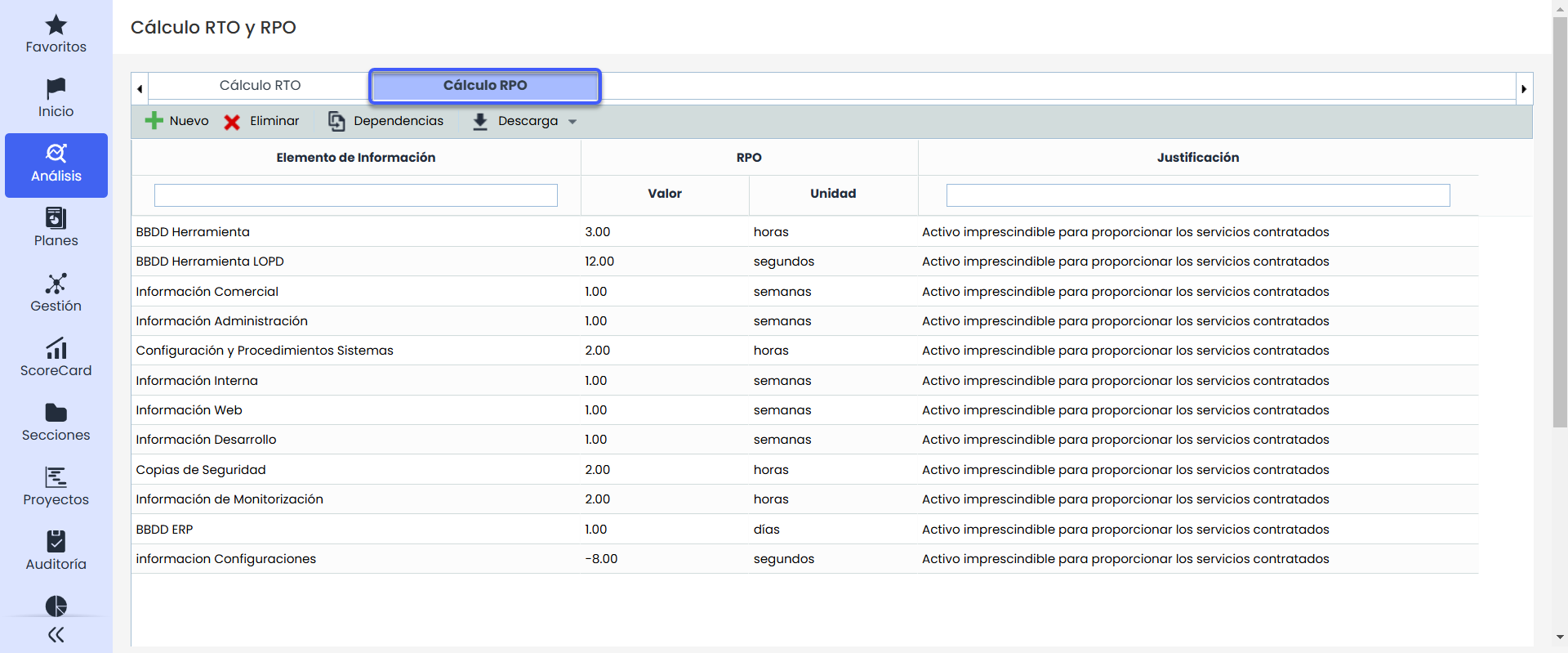
The RPO Calculation table only displays information category assets that have been assessed in the 'Analysis/Asset Inventory' section, allowing the following actions:
-
New: Allows adding a new asset to the table. That asset will appear in the 'Analysis/Asset Inventory' section.
-
Delete: Allows deleting an already defined information asset. To do this, select the desired row or rows and press the 'Delete' button.
When deleting an information asset from the RPO Calculation tab, it will automatically be removed from the Asset Inventory, and its assessments will be lost.
-
Dependencies: Displays the dependency tree of the selected asset.
The dependency tree can be defined in the 'Analysis/Asset Inventory' section.
-
Download: Allows downloading the list of assets and the RPO calculation in an editable format (.xlsx) or in .PDF format
The RPO calculation tab by default displays the following information for each of the assets: -
Information Asset: Displays the name with which an information category asset has been identified.
-
Dimensions: Displays the dimensions defined in the 'Analysis/Asset Inventory' section and the assessment established for each of them.
-
RPO: Allows defining the time scale that the organization can afford to lose for that information asset. To do this, double-click on the cells and define the desired values.
-
Justification: Text field that allows justifying in detail the RPO defined for each of the information assets.
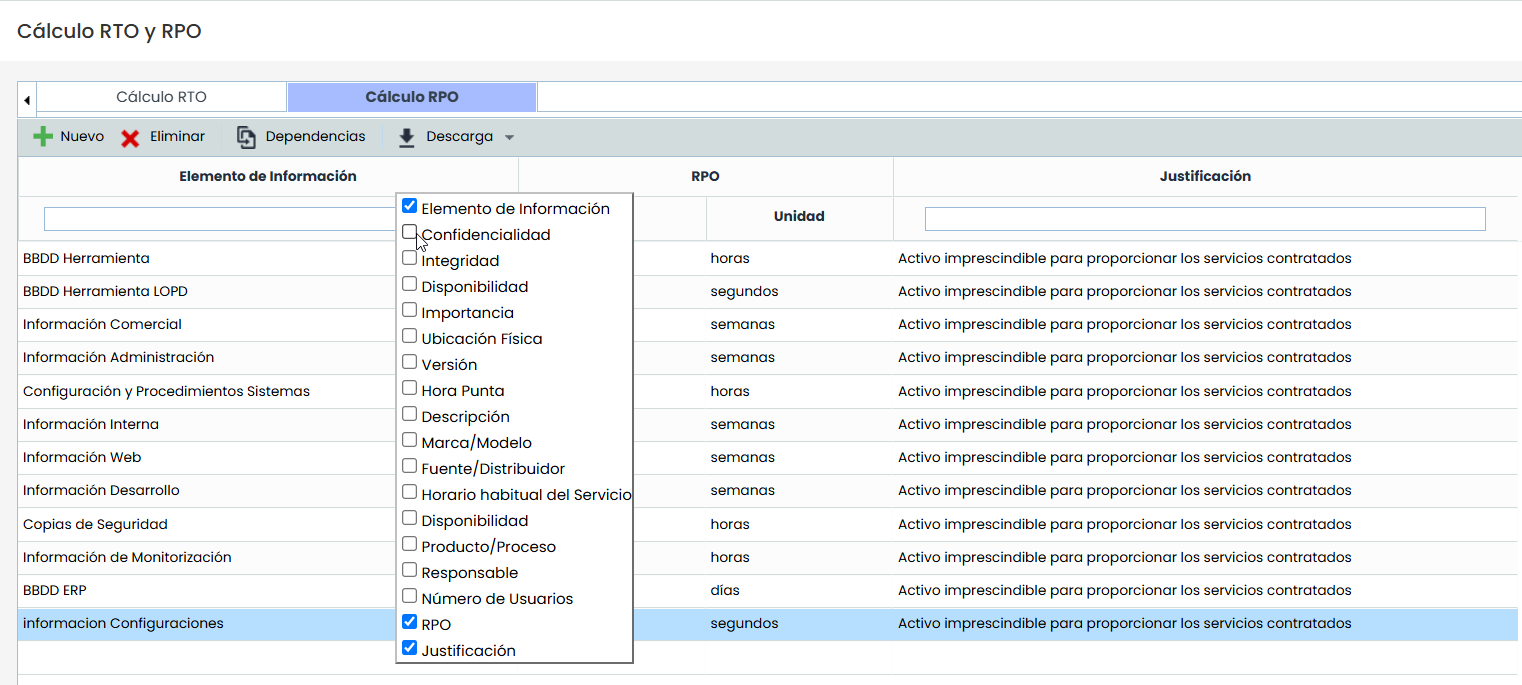
NOTE: Additionally, the user can define the information they want to display in the RPO tab. To do this, right-click on the line showing the column titles. A list appears that allows selecting which dimensions to insert into the table for informational purposes.