
New features and improvements in GlobalSuite® GRC
Improvements in Surveys with Evidence
This improvement introduces the ability to manage the visibility of documentation associated with evidence in surveys, primarily allowing:
-
View previous documents associated with evidence in surveys.
-
Consolidate evidence documentation into different folders within the Document Manager.
-
Additionally, access to evidence documentation can be restricted, enhancing the TPRM solution by allowing each provider to see only the documentation relevant to them in the surveys.
Key Features
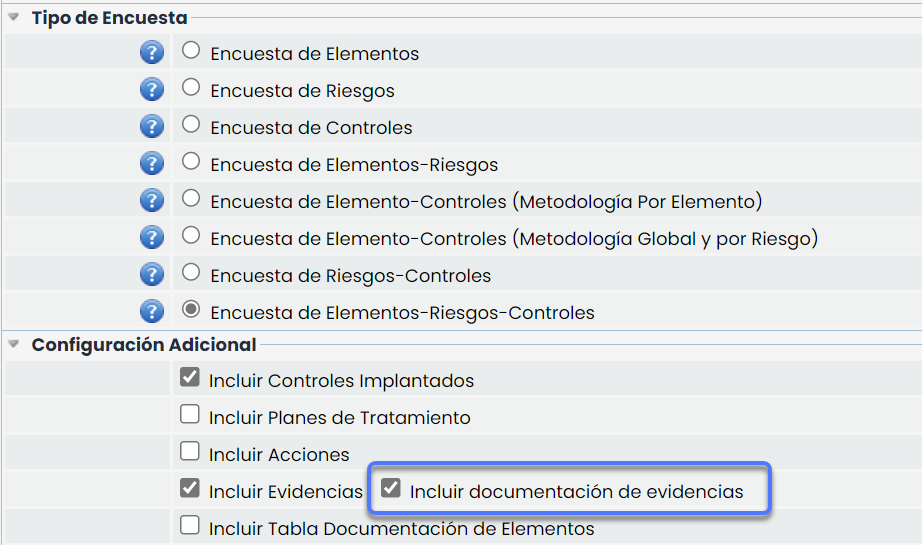
Viewing Documentation Associated with Evidence
Allows configuring whether the documentation associated with evidence will be visible in surveys.
This option is enabled in Settings > Survey Models
Documentation Consolidation
-
Ensures that documents collected during the survey are consolidated into specific folders in the Document Manager.
-
Offers flexibility to define the destination of the consolidated documentation.
Visibility and Documentation Consolidation Configuration
There are two options to manage the visibility of the documents shown in the surveys:
-
Full Visibility of Evidence Documentation > No Associated Folder
-
If no folder is selected and more than one item is included in the scope, all evidence documents will be shown in the survey.
-
The survey consolidation is done in the "Survey Evidences" folder.
-
-
Restrict Visibility of Evidence Documentation > Associate Folder
-
The documents visible in the survey will only be those included in the selected folder and associated with the evidence.
-
The survey consolidation is done in the same selected folder.
-
TPRM Option
For TPRM module users, an option is offered that simplifies the creation of folders for each provider. Instead of manually creating a folder for each one, the folder will be automatically generated when consolidating the survey.
Additionally, when the survey is consolidated, the documentation will be consolidated in that same generated folder.
These configurations are made in Surveys > Configuration

Automation of Survey Sending from Inventory Using Templates
This improvement introduces the possibility of defining survey templates, allowing surveys of items to be launched from Inventory > Item Table. With this functionality, in addition to sending surveys centrally from Survey Management, users will be able to send surveys directly from Inventory using these templates, streamlining and simplifying the process, and enabling users without survey administration privileges to send surveys by selecting one or more items to include in the scope and quickly configuring the sending.
Key Features
-
Automated Sending of RCE Surveys for Items: Automated sending of surveys can be performed from Inventory, with a scope of one or more items.
-
Sending Method: Surveys can be sent via external link (through a unique link) or as internal access surveys for completion by other GlobalSuite® users.
-
Recipient Management: The survey can be sent to the person responsible for the selected item or to another person among the registered employees, or recipients can be added manually by entering their name and email address.
Access to the Option
To enable this option, in Surveys > Survey Configuration, the Template checkbox must be selected in an RCE survey configuration for items.
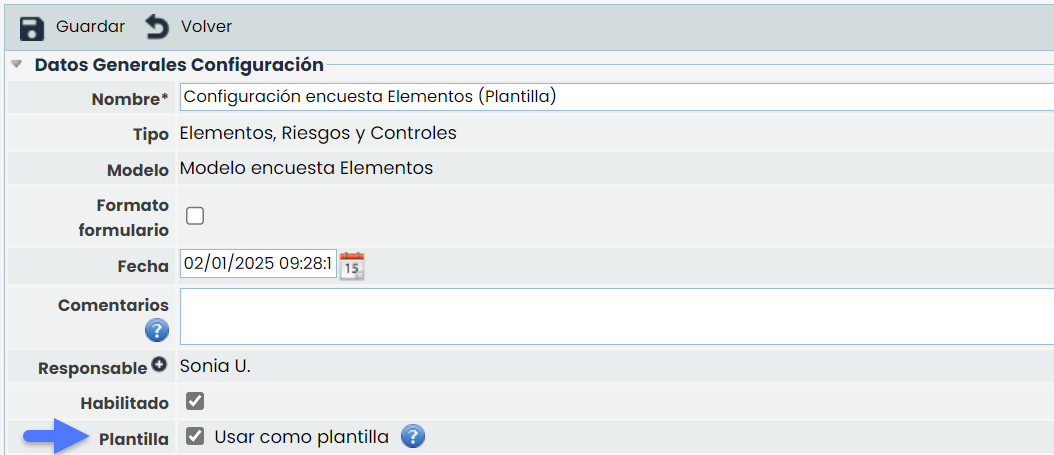
When marking a survey configuration as a Template, a specific item scope cannot be chosen, as these are selected at the time of launch.
If Templates are enabled, in Inventory > Item Table, one or more items can be selected and Send Surveys can be clicked.
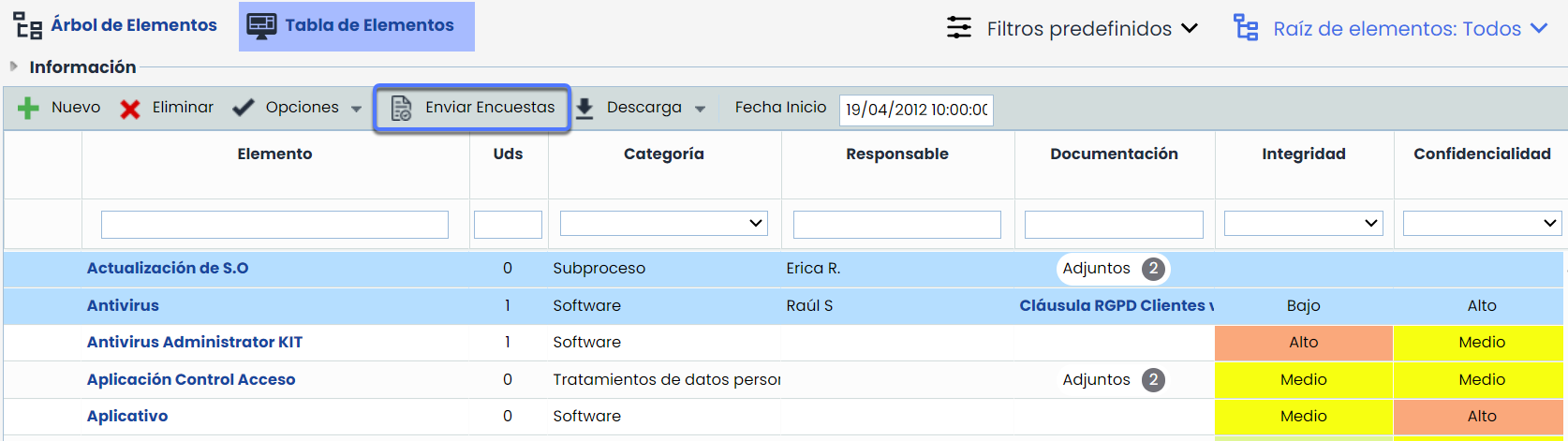
Sending Configuration
In the window that opens, the desired configuration, sending method, and start and end dates must be selected in the dropdown Sending Template.
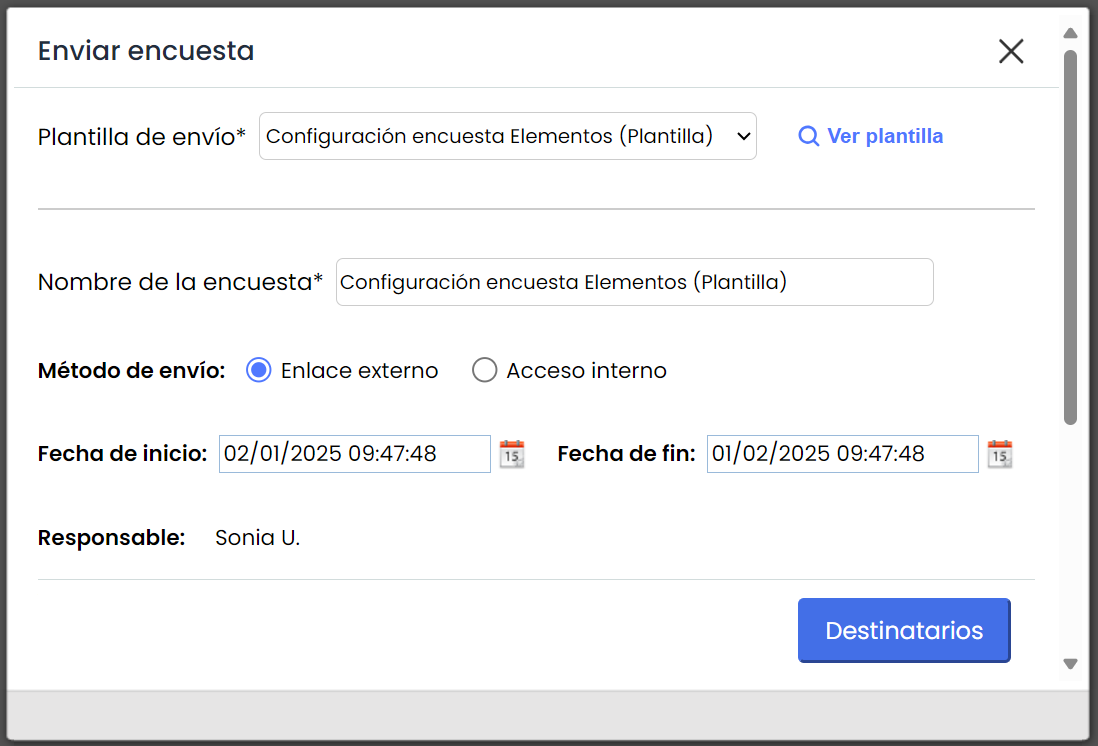
Recipient Selection
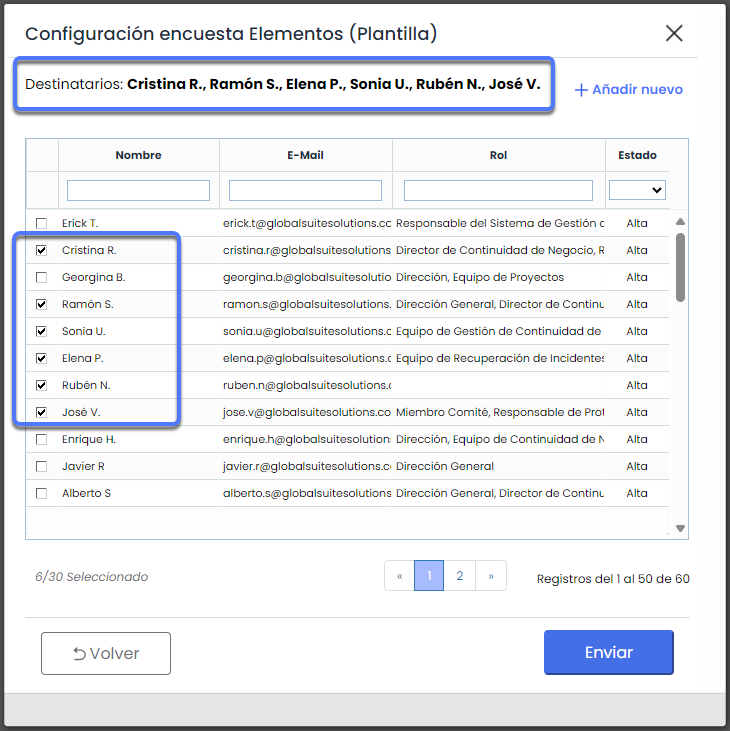
After choosing the template, Recipients must be clicked.
In this window, survey recipients can be selected from the employee list, or new ones can be added manually using the Add New option.
If the selected item or items have a defined responsible person, they will automatically appear as the recipient, although this can be modified to send it to a third party.
Once all fields are configured and recipients are selected, and Send is clicked, the surveys will be generated automatically as configured.
These surveys launched from Inventory using a template can be managed and tracked from the Surveys > Survey Management section, according to the defined workflow.