
New features and improvements in GlobalSuite® GRC
New View Items - Ticket
A new view is incorporated that consolidates the relationship between items, tickets, and risks on a single screen, aiming to facilitate the analysis and monitoring of these links in the system.
The information is obtained from the THREATS field present in the tickets, where the item, the associated risk analysis, and the selected risks are currently linked. This view organizes all that information hierarchically, allowing clear and contextual navigation.
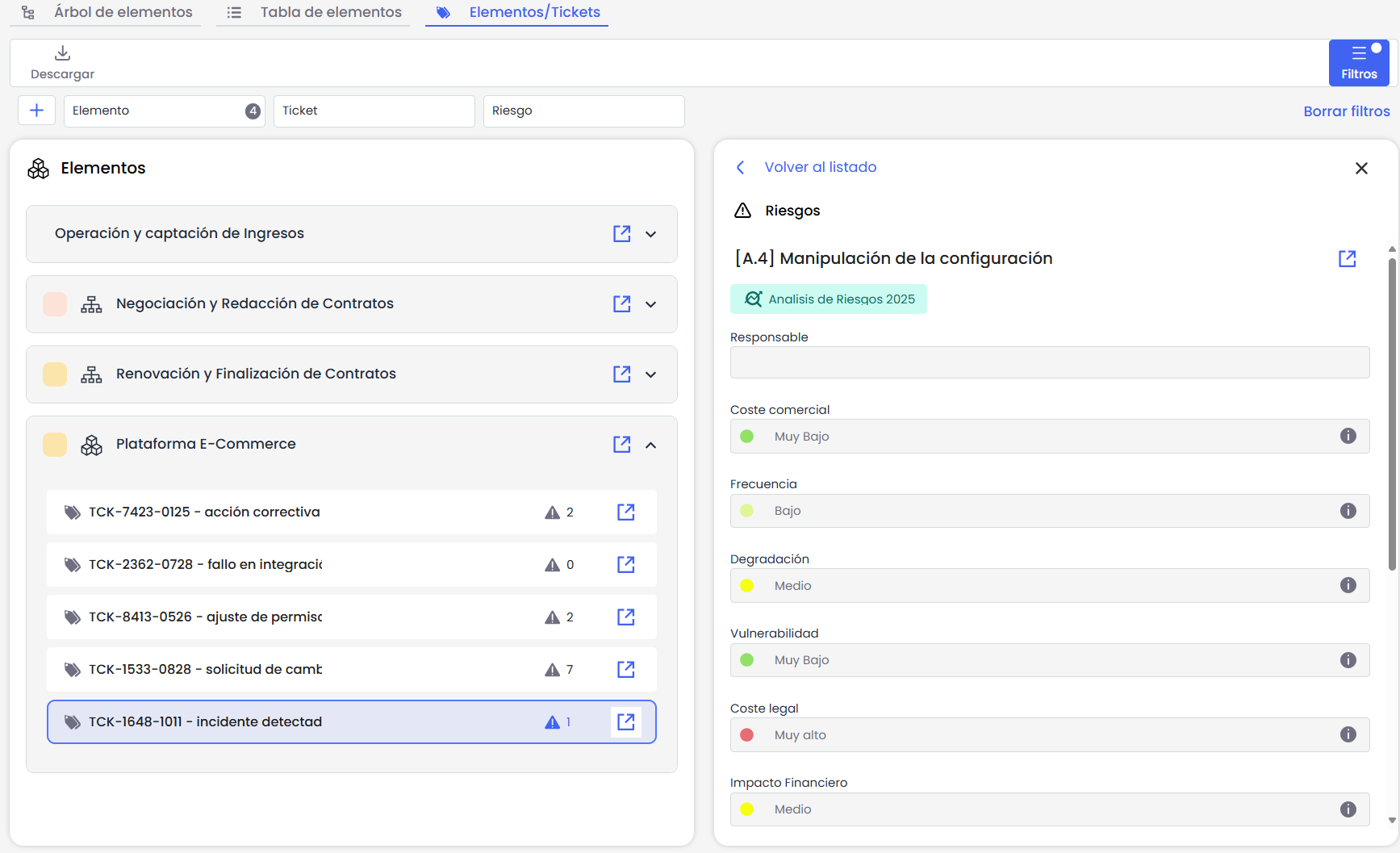
Items
Each item is presented as an expandable card summarizing key information and allowing exploration of the linked tickets and risks. This view includes only the items that have at least one associated ticket.
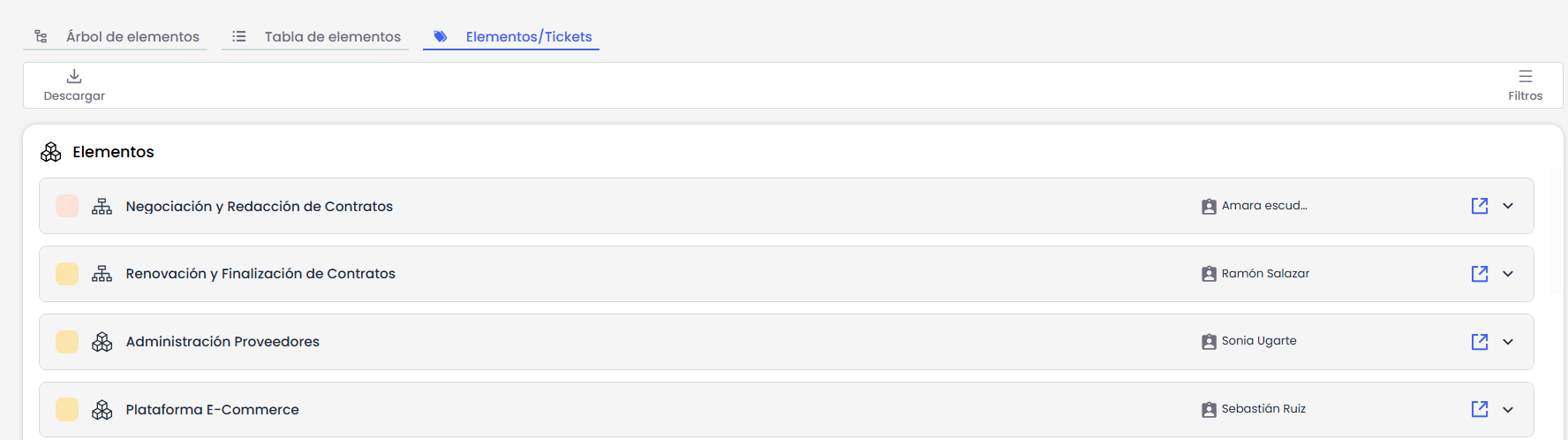
At the top of each card, the name of the item, the icon corresponding to its category, a visual indicator of the Criticality Dimension level, and the assigned responsible person are displayed. On the left, the “View details” button takes us to the item's form in the inventory.
Tickets
Within each card, the tickets containing the item in the THREATS field are displayed.
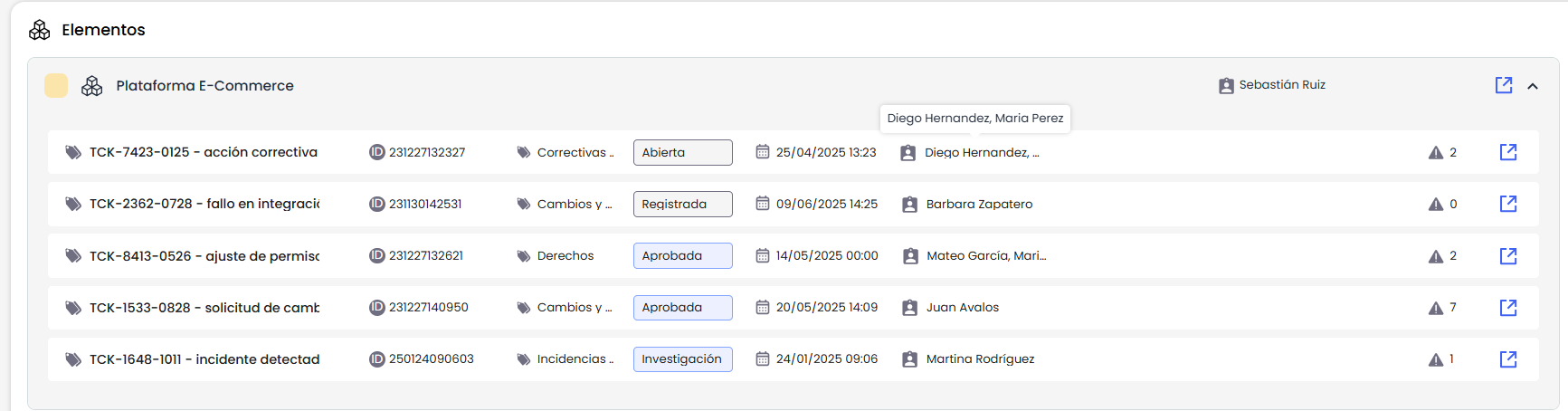
The visible data for each ticket is defined in Settings > Tickets > Common Screen, where it is possible to specifically configure which fields should be displayed in this view. The available configurations include:
-
Subject: A field of type INPUT must be selected to display as the name or subject of the ticket.

-
ID: A single field of type ID can be configured for display.
-
Status: A single field of type STATUS must be selected, which will be displayed with differentiated colors.
-
In the view, statuses will have colors according to their type: Gray for initial statuses, blue for intermediate, and green for final.
-
-
Date: A single field of type DATE can be selected.
-
Responsible: A single field among OWNER, EMPLOYEES, or SUPERVISOR can be configured.
Risks
When the user clicks on a ticket, a side panel opens showing the risks linked to the ticket and the corresponding item.
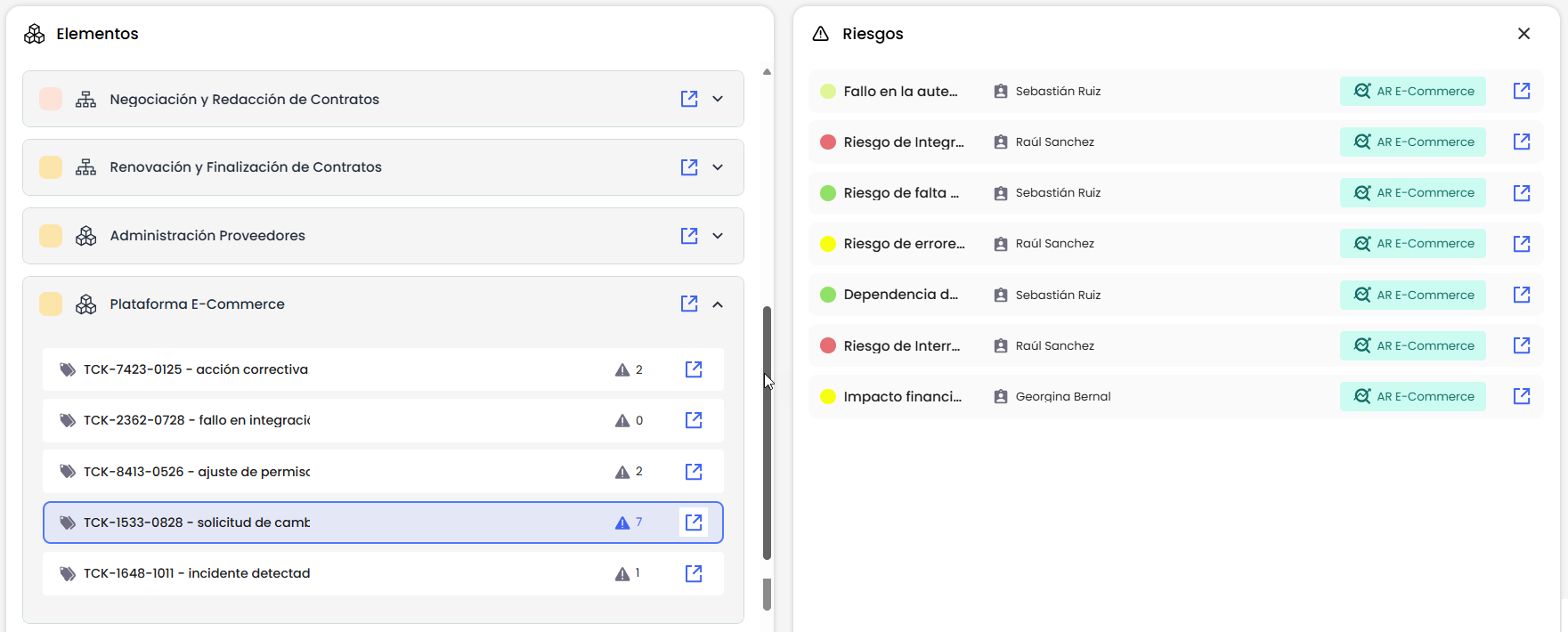
In this view, key information such as the risk level in the dimension configured as primary, the name of the risk, the assigned responsible person in the Risk Analysis, and the name of the analysis it belongs to is presented.
Risk Detail
From the risk list, by clicking on a risk, the user can access a read-only form with the full details of the risk, according to the methodology of the Risk Analysis it belongs to.
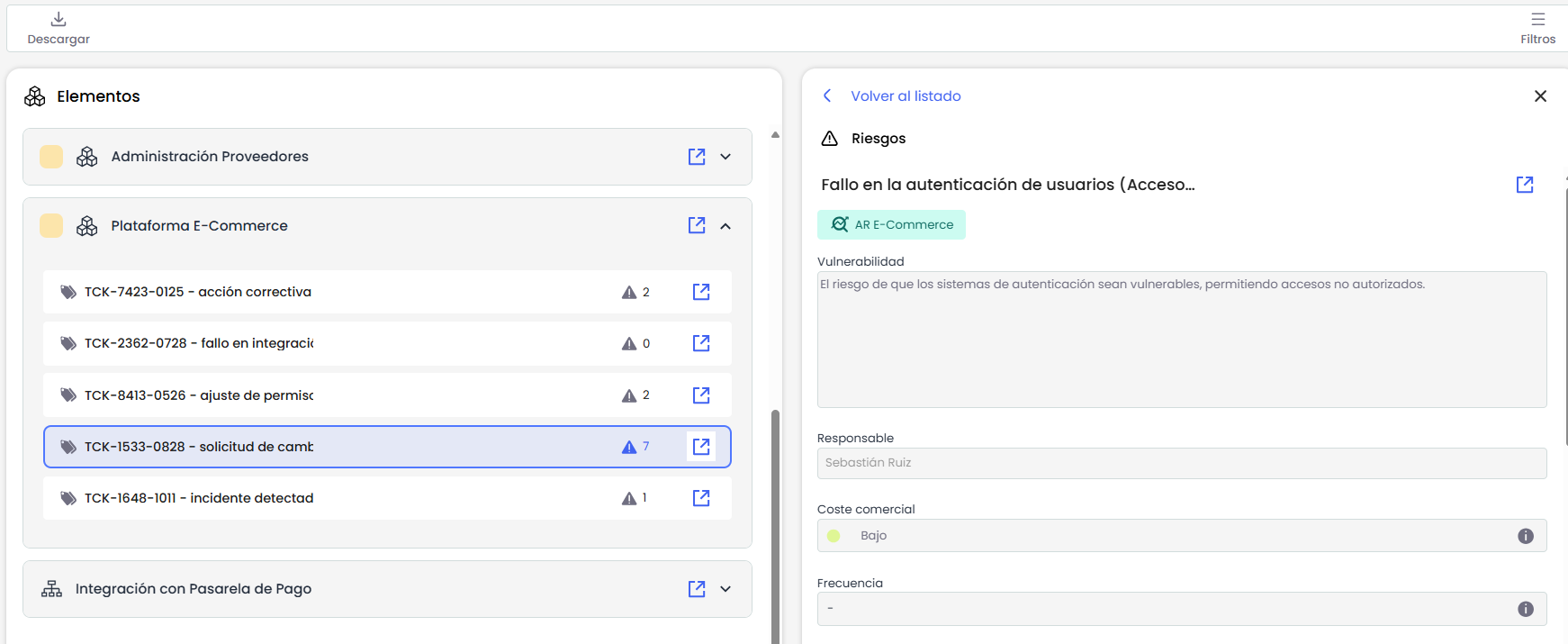
By pressing “View details,” the risk details open directly within the Risk Analysis, in a new browser tab.
Filters
The consolidated view allows applying filters to facilitate the exploration of the displayed data.
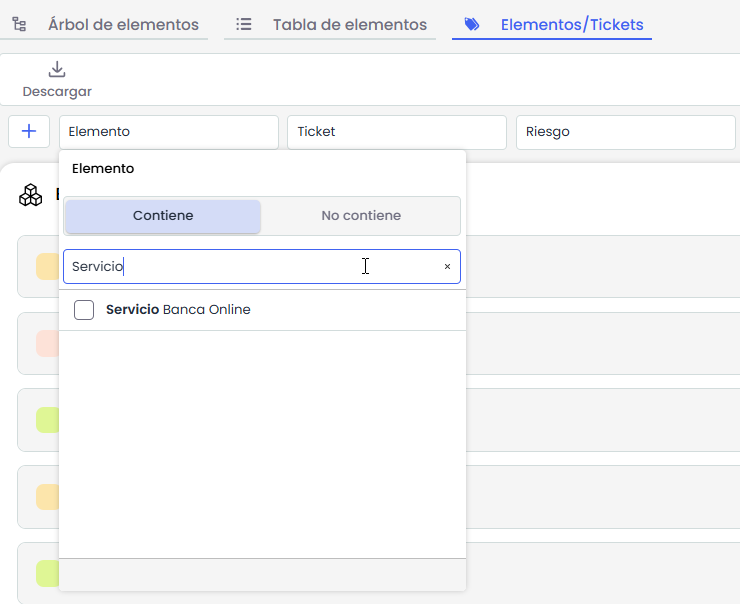
The available filters include:
-
Item
-
Ticket
-
Ticket type
-
Risk
-
Element owner
-
Ticket owner
-
Risk owner
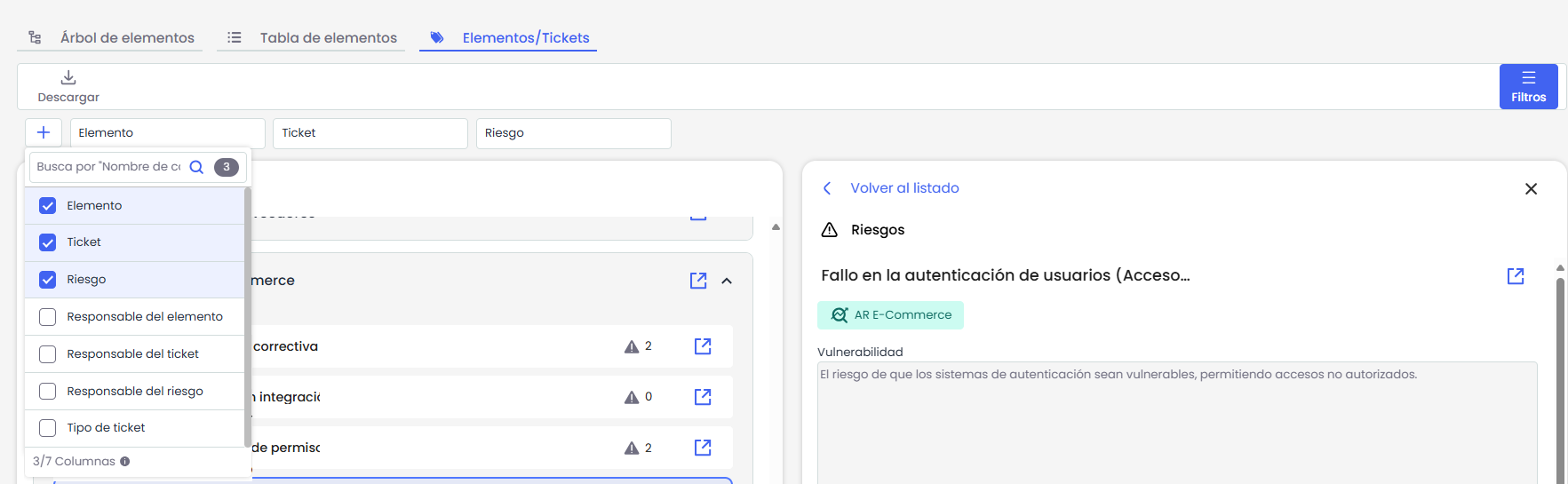
Download
The view incorporates a download button that allows exporting the displayed information to a CSV file. The consolidated report includes the data of items, tickets, and risks, organized so that each row represents a unique combination of these three levels.

The download respects the active filters in the view at the time of export, ensuring that the file accurately reflects the visualized data.
New features and general improvements of GlobalSuite® Continuity
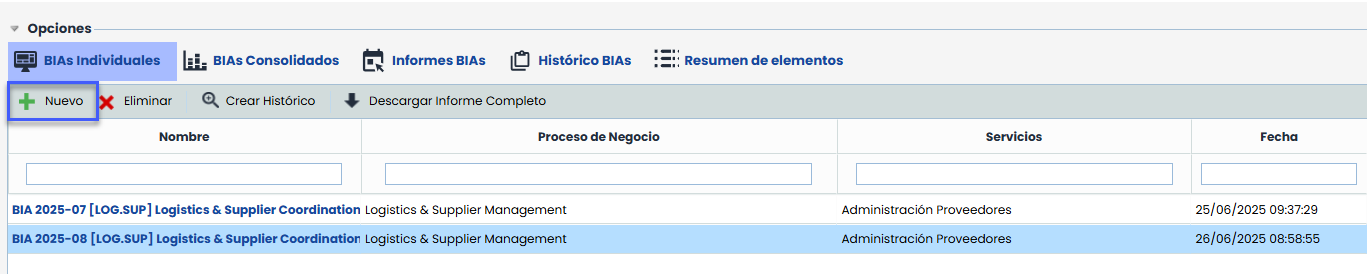
Improvement in the creation of Individual BIAs
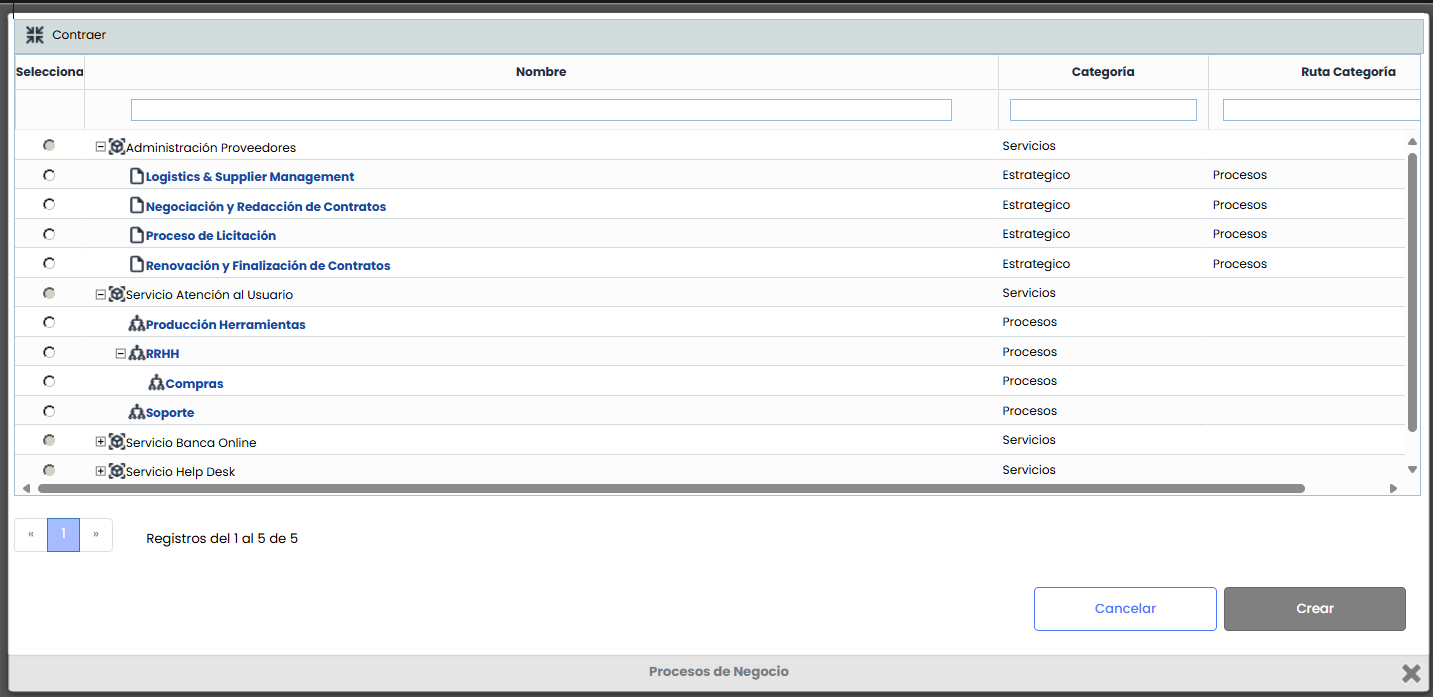
Usability in the creation of individual BIAs is improved by incorporating a new pop-up window that allows selecting the business process from an organized and filterable table. This improvement replaces the old toolbar selectors and facilitates a clearer and more visual interaction for the user.
New pop-up window when pressing “New”
The use of the selectors “Process/Services” and “Business Process” has been replaced by a modal that allows directly choosing a valid process from a table.
Process selection
The table presents the hierarchy of services and processes defined in the Business Continuity Scope.
It includes filters by name, category, and category path through free text fields, and does not allow sorting by columns.
-
When creating a BIA, the system automatically returns to the main table, positioning itself on the page where the new BIA is located.