
New Reporting Solution - Dynamic Reports in Excel
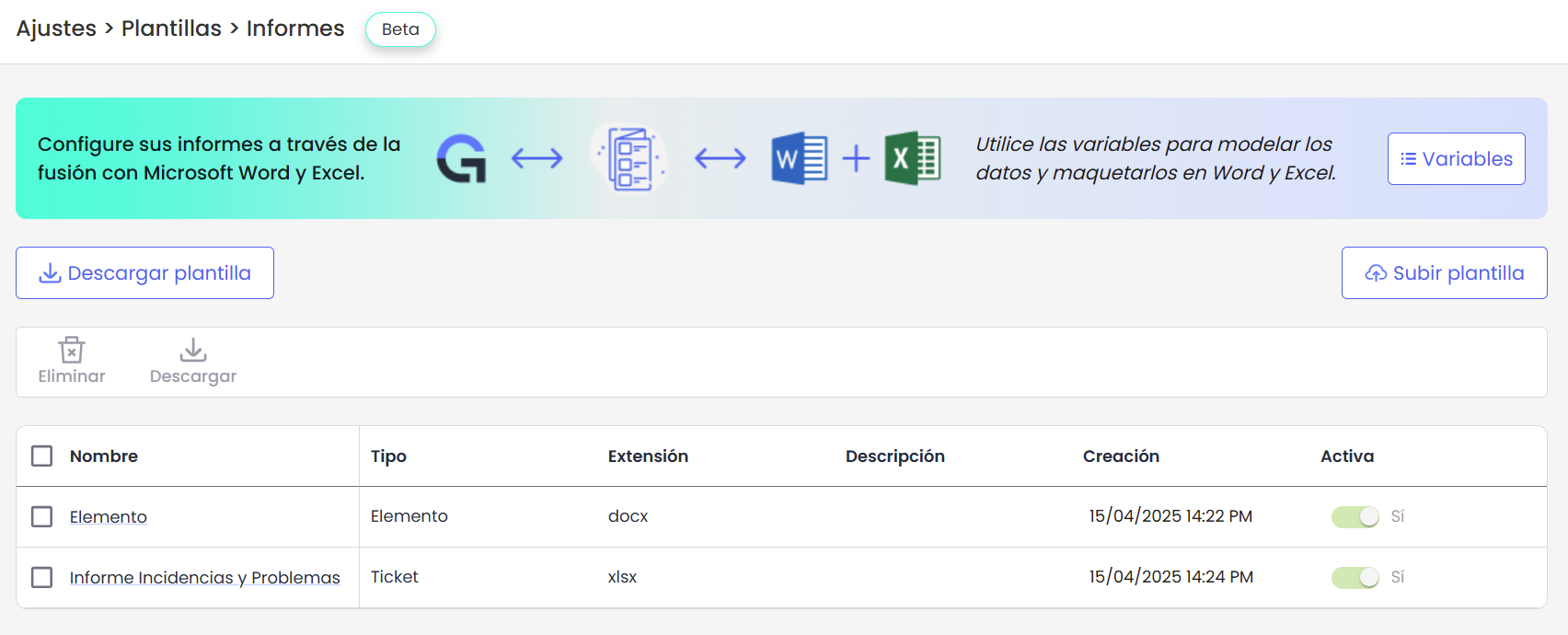
This new functionality introduces the possibility of generating custom reports in Excel format using dynamic templates, aiming to optimize document and report management in GlobalSuite®.
In this first version, Excel reports will be available for the Ticketing functionality, and they will progressively be incorporated into other functionalities.
This improvement adds to the already existing functionality of generating dynamic reports in Word, expanding customization and export options for users.
Key Features
-
Dynamic templates: It will be possible to create Excel documents with variables that allow content automation.
-
Integration with GlobalSuite®: Pre-configured data on the platform can be used to generate reports without manual editing.
-
Flexibility in customization: It will be possible to adapt the design and structure of the reports according to needs.
-
Variable listings: Access to a complete catalog of variables for items, threats, risks, and controls, including loop structures for mass data extraction.
With this solution, it will be possible to optimize workflows and improve efficiency in documentation and reporting within GlobalSuite®.
New Features and Improvements in GlobalSuite® Audit
Auditors Calendar
The new Auditor Calendar view allows graphical visualization of the tasks assigned to each auditor over time, facilitating team tracking and planning.
Available from Audits > Auditor Calendar, this tool offers daily/weekly or monthly scales and allows navigation through the year to easily consult all planned tasks.
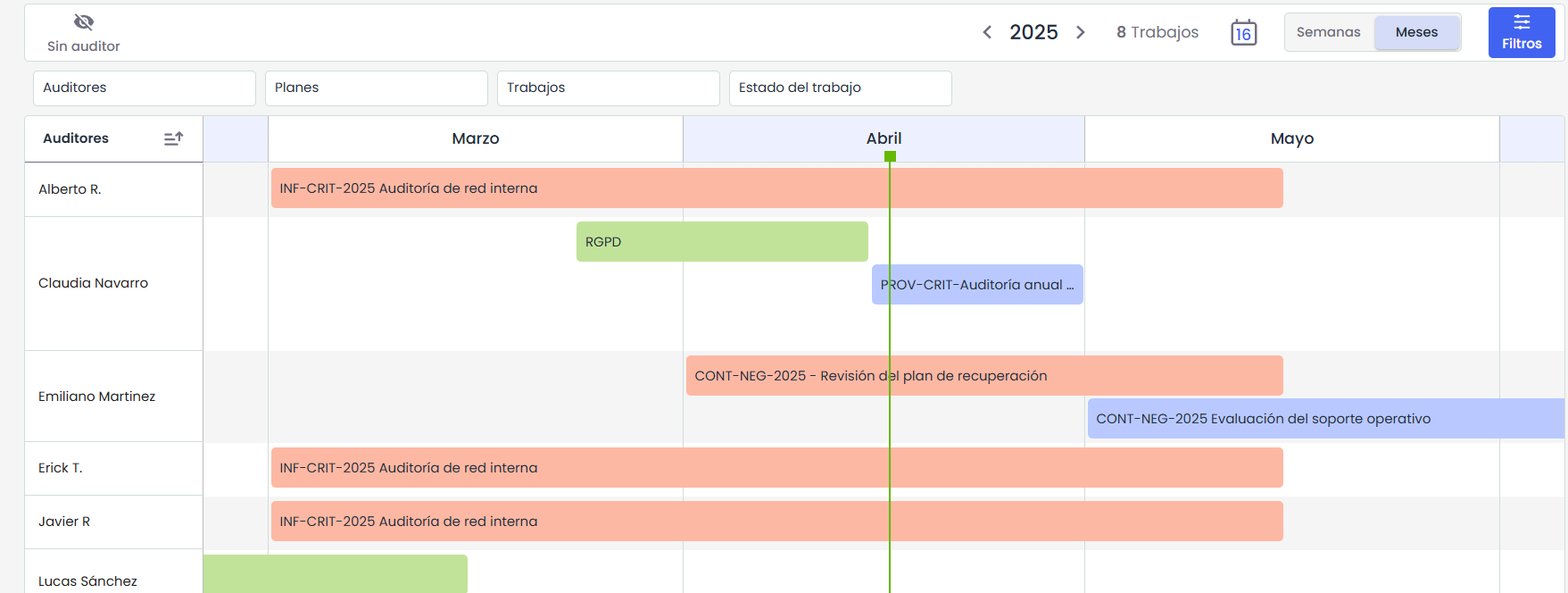
Each task is displayed as a color block reflecting its current status: blue for open tasks, red for tasks in progress, and green for closed tasks. These blocks include the task name and its estimated duration and are distributed horizontally according to the assigned dates. A vertical line indicates the current day, helping to quickly locate the present within the calendar.
The view includes a specific section to display tasks that do not yet have an assigned auditor, making their identification and management easier. A filter panel was also added, allowing information to be narrowed down by task name or status, improving navigation when there is a large amount of data on the screen.
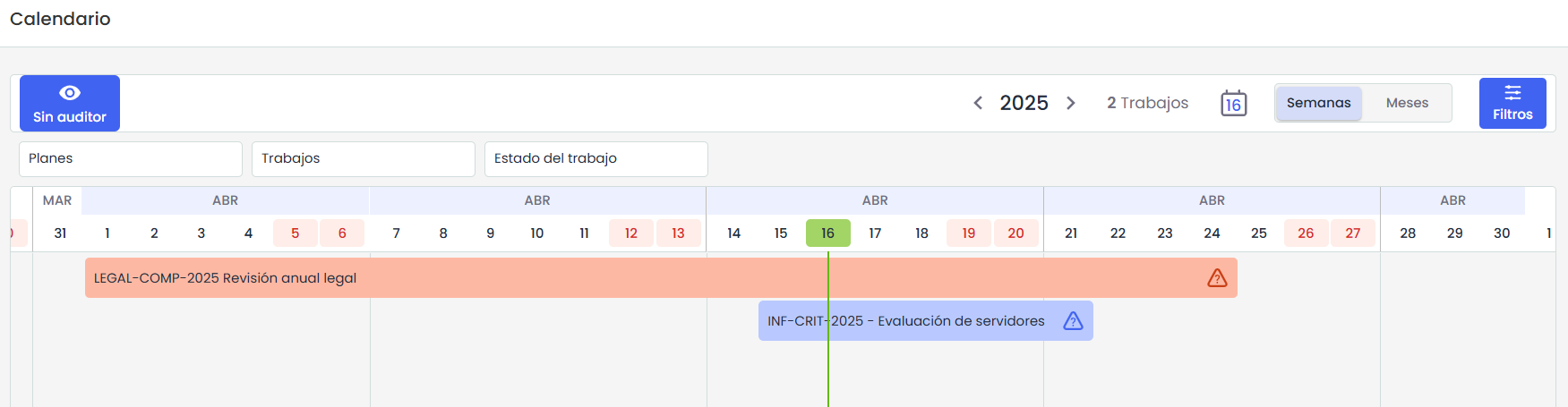
Additionally, within each audit task, validations were added to avoid overlaps within the work team: if an attempt is made to assign an employee who is already participating in another task on the same dates, the system displays an alert. This functionality, along with the general calendar view, helps prevent conflicts and better plan available resources.
Hours Worked by Auditor
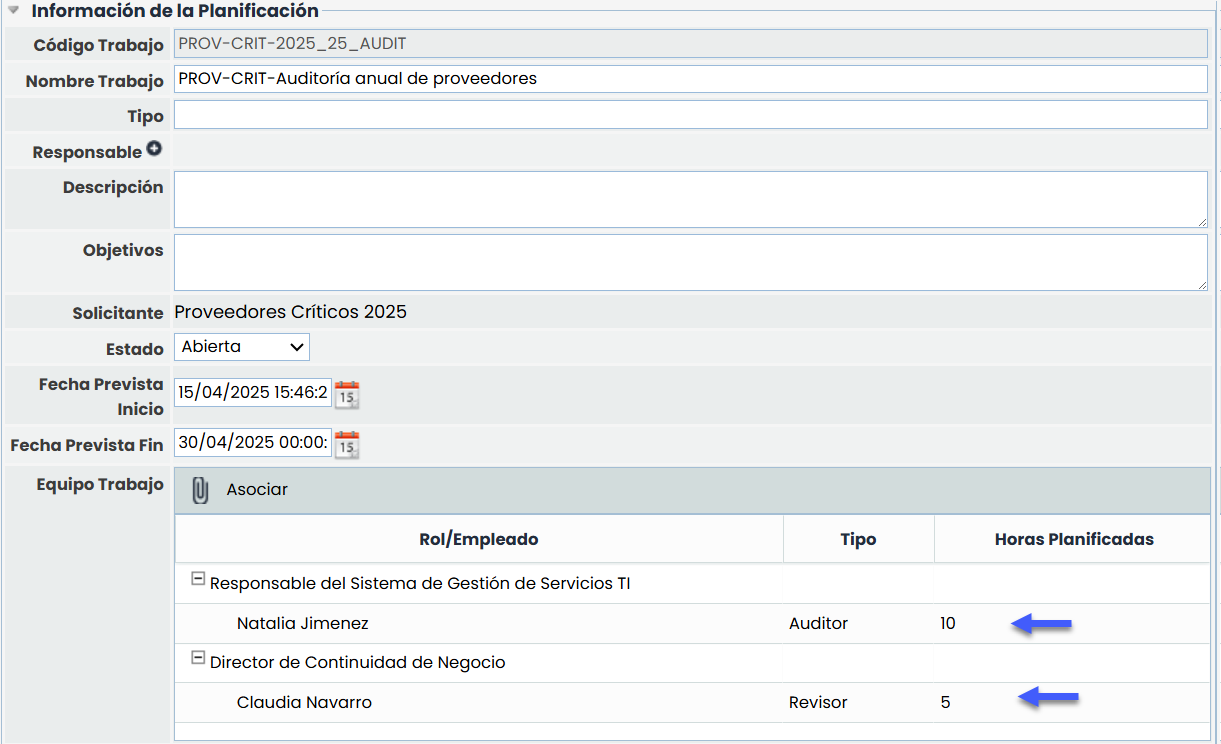
This improvement incorporates the possibility of recording the planned and worked hours for each auditor in the audit tasks, without needing to associate them with a specific project. This information is manually entered from the task details and reflects the actual effort invested by each team member.
Planned Hours
Planned hours can be entered from Audits > Audit Program, by accessing a task in Open or Draft status, or from the Audit Work Plan tab when the task is already in Execution or Closed status. For greater clarity, the “Work Team” table within this tab was updated, renaming the “Hours” column to “Planned Hours,” thus more accurately reflecting the data being managed.
Dedicated Hours
Actual worked hours are managed from the Task Execution tab, available when the task is in Execution status. In this view, a new option was added to the toolbar called “Log hours,” from which each logged-in user can enter the time they have dedicated. When logging hours, the amount, date, and a detail associated with each entry must be indicated, allowing for more precise tracking of the effort made.
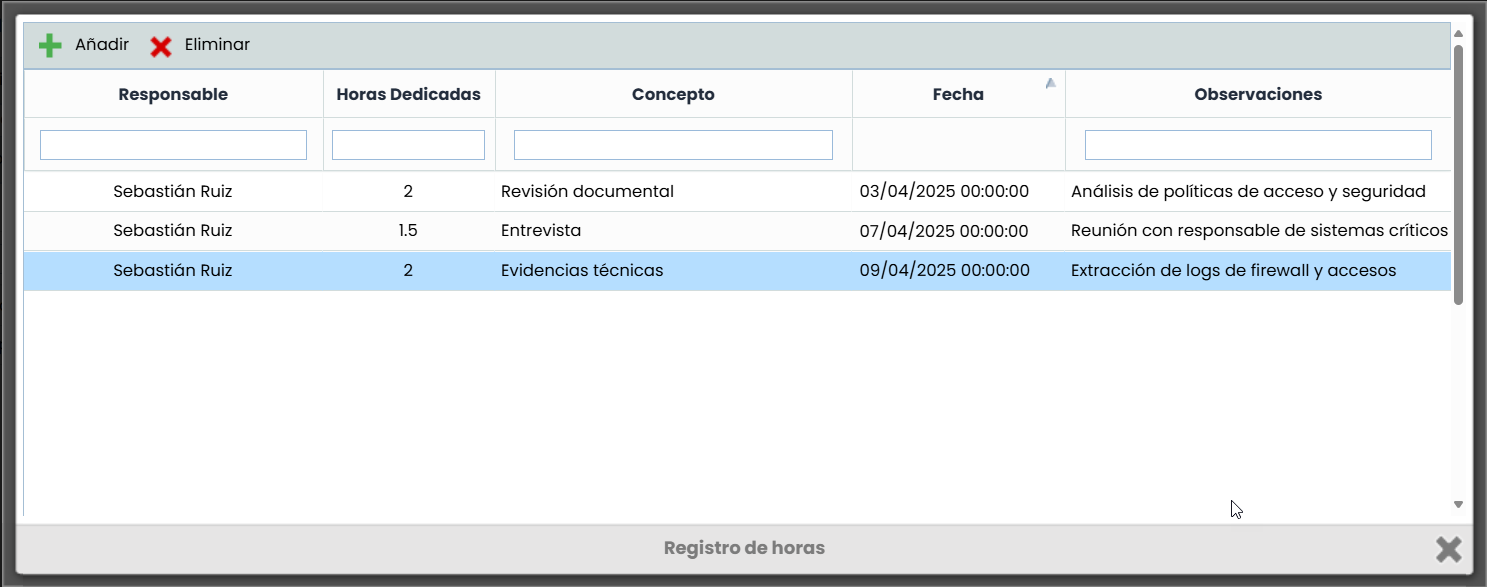
Additionally, both the task report and dashboards were updated to correctly display estimated and actual hours.
Audits – Automatic Code in Audit Tasks
From this version, the option to automatically generate task codes within the Audit Program is enabled, constructing them uniquely and without manual intervention.
The system assigns codes according to the configured format, ensuring sequence, traceability, and consistency.
This improvement is a continuation of the change that introduced the Manual Code field in plans and audit tasks ( Changelog v6.109).
Automatic Code Configuration
To enable this functionality, go to Settings > Audits > General and activate the "Plan Code" option. By doing so, the “Plan Code” field will be available in plan forms, and the “Task Code” field can be defined as manual or automatic. If the automatic option is selected, a section is enabled to configure the code format, allowing the combination of variables, sequential values, and fixed texts, adapting the coding to each client's needs.
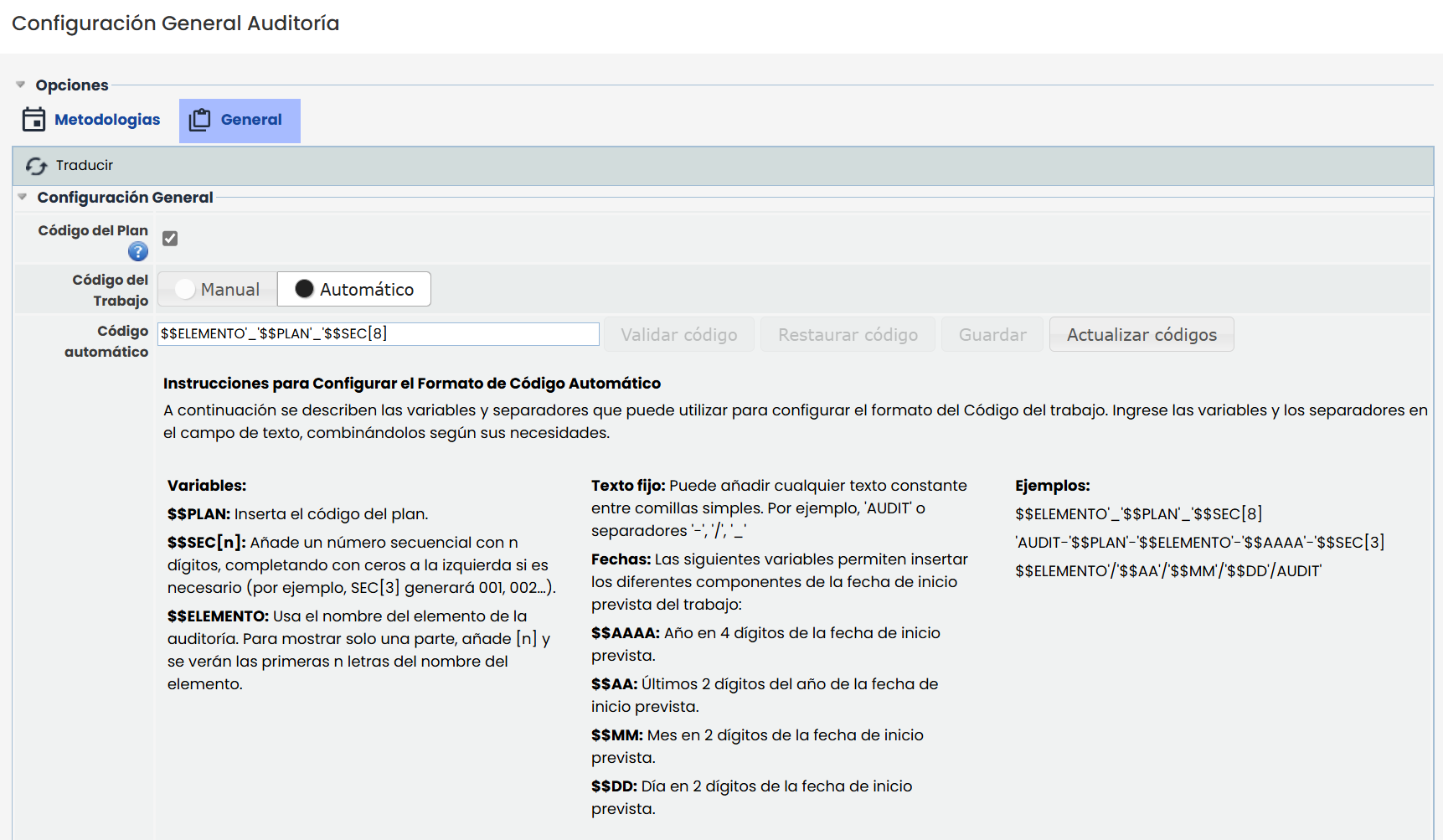
The system offers several actions to facilitate this configuration:
-
Validate Code, which allows checking if the entered format is correct before saving it.
-
Restore Code, which retrieves the last valid configuration in case changes were made.
-
Save, which is only enabled if the format is valid and allows choosing whether to recalculate the numbering or keep the current one.
-
Update Codes, which renumbers all open tasks applying the current format without modifying it, useful for eliminating gaps in the sequence. This action requires prior confirmation, as it cannot be undone.
Functionality
When the Task Code field is set to automatic, it cannot be manually modified from the task form.
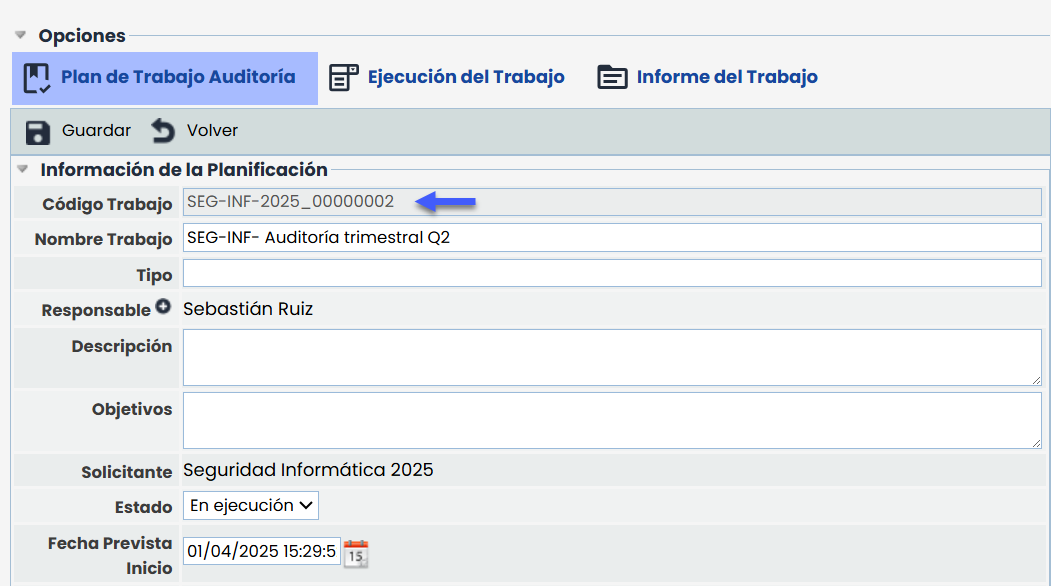
The system generates and updates it based on the variables defined in the configured format. Whenever any task or plan data affecting the code (e.g., the plan code) is edited, the system will automatically update the task code.
New functionalities and improvements in GlobalSuite® Business Intelligence
TPRM Dashboard
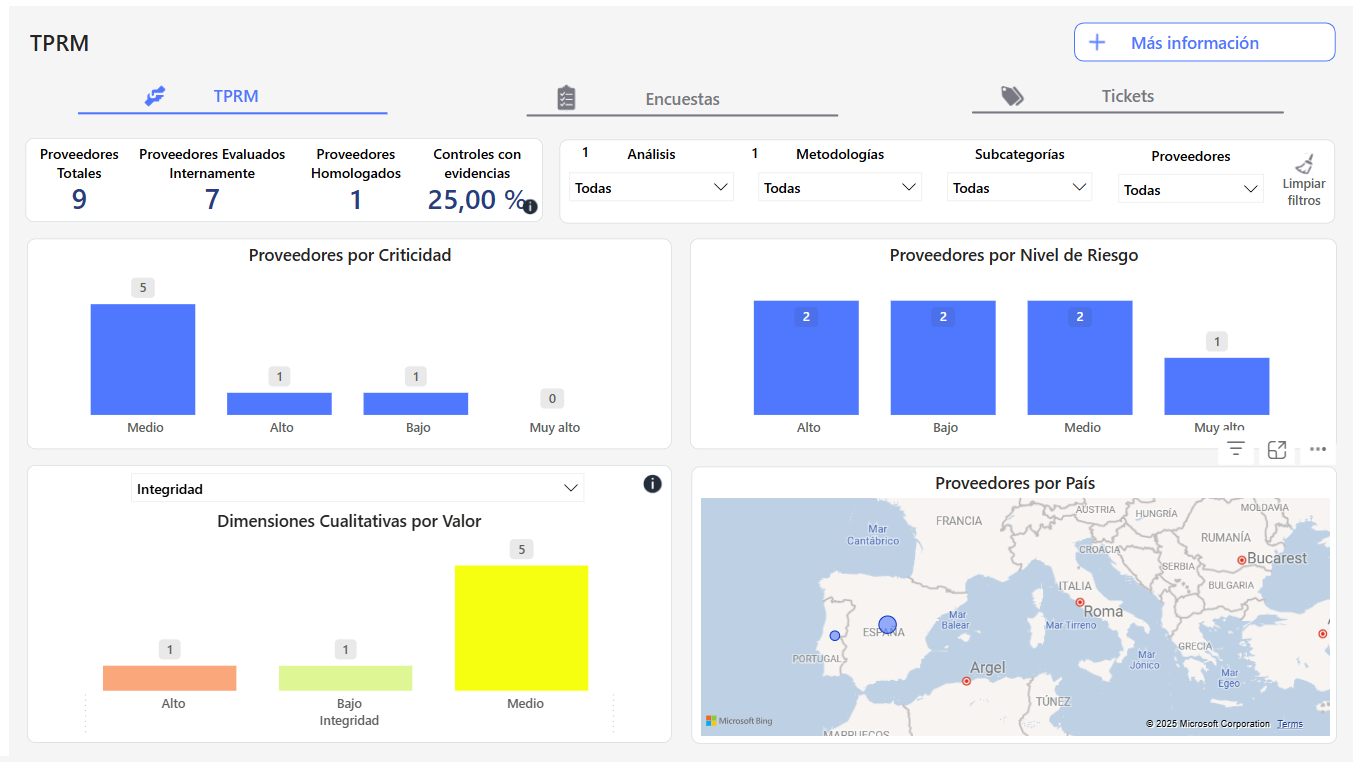
This new functionality introduces a specialized dashboard for supplier management, aiming to centralize and facilitate the monitoring of supplier status, associated surveys, and tickets through interactive graphs, metrics, and filters.
Key Features
-
Navigation Tabs:
-
TPRM: Visualization of key data about suppliers, such as criticality, risks, country, evidence, and controls.
-
Surveys: Metrics on the sending and status of questionnaires to suppliers, including graphs by model and status.
-
Tickets: Information associated with tickets related to suppliers, including status, expected closure date, and priority.
-
-
Key Indicators and Graphs:
-
Cards with relevant metrics (e.g., Total Suppliers, Surveys Sent, Tickets by Status).
-
Bar charts, pie charts, cumulative graphs, and interactive maps.
-
Detailed tables with the option to access "More information" for detailed data.
-
-
Advanced Filters: Ability to apply filters by Methodologies, Analyses, Subcategories, Survey Models, and Suppliers to customize data visualization.