
Features and improvements included:
Conflict of Interest
This version introduces a new capability to address and prevent potential conflicts of interest with channel managers when a whistleblower files a report.
Unless the corporate whistleblowing channel is managed by an independent third party (for example, outsourcing this management to a provider that supports the compliance program such as the services we offer at GlobalSuite Solutions), it may happen that a whistleblower wants to report a situation involving one of the channel managers who will receive the report for investigation.
To address this potential situation, this functionality has been created so that the manager can identify which individuals will receive the report when it is filed, allowing them to exclude individuals who may be involved in the matter being reported.
This new functionality is not enabled by default as it depends on licensing and the needs of each channel, in addition to not altering the current behavior. Below, we explain the main features of the improvement.
Conflict of Interest Configuration
To check if the conflict of interest feature is enabled, you can do so in the Settings > Questions section of the Channel.
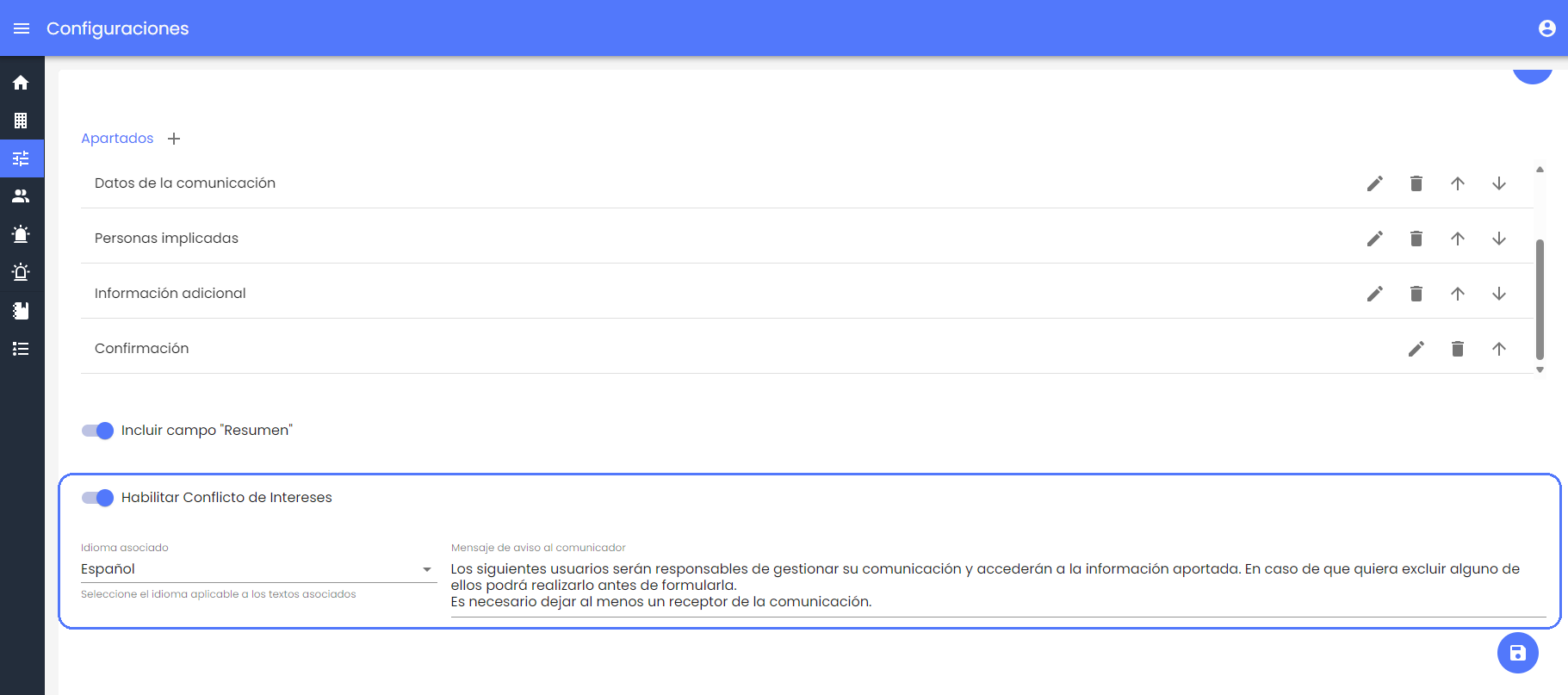
There, the field indicating whether the conflict of interest feature is enabled or not is displayed. Like the Summary field, it is shown at the end since it will be in the last section of the report form where the whistleblower can see the recipients of the report.
If it is enabled, a text field is displayed to define an informational message that the whistleblower will see in that section.
Additionally, when the Conflict of Interest feature is enabled, it is possible to configure which users with access to reports (Global Administrator, Manager, or Consulting roles at a higher organizational level in case of multiple channels) will be included in the conflict of interest and visible to the whistleblower.
To do this, by accessing the form of these users (except for those with the Administrator role, who in no case have access to reports), it will be possible to enable or disable their susceptibility to having a conflict of interest.

This is to ensure that in cases where there are also independent or third-party users who would not be involved, they do not appear to the whistleblower.
Filing a New Report with Conflict of Interest
When this functionality is enabled, the whistleblower can complete the report form normally, filling in the required fields, attaching files, or selecting a category for the report, depending on how the system is configured.
In the final step before submitting the report, in addition to the summary of the provided information, the whistleblower will see which users will receive the report.
By default, global administrators will be selected (as these users always receive new reports) and managers associated with the category selected by the user, if recipients by category are configured in Settings > Customization.
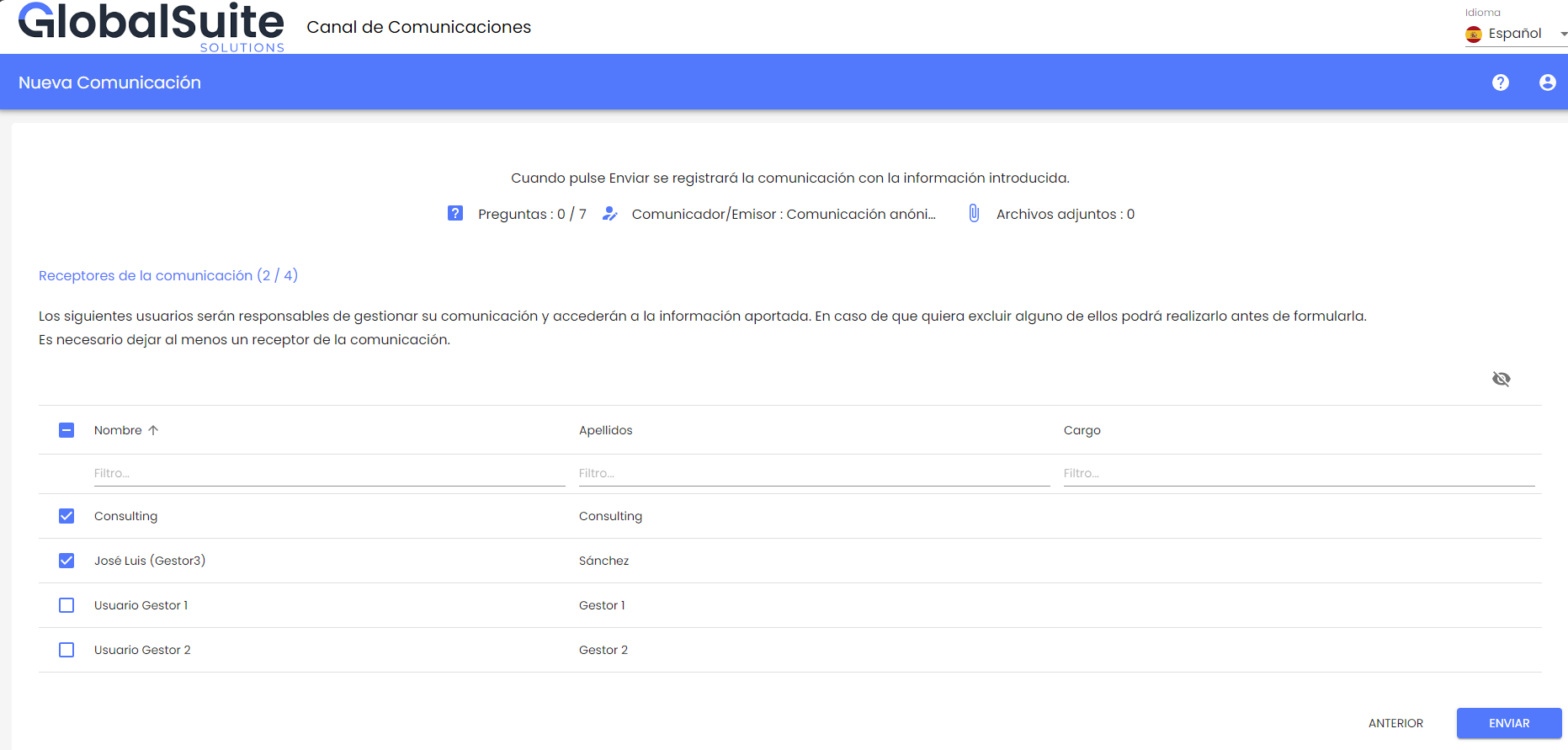
Other managers who do not apply to the selected category will also be displayed, unselected, as alternative recipients.
If the whistleblower believes that any of the individuals who will receive the report may be involved and should not have access, they can deselect them and select an alternative.
To ensure the report can be managed in the Channel, it will only be possible to submit it if at least one user is selected to receive the report.
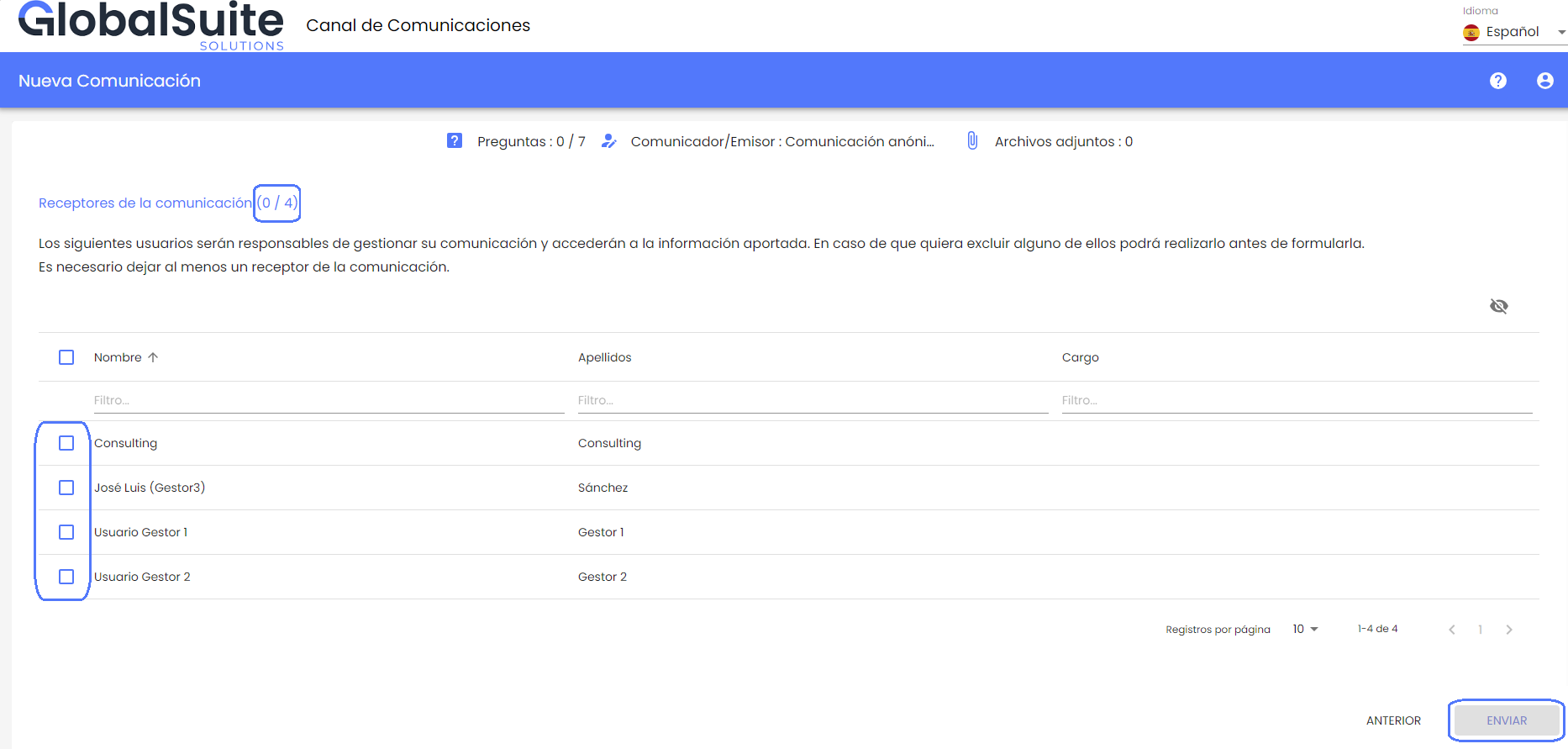
When the report is submitted, channel users who do not have access will not receive any notification or alert about it.
Managing Reports with Conflict of Interest
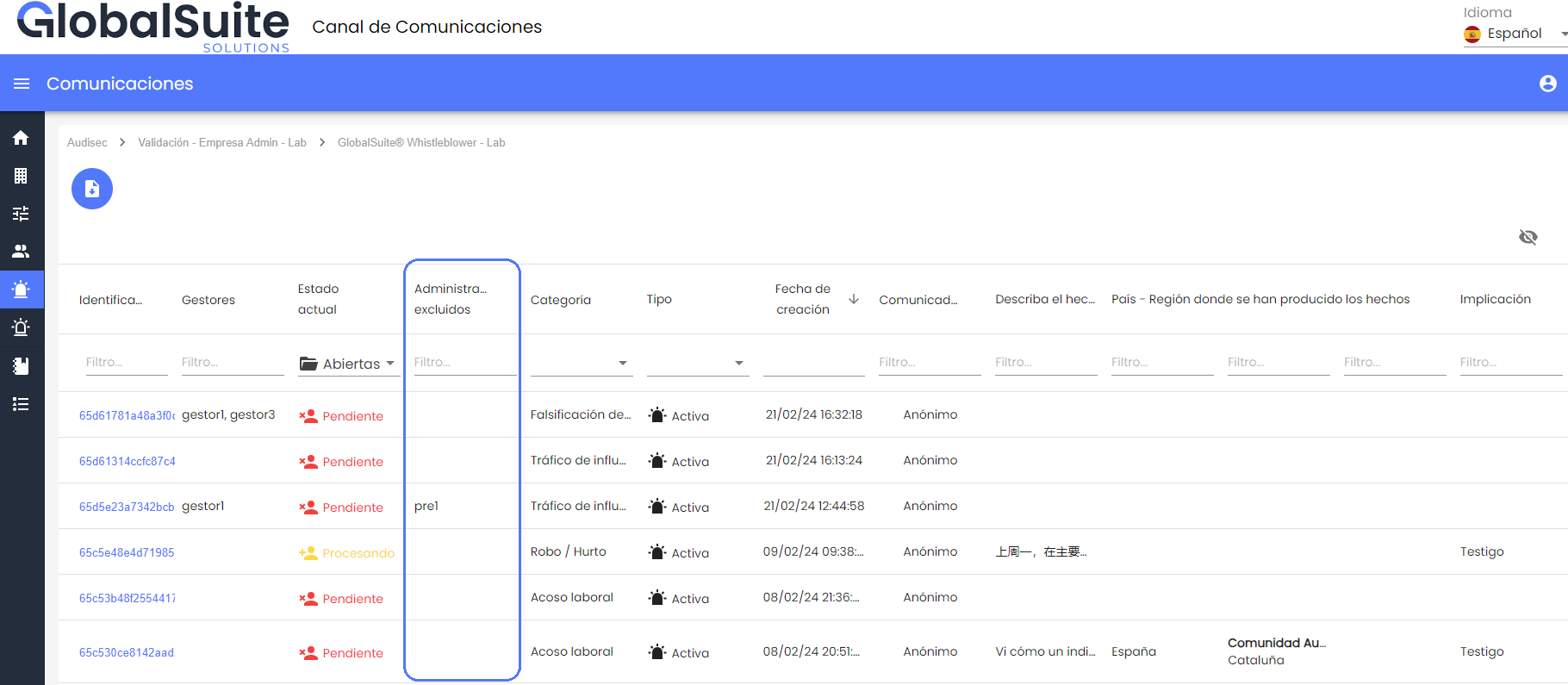
When the Conflict of Interest functionality is enabled in the Channel, if any administrator user has been excluded from a report, it will not appear in their Communications list.
Additionally, an extra column for Excluded Administrators will be displayed, showing which users have been excluded from the report.
For users who do have access to a report, when they view its details, it will also be visible in a specific section if any administrator has been excluded from the report.
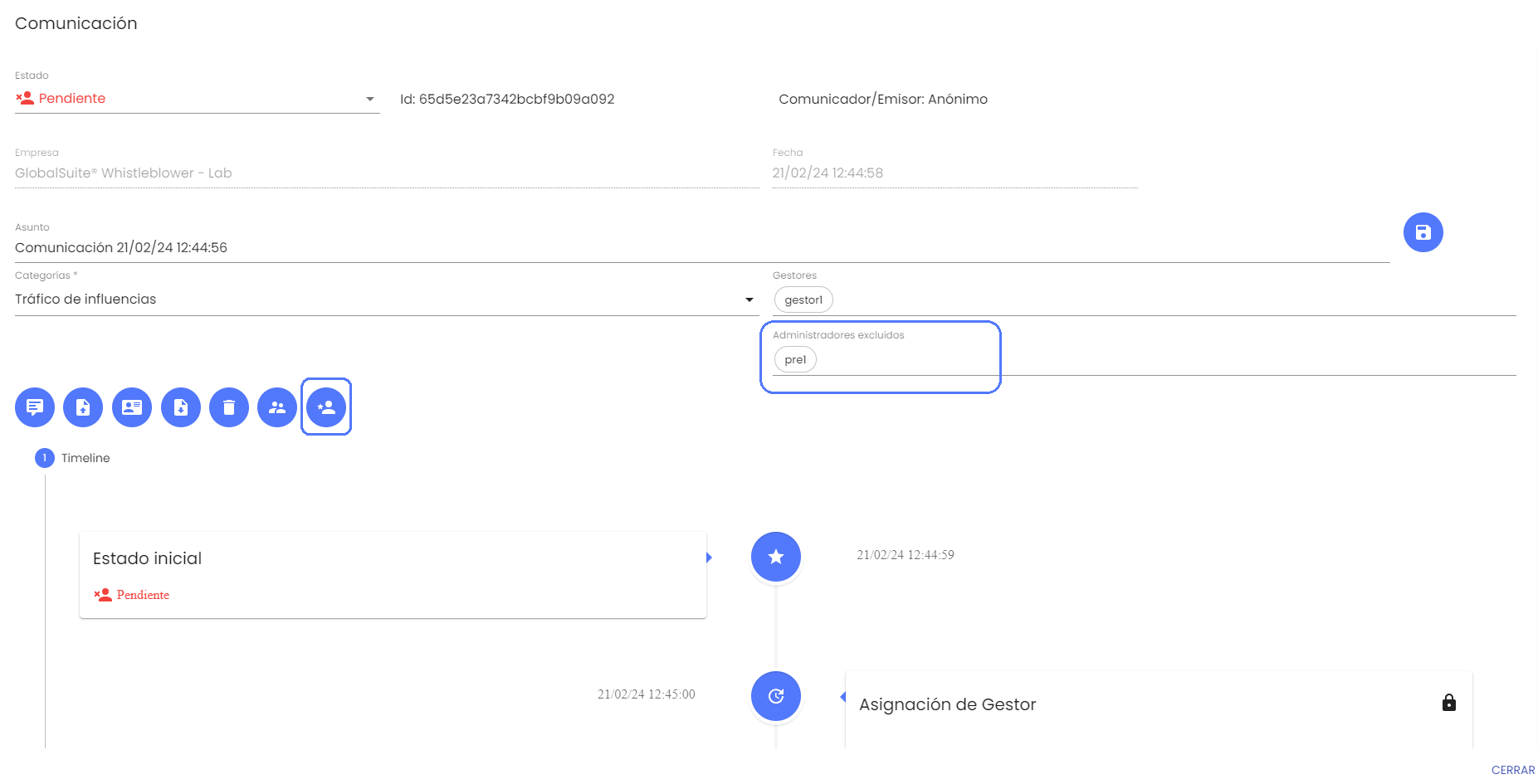
Additionally, there will be a button to manage these excluded administrators, either to grant access back to one (for example, when after investigating the matter it is confirmed that the user is not involved) or to exclude other users.