
Features and improvements included:
Metadata Deletion
This version includes the ability to enable an automatic mechanism for deleting metadata from files attached to reports.
This functionality is designed to preserve the privacy of the reporter (especially if they are anonymous) and delete metadata from files that could identify them, such as geolocation, device name, IP, date, author, etc.
This new functionality is not enabled by default as it depends on licensing and the needs of each channel. Additionally, to avoid modifying the current behavior, if you want to activate it, the steps to do so are detailed below.
Enable Metadata Deletion
Within Settings > System, in the Communications block, while it is allowed to upload documents to a report ("Allow attaching files to the communicator" enabled), the option "Metadata Deletion in Files" will be displayed.
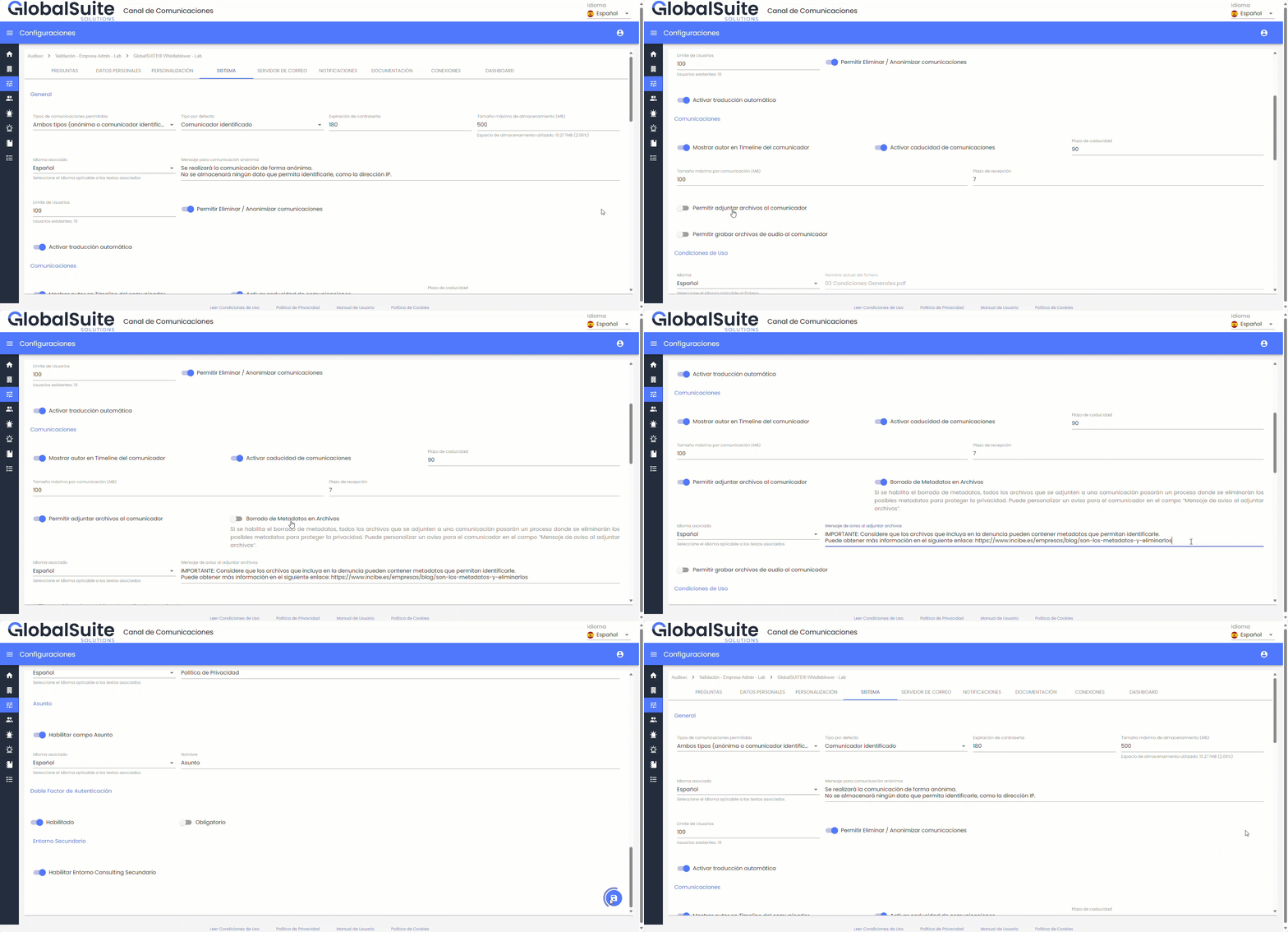
Upload documents to a report.
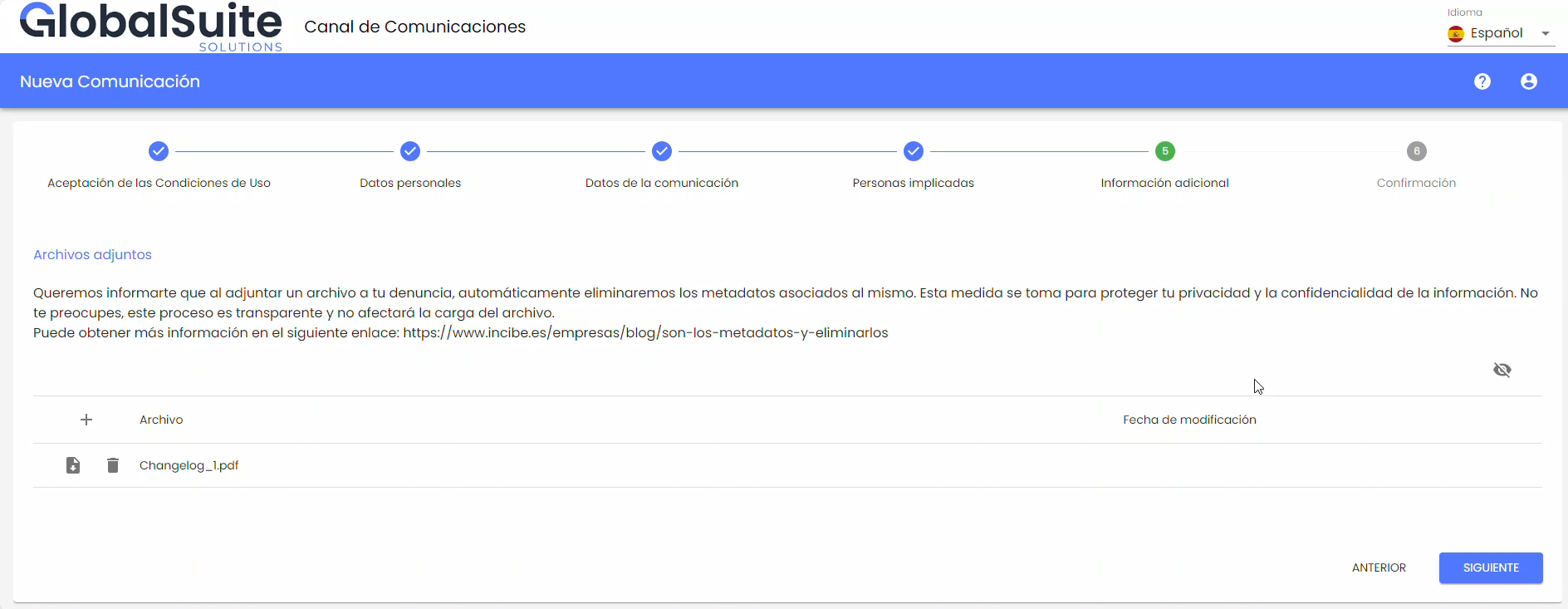
After activating this feature, when creating or editing a report and attaching a file, the automatic deletion of metadata will be carried out transparently for the user submitting it.
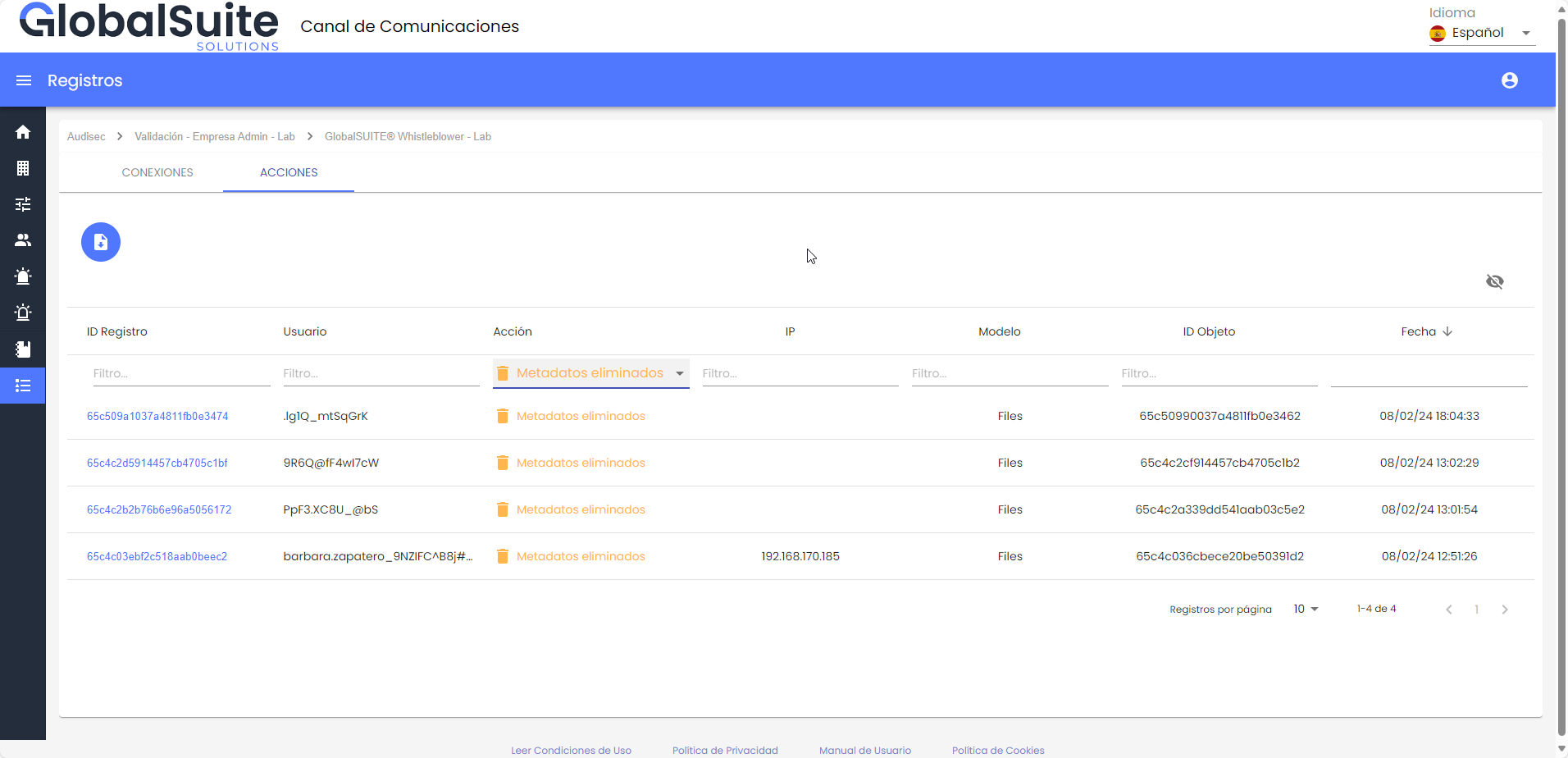
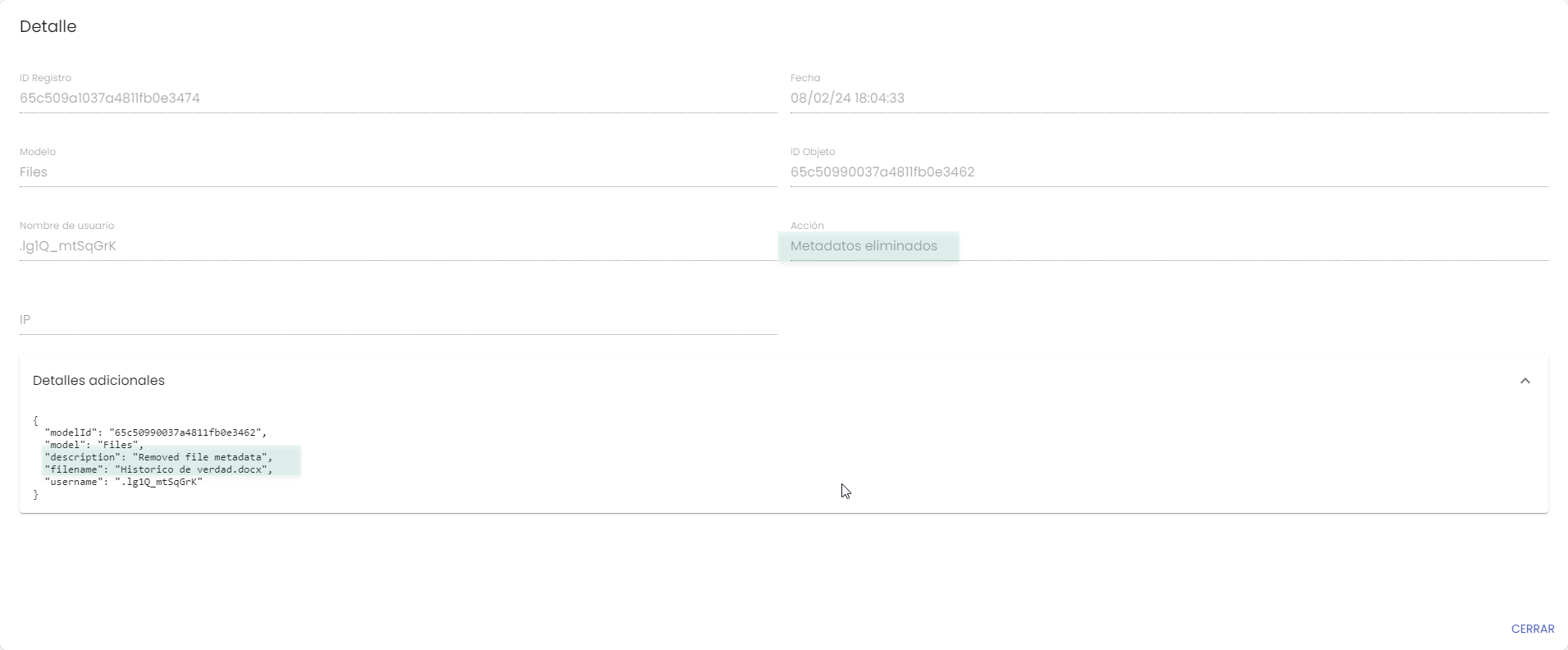
Additionally, an action log named "Metadata Deleted" will be generated each time a file is uploaded and its metadata is deleted. It is important to note that this log will be informative and will not store the deleted metadata.
Automatic Translation to Other Languages
Since the Whistleblowing Channel is an open platform where anyone can report an incident for management, it is possible for the reporter to enter information in any language.
The GlobalSuite® Whistleblowing Channel is currently available in 11 languages: Spanish, English, German, French, Portuguese, Brazilian, Czech, Basque, Catalan, Galician, and Valencian. However, a reporter may register a case in a different language, making it very difficult for a team managing the channel to have experts knowledgeable in all possible languages.
Therefore, this additional functionality allows report managers to review the information provided in other languages ( up to 75 languages) through this automatic assistant integrated into the interface, quickly, easily, and confidentially.
Using the Automatic Translation Module
In the GlobalSuite® Whistleblowing Channel, a reporter can enter information in any language, including languages not enabled in the user interface.
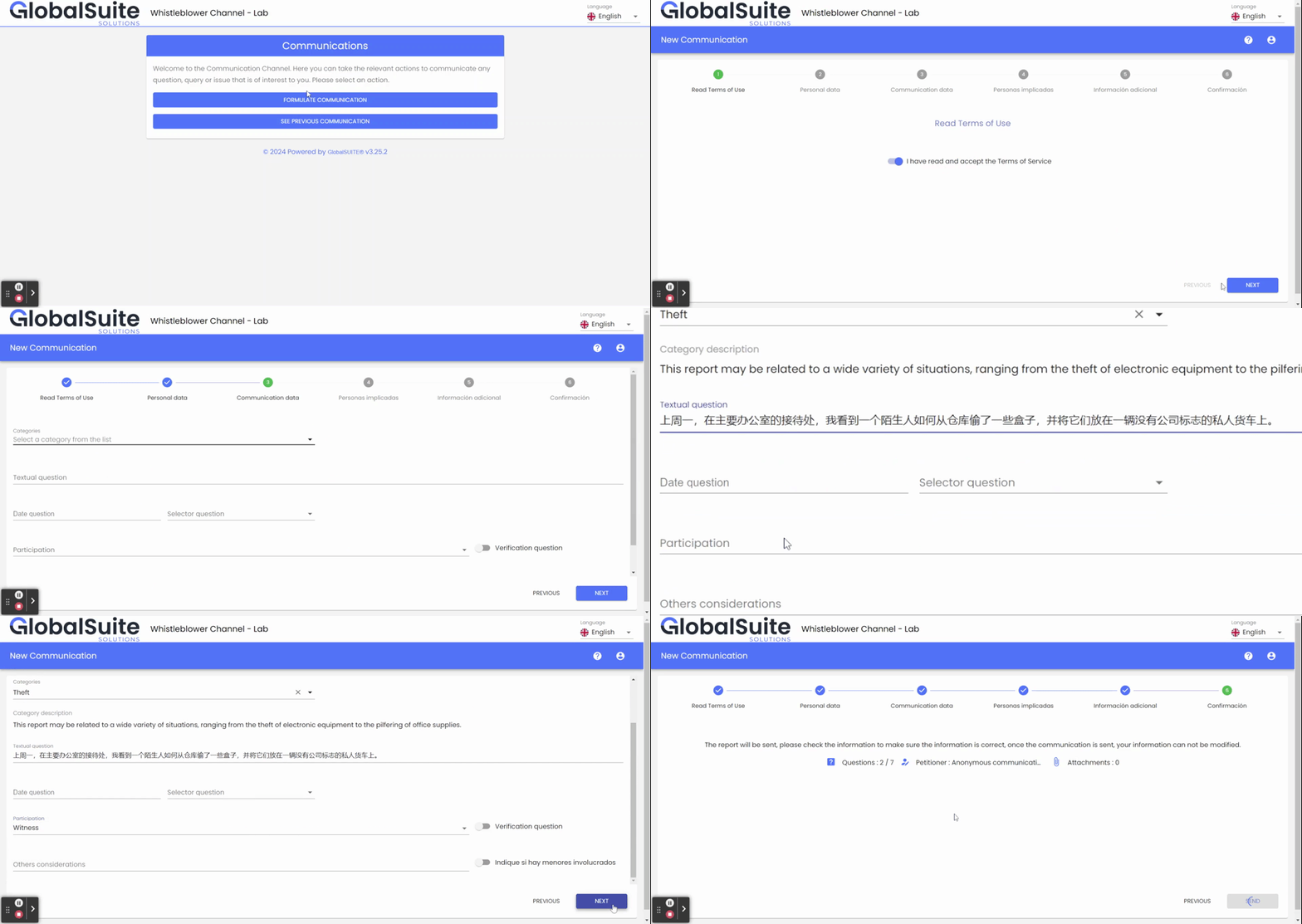
Once a report written in any language is received, the responsible users can review it in the Communications section.
When accessing the report form, all text fields where the reporter may have entered information in other languages have a "Translate" button that autodetects the source language of the text and automatically translates it into the user's language quickly and directly.
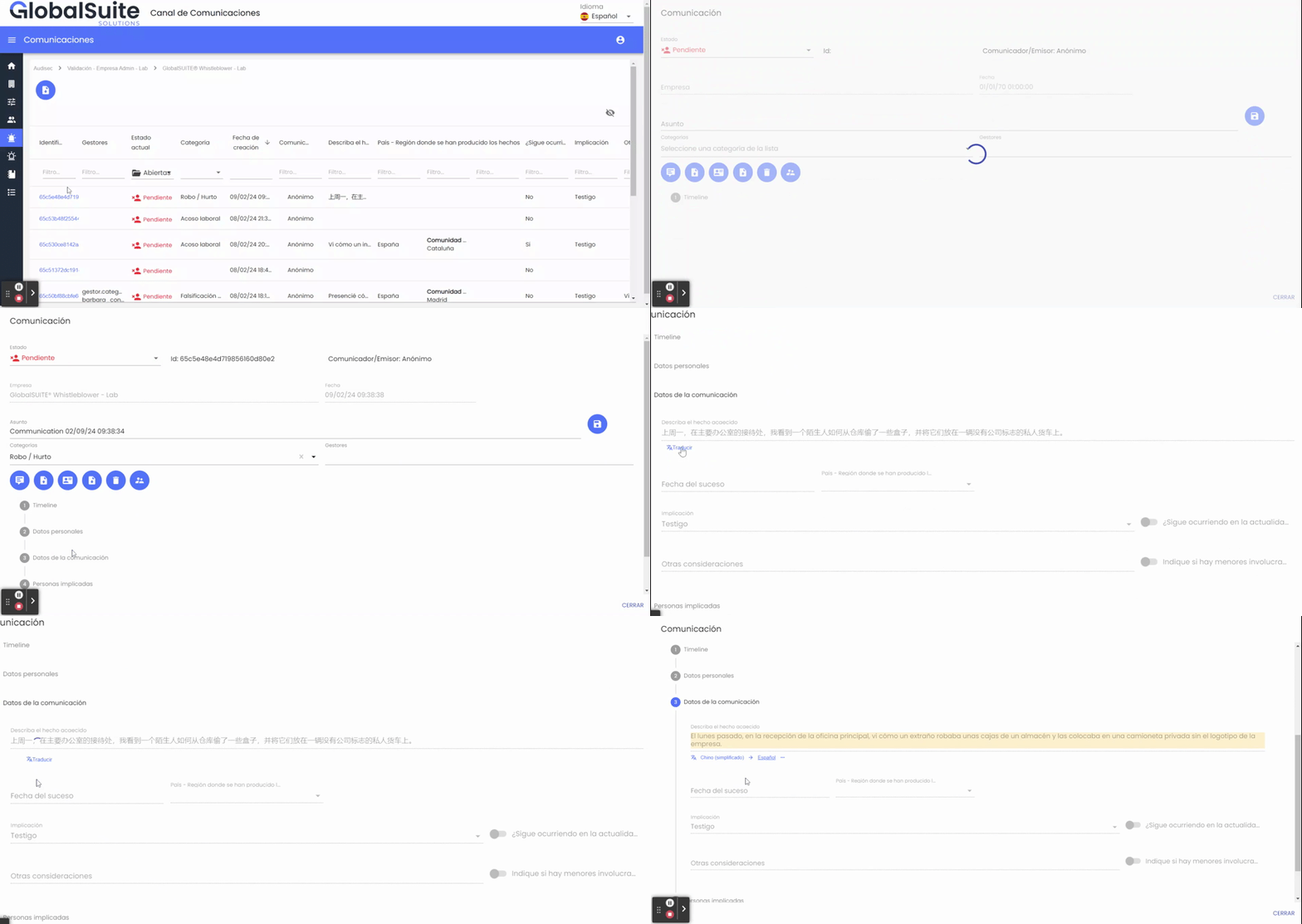
This information is displayed on the screen shaded (to indicate it is not the original text) and allows, once translated into the user's language, to translate it into another available language.
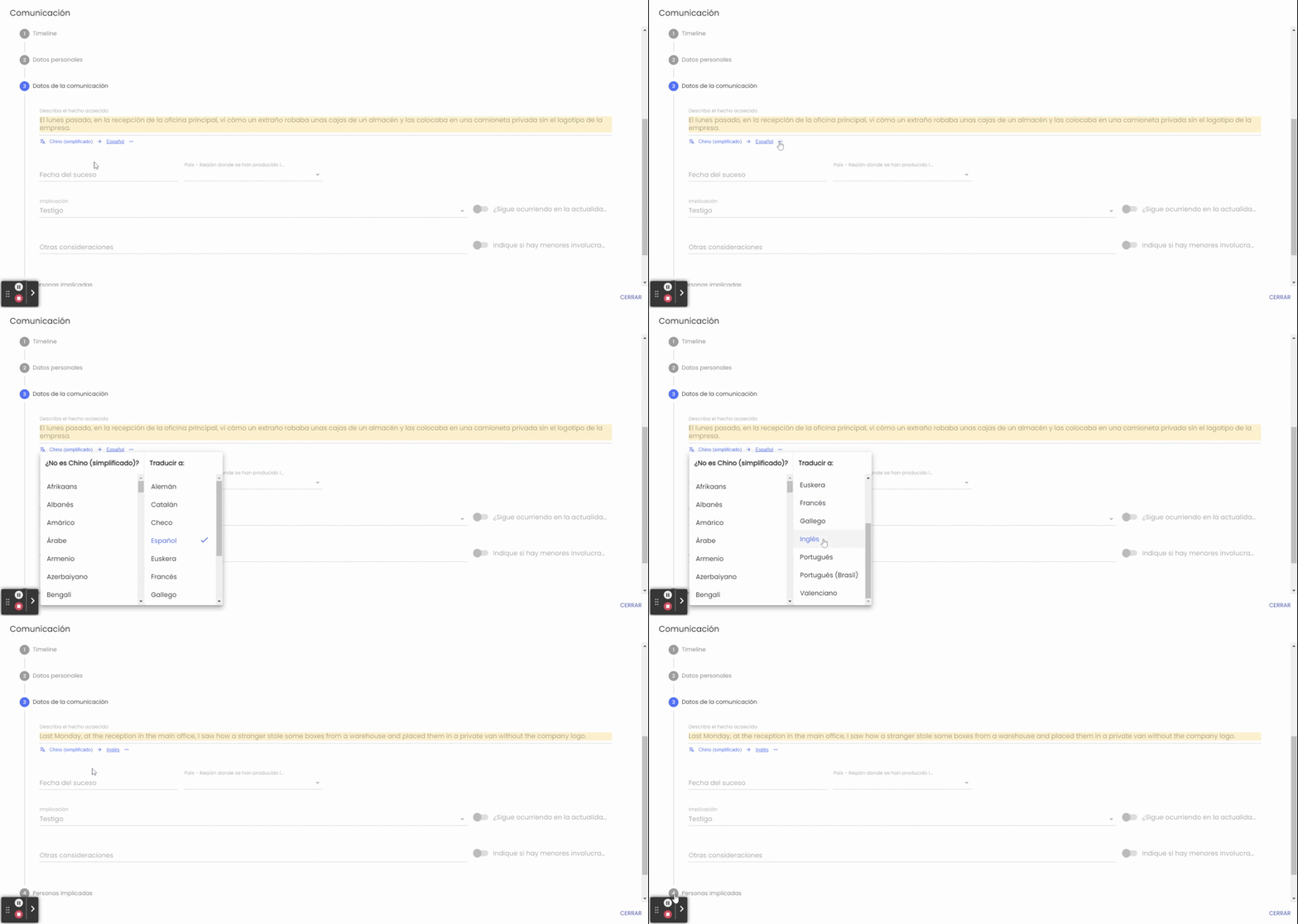
The translation assistant does not modify or delete the original information entered by the reporter, which is unalterable, but allows it to be consulted without needing to know the language.
Follow-up and Interaction with the Reporter
In addition to being able to translate the fields of the report form initially registered, if there is any interaction with the reporter through the Timeline comments, it is also possible to translate that information.
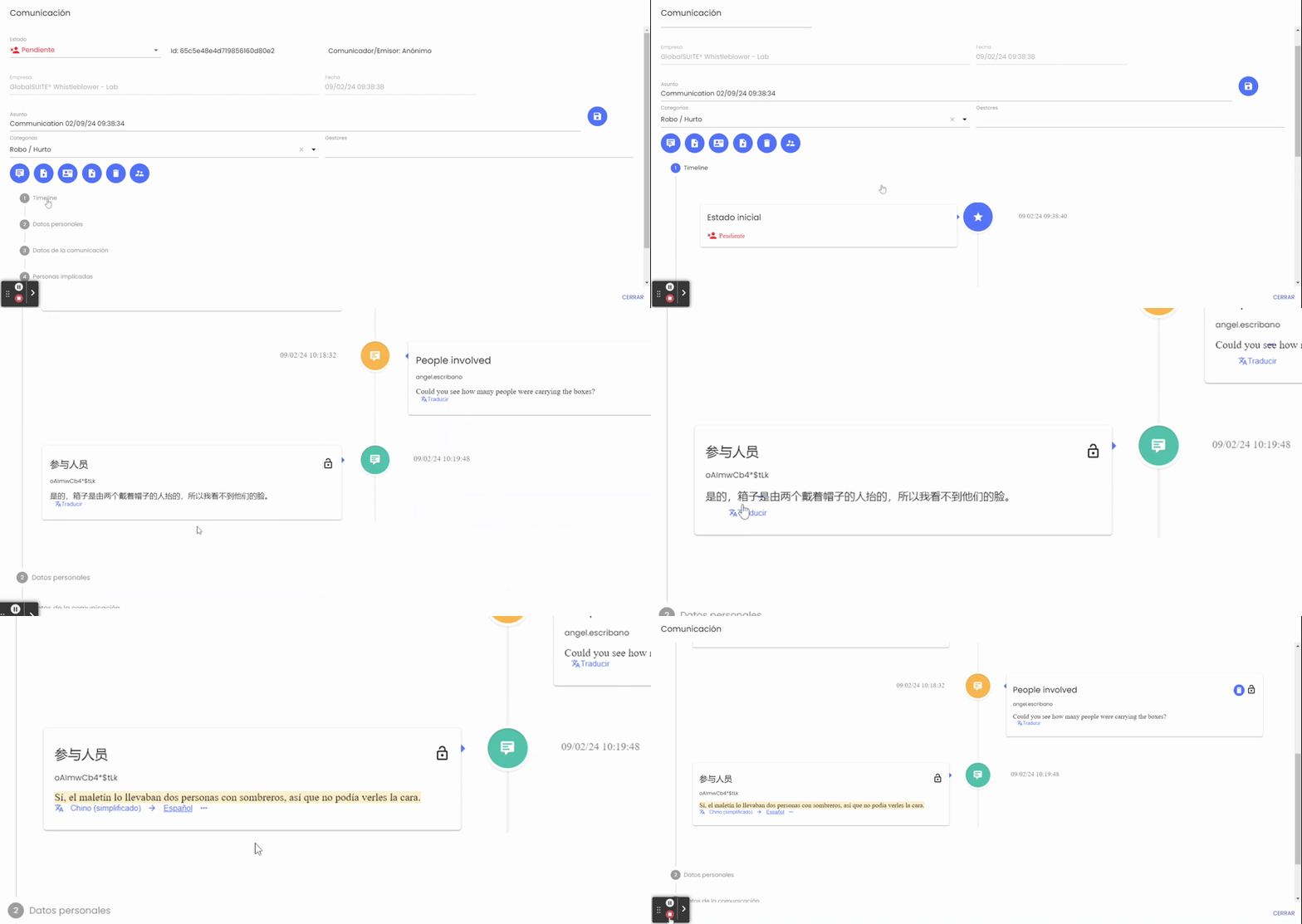
Service Activation and Confidentiality
This additional Automatic Translation functionality is not available by default among the Channel's capabilities; it must be activated on demand. You can contact your GlobalSuite® manager for more information.
The report information sent for translation is not stored outside the Channel, in addition to having all the necessary security and privacy measures to maintain its confidentiality.
Improvements in Report Categories
Previously, the categories used to classify reports, even to assign them to different managers, had a size limitation for usability reasons (100 characters), which caused issues when a description or detail of the category was desired to facilitate its identification.
Therefore, in this version, this functionality has been expanded with a detailed description of the categories, both for a reporter to select the applicable category and for its internal management.
Add Description to Categories.
To add a description to the categories, you must access the Settings > Customization > Categories section.
In this section, you can create new categories or modify existing ones and add a description to them.
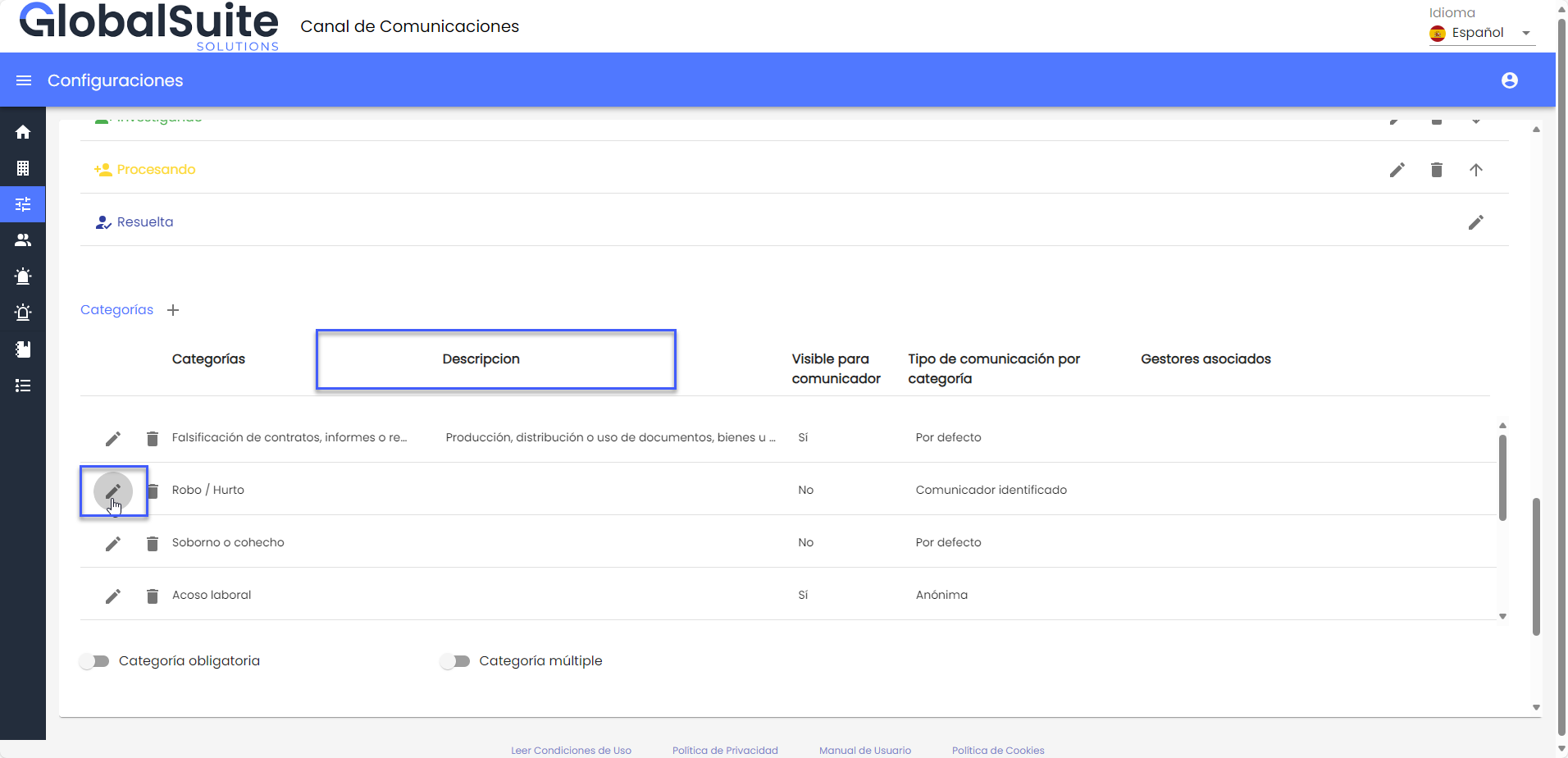
The pre-existing categories of companies will initially be presented with the description field empty. When editing a category, the form will display a new text field called "Description," which has a limit of 1050 characters.
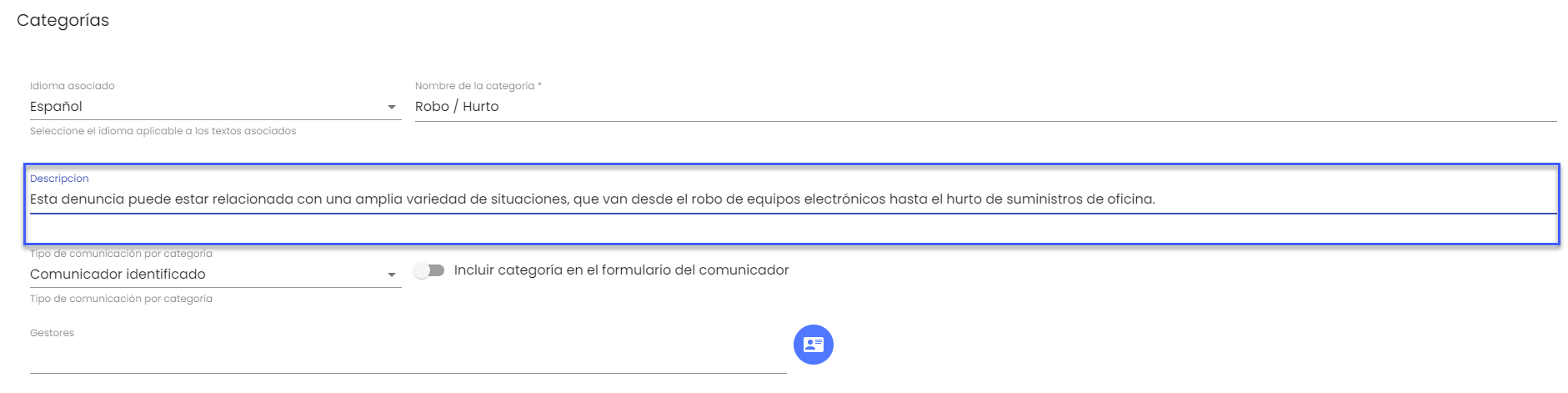
Additionally, if we modify the associated language, we will have the option to enter the translation of the description for all available languages.
Report Categories
Once configured, we can see the details of the categories in the following instances:
-
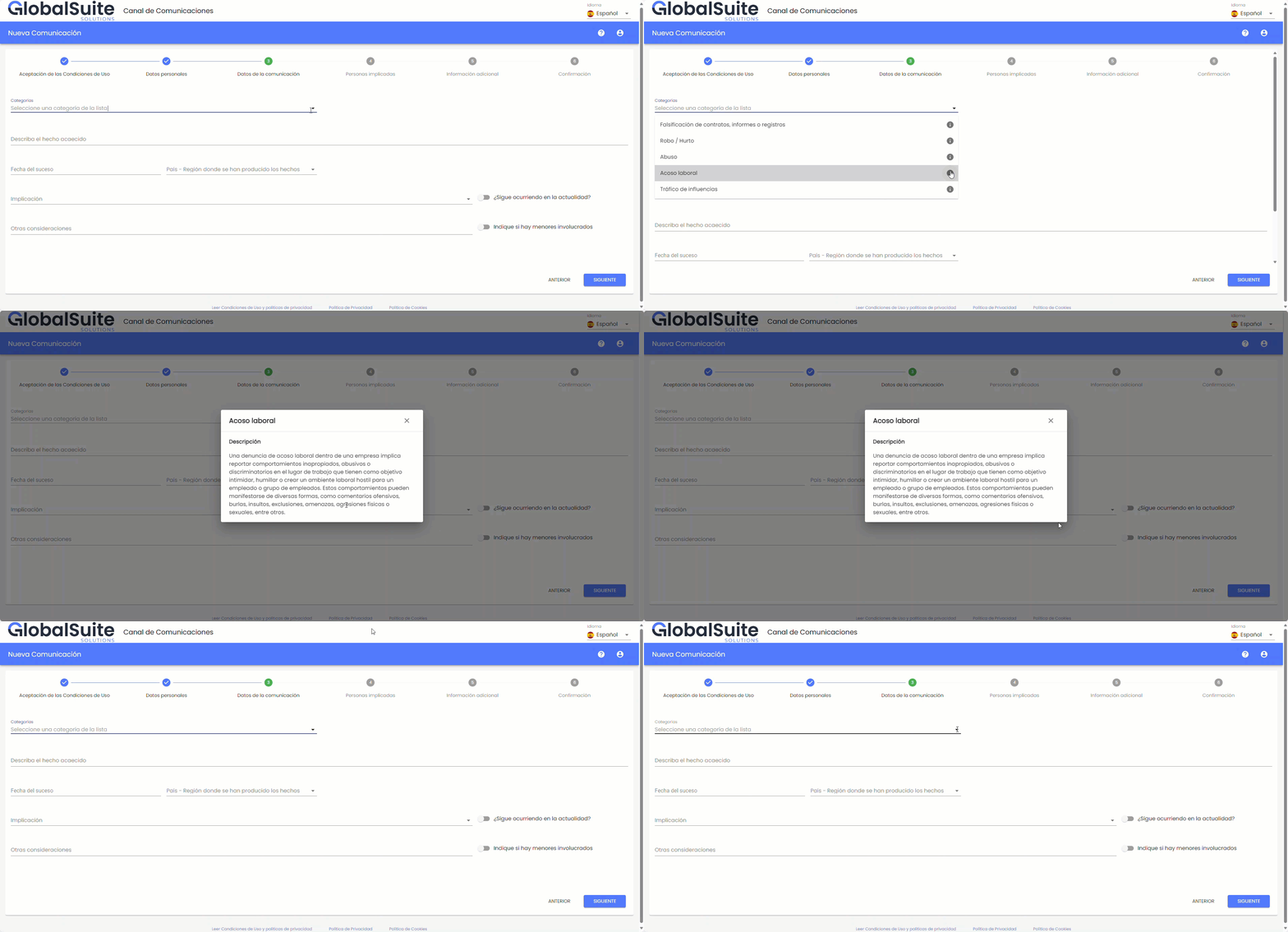
When creating a report
The category description will be available at two moments: it can be consulted by pressing the "i" icon next to each category.
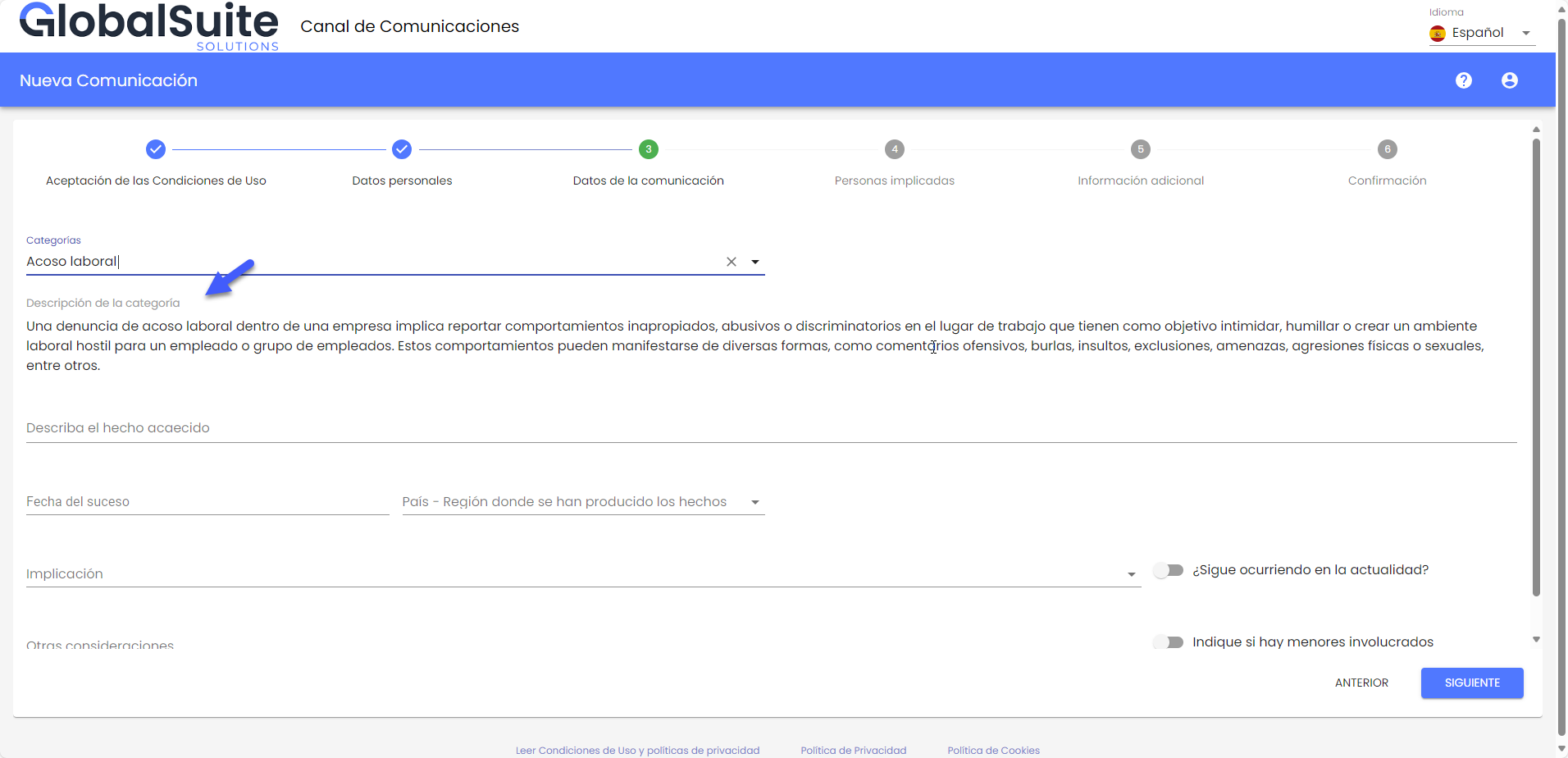
Once the category is selected, the description will be displayed below the corresponding field.
-
Managing a report from the main and secondary BO.
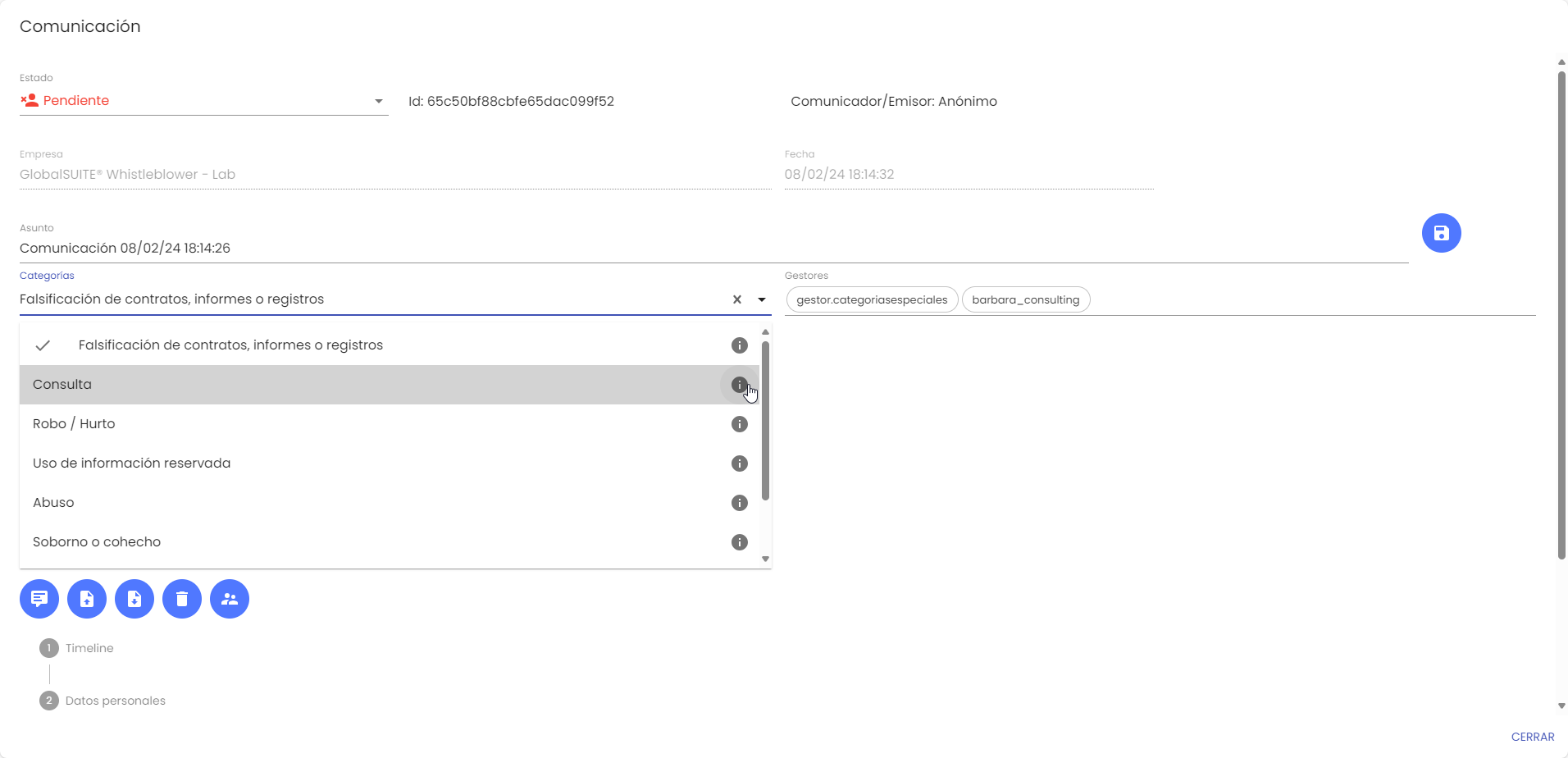
Once your report is ready to be managed from the Backoffice, upon accessing, you will see the category details associated with each report by pressing the "i" icon next to each category.
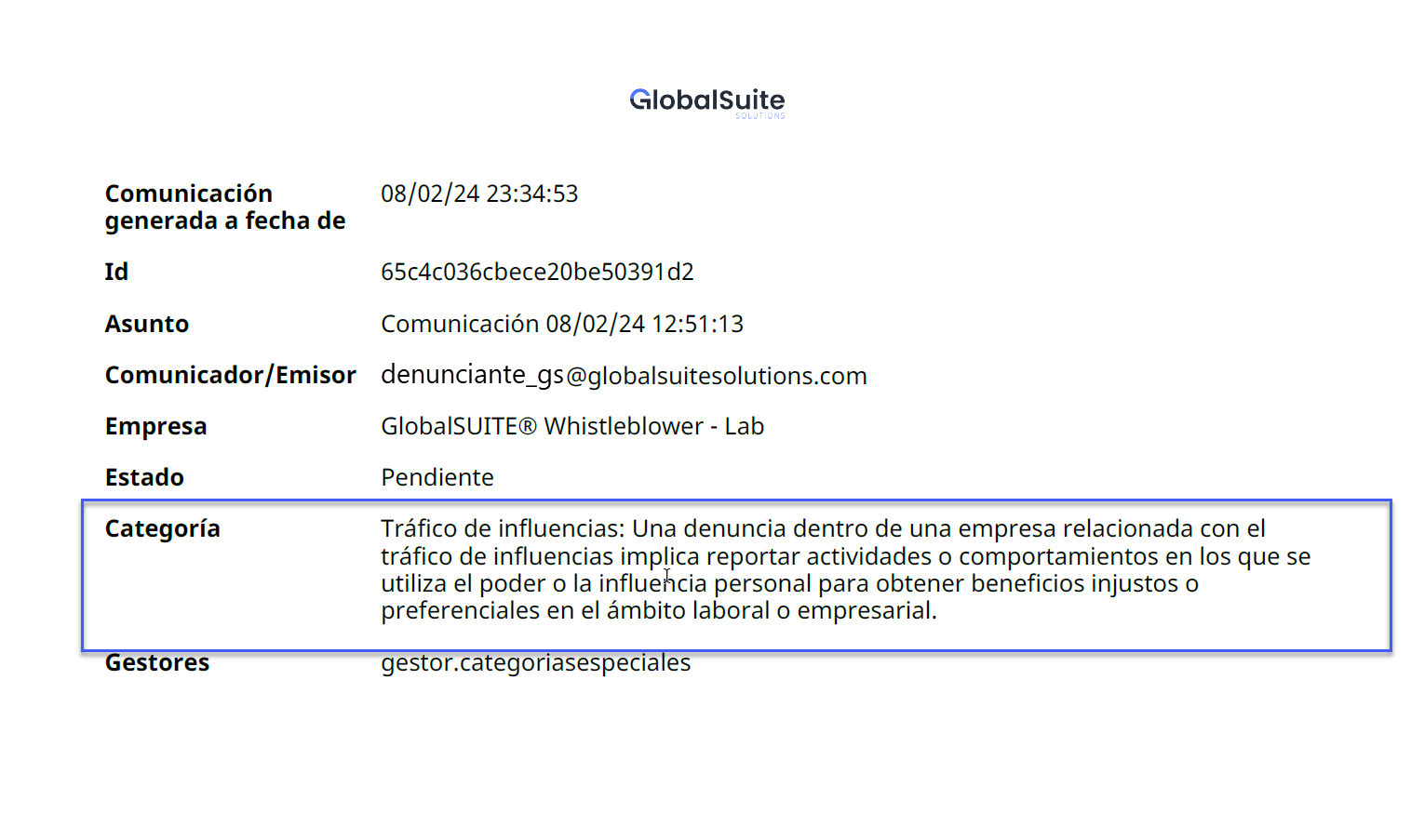
Additionally, when downloading the communication to PDF, you will also find the description associated with each category.
Finally, if the report is sent to the secondary channel, it will travel with the associated category description and can be consulted in the same way as from this secondary repository.