
New Feature: Supplier Fields Configuration
Continuing with the improvements for TPRM, we have added a new feature that allows configuring the fields of a supplier's form. These enhancements provide greater flexibility and customization in supplier data management, facilitating its administration and efficient and effective updating.
Supplier Fields Configuration
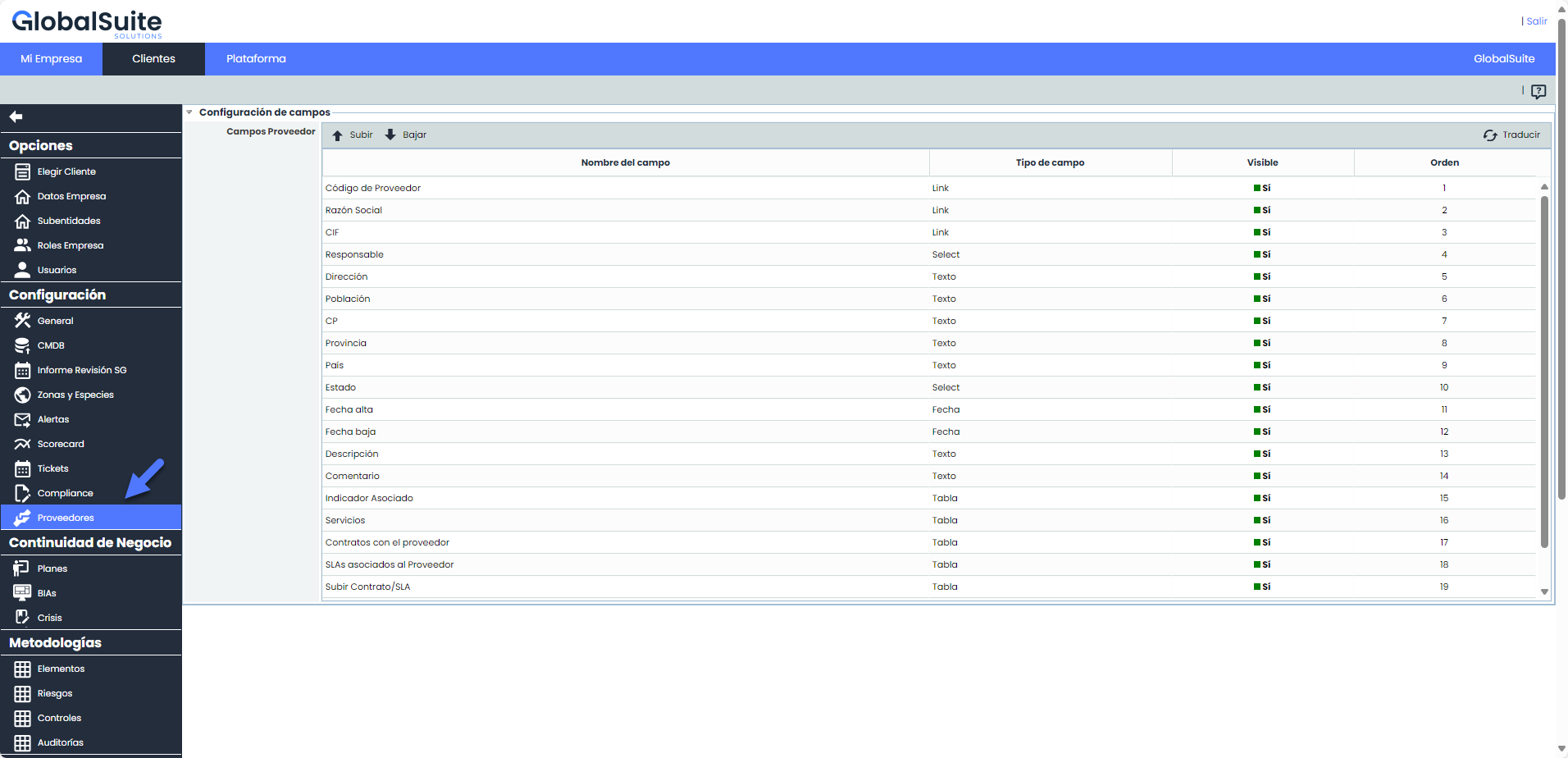
In Administration, we have added a new option called "Suppliers." Within this option, you can customize the fields containing supplier data. This includes changing the name, visibility, and the order in which they are listed within the form.
-
Name: The name displayed for the field in the supplier form. To modify the field name, double-click on the cell containing the current name.
-
Field Type: The available field types in this table are: link, selector, text, date, and table. This field is not editable and is for informational purposes only.
-
Visibility: By clicking on the "Visible" cell, you can set whether the field is visible (="YES") or not (="NO"). All fields can be hidden except for Business Name, CIF, and Status. This functionality allows customizing the form view to focus on the most relevant data.
-
Order: The order of the fields in the form is displayed. Using the "Move Up" and "Move Down" buttons, you can reorganize the order of the fields within the form. This allows for a logical and personalized organization of the fields, improving usability and efficiency when completing the form.
Translations
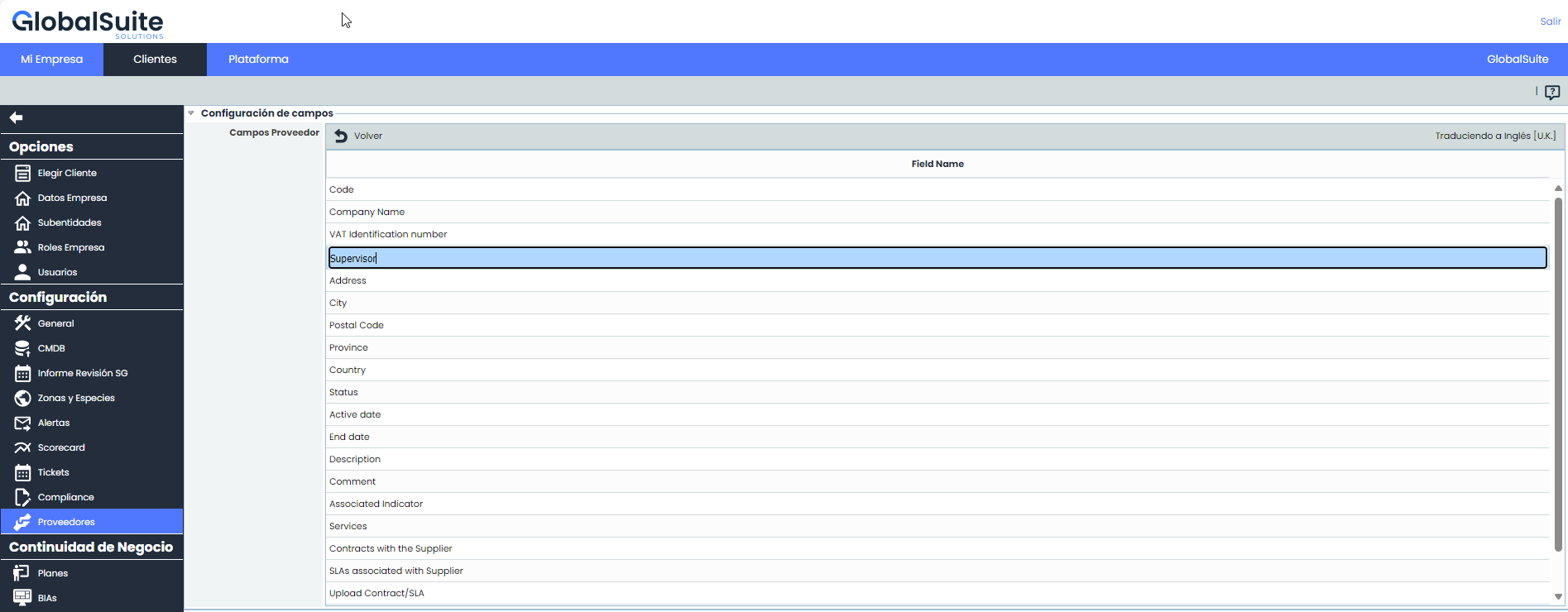
Additionally, if the field names are changed, these names can also be configured in the languages set up by the company.
Suppliers
Main Table
In the main table, the fields will be displayed with the names configured in Administration > Suppliers. If you want to further narrow down the visible fields in the main table, you can configure them by right-clicking on the header and unchecking the fields you want to hide.
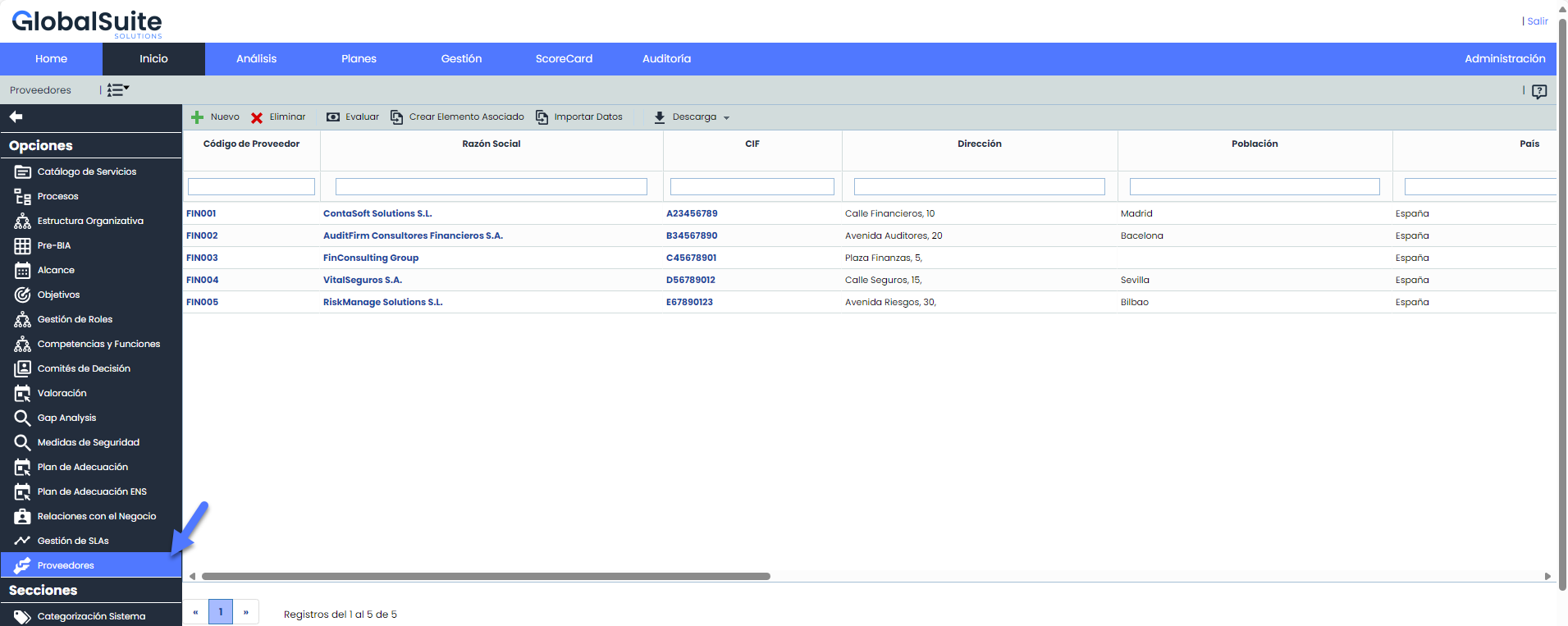
Download Excel Report: The download of the main table is performed with the information as displayed on the screen. This means that only visible fields and data that meet the applied filters are included.
Supplier Form
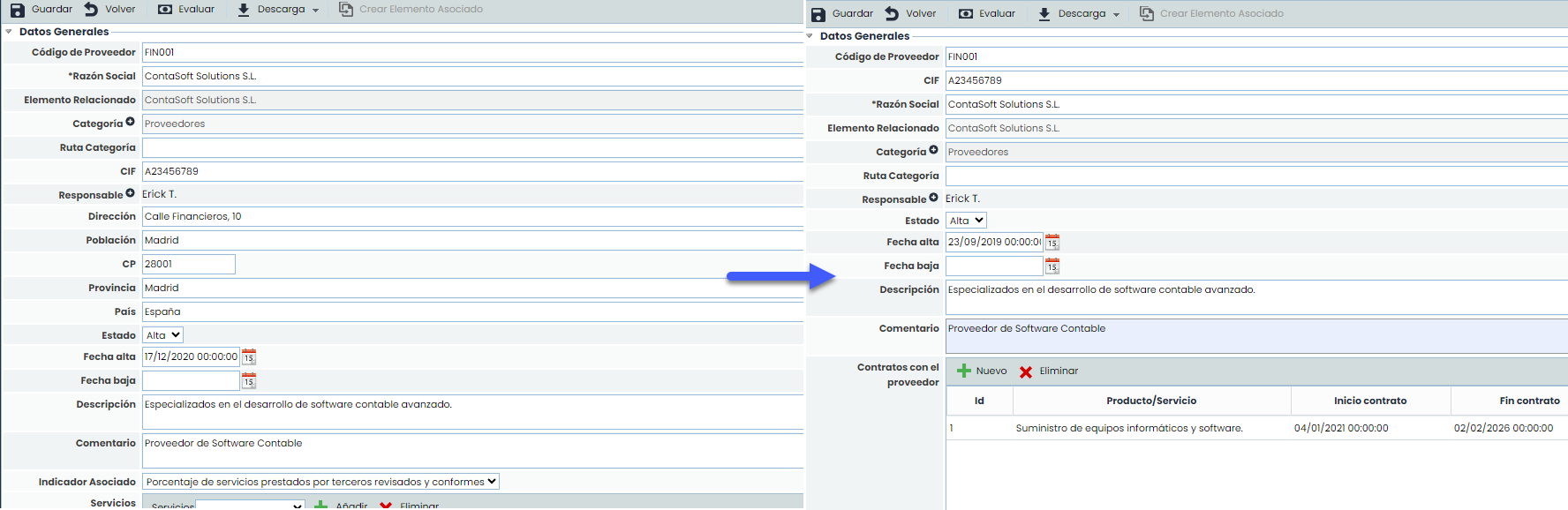
This form reflects the configurations made in Administration > Suppliers according to the logged-in user's language. If the supplier was created with an associated Element, the fields Related Element, Category, Category Path will appear below the “Business Name” field in this form, which are not configurable. Additionally, in these cases, the dimensions configured as visible in Administration > Elements are displayed at the end of the form in the section called “General Assessment.”
Supplier Import
Import Template: The import template will be downloaded with the visible fields, configured names, and configured order.
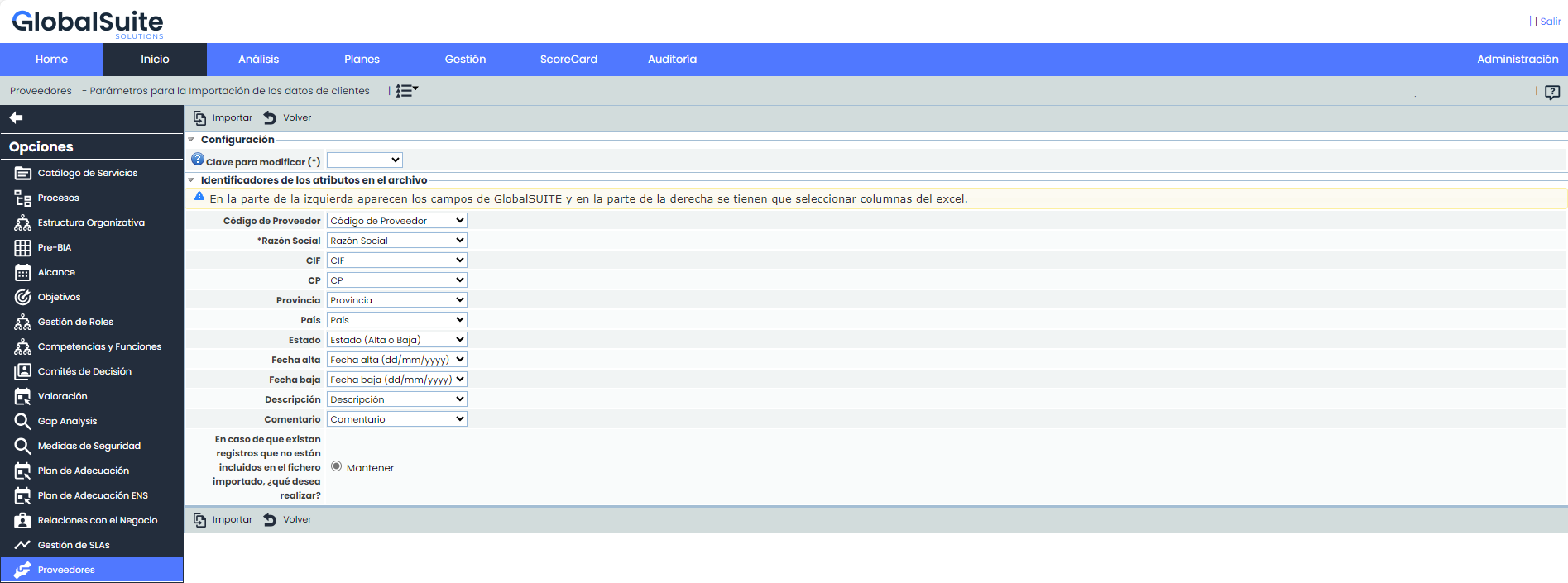
Mass Upload or Update: You can perform mass upload or update of supplier data by importing a file in Excel format. The option to select a value as "Key to modify" has been incorporated. If a supplier with the same key is found during import, a new record will not be created; instead, the existing one will be updated.
Import Result: We have added the automatic generation of a text file showing the import result, indicating how many records were imported, modified, and which ones could not be imported due to data issues.

For more information about the Suppliers module, you can view the corresponding manual in our Resource Center.