
The risk detail gathers in a side panel the risk assessment and everything that mitigates or follows it: controls, treatment plans, indicators, and tickets. This allows managing a complete risk without leaving the analysis.
Access it from Analysis > Risk Analysis: click the name of the analysis, open the Risk Assessment tab, and click an item. In the risk table of the item, clicking the main field of a risk opens its detail.
Panel Structure
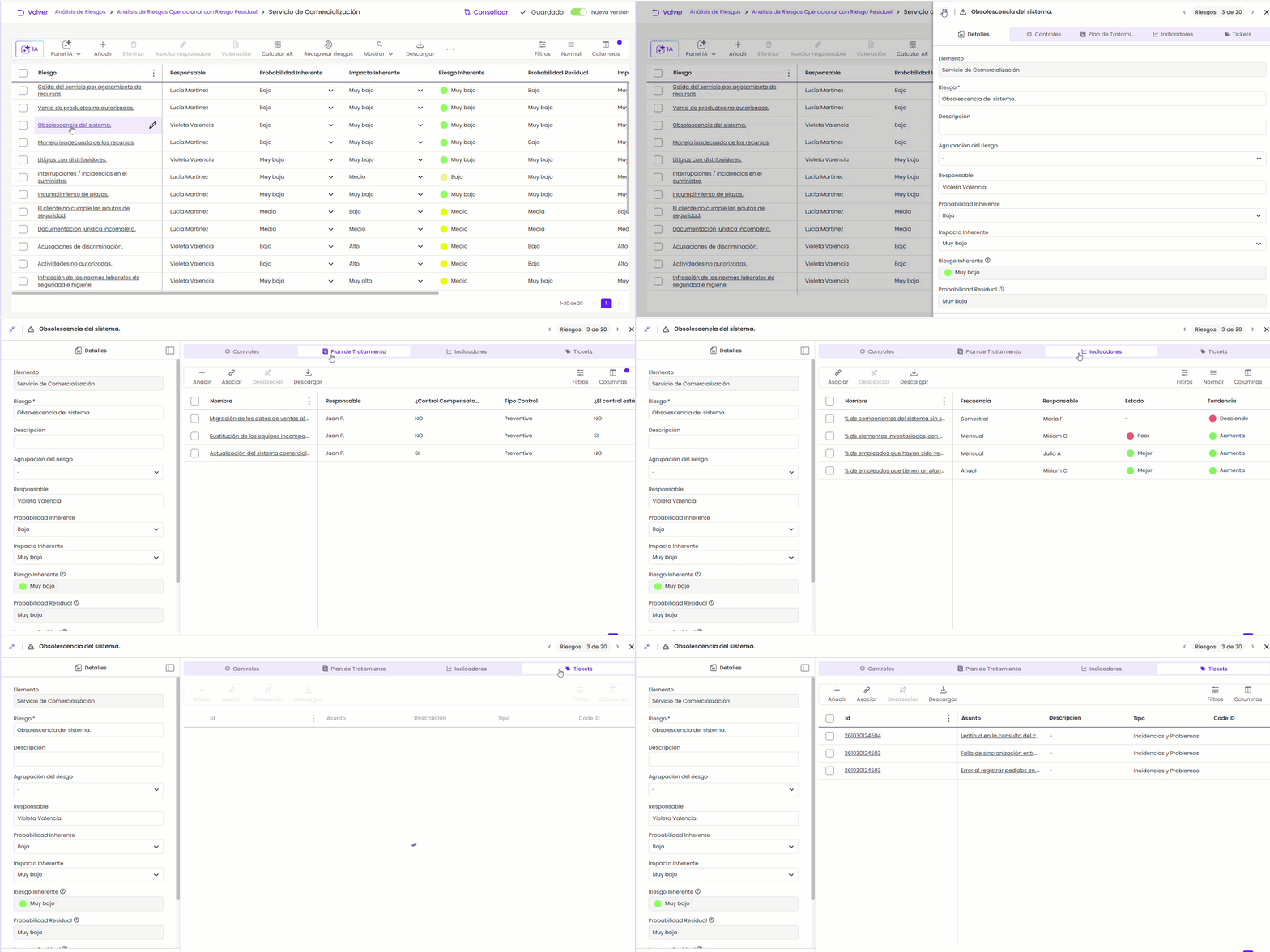
The panel opens on the right side, over the table of Risks of an item.
The header displays the name of the risk and the following tabs:
-
Details: displays the fields and the risk assessment.
-
Controls: displays the implemented controls that mitigate the risk.
-
Treatment Plan: displays the controls of the treatment plan type associated with the risk.
-
Indicators: displays the key risk indicators (KRI) associated. This tab is only available if the option is enabled in the item methodology.
-
Tickets: displays the tickets linked to the risk.
When selecting Controls, Treatment Plan, Indicators, or Tickets, the panel expands to full screen. The risk form is displayed on the left and the table corresponding to the selected tab on the right.
The arrows located in the upper right corner of the header, next to the indicator «Risks X of Y», allow navigating through the risks while respecting the table order.
If the table has filters applied, navigation is limited to the filtered risks, and the indicator changes to «Filtered Risks X of Y».
Details
The Details tab displays the risk fields in the following order:
-
Item: item to which the risk belongs. This is a read-only field.
-
Methodology Fields: fields configured in the risk methodology. The first corresponds to the main field —for example, Threat or Risk— and is mandatory.
-
Risk Grouping: allows assigning one or more groupings belonging to the catalogs associated with the analysis.
-
Responsible: clicking Add + opens a window to select the risk's responsible party. Only one can be assigned.
-
Dimensions: dimensions defined in the risk methodology, in the configured order. Quantitative dimensions only accept numerical values; qualitative ones are selected via a level; and textual ones allow text input.
Changes are saved automatically.
Automatic Dimensions
Automatic dimensions are read-only and are recalculated when any of the dimensions they depend on change. They are also updated when the assessment of a control associated with the risk changes.
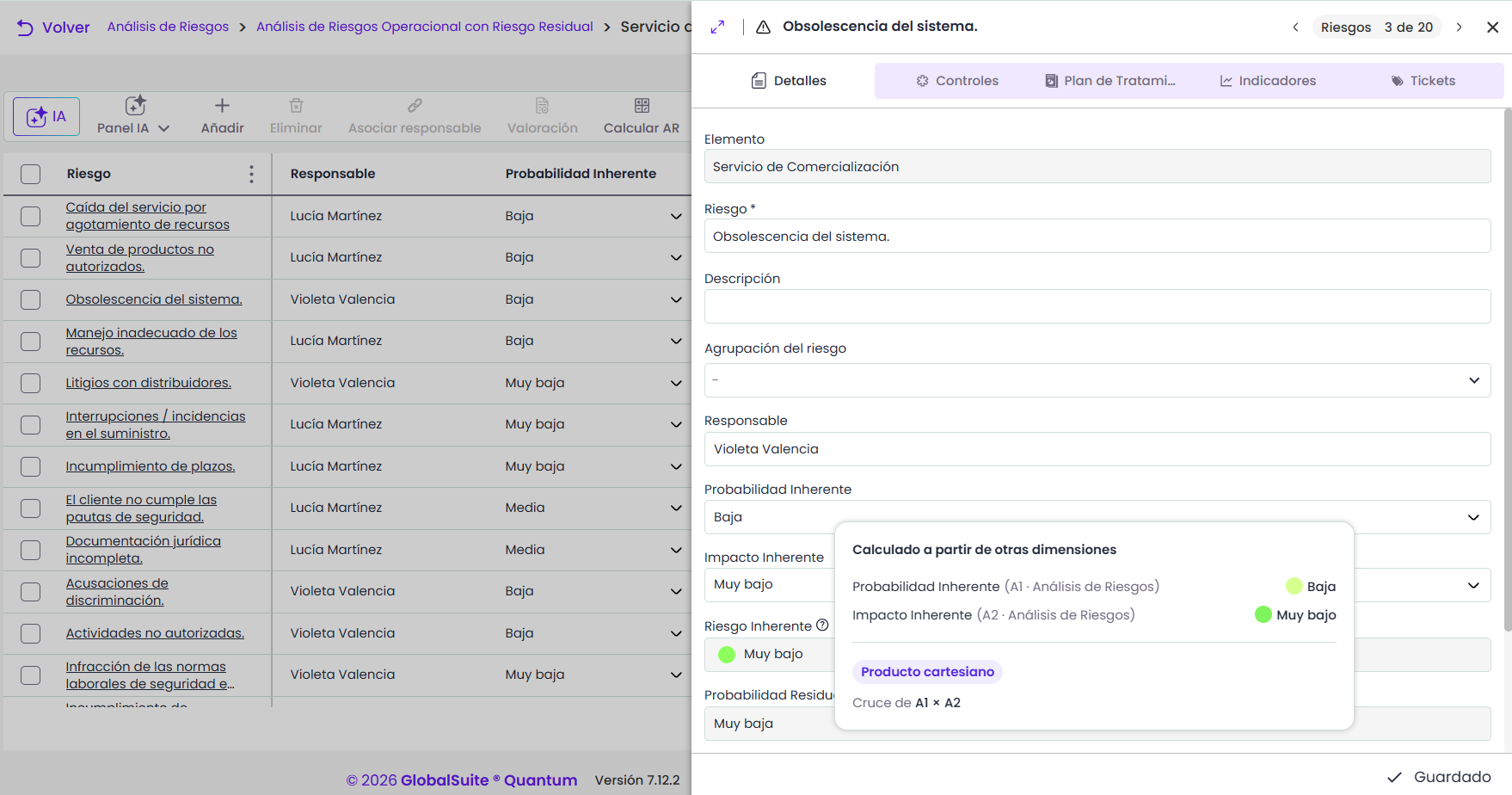
Hovering over the ? icon of an automatic dimension displays the detail of its calculation:
-
Header: «Calculated from other dimensions».
-
References: dimensions involved in the calculation, with their name, identifier, origin, and current value.
-
Calculation Type: Normal, Conditional, or Cartesian Product.
-
Expression: calculation formula expressed using the dimension identifiers, for example, I1, A2, or C3.
Controls and Treatment Plan
The Controls tab displays the implemented controls that mitigate the risk. The Treatment Plan tab displays the controls of the treatment plan type associated with the risk. Both share the same table and most actions. The options Restore Assessment and Copy Controls are only available in Controls.
Controls created or associated from these tabs are also managed in Control Management. Treatment plans are also available in Risk Management Planning.
Table
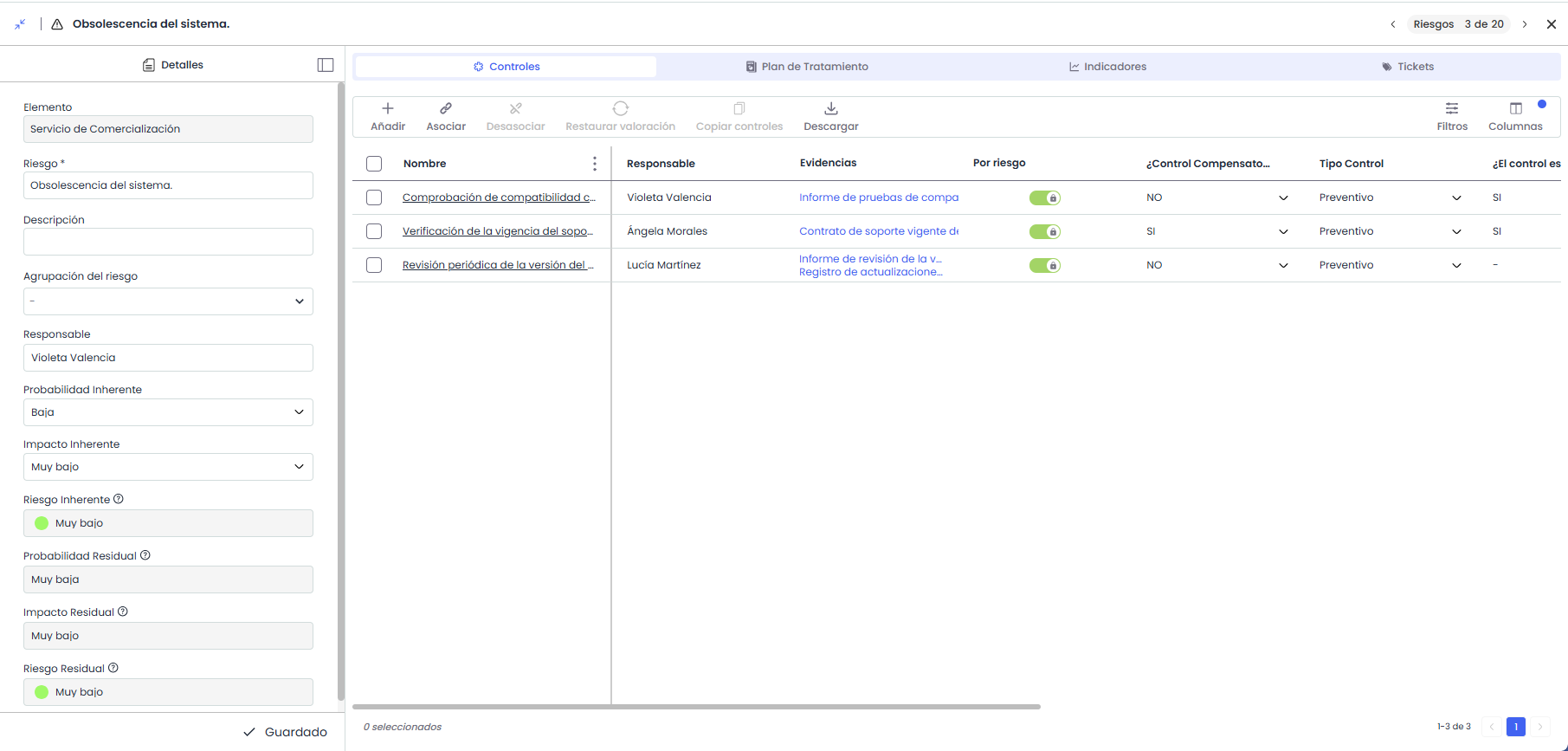
The table displays these columns, in this order:
-
Control Record Fields: the first corresponds to the main column. Its value includes a link that opens the control record in a new tab. To edit it, click the pencil icon in the cell.
The table columns are obtained from Settings > Items > Control Field Configuration > Control Record. Fields with visibility All or Tables are displayed, respecting the configured order.
-
Evidence: displays the evidence associated with the control and includes a link to Analysis > Evidence Management .
-
By Risk or By Item: indicates the origin of the displayed assessment. The value Yes indicates that there is an analysis-specific assessment; the value No indicates that the assessment from Control Management is used. This column is not editable.
-
Dimensions: displays the dimensions of the control methodology visible in the analysis.
-
Indicators: displays the indicators associated with the control, with a link to their detail in ScoreCard > Indicators, which opens in a new tab. If there are more than two indicators, they are grouped using a counter.
-
Associated Standards: displays the standards associated with the control, without a link. If there are more than two, they are grouped using a counter.
The column Associated Standards only appears if Associate Standards to Controls is enabled in the same section. Dimensions and their editing depend on the control methodology.
All columns can be edited directly from the cell, except Evidence, By Risk or By Item, Indicators, and Associated Standards. None of the fields are mandatory.
The table allows sorting information from the headers and fixing the first column.
-
Filters: allows filtering by any column. The option Clear Filters removes all applied filters.
-
Columns: allows showing, hiding, and reordering columns. The main column remains fixed. When reopening the tab, all columns are displayed again.
Control Assessment in the Risk
Editing the control dimensions depends on the Control Evaluation Type configured in the control methodology:
-
Global: dimensions cannot be edited. The table always displays the assessment from Control Management, and the indicator remains No.
-
By Risk: changes only affect the control in that risk. The indicator By Risk changes to Yes for that risk.
-
By Item: changes affect the control in all risks of the item. The indicator By Item changes to Yes in all of them.
When modifying a control dimension, the automatic dimensions of the risk are recalculated automatically both in Details and in the risk table, without needing to reload the page.
Actions
-
Add: allows creating a new entry in the table and defining a new control associated with the risk.
-
Associate: allows linking existing controls to the risk. The window Associate Implemented Controls or, in Treatment Plan, Associate Treatment Plan Controls opens, showing the available controls of that type in the analysis and their column Analysis. Already associated controls appear marked. By marking or unmarking controls and clicking Accept, they are added or removed from the risk.
-
Disassociate: allows removing controls from the risk without deleting them. Select the rows, click Disassociate, and confirm the action. The control is no longer associated with the risk but remains available in Control Management. Upon completion, the message «Successfully disassociated» is displayed. In methodologies with evaluation by item, disassociation only affects the selected risk.
-
Restore Assessment: allows reverting to the assessment defined in Control Management. This option is only available in Controls and is not displayed when the evaluation type is Global. Select one or more controls, click Restore Assessment, and confirm. The indicator changes to No. In methodologies with evaluation by item, restoration applies to the control in all risks of the item. Controls whose indicator was already No are not modified.
-
Copy controls (N): allows copying the selected controls to other risks. This option is only available in Controls. See more information in Copy controls.
-
Download: generates an Excel Report with the table as it is displayed at that moment, respecting the applied filters and visible columns.
Tickets
This tab allows registering and consulting tickets linked to the risk, such as incidents or follow-up actions, without leaving the analysis.
Table
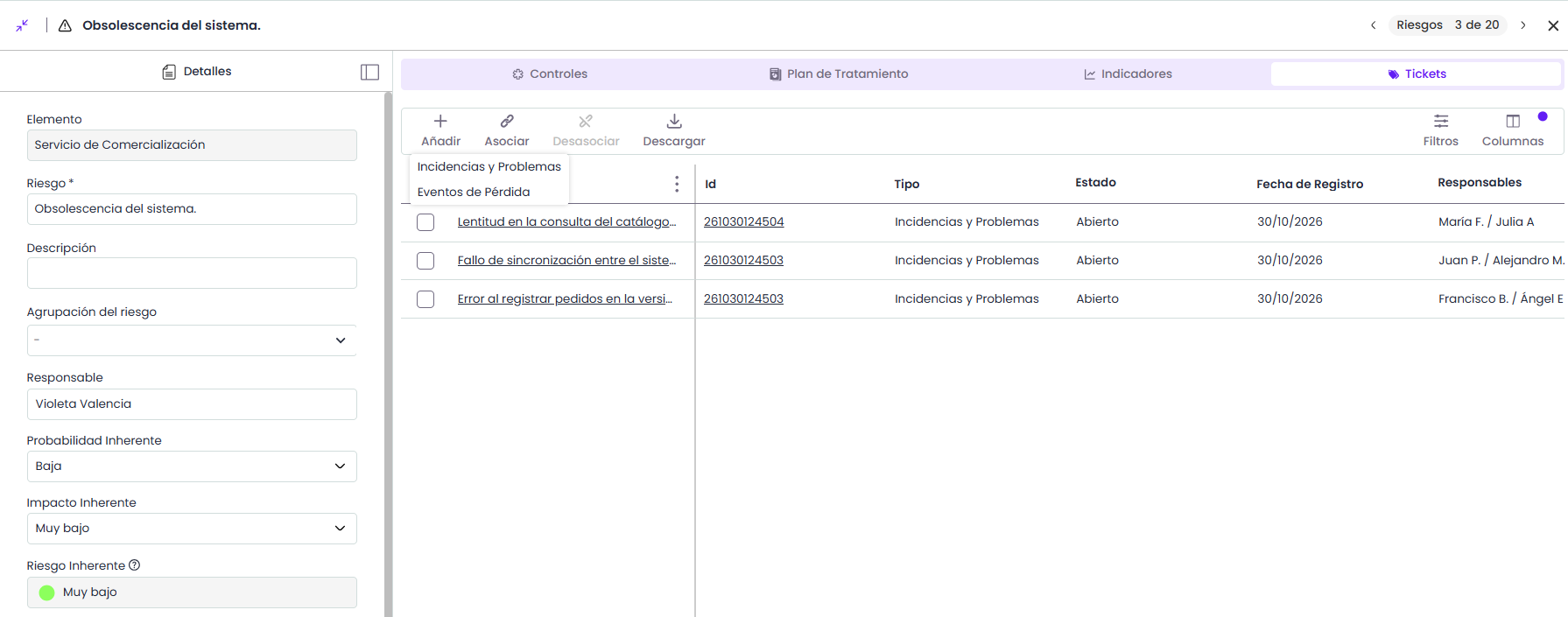
The table columns are obtained from Settings > Tickets > Common Screen By default, the ones configured as Visible by default are displayed.
The table is read-only. Fields configured as links allow opening the ticket in a new tab.
-
Filters: allows filtering by any of the visible fields in the table.
-
Columns: allows showing or hiding columns.
Actions
-
Add: allows creating a new ticket linked to the risk. Tickets can only be created for types that have the field THREATS among their fields. Once created, the ticket is linked to the analysis, the item, and the risk. The dropdown does not show ticket types for which the user only has read permissions.
-
Associate: allows linking existing tickets to the risk. Only tickets of types that support association with risks are displayed.
-
Disassociate: allows removing tickets from the risk without deleting them. The ticket is no longer linked to the risk but remains available in Management > Tickets.
-
Download: generates a CSV file in the background with the table as it is displayed at that moment. The process can be monitored in Job Progress.
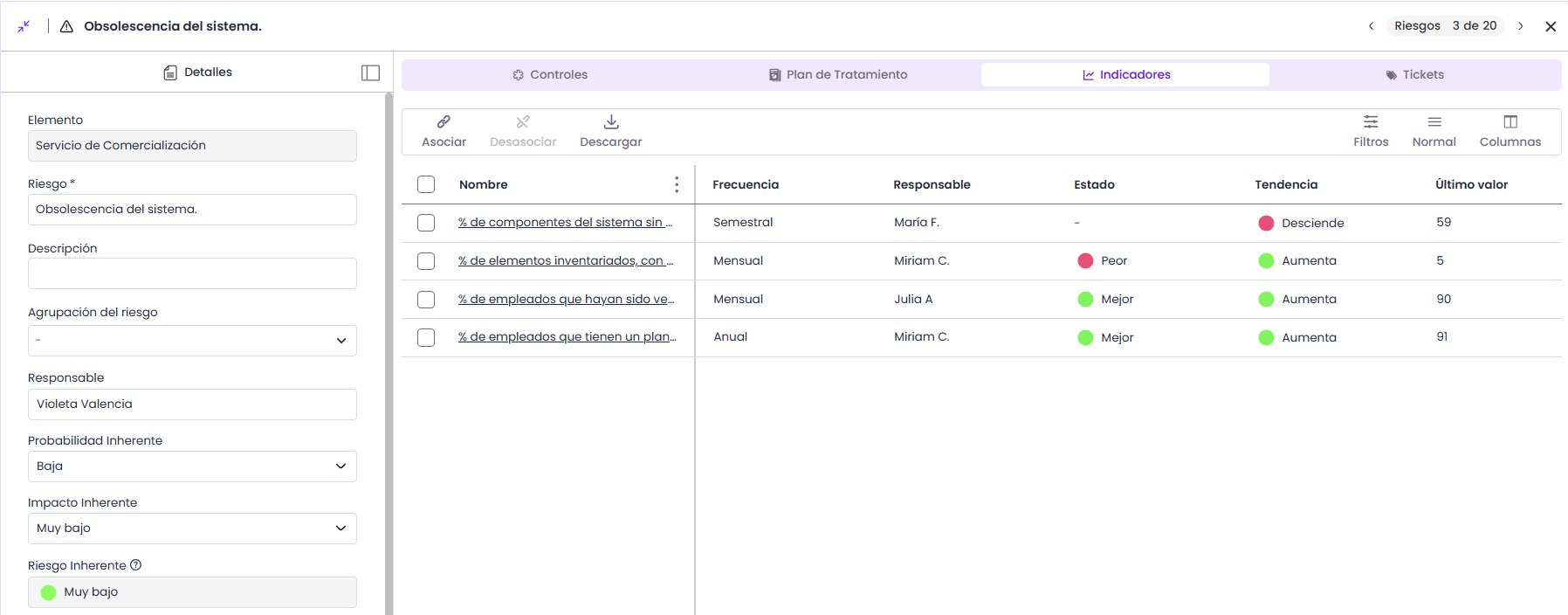
Indicators
This tab allows associating and consulting the Key Risk Indicators (KRI) linked to the selected risk.
The tab is only displayed if Indicators in Risk Analysis is activated in Methodology Items. Indicators are created in ScoreCard > Indicators.
Table
The table displays the main information of the indicators associated with the risk:
-
Name: displays the name of the indicator. Clicking it opens its complete information.
-
Responsible: displays the person responsible for the indicator.
-
Frequency: indicates the evaluation frequency of the indicator.
-
Status: displays the status of the indicator according to the defined Balanced ScoreCard methodology. Only available in GlobalSUITE® Balanced ScoreCard.
-
Trend: displays the trend of the indicator according to the defined Balanced ScoreCard methodology. Only available in GlobalSUITE® Balanced ScoreCard.
-
Last value: displays the last value obtained in the evaluation of the indicator.
-
Last value date: displays the date corresponding to the last evaluation of the indicator.
The table is read-only.
Actions
-
Associate: allows linking one or more previously created indicators to the risk in ScoreCard > Indicators. Clicking the option displays the list of available indicators. Select the ones you want to link and click Associate Indicators.
-
Disassociate: allows removing the association between an indicator and the risk without deleting the indicator. Select the corresponding row and click Disassociate.
-
Download: generates a CSV file in the background with the table as it is displayed. The process can be monitored in Job Progress.