
The Copy Risks option allows you to copy risks from one item, along with their assessment, controls, and treatment plans, to other items within the same analysis or another analysis using the same risk methodology.
It also allows you to compare the risks of two items beforehand to review possible matches before performing the copy.
Access it from Analysis > Risk Analysis. Within the analysis, in the Risk Assessment tab, click Copy Risks.
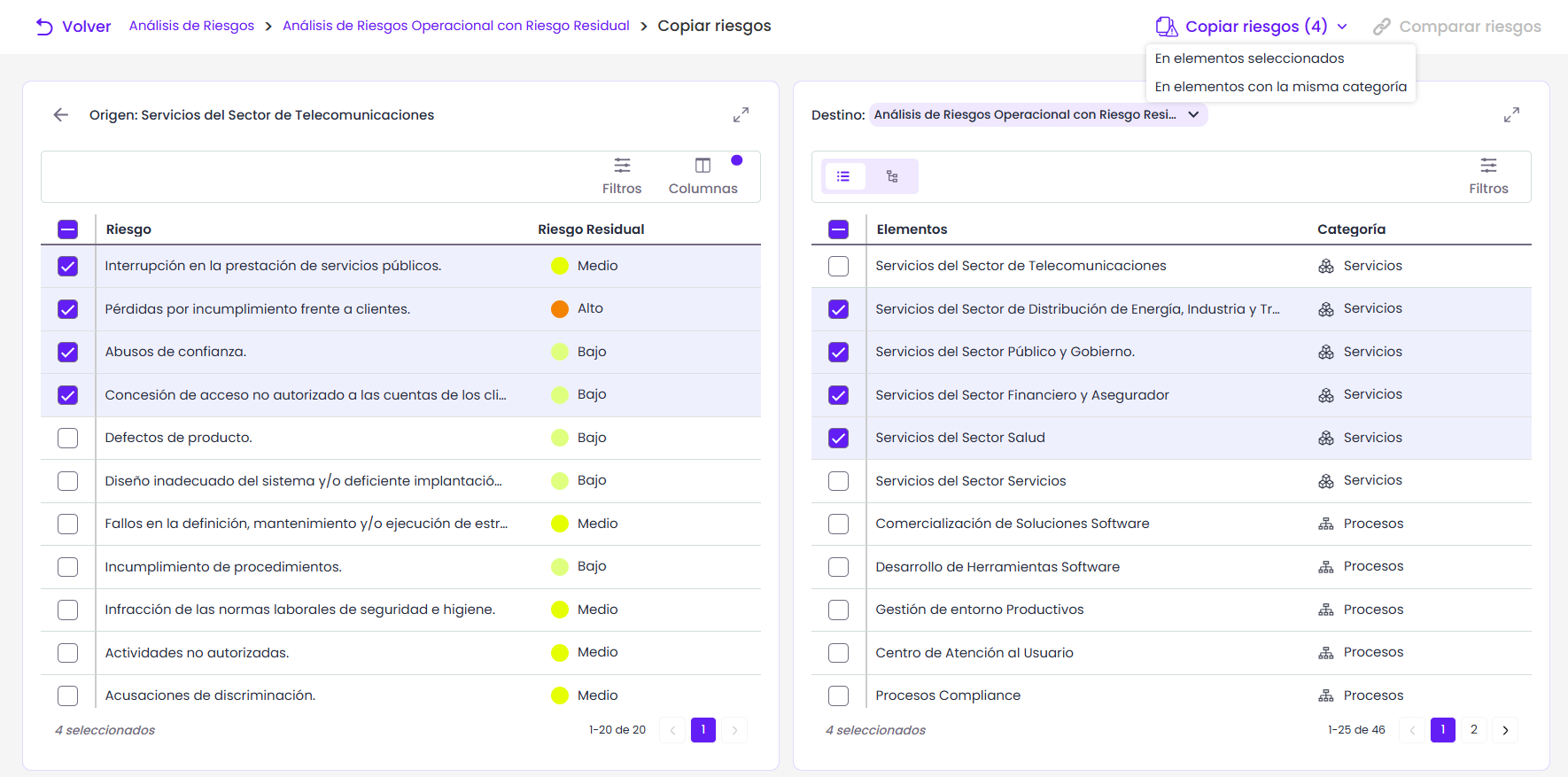
The screen has two panels: Source, on the left, and Destination, on the right. Either panel can be expanded to occupy the full width. Breadcrumbs display the name of the analysis and Copy Risks. Clicking the analysis name returns you to Risk Assessment.
Source Panel
The Source panel displays the items of the analysis, along with their name and category.
-
Search: allows filtering items by name or category as you type. The X clears the search.
-
Items without risks appear disabled and cannot be selected.
When selecting an item, its risks are displayed to choose which ones to copy.
The risk table is read-only and, by default, shows the main field of the methodology and the main dimension.
-
Filters: allows filtering the displayed risks. The Clear Filters option removes applied filters and the search.
-
Columns: allows showing, hiding, and reordering other configurable fields, dimensions, and Risk Grouping. The main field remains fixed.
Clicking Back returns you to the item list. The selection made is preserved, and each item shows the number of selected risks.
Destination Panel
The Destination panel allows selecting the analysis and items to which the risks will be copied.
-
Destination Analysis: displays analyses that use the same risk methodology as the source analysis. By default, the current analysis is selected.
-
List or Tree View: allows viewing the items of the destination analysis in a flat list or according to their hierarchical structure. In the tree view, items not part of the analysis are displayed to maintain the structure but cannot be selected.
-
Filters: allows narrowing down the displayed items.
To use the On Selected Items option, you must first mark the destination items.
Copy Risks
When selecting one or more risks in Source, the button displays Copy Risks (N), where N indicates the number of selected risks.
The available options are:
-
On Items with the Same Category: copies the risks to all items in the destination analysis that have the same category as the source item, except the source item itself. This option is only available when all selected risks belong to the same item and that item has an associated category.
-
On Selected Items: copies the risks to the items marked in the Destination panel. This option is only available when at least one risk and one destination item are selected.
With On Items with the Same Category, confirmation is requested before starting the copy. With On Selected Items, the copy starts directly.
For each risk, the following are copied:
-
The risk and its assessment.
-
The associated controls.
-
The associated treatment plans.
Indicators and tickets linked to the risk are not copied.
The copy is executed in the background, and its status can be checked in Job Progress.
Once completed, you need to run Calculate RA from Risk Assessment to update the automatic dimensions of the copied risks.
The copy does not control duplicates. If a destination item already has an identical risk, it is copied again and becomes duplicated. It is advisable to review the destination risks beforehand with Compare Risks.
Compare Risks
This action compares the risks of two items to see which ones are missing in the destination and which have a different level before copying.
-
Select an item in Source and a single item in Destination.
-
Click Compare Risks, next to Copy Risks (N). If disabled, it displays "Select a source item and a single destination."
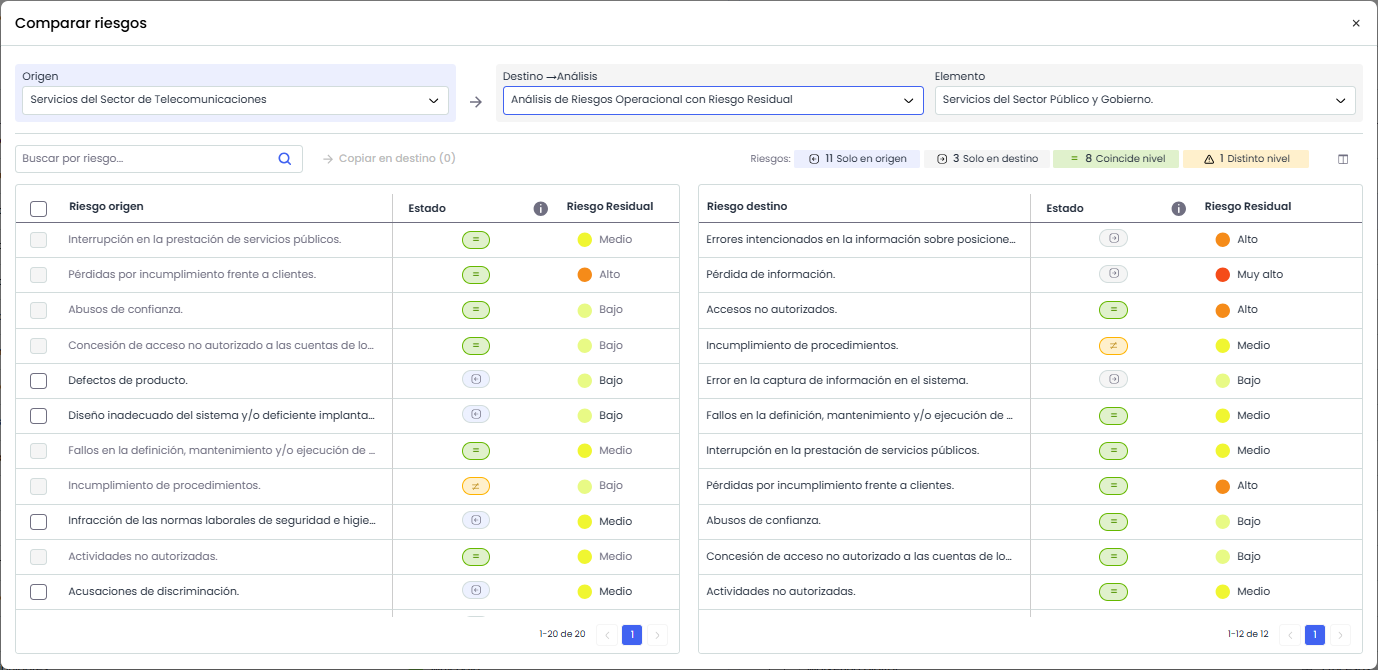
The Compare Risks window contains the following items:
-
Selectors: Source (item from the current analysis) and Destination (analysis and item). They come with the items selected on the screen and can be changed. If the destination analysis is changed, the item must be selected again; until then, "Select a destination item to compare" is displayed.
-
Counters: "Only in source (n)", "Only in destination (n)", "Matches level (n)" and "Different level (n)".
-
Compared Tables: Risks of the source item and the destination item, with the Status column, the main field, and the level of the main dimension. Each header indicates how many risks are displayed out of the total, e.g., "Source Threat (5 of 12)".
-
Search by Risk: Filters both tables simultaneously by the risk name.
-
Columns: Adds or removes the same column in both tables. Added columns are informative: they do not change the Status.
Values of the Status column:
-
=: The risk is in both items with the same level.
-
≠: The risk is in both items with different levels.
-
→: The risk is only in the source.
-
←: The risk is only in the destination.
Risks are matched by exact name, case-sensitive. The level is compared only in the main dimension.
To copy from the comparison, mark the risks that are only in the source and click Copy to Destination.
Risks that already exist in the destination cannot be marked. The copy works the same as On Selected Items, and the window closes when launched.