
Risk Scenarios
This functionality allows creating and analyzing quantitative risk scenarios through Monte Carlo simulations, based on the risks already identified in a GlobalSuite® risk analysis.
Upon accessing the module, the Simulation Center is displayed, centralizing the created scenarios and allowing users to check their status, key metrics, and results. The functionality enables working with Monte Carlo-based simulations to estimate the economic exposure associated with the selected risks.
To access the functionality, go to:
Analysis > Risk Scenarios
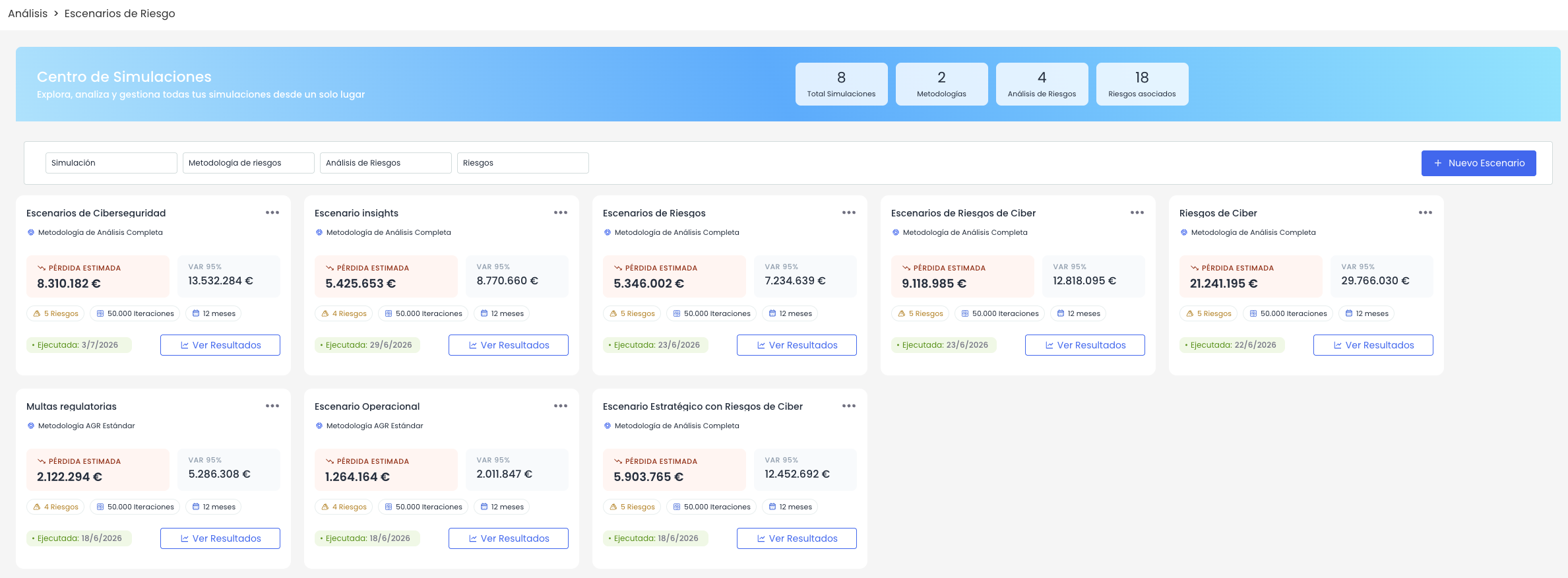
Simulation Center
The Simulation Center provides an overview of the registered risk scenarios and allows access to their main actions.
At the top, a summary panel is included with the following indicators:
-
Total Simulations: total number of registered scenarios.
-
Methodologies: number of methodologies used in the scenarios.
-
Risk Analysis: number of associated risk analyses.
-
Associated Risks: total number of risks included in the scenarios.
Scenarios are presented in card format. Each card displays the main information of the scenario, such as the name, associated methodology, number of included risks, aggregation method, number of iterations, time period, accuracy, expected loss, VaR 95%, and execution date if the scenario has already been executed.
Main Actions
The screen provides main actions for working with risk scenarios.
-
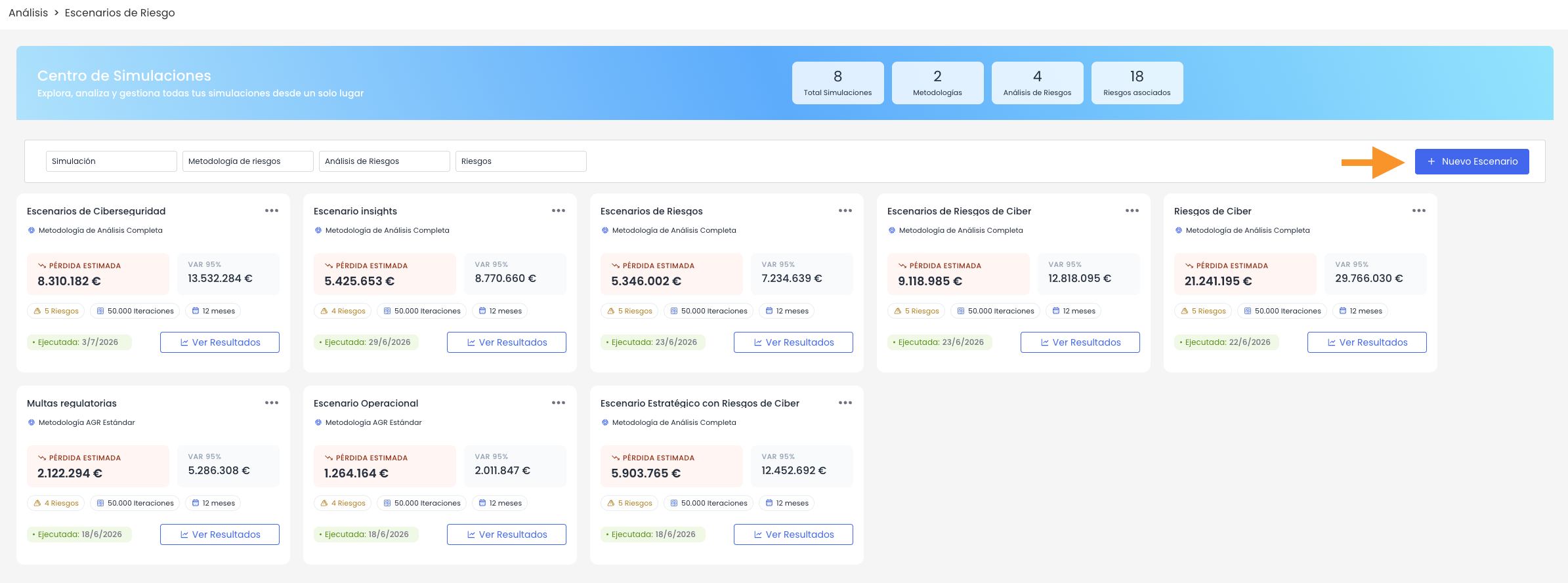
Create Scenario: opens the scenario creation wizard. From this wizard, basic information, simulation parameters, scope, included risks, and a pre-execution summary are defined.
-
Open / View Scenario: allows access to the details of an existing scenario.
If the scenario has not yet been executed, its configuration can be edited and the wizard advanced to execute the simulation.
If the scenario has already been executed, access will be for viewing, allowing review of the configuration, results, and generated recommendations, but without modifying the data used for the calculation.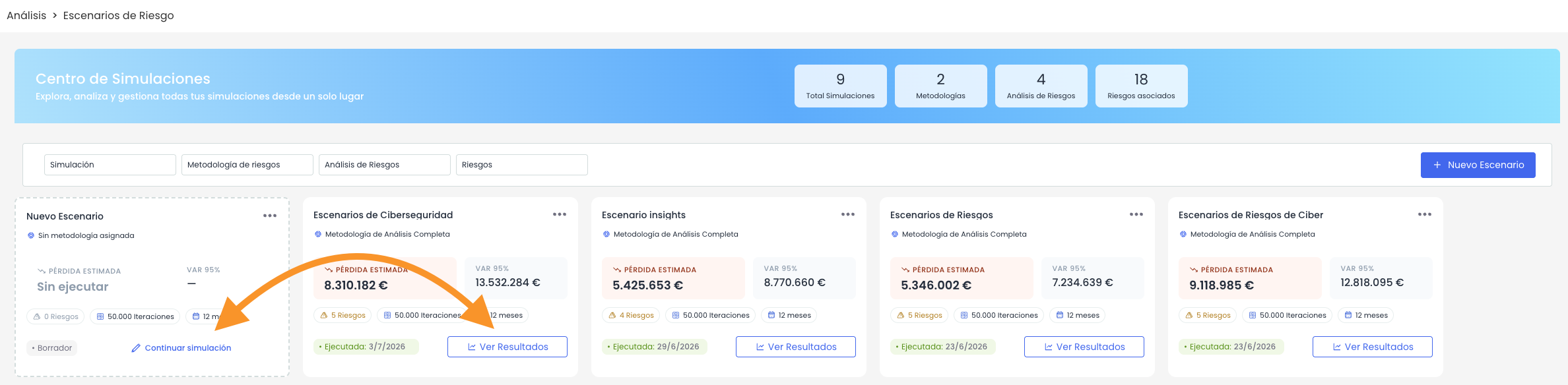
-
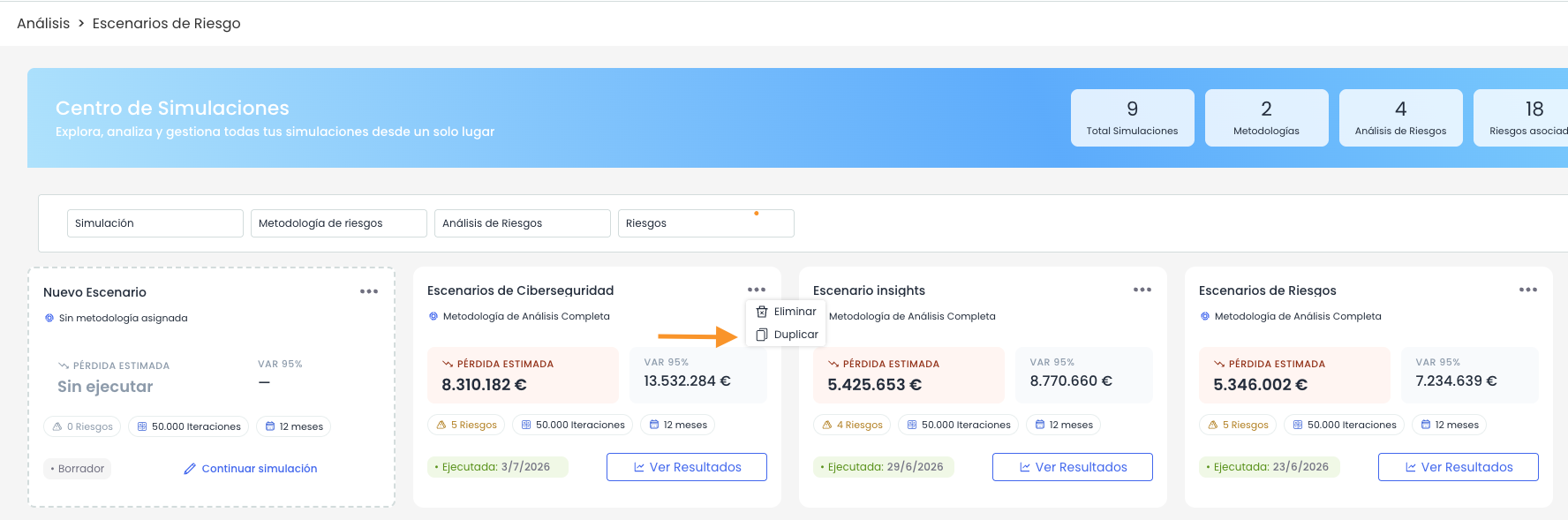
Duplicate Scenario: allows copying an existing risk scenario to create a new one based on its configuration. This action facilitates reusing already configured scenarios, avoiding the need to manually re-enter the same base information. The duplicated scenario can be reviewed and adjusted before executing a new simulation.
-
Delete: allows deleting an existing risk scenario.
Filters
Filters allow locating specific scenarios based on the data available in the table.
Filters can be applied to fields such as:
-
Simulation
-
Risk Methodology.
-
Risk Analysis.
-
Risks
Create a New Scenario
To create a new scenario, click the New Scenario button.
Doing so opens a guided wizard that allows configuring the scenario progressively. The wizard is structured into the following steps:
-
Basic Information
-
Simulation Scope
-
Risks
-
Summary
-
Results and Analysis
-
Recommendations
Basic Information
In this step, the general information of the scenario and the main simulation parameters are defined.
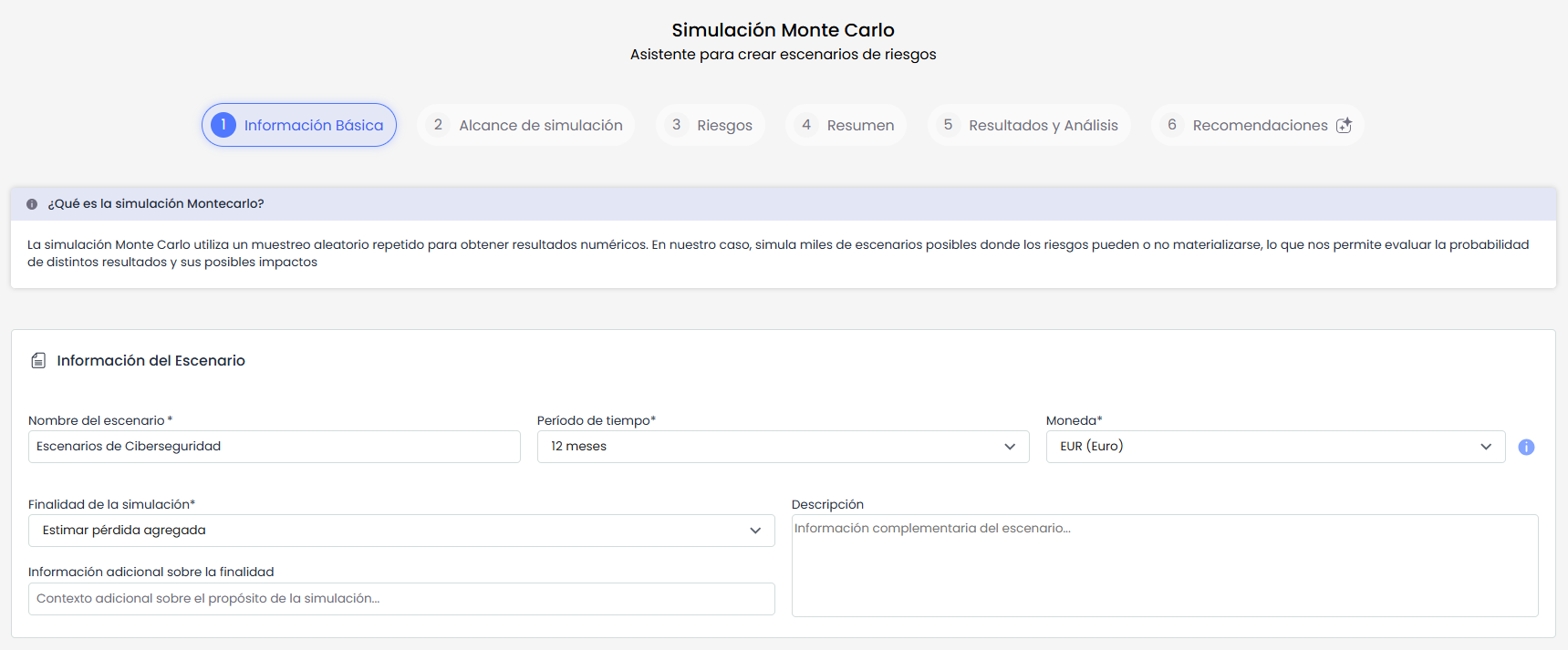
General Information
The available fields are as follows:
-
Scenario Name: Identifying name of the scenario. Allows differentiation from other created simulations.
-
Description: Text field to describe the objective or context of the scenario.
-
Simulation Purpose: Allows indicating the purpose of the scenario, for example, economic analysis, prioritization of mitigations, or exposure evaluation.
-
Time Period: Period over which the materialization of risks will be simulated.
-
Currency: Currency used to represent the economic impacts and simulation results.
Simulation Parameters
Simulation parameters determine how the calculation will be executed and how the possible scenarios of risk materialization will be represented.

-
Number of Iterations: Number of simulations the Monte Carlo model will execute. The higher the number of iterations, the greater the volume of simulated scenarios for the calculation. The system proposes three default options:
-
10,000 iterations.
-
50,000 iterations.
-
100,000 iterations.
-
It is also possible to customize the number of iterations, specifying a value between 1,000 and 1,000,000.
-
Aggregation Method: Defines how the results of the selected risks will be combined to obtain the final result of the scenario. The available aggregation methods are:
-
Sum
-
Average
-
Weighted Average
-
Maximum
-
-
Random Seed: Value used to reproduce the simulation results under the same configuration.
Once the information is completed, you can proceed to the next step of the wizard.
Simulation Scope
In this step, the methodology and risk analysis that will serve as the basis for the scenario are selected.
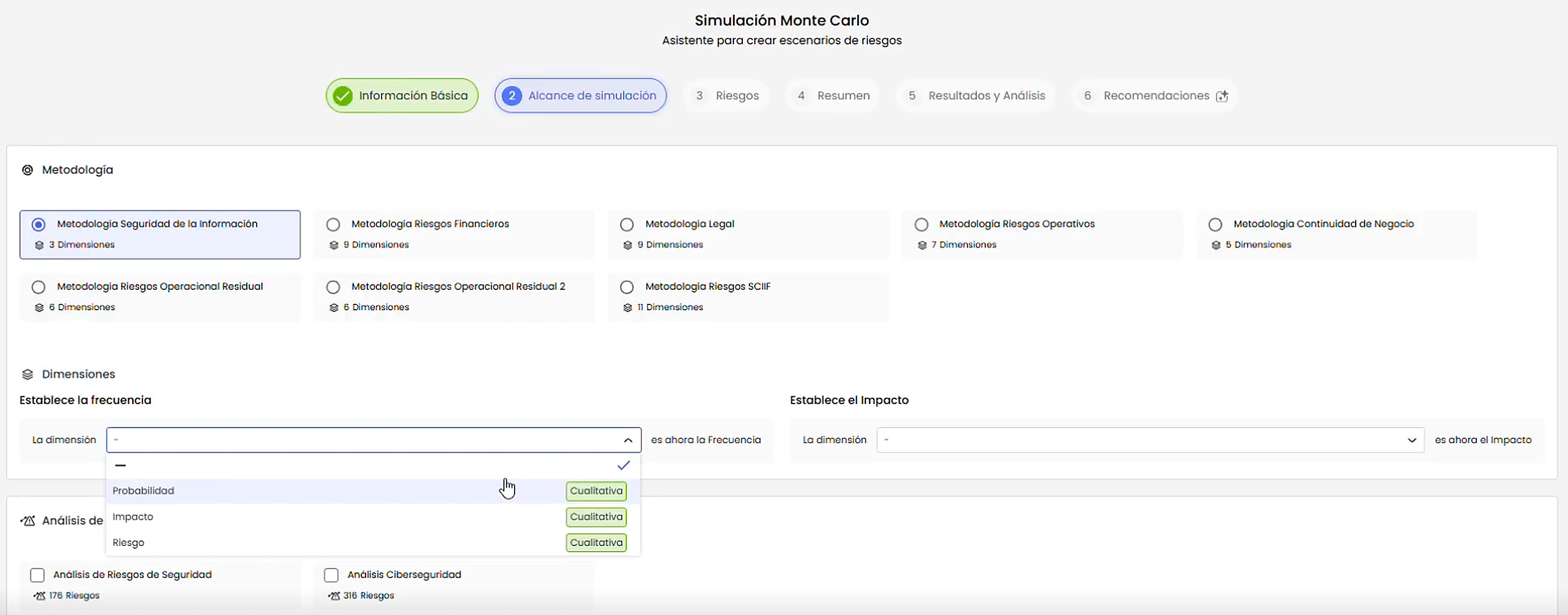
The selected risk analyses will be the basis of the scenario. From this analysis, the system will retrieve the available risks and later allow configuring their frequency and impact parameters.
First, the risk methodology to be used for the simulation is selected. The methodology determines which dimensions are available and how frequency and impact values should be interpreted.
The main fields and blocks are:
-
Risk Methodology: allows selecting the methodology that will be used as the basis for interpreting the risks included in the simulation. The selected methodology determines which dimensions are available and how the frequency and impact values of the risks will be interpreted.
-
Frequency: allows indicating which dimension of the methodology represents the frequency or probability of risk occurrence.
If the frequency dimension is qualitative, it will be necessary to define its equivalence for the simulation, indicating the estimated number of events that occur per year for each qualitative value. For example, if frequency is expressed as Low, Medium, or High, each value must be associated with an annual occurrence estimate.
If the frequency dimension is already quantitative, this mapping will not be necessary, as the value can be used directly in the calculation. -
Impact: allows indicating which dimension of the methodology represents the economic impact or severity of the risk.
If the impact dimension is qualitative, it will be necessary to define its equivalence for the simulation, indicating the economic value that each level of impact will represent. For example, if impact is expressed as Low, Medium, High, or Very High, each value must be associated with an economic amount.
If the impact dimension is already quantitative, this mapping will not be necessary, as the economic value can be used directly in the calculation. -
Risk Analysis: allows selecting one or more risk analyses on which the simulation will be performed. The selected analyses will be the basis of the scenario and will allow retrieving the available risks for the next step of the wizard.
Risks
In this step, the risks that will be part of the scenario are selected, and their calculation parameters are reviewed.
The screen displays the list of available risks according to the methodology and risk analysis selected in the previous step.
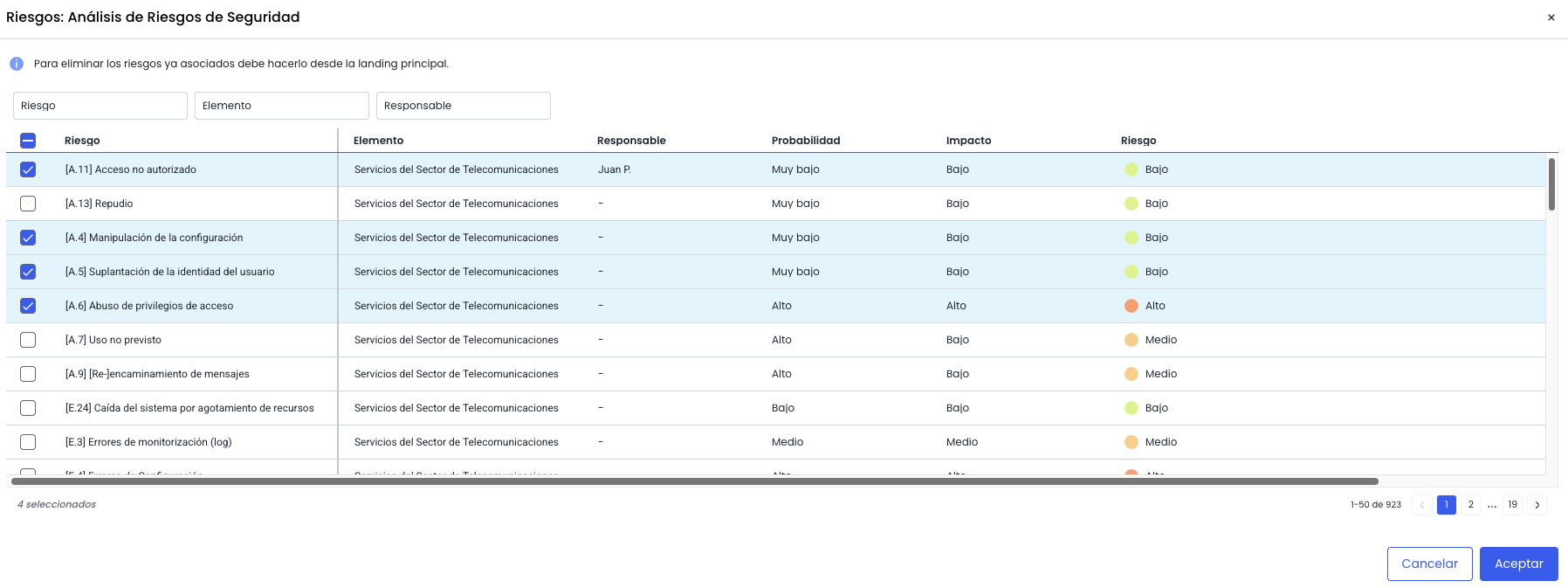
The selection of risks defines the final scope of the scenario. Risks not selected will not be considered in the simulation results.
Once the risks are selected, the necessary information is displayed to configure how each risk will behave during the Monte Carlo simulation.
For each selected risk, the following information is displayed:
-
Risk: displays the name of the selected risk.
-
Risk Analysis: indicates the risk analysis from which the risk originates.
-
Associated Item: displays the item on which the risk is identified, when applicable.
-
Frequency Distribution: allows selecting the distribution that will be used to calculate the behavior of frequency during the simulation.
-
Impact Distribution: allows selecting the distribution that will be used to calculate the behavior of impact during the simulation.
-
Minimum Frequency: minimum estimated value for the risk frequency.
-
Probable Frequency: probable frequency value.
-
Maximum Frequency: maximum estimated value for the risk frequency.
-
Minimum Impact: minimum estimated value for the economic impact of the risk.
-
Probable Impact: probable impact value. Derived from the risk analysis.
-
Maximum Impact: maximum estimated value for the economic impact of the risk.
The system can propose default values for distributions and for minimum and maximum values. These values can be modified before executing the simulation.
Summary
The Summary tab allows reviewing the complete configuration of the scenario before executing the simulation.
From this view, the simulation can be executed when the configuration is correct.
If any incorrect or incomplete data is detected, the user can return to the corresponding tab to make the necessary adjustments, as long as the scenario has not yet been executed.
Results
The Results tab is enabled once the simulation has been executed.
From this tab, the analysis views generated by the Monte Carlo simulation can be consulted.
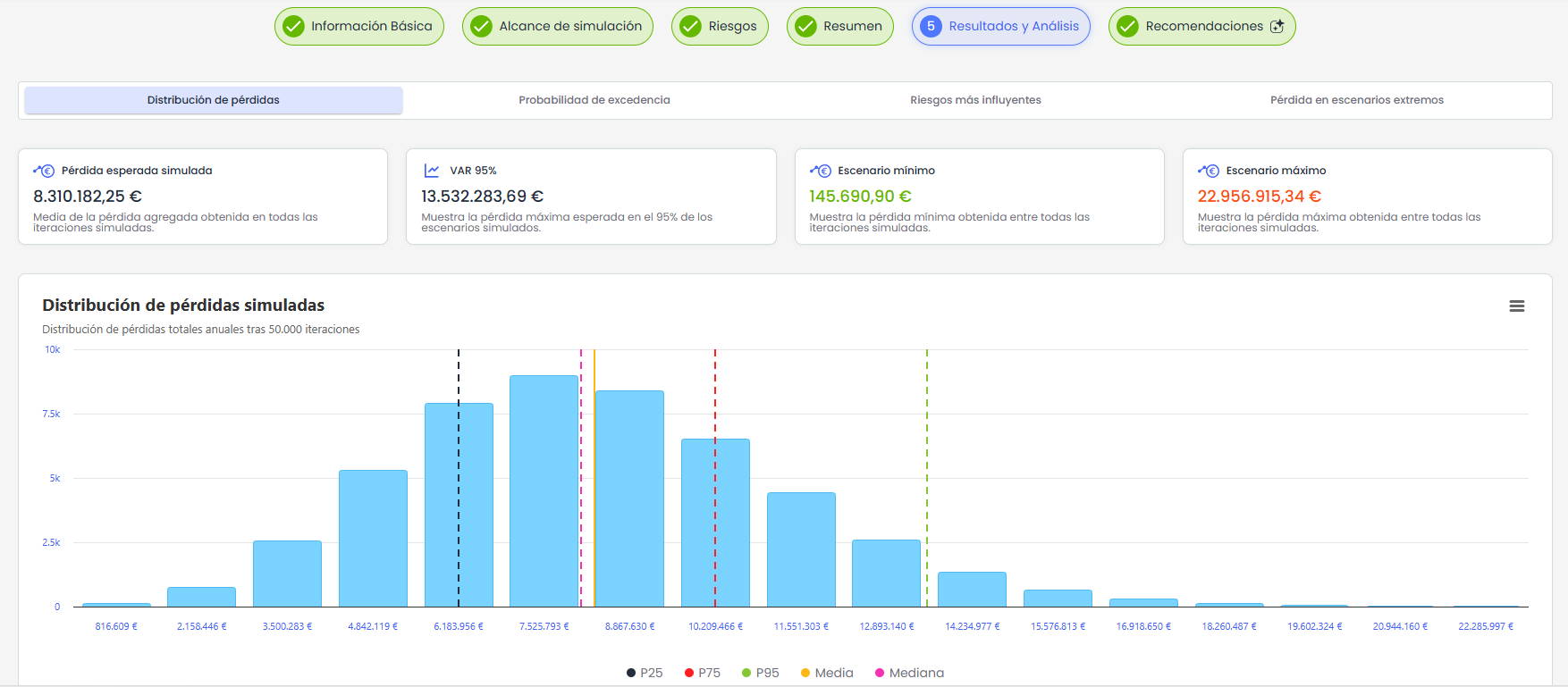
The available views are:
-
Loss Distribution: displays the distribution of simulated losses and metrics such as expected loss, VaR 95%, minimum scenario, and maximum scenario.
-
Exceedance Probability: allows analyzing the probability of exceeding a certain loss threshold. By default, the system uses VaR 95% as the threshold, although this value can be edited.
-
Most influential risks: allows identifying the risks that contribute the most to the total expected loss.
-
Loss in extreme scenarios: allows analyzing the most severe scenarios and the dominant risks in those scenarios.
This tab is for consultation and allows interpreting the economic exposure of the scenario from different perspectives.
Recommendations
The Recommendations tab is enabled once the simulation is executed and allows consulting mitigation proposals and analyzing their impact.
This tab is divided into three sections:
-
Recommended controls: displays controls proposed by AI for the simulated risks, taking as reference the controls already existing in the selected risk analyses. From this section, controls can be selected, the Mark all option can be used, and Add controls can be clicked to incorporate them into the risk analysis as controls of the Risk treatment type.
-
What-if Simulator: allows analyzing the expected impact of implementing the proposed controls. The user can indicate available budget, estimated investment per control, and adjust frequency and impact reductions to simulate different scenarios.
-
Comparison: shows the difference between the current scenario and the improved scenario, considering the controls selected in the What-if simulator. From this section, the executive report can be downloaded when there are sufficient results to generate it.
The Recommendations tab allows evaluating possible mitigation measures before definitively incorporating them into the risk analysis.
Related Resources
For more information about this functionality, you can consult the tutorial How to create and analyze risk scenarios with Monte Carlo simulation in GlobalSuite®? - GlobalSuite® Documentation - Confluence